Inventory
All modules
Process a receipt or a delivery
Inventory · 4 of 14 · 7 min read
A receipt records the arrival of goods from a supplier; a delivery records their departure to a customer. From the transfer form you check quantities, enter lots and packages, validate in full or in part, and print the delivery slip. For example, receipt WH/IN/00002 created from purchase order PO/2026/00003, or delivery WH/OUT/00002 created from sales order S00004.
How processing works
A confirmed purchase order creates a receipt with the WH/IN/ numbering. A sales order creates a delivery with the WH/OUT/ numbering. On validation, stock changes and the source order updates itself automatically with the received or delivered quantities.
- If you have received or prepared all the goods, validate the transfer with the proposed quantities.
- If part of the goods is missing and will arrive or leave later, validate the completed part and create a backorder.
- If the missing part will no longer arrive or leave, validate without a backorder: the remainder is abandoned and reservations are released.
- If the transfer no longer needs to be carried out, cancel it before validation.
Important: a transfer in the Done state cannot be cancelled.
Opening a transfer
A transfer form is opened from the transfers list.
- Go to Inventory › Transfers.
- Click the transfer reference, for example
WH/IN/00002.
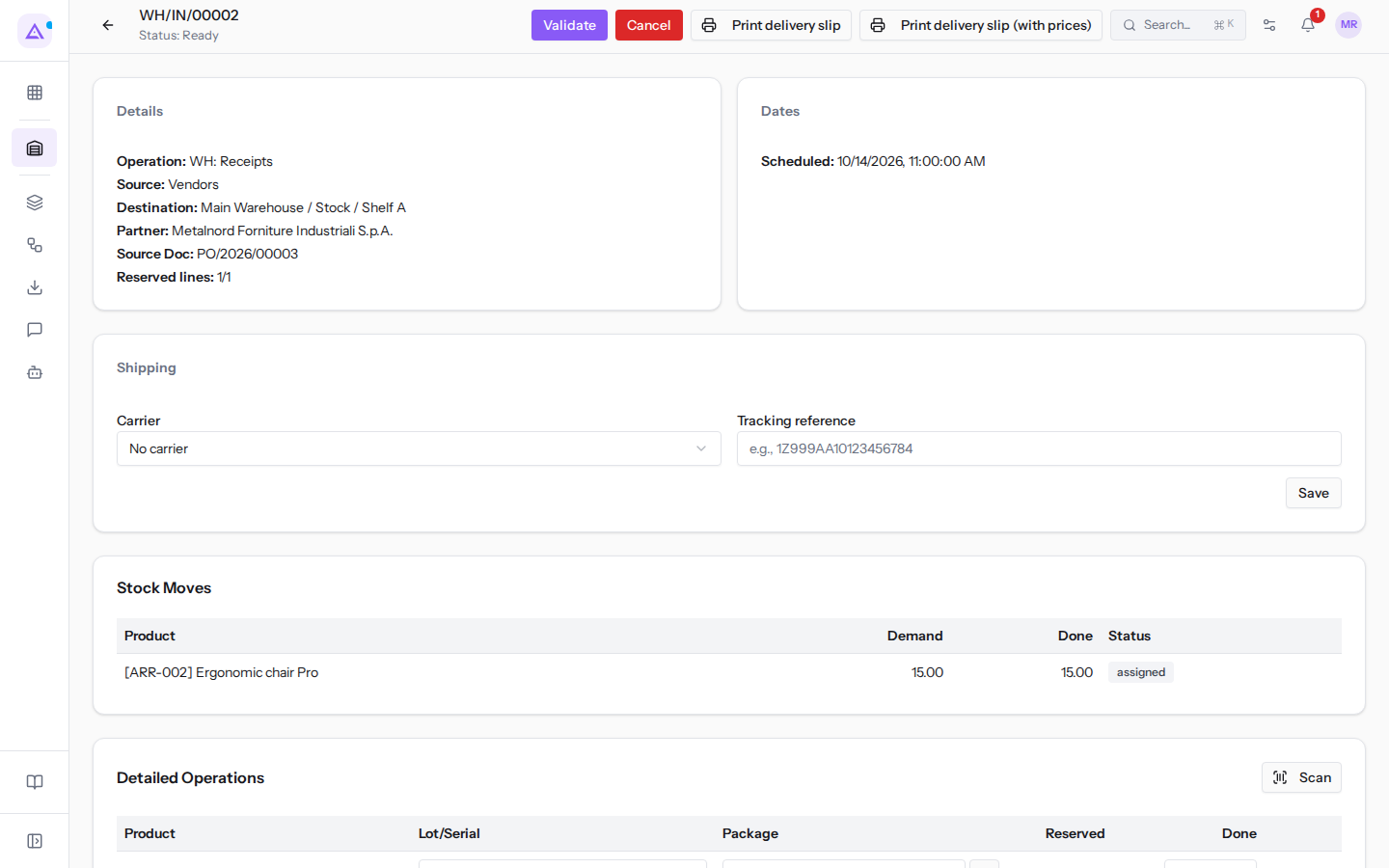
At the top of the form you will find the status, the available action buttons, and the Print delivery slip and Print delivery slip (with prices) buttons.
The Details section shows:
- Operation: the operation type, for example
WH: ReceiptsorWH: Delivery Orders. - Source: where the goods come from. For a receipt it is Vendors; for a delivery it is the picking location, for example
Main Warehouse / Stock / Shelf A. - Destination: where the goods are going. For a receipt it is the stock location, for example
Main Warehouse / Stock / Shelf A; for a delivery it is Customers. - Partner: the supplier or customer of the transfer.
- Source Doc: the document that created the transfer, for example the purchase or sales order.
- Reserved lines: how many lines have all their goods fully reserved out of the total lines, for example 1/1. Appears in the Waiting, Partial stock, and Ready states.
The Dates section shows Scheduled, the planned date of the transfer. After validation Done also appears, and on a backorder Backorder of, with a link to the transfer it originated from.
Transfer statuses
The status is shown at the top of the form and determines which buttons appear.
- Draft: the transfer is being prepared. Confirm and Cancel appear. For example
WH/INT/00002. - Waiting: the transfer is confirmed but the goods are not reserved. Check Availability, Validate, and Cancel appear. For example
WH/OUT/00003, waiting for 20 units of LED desk lamp. - Partial stock: only part of the goods is reserved. Re-attempt reservation, Validate, and Cancel appear.
- Ready: all goods are reserved. Validate and Cancel appear. For example
WH/IN/00002andWH/OUT/00002. - Done: the transfer has been validated. Only the print buttons and the Shipping section remain. For example
WH/IN/00001andWH/OUT/00001. - Cancelled: the transfer has been cancelled and does not move any goods.
The status after confirmation is not chosen: it depends on the reserved goods. If the operation type reserves on confirmation, the reservation starts automatically. Receipts from suppliers are always reservable, because goods come from outside.
Confirming a draft transfer
A transfer can only be confirmed from the Draft state and only if it has at least one line.
- Open the transfer in Draft, for example
WH/INT/00002. - Click Confirm.
The transfer moves to Ready, Partial stock, or Waiting, depending on the reserved goods.
Checking availability
A Waiting delivery has no reserved goods. When goods are back in stock, request the reservation again.
- Open the delivery, for example
WH/OUT/00003for Verdi Costruzioni S.p.A. - Click Check Availability.
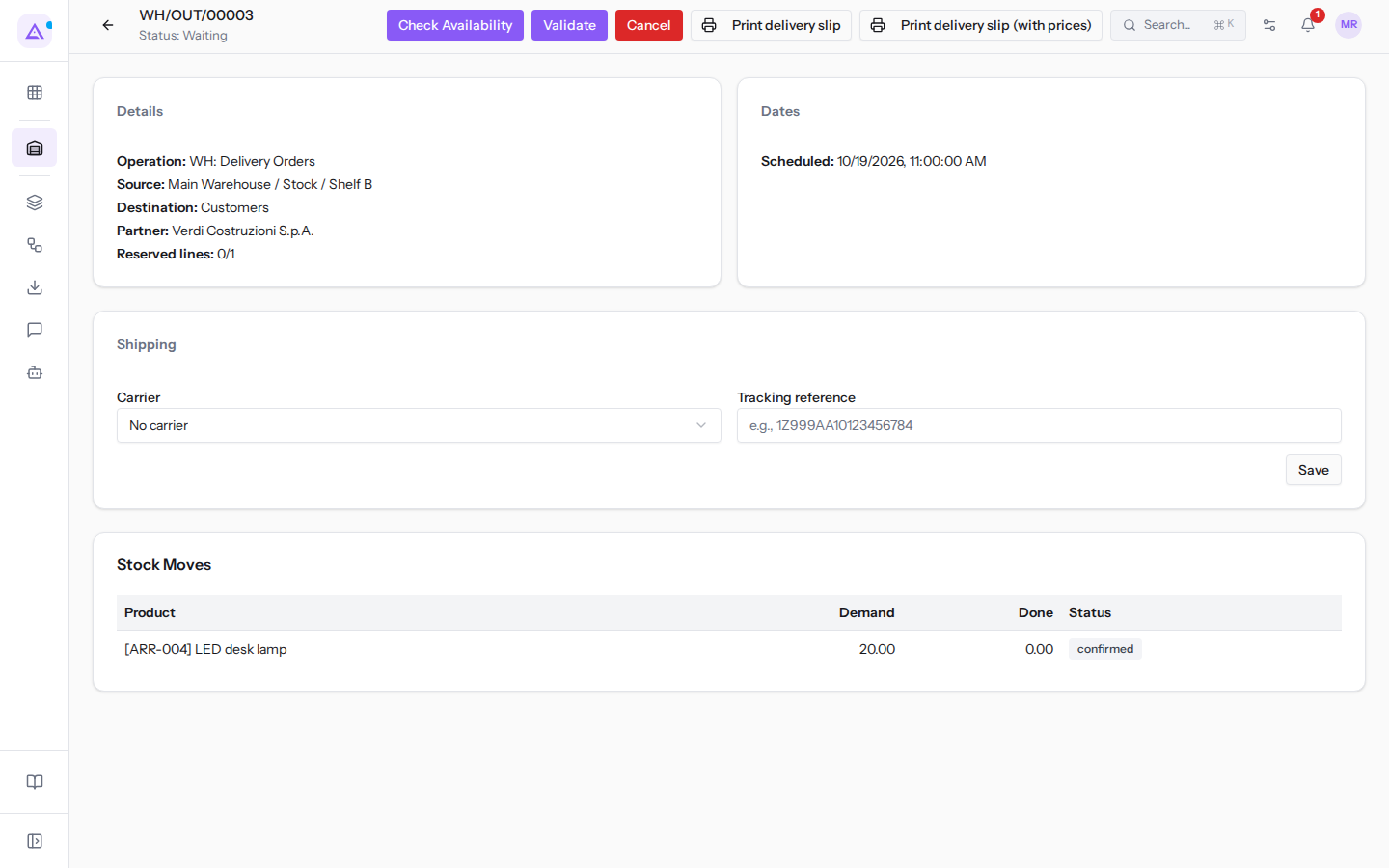
Note: a Waiting transfer can also be validated. If a line has no done quantity, the reserved quantity is counted.
Entering quantities, lots, and packages
Before validating, check the transfer lines in the Stock Moves section, which is read-only. Quantities, lots, and packages are entered in the Detailed Operations section.
- In the product row in Detailed Operations, enter the processed quantity in the Done column. For example
15for the Ergonomic chair Pro onWH/IN/00002,2for the Office desk 160x80 onWH/OUT/00002. - For a tracked product, enter the lot in the Lot/Serial column, for example
SED-2026-02. - To put goods into a package, choose the package in the Package column (empty shows No package) or click the icon next to it (Create package).
- To split the quantity across multiple lots, click the + icon at the bottom of the row (Add operation line) and fill in the new row. To remove it, use the Remove operation line button on that row.
- To read codes with a scanner, click Scan.
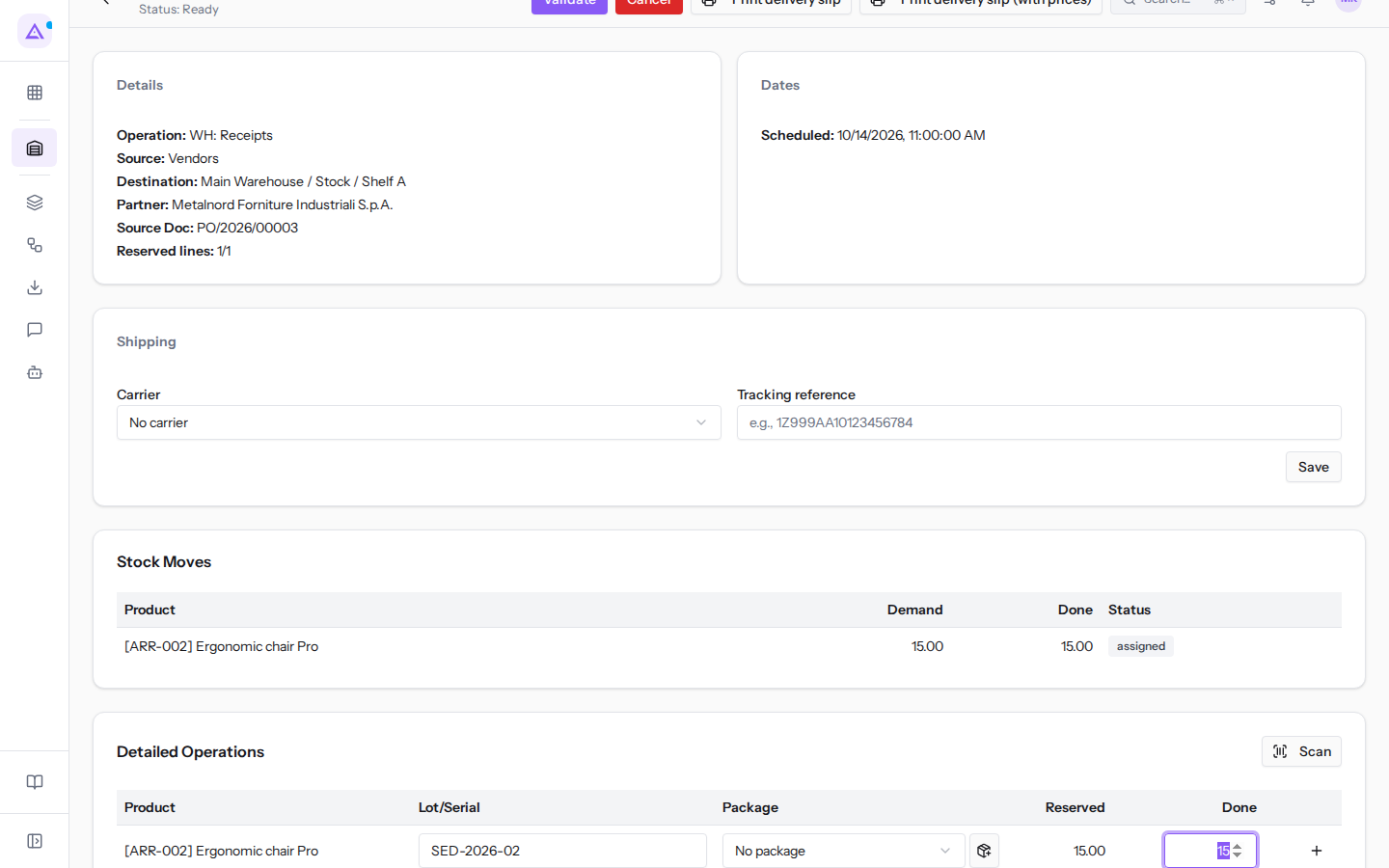
For a product tracked by serial number, Serial prefix and Next appear above the table: enter the prefix and the first number, then click Generate to fill in the serial numbers.
A receipt for a tracked product cannot be validated without a lot or serial number. For serial numbers, one number per unit is required, with no repetitions. A new lot entered on the receipt is created on validation, such as SED-2026-02.
For packages see Packing goods into packages, for lots Manage lots and serial numbers.
Validating a transfer
A Waiting, Partial stock, or Ready transfer can be validated.
- Open the transfer, for example
WH/OUT/00002. - Check the processed quantities.
- Click Validate.
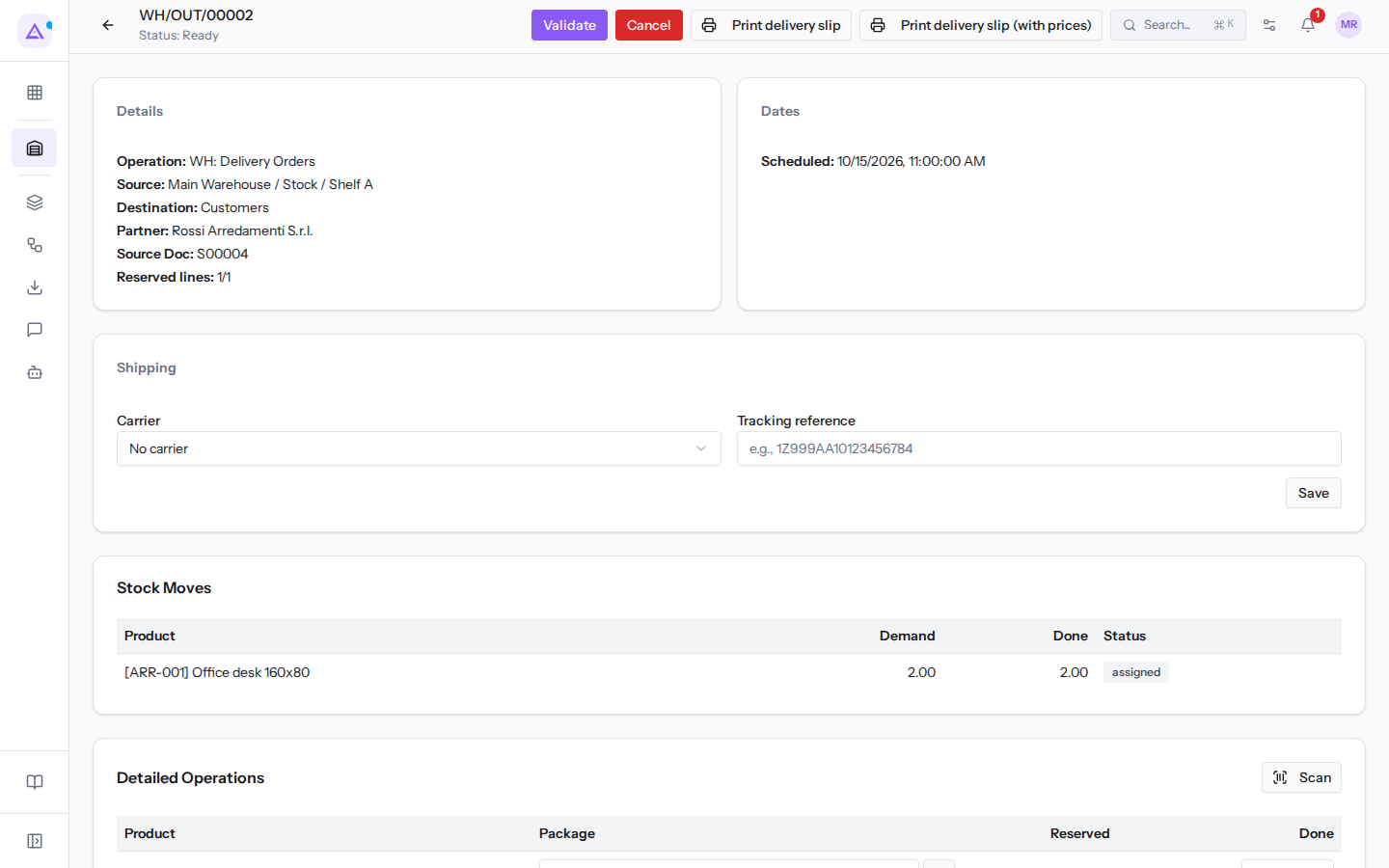
The transfer moves to Done and the message Transfer validated appears.
On validation the following occurs:
- Stock changes only in internal locations. Suppliers and customers are virtual locations.
- For a receipt, goods go to the destination location or the sub-location indicated by the putaway rule.
- A stock valuation entry is created.
- The source purchase or sales order updates itself automatically.
Validating partially and creating a backorder
If the processed quantity is less than the demand, the Create a backorder? dialog opens on validation.
- In the product row, enter the actual quantity. For example 10 Ergonomic chair Pro out of 15 on
WH/IN/00002. - Click Validate.
- In the dialog, choose how to proceed.
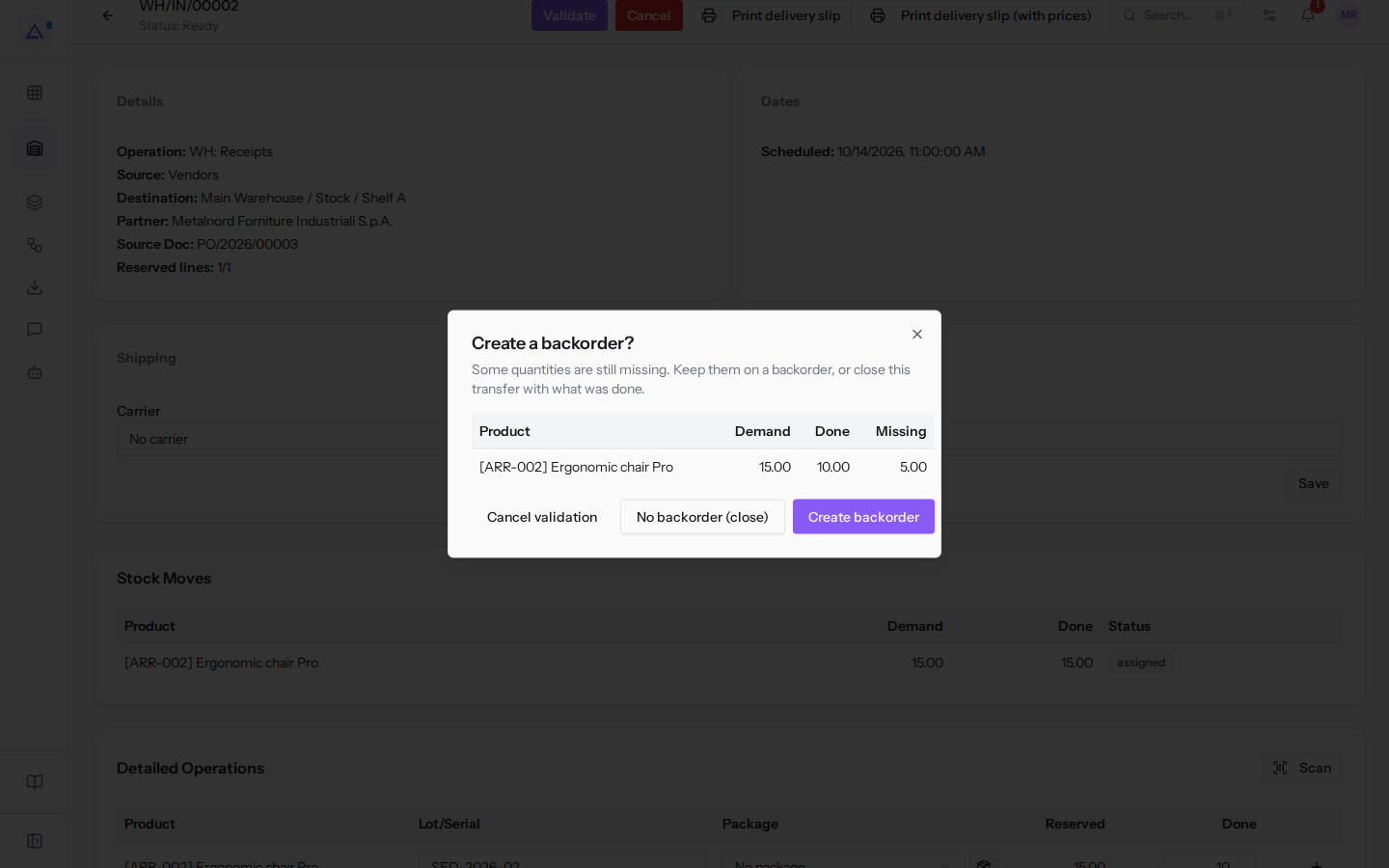
The dialog shows, for each incomplete product, the columns Product, Demand, Done, and Missing.
The dialog buttons:
- Create backorder: validates the done quantity and carries the missing quantity to a new Waiting transfer linked to the same order line. The current transfer moves to Done.
- No backorder (close): validates the done quantity and closes the transfer. The missing quantity is abandoned and reservations are released.
- Cancel validation: closes the dialog without validating. The transfer remains as it was.
If you are expecting the rest of the goods from the supplier, choose Create backorder. If the supplier will not deliver the rest, choose No backorder (close).
Cancelling a transfer
A transfer can only be cancelled before validation.
- Open the transfer in Draft, Waiting, Partial stock, or Ready.
- Click Cancel.
The transfer moves to Cancelled. Its reservations are released and subsequent transfers in the chain are cancelled, for example picking and then shipping.
Enter carrier and tracking
On each transfer's card you can record the carrier and shipment tracking number, even after validation.
The Shipping section only appears if the Delivery module is active.
- Open the transfer, for example
WH/OUT/00002. - Choose the carrier in the Carrier field (empty shows No carrier).
- Enter the Tracking reference, for example
1Z999AA10123456784. - Click Save.
Print the delivery slip
The delivery slip can be printed from the card in any transfer status.
- Open the transfer.
- Click Print delivery slip for the document without prices, or Print delivery slip (with prices) for the document with prices.
See it on your company, not on a slide deck.
In 30 minutes we map the software you use today.We show you how much work and how much margin Archimedes gives back.
Show me on my business →What industry are you in?
One tap — it lets us prepare the demo around your world.
What tools do you use today?
Pick the ones you recognise — or just type them. It helps us show you how they migrate.
Last step: your details.
We reply within one working day — and right after, if you like, you pick the demo slot yourself.
We couldn't send your request. Try again, or write to us at [email protected].
By sending, you agree to your data being processed so we can get back to you about the demo. Privacy notice.
Preview form — nothing is sent from this page.
Want to schedule the demo now?
Your call: book the slot you prefer yourself, or we'll call you to arrange it.
Live availability, 30 minutes, instant confirmation. The calendar opens in a new tab.
Lock in your slot ↗We'll get back to you within one working day — and we'll join the call already knowing your world.
The calendar is open in another tab: pick a slot and the demo is booked. Can't see it? Reopen it ↗
Preview page: nothing was sent.
Our calendar is live: take the slot that suits you and the demo is booked. 30 minutes, instant confirmation, no waiting.
Lock in your slot ↗