Inventory
All modules
Set up reorder rules and minimum stock alerts
Inventory · 9 of 14 · 7 min read
A reorder rule sets the minimum and maximum quantity of a product in a location. From these rules you can create draft purchase orders for products below the minimum and receive an alert when a product drops below the minimum stock. For example, you can always keep enough lamps, chairs, or consumables on the shelf.
How reorder rules work
Each rule has a minimum and a maximum for a product in a location. In the example, the LED desk lamp has a minimum of 15 and a maximum of 40, the Ergonomic chair Pro a minimum of 5 and a maximum of 20, both from Metalnord Forniture Industriali S.p.A.
- The available quantity is the stock across the entire location of the rule, including sub-locations, minus reserved quantities. Goods from open purchase orders do not count towards the minimum, but are deducted from the quantity to order.
- During replenishment, every rule where availability exceeds the minimum is skipped. It is also skipped if the product's preferred supplier is missing or if the Purchases module is not active.
- The ordered quantity brings availability up to the maximum, counting goods already incoming. It is rounded to the rule's multiple and to the supplier's minimum order, then converted to the purchase unit.
- A draft purchase order is created for each supplier and destination.
- The maximum cannot be lower than the minimum.
Choose what to apply the rule to:
- If the product has no variants, or you want a different threshold for each variant, choose One variant.
- If you want the same threshold for all variants of a product, choose All variants of a product. The rule applies to all active variants, including those created afterwards.
- If a variant has its own rule and the template has a rule for all variants, the variant's rule takes precedence.
with the Inventory User permission you can create and edit reorder rules, but not delete them.
View reorder rules
The list shows each rule with the current availability and incoming goods.
- Open Inventory › Settings › Reorder Rules.
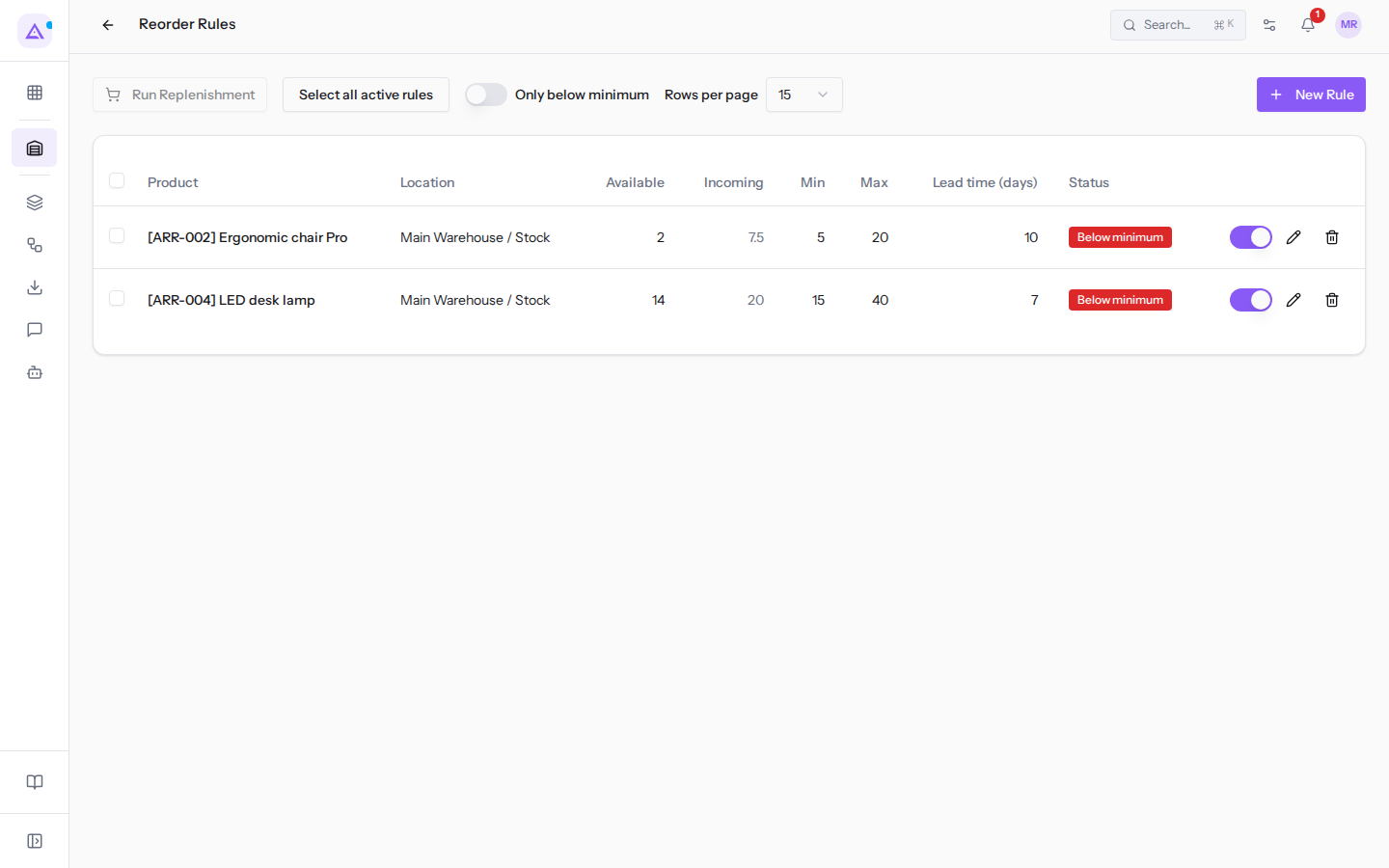
The list columns are:
- Product: the product or template to which the rule applies.
- Location: the location controlled by the rule, e.g.
Main Warehouse / Stock. - Available: the quantity available in the location.
- Incoming: the quantity from open purchase orders.
- Min and Max: the minimum and maximum stock.
- Lead time (days): the days specified on the rule.
- Status: the status of the rule.
- OK: availability is above the minimum.
- Below minimum: availability is at or below the minimum.
- On the way: availability is at or below the minimum, but incoming goods are enough to reach the maximum.
- Inactive: the rule is turned off.
Each row also has a toggle to activate or deactivate the rule and two icon buttons: the pencil (Edit) and the bin (Delete).
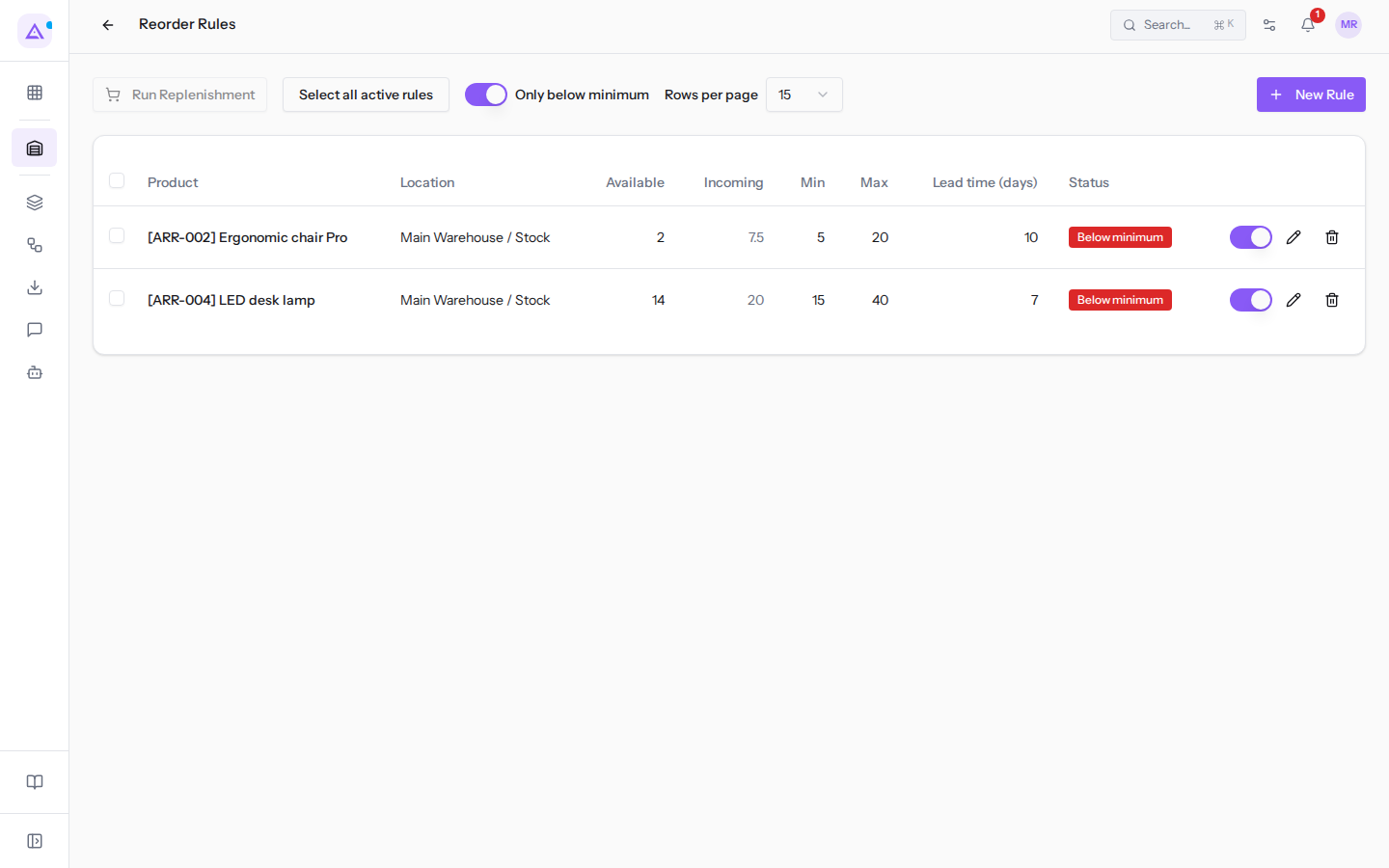
To see only products that need reordering, enable Only below minimum. In the example, both rules remain: the Ergonomic chair Pro, with 2 units against a minimum of 5, and the LED desk lamp, with 14 units against a minimum of 15.
With Rows per page choose how many rules to show on each page.
Create a reorder rule
Create a rule for each product you want to keep above a minimum stock.
- Open Inventory › Settings › Reorder Rules.
- Click New Rule. The New Rule dialog opens.
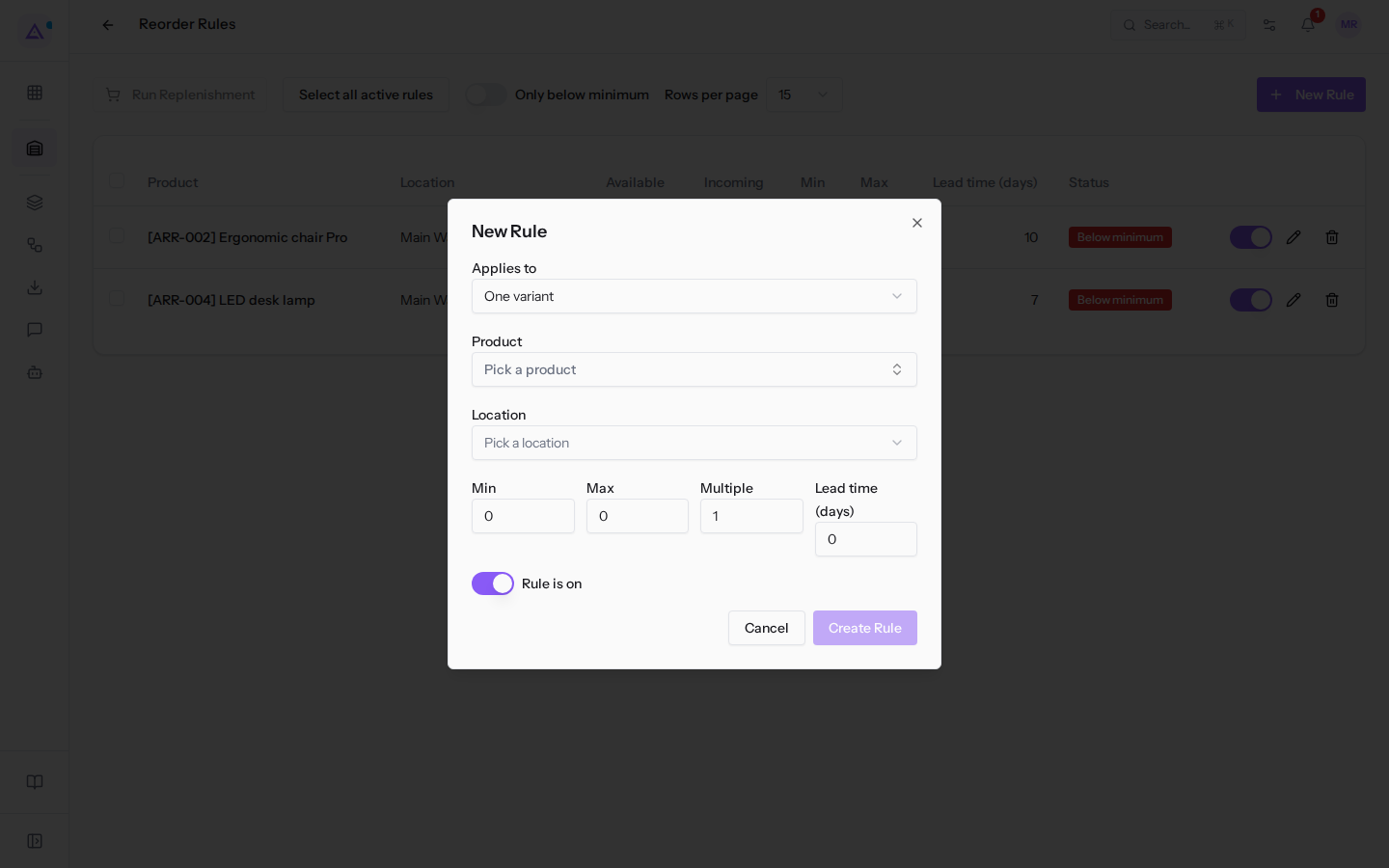
- Fill in the fields and click Create Rule. Click Cancel to close the dialog without saving.
The dialog fields are:
- Applies to: One variant or All variants of a product, as explained above. The default value is One variant.
- Product: the variant to monitor, e.g.
[ARR-002] Ergonomic chair Pro. Shown with One variant. - Product template: the product whose all variants are to be considered. Shown instead of Product with All variants of a product.
- Location: the location in which to monitor stock, e.g.
Main Warehouse / Stock. Availability includes sub-locations such as Shelf A and Shelf B. - Min: the minimum stock. Below this quantity the product needs reordering. The default value is 0.
- Max: the quantity the reorder aims to reach. It cannot be lower than Min. The default value is 0.
- Multiple: the ordered quantity is rounded to a multiple of this value. The default value is 1.
- Lead time (days): the delivery days for the product, e.g.
10for the Ergonomic chair Pro. The default value is 0. - Rule is on: activates or deactivates the rule. It is on by default.
Edit or delete a rule
You can change the thresholds of an existing rule or remove it from the list.
- Open Inventory › Settings › Reorder Rules.
- In the rule row, click the pencil (Edit). The Edit Reorder Rule dialog opens, with the same fields as the New Rule dialog.
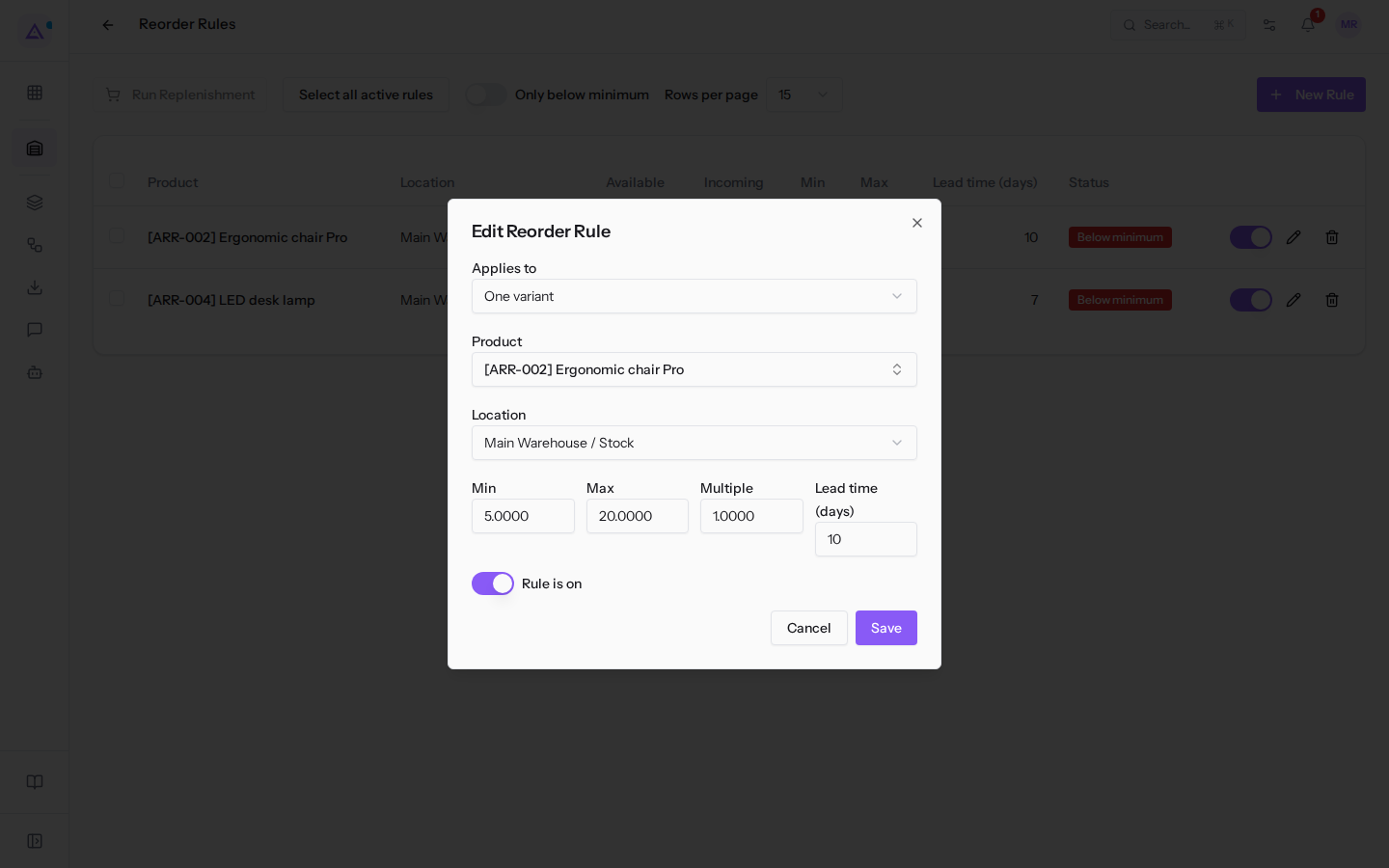
- Change the values, e.g. Min
5and Max20for the Ergonomic chair Pro, and click Save.
To activate or deactivate a rule without opening it, use the toggle in its row.
To delete a rule, click the bin (Delete) in its row. Before deleting it, the confirmation Delete this reorder rule? appears.
Note: with the Inventory User permission you cannot delete a rule. The Inventory Manager permission is required.
Run replenishment
Replenishment creates draft purchase orders for products below the minimum of the selected rules. The Purchases module must be active and the product must have a preferred supplier.
- Open Inventory › Settings › Reorder Rules.
- Select the rules to replenish using the checkbox in each row. To select all rules on the page, use the checkbox at the top of the list. To select all active rules, click Select all active rules.
- Click Run Replenishment.
In the example, the Ergonomic chair Pro and the LED desk lamp are both below the minimum and share the same supplier: replenishment creates a draft order to Metalnord Forniture Industriali S.p.A. for both. You then review and confirm the draft orders in Purchases.
If none of the selected rules is below the minimum, no order is created and the message Nothing to replenish for the selected rules appears. To replenish only products that need reordering, first enable Only below minimum and select all rules on the page.
Enable minimum stock alerts
Alerts notify you when a product drops below the minimum of its reorder rule. For each drop below the minimum, only one alert is sent. A product already incoming via a purchase order is reported as covered.
only the warehouse manager, with the Inventory Manager permission, sees the Alerts menu item. Alerts are off until a manager enables them.
- Open Inventory › Settings › Alerts. The Inventory settings page opens.
- In the Alerts section, enable Tell me when a product falls below its minimum.
- In Who gets the alerts select the users who should receive the alert, e.g.
Mario RossiandGiulia Verdi. If no one is selected, alerts go to warehouse managers and administrators. - In When choose when to receive the alert:
- At once, one notice per product: an alert is sent for each product as soon as it drops below the minimum. Useful if an out-of-stock product blocks deliveries.
- One daily summary in the morning: a single summary is sent once a day, in the morning. Useful if you reorder once a day.
- If needed, enable Also by email or Also on Telegram / WhatsApp (Ari) to also receive the alert by email or on Telegram or WhatsApp via Ari.
- Click Save.
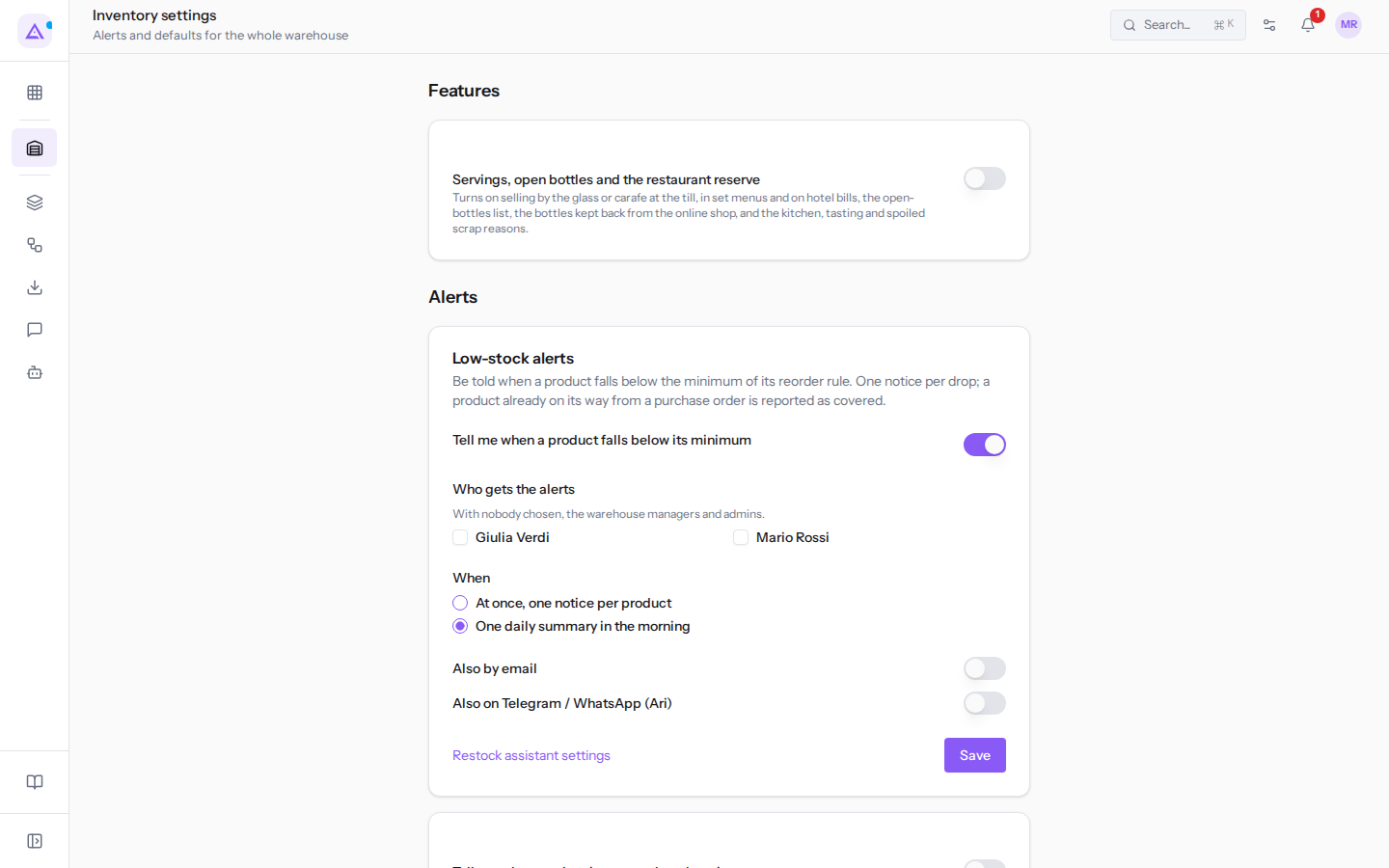
Note: the Restock assistant uses the same settings as minimum stock alerts. Its settings open with Restock assistant settings.
On the same page, Tell me when a sale takes more than there is enables a different alert, for sales that take more goods than are available.
See it on your company, not on a slide deck.
In 30 minutes we map the software you use today.We show you how much work and how much margin Archimedes gives back.
Show me on my business →What industry are you in?
One tap — it lets us prepare the demo around your world.
What tools do you use today?
Pick the ones you recognise — or just type them. It helps us show you how they migrate.
Last step: your details.
We reply within one working day — and right after, if you like, you pick the demo slot yourself.
We couldn't send your request. Try again, or write to us at [email protected].
By sending, you agree to your data being processed so we can get back to you about the demo. Privacy notice.
Preview form — nothing is sent from this page.
Want to schedule the demo now?
Your call: book the slot you prefer yourself, or we'll call you to arrange it.
Live availability, 30 minutes, instant confirmation. The calendar opens in a new tab.
Lock in your slot ↗We'll get back to you within one working day — and we'll join the call already knowing your world.
The calendar is open in another tab: pick a slot and the demo is booked. Can't see it? Reopen it ↗
Preview page: nothing was sent.
Our calendar is live: take the slot that suits you and the demo is booked. 30 minutes, instant confirmation, no waiting.
Lock in your slot ↗