Inventory
All modules
Conducting a physical inventory with counts
Inventory · 6 of 14 · 7 min read
An inventory count records quantities counted by hand in the warehouse and adjusts stock with the differences found. Examples include an end-of-quarter shelf count, a check on a single product, or a review of all internal locations.
How a count works
A count moves through four states: Draft, In Progress, Done, and Cancelled.
- In Draft you set the scope: the location and, optionally, the products to count. Stock does not change.
- With Start the count moves to In Progress. Lines are generated from the stock at that moment: one line per product, location, and lot. The starting quantity is in the Expected column.
- You enter the counted quantities. The Delta of each line is the counted quantity minus the expected quantity.
- With Validate the count moves to Done. Each delta becomes a stock adjustment.
- With Cancel the count moves to Cancelled and stock does not change.
The scope selection determines how many lines you get:
- If you count a single shelf, choose its location in Location Scope, for example
Main Warehouse / Stock / Shelf B. - If you count the entire warehouse, leave All internal locations.
- If you are checking only certain products, select them in Product Filter.
Important: on validation, only lines you have counted are adjusted. Lines still Pending have no effect on stock.
The counts list
The list shows all counts for the organization.
- Go to Inventory › Inventory Counts.
- Search for a count with Search counts... or open it by clicking the row.
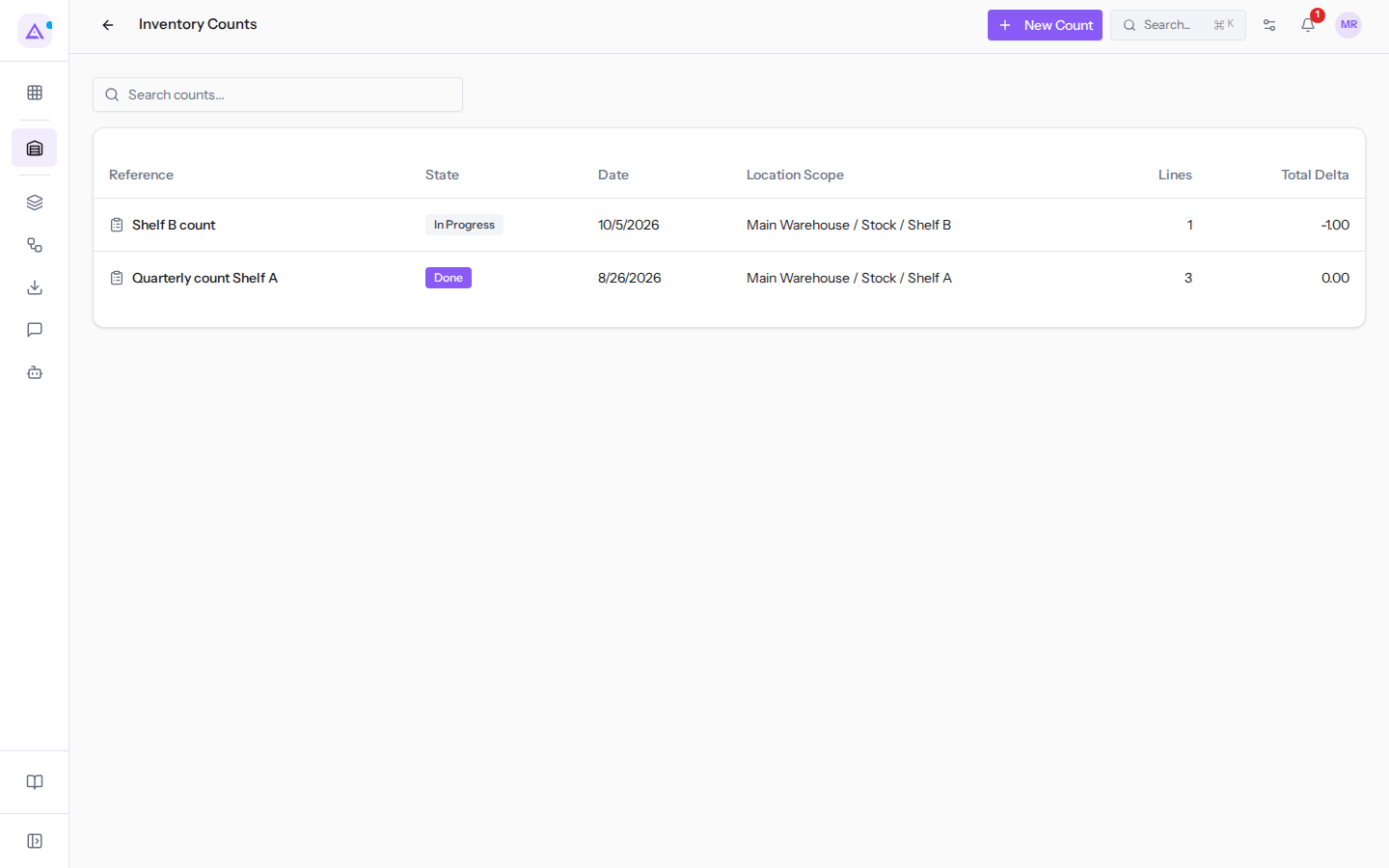
List columns:
- Reference: the count name, for example
Shelf B count. - State: Draft, In Progress, Done, or Cancelled.
- Date: the date of the count.
- Location Scope: the location counted, for example
Main Warehouse / Stock / Shelf B. - Lines: the number of lines in the count.
- Total Delta: the sum of the differences, for example
-1.00for one fewer lamp than expected.
Creating a count
You create the count in Draft and set its scope.
- Go to Inventory › Inventory Counts.
- Click New Count.
- Fill in the dialog fields.
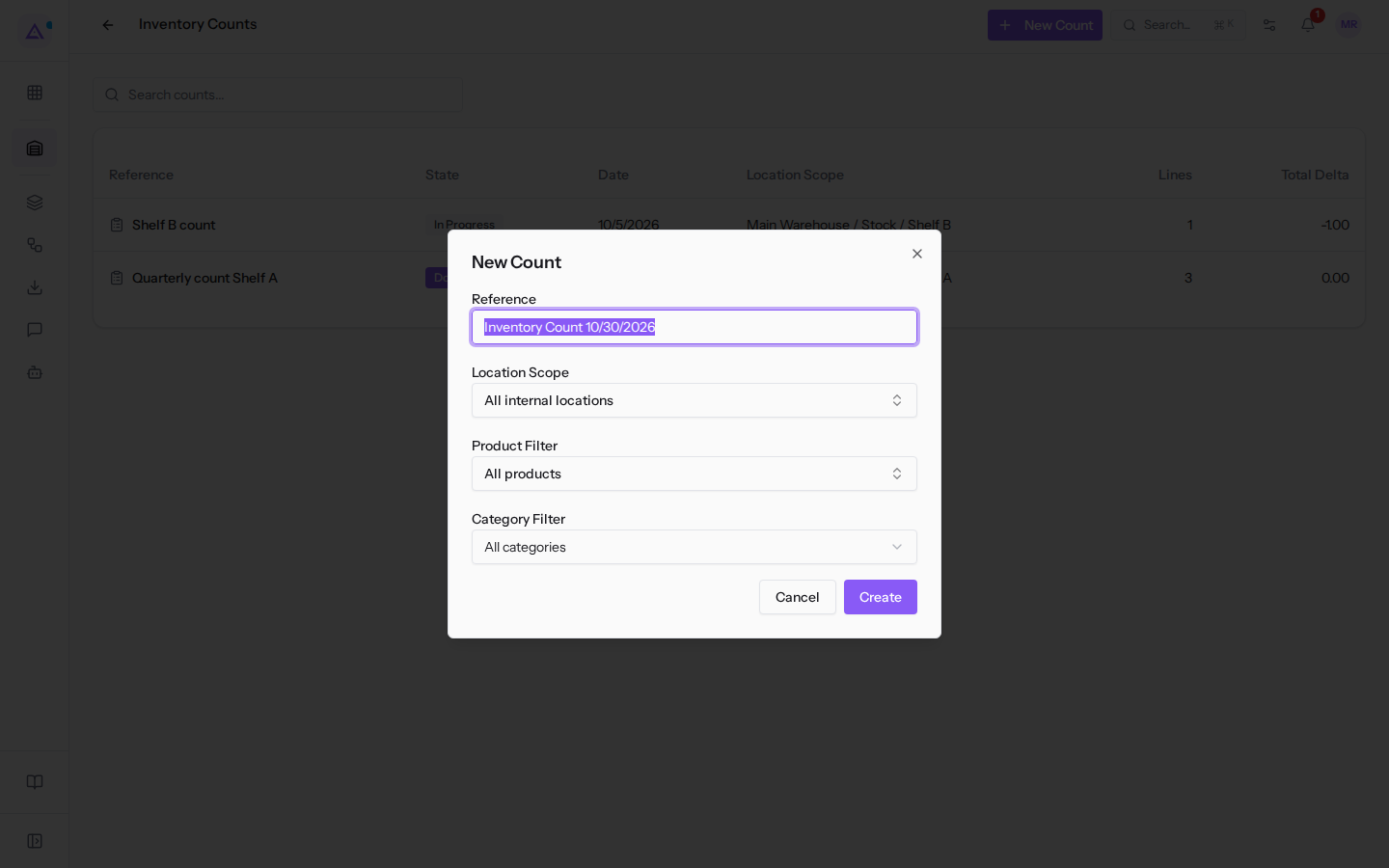
- Click Create. The message Inventory count created appears and the count record opens in Draft.
Fields in the New Count dialog:
- Reference: the count name, for example
Quarterly count Shelf A. The field is required. The suggested name is in English,Inventory Countfollowed by the date in US format: replace it with a meaningful name such asShelf B count. - Location Scope: the location to count. The initial value is All internal locations. The options are the internal warehouse locations:
Main Warehouse / Stock,Main Warehouse / Stock / Shelf A,Main Warehouse / Stock / Shelf B;Main Warehouse / Input,Main Warehouse / Output,Main Warehouse / Packing Zone,Main Warehouse / Quality Control.
- Product Filter: the products to count. The initial value is All products. You can choose a product, for example
[ARR-004] LED desk lamp. - Category Filter: the product category. The options are All categories, Office furniture, and Services. If you have chosen a product in Product Filter, the field is not editable.
In the Draft record the Count Scope section shows the same fields. You can edit them and click Save.
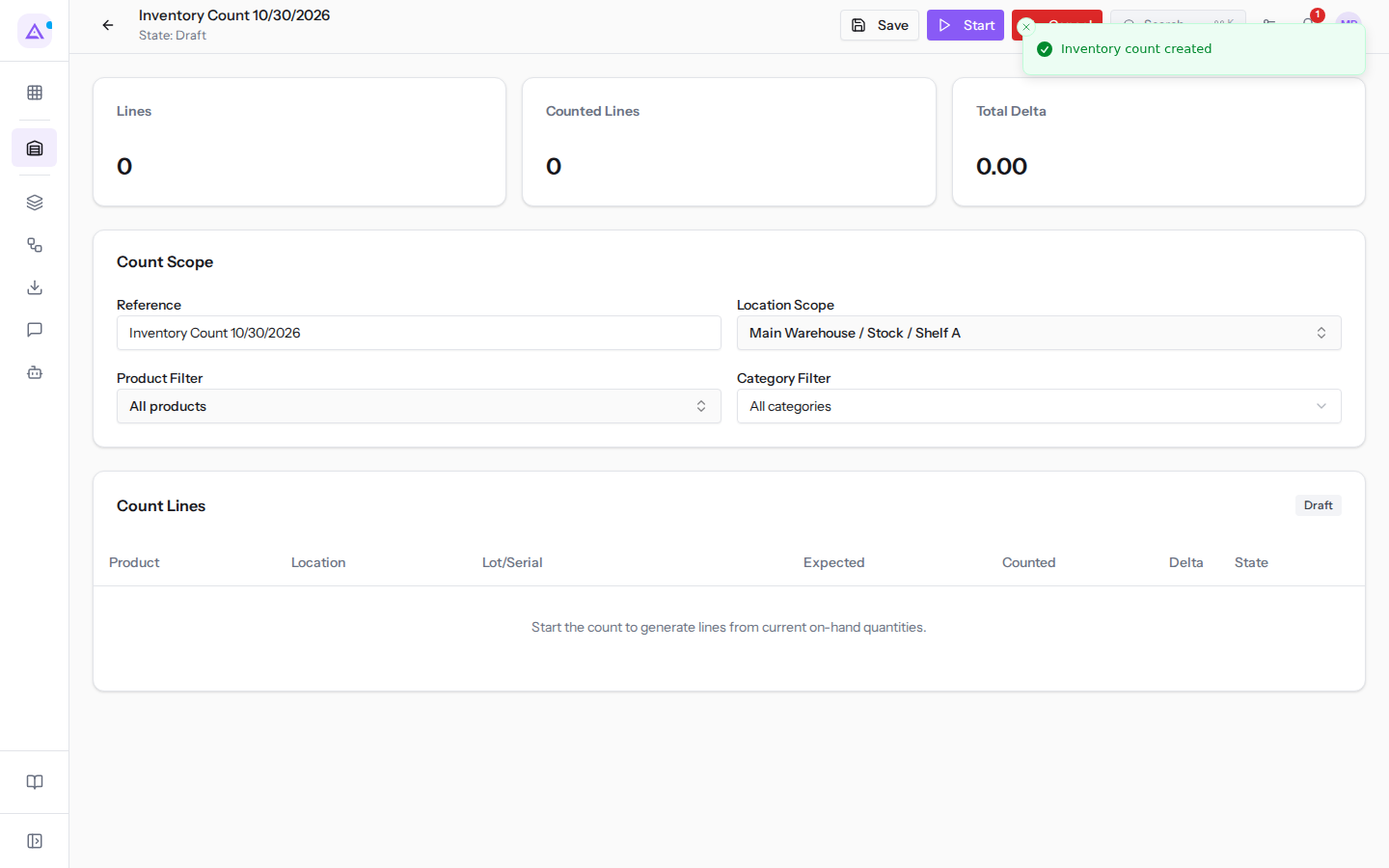
Starting the count
Start the count when you begin the physical count: the expected quantities are those in stock at that moment.
- Open the count in Draft.
- Click Start. The message Inventory count started appears and the state becomes In Progress.
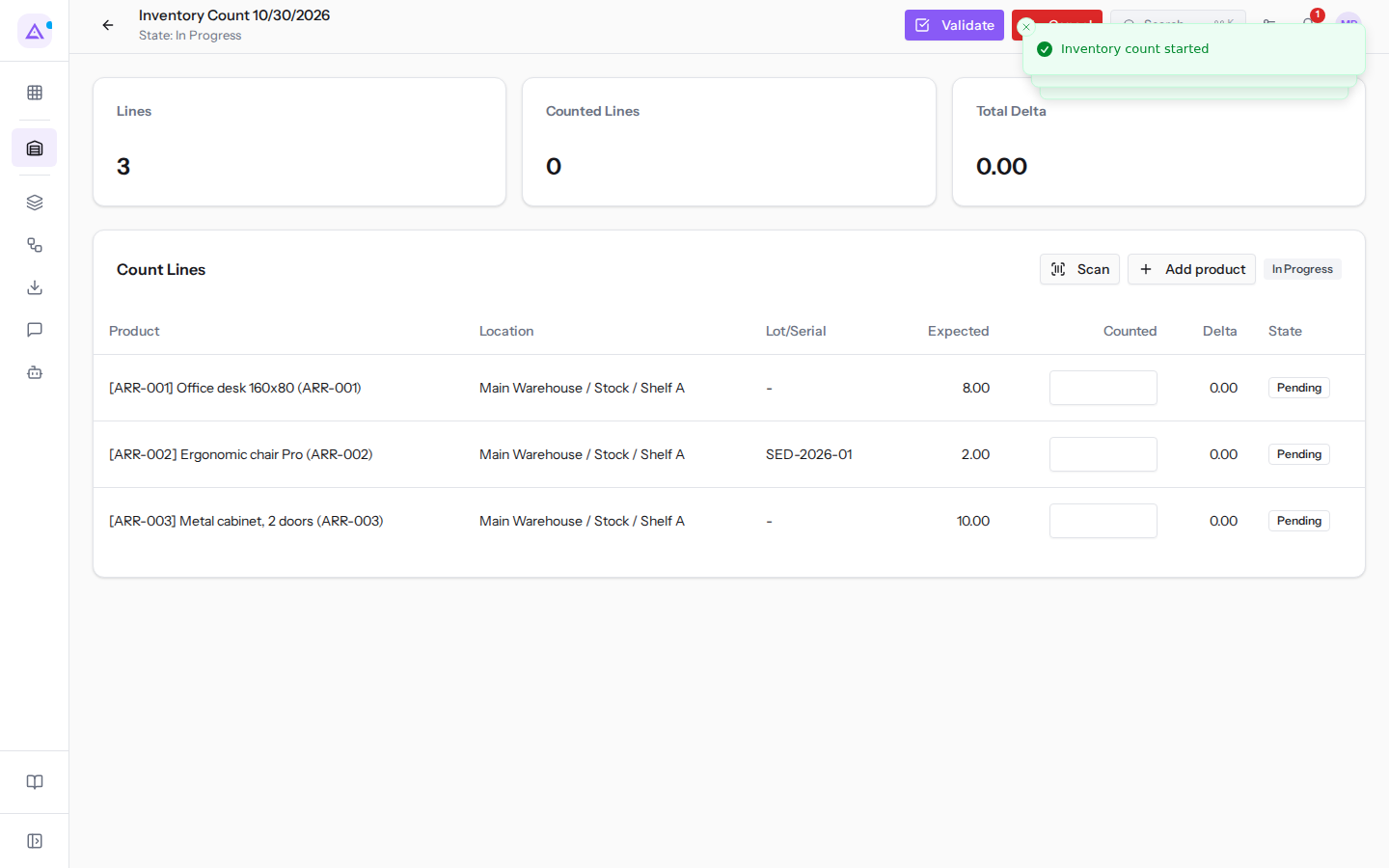
Lines are generated from the stock in the chosen scope. A lot-tracked product has one line per lot: on Shelf A the Ergonomic chair Pro appears on two lines.
At the top the record shows Lines, Counted Lines, and Total Delta.
Entering counted quantities
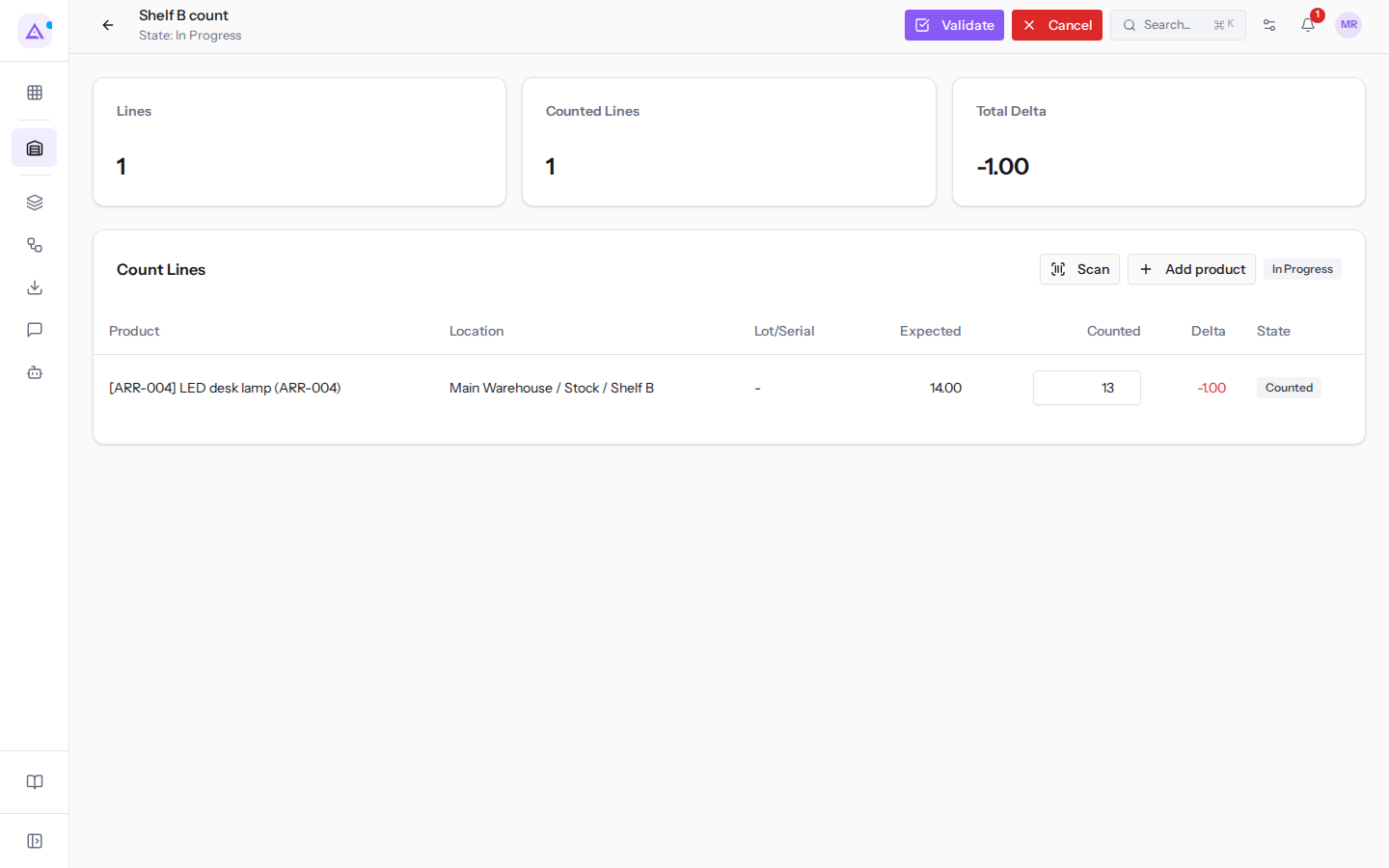
In the Count Lines section, enter the quantity you find on the shelf for each line.
- Open the count In Progress, for example
Shelf B count. - In the Counted column enter the quantity found, for example
13for theLED desk lamp.
Count Lines columns:
- Product: the product to count.
- Location: the location of the line.
- Lot/Serial: the lot or serial number, for tracked products.
- Expected: the quantity in stock when the count was started.
- Counted: the quantity you counted.
- Delta: the counted quantity minus the expected quantity, for example
-1.00. - State: the state of the line.
- Pending: the line has not yet been counted.
- Counted: you have entered the quantity.
- Validated: the difference has been recorded in stock.
Finding a product with a barcode
- In the Count Lines section click Scan. The Scan a product dialog opens.
- Point the camera at the barcode, or type the code in the Barcode field.
- Click Find. If the product has a line in the count, the cursor moves to its Counted column. If it does not, a message appears stating that the product is not part of this count: add it as described below.
Note: to use the camera the browser must have camera access enabled.
Adding a product to the count
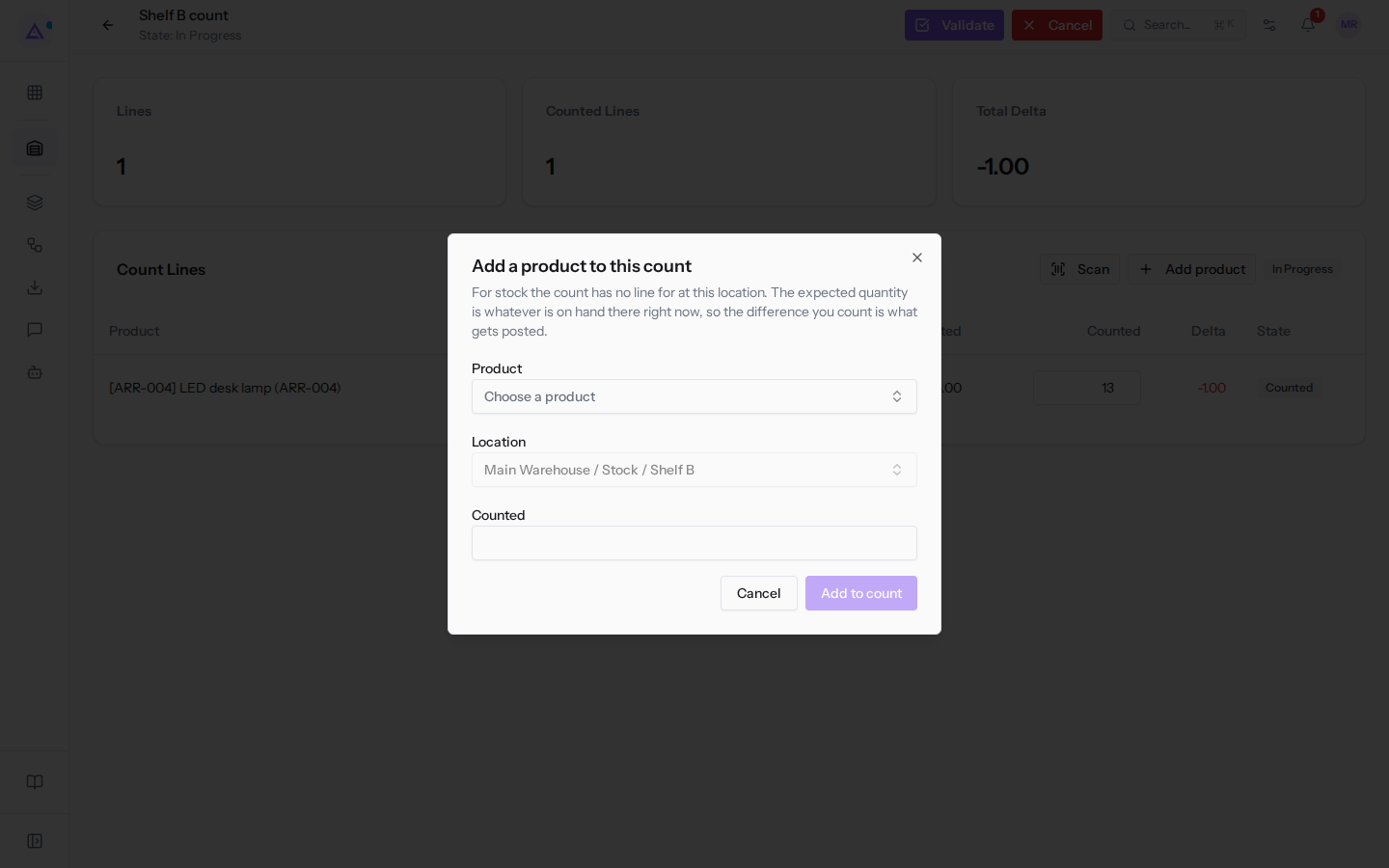
If you find goods on the shelf that the count does not have among its lines, add them. The expected quantity of the new line is the actual stock at that moment: the recorded difference is whatever you count. The button is only available on counts In Progress.
- In the Count Lines section click Add product. The Add a product to this count dialog opens.
- Fill in the fields and click Add to count.
Dialog fields:
- Product: the product found. You can only choose products with tracked stock.
- Location: the location where you found it. It is already filled in with the count's location, for example
Main Warehouse / Stock / Shelf B. - Counted: the quantity found. If you fill this in, the line is already Counted.
Rules for the new line:
- The location must be internal to the warehouse.
- If the count has a location in its scope, the line must be in that location. Goods found elsewhere are counted in the count for that location.
- A product already present in the count with the same location and the same lot cannot be added a second time.
Validate the count
Validation records the differences of the counted lines into stock.
- Open the In Progress count.
- Click Validate. The Inventory count validated message appears.
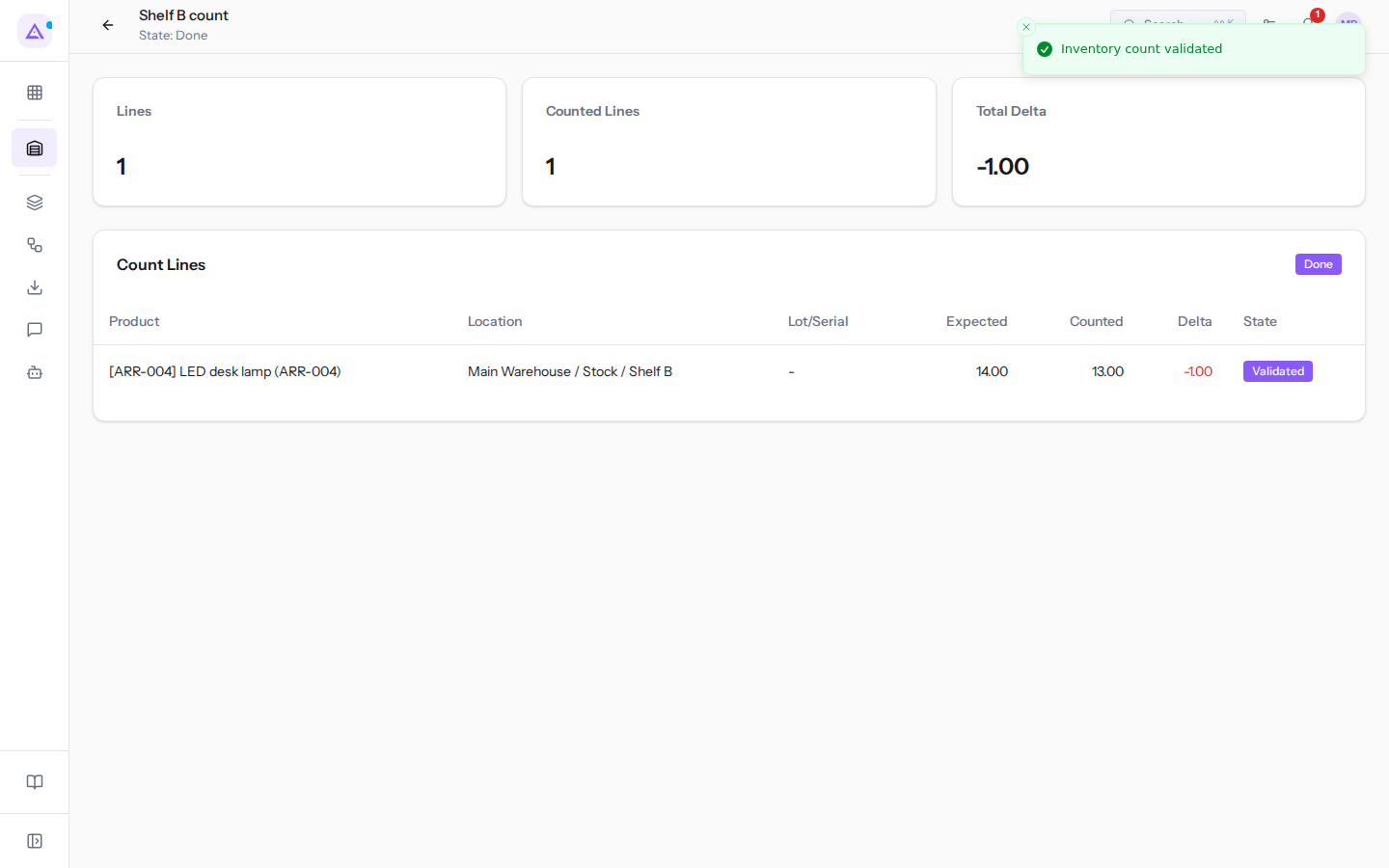
The count state becomes Done, counted lines become Validated, and their Delta is recorded as a stock adjustment. The adjustment adds to the current stock, it does not replace it. For example: 100 expected, 98 counted, then a delivery of 30 before validation. The final stock is 68, that is 70 minus the 2 missing.
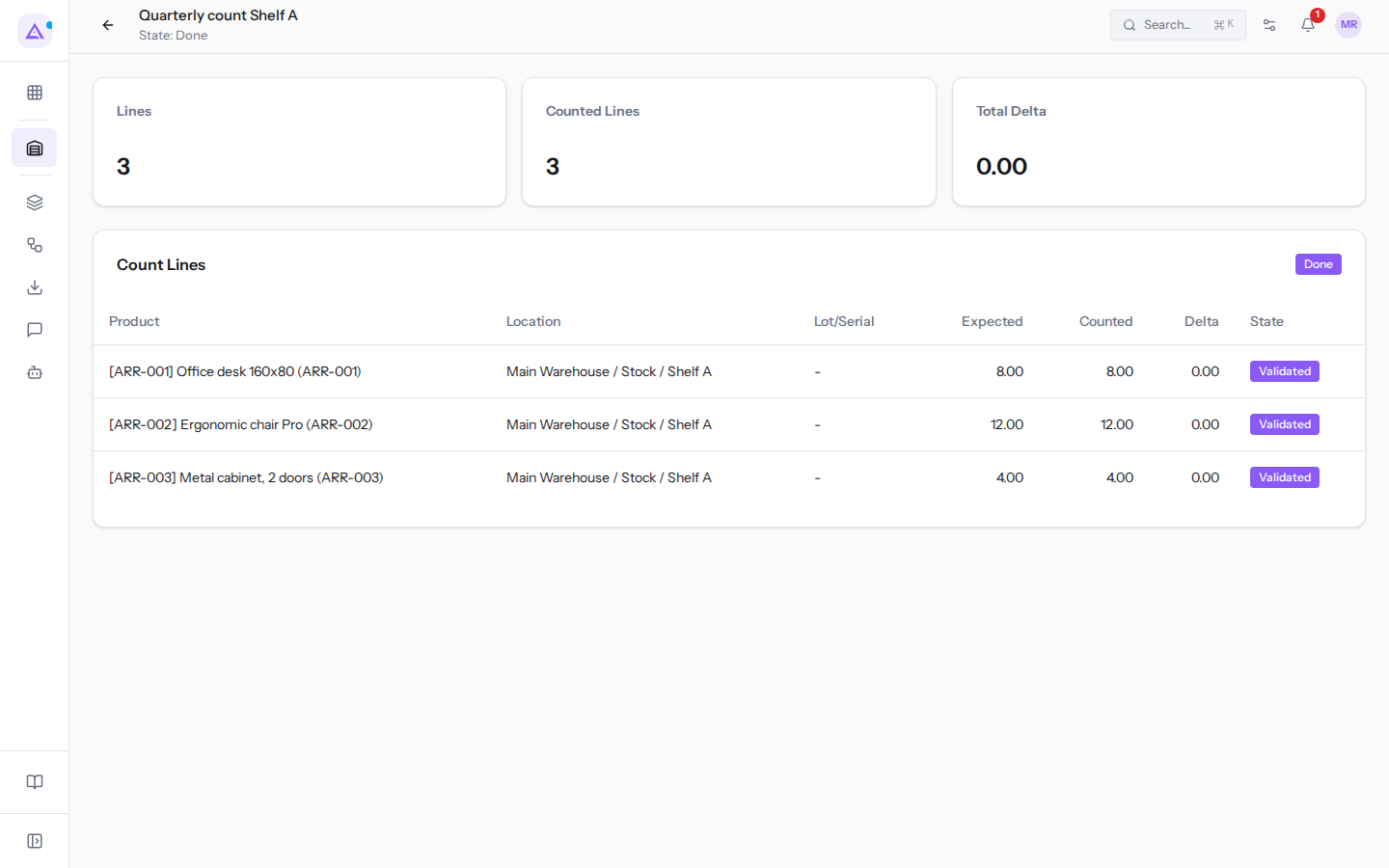
A Done count no longer shows the Validate and Cancel buttons. It remains viewable, with its lines and Total Delta. For example Quarterly count Shelf A is completed with Total Delta 0.00.
If stock moved during the count
Between the start and validation, goods can come in or go out, for example with a validated delivery. If a counted line's stock no longer matches its Expected quantity, validation stops before recording anything and the Stock moved since this count started dialog opens. For each affected line the dialog shows Expected at start, On hand now, and Will become, that is the stock that will result from applying the delta. The same warning also appears at the top of the count record.
Choose between two options:
- Go back and recount: validation stops and stock does not change. Choose this option if you do not know whether the moved goods were already included in your count.
- Apply my counted differences: the measured Delta is recorded against the current stock. Choose this option if your count reflects the stock at the start.
Cancel a count
Cancel a count you no longer want to complete.
- Open the count in Draft or In Progress.
- Click Cancel. The state becomes Cancelled and stock does not change.
See it on your company, not on a slide deck.
In 30 minutes we map the software you use today.We show you how much work and how much margin Archimedes gives back.
Show me on my business →What industry are you in?
One tap — it lets us prepare the demo around your world.
What tools do you use today?
Pick the ones you recognise — or just type them. It helps us show you how they migrate.
Last step: your details.
We reply within one working day — and right after, if you like, you pick the demo slot yourself.
We couldn't send your request. Try again, or write to us at [email protected].
By sending, you agree to your data being processed so we can get back to you about the demo. Privacy notice.
Preview form — nothing is sent from this page.
Want to schedule the demo now?
Your call: book the slot you prefer yourself, or we'll call you to arrange it.
Live availability, 30 minutes, instant confirmation. The calendar opens in a new tab.
Lock in your slot ↗We'll get back to you within one working day — and we'll join the call already knowing your world.
The calendar is open in another tab: pick a slot and the demo is booked. Can't see it? Reopen it ↗
Preview page: nothing was sent.
Our calendar is live: take the slot that suits you and the demo is booked. 30 minutes, instant confirmation, no waiting.
Lock in your slot ↗