Inventory
All modules
Packing goods into packages
Inventory · 10 of 14 · 5 min read
A package is a physical container in which you collect goods, for example a pallet or a box, with its location and contents. You can create packages from the Packages list or directly from a transfer line, and define package types with their dimensions.
How packages work
A package has a name, a type, a current location, and a shipping weight. The contents of a package are determined by the transfer lines assigned to it.
- If you want to prepare a container before packing, create it from Inventory › Packages with New Package and choose the name yourself.
- If you are working on a transfer, use the button with the package icon (Create package) in the operations line: the package is created with an automatic name and immediately assigned to the line.
- If the package already exists, for example
PACK/00001, select it in the Package column of the line. - If you frequently use the same container, for example a pallet, first create its type in Inventory › Settings › Package Types: dimensions and maximum weight remain on the type and do not need to be repeated on each package.
Viewing the packages list
The list shows all packages in the organisation with their status.
- Go to Inventory › Packages.
- To search for a package, type in the Search packages... field.
- Click a row to open the package record.
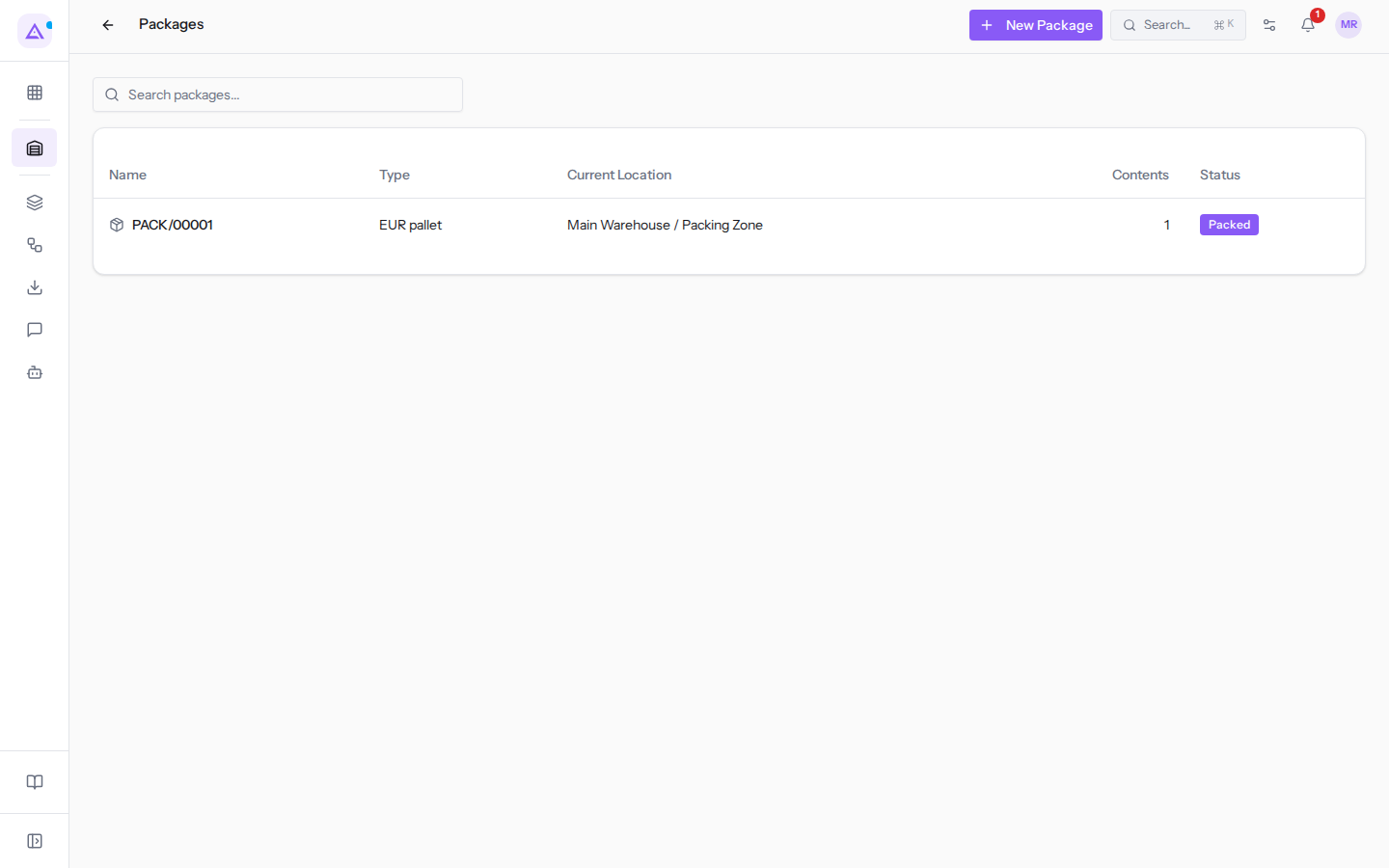
The list columns:
- Name: the package name, for example
PACK/00001. - Type: the package type, for example EUR pallet.
- Current Location: where the package is located, for example Main Warehouse / Packing Zone.
- Contents: the number of lines assigned to the package.
- Status: the package status.
- Packed: the package has contents.
- Empty: the package has no contents.
Creating a package
Create a package from the list when you want to register a container before assigning goods to it.
- Go to Inventory › Packages.
- Click New Package.
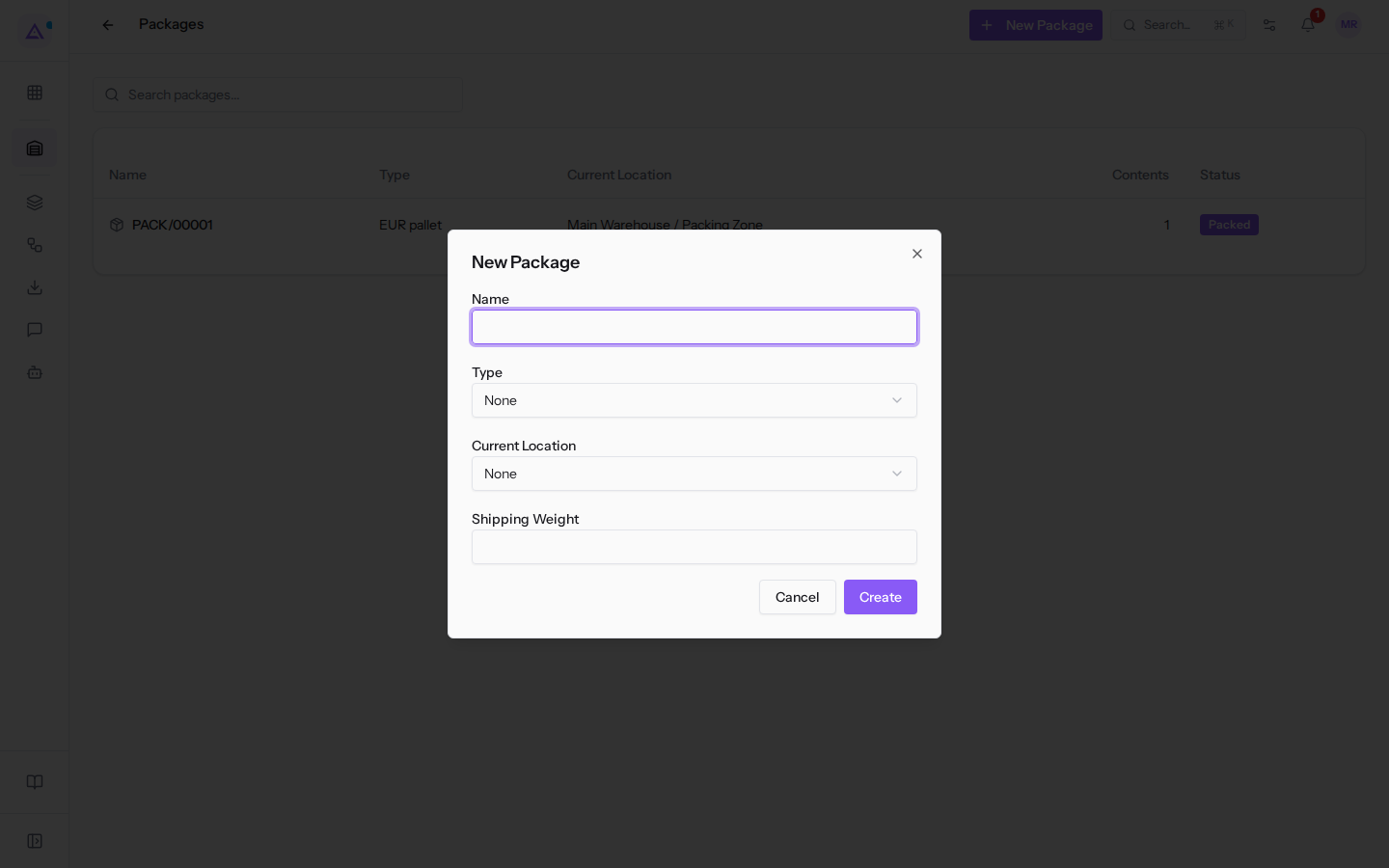
- Fill in the fields and click Create. The new package record opens.
The New Package dialog fields:
- Name: the package name. This field is required.
- Type: the package type. The options are None and the types created in Package Types, for example EUR pallet and Large box.
- Current Location: where the package is located, for example Main Warehouse / Packing Zone. You can leave it as None.
- Shipping Weight: the weight of the package ready for shipping. Accepts a non-negative number.
Click Cancel to close the dialog without creating the package.
Editing a package and viewing its contents
The package record shows its data and the transfer lines it contains.
- Go to Inventory › Packages and open the package, for example
PACK/00001.
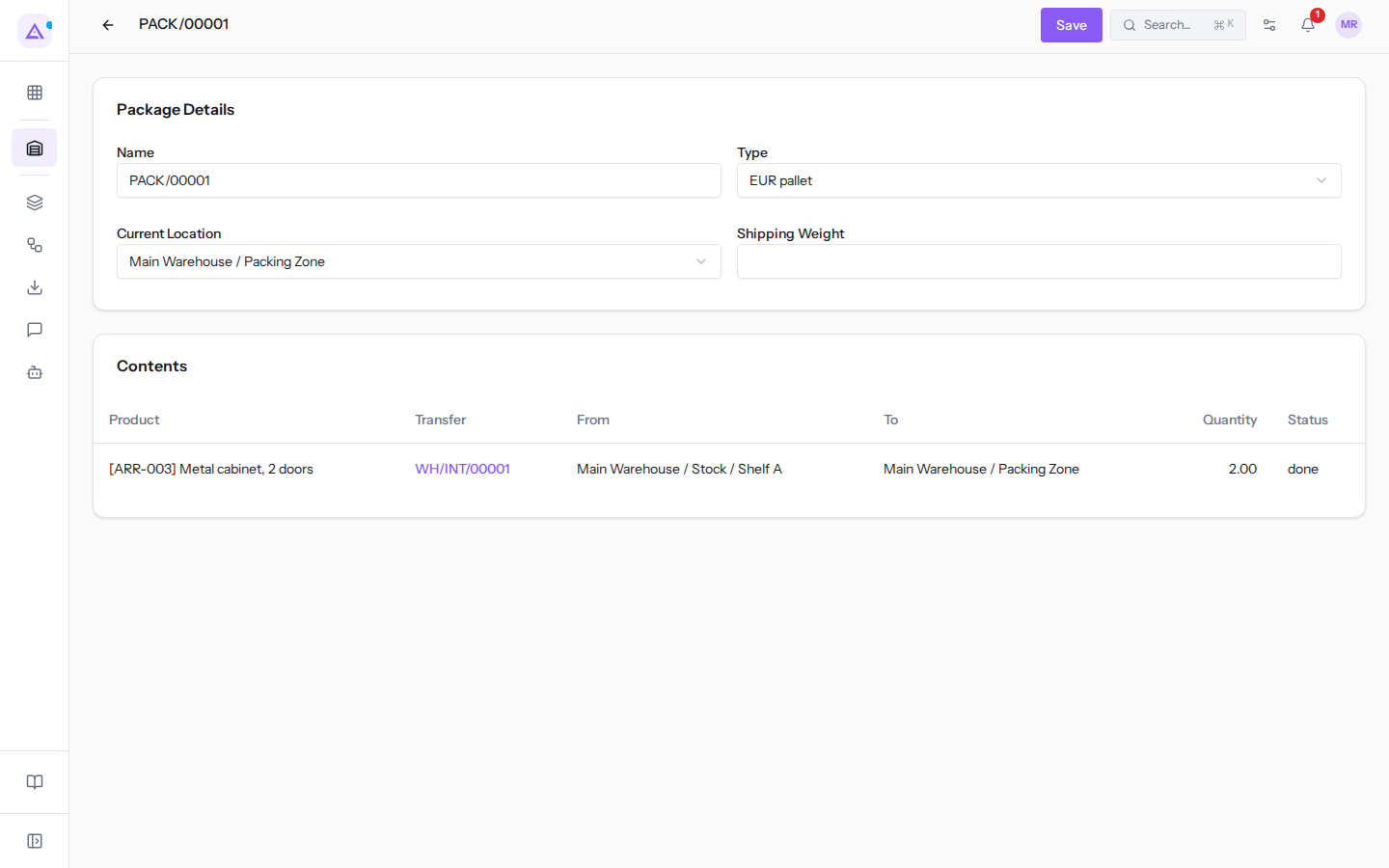
- In the Package Details section, edit Name, Type, Current Location or Shipping Weight. The fields are the same as in the New Package dialog.
- Click Save. The Package saved message appears.
The Contents section lists the transfer lines assigned to the package:
- Product: the packed product, for example Metal cabinet, 2 doors.
- Transfer: the line's transfer, for example
WH/INT/00001. Click the reference to open the transfer. - From: the line's source location.
- To: the line's destination location.
- Quantity: the done quantity of the line.
- Status: the line's status. Currently the column shows the technical name in English, for example
donefor a completed line, instead of a readable label.
If no lines are assigned to the package, the section shows No move lines are currently assigned to this package.
Packing goods from a transfer
In a transfer record, you assign each operations line to a package, new or existing.
- Go to Inventory › Transfers and open the transfer, for example the delivery
WH/OUT/00002. - Scroll to the Detailed Operations section and find the line to pack, for example Office desk 160x80. The Package column shows No package until you assign a package.
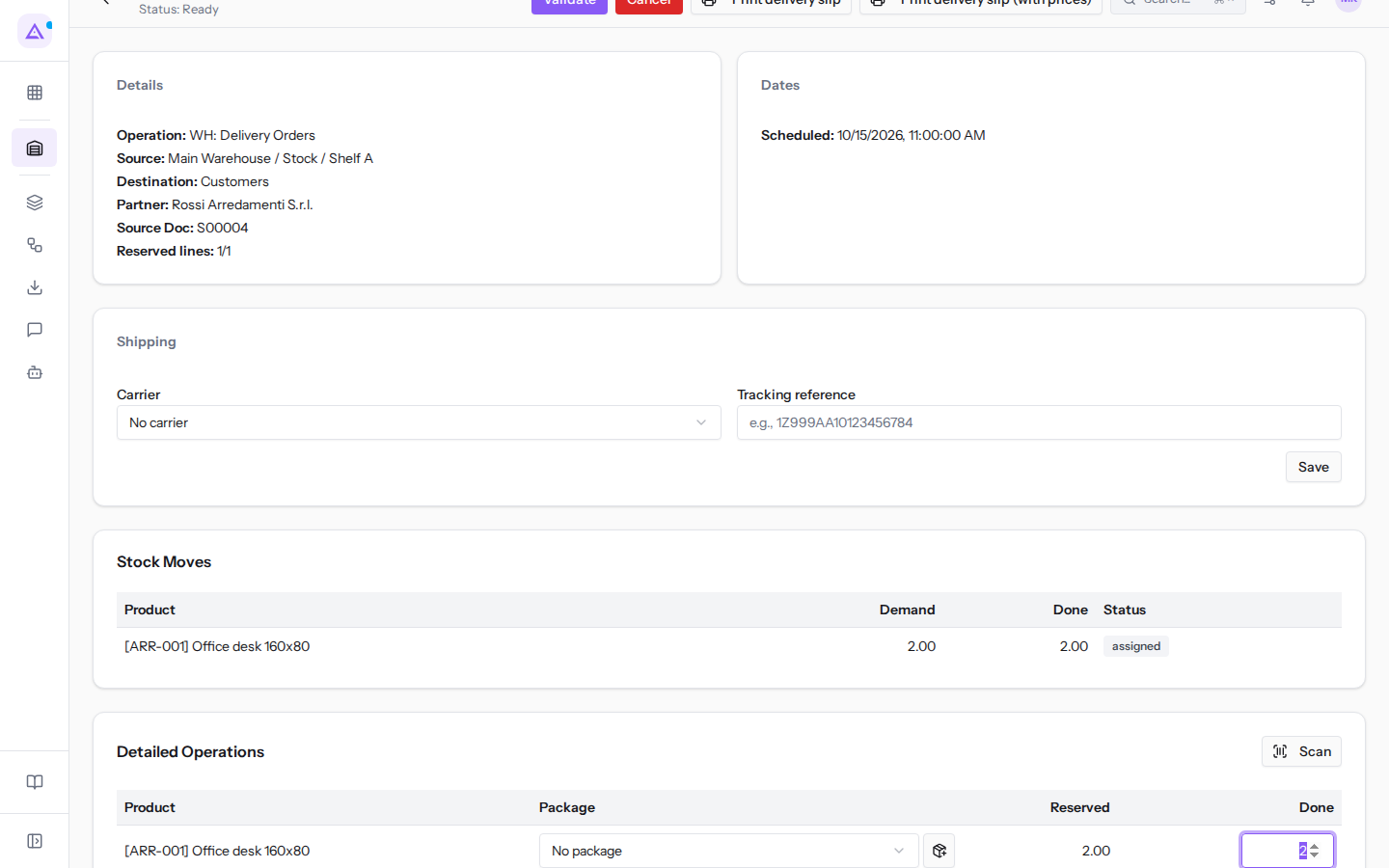
- Choose how to pack:
- To use an existing package, open the Package column list and select the package, for example
PACK/00001. - To use a new package, click the button with the package icon next to the list (Create package). The package is created with an automatic name, for example
PK-1793149945051, and assigned to the line. The Package created message appears.
- To use an existing package, open the Package column list and select the package, for example
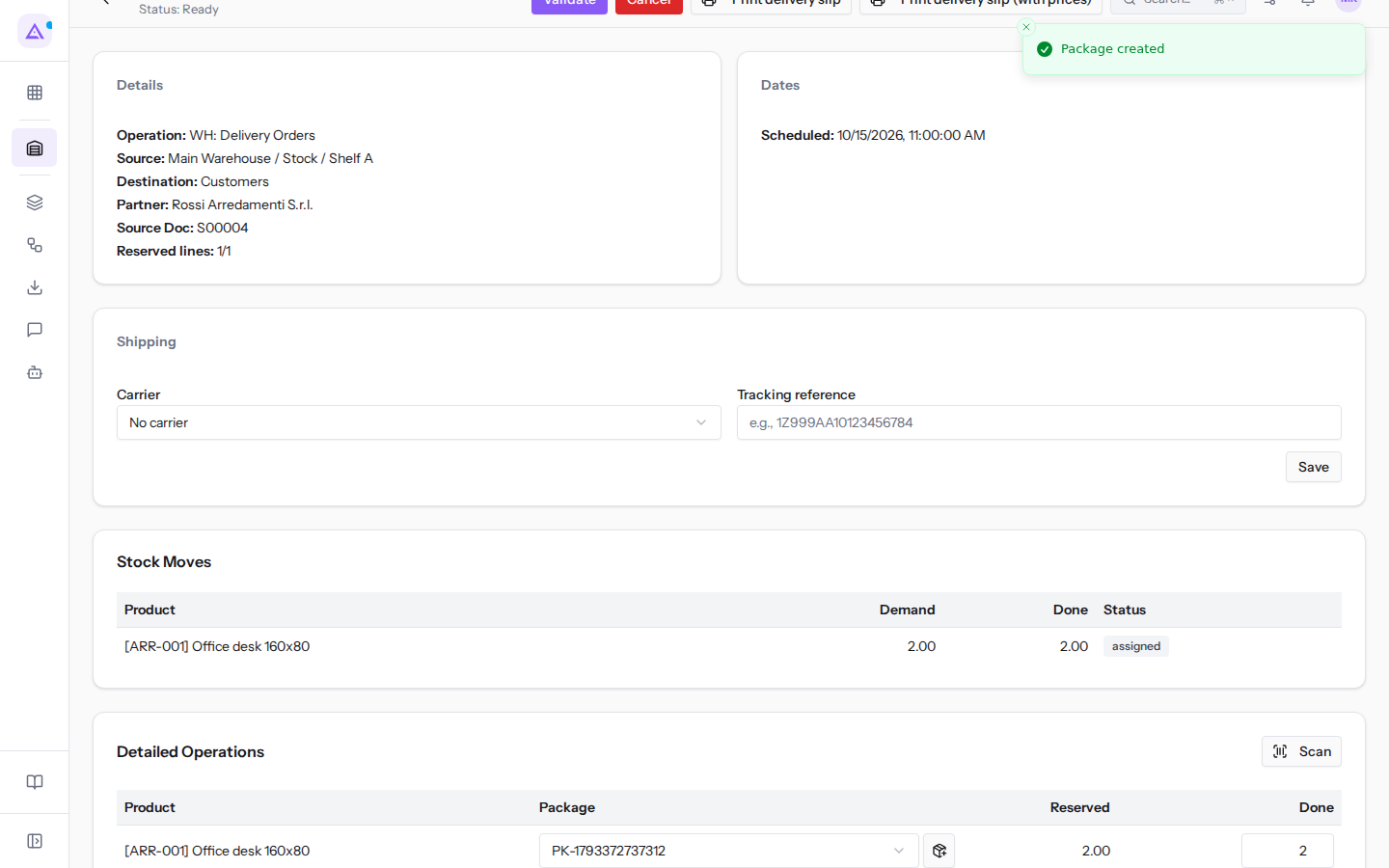
The package created this way appears in Inventory › Packages: from there you can open it and change its name, type, and weight.
To validate the transfer after packing, follow Process a receipt or a delivery.
Managing package types
A package type describes a standard container with dimensions, maximum weight, and barcode, for example EUR pallet or Large box.
with the Inventory User permission you can only view package types. Creating or editing them requires the Inventory Manager permission.
- Go to Inventory › Settings › Package Types.
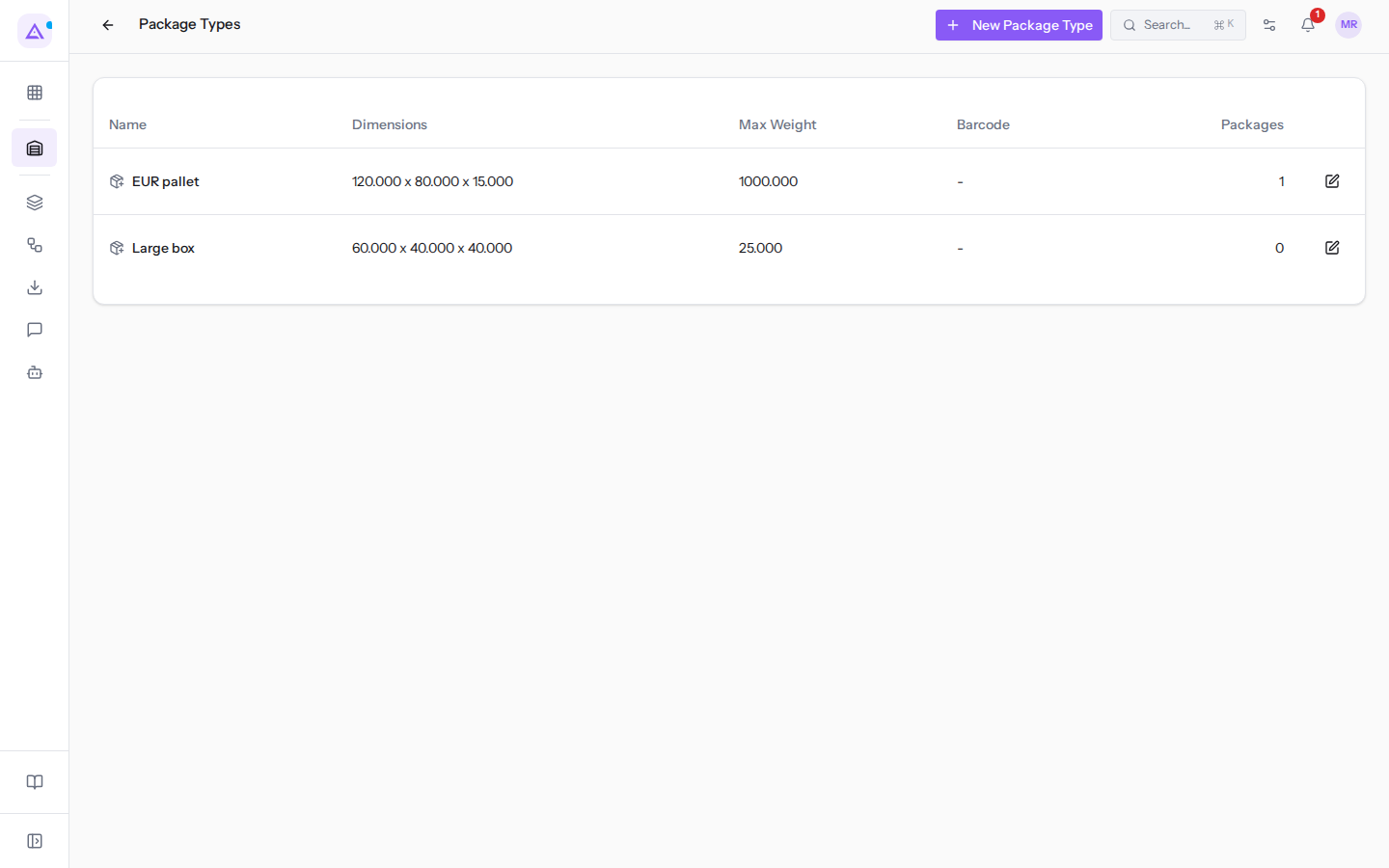
The list shows the Name, Dimensions, Max Weight, Barcode and Packages columns. The Packages column shows how many packages use the type: EUR pallet has 1, Large box none.
- To create a type, click New Package Type. To edit one, click the pencil (Edit package type) in its row.
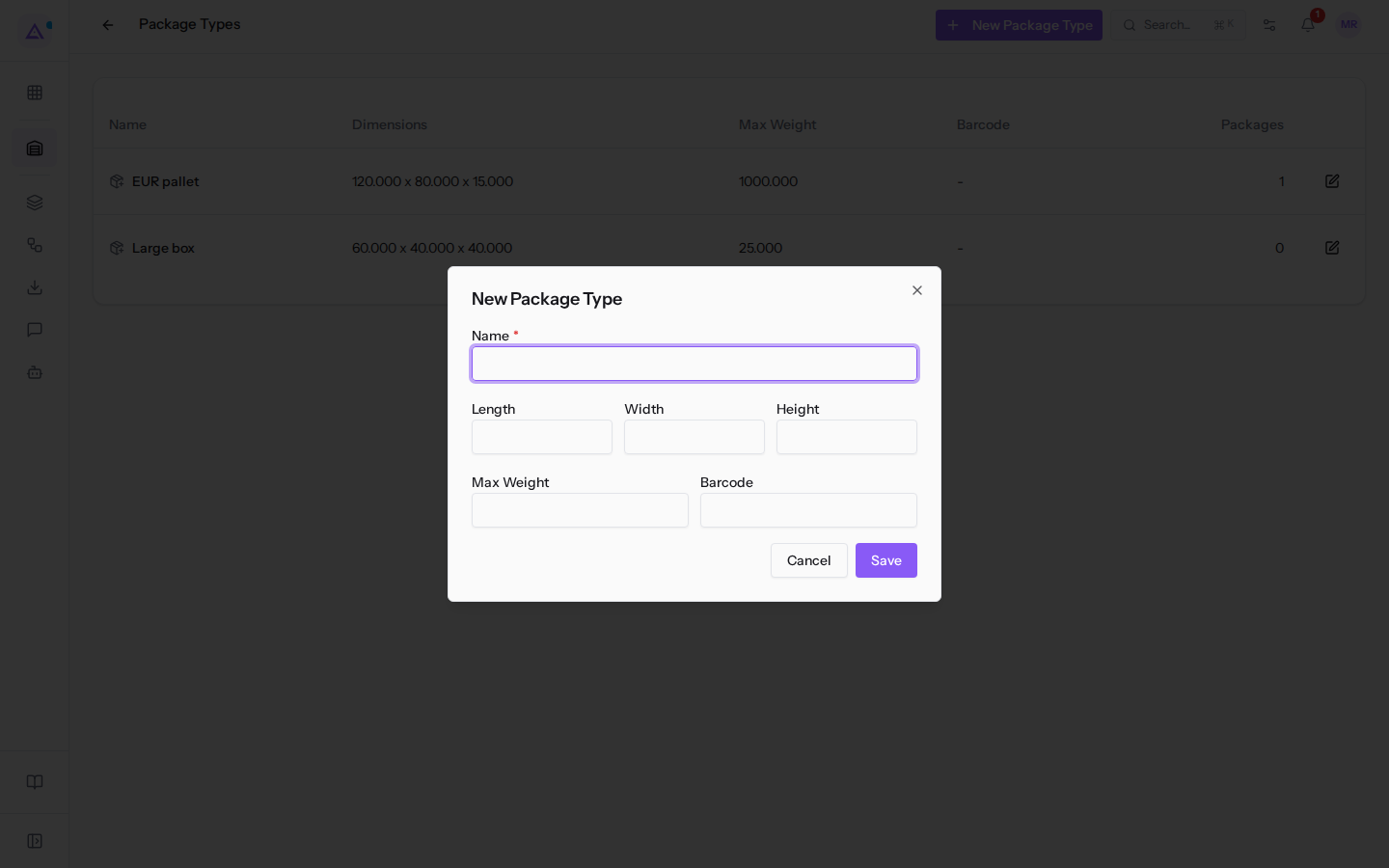
- Fill in the fields and click Save. The Package type saved message appears.
The dialog fields:
- Name: the type name, for example
EUR pallet. This field is required. - Length: the container length, for example 120 for EUR pallet.
- Width: the container width, for example 80 for EUR pallet.
- Height: the container height, for example 15 for EUR pallet.
- Max Weight: the weight the container can hold, for example 1000 for EUR pallet and 25 for Large box.
- Barcode: the package type barcode.
Length, width, and height appear together in the Dimensions column of the list.
Click Cancel to close the dialog without saving.
See it on your company, not on a slide deck.
In 30 minutes we map the software you use today.We show you how much work and how much margin Archimedes gives back.
Show me on my business →What industry are you in?
One tap — it lets us prepare the demo around your world.
What tools do you use today?
Pick the ones you recognise — or just type them. It helps us show you how they migrate.
Last step: your details.
We reply within one working day — and right after, if you like, you pick the demo slot yourself.
We couldn't send your request. Try again, or write to us at [email protected].
By sending, you agree to your data being processed so we can get back to you about the demo. Privacy notice.
Preview form — nothing is sent from this page.
Want to schedule the demo now?
Your call: book the slot you prefer yourself, or we'll call you to arrange it.
Live availability, 30 minutes, instant confirmation. The calendar opens in a new tab.
Lock in your slot ↗We'll get back to you within one working day — and we'll join the call already knowing your world.
The calendar is open in another tab: pick a slot and the demo is booked. Can't see it? Reopen it ↗
Preview page: nothing was sent.
Our calendar is live: take the slot that suits you and the demo is booked. 30 minutes, instant confirmation, no waiting.
Lock in your slot ↗