Inventory
All modules
Record scrapped, broken, or expired goods
Inventory · 8 of 14 · 4 min read
A scrap removes from stock goods that can no longer be sold or used and records the reason. For example, a product broken during storage, expired goods, or an item given as a gift.
How a scrap works
A scrap goes through two states: Draft and Done.
- With Create Scrap you record the scrap in Draft. Stock does not change yet.
- With Validate the scrap moves to Done. The quantity leaves stock and its value leaves the warehouse valuation.
- The location where scrapped goods end up cannot be chosen: it is set automatically.
- You can only scrap products with tracked stock.
A scrap can also be created by warehouse staff, but only the warehouse manager can validate it: staff record the scrap as a draft and the manager validates it.
View the scrap list
The list shows all scraps, both draft and completed.
- Go to Inventory › Scrap.
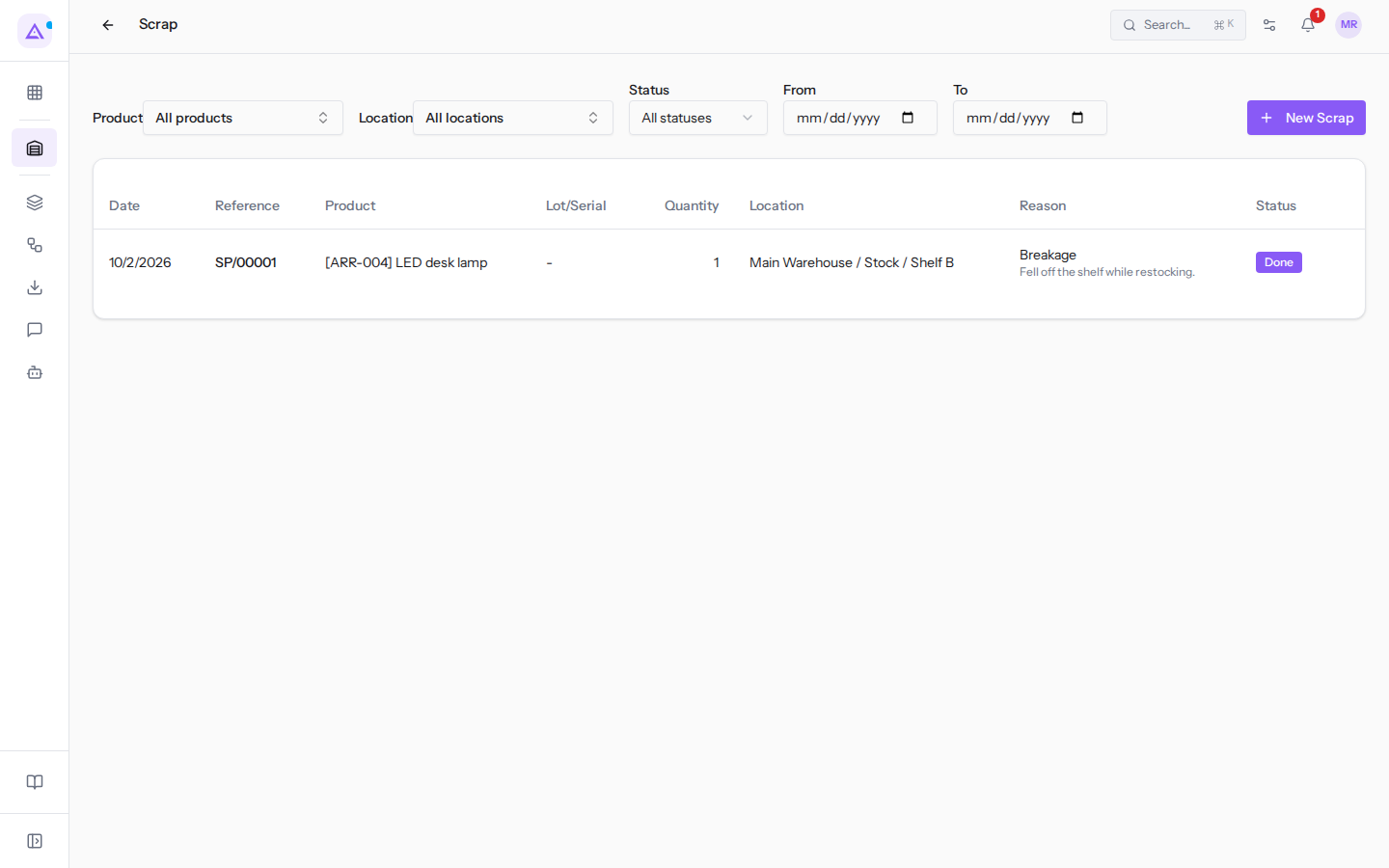
At the top there are filters:
- Product: shows scraps for a single product. The default value is All products.
- Location: shows scraps for a single source location. The default value is All locations.
- Status: the options are All statuses, Draft and Done.
- From and To: limit the list to scraps created in the specified period.
The list columns:
- Date: the scrap date.
- Reference: the scrap number, for example
SP/00001. - Product: the scrapped product, for example
LED desk lamp. - Lot/Serial: the lot or serial number, for tracked products.
- Quantity: the scrapped quantity.
- Location: the location from which the goods leave.
- Reason: the reason for the scrap.
- Status: Draft or Done.
Create a scrap
Create a scrap for each product, location, and lot to remove from stock.
- Go to Inventory › Scrap.
- Click New Scrap. The New Scrap dialog opens.
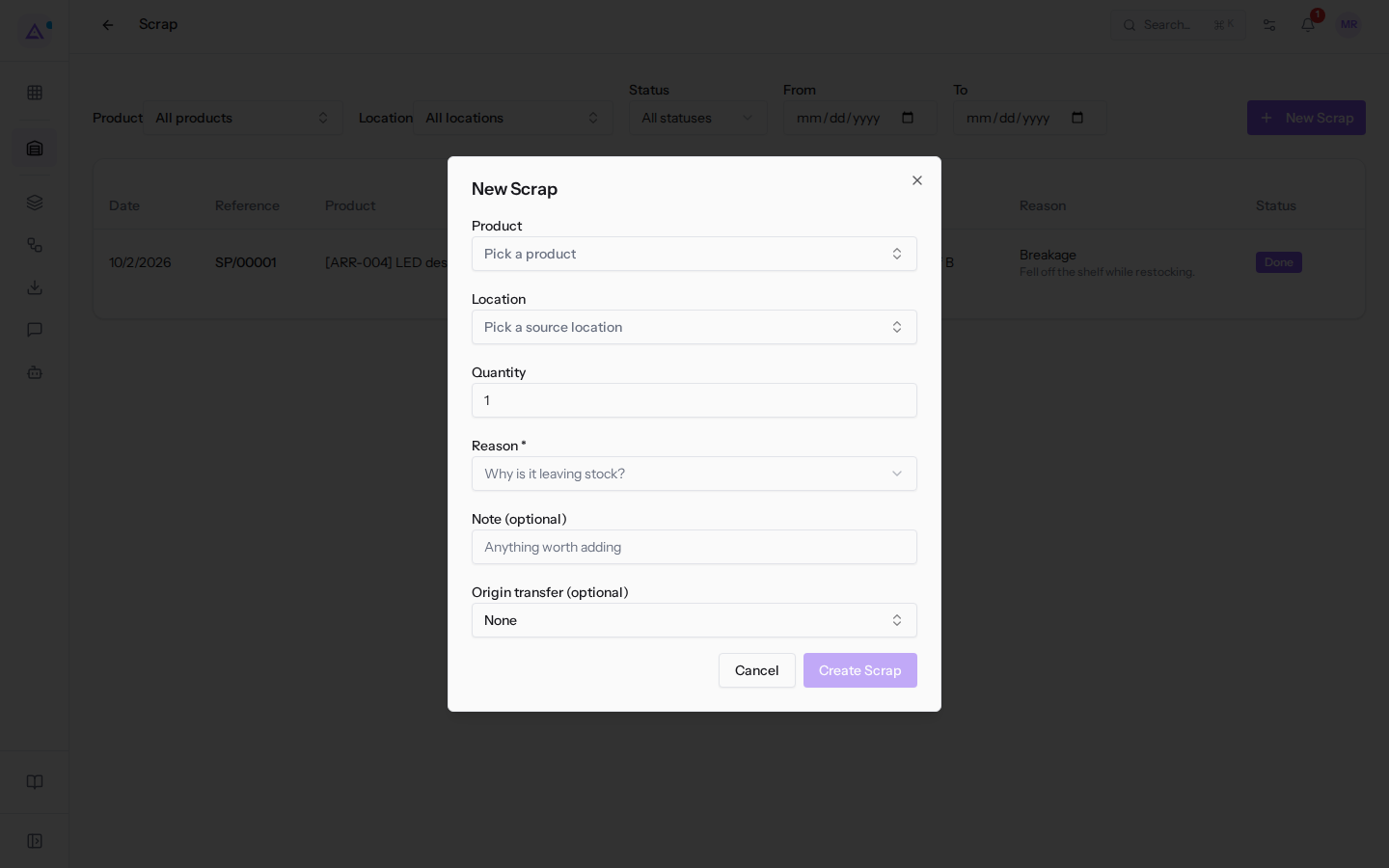
- Choose the Product, for example
LED desk lamp. - Choose the Location from which the goods leave, for example
Main Warehouse / Stock / Shelf B. - Enter the Quantity.
- Choose the Reason, for example Breakage.
- Click Create Scrap. The message Scrap created appears and the scrap is added to the list in Draft.
The dialog fields:
- Product: the product to scrap. Only products with tracked stock can be scrapped.
- Location: the source location of the goods. The options are the warehouse locations, for example
Main Warehouse / Stock / Shelf A,Main Warehouse / Packing ZoneorMain Warehouse / Quality Control. - Lot/Serial: the lot or serial number to scrap. Only appears if the product is tracked by lot or serial number, for example for
Ergonomic chair Pro. For a tracked product the lot is required. - Quantity: the quantity to scrap. The default value is 1.
- Reason: why the goods are leaving the warehouse. The field is required. The options are:
- Breakage: the goods are broken.
- Expired: the goods are expired.
- Gift: the goods were given as a gift.
- Other: a different reason, to be described in the note.
- Note (optional): a free description. If you choose Other, the field becomes Note and is required.
- Origin transfer (optional): the transfer to which the scrap refers. The default value is None.
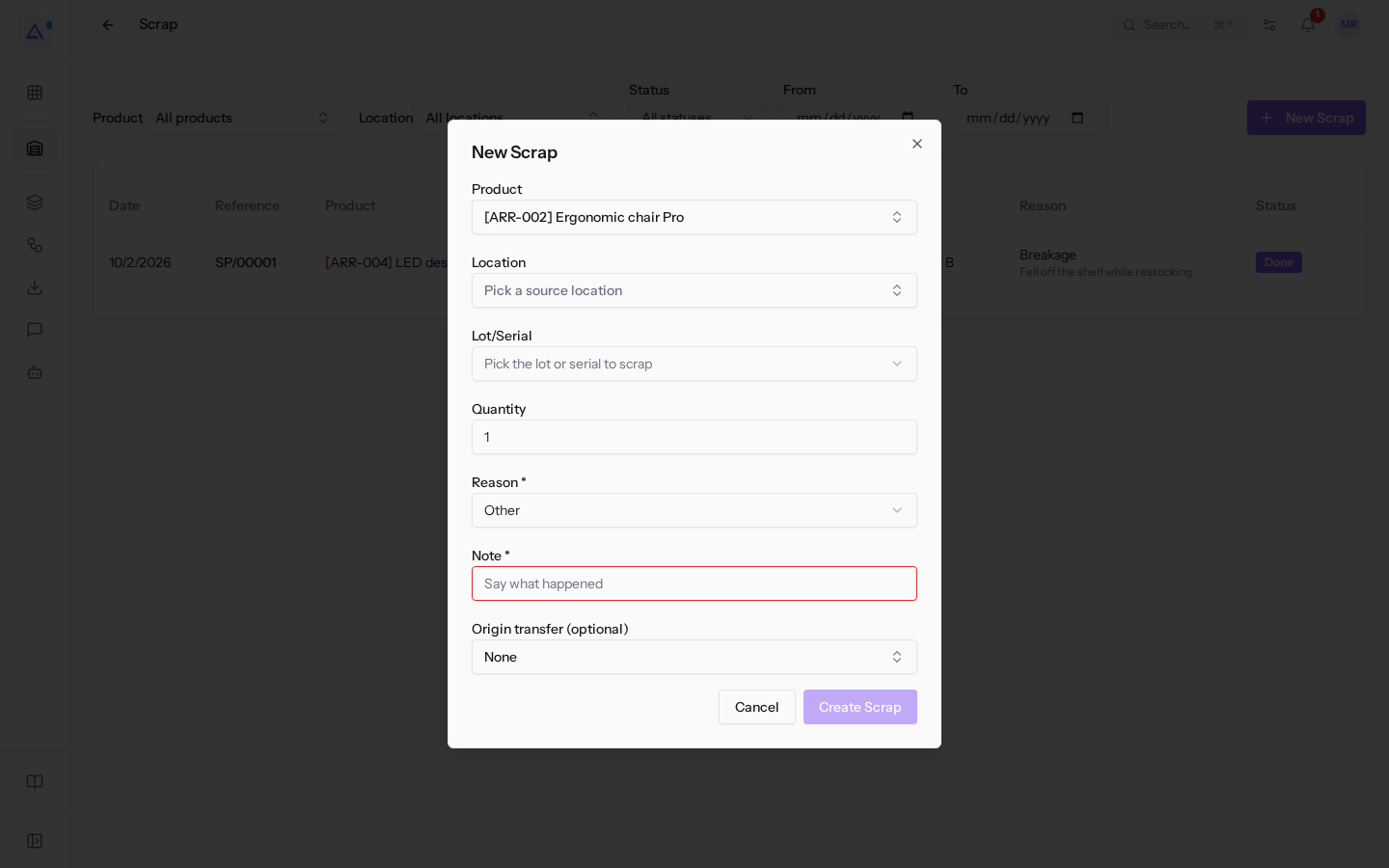
Note: with servings enabled the Reason field also offers Kitchen use, Tasting and Spoiled / oxidised. Servings are enabled in Inventory settings, section Features, with the option Servings, open bottles and the restaurant reserve.
Validate or delete a scrap
A scrap in Draft has a Validate button and a bin icon (Delete) on the list row. For users who are not warehouse managers Validate is disabled.
- Go to Inventory › Scrap.
- In the Status filter choose Draft.
- On the scrap row click Validate. The scrap moves to Done and the quantity leaves the stock of the source location.
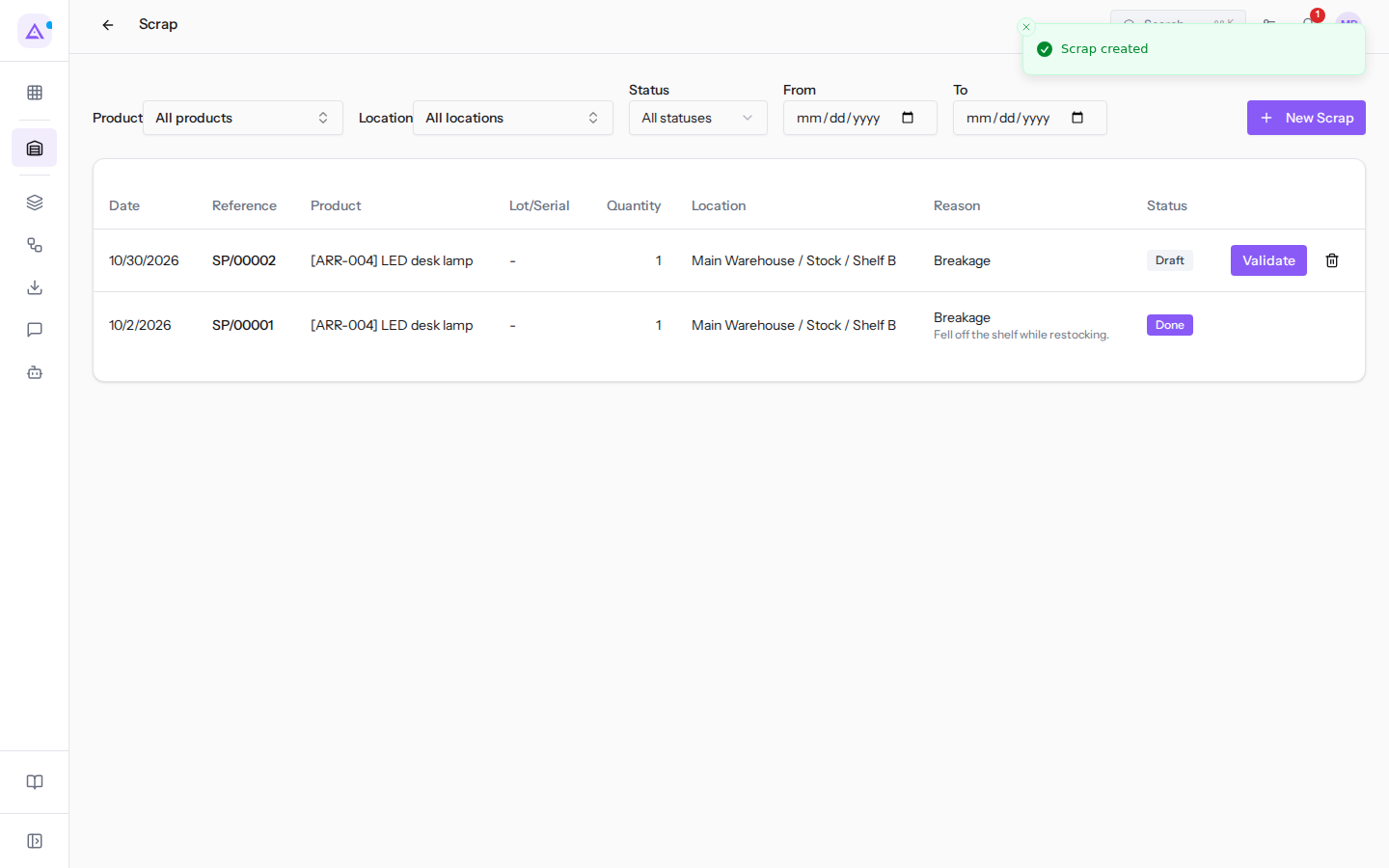
If the scrap was recorded by mistake, click the bin icon on its row.
Note: a scrap removes goods with a reason. To correct a quantity that does not match the goods on the shelf, without a scrap reason, use the quantity adjustment.
Analyse scraps by reason
The inventory report summarises scraps for a period by reason, with quantity and value. The Reports item is only visible to the warehouse manager.
- Go to Inventory › Reports.
- Enter the period in the From and To fields.
- Open the Scrap by reason tab.
- In the Reason filter leave All reasons or choose a single reason.
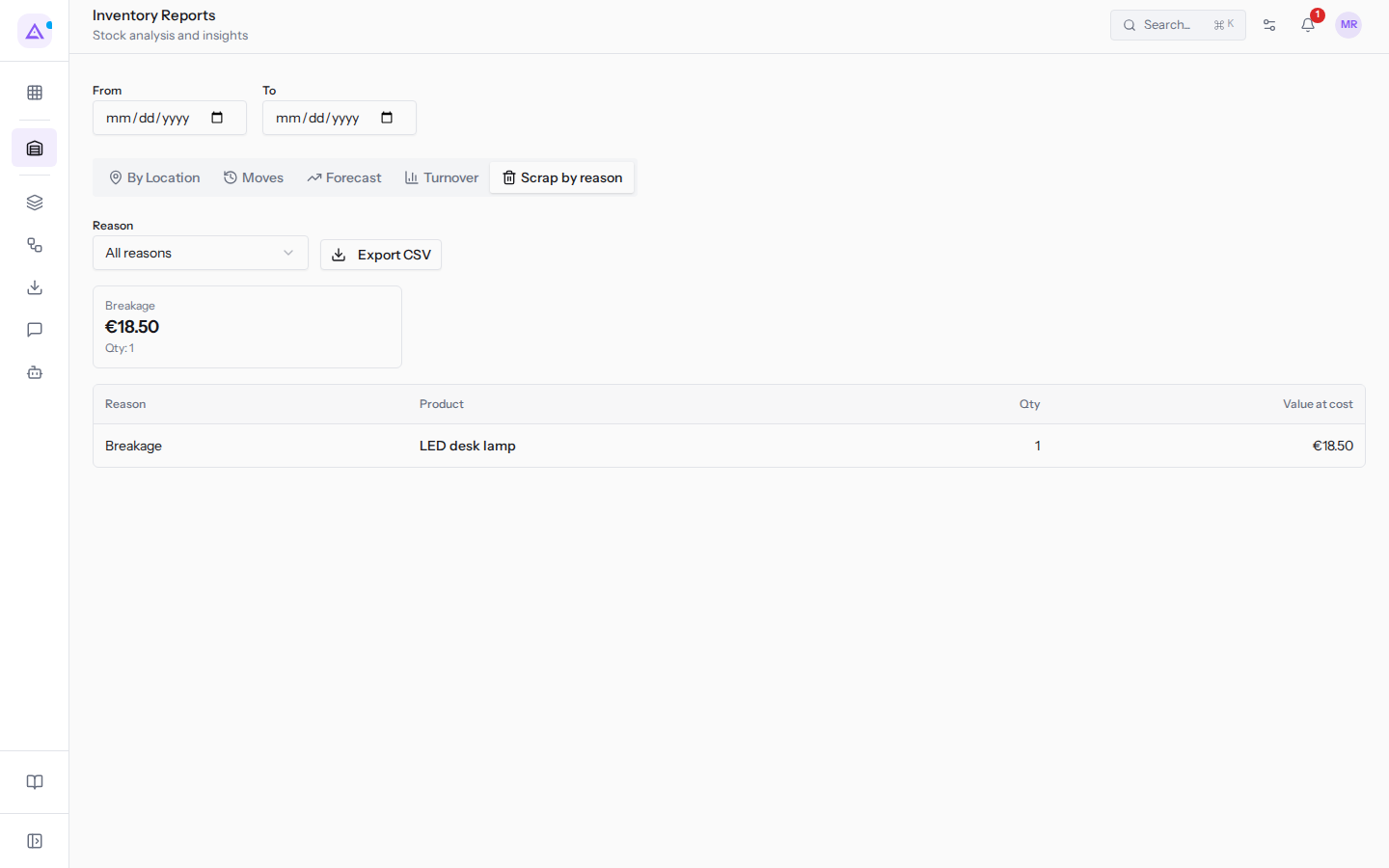
For each reason the report shows the value and scrapped quantity. For example, Breakage is worth €18.50 with quantity 1: the LED desk lamp from SP/00001.
To download the data click Export CSV.
The other report tabs are described in View warehouse movements and reports.
See it on your company, not on a slide deck.
In 30 minutes we map the software you use today.We show you how much work and how much margin Archimedes gives back.
Show me on my business →What industry are you in?
One tap — it lets us prepare the demo around your world.
What tools do you use today?
Pick the ones you recognise — or just type them. It helps us show you how they migrate.
Last step: your details.
We reply within one working day — and right after, if you like, you pick the demo slot yourself.
We couldn't send your request. Try again, or write to us at [email protected].
By sending, you agree to your data being processed so we can get back to you about the demo. Privacy notice.
Preview form — nothing is sent from this page.
Want to schedule the demo now?
Your call: book the slot you prefer yourself, or we'll call you to arrange it.
Live availability, 30 minutes, instant confirmation. The calendar opens in a new tab.
Lock in your slot ↗We'll get back to you within one working day — and we'll join the call already knowing your world.
The calendar is open in another tab: pick a slot and the demo is booked. Can't see it? Reopen it ↗
Preview page: nothing was sent.
Our calendar is live: take the slot that suits you and the demo is booked. 30 minutes, instant confirmation, no waiting.
Lock in your slot ↗