Inventory
All modules
Split transport and duties with landed costs
Inventory · 13 of 14 · 6 min read
A landed cost adds to the value of received goods the expenses incurred to bring them to the warehouse. For example, transport, customs duties, or cargo insurance.
How a landed cost works
A landed cost links one or more validated receipts to a set of charges. Each charge is split among the received products and added to their inventory value.
- A document goes through three states: Draft, Validated and Cancelled.
- With Compute you can see how each charge is split. The inventory value does not change yet.
- With Validate the calculation is repeated and the amounts are added to the goods' value. After validation the document can no longer be edited.
- If the Accounting module is active, validation also records the accounting entry.
Important: the cost enters the value only for goods still in stock. If part of the received goods have already left, the corresponding share is not capitalised. It is best to validate the landed cost as soon as the expense invoice arrives.
View the list of landed costs
The list shows all the landed cost documents in the organisation.
- Go to Inventory › Landed Costs.
- To see only documents in one status, choose the status from the Status filter, which starts at All statuses.
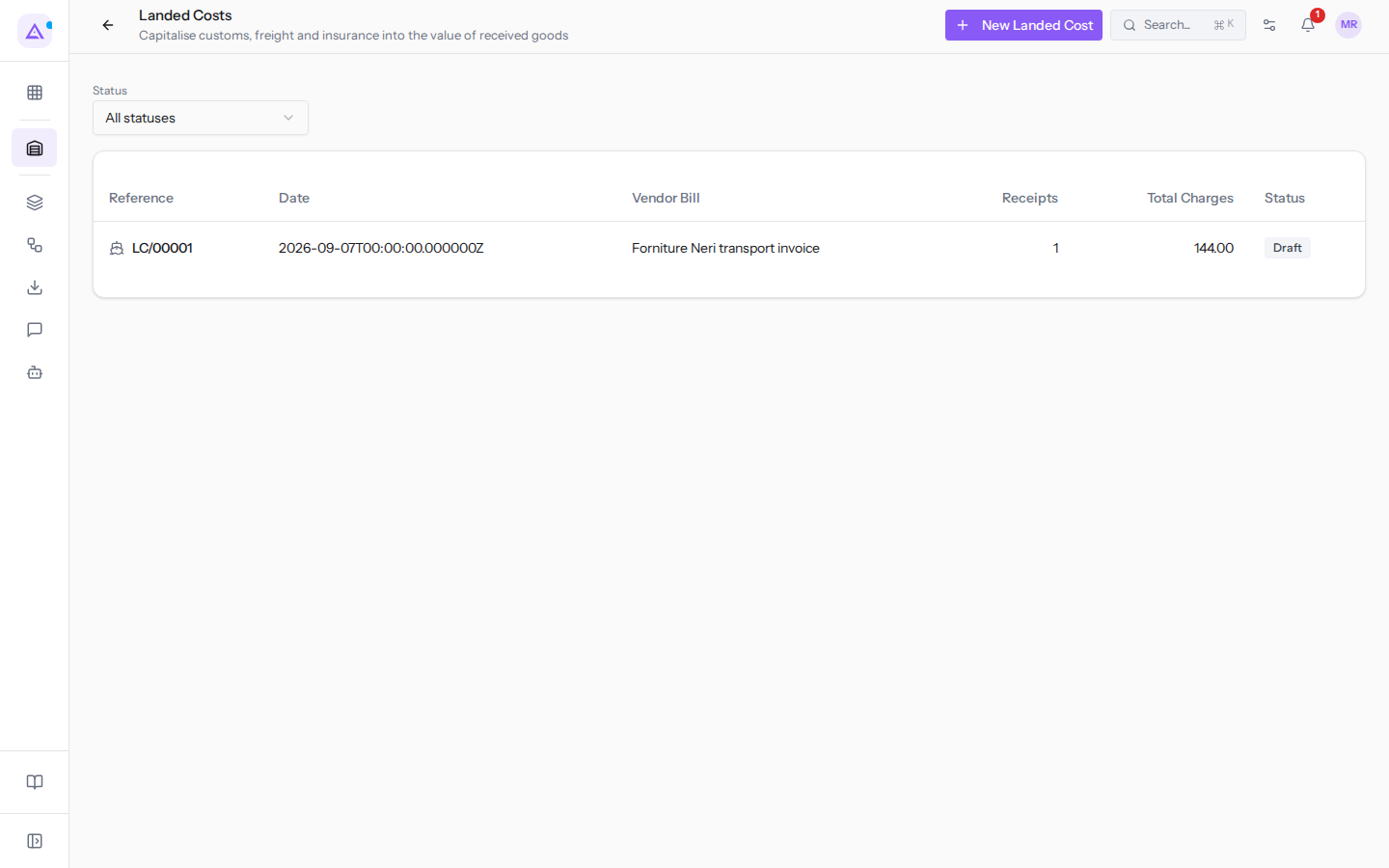
The list has columns for Reference (the document number, for example LC/00001), Date, Vendor Bill, Receipts (how many receipts are linked to the document), Total Charges, and Status. A Draft document is being prepared, a Validated one has already added charges to the inventory value, a Cancelled one has been closed without affecting the value.
Create a landed cost
Create a document for each expense invoice to be split across receipts.
- Go to Inventory › Landed Costs and click New Landed Cost.
- Fill in the Details fields.
- Tick the receipts to which the expenses apply.
- Enter the charges, as described in Enter charges.
- Click Save.
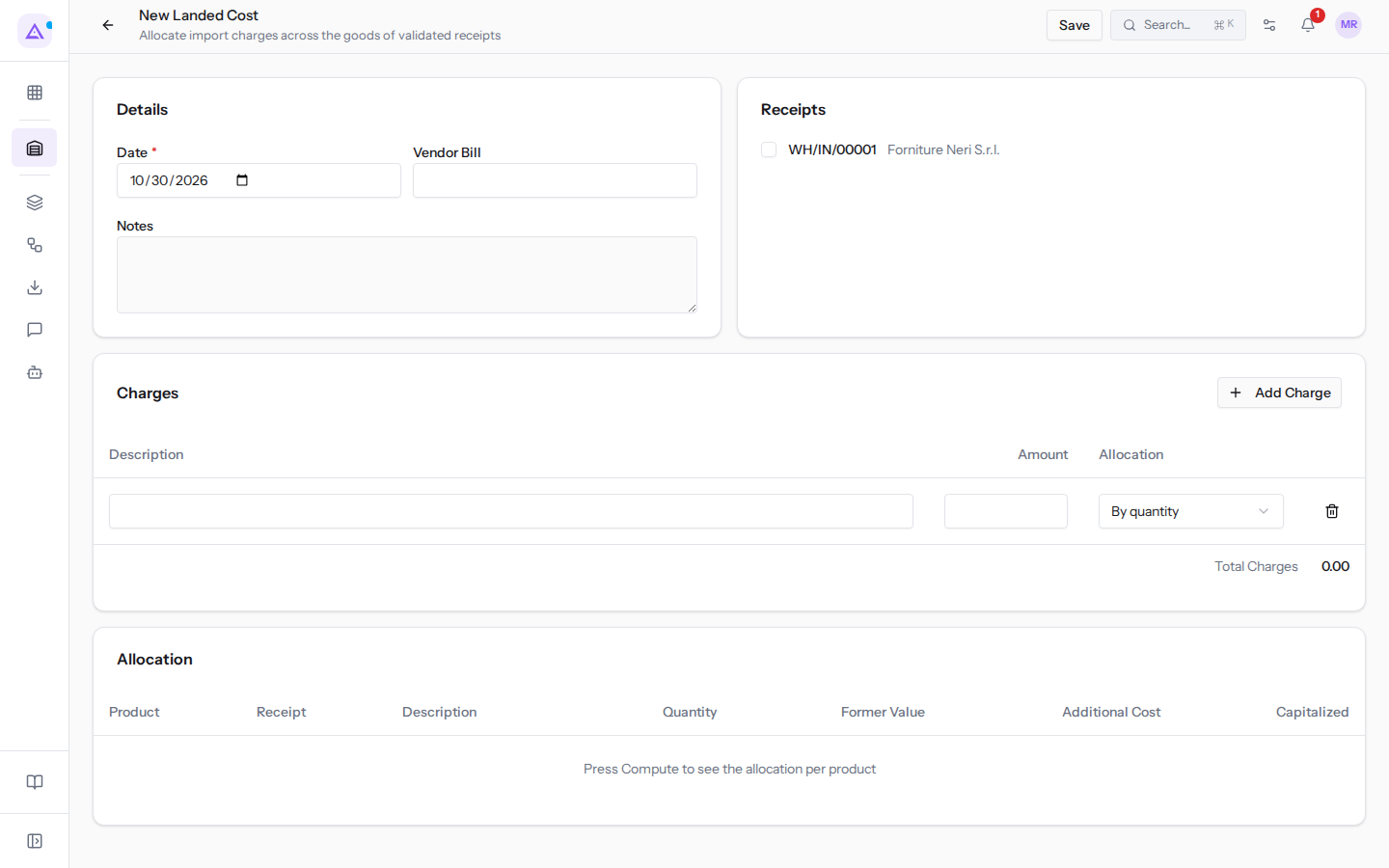
In Details, Date is required and is filled in automatically with today's date. In Vendor Bill write the reference of the expense invoice, for example Forniture Neri transport invoice; Notes is free text.
The Receipts section shows only validated receipts, each with its vendor, for example WH/IN/00001 Forniture Neri S.r.l.. A receipt that has not yet been validated does not appear. If a single transport invoice covers multiple deliveries from the same vendor, tick all the receipts in one document: the charges are split among all the received products.
Enter charges
Each charge is an expense with its amount and its allocation method.
- Click Add Charge.
- Fill in Description and Amount, for example
Transportfor120.00andGoods insurancefor24.00. - Choose the method in the Allocation column. The initial value is By quantity.
- To remove a charge, click the bin icon (Remove charge).
The method should be chosen based on the nature of the expense:
- By quantity splits in proportion to the units received of each product: suitable when the expense depends on the number of pieces, for example a per-parcel tariff.
- By weight splits in proportion to the product's weight multiplied by the quantity received: choose this if transport is charged by weight.
- By volume splits in proportion to the product's volume multiplied by the quantity received: choose this if transport is charged by volume.
- By value splits in proportion to the inventory value of the received goods: suitable for expenses that follow value, such as duties or insurance. In the example,
Goods insuranceuses By value. - Equal split gives the same share to each product, for expenses that have no link to the goods. If the same product appears in multiple receipts, its share is divided among the receipts by quantity.
Important: By weight and By volume use the weight and volume set on the product form. If none of the products in the receipts has a weight or volume, the calculation is not possible. Set this data on the products or choose a different method.
Compute the allocation
The calculation shows how much of each charge goes to each product, before changing the inventory value.
the document must be in Draft, have at least one charge and at least one receipt.
- Open the document from Inventory › Landed Costs, for example
LC/00001. - Click Compute.
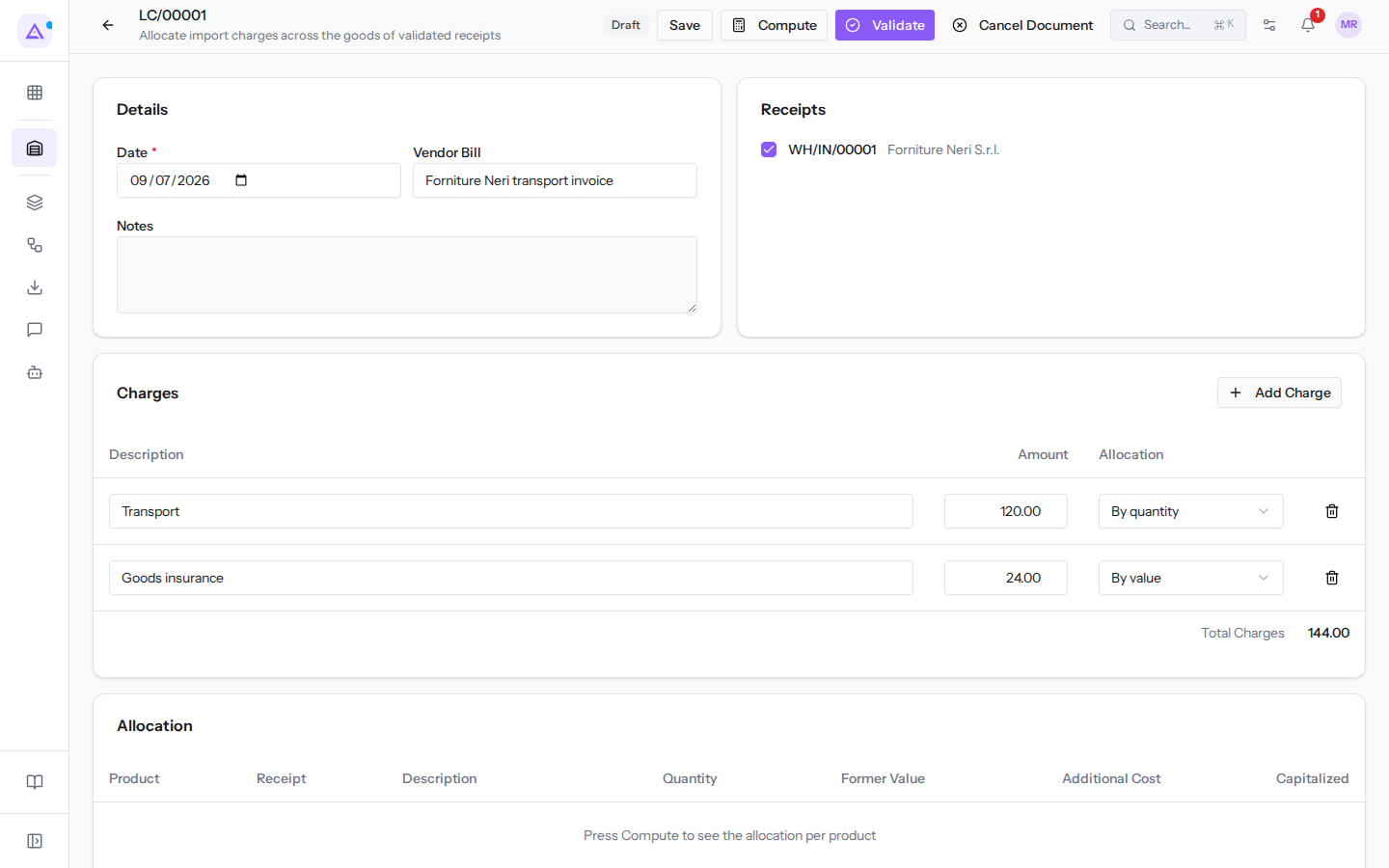
Until you calculate, the form shows Press Compute to see the allocation per product. After calculation the Allocation table is filled in. The confirmation message that appears in the top right ("Allocation computed.") covers the Cancel Document button for a few seconds.
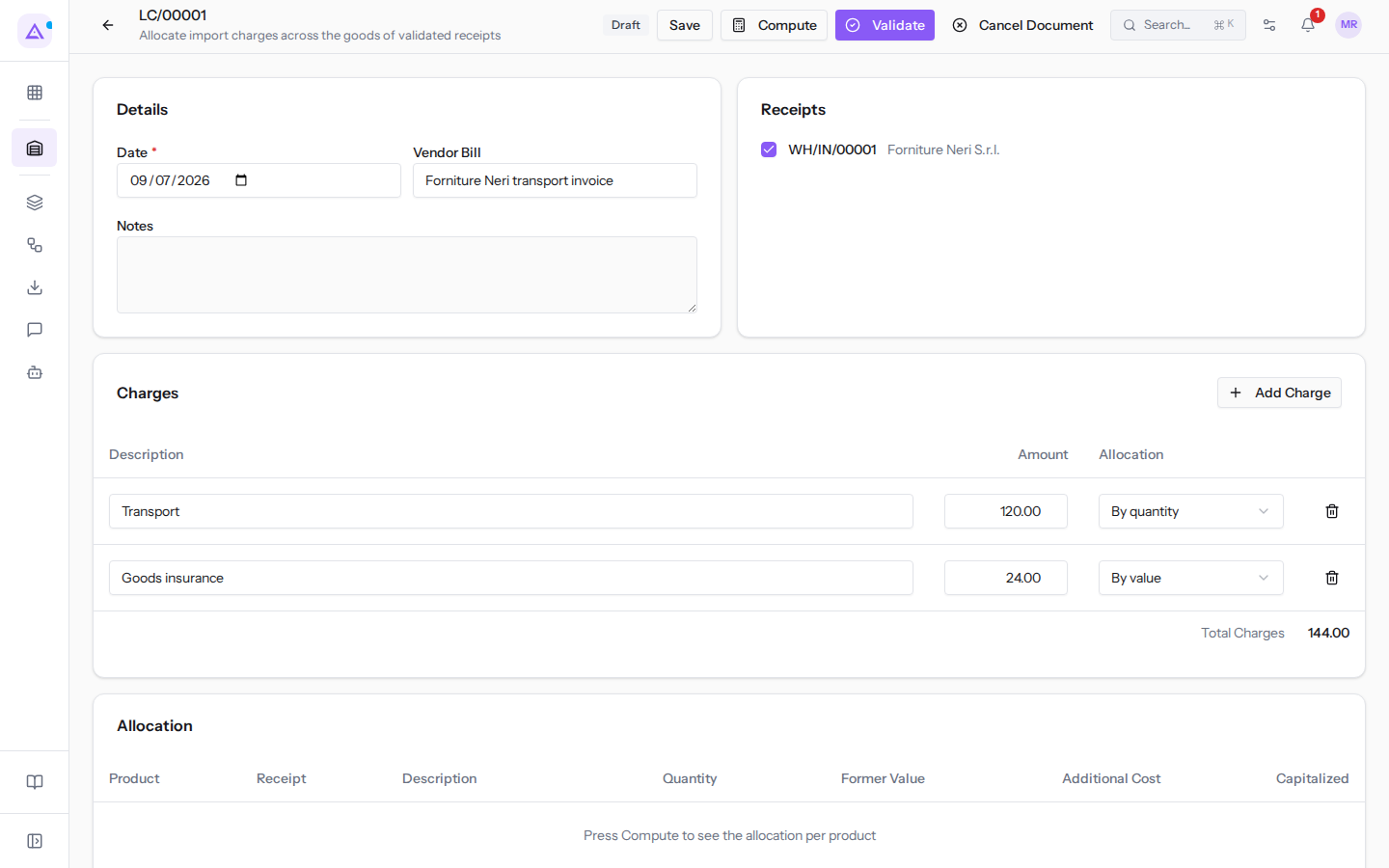
Each row of the table shows the product, the receipt, the charge description, the quantity received, the former value (the inventory value of the goods before the landed cost), the additional cost (the share of the charge assigned to the product) and the capitalized amount, i.e. the portion of the share that enters the inventory value; the latter is filled in at validation.
Shares are rounded to the cent and their sum always equals the charge amount.
If you edit receipts or charges, click Compute again: the previous calculation is replaced.
Validate the landed cost
Validation adds the charges to the goods' value.
- Open the document in Draft.
- Click Validate.
At validation the calculation is repeated with the current data. The capitalised cost increases the value of the goods still in stock, and the cost of future withdrawals of those goods includes the charge share. The share relating to goods that have already left is not capitalised: the form shows the uncapitalised amount with a message below the Allocation table. The document moves to Validated and can no longer be edited, and the movement appears in the inventory valuation.
Note: if Accounting is active and the journal entry is rejected, for example due to a closed period, validation does not occur and the inventory value remains unchanged.
Cancel a landed cost
You can cancel a document that should no longer be applied.
- Open the document in Draft.
- Click Cancel Document.
The document moves to Cancelled and does not affect the inventory value. Only a document in Draft can be cancelled: a Validated document cannot be cancelled.
See it on your company, not on a slide deck.
In 30 minutes we map the software you use today.We show you how much work and how much margin Archimedes gives back.
Show me on my business →What industry are you in?
One tap — it lets us prepare the demo around your world.
What tools do you use today?
Pick the ones you recognise — or just type them. It helps us show you how they migrate.
Last step: your details.
We reply within one working day — and right after, if you like, you pick the demo slot yourself.
We couldn't send your request. Try again, or write to us at [email protected].
By sending, you agree to your data being processed so we can get back to you about the demo. Privacy notice.
Preview form — nothing is sent from this page.
Want to schedule the demo now?
Your call: book the slot you prefer yourself, or we'll call you to arrange it.
Live availability, 30 minutes, instant confirmation. The calendar opens in a new tab.
Lock in your slot ↗We'll get back to you within one working day — and we'll join the call already knowing your world.
The calendar is open in another tab: pick a slot and the demo is booked. Can't see it? Reopen it ↗
Preview page: nothing was sent.
Our calendar is live: take the slot that suits you and the demo is booked. 30 minutes, instant confirmation, no waiting.
Lock in your slot ↗