Inventory
All modules
Read the stock value and reconcile it
Inventory · 12 of 14 · 7 min read
Stock valuation shows how much the goods in stock are worth at a given date, by category and movement by movement. Reconciliation compares the quantities in stock with their value and the value of receipts with what was paid to vendors. For example, you need it to read the value at the end of a quarter, to check that every movement is valued, or to verify the receipts for a period.
Which page to use
The two pages are in the Inventory menu and answer different questions.
- If you need the stock value at a date, or the value history of a product, open Inventory › Valuation.
- If you want to know whether quantities and value agree, or whether receipts are valued at what was paid, open Inventory › Reconciliation.
- If some movements changed quantities before valuation was active, value them from the Value historical movements section of the reconciliation page.
The value changes on its own when a movement is completed. When a transfer is validated, the valuation entry is created. A validated scrap removes its value from the valuation. A validated landed cost enters the valuation.
Read the stock value
The Stock Valuation page shows the total value, the value by category, and the valuation entries.
- Open Inventory › Valuation.
- To read the value at a past date, fill in Value as of. If you leave it empty, the page shows the current value.
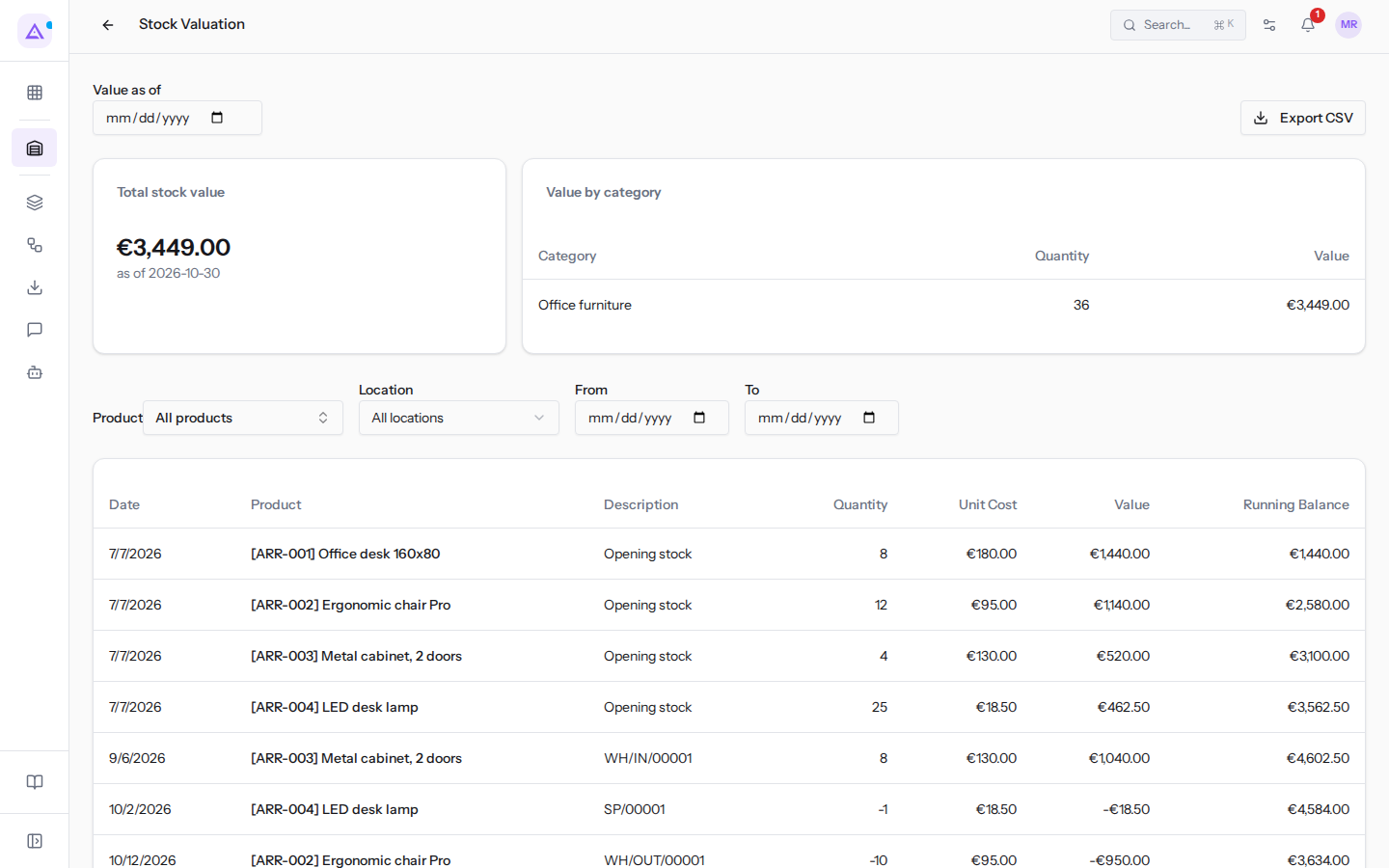
In the top right, Export CSV downloads the page data to a CSV file. If you set the filters described below first, you export only the history you have filtered.
The Total stock value box shows the value of all goods in stock and the date it refers to. In the example, it is €3,449.00. The date appears in the technical year-month-day format (as of 2026-10-28) instead of a localised format: this is a known issue with the page, the date should be read as 28 October 2026.
The Value by category table has the columns Category, Quantity, and Value. In the example, the Office furniture category has quantity 36 and value €3,449.00.
Filter the valuation entries
Below the totals the page lists the valuation entries, that is, the value changes caused by movements. Use the filters to see the history of a product or a location in a period.
- In Product choose a product, for example
[ARR-002] Ergonomic chair Pro. The All products option shows all products with tracked stock. - In Location choose a location, for example
Main Warehouse / Stock / Shelf A. In addition to the locations of Main Warehouse, the filter offers Customers, Vendors, Inventory Adjustment, and Scrap; the initial value is All locations. - Fill in From and To to limit the period. Both dates are optional.
Each entry shows the date of the movement, the product, the description (the movement that generated it, for example WH/IN/00001), the quantity in or out, the unit cost used, the value of the entry, and the running balance, that is, the cumulative value after that row.
Check quantities and value
The Stock Reconciliation page verifies that every completed movement has its valuation entry.
- Open Inventory › Reconciliation.
- Fill in From and To to choose the period to check.
- Read the box at the top.
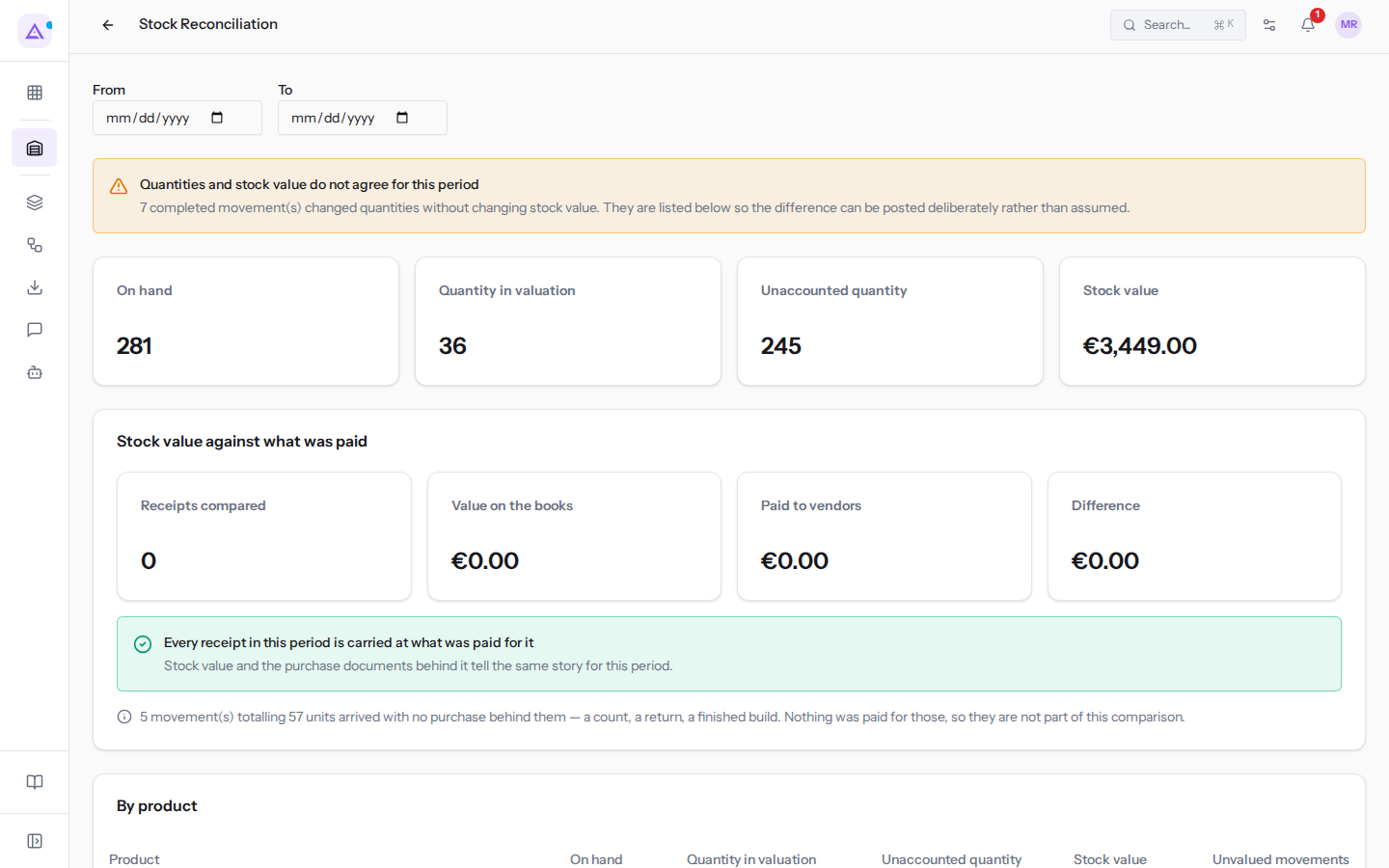
The box shows one of these outcomes:
- Quantities and stock value agree for this period: every completed movement in the period has its valuation entry. In the example, this is the outcome.
- Quantities and stock value do not agree for this period: some completed movements changed quantities without changing the stock value. The page lists them, so the difference can be recorded deliberately rather than assumed.
Below the box, four totals compare On hand, Quantity in valuation (the part that has a valuation entry), Unaccounted quantity, and Stock value. The By product table repeats the comparison product by product, with the number of unvalued movements for each. The Movements with no valuation entry section lists those movements, with date, product, origin, route, and quantity.
Compare the value with what was paid
The Stock value against what was paid box compares the value of the period's receipts with the purchase documents they originate from.
the comparison requires the Purchases module. If it is not active, the box shows The purchase module is not active here, so there is nothing to compare stock value against.
If everything agrees, the box shows Every receipt in this period is carried at what was paid for it: the stock value and the purchase documents say the same thing. Otherwise it shows Some receipts are not carried at what was paid for them and lists the receipts that differ from the purchase document price.
In the example, the receipts compared are 0 and all amounts are €0.00: the receipt WH/IN/00001 does not originate from a purchase order, so there is nothing to compare and the box is in agreement only for this reason.
The comparison shows the receipts compared, the value on the books (the value at which the received goods entered the stock), what was paid to vendors according to the purchase documents, and the difference. For each receipt that differs, the Why column states the cause, for example Carried below what was paid or Carried above what was paid.
Some receipts are excluded from the comparison:
- Movements that entered without an upstream purchase, for example an inventory adjustment, a return, or a completed production. For these, nothing was paid.
- Receipts whose purchase document does not have a usable price. For these the value is based on the standard cost. They are listed separately and do not count in the difference.
The box also flags receipts valued retroactively by an adjustment rather than at the time the goods arrived.
Note: with a long period only the most recent receipts are compared, and the page indicates this. Narrow From and To to compare the others.
Value historical movements
Movements that changed quantities before valuation was active can be valued afterwards. Each movement is recorded in the period in which it occurred.
- In Inventory › Reconciliation fill in From and To.
- In the Value historical movements section click Preview remediation. The preview writes nothing.
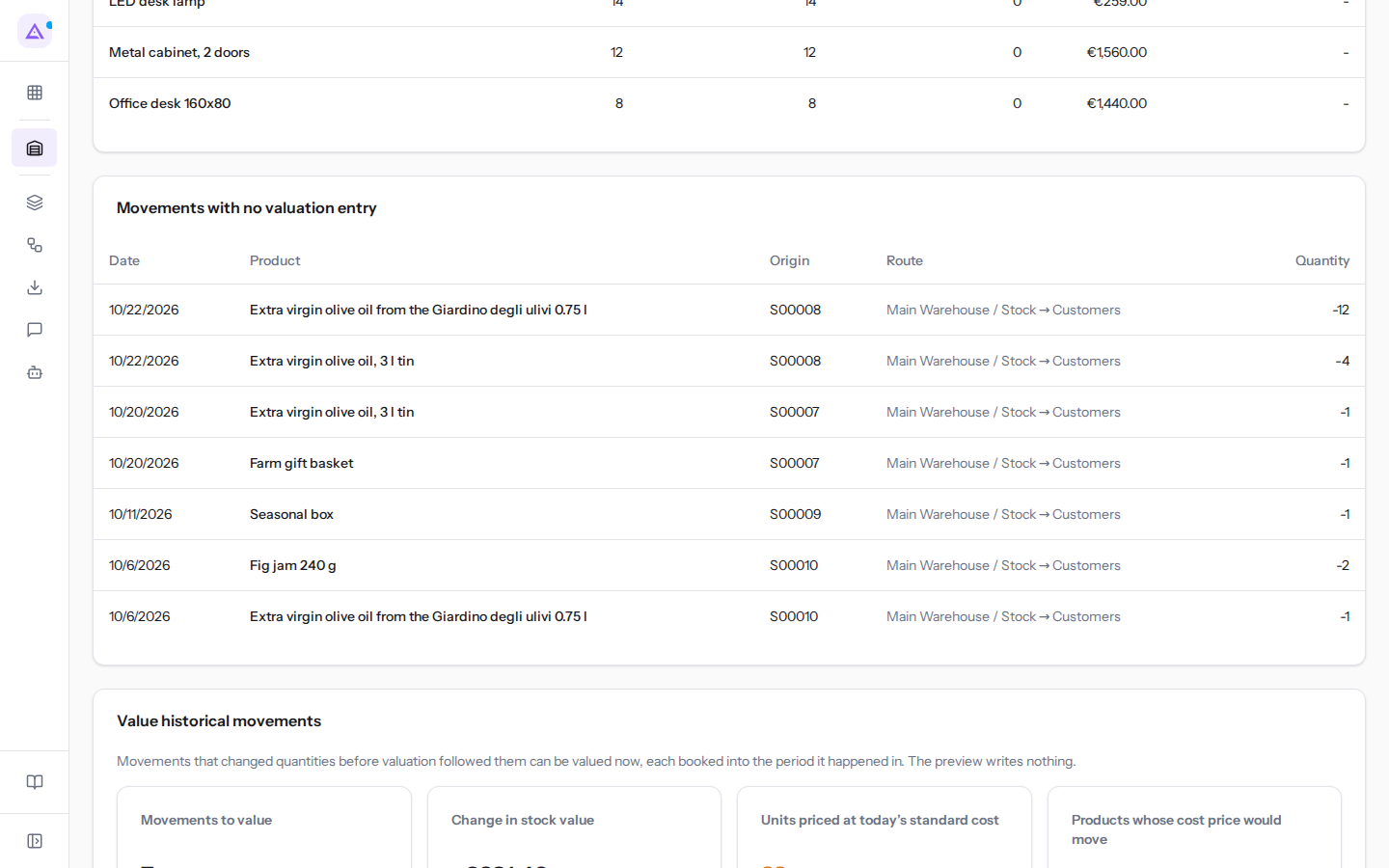
- Check the preview and choose:
- Apply: values the movements. The page confirms how many movements were valued.
- Discard: closes the preview without recording anything.
In the example, there are no movements to value, so the preview shows only There is nothing left to value in this period. and the Discard button.
When there are movements to value, the preview lists the movements that will be recorded; if there are many it shows only the first ones, but Apply values all of them. It then lists the products whose cost would change, with the current cost and the cost after applying: this concerns products valued at the average purchase cost, which follows receipts, so by recording the movements that cost changes, and with it everything that depends on it. Finally it shows the units valued at the current standard cost, that is, units without a recorded cost of their own.
Important: Applying also changes product cost prices. Before pressing Apply, check the standard cost of products with units without their own cost.
Note: with a wide period, one run may cover only the oldest part of the period. In that case apply it, then redo the preview for the rest.
See it on your company, not on a slide deck.
In 30 minutes we map the software you use today.We show you how much work and how much margin Archimedes gives back.
Show me on my business →What industry are you in?
One tap — it lets us prepare the demo around your world.
What tools do you use today?
Pick the ones you recognise — or just type them. It helps us show you how they migrate.
Last step: your details.
We reply within one working day — and right after, if you like, you pick the demo slot yourself.
We couldn't send your request. Try again, or write to us at [email protected].
By sending, you agree to your data being processed so we can get back to you about the demo. Privacy notice.
Preview form — nothing is sent from this page.
Want to schedule the demo now?
Your call: book the slot you prefer yourself, or we'll call you to arrange it.
Live availability, 30 minutes, instant confirmation. The calendar opens in a new tab.
Lock in your slot ↗We'll get back to you within one working day — and we'll join the call already knowing your world.
The calendar is open in another tab: pick a slot and the demo is booked. Can't see it? Reopen it ↗
Preview page: nothing was sent.
Our calendar is live: take the slot that suits you and the demo is booked. 30 minutes, instant confirmation, no waiting.
Lock in your slot ↗