Point of Sale
All modules
Applying a loyalty reward at the till
Point of Sale · 6 of 16 · 4 min read
A loyalty reward uses a customer's card points to add a discount or a Free Product to the order. From the till screen you can apply the reward as an order line and collect the order with the reward included.
How rewards work
A reward depends on the customer's card and on the loyalty program the card belongs to. The Rewards window offers one reward for each active card of the customer, with the name of the program.
The points needed depend on the type of reward:
- If the reward is a discount, the order receives a line with a negative amount. The reward requires one point for each euro of discount.
- If the reward is a product, the order receives a line at zero price with the quantity set by the program. The reward requires as many points as the sale price of the product times the quantity.
A reward cannot be applied when one of these conditions is missing:
- The program is active.
- The order reaches the program's minimum amount and minimum quantity, if they are set.
- The order contains at least one of the products required by the program, if any are set.
- The reward's product is still available.
- The card has the points needed.
The calculation does not take into account reward lines already in the order. The same reward applies only once to the same order.
Applying a reward to the order
The reward is applied before payment, to the order in progress on the till screen.
Before you start: you need an open session and an order with at least one product and one customer. To open the till screen and build the order, see Ring up a sale and collect payment.
- Add the products to the order and use Set to choose the customer: Julia Ferris, with card AMICI-0001 from the program Friends of the farm.
- Press the Rewards button. The Rewards window opens, with the text Apply an available loyalty reward as an order line.
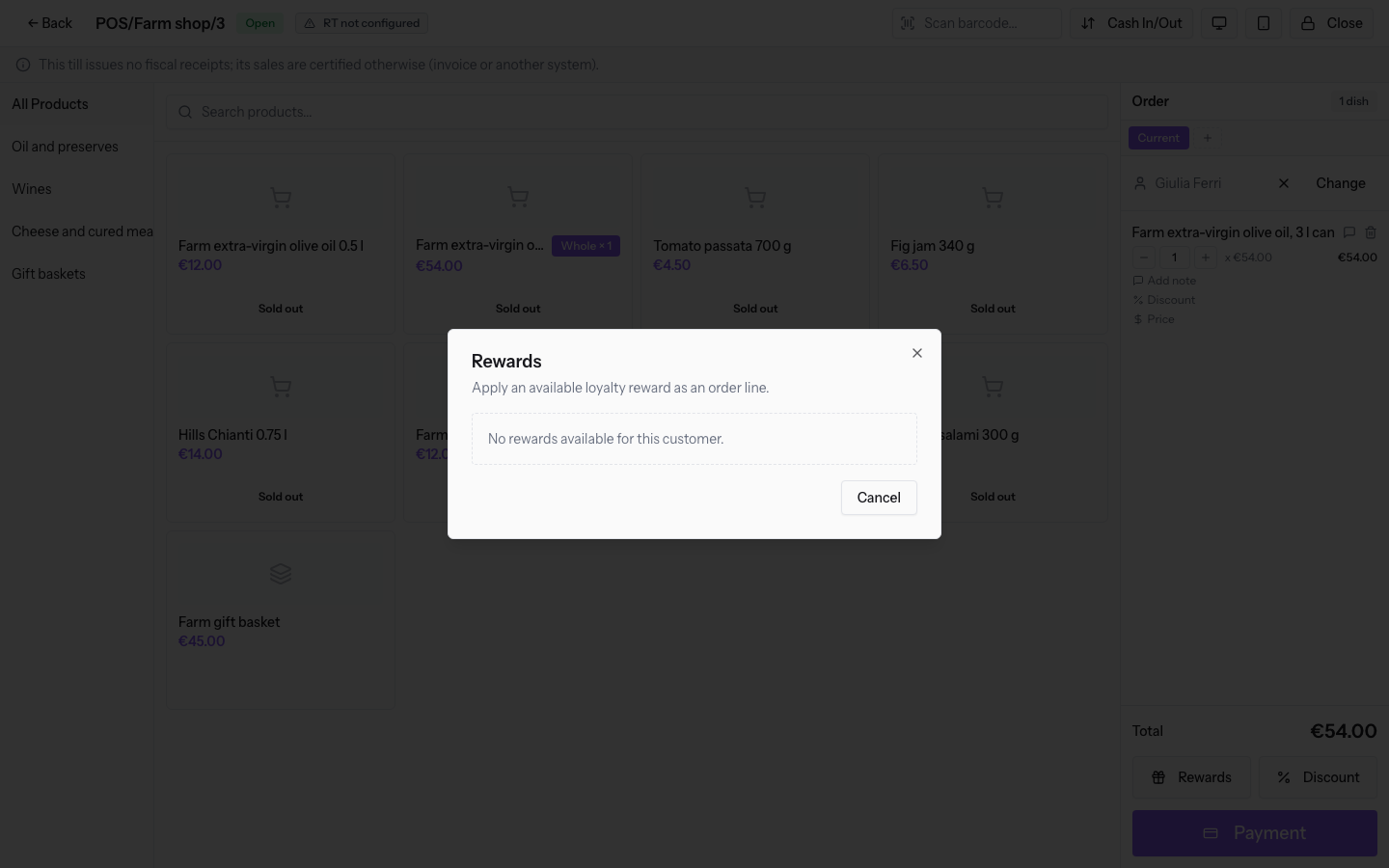
- Choose the reward. The window closes, the message Reward applied appears and the reward enters the order as a line. A reward that does not meet the conditions is not applied.
- Collect the order with Payment.
If no reward is available, the window shows No rewards available for this customer.
The reward line in the order
The reward line stands out from the other lines in the order and deducts points only at payment.
- The Reward badge marks the line.
- The line shows the points used in place of the quantity buttons.
- The points are deducted from the card when the order is paid. Saving a draft order does not deduct points.
- At payment the reward is checked again. If the order no longer meets the conditions, or the line no longer matches the reward, the system rejects the order.
Earning points
Points are earned automatically on orders with a customer. When the order is paid, the customer's card receives the points set by each active loyalty program. If the customer does not have a card for the program, the system creates one.
Important: an order without a customer does not earn points. Set the customer before payment.
Setting up the loyalty program
The loyalty program is set up in the Point of Sale settings, not on the till screen. The program sets the conditions, the reward and the points.
Before you start: the Point of Sale settings are reserved for the manager.
Open Point of Sale › POS options and the Loyalty tab. Fields and options are described in Prepare dish options, fixed-price baskets, loyalty programs and gift cards.
See it on your company, not on a slide deck.
In 30 minutes we map the software you use today.We show you how much work and how much margin Archimedes gives back.
Show me on my business →What industry are you in?
One tap — it lets us prepare the demo around your world.
What tools do you use today?
Pick the ones you recognise — or just type them. It helps us show you how they migrate.
Last step: your details.
We reply within one working day — and right after, if you like, you pick the demo slot yourself.
We couldn't send your request. Try again, or write to us at [email protected].
By sending, you agree to your data being processed so we can get back to you about the demo. Privacy notice.
Preview form — nothing is sent from this page.
Want to schedule the demo now?
Your call: book the slot you prefer yourself, or we'll call you to arrange it.
Live availability, 30 minutes, instant confirmation. The calendar opens in a new tab.
Lock in your slot ↗We'll get back to you within one working day — and we'll join the call already knowing your world.
The calendar is open in another tab: pick a slot and the demo is booked. Can't see it? Reopen it ↗
Preview page: nothing was sent.
Our calendar is live: take the slot that suits you and the demo is booked. 30 minutes, instant confirmation, no waiting.
Lock in your slot ↗