Point of Sale
All modules
View POS orders and reprint a receipt
Point of Sale · 10 of 16 · 3 min read
The POS Orders page collects all orders recorded at the tills, including refunds. It helps you find an order or a refund and check its date, total, status and session.
Open the orders list
Open Point of Sale › Orders. The POS Orders page opens, with the subtitle «Order history and details», and shows the orders from all tills and all sessions.
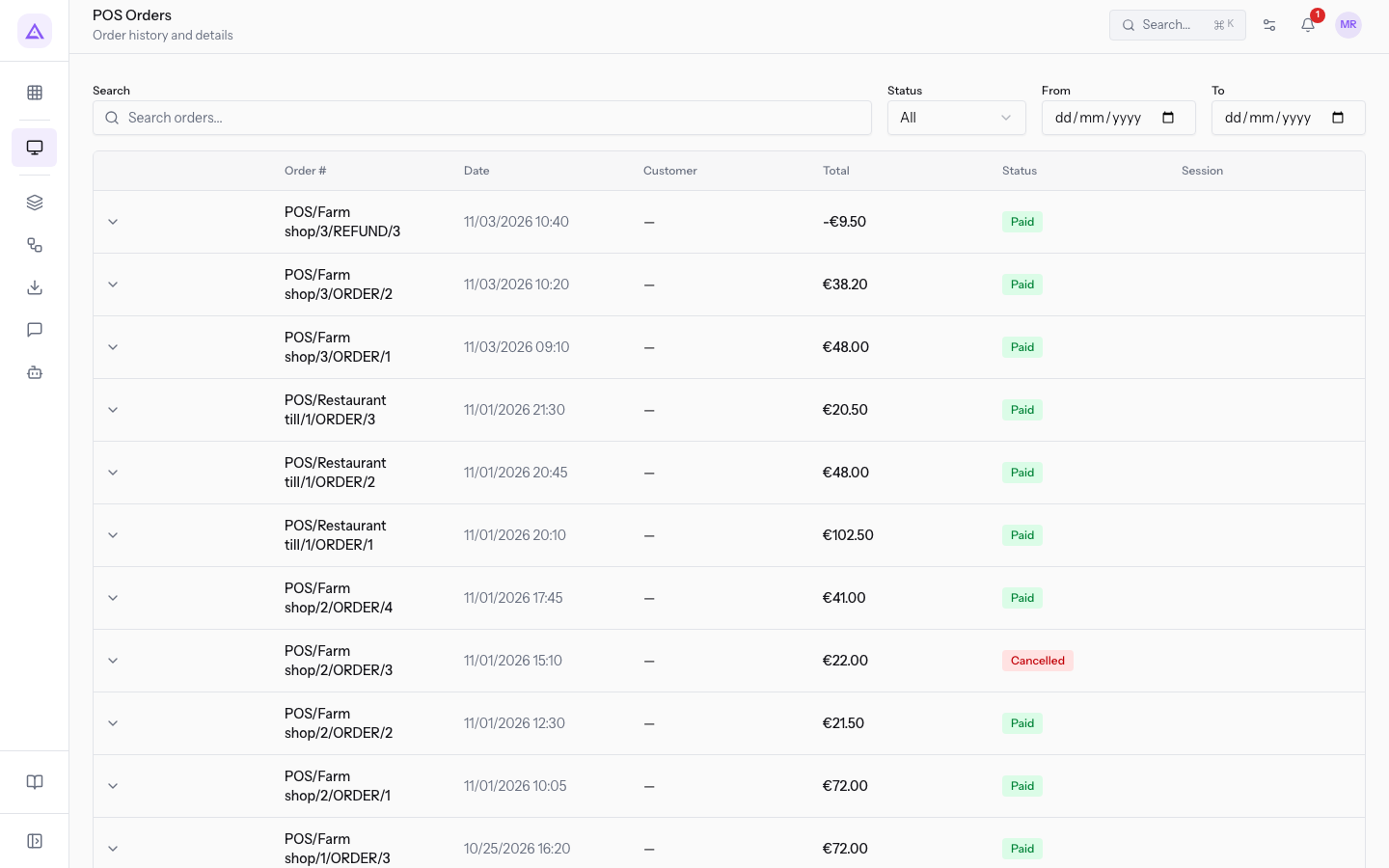
The list has these columns:
- Order #: the name of the order. It is made of the session name plus /ORDER/n, such as
POS/Farm shop/2/ORDER/1. Refunds have /REFUND/n, such asPOS/Farm shop/3/REFUND/3. - Date: date and time of the order.
- Customer: the customer of the order. If the order has no customer, the column shows a dash.
- Total: the amount of the order. A refund has a negative total:
-€9.50forPOS/Farm shop/3/REFUND/3. - Status: the status of the order, for example Paid.
- Session: the session in which the order was recorded.
Note: a refund appears in the list as a separate order, with a negative total and status Paid.
Search for an order
If you know the order name, use the search.
- In the Search orders... field, type the order name or part of it, for example
Farm shop/2/ORDER/1. - Press Enter. The list shows only matching orders, in the example
POS/Farm shop/2/ORDER/1from10/28/2026 10:05, total€72.00, status Paid.
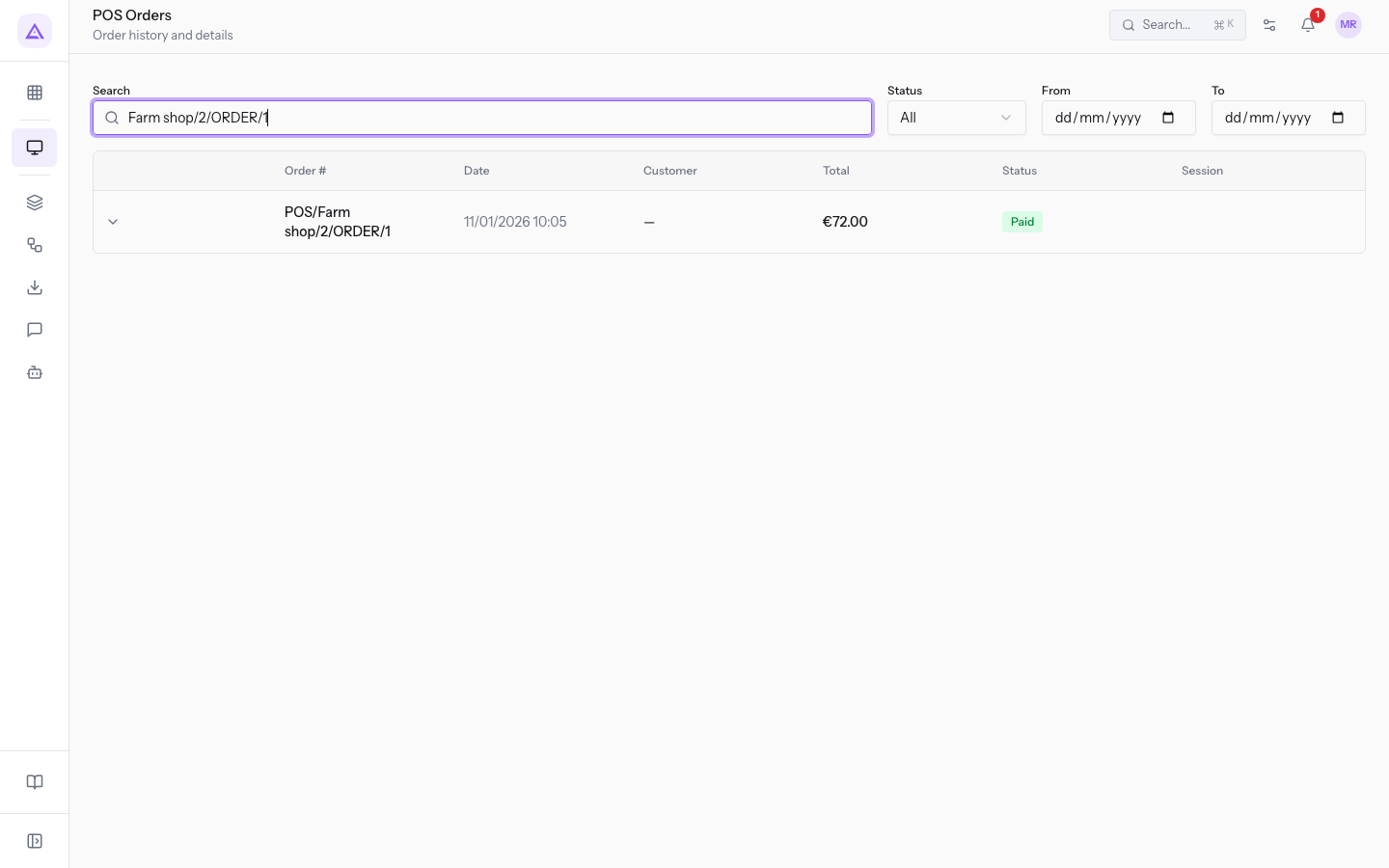
If no order matches, the page shows No orders found and Try adjusting your filters.
Filter by status and date
With filters, you narrow the list to one type of order or to a period. To check cancelled orders, choose the Cancelled status.
- In the Status filter, which starts from All, choose a status. The list updates.
- If you need a period, fill in From and To.
The Status filter options are these:
- All: all orders, in any status.
- Draft: orders started at the till and not yet paid. There are none in the demo.
- Paid: collected orders, including refunds.
- Done: in the demo, no order is in this status.
- Invoiced: orders from which an invoice has been issued. There are none in the demo.
- Cancelled: cancelled orders, for example
POS/Farm shop/2/ORDER/3from10/28/2026 15:10, total€22.00.
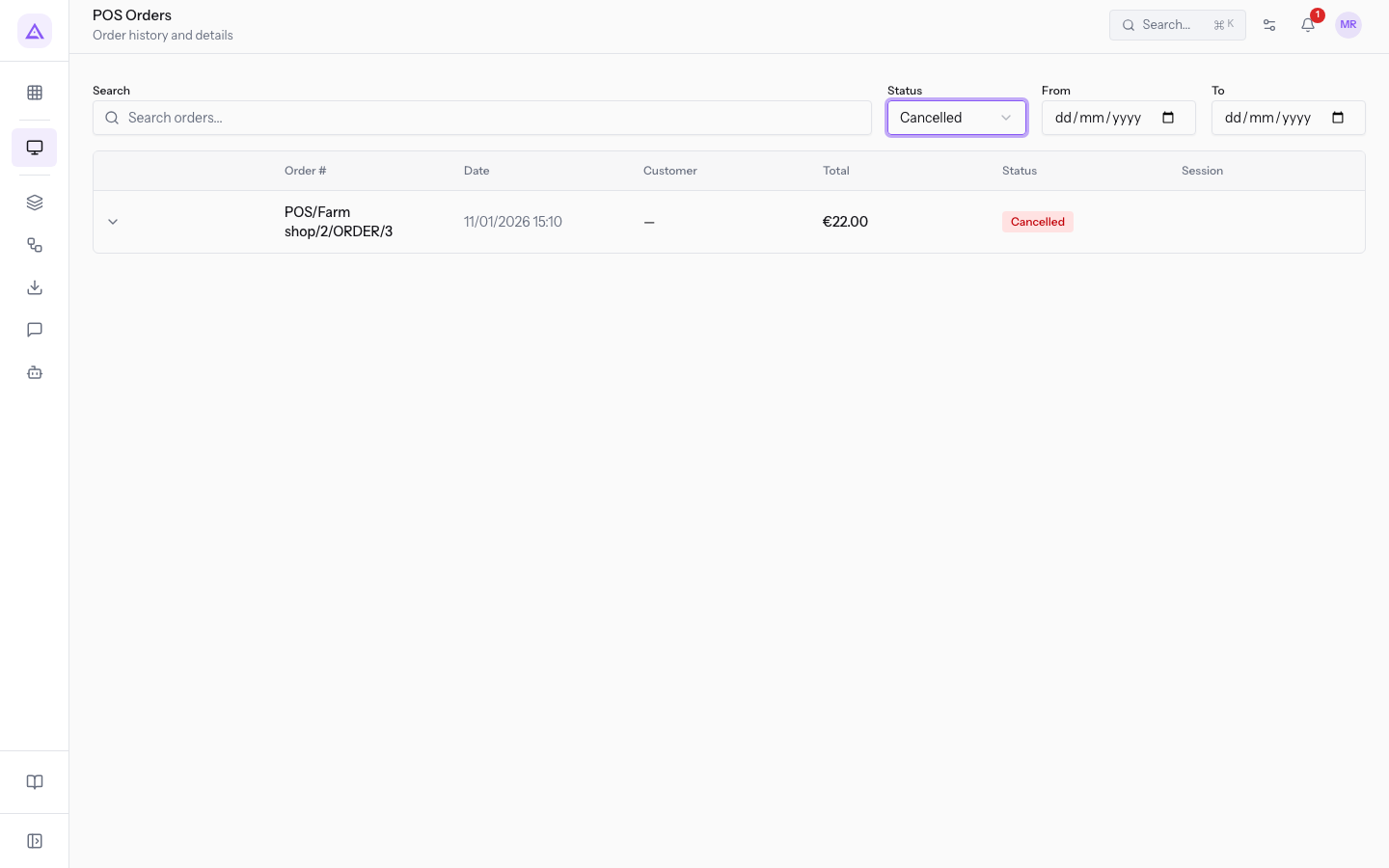
Note: cancelling an order does not delete it. The order stays in the list with the Cancelled status, because orders are accounting documents and are kept.
When a filter finds no orders, the page shows No orders found. To go back to the full list, choose All again in the Status filter and clear Search orders....
See it on your company, not on a slide deck.
In 30 minutes we map the software you use today.We show you how much work and how much margin Archimedes gives back.
Show me on my business →What industry are you in?
One tap — it lets us prepare the demo around your world.
What tools do you use today?
Pick the ones you recognise — or just type them. It helps us show you how they migrate.
Last step: your details.
We reply within one working day — and right after, if you like, you pick the demo slot yourself.
We couldn't send your request. Try again, or write to us at [email protected].
By sending, you agree to your data being processed so we can get back to you about the demo. Privacy notice.
Preview form — nothing is sent from this page.
Want to schedule the demo now?
Your call: book the slot you prefer yourself, or we'll call you to arrange it.
Live availability, 30 minutes, instant confirmation. The calendar opens in a new tab.
Lock in your slot ↗We'll get back to you within one working day — and we'll join the call already knowing your world.
The calendar is open in another tab: pick a slot and the demo is booked. Can't see it? Reopen it ↗
Preview page: nothing was sent.
Our calendar is live: take the slot that suits you and the demo is booked. 30 minutes, instant confirmation, no waiting.
Lock in your slot ↗