Point of Sale
All modules
Mark a product sold out, record cash in and out, and show the customer display
Point of Sale · 8 of 16 · 4 min read
During a session you can stop selling a product that has run out, record cash that goes into or out of the drawer without a sale, and show the customer the current order on a second screen. For example, you can mark a cheese that has run out in the display case as sold out, record a withdrawal for a small expense, or a coin deposit for change.
All of these functions are in the top bar and on the product grid of the till screen. To open it, go to Point of Sale and press Resume Session on the till card. The examples use the session POS/Farm shop/3.
Mark a product sold out
A product marked sold out cannot be sold for the rest of the session in which you mark it. In the next session of the till, the product becomes available for sale again.
- If a product runs out during the day, mark it sold out: the cashier sees right away that it is not available.
- If the product becomes available again in the same session, for example after a restock, restore it from its card.
To mark a product sold out:
- On the till screen, find the product in the grid. You can filter with the category tabs or search for it with Search products....
- Press Mark sold out on the product card. The confirmation Mark dish sold out? opens. The message says the product will not be available for this session and that you can restore it right away from the same card.
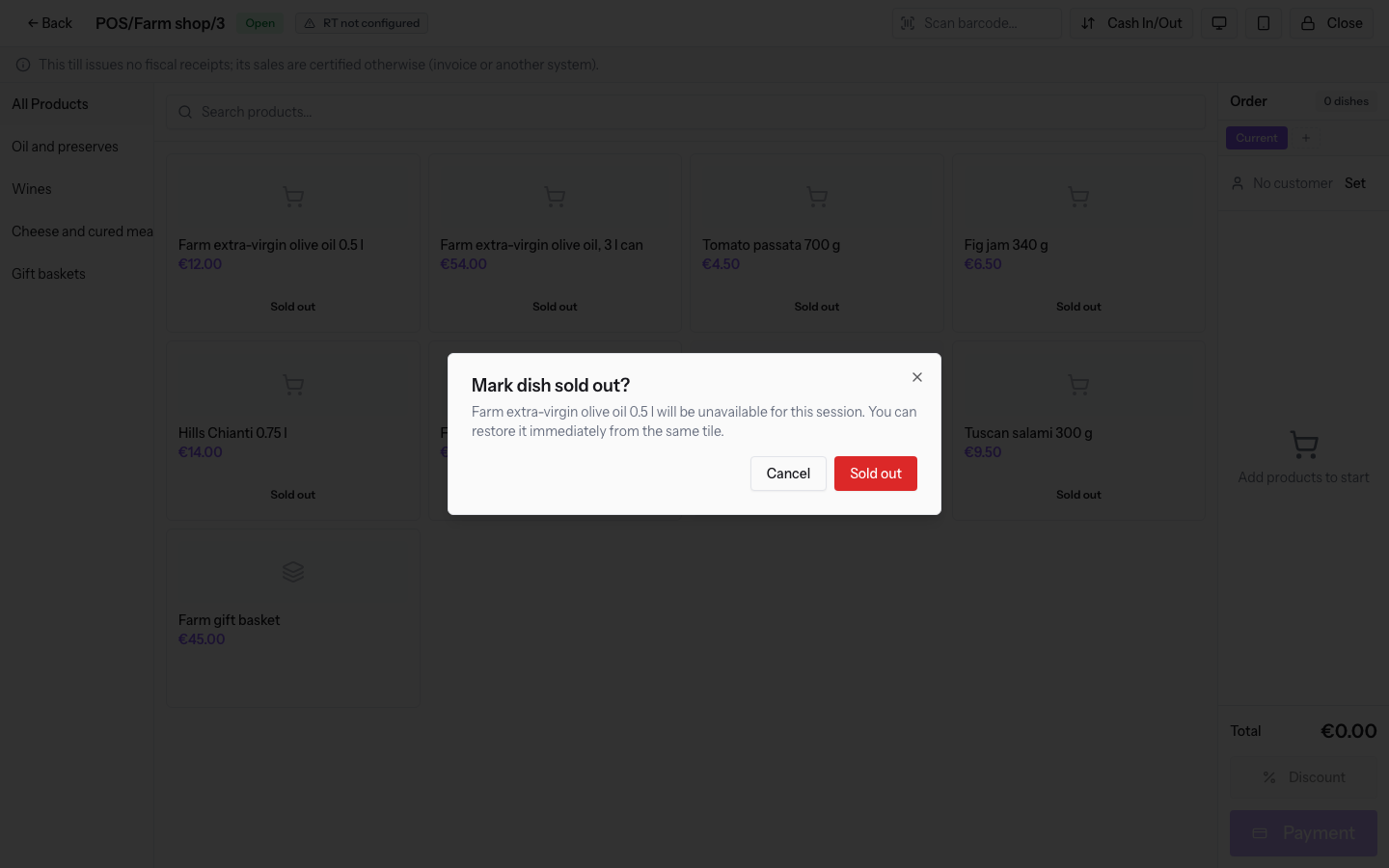
- Press Sold out to confirm.
After confirming, the message Product marked sold out appears. The product card shows the Sold out badge next to the name. In place of Mark sold out, the Mark available button appears. In the demo, Aged pecorino 1 kg is marked sold out in POS/Farm shop/3.
Put a sold out product back on sale
In the grid, press Mark available on the card of the product with the Sold out badge. The message Product marked available appears. The Sold out badge disappears and the card shows Mark sold out again. This step does not ask for confirmation.
Record a cash in or cash out
A cash movement records cash that goes into the drawer or comes out of it without a sale.
- If you take cash out of the drawer, such as €20.00 to buy ice, record a negative amount: -20.
- If you add cash to the drawer, such as €50.00 in coins for change, record a positive amount: 50.
Each movement goes into the theoretical cash balance that session closing compares with the counted cash. The theoretical balance is the sum of three items: the cash float, the session's cash payments, and the cash movements. An unrecorded withdrawal therefore shows up as a shortage at closing.
Before you start: the session must be open. In an Opening session, that is, with the cash float not yet confirmed, you cannot record cash movements.
To record a movement:
- On the till screen, press Cash In/Out in the top bar. The Cash In/Out window opens.
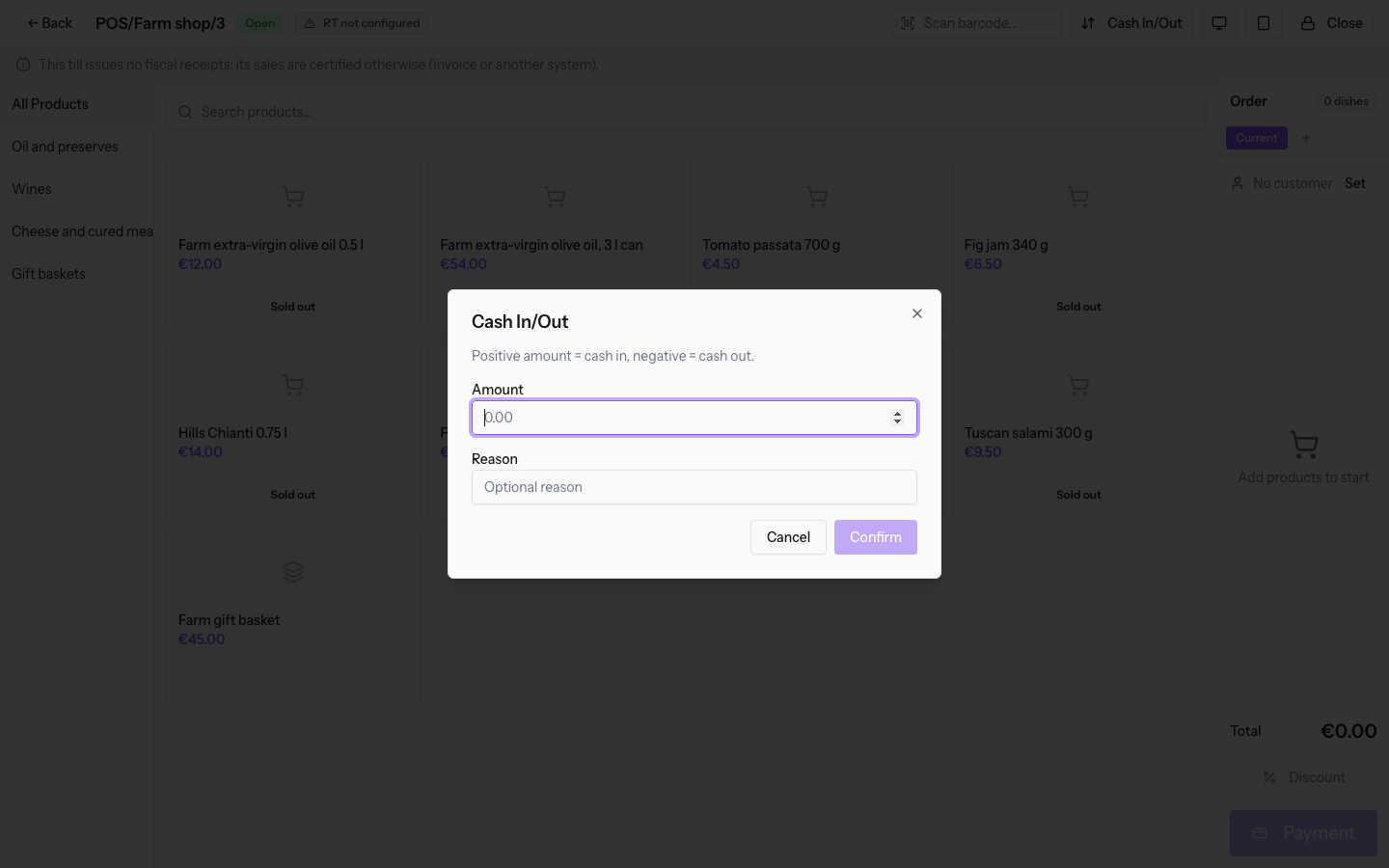
- Fill in these fields and press the confirm button:
- Amount: the first field, with the initial value 0.00. A positive amount is a cash in, a negative amount is a cash out. The amount cannot be zero and cannot exceed 5,000 in absolute value. The field is required.
- Reason: the second field, optional, for example "Ice for the cheese counter".
In the demo, the session POS/Farm shop/3 already contains a withdrawal of €20.00 for ice.
Note: without a staff PIN, the movement does not record who made it. With the PIN, the movement stays linked to the person who entered it.
Show the customer display
The customer display is a page to show the customer on a second screen, facing the counter. It shows the current order of the session: the most recent order, still in draft or just paid.
To open it:
- On the till screen, press Customer Display in the top bar.
- Move the page that opens onto the second screen.
The page shows:
- the session name and the company name;
- the order lines, with product, quantity, unit price, any discount, and line subtotal;
- the subtotal without taxes, the taxes, and the order total;
- when the order already has payments, the methods used with their amounts, the total paid, the amount still due, and the change.
Tablet Mode
In the top bar of the till screen there is also the Tablet Mode button, next to Customer Display.
See it on your company, not on a slide deck.
In 30 minutes we map the software you use today.We show you how much work and how much margin Archimedes gives back.
Show me on my business →What industry are you in?
One tap — it lets us prepare the demo around your world.
What tools do you use today?
Pick the ones you recognise — or just type them. It helps us show you how they migrate.
Last step: your details.
We reply within one working day — and right after, if you like, you pick the demo slot yourself.
We couldn't send your request. Try again, or write to us at [email protected].
By sending, you agree to your data being processed so we can get back to you about the demo. Privacy notice.
Preview form — nothing is sent from this page.
Want to schedule the demo now?
Your call: book the slot you prefer yourself, or we'll call you to arrange it.
Live availability, 30 minutes, instant confirmation. The calendar opens in a new tab.
Lock in your slot ↗We'll get back to you within one working day — and we'll join the call already knowing your world.
The calendar is open in another tab: pick a slot and the demo is booked. Can't see it? Reopen it ↗
Preview page: nothing was sent.
Our calendar is live: take the slot that suits you and the demo is booked. 30 minutes, instant confirmation, no waiting.
Lock in your slot ↗