Point of Sale
All modules
Refunding a POS order
Point of Sale · 11 of 16 · 5 min read
A refund returns to the customer all or some of the products from an already paid order, for example a bottle opened by mistake or a product bought in excess. The refund is recorded as a new order with a negative amount, linked to the original order.
How the refund works
A refund always starts from an order that is already closed. Before you begin, keep these rules in mind.
- You can only refund an order that is paid, completed or invoiced. A draft order cannot be refunded: it is cancelled.
- The refund enters the open session of the same till, not the session where the order was recorded. For example, the refund of an order from the session POS/Farm shop/2 is recorded in the open session POS/Farm shop/3.
- If the till has no open session, the refund is not created. Open the till first, as explained in Open the register and confirm the cash float.
- The return order takes the name of the session followed by /REFUND/ and the sequential number, such as POS/Farm shop/3/REFUND/3. The customer is the one from the original order.
- The refund lines have negative quantities and the total is negative. The unit price and taxes are those of the original order.
- You can refund in several steps. For each line you can return at most the quantity sold minus the quantity already refunded.
- A percentage discount is also applied to the refunded quantity. A discount in euros is returned proportionally: refunding 1 piece out of 3 gives back a third of the discount.
Note: the refund does not modify the original order, which stays in the history. When all its lines have been refunded, the original order changes status.
How the money is returned
The refund method is chosen automatically, based on how the original order was paid.
- If the order was paid in whole or in part in cash, the refund is returned with the same cash method.
- If the order has no cash payments, the refund uses the first active method of the till, and cash methods come before the others.
If the till has a cash method, an order paid by Card is therefore refunded from the cash drawer. In the demo, the Farm shop till has the methods Cash and Card.
Refunding an order
The refund is made from the order detail, on the POS Orders page.
Before you start: the till of the order must have an open session.
- Open the POS Orders page.
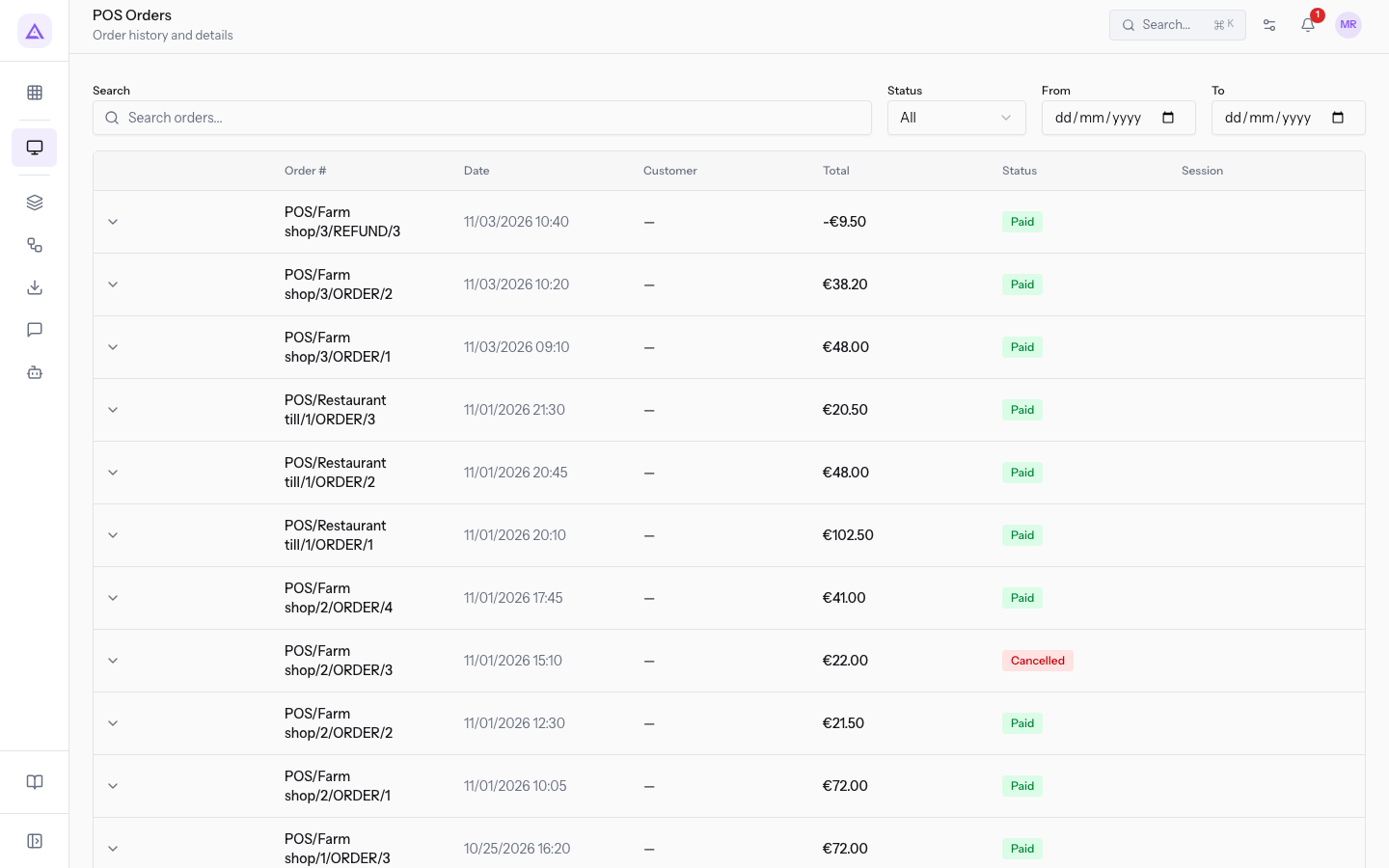
- In the Search orders... field type the order name, such as
POS/Farm shop/1/ORDER/2, and press Enter. - Open the order from the list. The order must be in the Paid status.
- In the order detail, press Refund. The refund window opens with the order name in the title and one line for each product of the order.
- In each line type in Refund qty how many pieces to return (
1on the Hills Chianti 0.75 l line). - Press Confirm refund.
Each line has these fields:
- Refundable: the quantity you can still return, that is the quantity sold minus the quantity already refunded. The value is calculated automatically.
- Refund qty: the quantity to return with this refund. It cannot exceed the value of Refundable.
After confirming, one of these messages appears:
- Refund created: the return order has been recorded in the open session of the till.
- Refund failed: the refund was not recorded, for example because the till has no open session or because the quantity exceeds the refundable one.
- No refundable lines remain: all the lines of the order have already been refunded.
Viewing an already refunded order
In the detail of the original order, each refunded line shows the quantity returned, for example «Refunded: 1».
Example from the demo: the order POS/Farm shop/2/ORDER/2 has the Tuscan salami 300 g already refunded. The refund is the order POS/Farm shop/3/REFUND/3, with status Paid, amount -€9.50 and payment in Cash.
On the POS Orders page the return order appears like the other orders, with the negative total. To search for refunds, type REFUND in the Search orders... field. The search finds the orders whose name contains the typed text. To consult the list see View POS orders and reprint a receipt.
The refund in the session closing
A cash refund lowers the theoretical cash balance of the session where it is recorded. The theoretical balance is the cash float plus the cash collected, including the negative refunds, plus the cash movements.
Example: in the session POS/Farm shop/3 the refund of €9.50 in Cash is subtracted from the theoretical balance. At closing the drawer must therefore contain €9.50 less. For the count see Close the register and count the drawer.
Note: the refund does not count as a sold order in the number of orders of the session.
See it on your company, not on a slide deck.
In 30 minutes we map the software you use today.We show you how much work and how much margin Archimedes gives back.
Show me on my business →What industry are you in?
One tap — it lets us prepare the demo around your world.
What tools do you use today?
Pick the ones you recognise — or just type them. It helps us show you how they migrate.
Last step: your details.
We reply within one working day — and right after, if you like, you pick the demo slot yourself.
We couldn't send your request. Try again, or write to us at [email protected].
By sending, you agree to your data being processed so we can get back to you about the demo. Privacy notice.
Preview form — nothing is sent from this page.
Want to schedule the demo now?
Your call: book the slot you prefer yourself, or we'll call you to arrange it.
Live availability, 30 minutes, instant confirmation. The calendar opens in a new tab.
Lock in your slot ↗We'll get back to you within one working day — and we'll join the call already knowing your world.
The calendar is open in another tab: pick a slot and the demo is booked. Can't see it? Reopen it ↗
Preview page: nothing was sent.
Our calendar is live: take the slot that suits you and the demo is booked. 30 minutes, instant confirmation, no waiting.
Lock in your slot ↗