Point of Sale
All modules
Getting Around the Point of Sale: tills, Sessions and the Cash App
Point of Sale · 2 of 16 · 5 min read
The Point of Sale page is the starting point for working with tills. It shows which tills you have, which ones have an open session, and the latest sessions. From here you open, resume and close sessions.
Tills and sessions
A till is the setup of a point of sale: it has its own payment methods and product categories. A session is a work period of that till, such as a day or a shift, from opening with the cash float to closing with the count.
- The session is named after the till plus a running number:
POS/Farm shop/3. - A till has only one active session at a time. A session is active when it is Opening, Open or Closing.
- The same till has many sessions over time: Farm shop has two closed ones and one open today.
Tills are set up in Point of Sale › Terminals. This entry is reserved for the point-of-sale manager.
Opening the Point of Sale page
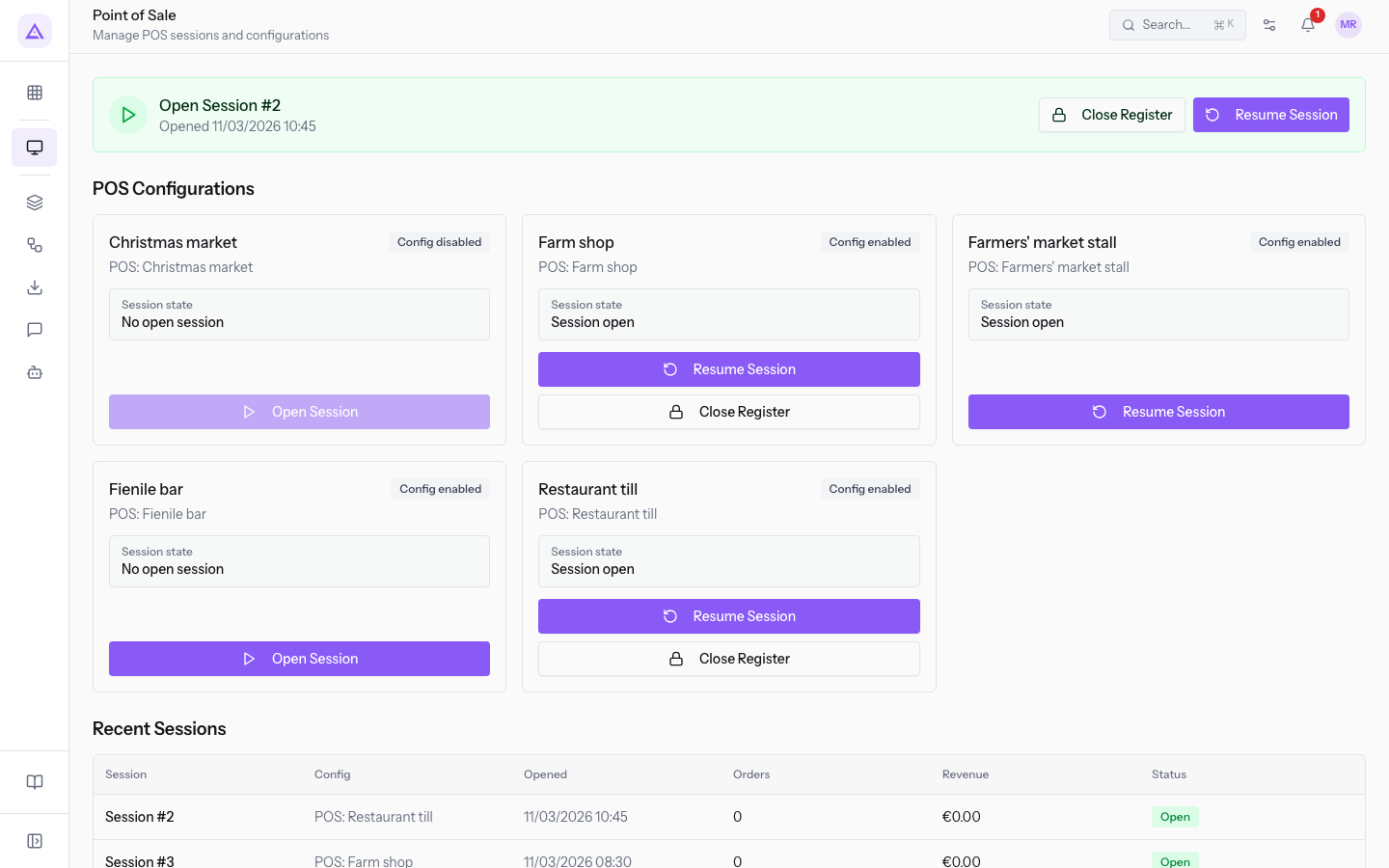
Open Point of Sale › Dashboard. The page has the subtitle Manage POS sessions and configurations and shows, from top to bottom: the card for your current session, if you have one, the POS Configurations section and the Recent Sessions section.
The current session card
If you have an active session, a card appears at the top of the page. For Martin Ross it is session POS/Restaurant till/2.
- Title: the session number, such as
Open Session #2. - Opening date, such as
Opened 10/30/2026 10:45. - Resume Session: opens the session screen. If the session is open, it opens the till screen. If it is waiting for the cash float to be confirmed, it opens the Confirm cash float page. If it is closing, it opens the closing page.
- Close Register: opens the closing page of the session. It only appears when the session is in the Open state.
If you have no active session, the card does not appear.
The POS Configurations section
The POS Configurations section shows one card for each till.
Each card contains:
- The till name.
- The badge Config enabled or Config disabled.
- Session state, with the value Session open if the till has an active session, otherwise No open session.
- The buttons, which change with the state of the till.
The buttons on a card work like this:
- Open Session: appears when the till has no active session. It opens a new session. If the till counts cash, the Declare the cash float window opens first.
- Resume Session: appears when the till has an active session. It opens the session screen, as in the current session card.
- Close Register: appears only when the till's session is Open.
Important: on a till with the Config disabled badge and no active session, Open Session is not available.
In the demo, the tills look like this:
- Farm shop: Session open, with Resume Session and Close Register. It is session
POS/Farm shop/3of Julia Green. - Restaurant till: Session open, with Resume Session and Close Register. It is session POS/Restaurant till/2 of Martin Ross.
- Farmers' market stall: Session open, but session
POS/Farmers' market stall/1is Opening because the cash float has not been confirmed. Only Resume Session is available, which opens the Confirm cash float page. - Barn bar: No open session, with Open Session. It has never been opened.
- Christmas market: Config disabled and No open session. Open Session is not available.
Note: an Opening session does not take orders. To unlock it, confirm the drawer count on the Confirm cash float page.
The Recent Sessions section
The Recent Sessions section lists the latest sessions of all tills.
Columns:
- Session: the session number.
- Config: the till of the session.
- Opened: opening date and time.
- Orders: the number of orders in the session.
- Revenue: the takings of the session.
- Status: the state of the session.
- Opening: the cash float is declared but not confirmed. In the demo it is
POS/Farmers' market stall/1. - Open: the session takes orders. In the demo these are
POS/Farm shop/3and POS/Restaurant till/2. - Closed: the session has been counted and closed. In the demo these are POS/Farm shop/1,
POS/Farm shop/2and POS/Restaurant till/1.
- Opening: the cash float is declared but not confirmed. In the demo it is
Press a row to resume the session. This only works with active sessions. An Opening row opens the Confirm cash float page. A Closed row opens nothing.
The till app on tablet or phone
The till app installed on a tablet or phone opens on a page that takes you straight to the right till.
- One session open: the app goes directly to its till screen.
- More sessions open: the app shows Choose the till with the text
More than one till is open. Your choice is remembered on this device.and one button for each open till, for example Restaurant till and Farm shop.
To choose the till, open the till app on the device and press the till's button.
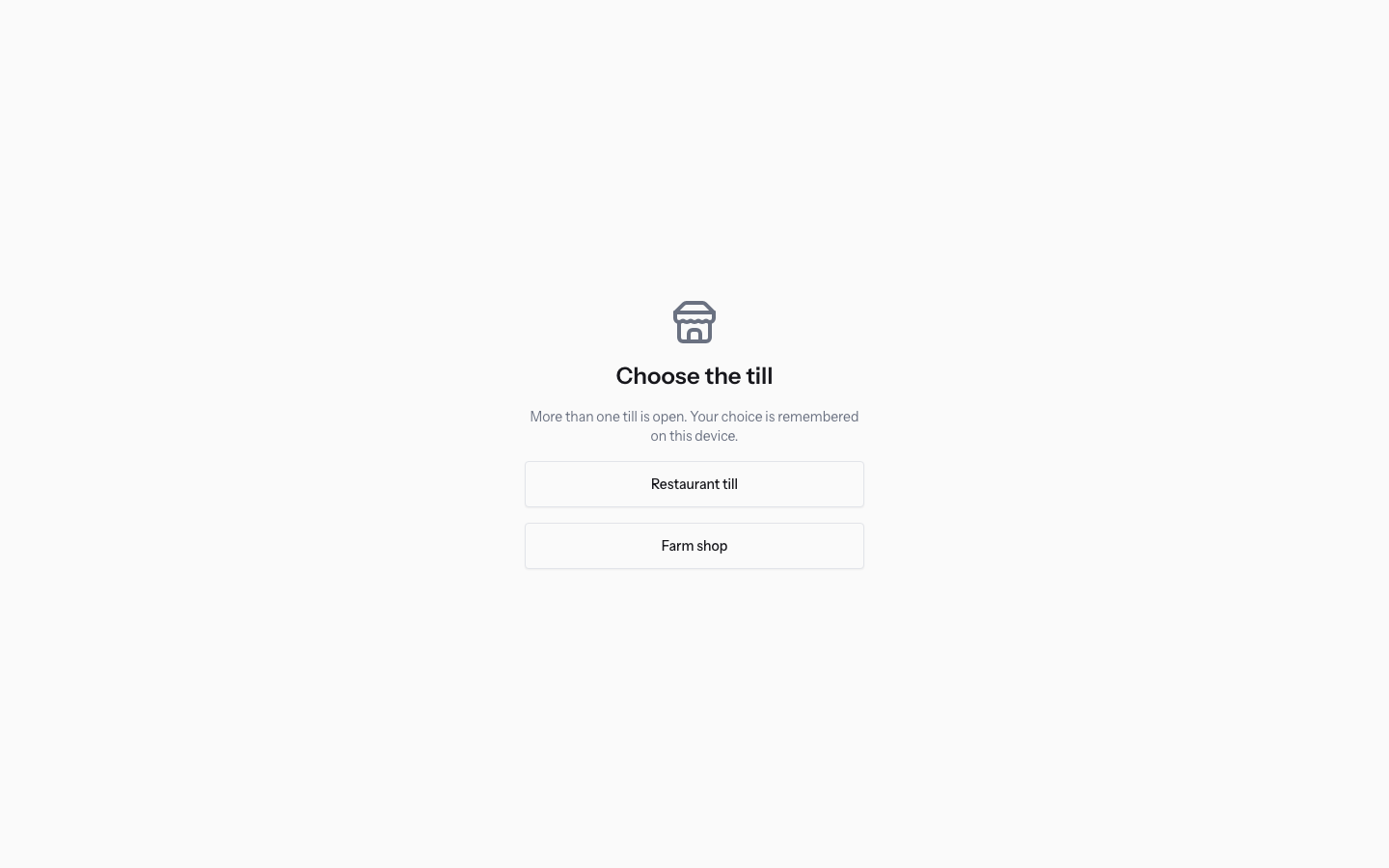
The device remembers the chosen till. On later openings the app goes directly into that till.
Tip: use one device for each till. That way each one remembers its till and staff go straight to the till screen.
See it on your company, not on a slide deck.
In 30 minutes we map the software you use today.We show you how much work and how much margin Archimedes gives back.
Show me on my business →What industry are you in?
One tap — it lets us prepare the demo around your world.
What tools do you use today?
Pick the ones you recognise — or just type them. It helps us show you how they migrate.
Last step: your details.
We reply within one working day — and right after, if you like, you pick the demo slot yourself.
We couldn't send your request. Try again, or write to us at [email protected].
By sending, you agree to your data being processed so we can get back to you about the demo. Privacy notice.
Preview form — nothing is sent from this page.
Want to schedule the demo now?
Your call: book the slot you prefer yourself, or we'll call you to arrange it.
Live availability, 30 minutes, instant confirmation. The calendar opens in a new tab.
Lock in your slot ↗We'll get back to you within one working day — and we'll join the call already knowing your world.
The calendar is open in another tab: pick a slot and the demo is booked. Can't see it? Reopen it ↗
Preview page: nothing was sent.
Our calendar is live: take the slot that suits you and the demo is booked. 30 minutes, instant confirmation, no waiting.
Lock in your slot ↗