Point of Sale
All modules
Open the till and confirm the cash float
Point of Sale · 3 of 16 · 3 min read
To sell from a till, you first need to open a session and declare the cash float. That is the cash in the drawer at the start of service. This page explains how to open a session and how to confirm the cash float of a session that was opened without confirmation.
How opening works
A session is the working period of a till, from opening to closing. It takes the name of the till followed by a sequential number, for example POS/Barn bar/1.
The cash float you declare at opening is the figure the closing report starts from, to check that the till balances.
- If the drawer contains cash, count the coins and notes and enter the total in the field.
- If the drawer is empty, leave 0.
A session stays in the Opening state when the cash float has been declared but not confirmed. A session in this state does not accept orders until you confirm the cash float.
Opening a session
Open the session from the till's card, on the Point of Sale page.
- In the POS Configurations section, find the till's card, for example Barn bar, and press Open Session. The Declare the cash float window opens with the text «Count the drawer for Barn bar before service starts. The session opens as soon as you confirm.»
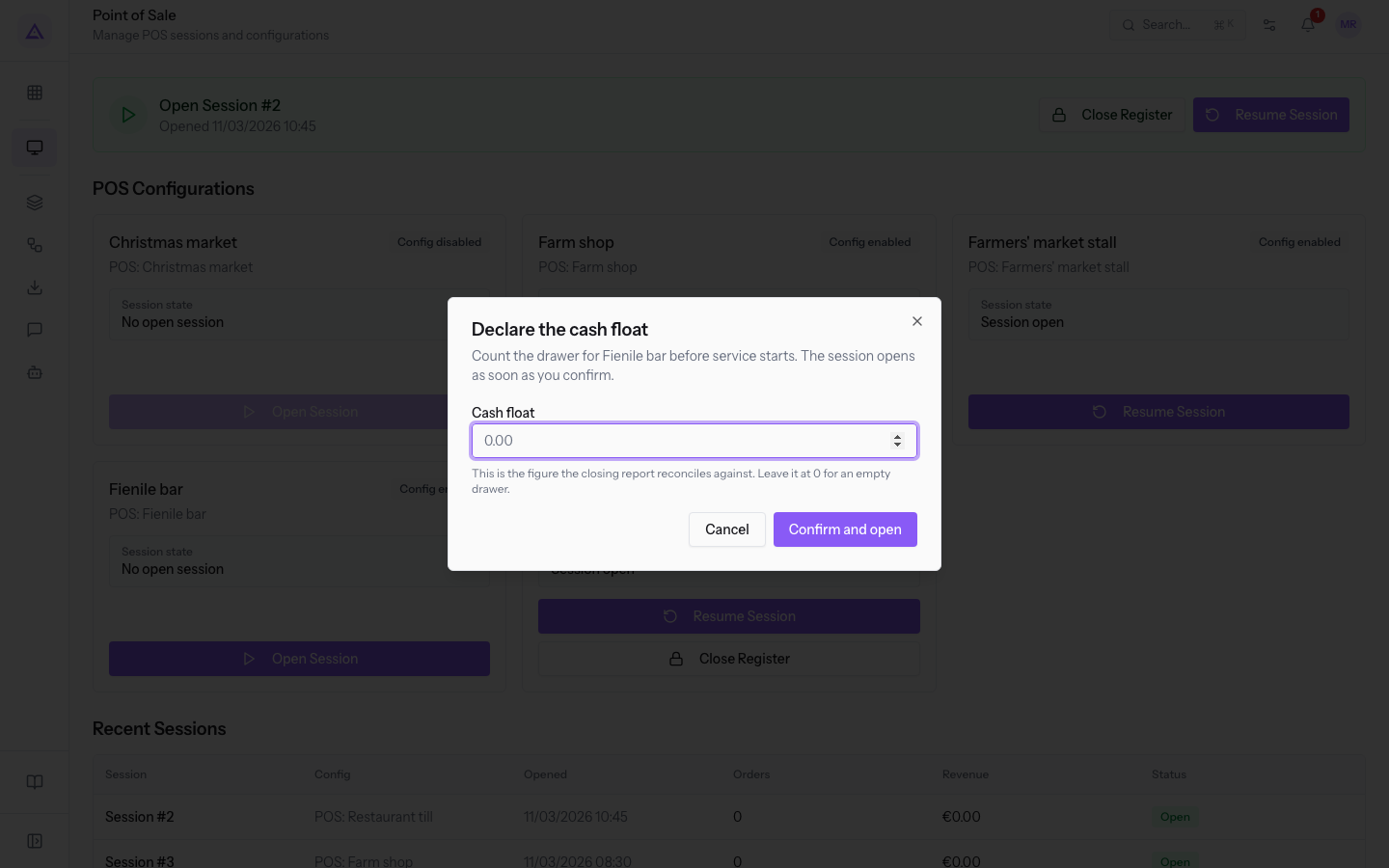
- Count the drawer and enter the amount in the Cash float field, such as €100.00.
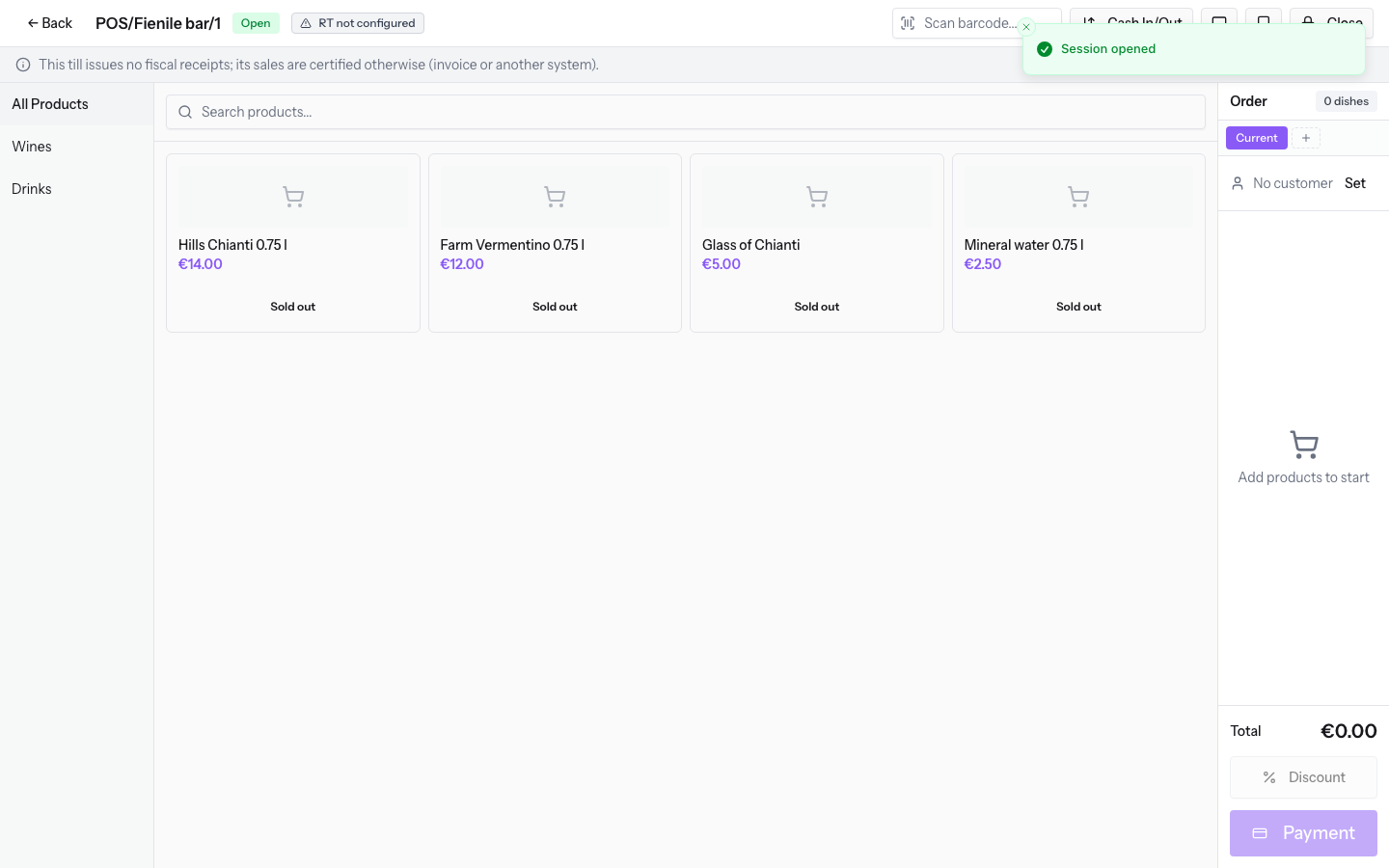
- Press Confirm and open. The Session opened message appears and the till screen of the new session opens, in the Open state.
Fields and buttons in the Declare the cash float window:
- Cash float: the cash in the drawer at opening. The help text says: «This is the figure the closing report reconciles against. Leave it at 0 for an empty drawer.»
- Confirm and open: records the cash float and opens the session.
Note: the session opens when you press Confirm and open. Before that moment, the till has no session.
Confirming the cash float of an opening session
If a session was opened but its cash float was not confirmed, you can settle it from the Confirm cash float page, which has the subtitle Settle the register opening. In the demo, this is the case of POS/Farmers' market stall/1, opened today by Julia Green with €100.00 declared.
- On the Point of Sale page, Recent Sessions section, press the row of the session with the Opening state. The Confirm cash float page of the till opens.
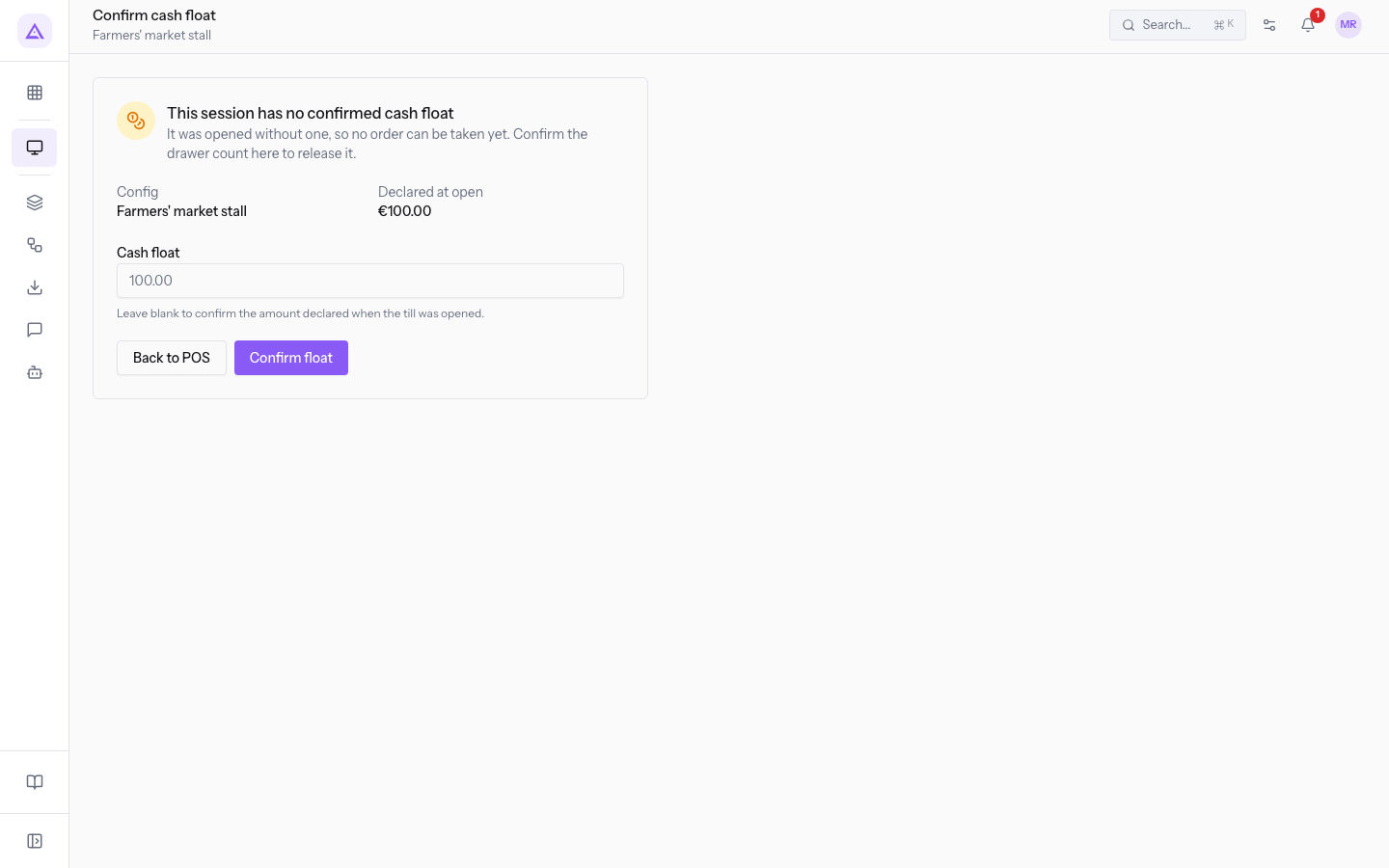
- Check the amount declared at opening. If it is correct, leave the Cash float field empty. If the drawer contains a different figure, enter that one.
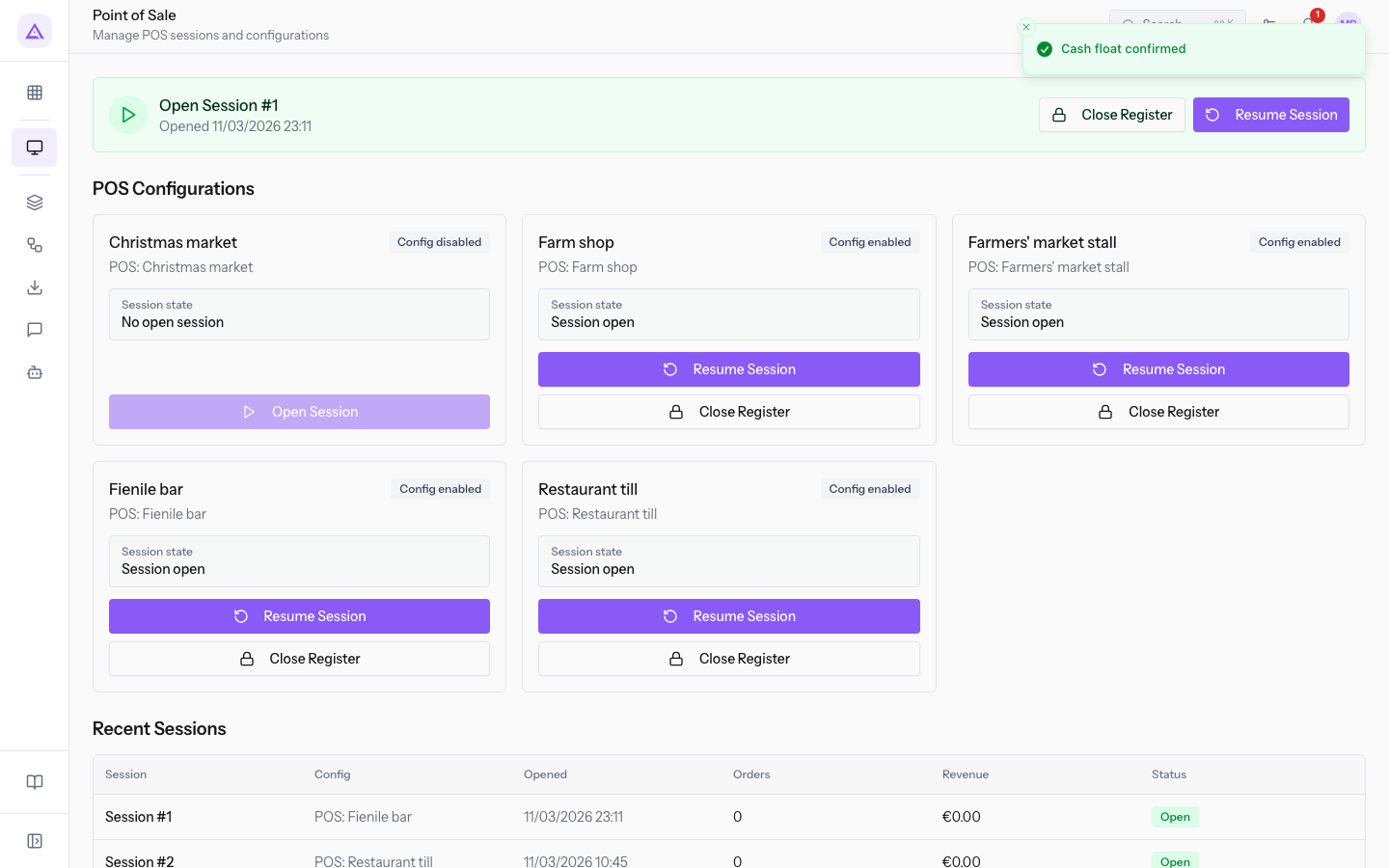
- Press Confirm float. The Cash float confirmed message appears and you return to the Point of Sale page.
What the Confirm cash float page shows:
- Config: the till the session belongs to.
- Declared at open: the amount entered when the session was opened.
- The This session has no confirmed cash float warning: it explains that the session was opened without a cash float and therefore cannot take orders yet.
- Cash float: the amount to confirm. The help text says: «Leave blank to confirm the amount declared when the till was opened.» The field is not required.
- Back to POS: returns to the Point of Sale page without confirming.
- Confirm float: confirms the cash float. From that moment the session accepts orders.
Important: until the cash float is confirmed, the till does not accept orders. Confirm the cash float before starting service.
See it on your company, not on a slide deck.
In 30 minutes we map the software you use today.We show you how much work and how much margin Archimedes gives back.
Show me on my business →What industry are you in?
One tap — it lets us prepare the demo around your world.
What tools do you use today?
Pick the ones you recognise — or just type them. It helps us show you how they migrate.
Last step: your details.
We reply within one working day — and right after, if you like, you pick the demo slot yourself.
We couldn't send your request. Try again, or write to us at [email protected].
By sending, you agree to your data being processed so we can get back to you about the demo. Privacy notice.
Preview form — nothing is sent from this page.
Want to schedule the demo now?
Your call: book the slot you prefer yourself, or we'll call you to arrange it.
Live availability, 30 minutes, instant confirmation. The calendar opens in a new tab.
Lock in your slot ↗We'll get back to you within one working day — and we'll join the call already knowing your world.
The calendar is open in another tab: pick a slot and the demo is booked. Can't see it? Reopen it ↗
Preview page: nothing was sent.
Our calendar is live: take the slot that suits you and the demo is booked. 30 minutes, instant confirmation, no waiting.
Lock in your slot ↗