Point of Sale
All modules
Apply discounts, notes and custom prices
Point of Sale · 5 of 16 · 6 min read
On the till screen you can change an order before payment: apply a discount to one line, to several lines or to the whole order, change the unit price of a line, and add a note to a line.
Before you start: the till must have an open session. To open the till screen and add products, see Ring up a sale and collect payment.
Choose the right change
Each order line has the buttons Discount and Price and the command Add note. A second Discount button, before Payment, applies to several lines.
- If the reduction concerns one product only, use Discount on the line.
- If it concerns the whole order, use Discount before Payment and choose Global.
- If it concerns only some lines, use Discount before Payment and choose Per-product.
- If the line must have a different unit price, use Price. The button appears only to point-of-sale managers.
- If you need to leave an instruction about a product, use Add note.
Apply a discount to a line
The line discount reduces the total of a single product in the order, by a percentage or a fixed amount. This is how to record 10% on the Hills Chianti 0.75 l.
Before you start: discounts must be allowed on the till. A till can turn them off completely, as explained in Configuring tills. The waiter role cannot apply discounts.
- On the order line, press Discount. The Set Discount window opens.
- Choose Percentage or Amount. The field label becomes Discount (%) or Discount (€).
- Enter the value, in this case 10, and press Apply.
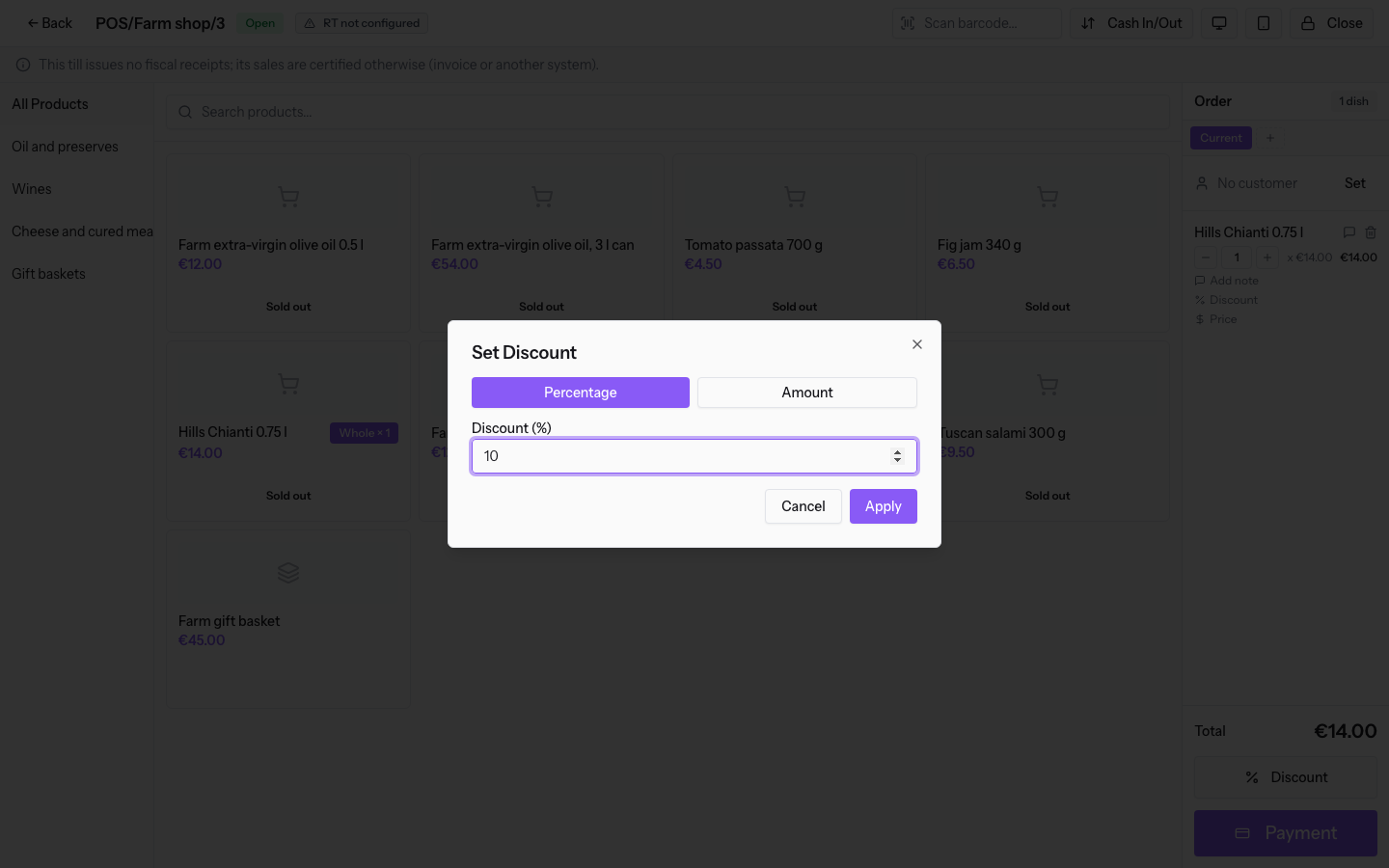
Fields in the window:
- Percentage: the discount is a percentage of the line value.
- Amount: the discount is a euro figure taken off the line.
- Discount (%) or Discount (€): the discount value. If the line already has a discount, the field shows that value.
After Apply, the line shows the discount: the percentage or the amount taken off. The product price in the grid does not change.
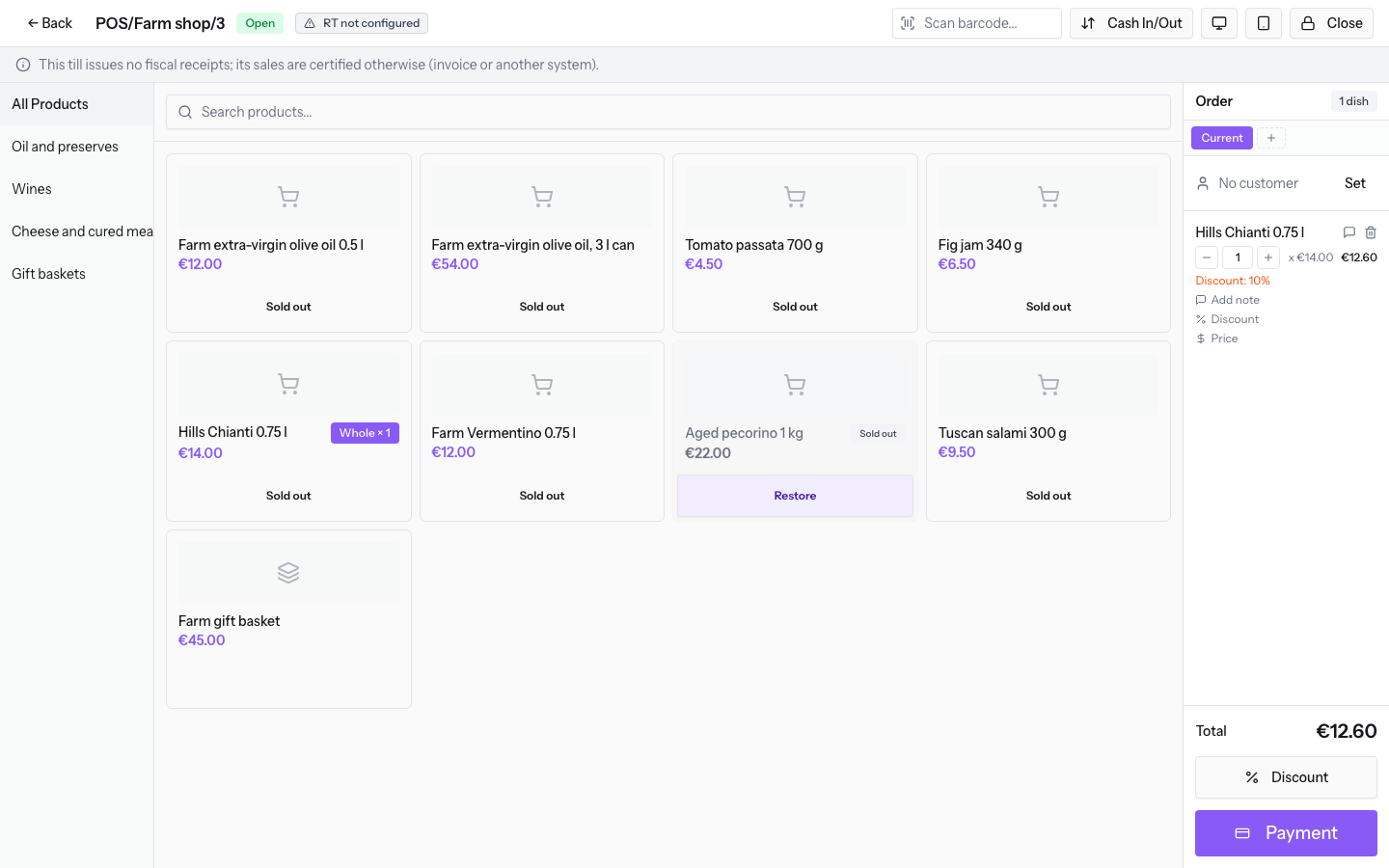
To remove the discount, reopen Set Discount on the line and enter 0.
Important: if the till asks for a PIN for sensitive operations and the discount exceeds the till's limit, a manager's approval is needed. If the approval is refused or cancelled, the discount is not applied. At the Farm shop this check is off.
Apply a discount to the order or to several lines
The Discount button before Payment opens the Choose discount window, which applies the discount to all lines or only to selected products. The order must contain at least one product.
Before you start: a till may offer only line discounts. In that case the discount on the whole order is not available.
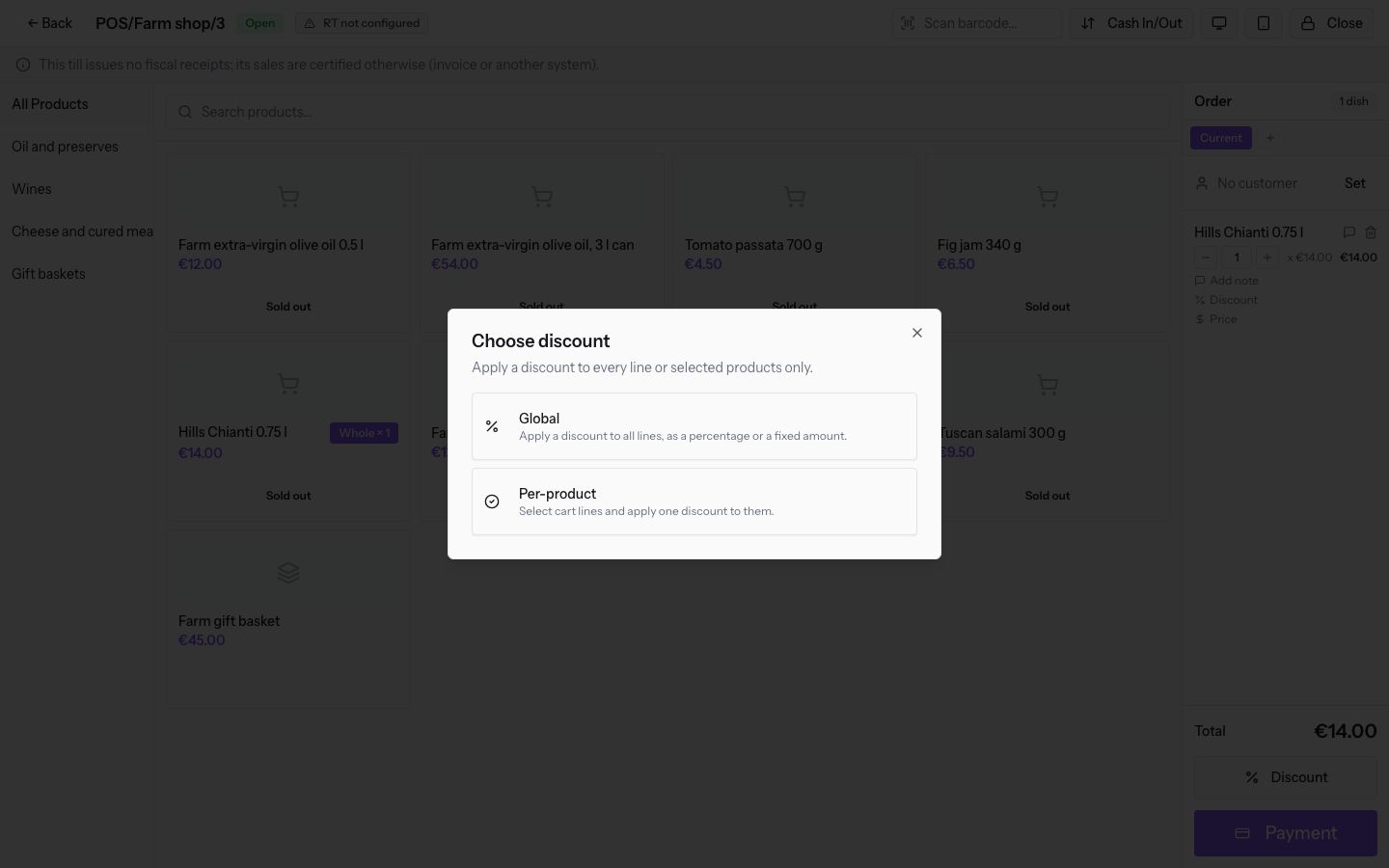
Global discount
The global discount applies to all lines of the order.
- Press Discount before Payment and choose Global. The Discount All window opens.
- Choose Percentage or Amount.
- Enter the value and press Apply.
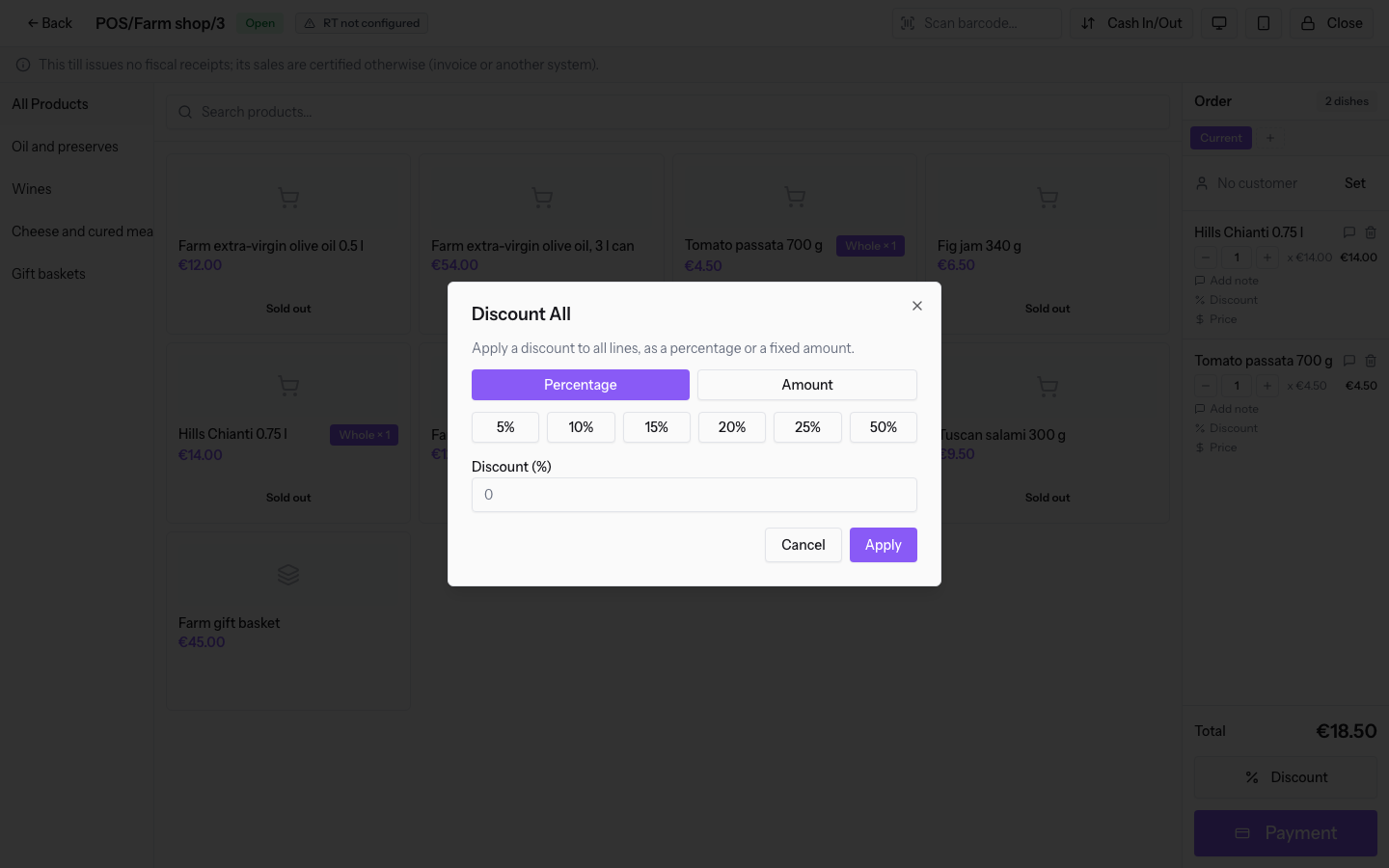
Fields in the window:
- Percentage: the discount is a percentage of each line. The buttons 5%, 10%, 15%, 20%, 25% and 50% fill the field.
- Amount: the discount is a euro figure, split across the lines in proportion to their value. The percentage buttons do not appear.
- Discount (%) or Discount (€): the discount value.
Important: the global discount replaces the discounts already on the lines. If a line has 10% and you apply a global 20%, the line changes to 20%.
Per-product discount
The per-product discount applies the same discount only to the lines you select.
- Press Discount before Payment and choose Per-product. The Per-product discount window opens.
- Tick the lines to discount. You must select at least one.
- Choose Percentage or Amount.
- Enter the value and press Apply.
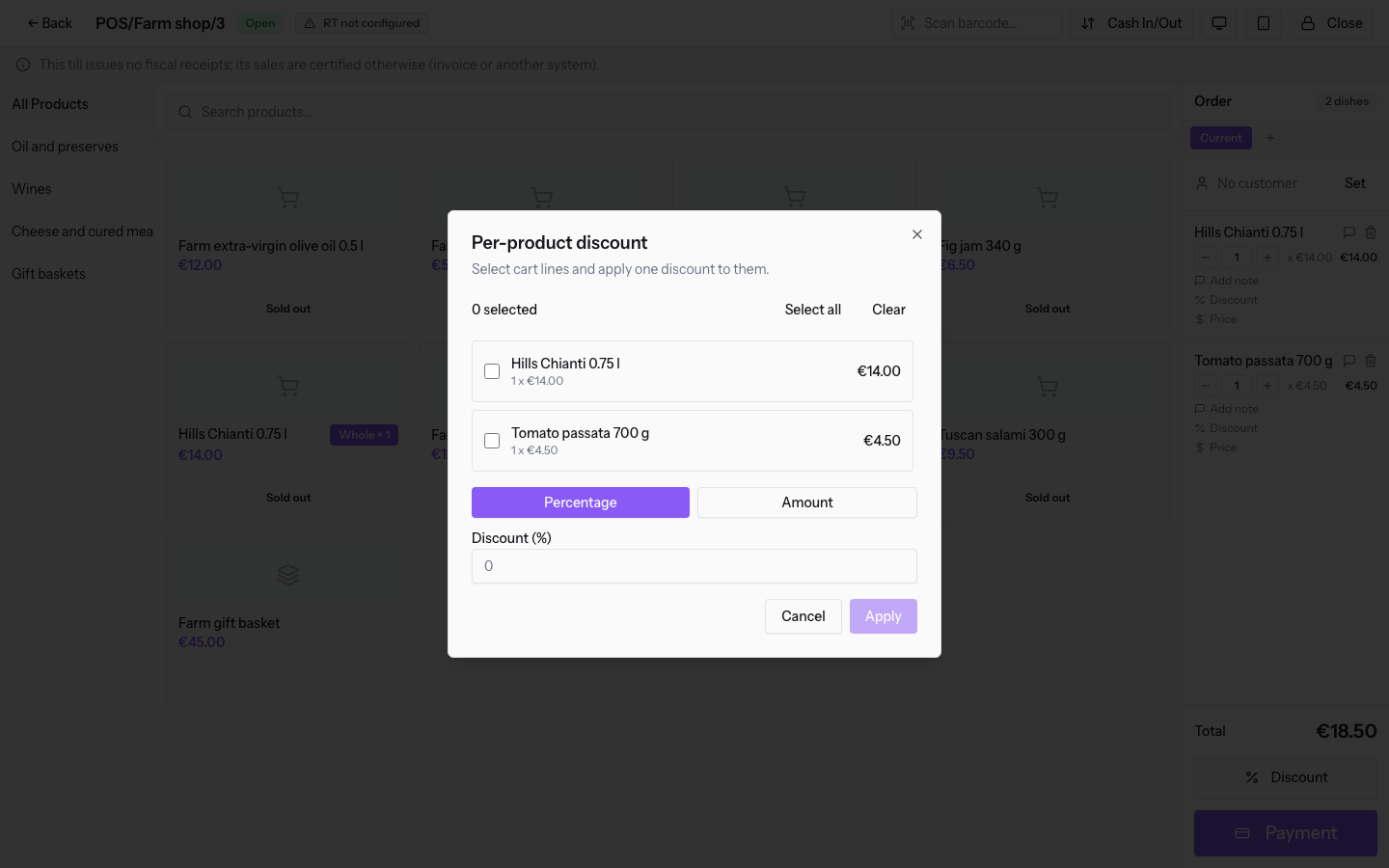
Fields in the window:
- List of lines: for each line it shows product, quantity, unit price and total, with the number of selected lines.
- Select all: selects all lines.
- Clear: removes the selection.
- Percentage: the percentage applies to each selected line.
- Amount: the figure is split across the selected lines in proportion to their value. With €2.00 on two lines of €14.00 and €4.50, the discounts are €1.51 and €0.49.
- Discount (%) or Discount (€): the discount value.
Set a custom price
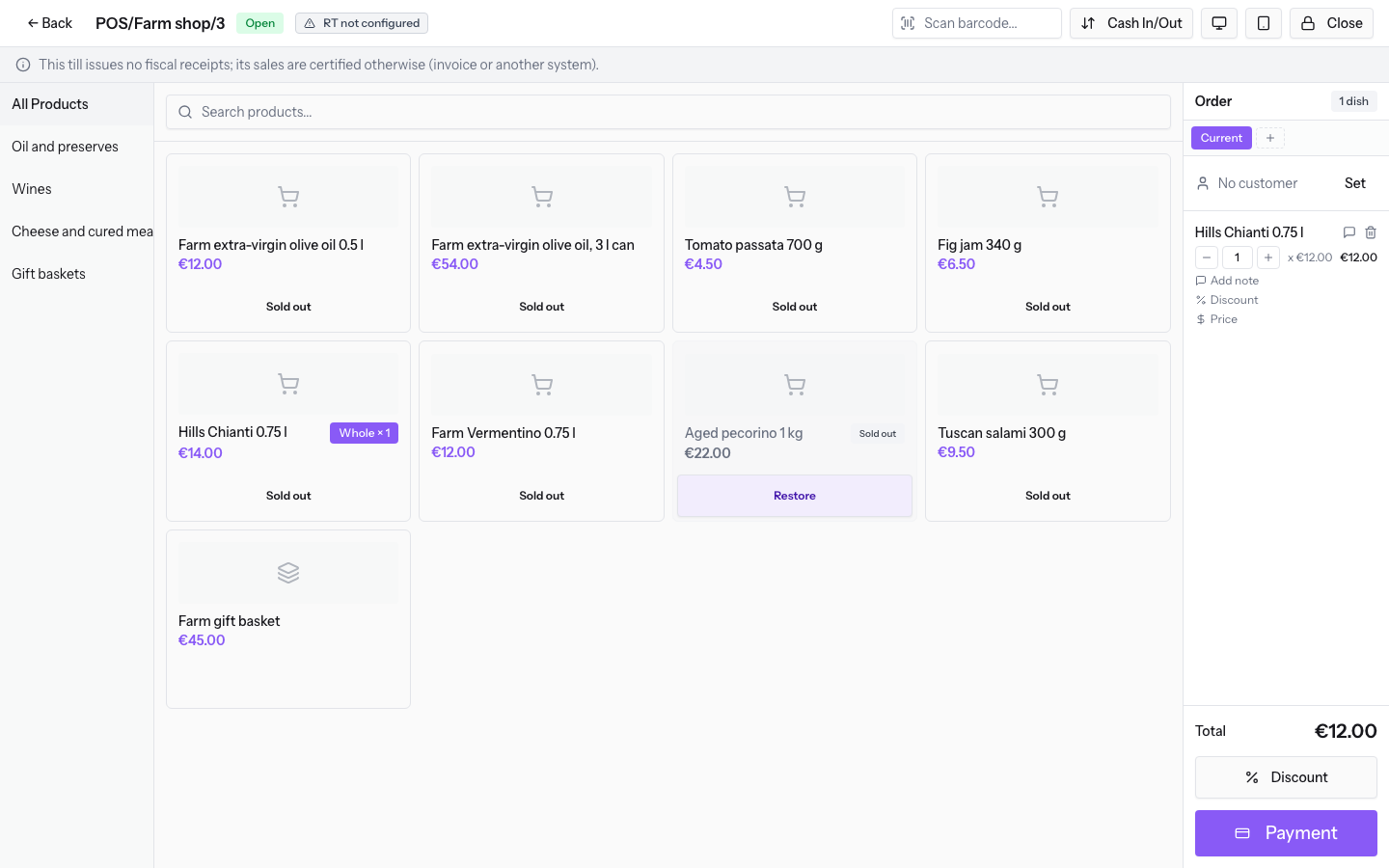
The custom price replaces the unit price of a single order line. It does not change the product price: in the grid the product stays at its price.
Before you start: the Price button appears only to point-of-sale managers.
- On the order line, press Price. The Set price: Hills Chianti 0.75 l window opens, with the product name of the line.
- In Unit price, enter the new price, in this case €12.00, and press Apply.
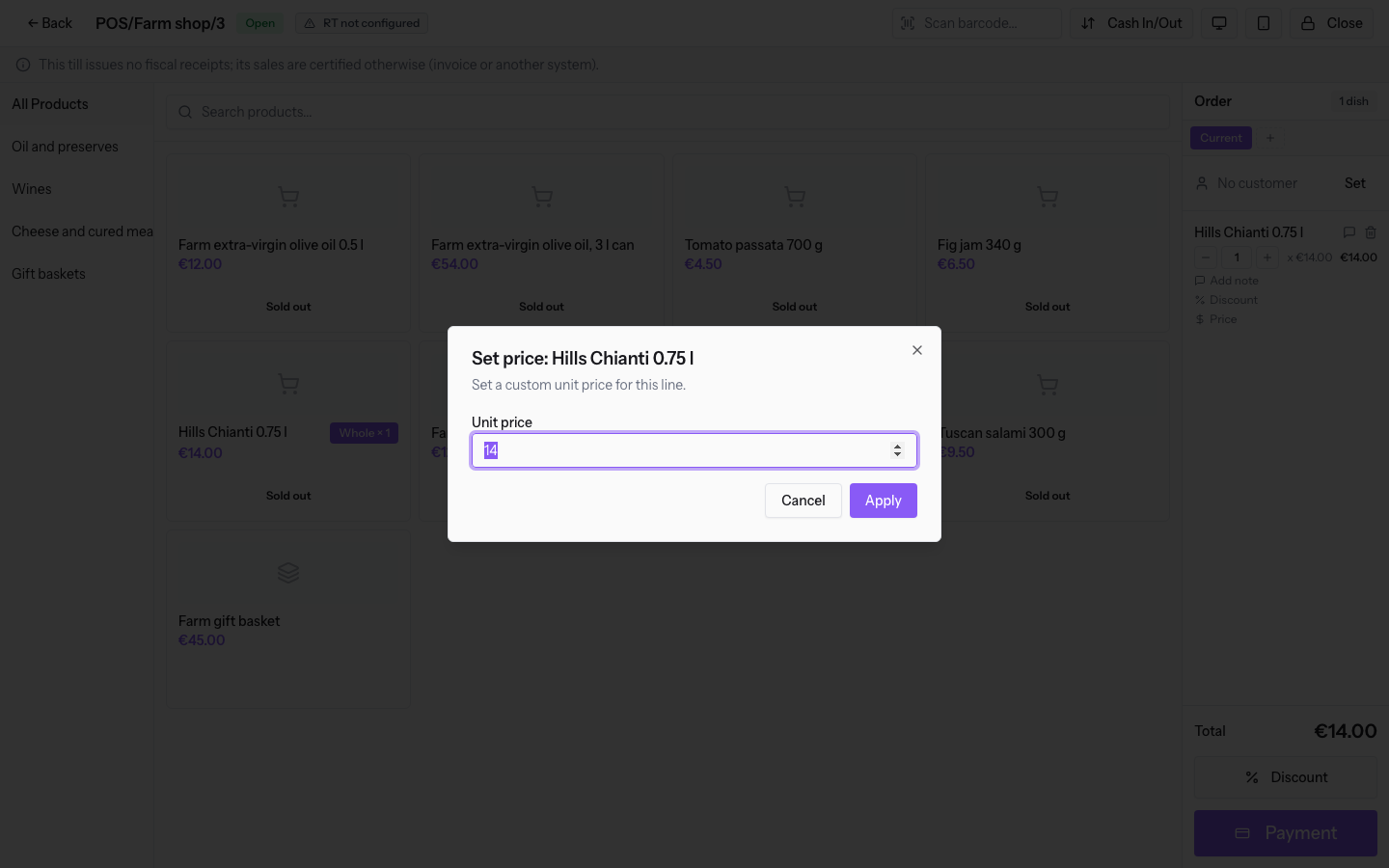
Fields in the window:
- Unit price: the price of one unit on this line. The field is filled with the current line price. The price cannot be negative.
After Apply, the line shows the new unit price and recalculates its total.
Add a note to a line
The line note goes with a single product in the order. It is used for an instruction to the kitchen or for the receipt.
- On the order line, press Add note. The Line note: Hills Chianti 0.75 l window opens, with the product name of the line.
- Press one or more Quick notes, an allergen in Allergen presets, or write in the field. The button adds the text to the Line note field.
- Press Save note.
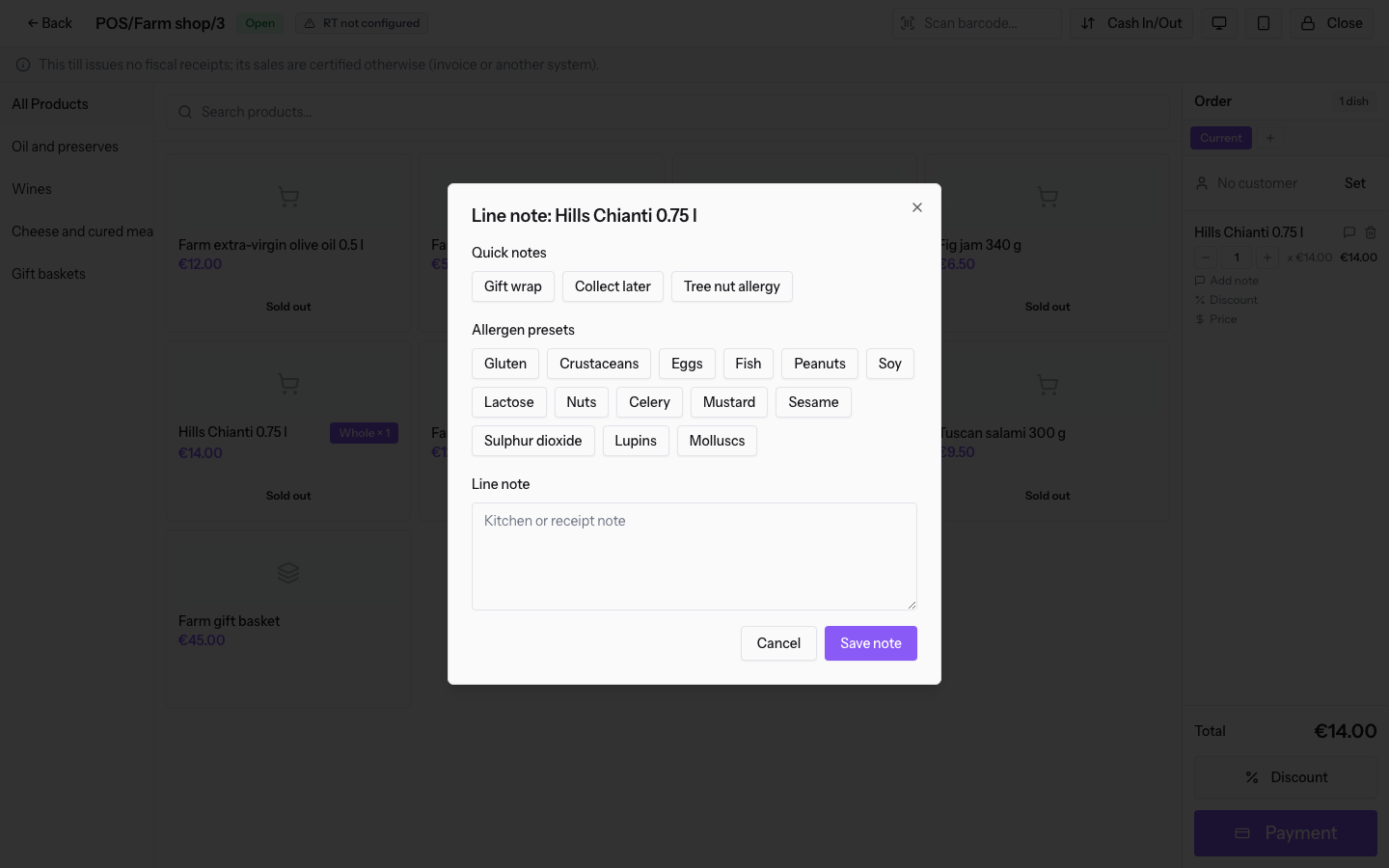
Fields in the window:
- Quick notes: the prepared texts for that till. At the Farm shop they are Gift wrap, Collect later and Tree nut allergy. At the Restaurant till they are Gluten free and Tree nut allergy. A note already in the field is not added twice.
- Allergen presets: the allergens to report, from Gluten to Molluscs. The button adds the ALLERGIA part to the start of the text, followed by the allergen. With Gluten and Gift wrap the field contains «ALLERGIA: glutine Gift wrap».
- Line note: the note text. The field shows the guide Kitchen or receipt note and accepts at most 1000 characters.
The saved note appears under the line and the Add note command disappears. A note with an allergen appears in red, preceded by an exclamation mark.
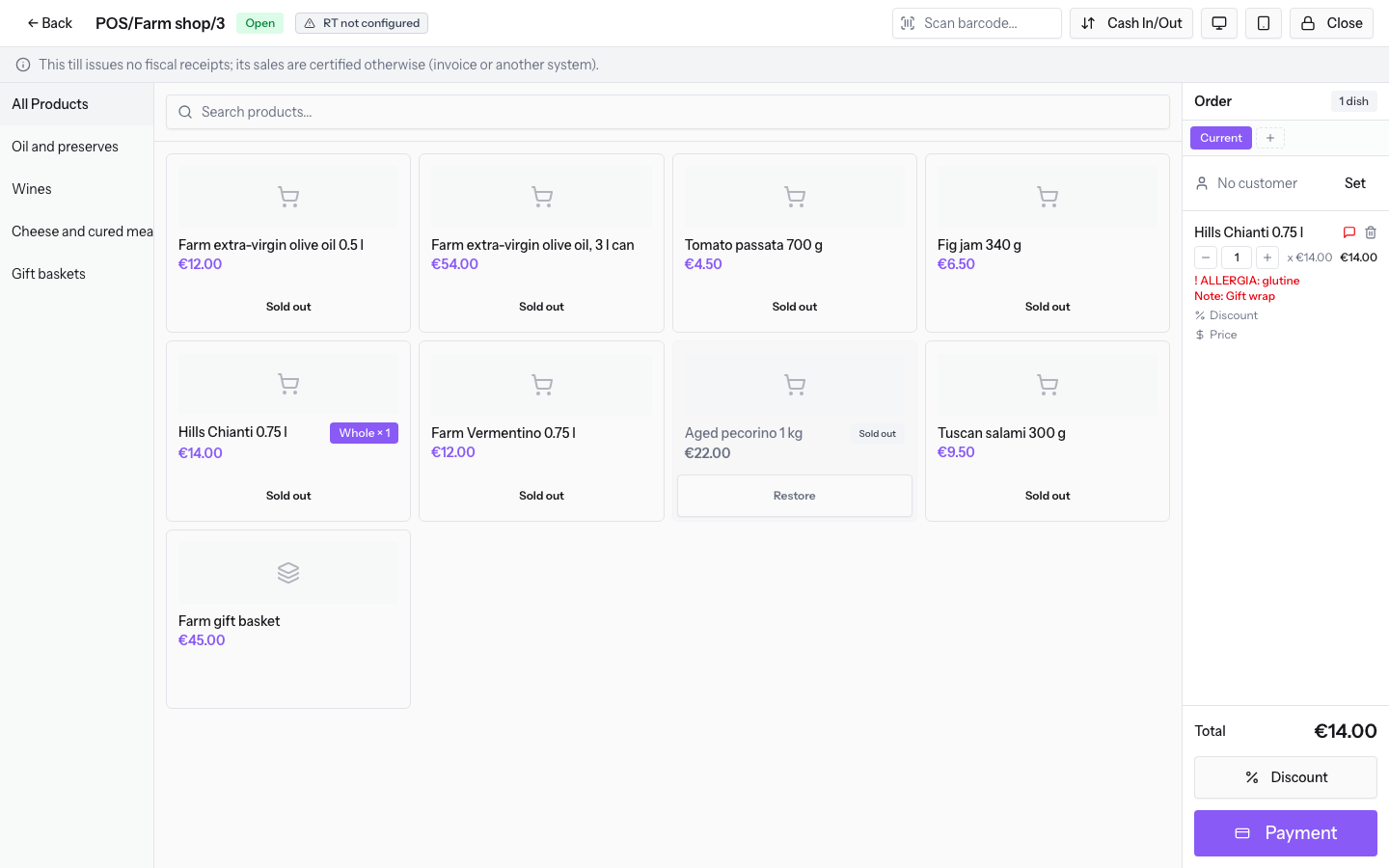
To edit a note, press the note icon next to the product name. The same window also opens by holding the product name on the line. To remove the note, empty the Line note field and press Save note.
Note: order notes, including allergies, are health data.
Preparing quick notes
Quick notes are reusable texts that cashiers add to a line with a single button. They are prepared in the POS settings, not at the till.
Before you start: Point of Sale › POS options is in the menu settings group, reserved for the point-of-sale manager.
The Notes tab lists the quick notes with the columns Name, Tills and Status.
- Open Point of Sale › POS options and the Notes tab.
- Press Add.
- In Name write the text of the note. The field is required.
- In Tills tick the tills that must offer the note. If you tick none, the note is offered on all of them.
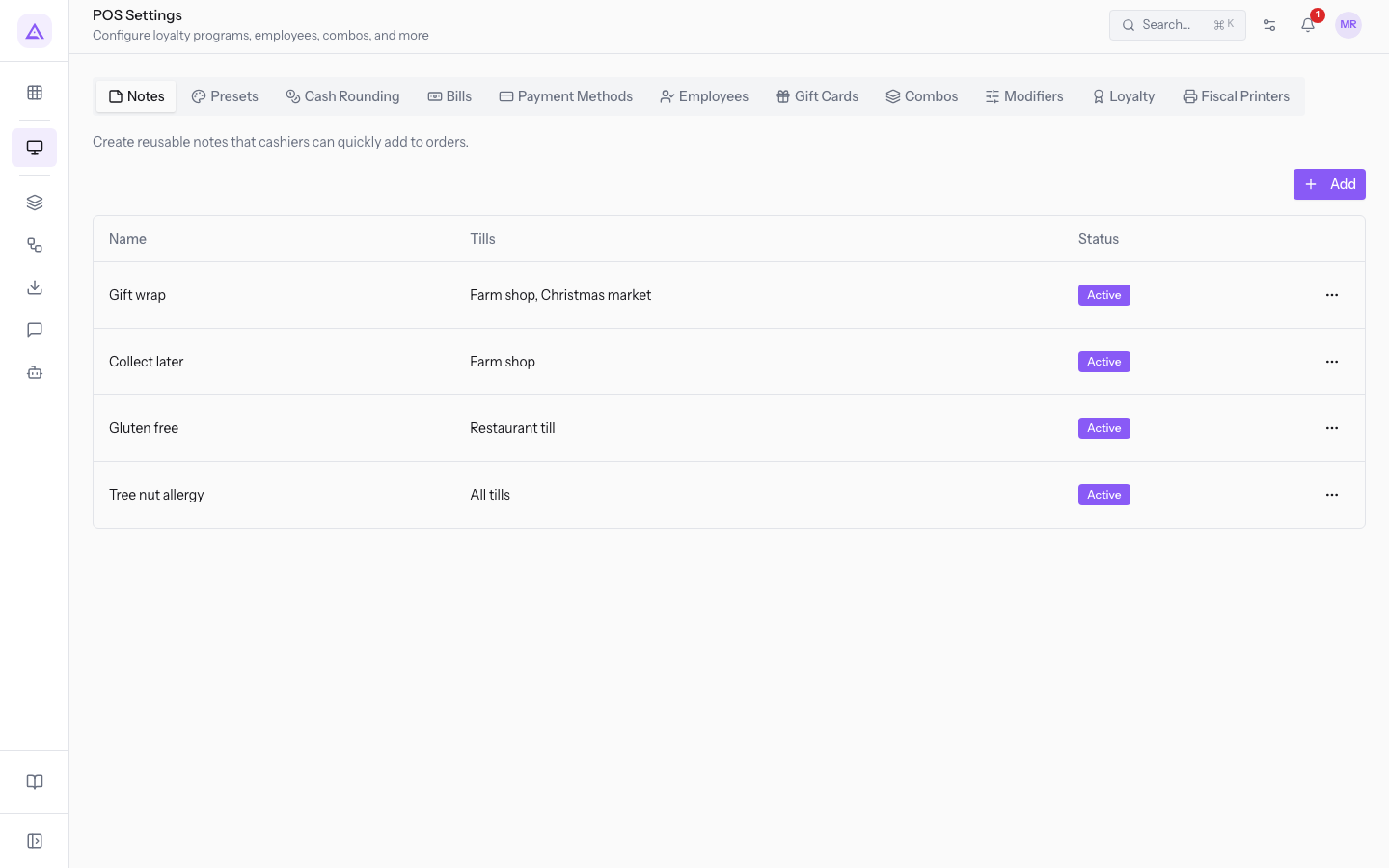
The other fields of the tab are described in Setting up payment methods, cash denominations, till staff and quick notes.
See it on your company, not on a slide deck.
In 30 minutes we map the software you use today.We show you how much work and how much margin Archimedes gives back.
Show me on my business →What industry are you in?
One tap — it lets us prepare the demo around your world.
What tools do you use today?
Pick the ones you recognise — or just type them. It helps us show you how they migrate.
Last step: your details.
We reply within one working day — and right after, if you like, you pick the demo slot yourself.
We couldn't send your request. Try again, or write to us at [email protected].
By sending, you agree to your data being processed so we can get back to you about the demo. Privacy notice.
Preview form — nothing is sent from this page.
Want to schedule the demo now?
Your call: book the slot you prefer yourself, or we'll call you to arrange it.
Live availability, 30 minutes, instant confirmation. The calendar opens in a new tab.
Lock in your slot ↗We'll get back to you within one working day — and we'll join the call already knowing your world.
The calendar is open in another tab: pick a slot and the demo is booked. Can't see it? Reopen it ↗
Preview page: nothing was sent.
Our calendar is live: take the slot that suits you and the demo is booked. 30 minutes, instant confirmation, no waiting.
Lock in your slot ↗