Point of Sale
All modules
Reading the sales reports and a session summary
Point of Sale · 12 of 16 · 4 min read
The POS Reports page collects Point of Sale sales by session, product, category, payment method and day. You can use it to check the cash differences of a day, see the best-selling products of the shop, or compare cash and card takings.
Opening the reports
Before you start: the reports page is only visible to point-of-sale managers. In the demo, the managers are Julia Green and Martin Ross.
Open Point of Sale › Reports. The POS Reports page opens with the subtitle Point of sale analytics and insights and shows the Sessions tab.
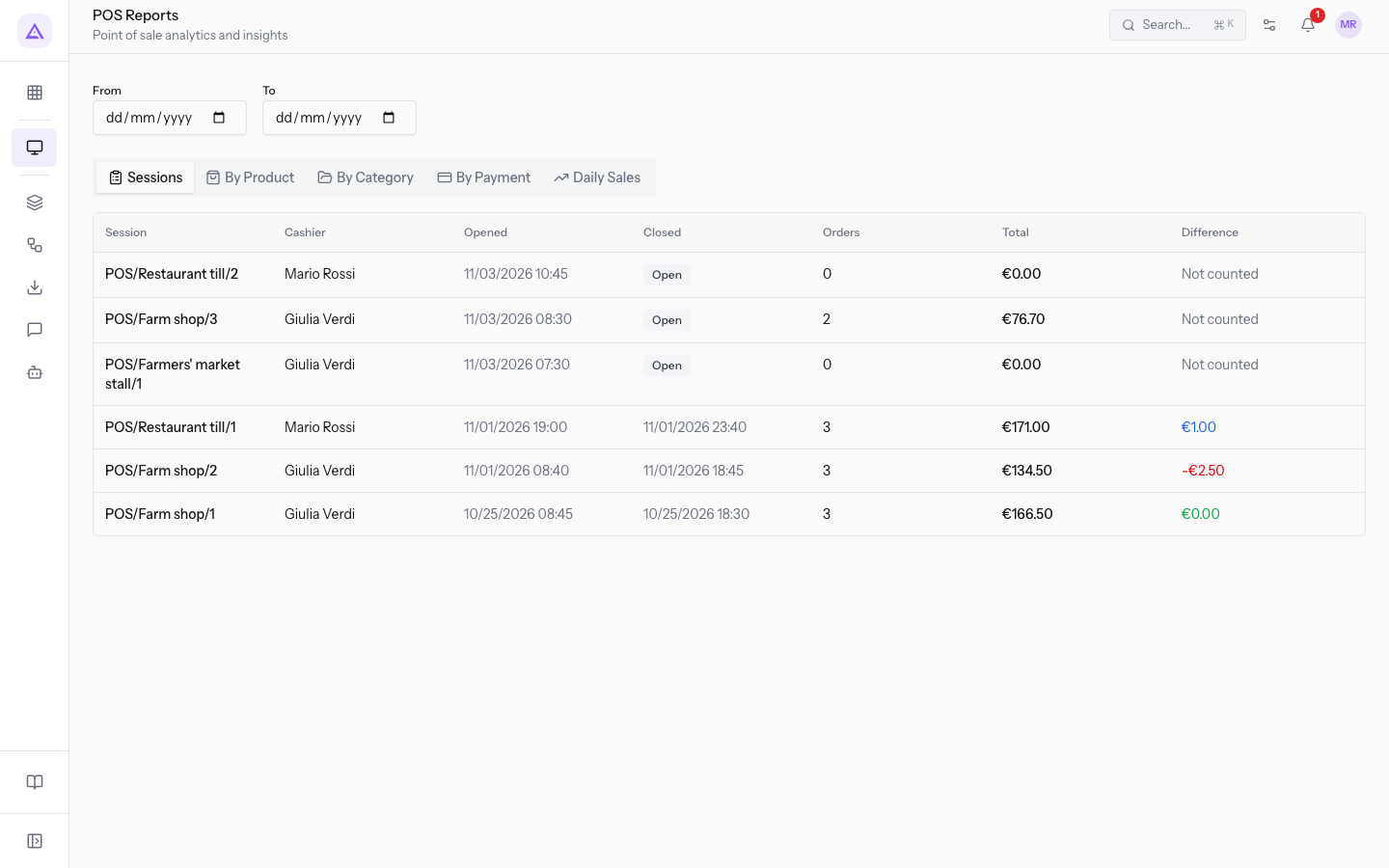
At the top there are the period filters:
- From: the first date of the period to analyse.
- To: the last date of the period to analyse.
Below the filters there are the tabs Sessions, By Product, By Category, By Payment and Daily Sales.
Choose the tab based on what you want to check:
- If you want to verify the cash of a shift, use Sessions.
- If you want to know what sells the most, use By Product or By Category.
- If you want to compare cash and cards, use By Payment.
- If you want to follow the trend day by day, use Daily Sales.
Sessions tab
The tab lists the sessions, one per row, with the following columns.
- Session: the name of the session, for example
POS/Farm shop/2. - Cashier: the person who worked on the session.
- Opened: opening date and time.
- Closed: closing date and time. For a session still open the column shows Open.
- Orders: the number of orders in the session.
- Total: the amount sold in the session.
- Difference: the cash difference counted at closing. A negative value is a shortage, a positive value a surplus. For a session still open the column shows Not counted.
In the demo, the closed sessions are:
POS/Farm shop/1: 3 orders, €166.50, difference €0.00 (cash balanced).POS/Farm shop/2: 3 orders, €134.50, difference -€2.50 (shortage).POS/Restaurant till/1: 3 orders, €171.00, difference €1.00 (surplus).
Note: a session's difference is only known after the drawer is counted at closing. Until then the row shows Open and Not counted.
By Product tab
The tab shows sales grouped by product.
The columns are:
- Product: the name of the product sold.
- Qty Sold: the units sold in the period.
- Revenue: the amount collected for the product.
- Avg Price: the average price at which the product was sold.
By Category tab
The tab groups sales by POS category, for example Oil and preserves.
The columns are:
- Category: the POS category of the products sold.
- Quantity: the units sold in the category.
- Revenue: the amount collected in the category.
- Orders: the number of orders with products from the category.
By Payment tab
The tab adds up the takings by payment method.
The columns are:
- Method: the payment method, for example Card or Cash.
- Amount: the total collected with that method in the period.
- Transactions: the number of payments recorded with that method.
In the demo, the Card row shows €391.50 in 7 transactions.
Note: in the demo, Card is an external card POS and the amount is recorded by hand at the till.
Daily Sales tab
The tab shows one row for each day with sales.
The columns are:
- Date: the day of the sales, for example 10/21/2026.
- Orders: the number of orders for the day.
- Revenue: the amount sold on the day.
- Avg Order Value: the average value of an order for the day.
Opening a session summary
The summary shows the numbers of one session: it is the page to review a day that is already closed.
- Open Point of Sale › Reports.
- In the Sessions tab, press the row of the session, for example
POS/Farm shop/2. The summary opens with the session name as title, the till name below it and Back to reports to return to the list.
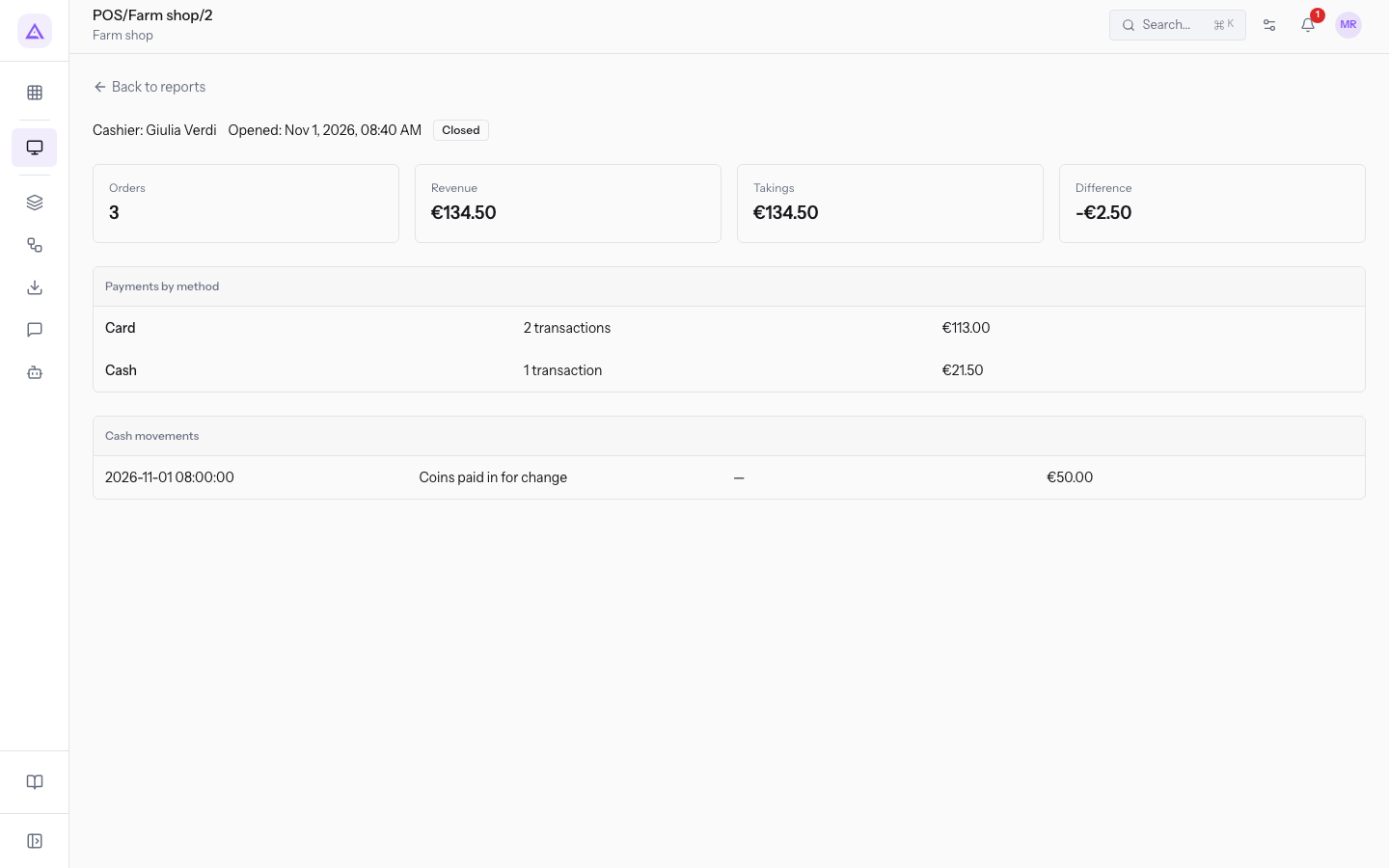
The summary contains:
- Cashier: the person of the session.
- Opened: opening date and time.
- Closed: the status of the session.
- Orders: the number of orders.
- Revenue: the amount sold.
- Takings: the amount collected.
- Difference: the shortage or surplus counted at closing.
- Payments by method: the takings split by payment method.
- Cash movements: the cash receipts, deposits and withdrawals made during the session.
Demo examples
The two summaries below show a session with a shortage and one with a surplus.
POS/Farm shop/2: cashier Julia Green, 3 orders, Revenue €134.50, Takings €134.50, Difference -€2.50. The summary contains the Cash movements section.POS/Restaurant till/1: cashier Martin Ross, 3 orders, Revenue €171.00, Takings €171.00, Difference €1.00. The summary shows the Payments by method section and not the cash movements one.
Important: a cash difference at closing requires the approval of a POS manager.
See it on your company, not on a slide deck.
In 30 minutes we map the software you use today.We show you how much work and how much margin Archimedes gives back.
Show me on my business →What industry are you in?
One tap — it lets us prepare the demo around your world.
What tools do you use today?
Pick the ones you recognise — or just type them. It helps us show you how they migrate.
Last step: your details.
We reply within one working day — and right after, if you like, you pick the demo slot yourself.
We couldn't send your request. Try again, or write to us at [email protected].
By sending, you agree to your data being processed so we can get back to you about the demo. Privacy notice.
Preview form — nothing is sent from this page.
Want to schedule the demo now?
Your call: book the slot you prefer yourself, or we'll call you to arrange it.
Live availability, 30 minutes, instant confirmation. The calendar opens in a new tab.
Lock in your slot ↗We'll get back to you within one working day — and we'll join the call already knowing your world.
The calendar is open in another tab: pick a slot and the demo is booked. Can't see it? Reopen it ↗
Preview page: nothing was sent.
Our calendar is live: take the slot that suits you and the demo is booked. 30 minutes, instant confirmation, no waiting.
Lock in your slot ↗