Proxima
All modules
Set up the network: spot duration, loop mix and heat bands
Proxima · 15 of 15 · 4 min read
The Network settings page sets how the loop runs and how much a screen is worth. Here you set playback, the default loop mix and the heat bands for the whole network.
The Network settings page
Before you start: changing these settings requires network manager permissions, that is, the Proxima Manager group. Network operators, in the Proxima User group, can see them in read-only mode.
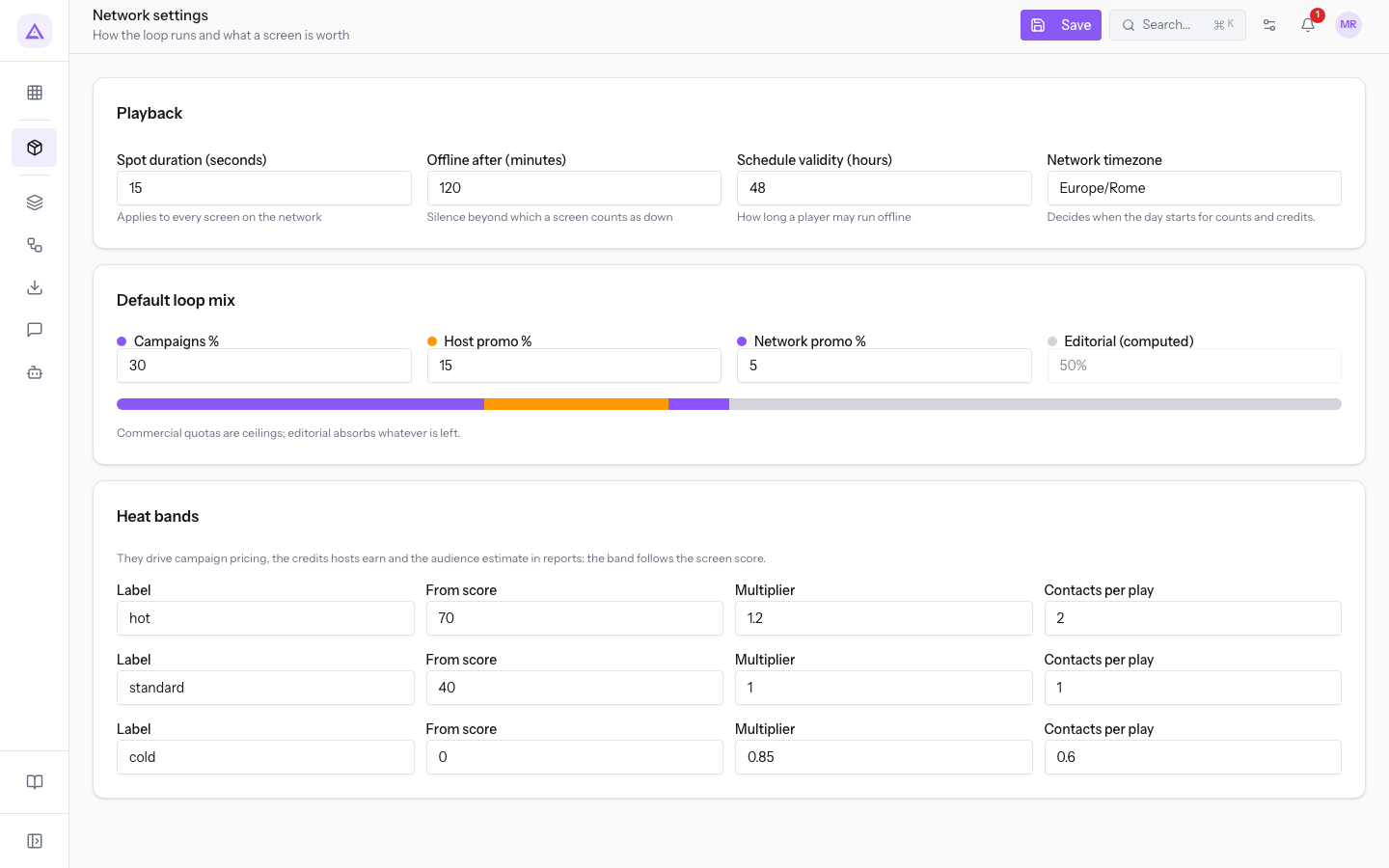
The page opens from Proxima › Network settings and has three panels: Playback, Default loop mix and Heat bands. A single Save button applies to all three. After saving, the message Settings saved appears.
Setting up playback
The Playback panel sets the duration of the slots and the timings with which the network checks the screens and the loop.
- If you want to know sooner that a screen has stopped communicating, lower Offline after (minutes).
- If you want the screen to be able to work offline for longer, raise Schedule validity (hours).
The fields in the panel are these:
- Spot duration (seconds): the duration of each slot in the loop. The value applies to all screens in the network. In the demo it is 15: the hour has 240 slots.
- Offline after (minutes): the silence after which the screen shows as Off. In the demo it is 120. The system checks the screens every 5 minutes. If a screen is off during opening hours, the host receives an alert by email.
- Schedule validity (hours): how long the screen can work offline. The screen downloads the published loop and uses it even without a connection. In the demo it is 48.
- Network timezone: decides when the day starts for counts and credits. In the demo it is
Europe/Rome.
Setting the default loop mix
The Default loop mix panel divides the one-hour playback time among campaigns, promos and editorial. The commercial quotas are ceilings, not guarantees. Editorial takes up whatever remains.
- If you want more space for campaigns, raise Campaigns %: editorial goes down by the same amount.
- If you want to give more space to neighbourhood content, lower the commercial quotas: Editorial (computed) rises on its own.
- If the commercial classes do not use all their space, what remains goes to editorial. The screen does not stay empty as long as there is content to air.
The fields in the panel are these:
- Campaigns %: the slot ceiling for campaigns. In the demo it is 30, that is 72 slots an hour.
- Host promo %: the ceiling for promos linked to a screen. In the demo it is 15, that is 36 slots an hour.
- Network promo %: the ceiling for network promos. In the demo it is 5, that is 12 slots an hour.
- Editorial (computed): what remains up to 100. It is not entered by hand. In the demo it is 50, that is at least 120 slots an hour.
If the sum of the three commercial quotas exceeds 100, the quotas are reduced proportionally.
Note: a screen with a custom mix ignores the network mix. The Boat Bridge Trattoria screen has Use the network mix turned off on the Schedule tab: it uses 40 in Campaigns %, 15 in Host promo % and 5 in Network promo %, so editorial is at 40%. If you change the network mix, these quotas do not change.
Setting the heat bands
The heat bands govern campaign pricing, credits earned and the audience estimate in reports. The band is chosen based on the screen's Heat score, a score from 0 to 100.
Each band has these fields:
- Label: the name of the band.
- From score: the score from which the band starts.
- Multiplier: the factor that multiplies the plays during opening hours to calculate credits earned. It also affects campaign pricing.
- Contacts per play: the estimated contacts for each play in the band.
The demo has three bands:
| Label | From score | Multiplier | Contacts per play |
|---|---|---|---|
hot |
70 | 1.2 | 2 |
standard |
40 | 1 | 1 |
cold |
0 | 0.85 | 0.6 |
Effect of the bands on credits
The screen's band decides how many credits each play earns during opening hours. With the demo values:
- Boat Bridge Trattoria screen: Heat score 82, band
hot, 1.2 credits per play. - Ticino Vineyard Cellar monitor: Heat score 35, band
cold, 0.85 credits per play.
Spending does not depend on the band: a credit campaign costs 1 credit per play, without a multiplier.
Only screens with an host and an active hosting agreement with credits earn credits. The system calculates the earning for the previous day at 04:10.
See it on your company, not on a slide deck.
In 30 minutes we map the software you use today.We show you how much work and how much margin Archimedes gives back.
Show me on my business →What industry are you in?
One tap — it lets us prepare the demo around your world.
What tools do you use today?
Pick the ones you recognise — or just type them. It helps us show you how they migrate.
Last step: your details.
We reply within one working day — and right after, if you like, you pick the demo slot yourself.
We couldn't send your request. Try again, or write to us at [email protected].
By sending, you agree to your data being processed so we can get back to you about the demo. Privacy notice.
Preview form — nothing is sent from this page.
Want to schedule the demo now?
Your call: book the slot you prefer yourself, or we'll call you to arrange it.
Live availability, 30 minutes, instant confirmation. The calendar opens in a new tab.
Lock in your slot ↗We'll get back to you within one working day — and we'll join the call already knowing your world.
The calendar is open in another tab: pick a slot and the demo is booked. Can't see it? Reopen it ↗
Preview page: nothing was sent.
Our calendar is live: take the slot that suits you and the demo is booked. 30 minutes, instant confirmation, no waiting.
Lock in your slot ↗