Proxima
All modules
Approve or reject creatives before they go on air
Proxima · 13 of 15 · 5 min read
A creative is the ad spot of a campaign. The Creatives page collects the production queue and lets you approve, reject, clear the moderation flag, or re-queue each creative.
Before you start: these actions are reserved for network operators and network managers, who have permission to edit creatives.
Note: the advertiser can also approve or reject creatives, from the reserved area of the portal. From the portal they cannot approve a Flagged creative.
Review the creatives queue
The page Proxima › Creatives shows all creatives, from the advertiser's request to going on air. Use the filters to isolate the ones you need to decide on.
- In Status, choose Ready to see the creatives waiting for a decision.
- In Moderation, check the outcome of each row. Hover over Flagged to read the note.
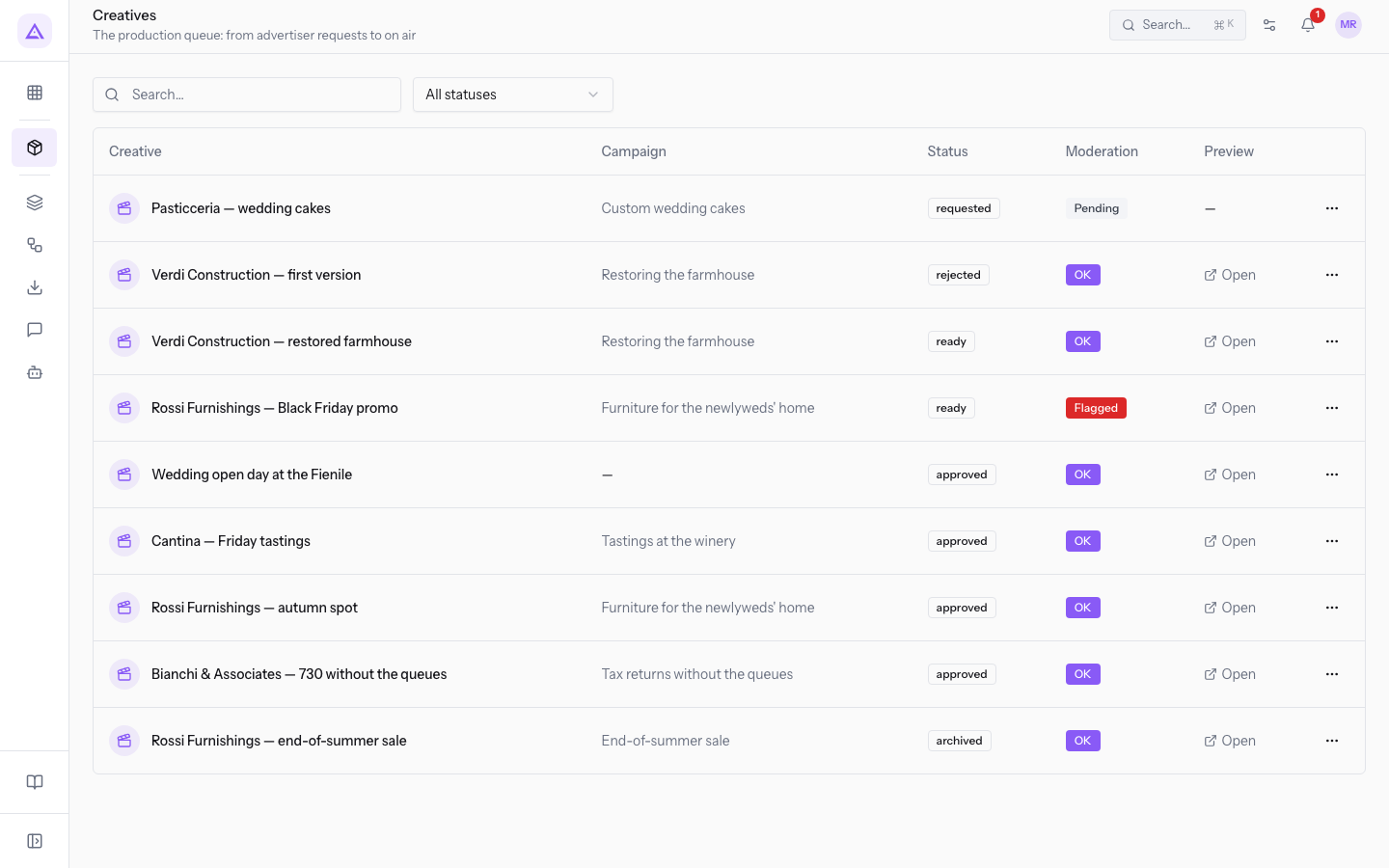
Page filters:
- Search…: narrows the list based on the text entered.
- Status: shows the creatives of a single status. The initial value is All statuses. The other values are Requested, Generating, Ready, On air, Rejected and Archived.
List columns:
- Creative: the name of the creative. Press the row to open the creative's page.
- Campaign: the creative's campaign. The name is a link to the campaign's page.
- Status: the creative's position in the queue.
- Moderation: the outcome of the moderation.
- Preview: Open shows the asset in a new browser tab. Without an asset the column shows a dash.
The ⋯ menu at the end of the row contains the actions available for that creative: Approve, Reject, Clear flag or Re-queue. These are the same actions as the buttons on the page.
Read the status and moderation
Status and moderation are two separate pieces of information, and they decide which actions appear. The badge on the row and on the creative's page shows the status in lowercase, and one word differs: On air in the filter is approved on the badge.
Creative statuses, with the badge word in brackets:
- Requested (
requested): the request exists, but not yet the asset. Every 5 minutes the system picks up the requests. There are no approval actions. - Generating: the system is preparing the asset. There are no approval actions.
- Ready (
ready): the creative is waiting for a decision. - On air (
approved): the creative is approved. - Rejected (
rejected): the creative has been discarded. It can be re-queued. - Archived (
archived): the creative is no longer in use, like «Rossi Furnishings — end-of-summer sale». It can be re-queued.
Moderation values:
- Pending: there is no outcome yet.
- OK: the check found no problems.
- Flagged: the automatic check found a problem in the creative's texts.
Important: a Flagged creative does not go on air, even if it is approved.
Choose the action based on the combination of the two values:
- If the creative is Ready with moderation OK, choose Approve or Reject.
- If the creative is Ready and Flagged, read the note. Then choose Clear flag and Approve, or Reject.
- If the creative is Rejected or Archived and is needed again, choose Re-queue.
Read the creative's page
The page brings together everything needed to decide: status, moderation, the advertiser's request and the asset. It opens by pressing the row in Proxima › Creatives.
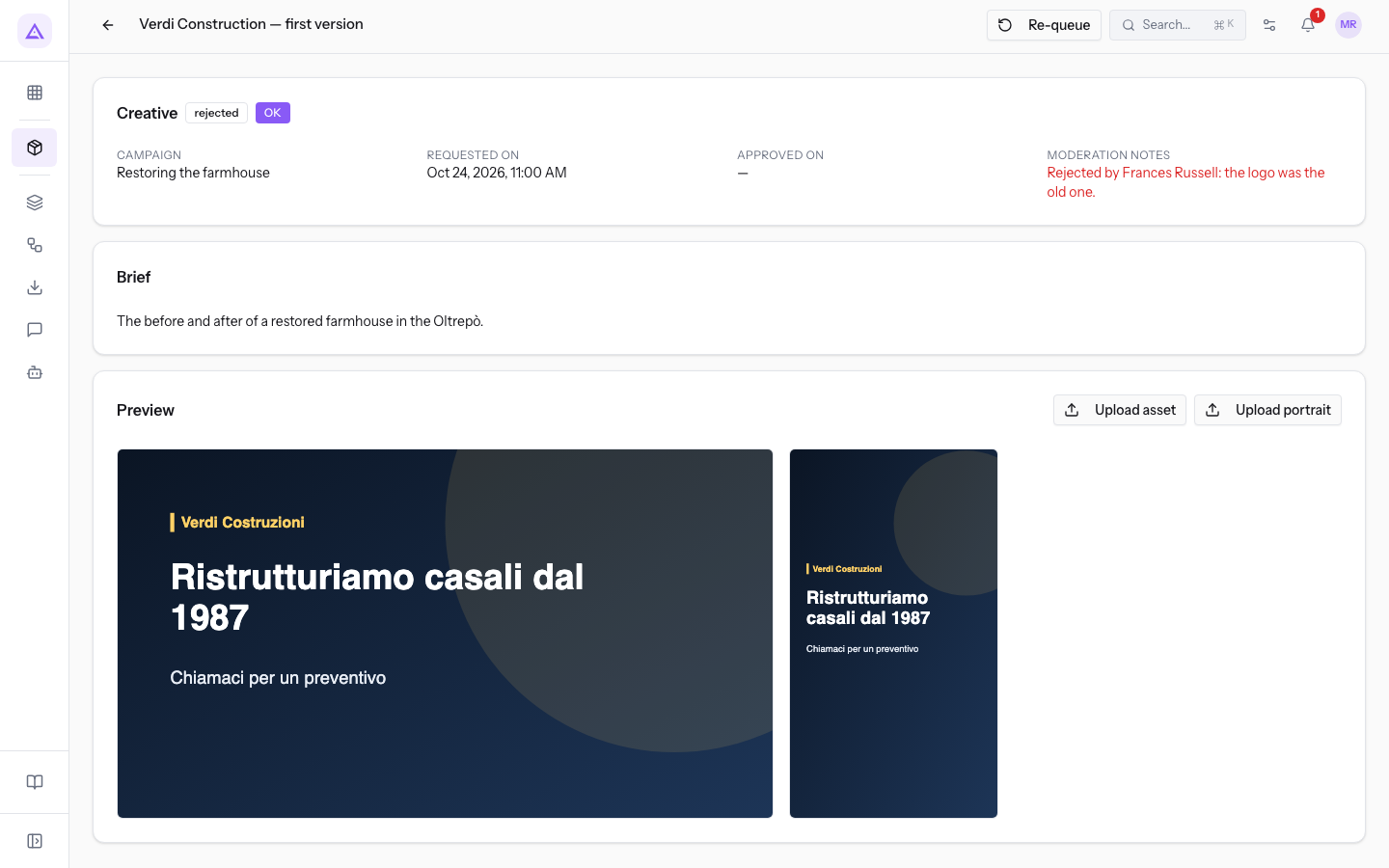
The page of «Pasticceria — wedding cakes» shows a creative in requested status, with only the brief and no asset.
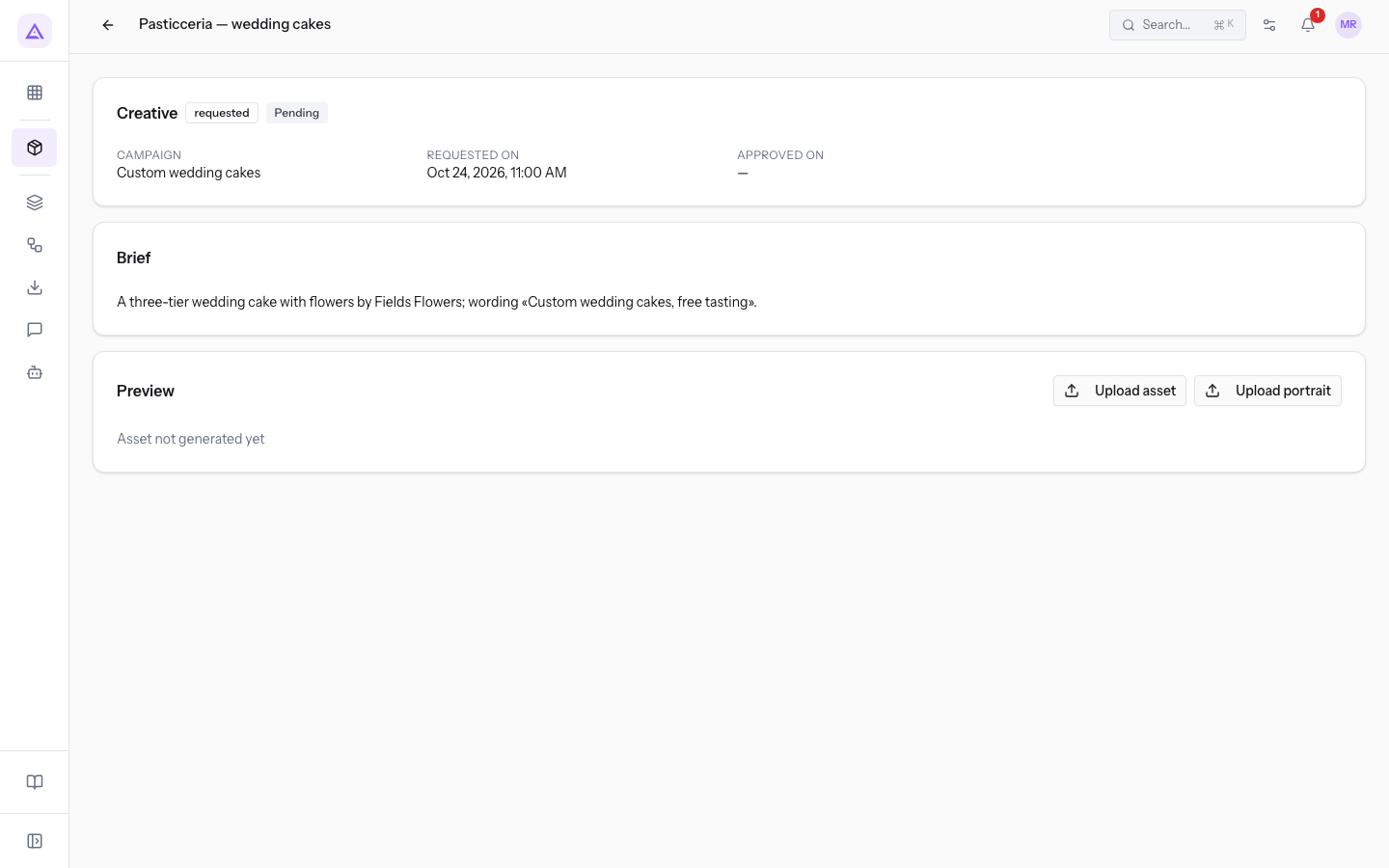
The Creative panel shows the status badge and the moderation badge next to the title, and contains these fields:
- Campaign: the creative's campaign, with the link to its page.
- Requested on: the date and time of the request.
- Approved on: the date and time of the approval. Before approval it shows a dash.
- Moderation notes: the text of the note. The field appears only if the creative has a note.
The Brief panel shows the request the creative comes from.
The Preview panel shows the horizontal asset and, if present, the vertical one. Without a horizontal asset, Asset not generated yet appears.
- Upload asset: uploads the creative's horizontal asset.
- Upload portrait: uploads the creative's vertical asset.
Important: uploading approves the creative. The status becomes On air and the moderation OK, even if it was Flagged.
The header buttons depend on the status and the moderation:
- Approve: appears if the creative is Ready and not Flagged.
- Reject: appears if the creative is Ready or On air.
- Clear flag: appears if the creative is Flagged.
- Re-queue: appears if the creative is Rejected or Archived.
Approve a creative
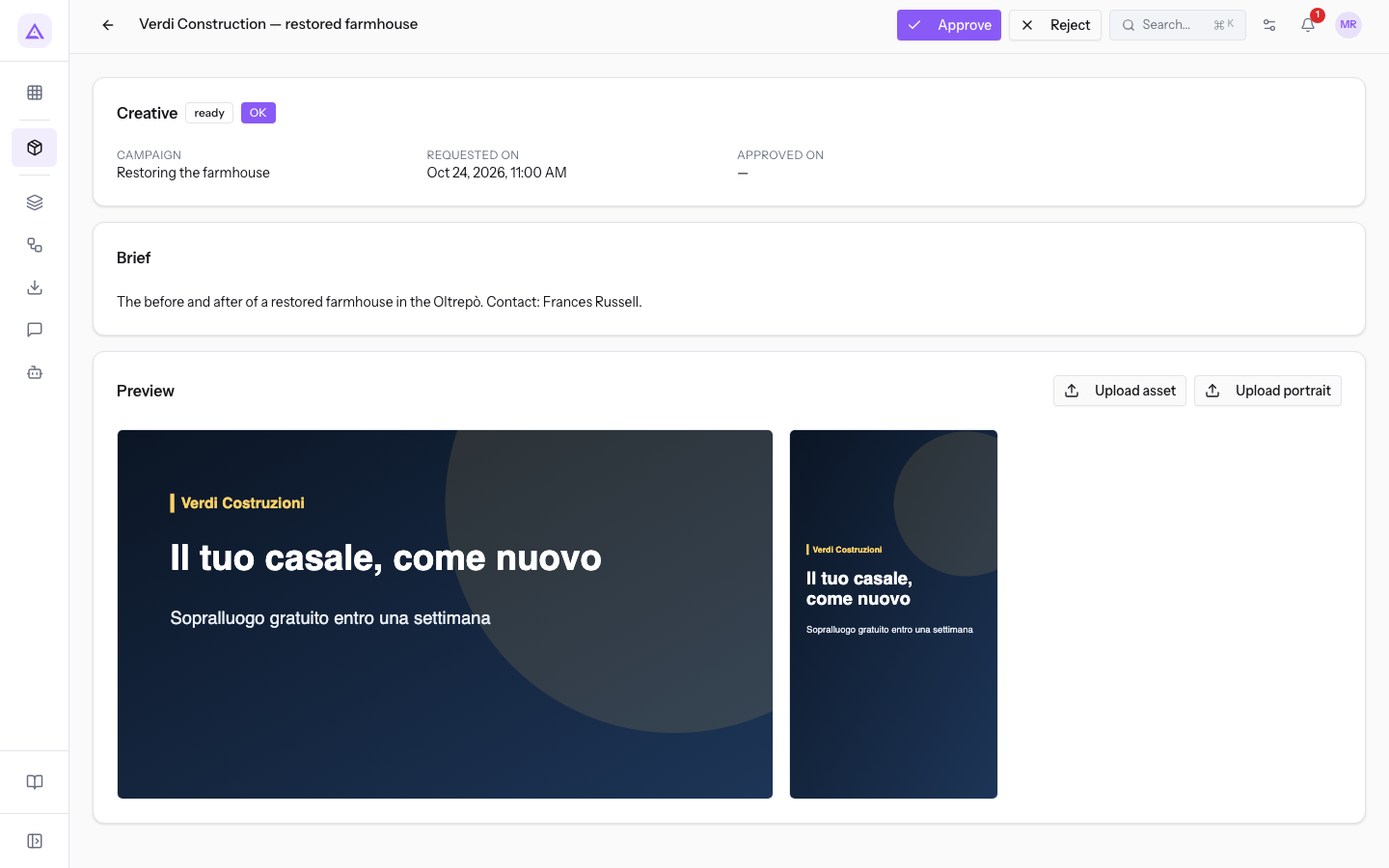
Approval makes a Ready creative that moderation has not flagged ready to air. In the demo this is «Verdi Construction — restored farmhouse», in ready status with moderation OK.
- Open the creative and check the Preview panel.
- Press Approve. The status becomes On air. The action does not ask for confirmation.
Clear a flagged creative
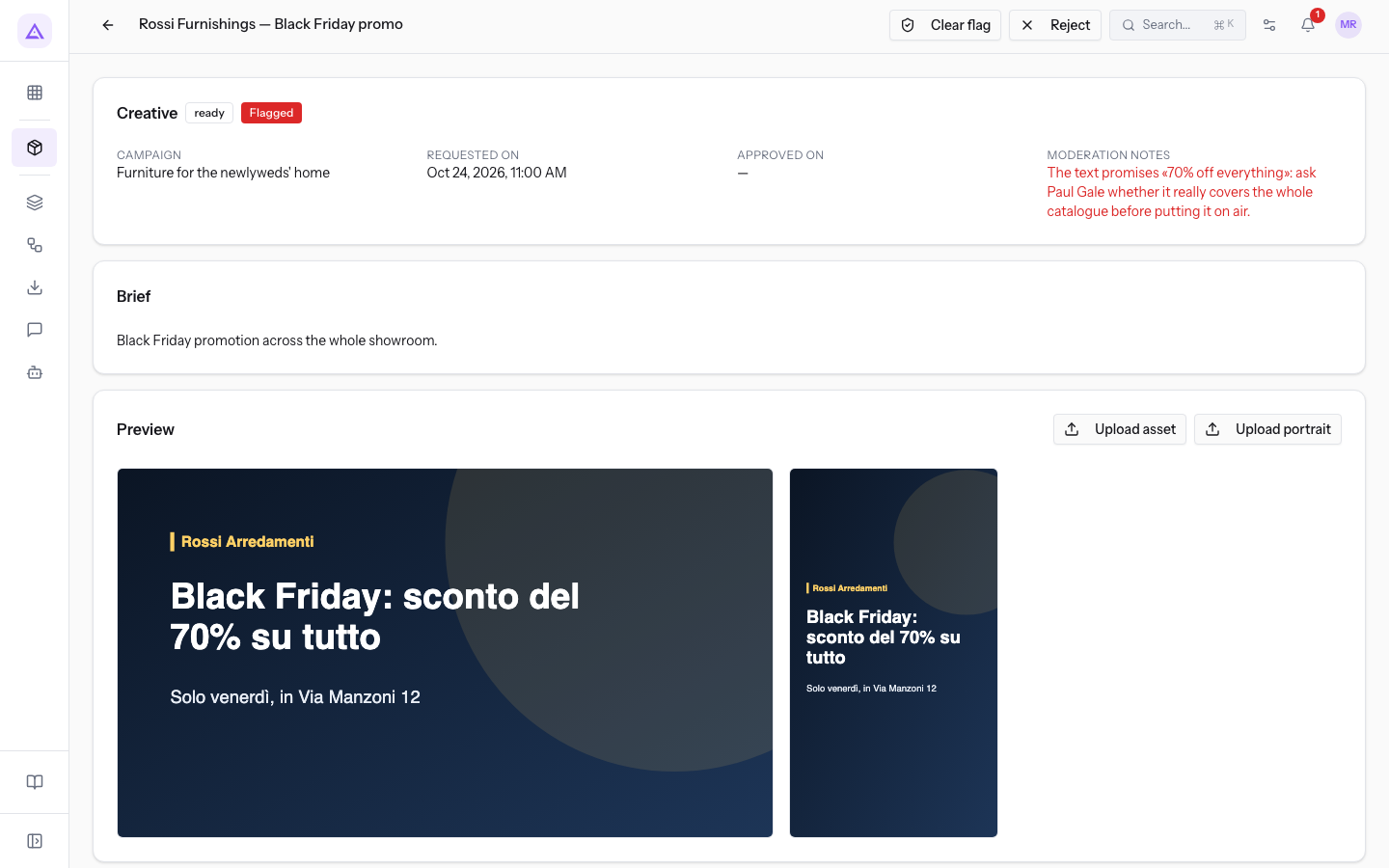
On a Flagged creative the Approve button does not appear. You must first clear the flag, if the content proves correct. In the demo this is «Rossi Furnishings — Black Friday promo».
- Open the creative and read Moderation notes.
- If the content is correct, press Clear flag. Moderation becomes OK.
- Press Approve. The button appears if the creative is Ready.
Important: if the content is not correct, do not clear the flag: press Reject.
Reject a creative
Reject a creative when it must not go on air. The action is available for Ready and On air creatives, even if Flagged. Open the creative and press Reject: the status becomes Rejected, with no confirmation request.
Re-queue a creative
Re-queue brings a Rejected or Archived creative back to the Requested status, and the system prepares the asset again. Use it when the creative must start again from the request, as with «Verdi Construction — first version», in rejected status. Open the creative and press Re-queue.
See it on your company, not on a slide deck.
In 30 minutes we map the software you use today.We show you how much work and how much margin Archimedes gives back.
Show me on my business →What industry are you in?
One tap — it lets us prepare the demo around your world.
What tools do you use today?
Pick the ones you recognise — or just type them. It helps us show you how they migrate.
Last step: your details.
We reply within one working day — and right after, if you like, you pick the demo slot yourself.
We couldn't send your request. Try again, or write to us at [email protected].
By sending, you agree to your data being processed so we can get back to you about the demo. Privacy notice.
Preview form — nothing is sent from this page.
Want to schedule the demo now?
Your call: book the slot you prefer yourself, or we'll call you to arrange it.
Live availability, 30 minutes, instant confirmation. The calendar opens in a new tab.
Lock in your slot ↗We'll get back to you within one working day — and we'll join the call already knowing your world.
The calendar is open in another tab: pick a slot and the demo is booked. Can't see it? Reopen it ↗
Preview page: nothing was sent.
Our calendar is live: take the slot that suits you and the demo is booked. 30 minutes, instant confirmation, no waiting.
Lock in your slot ↗