Proxima
All modules
View, adjust and publish a screen's schedule
Proxima · 6 of 15 · 8 min read
The schedule is the one-hour sequence that the screen repeats. On the Schedule tab of the screen's page, you adjust the screen's quotas, check what airs at different times of day, and publish a new version.
The Schedule tab
The tab collects the split of slots, the loop calculated for the screen, and the versions already published. To open it, press the screen's row in Proxima › Screens and then Schedule.
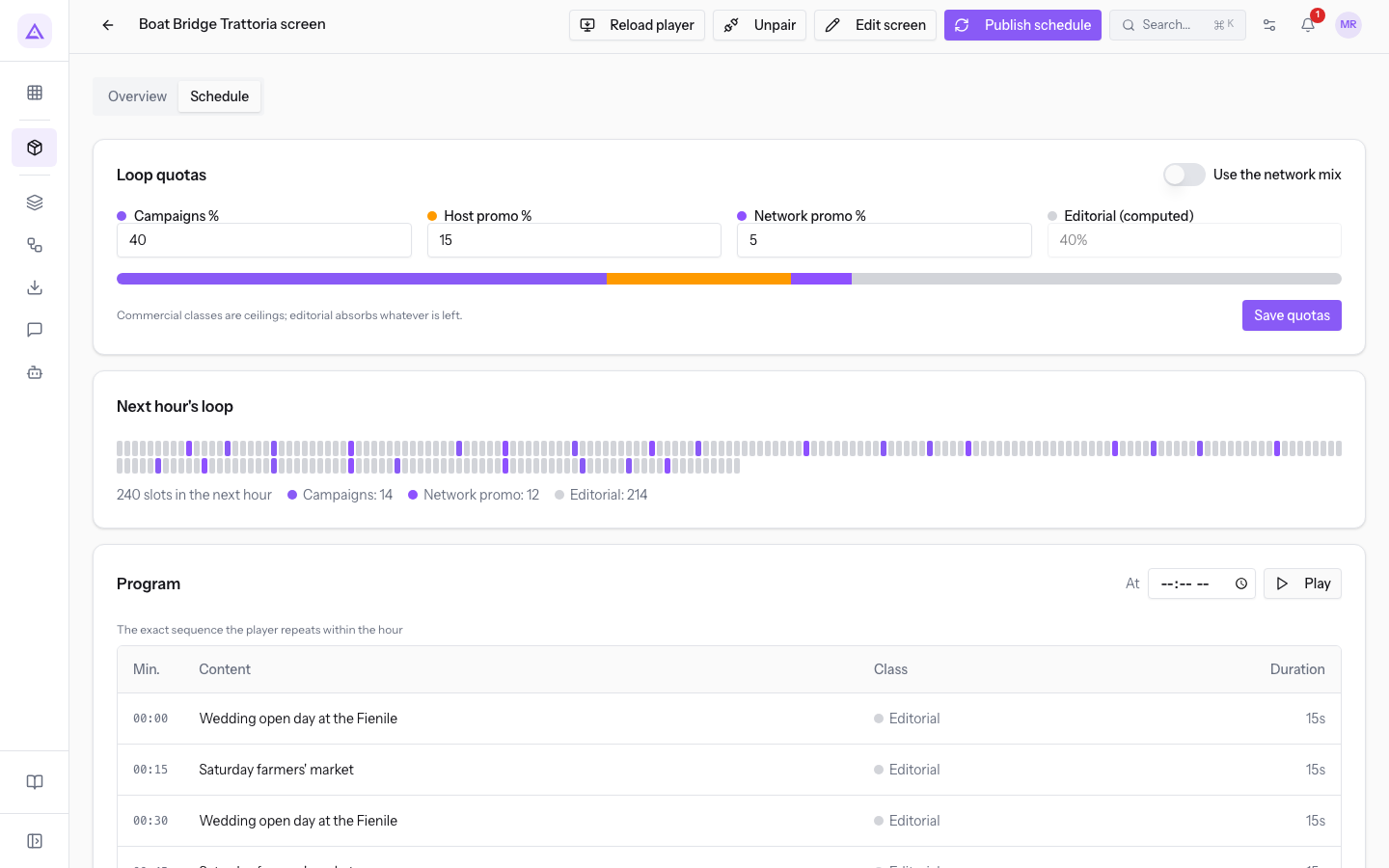
The tab has four panels:
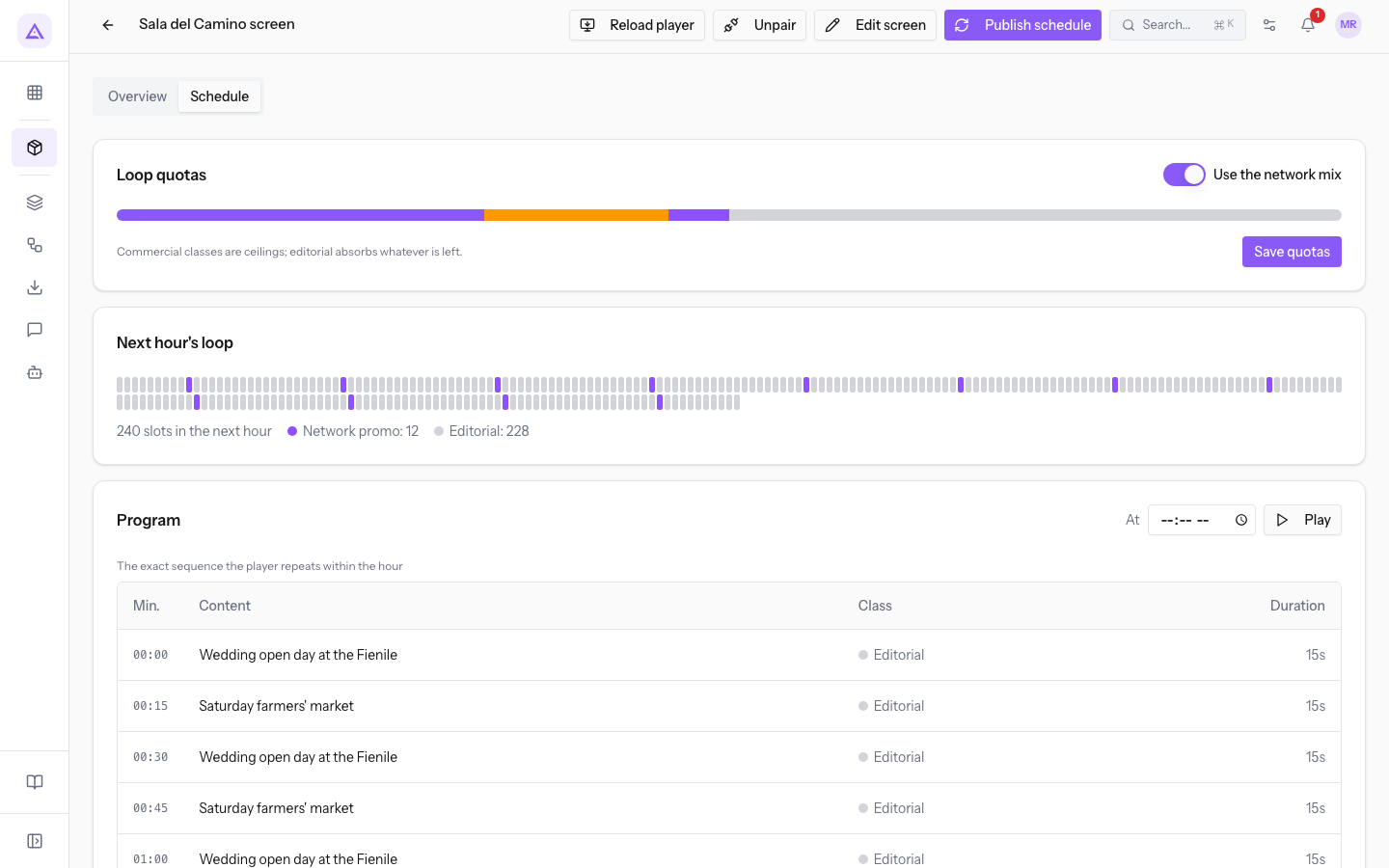
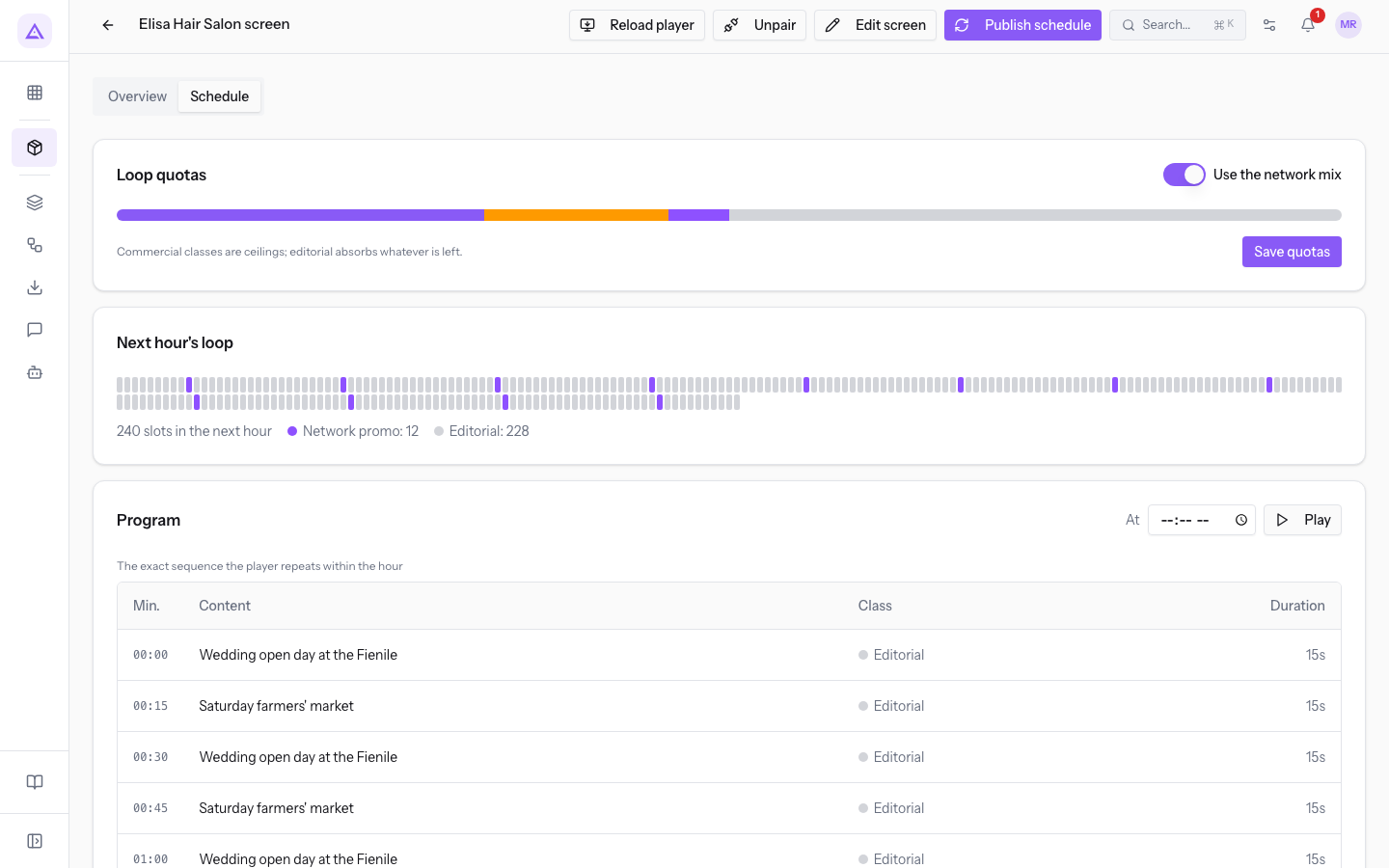
- Loop quotas: the split of slots among the content classes.
- Next hour's loop: the composition of the loop, in a bar and in a count per class.
- Program: the list of slots, in the order they air.
- Publish history: the versions published for the screen.
Adjust the schedule quotas
The quotas decide how many slots each commercial class can take. They are ceilings, not guarantees: the space that campaigns and promos don't use goes to editorial.
Choose how to set up the screen:
- If the screen should follow the split of the whole network, keep Use the network mix on. The screen uses the Default loop mix from Proxima › Network settings.
- If the screen needs its own split, turn Use the network mix off and enter the percentages. The screen ignores the network mix as long as the custom mix stays saved.
On the Boat Bridge Trattoria screen the custom mix gives 40% to campaigns and 40% to editorial. With 240 slots per hour, campaigns have a ceiling of 96 slots.
- In the Loop quotas panel, turn off Use the network mix. The percentage fields appear.
- Enter the values for Campaigns %, Host promo % and Network promo %. Editorial (computed) updates by itself.
- Press Save quotas. The message Quotas saved appears.
The fields of the panel:
- Use the network mix: applies the quotas of the whole network to the screen. When it is on, the percentage fields are not visible.
- Campaigns %: the ceiling for advertisers' campaigns. It goes from 0 to 100.
- Host promo %: the ceiling for promos linked to this screen. It goes from 0 to 100.
- Network promo %: the ceiling for network promos. It goes from 0 to 100.
- Editorial (computed): 100 minus the sum of the three quotas. The field cannot be edited. On the Boat Bridge Trattoria screen it is 40%.
Below the fields, the quota bar shows the split with one color per class.
Important: if you turn on Use the network mix and press Save quotas, the custom mix is deleted. To get it back, you must enter the percentages again. If you change the switch without saving, the screen keeps the quotas it had.
Note: the version on air does not change when you save the quotas. The new quotas go on air with the next published version.
Read the next hour's loop
The Next hour's loop panel shows at a glance how much space each class has.
- The colored bar has one mark per slot, in the color of the class. The marks of the same class are spread along the hour, not grouped.
- Below the bar appear the number of slots in the next hour and the count of each class present.
There are four classes: Campaigns, Host promo, Network promo and Editorial. Content of type Event falls under the Editorial class.
With a Spot duration (seconds) of 15, the hour has 240 slots. The commercial classes take slots up to their ceiling, while editorial takes all the others. A campaign asks for the Plays / hour / screen of its plan. If campaigns ask for more than the ceiling, the requests are reduced in proportion. A campaign behind on its guaranteed plays receives an increase of up to double.
Check the program at another time
The Program lists the slots of the loop. Use the At field to see what goes on air at another time of today, without changing the schedule. The field also updates the Next hour's loop panel.
Enter the time in the At field. At 12:00, on the Boat Bridge Trattoria screen, the host promo «Menu of the day at the Ponte di Barche» appears, airing from 11:00 to 14:30.
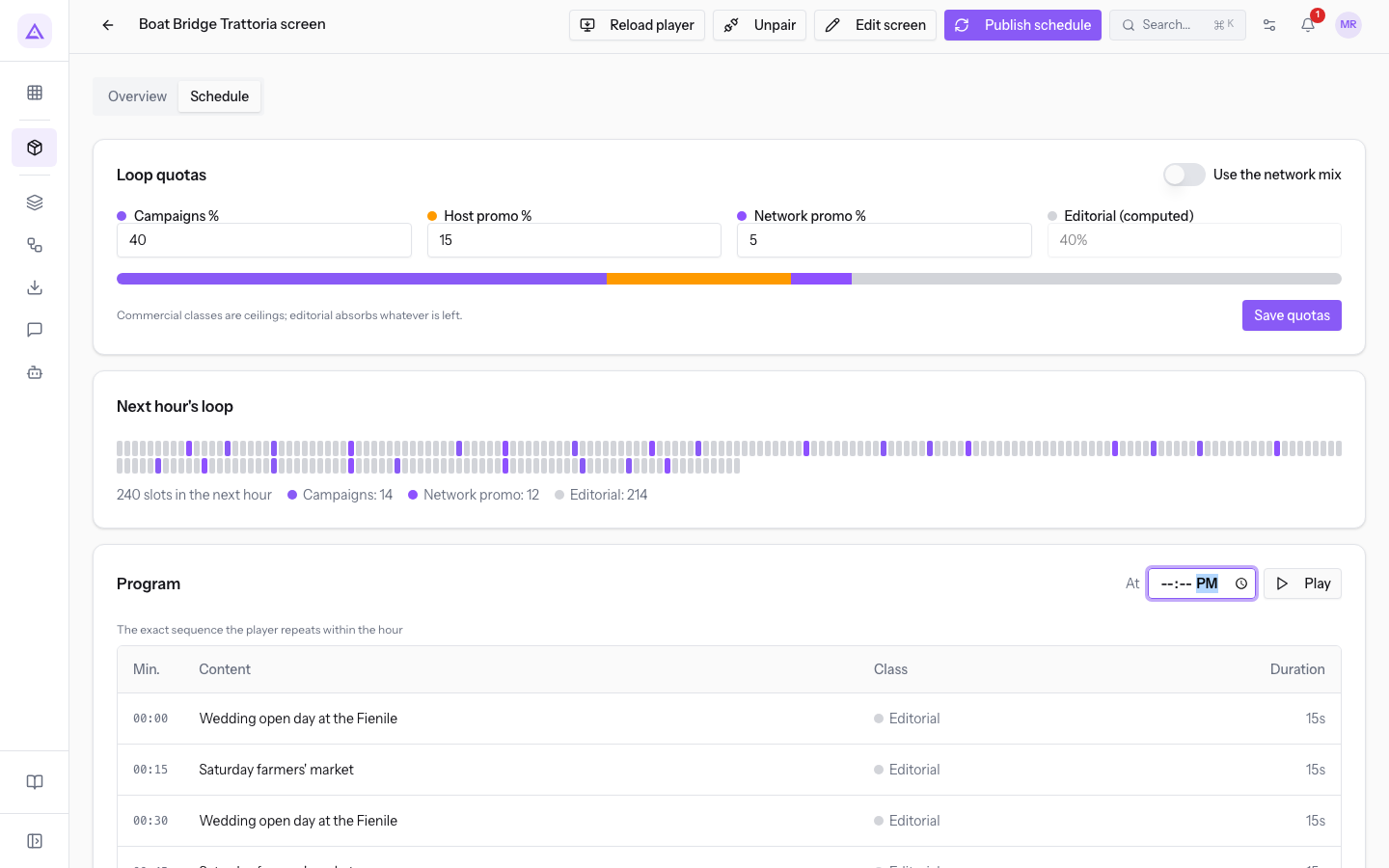
At 19:00 the promo is no longer there and «Tastings at the winery» enters, airing from 17:00 to 22:00. «Furniture for the newlyweds' home» has no time slot and appears at both times. «Wedding open day at the Barn» and «Saturday farmers' market» are present at any time.
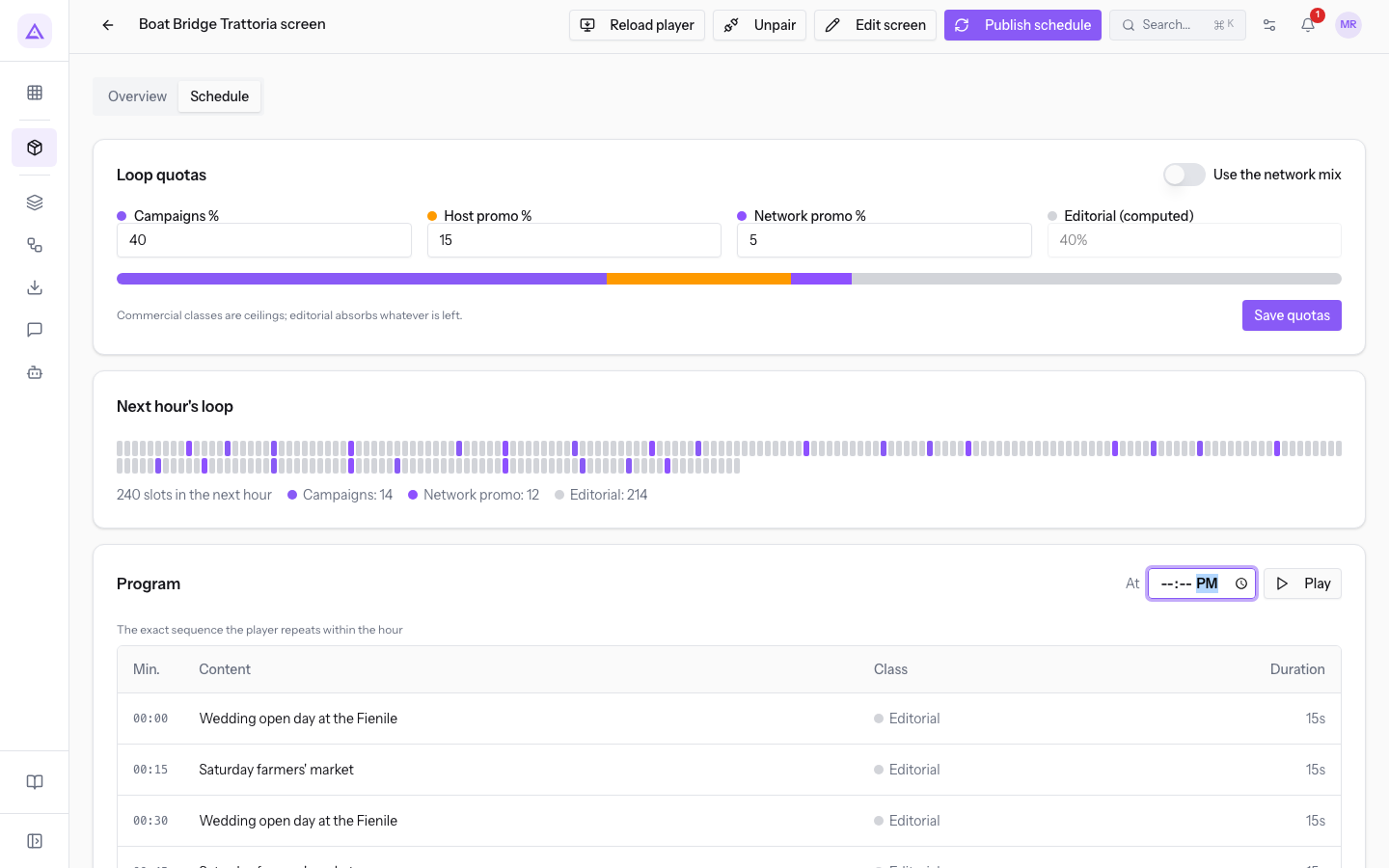
The columns of the table:
- Min.: the moment the slot starts, counted from the start of the loop, such as 00:45.
- Content: the title of the content or the name of the campaign.
- Class: the class of the slot, with its color.
- Duration: the duration of the slot, such as 15s.
Note: the Program is calculated even when the screen has no published versions. The panel where you can see what has been published is Publish history.
Play the preview
The Schedule preview window shows the slots of the loop as they appear on the screen, in the screen's orientation. The Play button appears only when the loop contains at least one slot.
Press Play in the Program panel to start from the first slot, or press a row of the table to start from that slot.
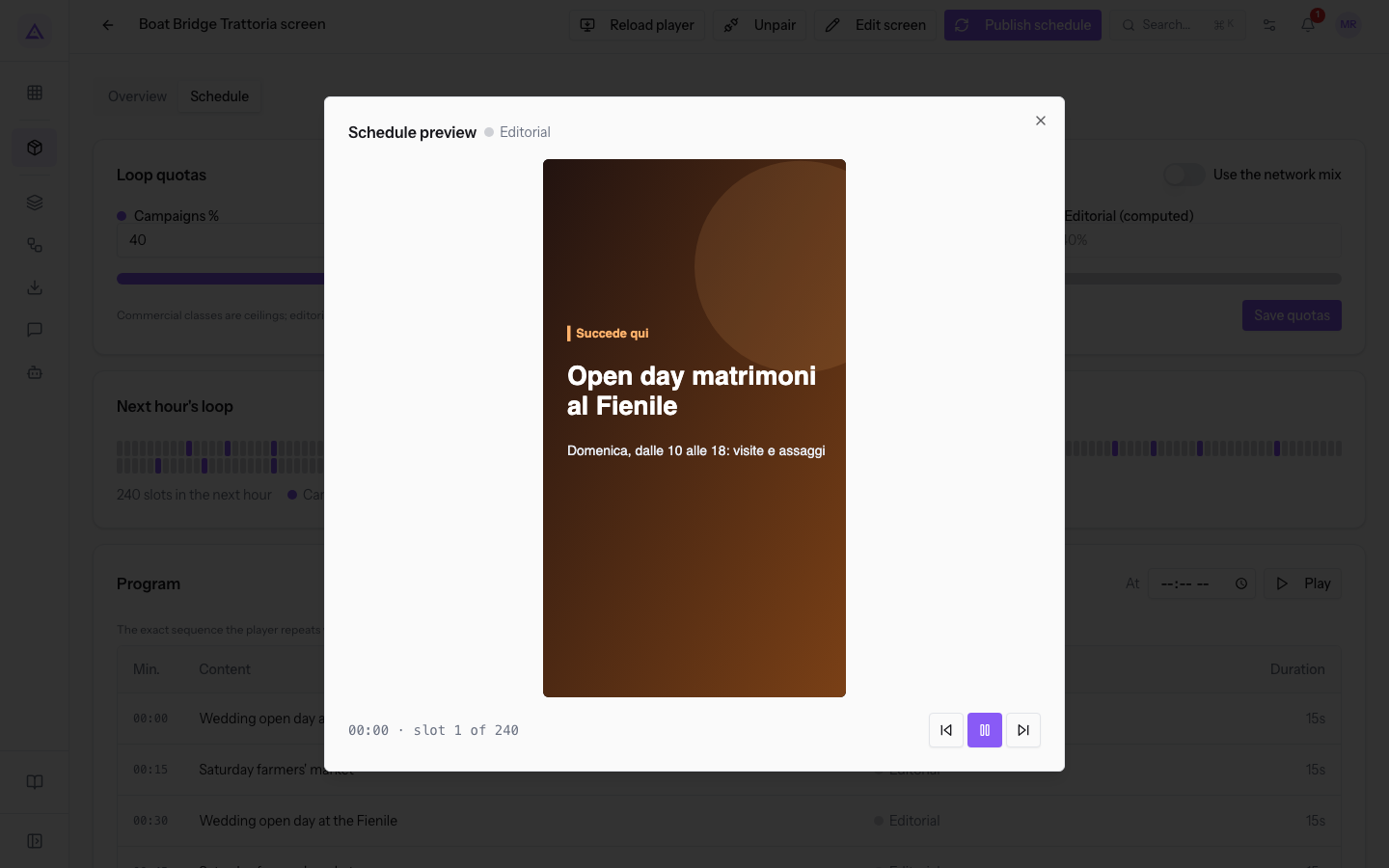
The title of the window shows the class of the slot. At the bottom appear the start time and the position, such as "00:45 · slot 4 of 240". The three buttons at the bottom right control playback:
- The first goes back to the previous slot.
- The middle one stops playback and restarts it.
- The last one moves to the next slot.
Publish the schedule
Active screens receive the schedule every hour automatically. Use manual publishing when you want to send a new version right away, without waiting for the automatic one.
Press Publish schedule in the header of the screen's page. Publishing starts without a request for confirmation, and the message Schedule published appears.
Each time you publish:
- A new version is created, with the number following the last one.
- The previous version moves to Superseded.
- The new version stays valid for the number of hours in Schedule validity (hours): 48 in the demo.
- The screen keeps using the version it has already downloaded until it downloads a more recent one.
A version contains the loop at the moment of publishing. If campaigns or content have a time slot, it also contains a loop for each time slot of the day, and the screen chooses the one for the local hour. For this reason, there is no need to publish again at the start of a time slot.
Check the publish history
The Publish history panel lists the versions published for the screen. If none exists, it shows No schedule published yet.
- Version: the version number, such as v2.
- Published: date and time of publishing.
- Valid until: date and time when validity ends.
- Slots: the number of slots in the loop, with a small bar of the split per class.
- Status: On air for the current version, Superseded for those replaced.
On the Boat Bridge Trattoria screen the history shows v1 Superseded and v2 On air.
Why a campaign doesn't play on a screen
A campaign plays on a screen only when all the conditions are true. If one is missing, the screen is left out and the campaign doesn't change status. Check the Program at the time you care about, then verify these points:
- The campaign is not Active, or today's date is outside Starts and Ends.
- The screen is not Active: only active screens with coordinates receive campaigns.
- The screen is out of range: the distance from the Coverage center exceeds the campaign's Radius (km). A campaign without a Coverage center goes on no screen.
- The profile doesn't match: the screen has an Editorial profile and the campaign has no tag in common with it. An empty profile accepts every campaign.
- The time is outside the window: the campaign only airs between Airs from and Until.
- The advertiser is a competitor of the host: the two contacts have the same industry.
- The advertiser is blocked on the screen.
- The campaign has no approved creative that is not Flagged.
- The campaign is credit-based and the advertiser's balance is below 1.
Ticino Vineyard Cellar monitor has the profile «wine» and «food». «Furniture for the newlyweds' home» has the tags «home» and «families», so it doesn't get in. «Tastings at the winery» has the tags «wine» and «food» and gets in at 19:00.
The Boat Bridge Trattoria screen has the profile «food» and «families»: «Furniture for the newlyweds' home» gets in with the tag «families», and «Tastings at the winery» with the tag «food».
What changes with the screen's status
The screen's status decides whether it can receive campaigns. Content stays in the schedule even when the screen is not Active. Automatic publishing applies only to Active screens.
- Boat Bridge Trattoria screen, Active: the schedule contains campaigns, promos and content.
- Fireplace Hall screen, Paired: no campaigns, only content. The history has a version On air.
- Elisa Hair Salon screen, Draft: no schedule published. The schedule shows the content, but the history has no On air or Superseded versions.
See it on your company, not on a slide deck.
In 30 minutes we map the software you use today.We show you how much work and how much margin Archimedes gives back.
Show me on my business →What industry are you in?
One tap — it lets us prepare the demo around your world.
What tools do you use today?
Pick the ones you recognise — or just type them. It helps us show you how they migrate.
Last step: your details.
We reply within one working day — and right after, if you like, you pick the demo slot yourself.
We couldn't send your request. Try again, or write to us at [email protected].
By sending, you agree to your data being processed so we can get back to you about the demo. Privacy notice.
Preview form — nothing is sent from this page.
Want to schedule the demo now?
Your call: book the slot you prefer yourself, or we'll call you to arrange it.
Live availability, 30 minutes, instant confirmation. The calendar opens in a new tab.
Lock in your slot ↗We'll get back to you within one working day — and we'll join the call already knowing your world.
The calendar is open in another tab: pick a slot and the demo is booked. Can't see it? Reopen it ↗
Preview page: nothing was sent.
Our calendar is live: take the slot that suits you and the demo is booked. 30 minutes, instant confirmation, no waiting.
Lock in your slot ↗