Proxima
All modules
Follow a campaign: coverage, plays delivered and reports
Proxima · 12 of 15 · 5 min read
The campaign page brings together the campaign data, the plays delivered this month and the status of the creatives. From here you check whether the campaign reaches the guaranteed plays of the plan, and you open the report for the advertiser.
Opening a campaign page
The page is split into the panels Coverage, Delivery and Creatives. At the top are the buttons Monthly report and Edit campaign. You open it by pressing the campaign row in Proxima › Campaigns.
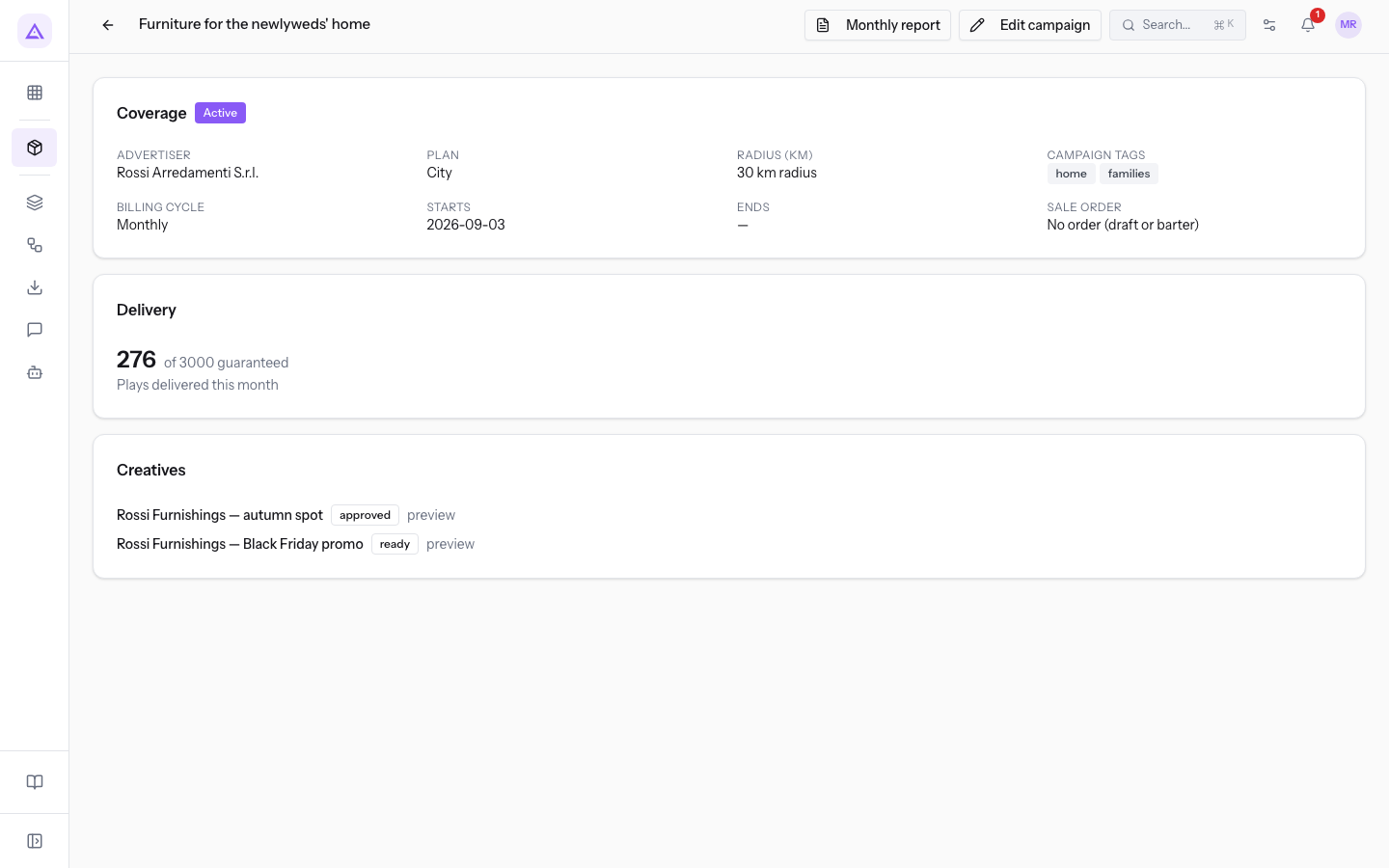
Edit campaign opens the window with the campaign data. Use it also to read the data the page does not show, such as the time slot.
Reading the Coverage panel
The Coverage panel shows the status and the data of the campaign. If the campaign is paid with credits, the badge barter appears next to the status.
- Advertiser: the contact who buys the plays. The name is a link to the contact page.
- Plan: the plan of the campaign. It sets the guaranteed plays each month.
- Radius (km): the maximum distance from the Coverage center, written as a radius in km. For
Furniture for the newlyweds' homethe value is a 30 km radius. - Campaign tags: the tags of the campaign. A screen with an editorial profile accepts only the campaigns that have at least one tag in common with the profile.
- Billing cycle: Monthly or Annual (12 months for the price of 10).
- Starts: the start date of the campaign.
- Ends: the end date of the campaign. If the date is missing, the field shows a dash.
- Sale order: the link to the sale order of the campaign. If there is no order, No order (draft or barter) appears.
The panel does not show on which screens the campaign runs. A campaign airs only on the screens that meet all the conditions of radius, profile and competition.
Note: a credit campaign does not generate a sale order, because it is paid with credits. That is why it shows No order (draft or barter).
Checking the plays delivered
The Delivery panel shows the number of Plays delivered this month and, next to it, the plays guaranteed by the plan. With this comparison you check whether the campaign is on track with the plan.
Only the plays within opening hours count. A play outside opening hours is not added to the guaranteed plays, because it reaches nobody.
- If the plays are on track with the plan, the campaign continues with the hourly plays planned.
- If the plays are behind, the system raises the hourly plays of the campaign by itself. You do not need to change anything.
How a campaign that is behind recovers plays
A campaign is behind when it has fewer plays than expected at that point of the month. This can happen, for example, when some screens are off or when the schedule is full. In this case the campaign gets more plays in the schedule to catch up.
- The increase applies to all the screens where the campaign can air and to the hours left in the month.
- The hourly plays increase up to twice as much at most, so a single campaign does not take the whole schedule.
- The comparison starts from the first day of the month or from the day of Starts, if that is later. A campaign that started in the middle of the month must therefore reach the guaranteed plays in the days left to it.
- In the first 24 hours the system applies no increase.
Checking a credit campaign
A credit campaign has the same page as the others, with the badge barter in the Coverage panel. Tastings at the winery from Cellar Vineyard Ticino is a credit campaign with the Neighbourhood plan.
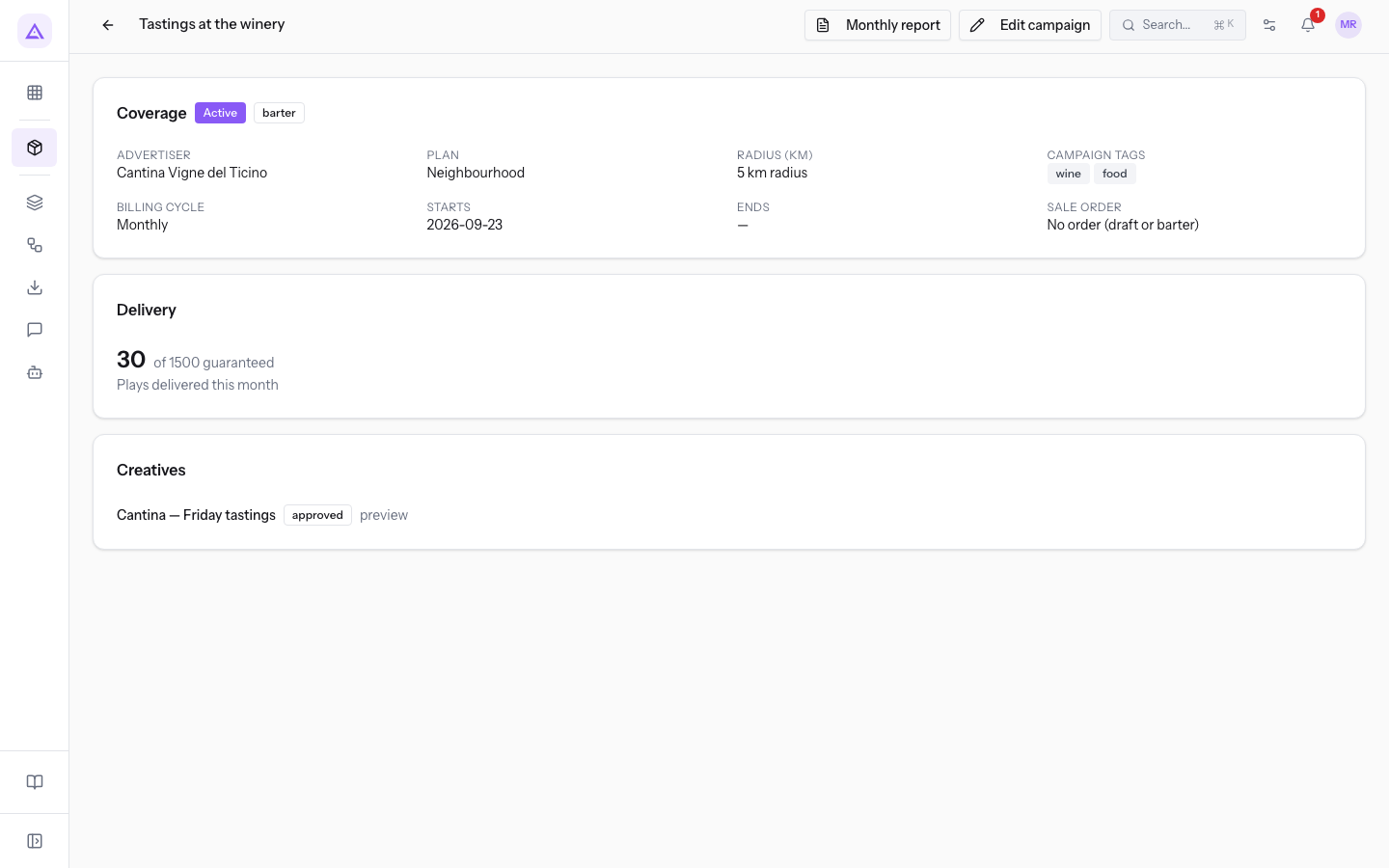
The page does not show the time slot. To read it, open Edit campaign and look at the fields Airs from and Until: for Tastings at the winery the values are 17:00 and 22:00.
Important: a credit campaign leaves the schedule when the balance of the advertiser falls below 1. The status of the campaign does not change. The campaign returns when the advertiser earns more credits.
Checking the creatives
The Creatives panel lists the creatives of the campaign, each with its name and its own status.
- preview: opens the asset of the creative in a new browser tab. The link appears only when the asset exists.
- No creatives yet. The AI drafts one from the advertiser's request.: the message that appears when the campaign has no creatives.
To air, a campaign needs at least one approved creative that is not Flagged. Until then, it stays off the screens.
Opening the monthly report
The Monthly report is the account of the plays of the campaign, to give to the advertiser. The button is on the page of every campaign. The report opens as a PDF in a new browser tab and covers the previous month.
The report contains:
- the total plays of the month and those within opening hours;
- the comparison with the plays guaranteed by the plan, calculated on the plays within opening hours only;
- the plays of each screen, with its host;
- the plays by time slot;
- the estimated contacts.
The advertiser also reads the play report from the portal.
See it on your company, not on a slide deck.
In 30 minutes we map the software you use today.We show you how much work and how much margin Archimedes gives back.
Show me on my business →What industry are you in?
One tap — it lets us prepare the demo around your world.
What tools do you use today?
Pick the ones you recognise — or just type them. It helps us show you how they migrate.
Last step: your details.
We reply within one working day — and right after, if you like, you pick the demo slot yourself.
We couldn't send your request. Try again, or write to us at [email protected].
By sending, you agree to your data being processed so we can get back to you about the demo. Privacy notice.
Preview form — nothing is sent from this page.
Want to schedule the demo now?
Your call: book the slot you prefer yourself, or we'll call you to arrange it.
Live availability, 30 minutes, instant confirmation. The calendar opens in a new tab.
Lock in your slot ↗We'll get back to you within one working day — and we'll join the call already knowing your world.
The calendar is open in another tab: pick a slot and the demo is booked. Can't see it? Reopen it ↗
Preview page: nothing was sent.
Our calendar is live: take the slot that suits you and the demo is booked. 30 minutes, instant confirmation, no waiting.
Lock in your slot ↗