Proxima
All modules
Tracking network merchants and their credit balance
Proxima · 7 of 15 · 6 min read
The Merchants page brings together the contacts that take part in the Proxima network: those hosting screens, those buying plays, and those doing both. From here you check each merchant's roles, agreement, campaigns and credit balance.
Viewing the merchant list
The list shows each merchant's status on one row, in alphabetical order. A contact appears if it has at least one screen, one agreement, one credit movement, or one campaign Active, Awaiting creative or Paused.
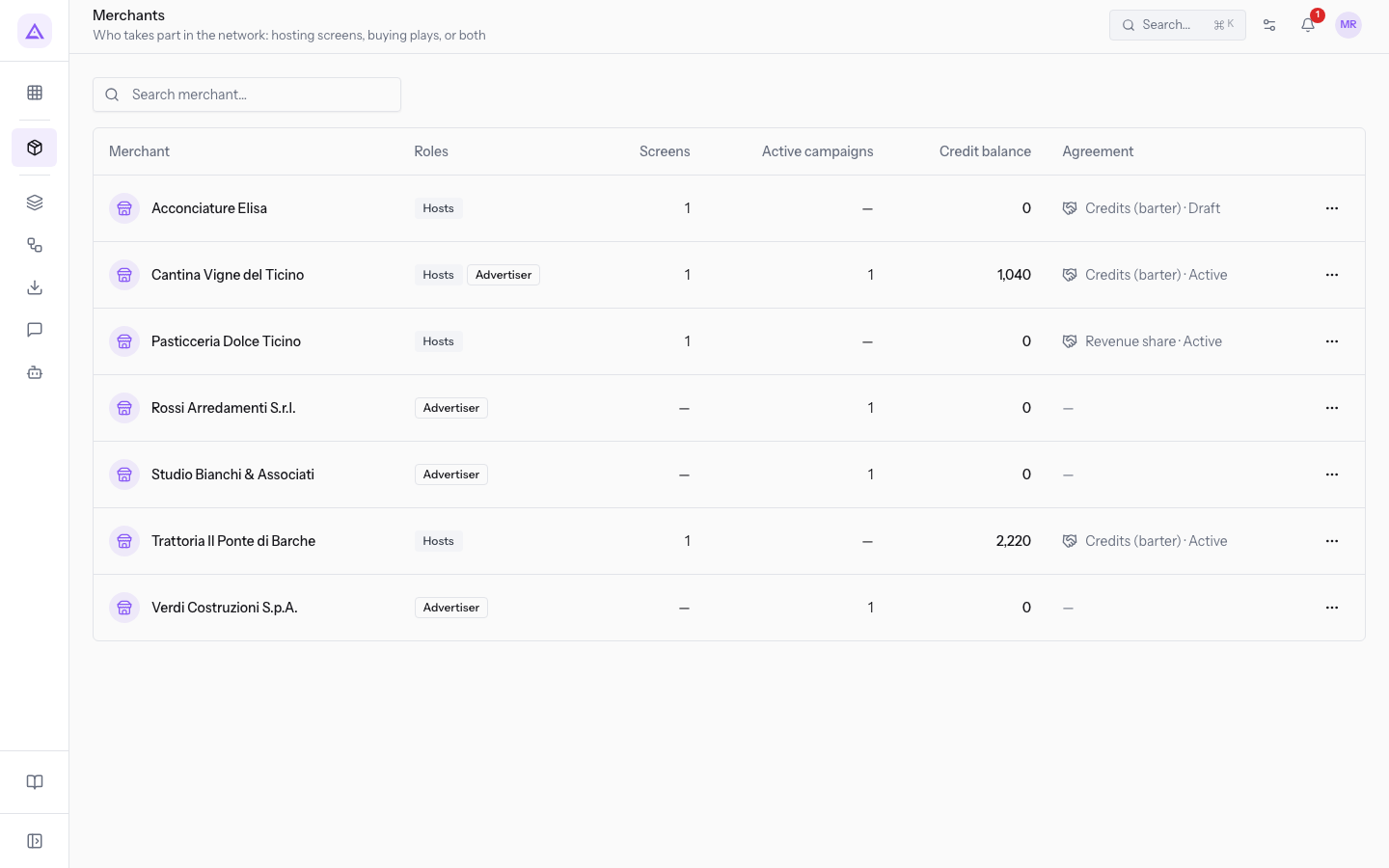
To narrow the list, type part of the name in Search merchant…. If no name matches, No merchants yet: create a screen or a campaign. appears.
The list columns are:
- Merchant: the contact's name. Press the row to open the merchant's page.
- Roles: what the merchant does in the network. It can show one or both roles.
- Hosts: the merchant has at least one screen or an agreement.
- Advertiser: the merchant has at least one campaign Active, Awaiting creative or Paused.
- Screens: the number of hosted screens, or — if it hosts none.
- Active campaigns: the number of campaigns Active, Awaiting creative or Paused, or — if there are none.
- Credit balance: the sum of all the merchant's credit movements. A negative balance appears in red.
- Agreement: the compensation and status of the hosting agreement, separated by a dot, or — if there is no agreement.
- Compensation: Credits (barter) or Revenue share.
- Status: Draft, Active or Terminated.
The ⋯ menu at the end of the row opens the agreement window without opening the merchant's page. The item is Edit agreement if the merchant has an agreement, New agreement if not. The window's fields are described on the page «Record the hosting agreement with a merchant».
Note: the Advertiser role and the Active campaigns count do not consider Draft, Suspended and Ended campaigns. Verdi Construction S.p.A. has two campaigns on its page, but Active campaigns shows 1.
Reading a merchant's page
The page brings together the row data, screens, campaigns and credit movements for a merchant. It opens when you press the merchant's row in Proxima › Merchants.
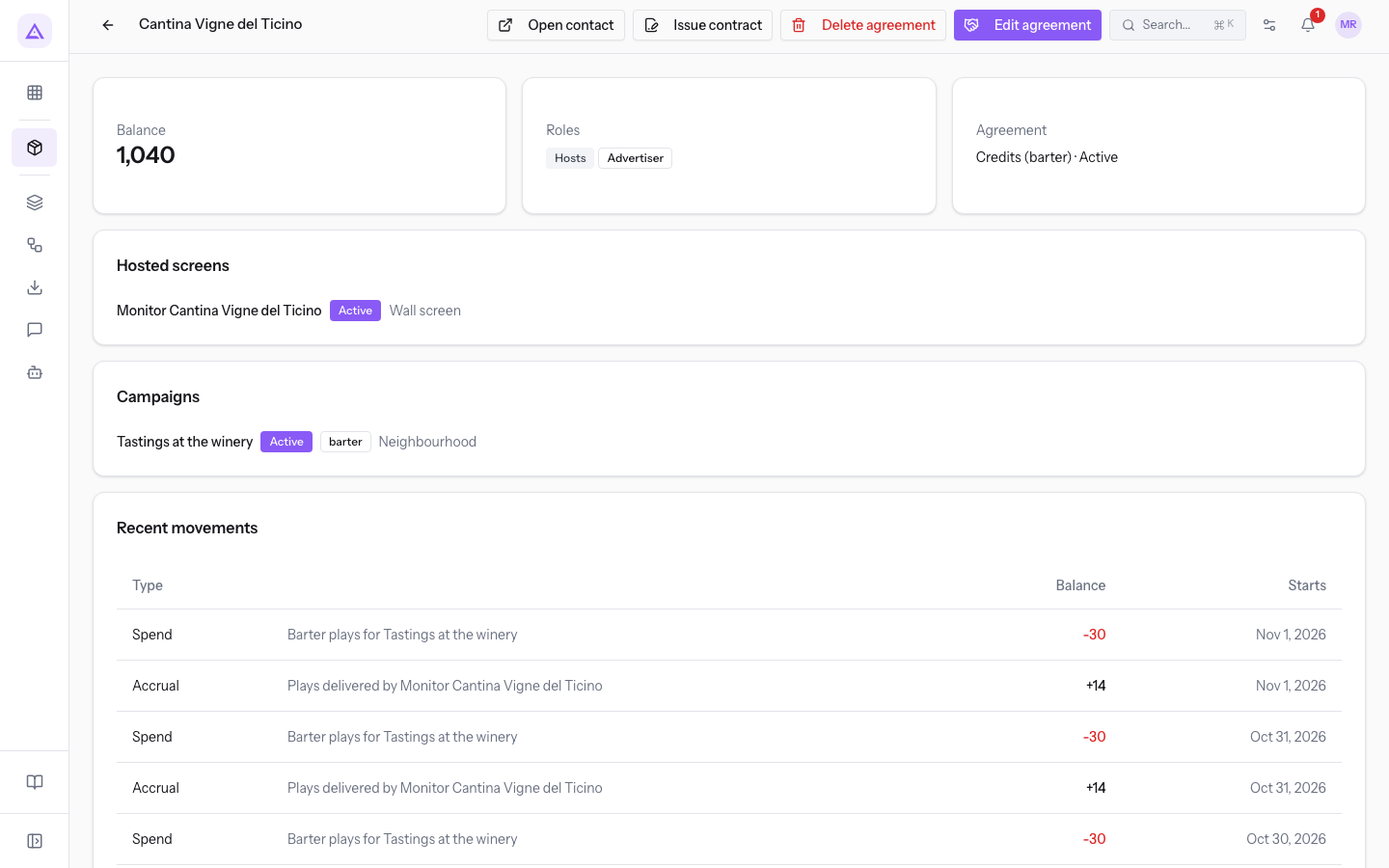
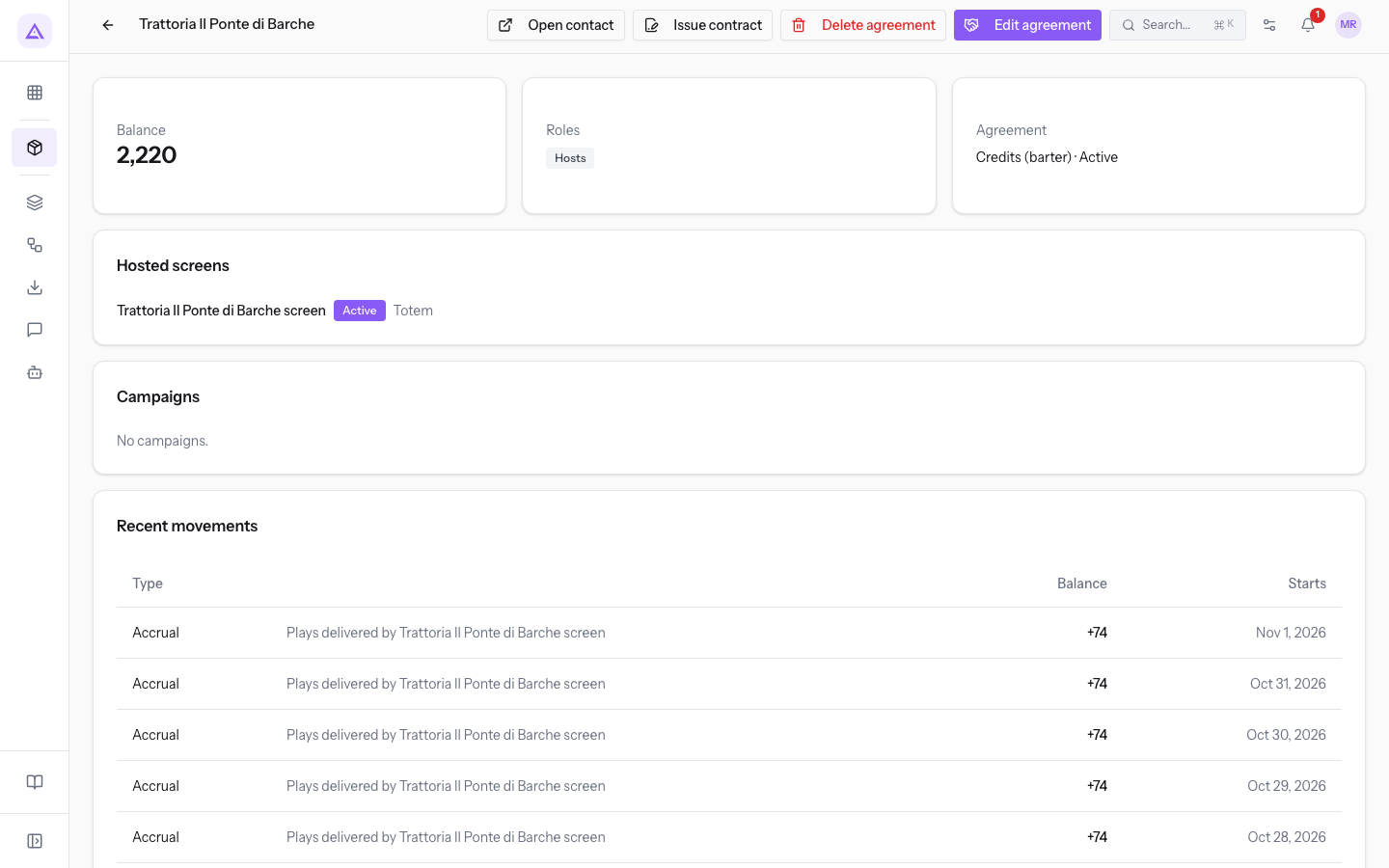
The page's panels are:
- Balance: the merchant's credit balance, the same value as the Credit balance column. A negative balance appears in red.
- Roles: Hosts, Advertiser or both.
- Agreement: the compensation and status of the hosting agreement, or — if there is none.
- Hosted screens: for each screen, shows its name, status and form factor. The name opens the screen's page. Without screens the panel shows Hosts no screens.
- Campaigns: for each of the merchant's campaigns, shows its name, status, the barter badge if it is credit-based, and the plan. The name opens the campaign's page. The panel also lists Draft and Ended campaigns. Without campaigns it shows No campaigns.
- Recent movements: the last ten credit movements. Without movements it shows No movements.
The header buttons are:
- Open contact: opens the contact's page in the Contacts module.
- Issue contract: appears only if the merchant has an agreement.
- Delete agreement: appears only if the merchant has an agreement.
- Edit agreement or New agreement: opens the agreement window. The page shows New agreement when the merchant has no agreement.
Reading the recent movements
Each row in the Recent movements panel shows the movement type, description, amount and date, newest first. The Balance column holds the movement amount and the Starts column holds the date. Positive amounts have a + sign. Negative amounts appear in red.
- Accrual: credits earned from the plays of a hosted screen. The description names the screen.
- Spend: credits used by the plays of a credit campaign. The description names the campaign.
- Adjustment: a movement that does not come from plays, such as a welcome credit.
How the credit cycle works
Credits link the two roles: the merchant earns them by hosting a screen and spends them by running its own campaign on the network's screens.
- Accrual. At 04:10 the system calculates the previous day's credits, so credits appear the day after the play. Only plays during the screen's opening hours count, multiplied by the Multiplier of its heat band.
- Spend. A campaign with Credit (barter) campaign deducts from the advertiser's balance based on the plays delivered: 1 credit per play during opening hours, with no multiplier.
- Leaving the rotation. When the balance drops below 1, the credit campaign is no longer shown. It returns when the merchant earns more credits.
Important: leaving the rotation is not a status change. The campaign keeps its status, so the status does not show that it has stopped airing. Check Balance on the merchant's page.
Heat bands are set in Network settings and depend on the screen's Heat score:
- hot: from 70, Multiplier 1.2. The Boat Bridge Trattoria screen has Heat score 82.
- standard: from 40, Multiplier 1.
- cold: from 0, Multiplier 0.85. The Ticino Vineyard Cellar monitor has Heat score 35.
A screen earns credits only if all of these are true:
- It has a merchant as its Host venue. Company screens, such as the Reception farm stay screen, do not earn credits.
- The merchant's hosting agreement is Active and the compensation is Credits (barter).
- The screen has Opening hours. Without a calendar, plays do not earn credits.
If the balance of a merchant with a credit-based agreement is not growing, check the status of the hosting agreement and the screen's Opening hours.
Reading the balance by role
The same balance means something different depending on the role and the agreement. The network cases are:
- If the merchant has Hosts and Advertiser, the balance rises with accruals and falls with spend. Cellar Vineyard Ticino has Balance 1,040, with Credits (barter) · Active, and the campaign Tastings at the winery with the barter badge.
- If the merchant has only Hosts and the agreement is credit-based, the balance grows only through accruals. Boat Bridge Trattoria has Balance 2,220 and, in Recent movements, only Accrual rows of +74.
- If the agreement is Revenue share, the screen earns no credits. Dolce Ticino Pastry Shop has Balance 0.
- If the agreement is in Draft, the screen earns no credits. Elisa Hair Salon has Credits (barter) · Draft and Balance 0.
- If the merchant has only Advertiser, it hosts no screens and has no agreement. Rossi Furnishings S.r.l., Verdi Construction S.p.A. and Bianchi & Associates have Balance 0.
See it on your company, not on a slide deck.
In 30 minutes we map the software you use today.We show you how much work and how much margin Archimedes gives back.
Show me on my business →What industry are you in?
One tap — it lets us prepare the demo around your world.
What tools do you use today?
Pick the ones you recognise — or just type them. It helps us show you how they migrate.
Last step: your details.
We reply within one working day — and right after, if you like, you pick the demo slot yourself.
We couldn't send your request. Try again, or write to us at [email protected].
By sending, you agree to your data being processed so we can get back to you about the demo. Privacy notice.
Preview form — nothing is sent from this page.
Want to schedule the demo now?
Your call: book the slot you prefer yourself, or we'll call you to arrange it.
Live availability, 30 minutes, instant confirmation. The calendar opens in a new tab.
Lock in your slot ↗We'll get back to you within one working day — and we'll join the call already knowing your world.
The calendar is open in another tab: pick a slot and the demo is booked. Can't see it? Reopen it ↗
Preview page: nothing was sent.
Our calendar is live: take the slot that suits you and the demo is booked. 30 minutes, instant confirmation, no waiting.
Lock in your slot ↗