Proxima
All modules
Check the status of screens and network alerts
Proxima · 3 of 15 · 4 min read
The Screens page lists the network's screens, their hosts and their status. From here you check which screens are on and read alerts about unusual plays.
The Screens page
The page opens from Proxima › Screens. At the top appear the red alerts, if there are any. Below you find the search, the filters and the list of screens.
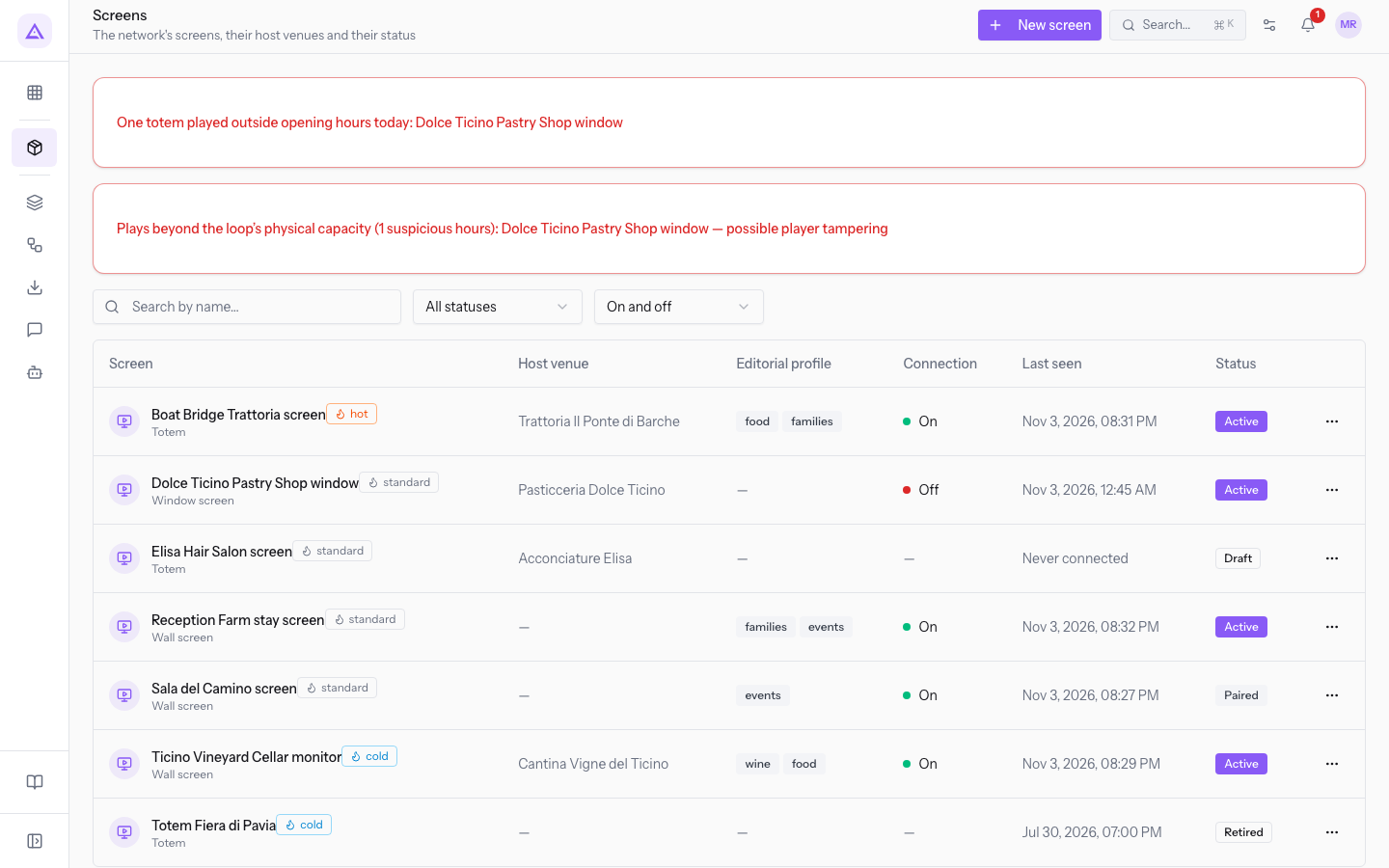
Each row in the list shows these columns:
- Screen: the screen name, the form factor and the hot, standard or cold heat badge.
- Host venue: the host of the screen. Shows — for company screens, such as Reception farm stay screen.
- Editorial profile: the screen's tags. Shows — if the profile is empty.
- Connection: On, Off or — for screens in Draft or Retired.
- Last seen: the date and time of the last contact. Shows Never connected if the screen has never connected.
- Status: the screen's status.
Below the table, a count shows how many screens are displayed. Press a row to open the screen's page.
Finding a screen with the filters
Search and filters work together. If no screen matches them, the list shows No screens match the filters.
- Search by name…: narrows the list to the text you type.
- Status: filters by screen status.
- All statuses: shows every screen.
- Draft, Paired, Active, Retired: show only the screens in that status.
- Connection: filters by connection.
- On and off: shows every screen.
- Only on: shows the screens with Connection On.
- Only off: shows all screens that are not on. This therefore also includes those in Draft and Retired, which show — under Connection.
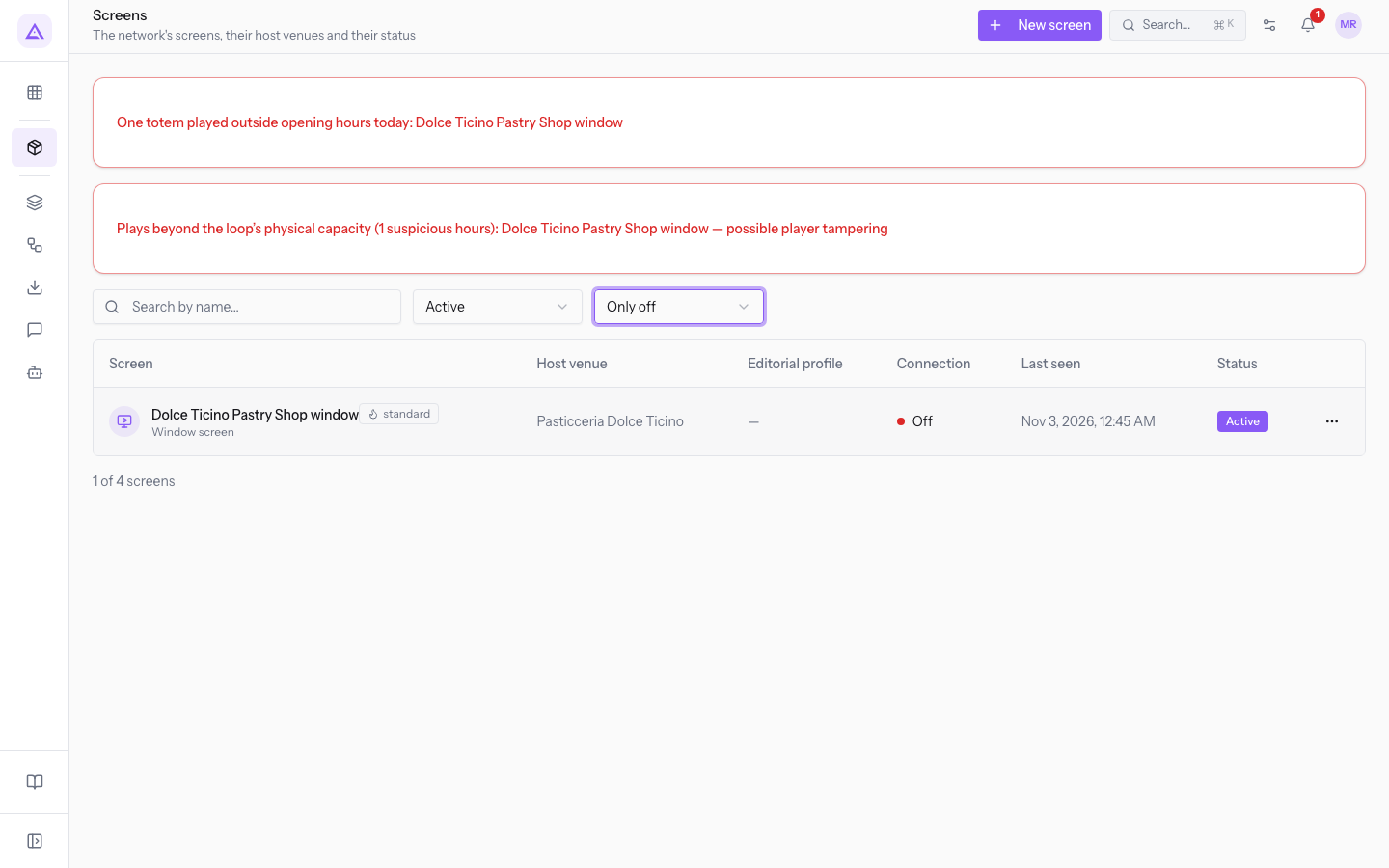
To find screens in the network that have stopped communicating, use two filters:
- Under Status, choose Active.
- Under Connection, choose Only off. In the demo, Dolce Ticino Pastry Shop window remains.
Reading connection and status
Connection tells you whether the screen is communicating. Status tells you where the screen stands in the network. These are two separate pieces of information: Dolce Ticino Pastry Shop window is Active and Off.
A screen shows Off when it stays silent longer than the time set in Offline after (minutes), on the Network settings page. The value applies to the whole network: in the demo it is 120 minutes.
The system checks the screens every 5 minutes. If a Paired or Active screen is off during the Opening hours, the host receives an email. The email is sent only once for each outage and requires a Host venue with an email address. When the screen starts communicating again, the check starts over from zero.
Note: commands such as Reload player are run at the next contact: on an Off screen they stay pending.
The red alerts at the top of the list
Alerts appear only when there is an anomaly and name the screens involved. In the demo, both concern Dolce Ticino Pastry Shop window.
Opening-hours alert: One totem played outside opening hours today: Dolce Ticino Pastry Shop window.
- It appears when a screen has recorded plays today outside its Opening hours.
- Possible causes are an incorrect calendar or a screen that does not follow the hours.
- These plays do not count toward credits or guaranteed plays.
Loop capacity alert: Plays beyond the loop’s physical capacity (1 suspicious hours): Dolce Ticino Pastry Shop window — possible player tampering.
- It appears when, in a single hour, yesterday or today, there are more plays than the loop can air.
- The limit is the number of slots in one hour, plus a 10% tolerance. With a Spot duration (seconds) of 15, the hour has 240 slots, so the limit is about 264 plays.
- The message states the number of suspicious hours and the screen name. It does not state the hour or the number of plays.
Checking the hours of a flagged screen
With an opening-hours alert, first check the calendar assigned to the screen.
- Press the row of the flagged screen.
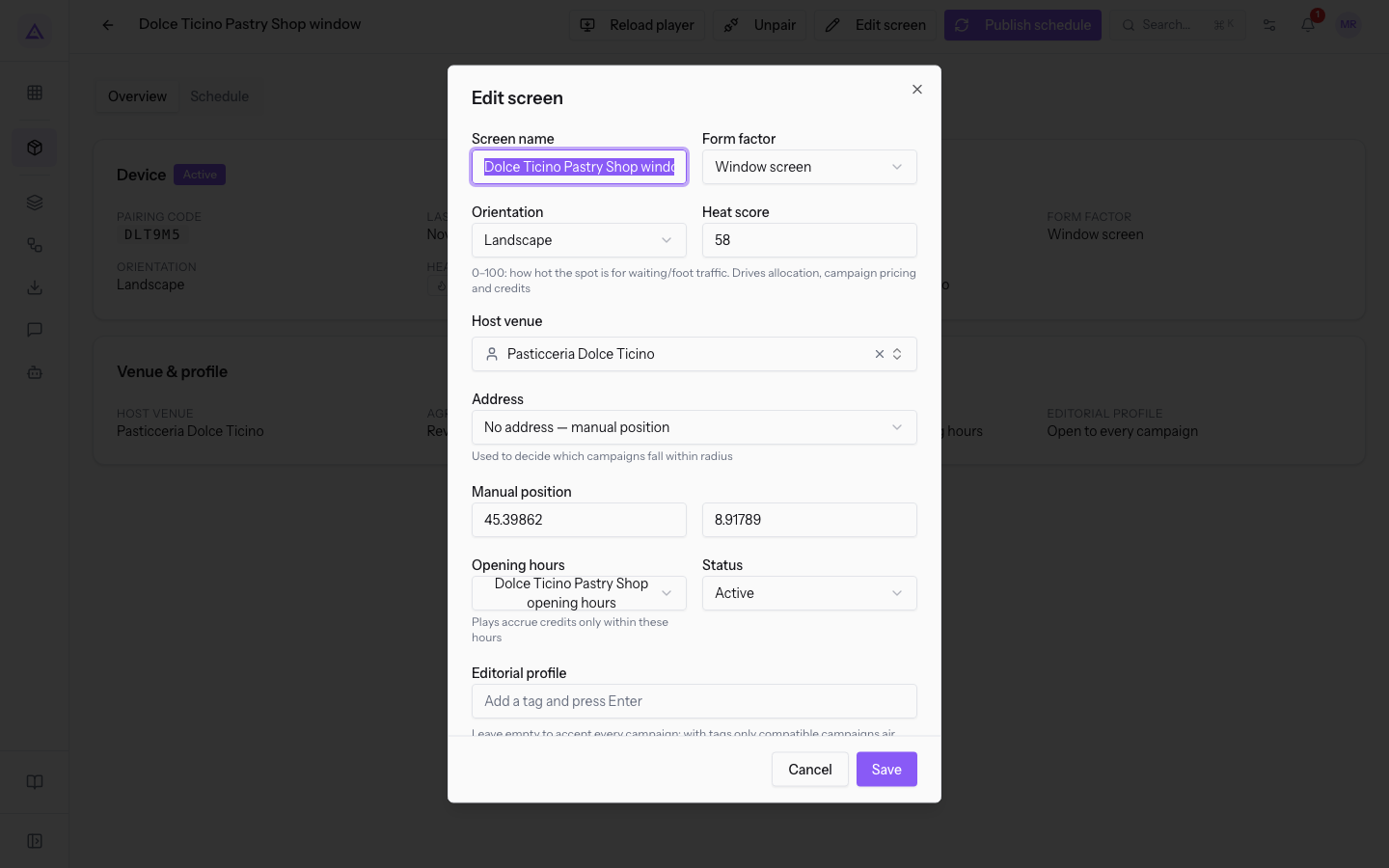
- Press Edit screen.
- Check the Opening hours field: it must show the host's calendar, in this case
Dolce Ticino Pastry Shop opening hours.
What you find determines the next step:
- If the field shows No calendar or another host's calendar, choose the correct one and save.
- If the calendar is correct, check the physical screen.
Important: with the loop capacity alert, always check the physical screen: the system reports plays that the loop could not have aired.
Deleting a screen
The ⋯ menu to the right of each row contains Edit screen and Delete screen. Delete screen asks for confirmation, reminding you that the play history remains viewable.
Note: deletion is reserved for network managers. Network operators do not delete screens.
See it on your company, not on a slide deck.
In 30 minutes we map the software you use today.We show you how much work and how much margin Archimedes gives back.
Show me on my business →What industry are you in?
One tap — it lets us prepare the demo around your world.
What tools do you use today?
Pick the ones you recognise — or just type them. It helps us show you how they migrate.
Last step: your details.
We reply within one working day — and right after, if you like, you pick the demo slot yourself.
We couldn't send your request. Try again, or write to us at [email protected].
By sending, you agree to your data being processed so we can get back to you about the demo. Privacy notice.
Preview form — nothing is sent from this page.
Want to schedule the demo now?
Your call: book the slot you prefer yourself, or we'll call you to arrange it.
Live availability, 30 minutes, instant confirmation. The calendar opens in a new tab.
Lock in your slot ↗We'll get back to you within one working day — and we'll join the call already knowing your world.
The calendar is open in another tab: pick a slot and the demo is booked. Can't see it? Reopen it ↗
Preview page: nothing was sent.
Our calendar is live: take the slot that suits you and the demo is booked. 30 minutes, instant confirmation, no waiting.
Lock in your slot ↗