Proxima
All modules
Issue the hosting agreement contract for signature
Proxima · 9 of 15 · 4 min read
The Issue contract button creates the hosting contract from the merchant's page. The contract starts in Draft in the Contracts module, where you manage sending, signature, renewals and deadlines.
Which contract is created
The Issue contract button appears on the merchant's page when the merchant has a hosting agreement. Without an agreement, the page shows New agreement. The contract gets the title «Hospitality agreement — » followed by the merchant's name.
The contract type depends on the agreement's Compensation at the time of issue. Check the Compensation before you issue the contract.
- If the Compensation is Credits (barter), the type is «Hospitality agreement — crediti».
- If the Compensation is Revenue share, the type is «Hospitality agreement — ricavi».
Issue the contract
Issue the contract when the hosting agreement is ready for signature. Issuing does not change the agreement's status.
Before you start: the merchant must have a hosting agreement, and you need permission to create contracts.
-
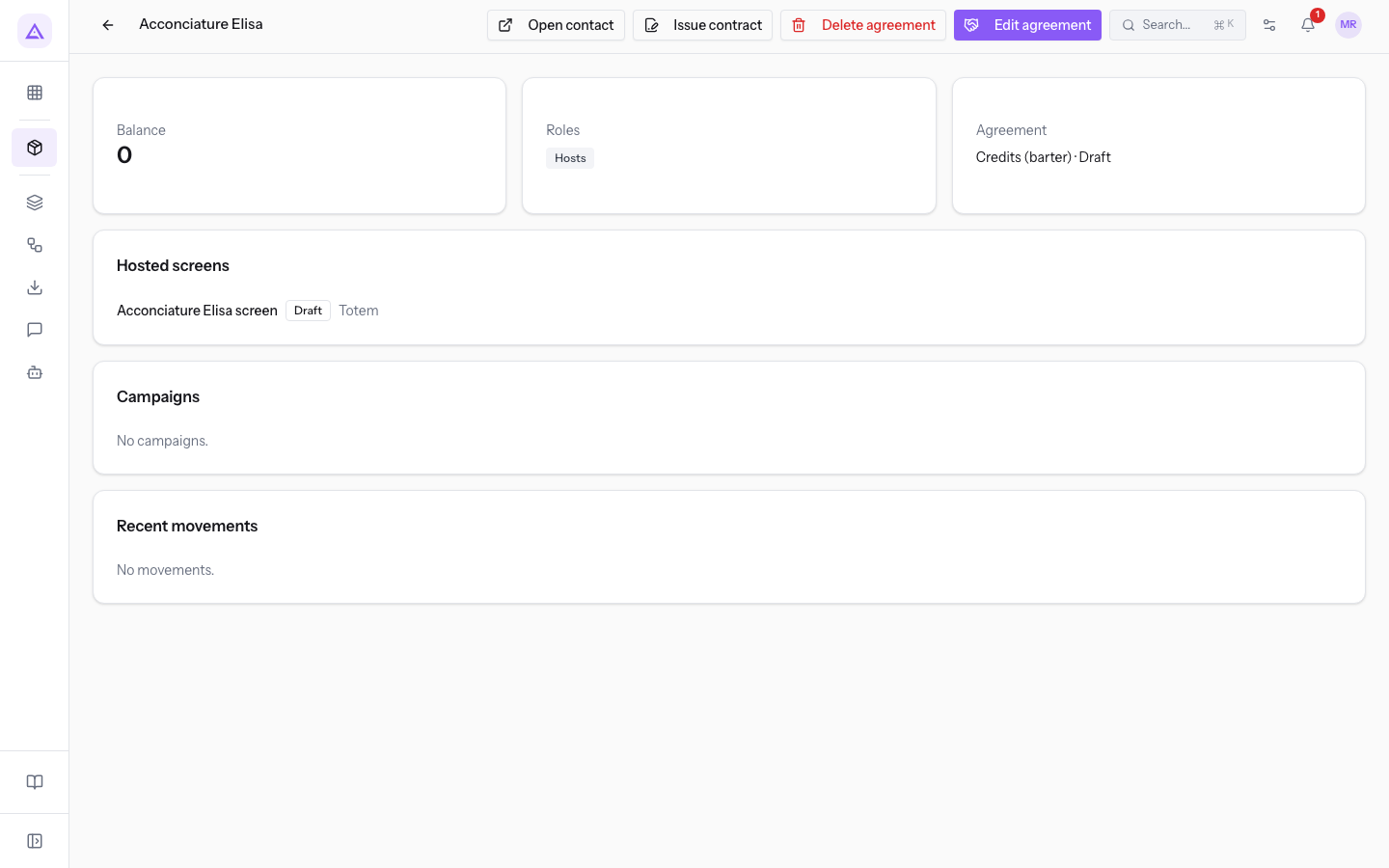
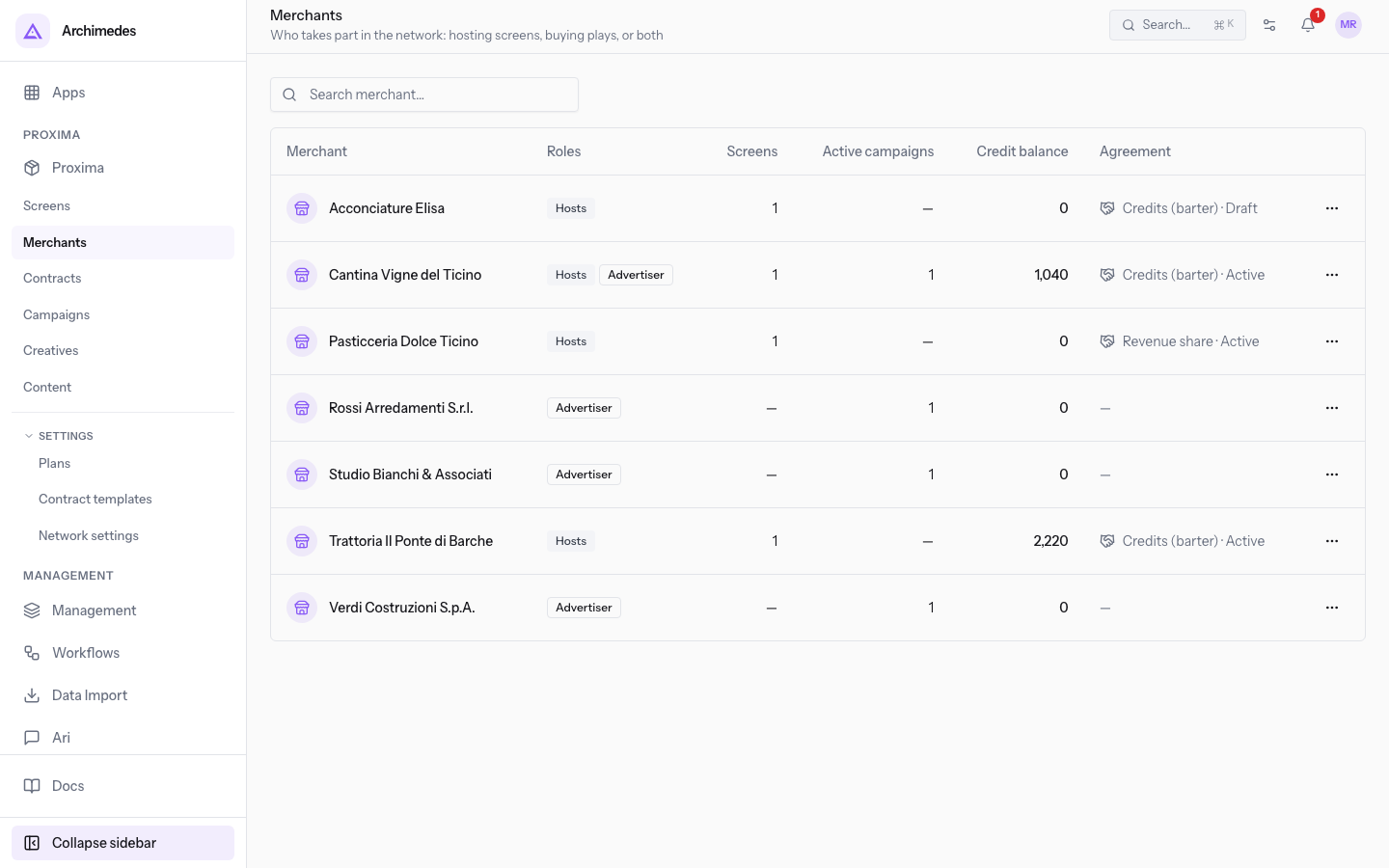
Open Proxima › Merchants and press the merchant's row.
-
Press Issue contract. Contract issued appears and the contract page opens.
The contract page in draft
The contract's page shows the title, status, merchant, type, and the line issued from with the link hosting agreement. In Draft the contract has no reference yet, so a dash appears in its place. The buttons are Edit, Refresh text, Send for signature and Open PDF, plus the trash icon to delete it.
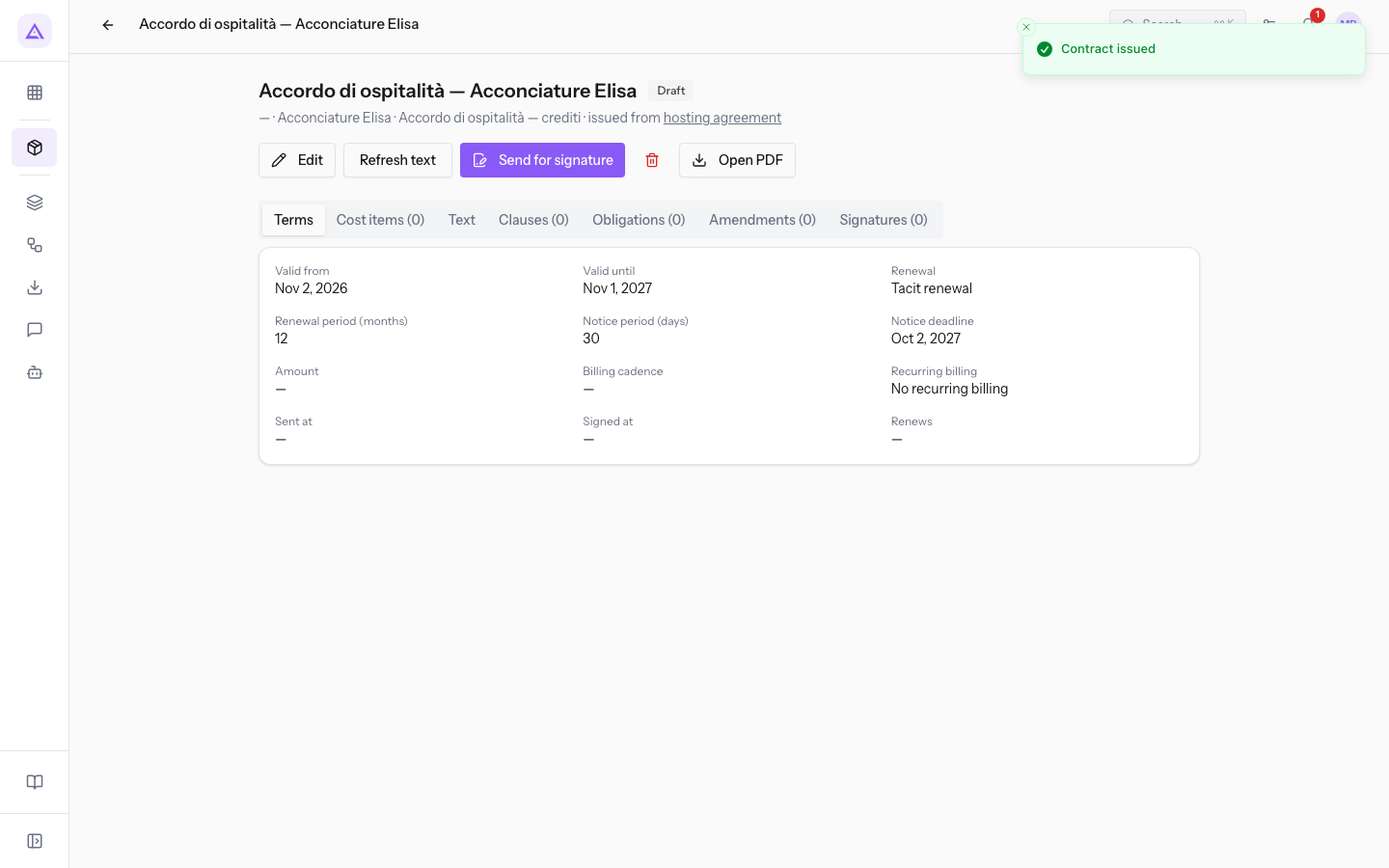
The page has these tabs:
- Terms: dates, renewal, notice and amount.
- Cost items: the contract amounts, one-off or recurring.
- Text: the contract text, which starts from the template linked to the type. Proxima can insert the agreement's data, such as compensation, revenue share percentage, list and number of screens.
- Clauses: the clauses to follow separately, such as service level, penalty or exclusivity.
- Obligations: the parties' dated commitments.
- Amendments: changes to the terms.
- Signatures: the signatures collected.
Send the contract and collect the signature
Sending and signing happen on the contract, in the Contracts module. Send for signature emails the merchant a personal link. The merchant signs with a code sent to the same inbox, without an account.
Important: Send for signature starts as soon as you press it, with no confirmation window. Before you press it, check Text and Terms: the text is frozen after sending, and the terms can only be changed with an amendment.
After sending, Contract sent for signature appears. The contract moves to Awaiting signature and receives its reference. The page shows these buttons:
- Resend signing link: sends a new personal link, and the previous link stops working. If the first link was never sent, the button is called Send signing link.
- Record counterparty signature: use this when the contract was signed outside the portal, on paper or by email.
- Mark declined: records the merchant's refusal.
- Sign for us: adds the organization's signature.
- Open PDF: opens the contract as a PDF.
Renewals, terminations and deadlines are also managed on the contract. The type «Hospitality agreement — crediti» has these default values: Tacit renewal, a term of 12 months and a notice period of 30 days.
What changes on the agreement
Proxima updates the hosting agreement based on the contract, without any changes in the agreement window. Only the hosting contract has this effect: a campaign contract changes nothing on the campaign.
- When the merchant signs, the agreement becomes Active. The signing date appears in Signed on, and the agreement records the contract's reference. From that point credits are earned, if the Compensation is Credits (barter).
- When the contract ends, the Active agreement moves to Terminated and credit earning stops.
The Contracts and Contract templates items in the Proxima menu
The two items in the Proxima menu open pages of the Contracts module. Use Proxima › Contracts to track issued contracts and Proxima › Contract templates to manage types and templates.
Contracts
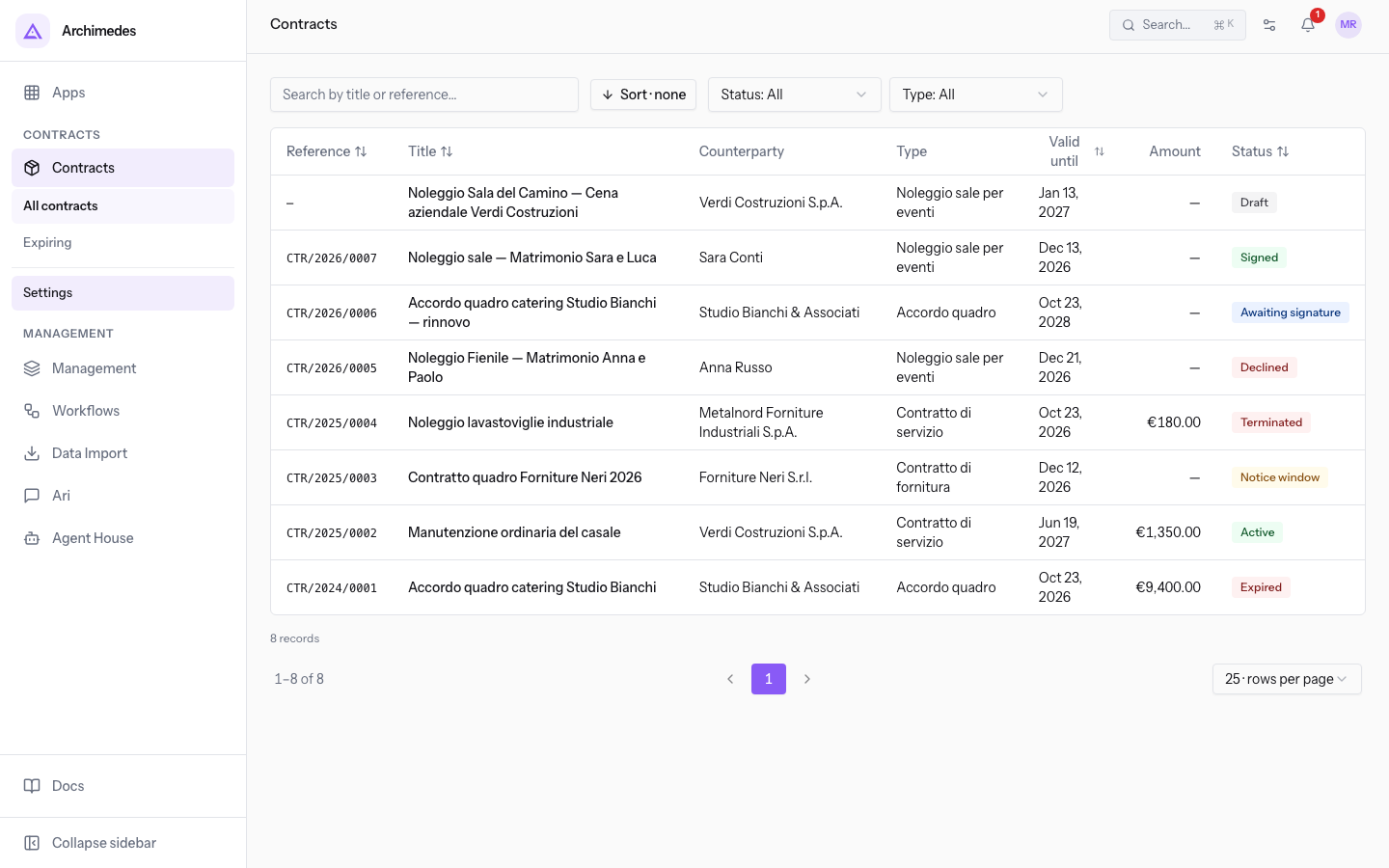
Proxima › Contracts opens the list of all contracts in the module, not only the network's. The columns are Reference, Title, Counterparty, Type, Valid until, Amount and Status.
To find a hosting contract, type Hospitality agreement in Search by title or reference…, or use the Type filter. The Status filter narrows the list by contract status.
Contract templates
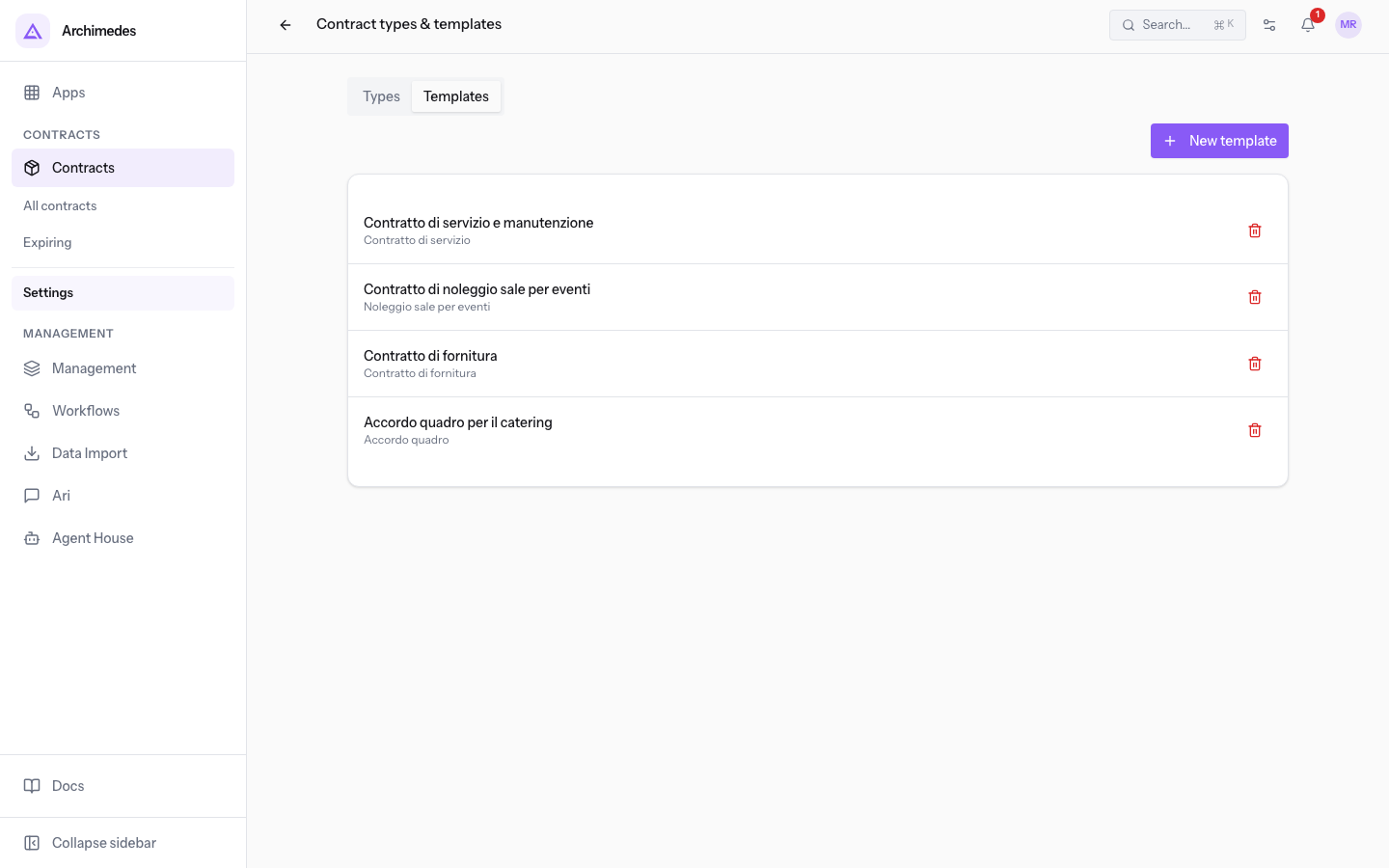
Proxima › Contract templates opens Contract types & templates, with two tabs:
- Types: the list of contract types, with direction, renewal mode, term and notice period. Create a type here with New type.
- Templates: the list of templates, each with its type. Create a template here with New template. The type «Hospitality agreement — crediti» uses the template
Hospitality agreement — baratto a crediti.
Note: if a hosting type does not exist yet, Proxima creates it at the first issue, together with a starter template. A template already linked to the type is not overwritten.
See it on your company, not on a slide deck.
In 30 minutes we map the software you use today.We show you how much work and how much margin Archimedes gives back.
Show me on my business →What industry are you in?
One tap — it lets us prepare the demo around your world.
What tools do you use today?
Pick the ones you recognise — or just type them. It helps us show you how they migrate.
Last step: your details.
We reply within one working day — and right after, if you like, you pick the demo slot yourself.
We couldn't send your request. Try again, or write to us at [email protected].
By sending, you agree to your data being processed so we can get back to you about the demo. Privacy notice.
Preview form — nothing is sent from this page.
Want to schedule the demo now?
Your call: book the slot you prefer yourself, or we'll call you to arrange it.
Live availability, 30 minutes, instant confirmation. The calendar opens in a new tab.
Lock in your slot ↗We'll get back to you within one working day — and we'll join the call already knowing your world.
The calendar is open in another tab: pick a slot and the demo is booked. Can't see it? Reopen it ↗
Preview page: nothing was sent.
Our calendar is live: take the slot that suits you and the demo is booked. 30 minutes, instant confirmation, no waiting.
Lock in your slot ↗