Proxima
All modules
Setting up subscription plans for advertisers
Proxima · 10 of 15 · 4 min read
The Plans page collects what advertisers can buy with a campaign. From here you create plans, adjust their frequency, guaranteed plays and coverage, and decide which ones to offer to new campaigns.
The Plans page
The page shows one card for each plan and the New plan button. It opens from Proxima › Plans.
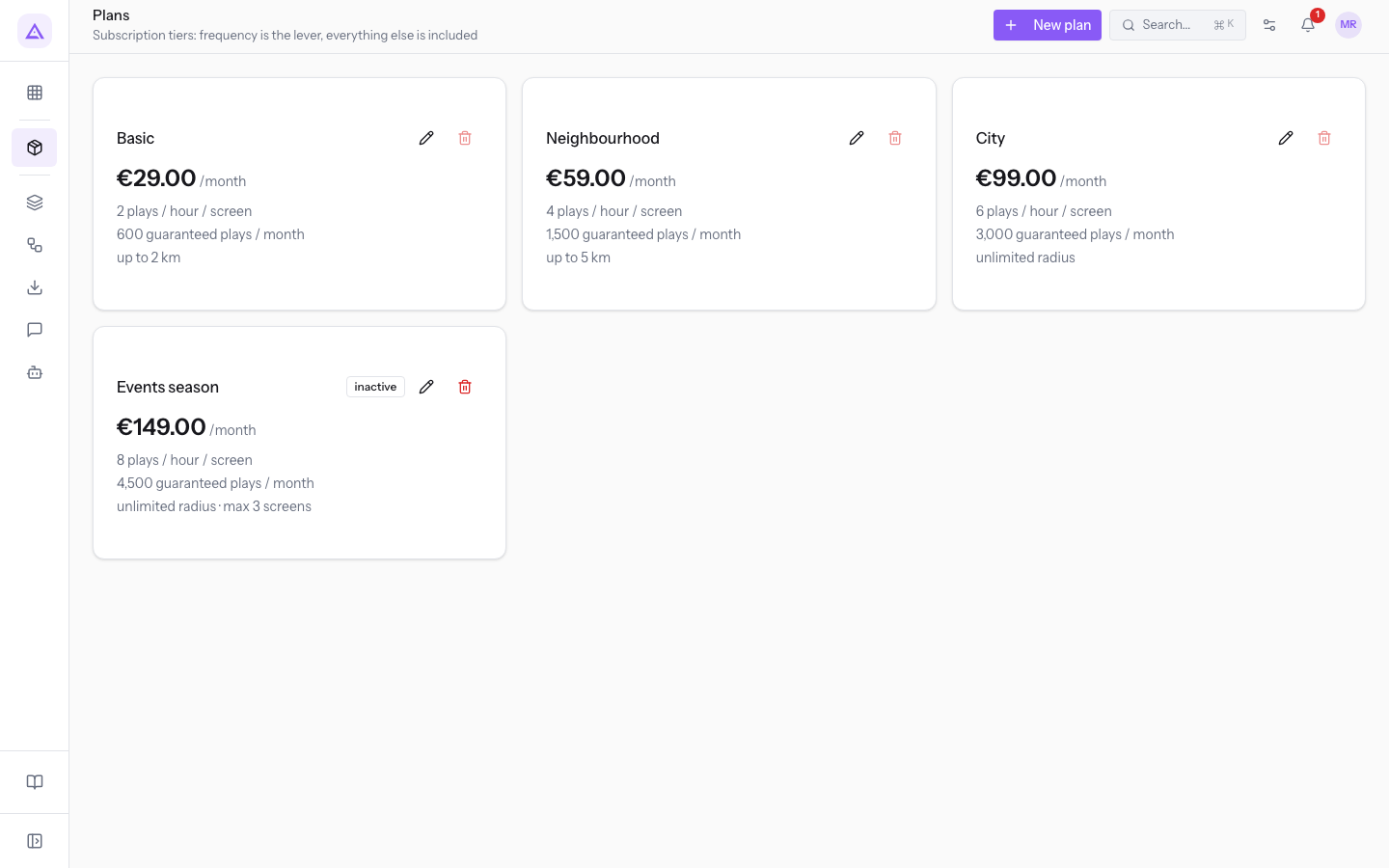
Each card shows:
- The monthly price.
- The plays per hour on each screen.
- The guaranteed plays per month.
- The coverage: the maximum distance in km or unlimited radius.
- The maximum number of screens, if the plan has one.
- The inactive label, if the plan is not active.
- The pencil, which opens Edit plan, and the trash can, which deletes the plan.
The demo plans are these:
| Plan | Monthly price | Plays per hour per screen | Guaranteed plays per month | Maximum radius | Maximum screens | Status |
|---|---|---|---|---|---|---|
| Basic | €29.00 | 2 | 600 | 2 km | Unlimited | Active |
| Neighbourhood | €59.00 | 4 | 1,500 | 5 km | Unlimited | Active |
| City | €99.00 | 6 | 3,000 | Unlimited | Unlimited | Active |
| Events season | €149.00 | 8 | 4,500 | Unlimited | 3 | Inactive |
Choosing a plan's limits
A plan differs from the others by frequency, guaranteed plays and coverage.
- If the plan is for businesses that want customers nearby, set Max radius (km, empty = unlimited) low.
- If the plan must cover the whole reachable network, leave the radius empty. The plan shows unlimited radius.
- If you want to limit the number of screens and not the distance, use Max screens (empty = unlimited). The plan keeps the screens with the highest Heat score. Distance decides only when scores are tied.
These limits act on the campaign at two moments:
- In the New campaign window, under the Plan field, the radius and hourly plays of the chosen plan appear. If Radius (km) exceeds the limit, the field shows Plan Basic allows up to 2 km.
- In the schedule, a campaign runs on a screen only if the screen is within the radius of the Coverage center. The other conditions for the screen must also be true.
Note: the schedule quotas remain ceilings. If campaigns request more plays than the ceiling, the requests are reduced proportionally.
Creating a plan
Create a plan when you want to offer advertisers new terms.
Before you start: creating, editing and deleting plans is the responsibility of network managers. Network operators see plans in read-only mode.
-
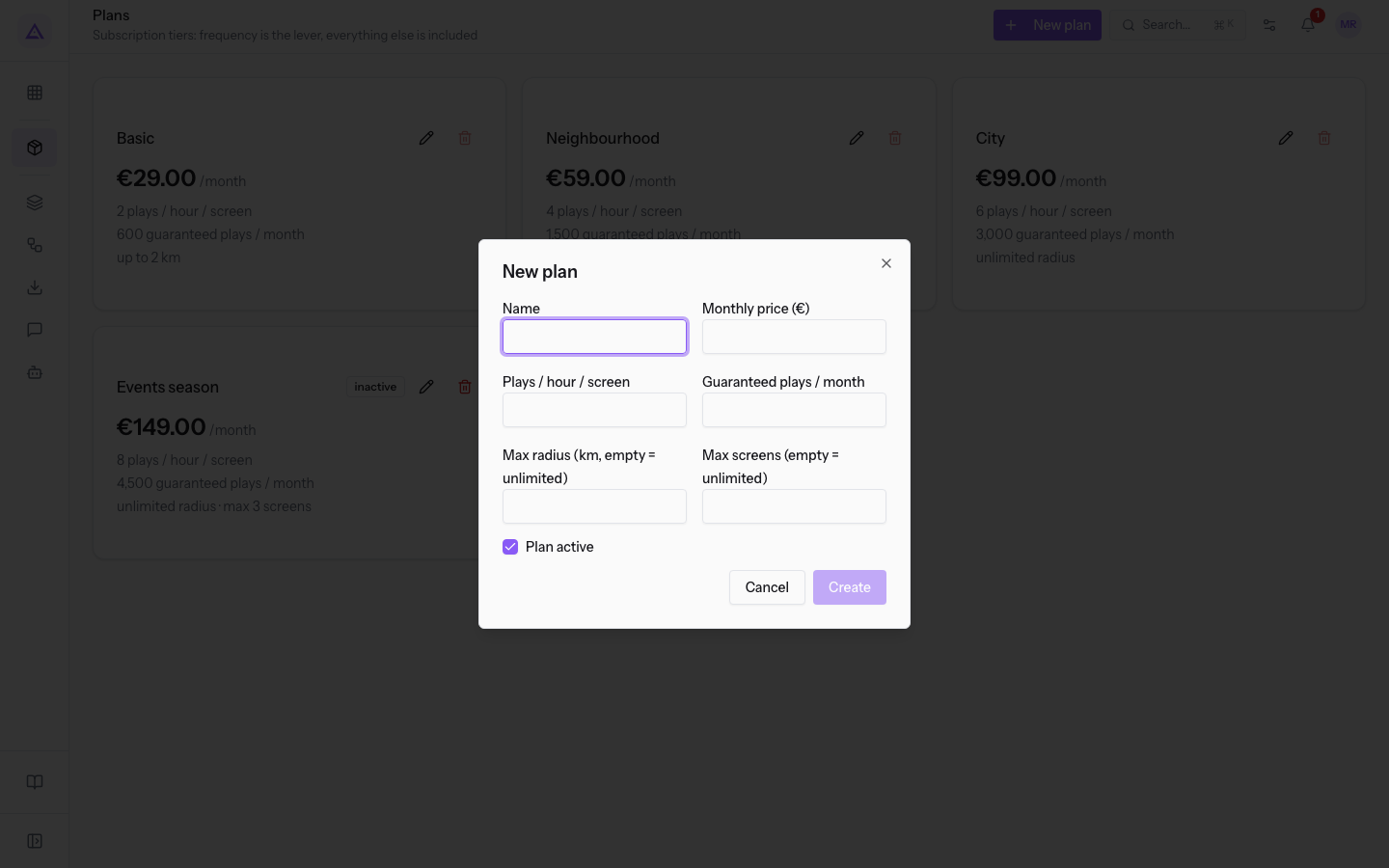
Go to Proxima › Plans and press New plan.
-
Fill in the fields described below and press Create. Plan created appears.
The window contains these fields:
- Name: the plan name, which appears in the Plan field of the campaign.
- Monthly price (€): the monthly subscription amount. With the Billing cycle set to Annual (12 months for the price of 10), the campaign pays 10 months for 12.
- Plays / hour / screen: how many plays per hour the campaign requests on each screen.
- Guaranteed plays / month: the plays the plan guarantees each month. Only plays within the opening hours of the current month count. A campaign behind on its guaranteed plays receives an increase of up to double the hourly plays.
- Max radius (km, empty = unlimited): the maximum distance the campaign can set in Radius (km). Empty means no distance limit.
- Max screens (empty = unlimited): how many screens a campaign on the plan can use at most. Empty means no limit.
- Plan active: makes the plan available for new campaigns. It is already selected in the New plan window.
Editing a plan
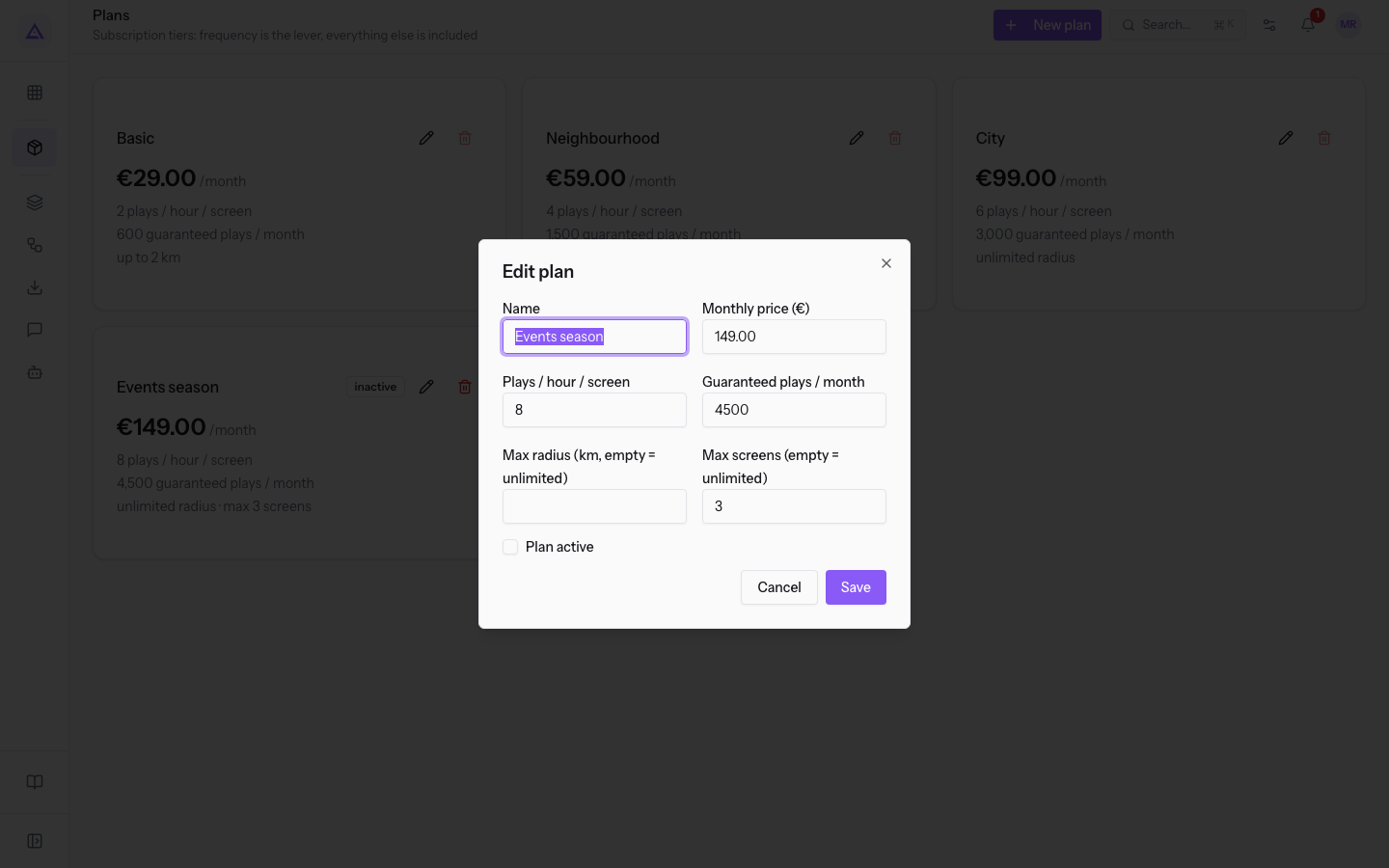
The Edit plan window has the same fields as New plan, already filled in with the plan's values. Campaigns read the price, frequency and guaranteed plays from the plan.
-
In Proxima › Plans, press the pencil on the plan's card.
-
Change the values and press Save. Plan updated appears.
Deactivating a plan
Deactivate a plan when you no longer want to offer it to new campaigns. Campaigns that already use it remain intact.
- If the plan is used by campaigns, deactivate it: you cannot delete it.
- If the plan is seasonal, deactivate it and reactivate it when needed. The Events season plan is an inactive plan with its values kept.
- Press the pencil on the plan's card.
- Uncheck Plan active and press Save.
The card shows the inactive label. The plan no longer appears among the options in the Plan field of the New campaign window: in the demo the options are Basic, Neighbourhood and City. To offer it again, select Plan active.
Deleting a plan
You can delete only a plan that no campaign uses. Campaigns read their values from the plan and would be left without a reference. If the plan is used by campaigns, the trash can is disabled: follow the steps in the section «Deactivating a plan».
- Press the trash can on the plan's card.
- Confirm the deletion request. Plan deleted appears.
Important: deletion is reserved for network managers.
See it on your company, not on a slide deck.
In 30 minutes we map the software you use today.We show you how much work and how much margin Archimedes gives back.
Show me on my business →What industry are you in?
One tap — it lets us prepare the demo around your world.
What tools do you use today?
Pick the ones you recognise — or just type them. It helps us show you how they migrate.
Last step: your details.
We reply within one working day — and right after, if you like, you pick the demo slot yourself.
We couldn't send your request. Try again, or write to us at [email protected].
By sending, you agree to your data being processed so we can get back to you about the demo. Privacy notice.
Preview form — nothing is sent from this page.
Want to schedule the demo now?
Your call: book the slot you prefer yourself, or we'll call you to arrange it.
Live availability, 30 minutes, instant confirmation. The calendar opens in a new tab.
Lock in your slot ↗We'll get back to you within one working day — and we'll join the call already knowing your world.
The calendar is open in another tab: pick a slot and the demo is booked. Can't see it? Reopen it ↗
Preview page: nothing was sent.
Our calendar is live: take the slot that suits you and the demo is booked. 30 minutes, instant confirmation, no waiting.
Lock in your slot ↗