Proxima
All modules
Record the hosting agreement with a merchant
Proxima · 8 of 15 · 4 min read
Record the hosting agreement that sets the merchant's compensation for a screen they host. From the merchant's page you create, edit or delete the agreement and decide whether the merchant earns credits.
Choosing the compensation
The Compensation sets how the merchant is paid. Choose based on what you agree with them.
- Credits (barter): the hosted screen earns credits for plays during opening hours. The merchant spends them by running their own campaign with credits.
- Revenue share: the compensation is a share of revenue, set in Revenue share percent. This compensation does not earn credits.
If the merchant wants to promote their business on the network's screens, choose Credits (barter). If you agree on a percentage, choose Revenue share.
Important: Revenue share compensation does not generate payments. The percentage stays recorded in the hosting agreement and in the contract.
In the demo, Boat Bridge Trattoria has a Credits (barter) agreement in Active status and a balance of 2,220 credits. Dolce Ticino Pastry Shop has a Revenue share agreement in Active status and a balance of 0 credits.
Choosing the status
The Status decides whether the agreement takes effect. Only an Active agreement with Credits (barter) compensation earns credits.
- Draft: the agreement is recorded but does not earn credits. Use it until the merchant has signed, as with Elisa Hair Salon.
- Active: the agreement is in force. With Credits (barter), plays during opening hours earn credits, which appear the day after the play.
- Terminated: the agreement has ended and credit earning stops.
If you get the agreement signed through Issue contract, leave it at Draft. Signing the contract makes the agreement active, and the end of the contract closes it. If the agreement is already signed and you do not issue the contract, choose Active and enter the date in Signed on.
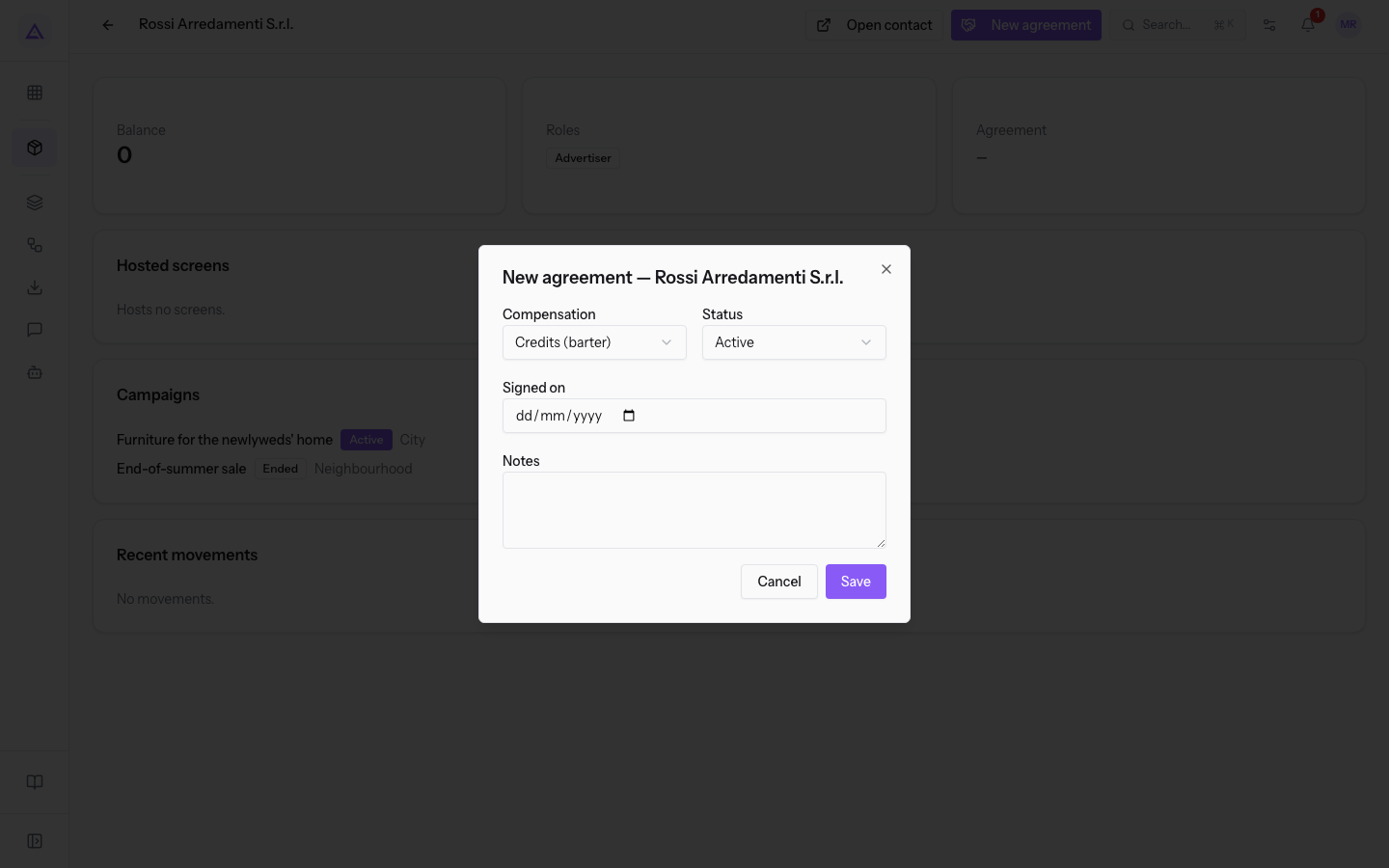
Important: the New agreement window proposes the Active status. If the merchant has not signed yet, change it to Draft.
Creating or editing an agreement
The agreement window opens from the merchant's page or from the Merchants list. In the Agreement column, the list shows each merchant's compensation and status, or a dash if there is no agreement.
-
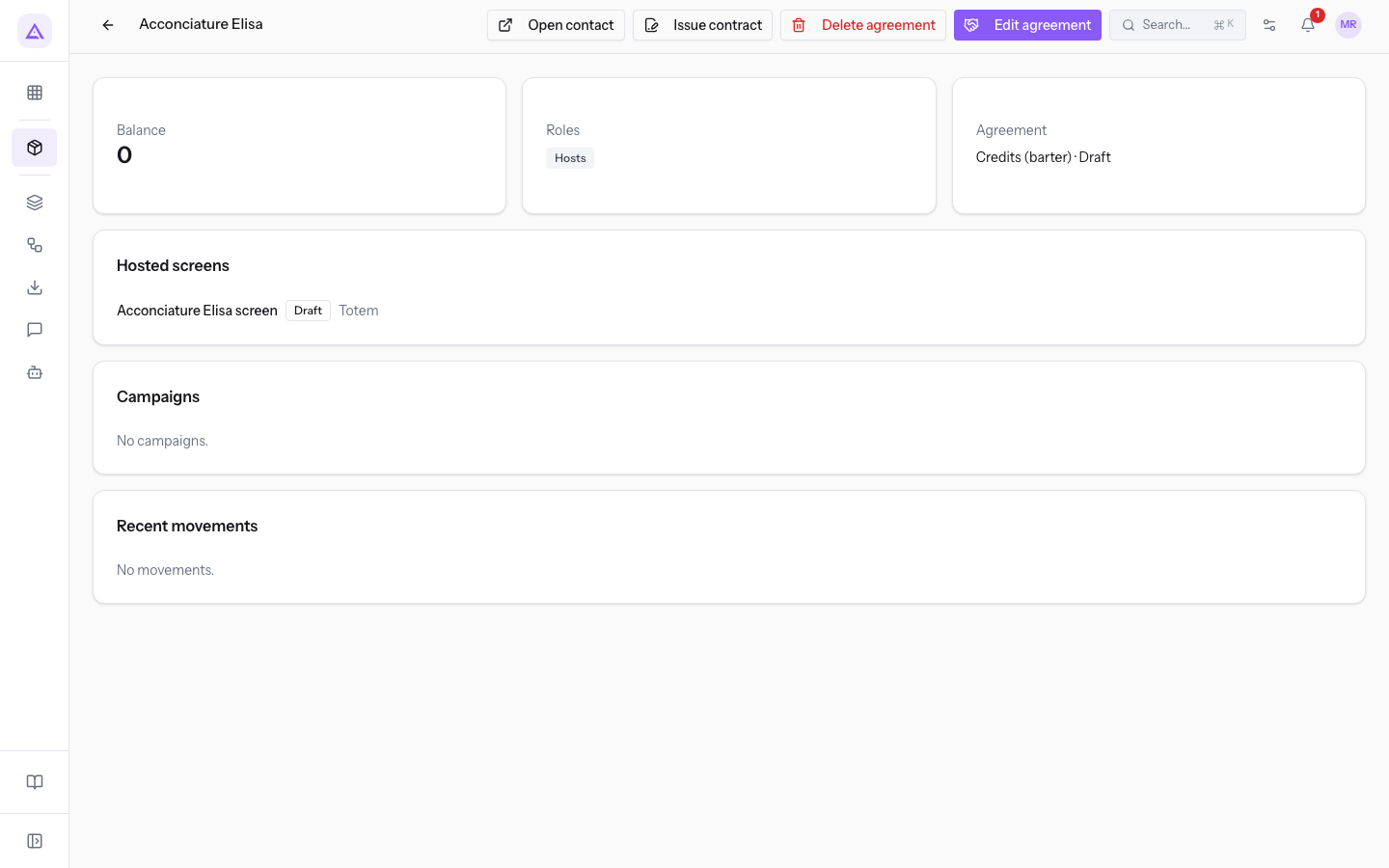
Open Proxima › Merchants and press the merchant's row. The page shows Edit agreement if the agreement exists and New agreement if it is missing.
-
Press New agreement or Edit agreement. From the list you can open the same window from the ⋯ menu at the end of the row.
-
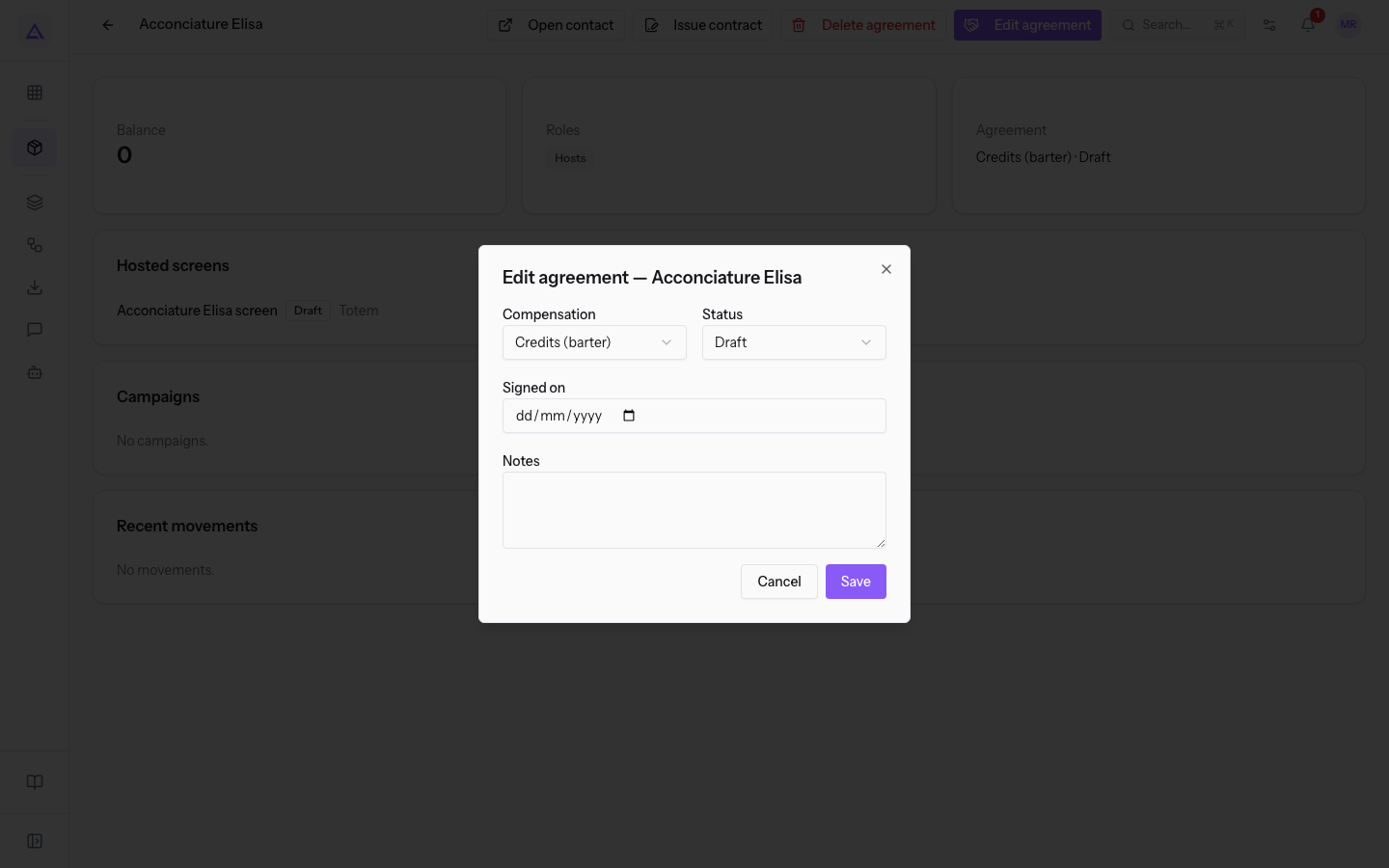
Choose Compensation and Status. The New agreement window proposes Credits (barter) and Active. The Edit agreement window shows the agreement's compensation and status.
-
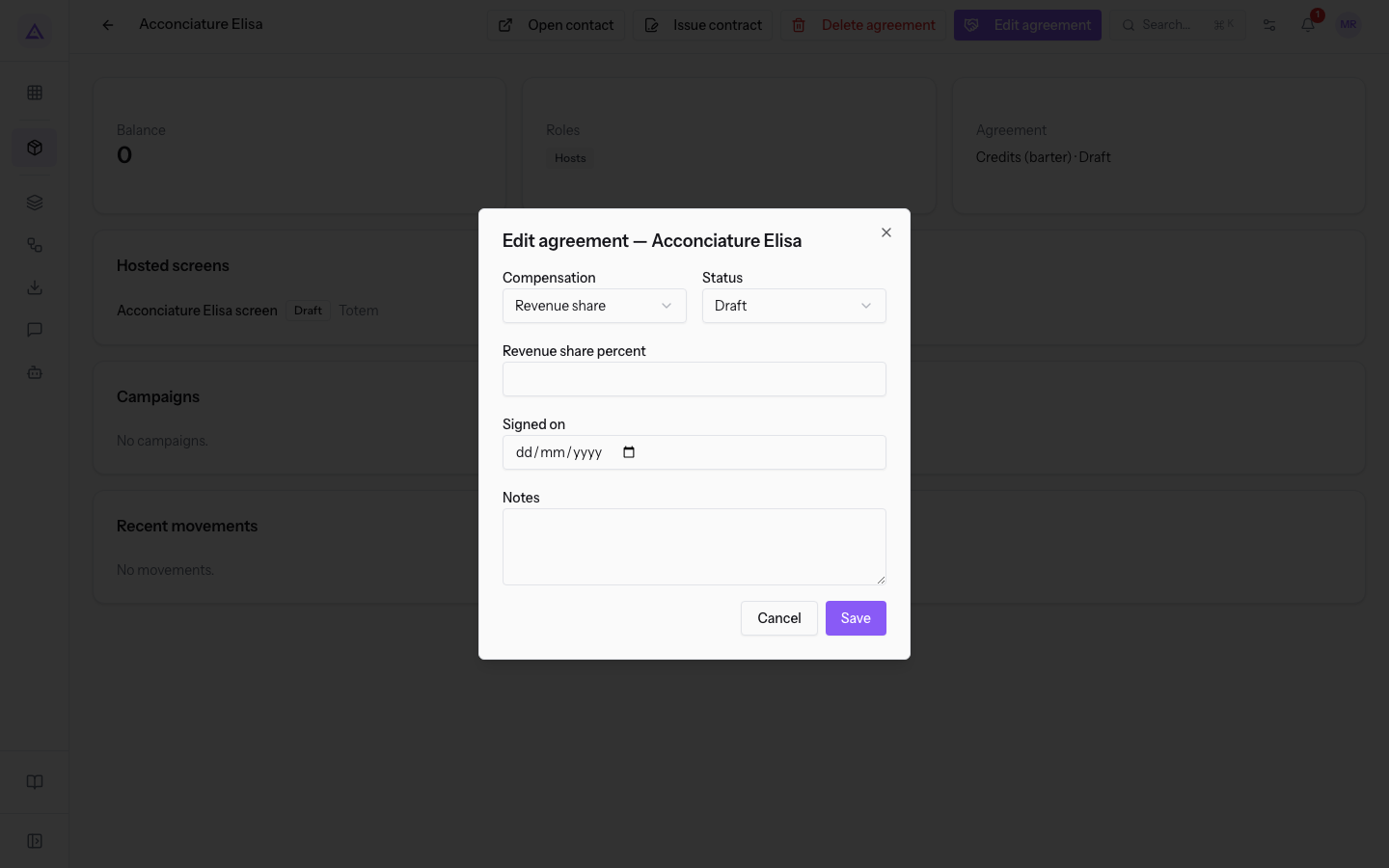
If you choose Revenue share, enter the Revenue share percent. The field appears only with this compensation.
-
Press Save. Agreement saved appears.
Fields in the window:
- Compensation: how the merchant is paid.
- Credits (barter): value proposed for a new agreement.
- Revenue share: shows the Revenue share percent field.
- Status: the agreement's status.
- Draft: the agreement is not yet in force.
- Active: value proposed for a new agreement.
- Terminated: the agreement has ended.
- Revenue share percent: the agreed share, from 0 to 100 in steps of 0.5. For a 20% share, enter 20. The field is optional and appears only with Revenue share.
- Signed on: the date the agreement was signed. The field is optional.
- Notes: free text about the agreement. The field is optional.
Deleting an agreement
Before you start: deleting an agreement requires full access to Proxima, the access of network managers. Network operators can read and edit agreements but cannot delete them.
Delete an agreement only if it has no screens attached. To stop an agreement that has screens, set the Status to Terminated. Credit earning stops and the agreement stays recorded.
- On the merchant's page, press Delete agreement. The button appears only if the merchant has an agreement.
- Confirm the question Delete the hosting agreement?. If the agreement has no screens attached, it is deleted and Agreement deleted appears.
If the agreement has screens attached, the deletion is refused and the message The agreement has screens attached: detach them or terminate it instead of deleting appears. The refusal prevents screens from being left without a host and credits from being earned on an agreement that no longer exists.
See it on your company, not on a slide deck.
In 30 minutes we map the software you use today.We show you how much work and how much margin Archimedes gives back.
Show me on my business →What industry are you in?
One tap — it lets us prepare the demo around your world.
What tools do you use today?
Pick the ones you recognise — or just type them. It helps us show you how they migrate.
Last step: your details.
We reply within one working day — and right after, if you like, you pick the demo slot yourself.
We couldn't send your request. Try again, or write to us at [email protected].
By sending, you agree to your data being processed so we can get back to you about the demo. Privacy notice.
Preview form — nothing is sent from this page.
Want to schedule the demo now?
Your call: book the slot you prefer yourself, or we'll call you to arrange it.
Live availability, 30 minutes, instant confirmation. The calendar opens in a new tab.
Lock in your slot ↗We'll get back to you within one working day — and we'll join the call already knowing your world.
The calendar is open in another tab: pick a slot and the demo is booked. Can't see it? Reopen it ↗
Preview page: nothing was sent.
Our calendar is live: take the slot that suits you and the demo is booked. 30 minutes, instant confirmation, no waiting.
Lock in your slot ↗