Proxima
All modules
Create an advertiser's campaign
Proxima · 11 of 15 · 6 min read
A campaign is an advertiser's subscription to the screen network. It sets the plan, coverage, tags, time slot and billing cycle. From Proxima › Campaigns you create campaigns, check their status and edit them.
Campaign list
The Campaigns page shows all campaigns in the network, with their advertiser and coverage. Press a row to open the campaign's page.
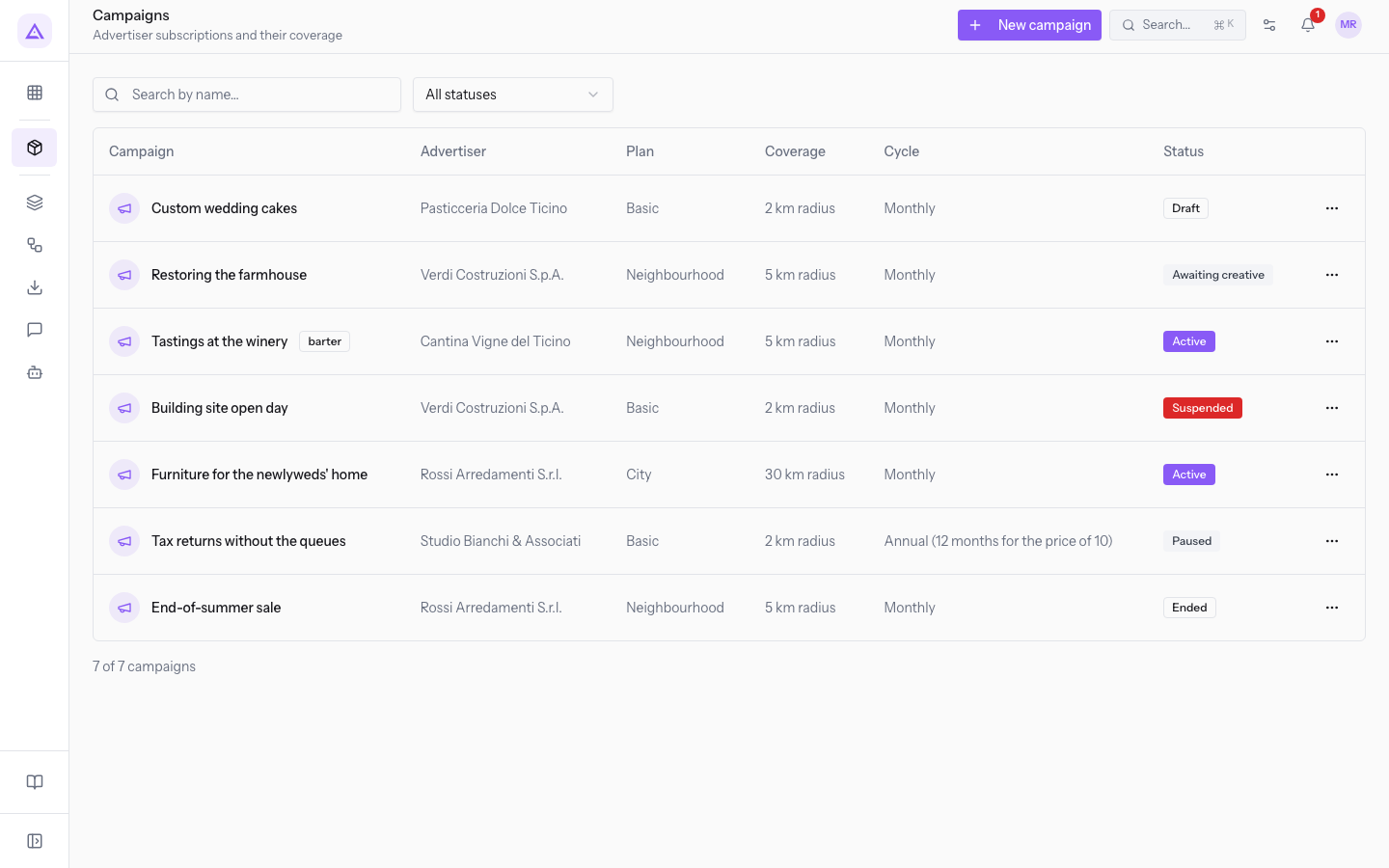
- Search by name…: filters the list by campaign name.
- Status: filters the list by status. The starting value is All statuses. The other options are Draft, Awaiting creative, Active, Paused, Suspended and Ended.
- Campaign: the campaign name. Next to the name, the barter badge appears if the campaign is paid with credits.
- Advertiser: the contact who buys the plays.
- Plan: the campaign's plan.
- Coverage: the campaign's radius, shown as "2 km radius".
- Cycle: the campaign's billing cycle.
- Status: the campaign's current status.
Below the table, a count shows how many campaigns are displayed out of the total. The ⋯ menu at the end of each row contains Edit campaign and Delete.
Create a campaign
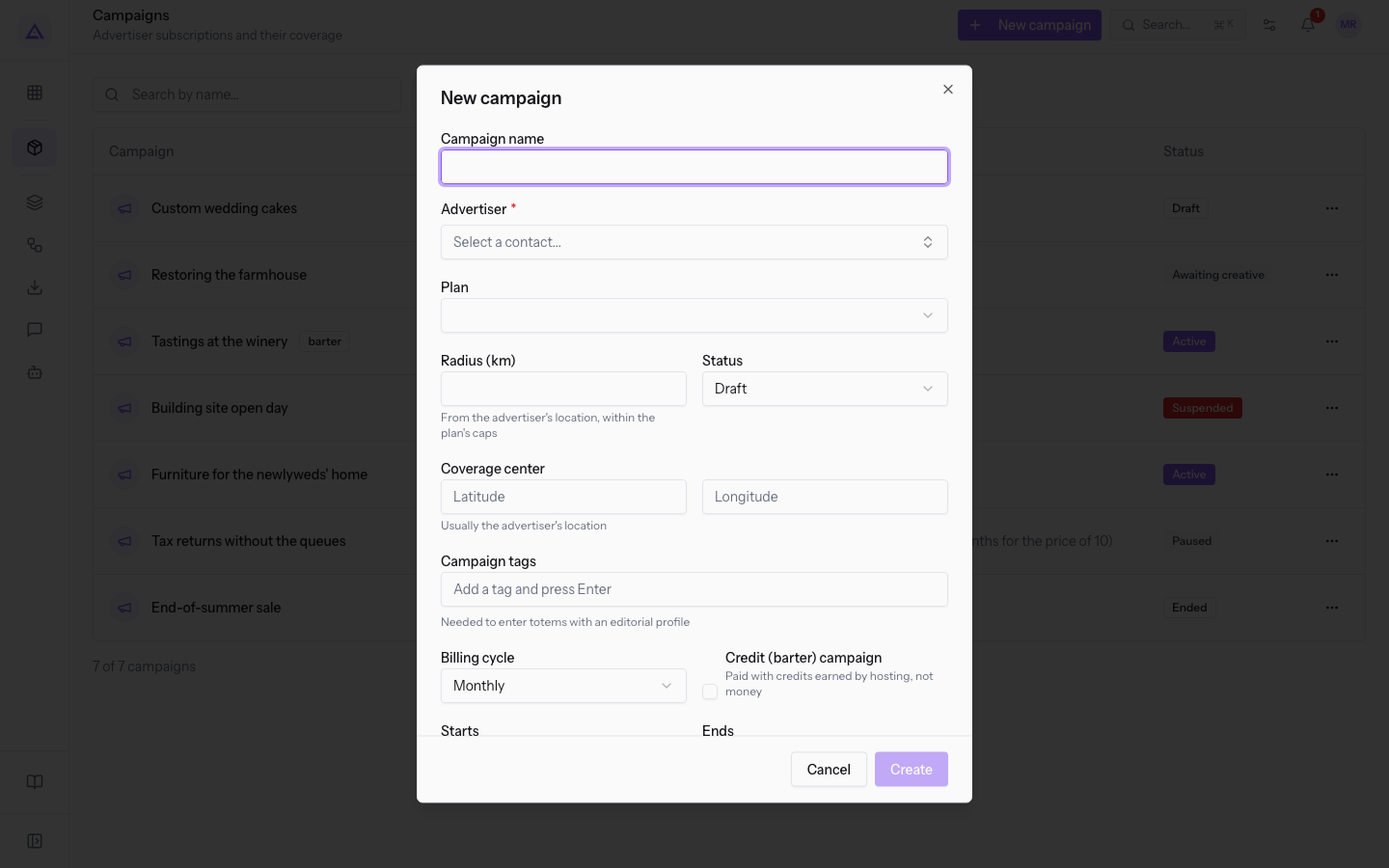
The New campaign window collects the advertiser, the plan, the coverage and the conditions for airing.
Before you start: the advertiser is a contact, and the plan must be active in Proxima › Plans. A plan that is not active, such as Events season, does not appear among the Plan options.
The choices that determine where the campaign airs and how it is paid are these:
- If the advertiser pays in money, leave Credit (barter) campaign off and choose the Billing cycle. When activated, the campaign generates a sale order.
- If the advertiser pays with earned credits, turn on Credit (barter) campaign. The campaign generates no sale orders, and the advertiser's credit balance decreases by 1 credit per airing.
- If the campaign should air only on screens near the advertiser, choose a plan with a km limit. If it must cover a wider area, choose a plan with unlimited radius.
- If you want to reach screens with an Editorial profile, assign at least one tag in common with that profile. A campaign without tags stays off those screens.
To create the campaign:
-
In Proxima › Campaigns, press New campaign.
-
Fill in Campaign name and choose the Advertiser. Choosing the contact does not fill in the other fields.
-
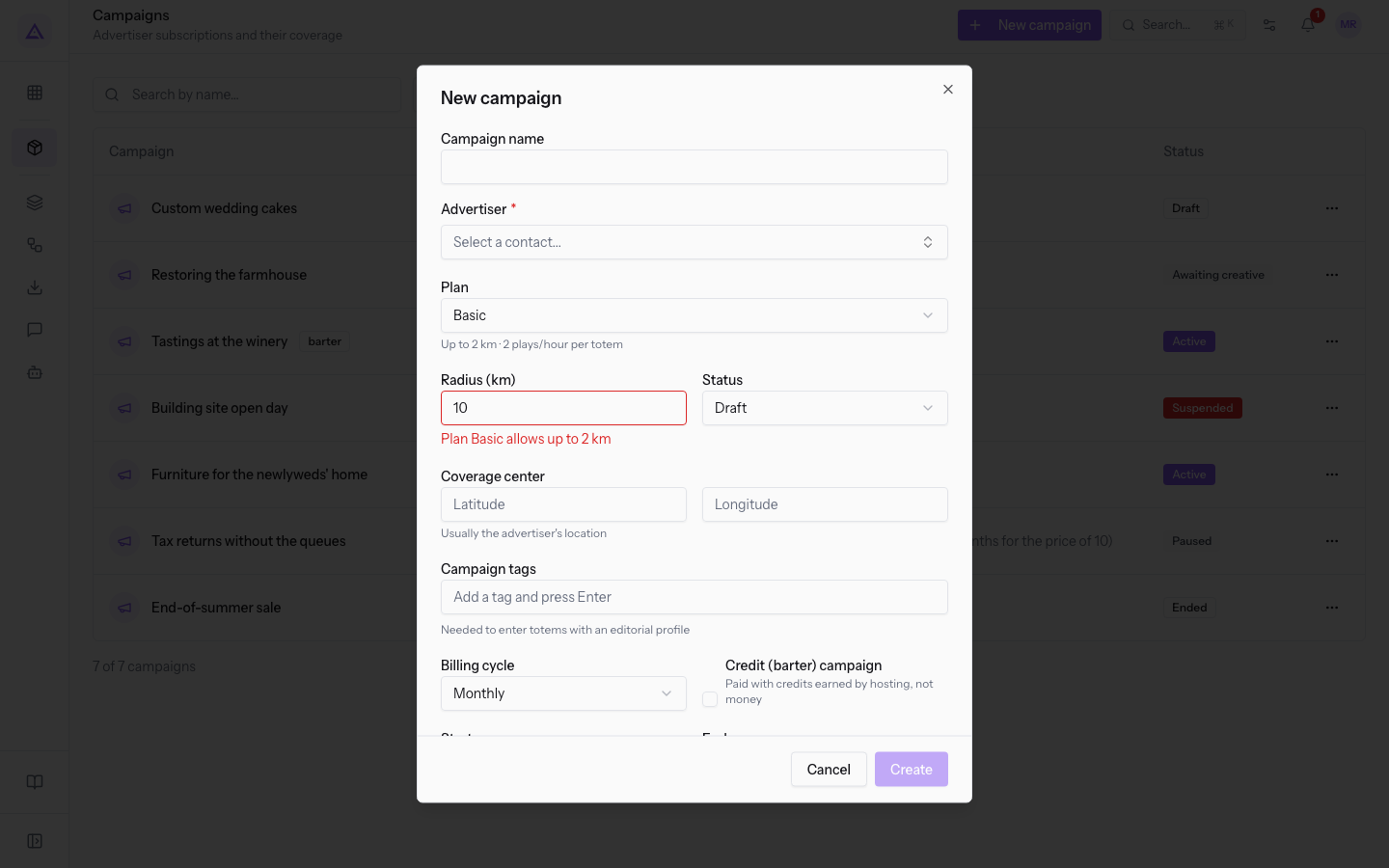
Choose the Plan and enter Radius (km) within the limit shown below the plan. If the radius exceeds the limit, an error such as Plan Basic allows up to 2 km appears and Create stays disabled.
-
In Coverage center, enter Latitude and Longitude.
-
Fill in the other fields and choose the Status based on the section "Campaign statuses".
-
Press Create. Campaign created appears.
To create the campaign, Campaign name, Advertiser, Plan and Radius (km) are required.
Window fields:
- Campaign name: the name shown in the list and on the page.
- Advertiser: the contact who buys the plays. The list contains Search contacts... and Create new contact.
- Plan: the campaign's plan. Below the field, the limits of the chosen plan appear. Demo options:
- Basic: Up to 2 km · 2 plays/hour per totem.
- Neighbourhood: Up to 5 km · 4 plays/hour per totem.
- City: Unlimited radius · 6 plays/hour per totem.
- Radius (km): the maximum distance between the Coverage center and the screens. It cannot exceed the plan's limit, and choosing the plan does not fill it in.
- Status: the campaign's status. The starting value is Draft.
- Coverage center: the point from which the radius is measured, given by Latitude and Longitude. It is usually the advertiser's location.
- Campaign tags: the campaign's topics, such as wine and food. Type a tag and press Enter to add it.
- Billing cycle: how the campaign is billed. The starting value is Monthly.
- Monthly: the sale order shows the plan's monthly price.
- Annual (12 months for the price of 10): the sale order shows the plan's annual price.
- Credit (barter) campaign: indicates that the campaign is paid with credits and not with money. The option does not change the window's fields. The billing cycle stays visible, but produces no orders.
- Starts: the campaign's start date.
- Ends: the campaign's end date.
- Airs from and Until: the time slot. "Tastings at the winery" airs from 17:00 to 22:00.
Important: without a Coverage center, the campaign airs on no screen, because the distance cannot be calculated. The campaign status does not flag this gap.
Note: coverage alone is not enough. A screen receives the campaign only if it is Active, has coordinates, is within the radius and has a compatible profile. The screen's host must not be a competitor of the advertiser, and the advertiser must not be blocked on the screen.
Note: a credit campaign drops off the schedule when the advertiser's balance falls below 1 and returns when they earn more credits. Its status does not change.
Campaign statuses
The status is chosen in the Status field of the window and appears in the list and on the page.
- Draft: the starting status of a new campaign, such as "Custom wedding cakes" from Dolce Ticino Pastry Shop.
- Awaiting creative: an approved creative is missing, as for "Restoring the farmhouse" from Verdi Construction S.p.A. When the creative is approved, the campaign stays in this status until you move it to Active.
- Active: the campaign has been activated, such as "Furniture for the newlyweds' home" from Rossi Furnishings S.r.l.
- Paused: the campaign does not air, such as "Tax returns without the queues" from Bianchi & Associates.
- Suspended: the sale order has not been paid, as for "Building site open day" from Verdi Construction S.p.A. The system suspends the campaign and reactivates it automatically based on payment of the sale order.
- Ended: the campaign has finished, such as "End-of-summer sale" from Rossi Furnishings S.r.l.
Before choosing Active, check that the campaign has an approved creative and not a Flagged one. Without this creative, the campaign does not air.
Important: when you activate a non-credit campaign, a sale order is created in the Sales module. Choose Active only for a campaign that has truly been sold.
The order contains a single line, with the plan's price multiplied by the Multiplier of the average heat band of the eligible screens. A campaign that already has an order does not generate a second one when it returns to Active. On the 1st of each month, the system creates the new order for active campaigns with a Monthly cycle. If the Sales module is not active, the step is skipped without errors.
Edit a campaign
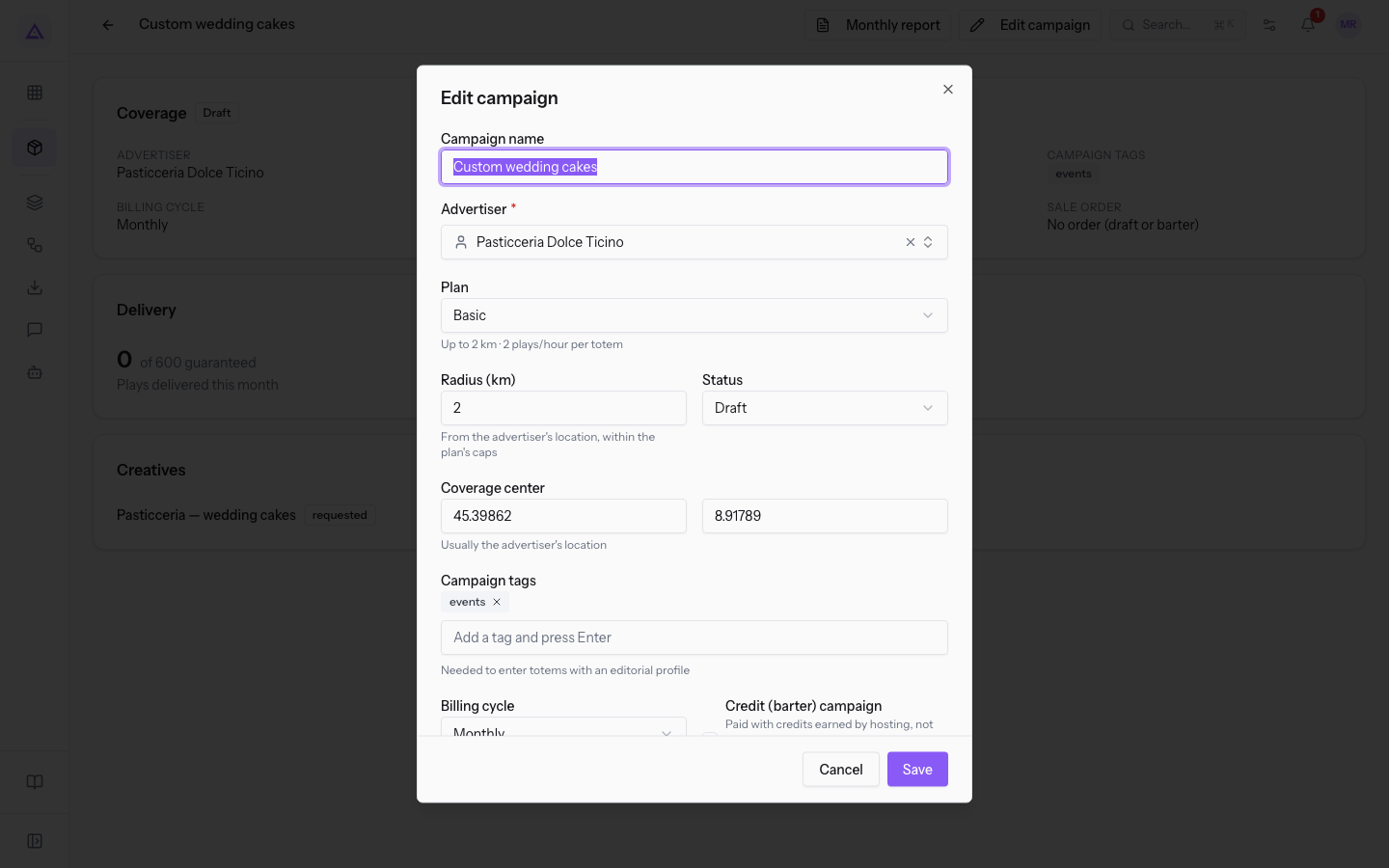
The Edit campaign window contains the same fields as New campaign, filled in with the saved values. The final button is Save.
-
Open the row's ⋯ menu or the campaign's page.
-
Press Edit campaign.
-
Change the fields and press Save. Here too, the radius cannot exceed the plan's limit.
Delete a campaign
Deleting removes the campaign from the list. Plays already delivered remain in the history.
Before you start: only network managers can delete campaigns. Network operators can read and edit them.
Open the row's ⋯ menu, press Delete and confirm.
See it on your company, not on a slide deck.
In 30 minutes we map the software you use today.We show you how much work and how much margin Archimedes gives back.
Show me on my business →What industry are you in?
One tap — it lets us prepare the demo around your world.
What tools do you use today?
Pick the ones you recognise — or just type them. It helps us show you how they migrate.
Last step: your details.
We reply within one working day — and right after, if you like, you pick the demo slot yourself.
We couldn't send your request. Try again, or write to us at [email protected].
By sending, you agree to your data being processed so we can get back to you about the demo. Privacy notice.
Preview form — nothing is sent from this page.
Want to schedule the demo now?
Your call: book the slot you prefer yourself, or we'll call you to arrange it.
Live availability, 30 minutes, instant confirmation. The calendar opens in a new tab.
Lock in your slot ↗We'll get back to you within one working day — and we'll join the call already knowing your world.
The calendar is open in another tab: pick a slot and the demo is booked. Can't see it? Reopen it ↗
Preview page: nothing was sent.
Our calendar is live: take the slot that suits you and the demo is booked. 30 minutes, instant confirmation, no waiting.
Lock in your slot ↗