Proxima
All modules
Reading a screen's sheet: device, venue and schedule
Proxima · 5 of 15 · 5 min read
A screen's page gathers the data of the screen and of its host. From here you check status, opening hours and editorial profile, and you send commands to the screen.
Opening a screen's page
Press the screen's row in Proxima › Screens. The page has two tabs and opens on Overview, with the data described here. The Schedule tab covers what the screen airs.
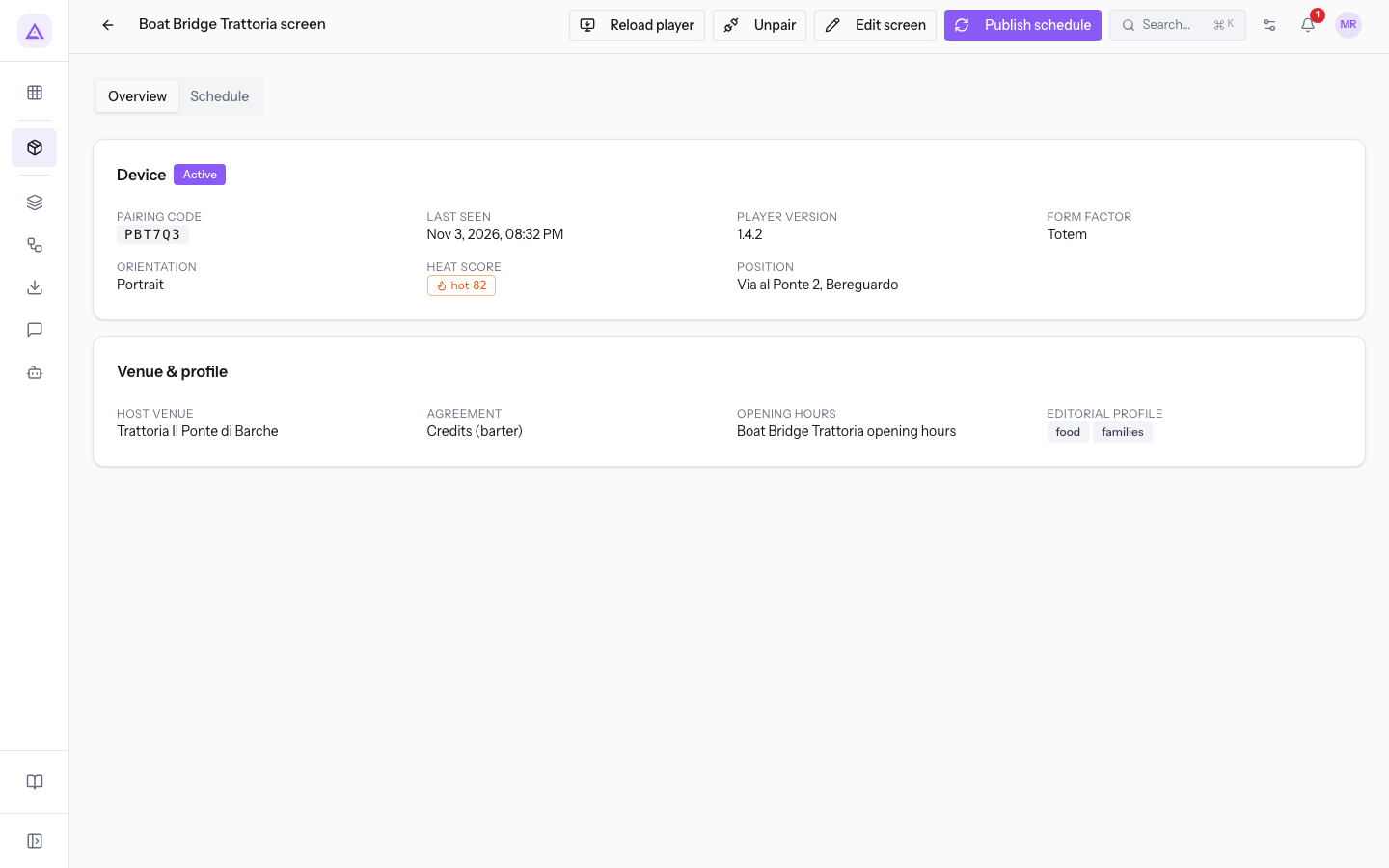
The fields in Overview are read-only. If a value is missing, a dash appears in its place. To change the data, use Edit screen.
Reading the Device panel
The Device panel describes the physical screen and its status. The screen's status appears next to the panel title.
- Status: shows where the screen stands. The value appears next to the panel title and is changed in Edit screen.
- Draft: the screen has never connected.
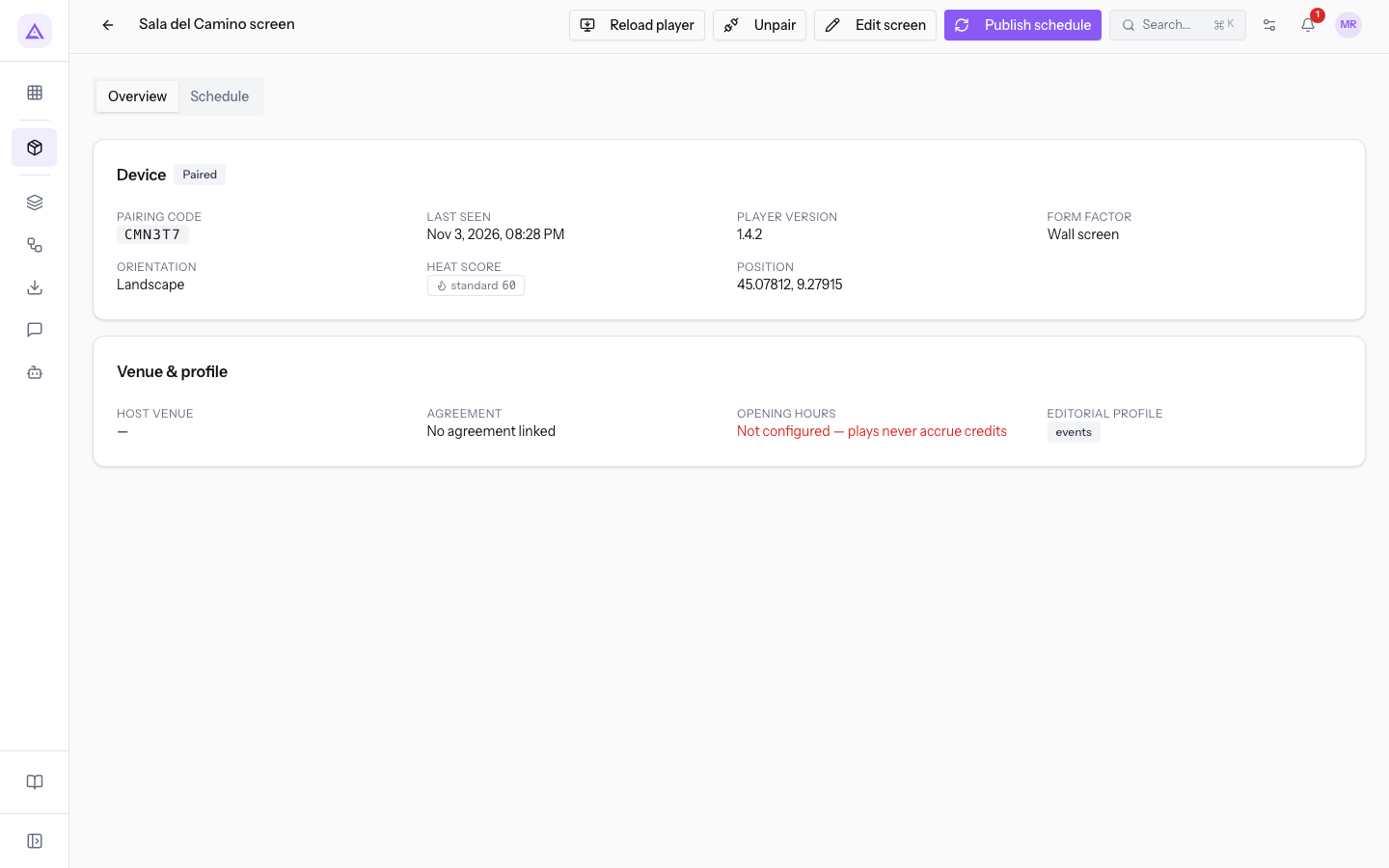
Elisa Hair Salon screenhas this status, with Never connected as its last contact. The screen receives no campaigns. - Paired: the screen is paired, but not yet active, and receives no campaigns.
Fireplace Hall screenhas this status. - Active: the screen can receive campaigns, provided the other conditions for airing are also true, such as the coordinates and a compatible profile.
- Retired: the screen receives no campaigns.
- Draft: the screen has never connected.
- Pairing code: the code to enter on the screen to pair it.
- Last seen: the date and time the screen last reported in. If it has never connected, Never connected appears.
- Player version: the software version of the screen.
- Form factor: the type of screen. The values are Totem, Wall screen, Window screen and Other.
- Orientation: Portrait or Landscape.
- Heat score: the score from 0 to 100 that says how busy the spot is in terms of expected attention and foot traffic. It affects allocation, campaign pricing and credits. The field shows the band badge and the score.
- Position: the street and town of the linked address, such as
Via al Ponte 2, Bereguardo. Without an address, latitude and longitude appear.
Note: Active does not mean switched on.
Dolce Ticino Pastry Shop windowis Active even when it is off. The screen shows as off when it stays silent longer than the Offline after (minutes) time, 120 minutes in the demo. To check the connection, compare Last seen with this time.
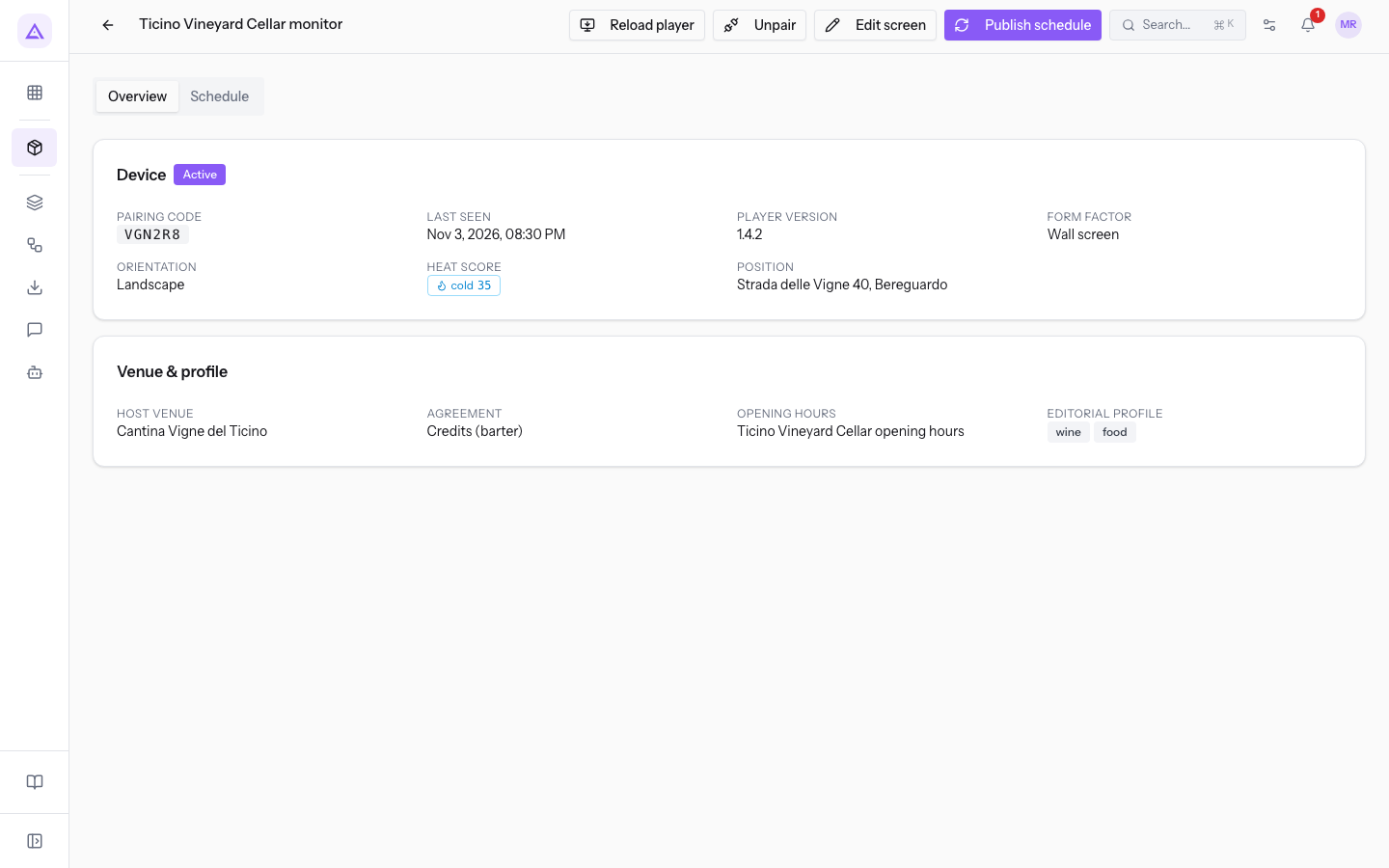
The Heat score bands are defined in Network settings: the hot band starts at 70, the standard band at 40 and the cold band at 0. Ticino Vineyard Cellar monitor, with a score of 35, is in the cold band and shows the cold badge.
Reading the Venue & profile panel
The Venue & profile panel says who hosts the screen, under which hosting agreement, at what hours and for which campaigns.
- Host venue: the contact that hosts the screen. The name is a link to the contact's page. Company screens, such as
Fireplace Hall screen, have no host venue and earn no credits. - Agreement: the compensation set by the hosting agreement.
- Credits (barter): the host is paid in credits. This is the case for
Boat Bridge Trattoria screen. - Revenue share: the host is paid a percentage.
- No agreement linked: the screen has no agreement.
- Credits (barter): the host is paid in credits. This is the case for
- Opening hours: the name of the linked calendar, such as
Boat Bridge Trattoria opening hours. If no calendar is set, Not configured — plays never accrue credits appears in red. - Editorial profile: the screen's tags, such as food and families for
Boat Bridge Trattoria screenand wine and food forTicino Vineyard Cellar monitor. If there are no tags, Open to every campaign appears.
These fields decide what counts and what airs:
- If the screen has an active credit-based hosting agreement, check Opening hours: without a calendar, plays earn no credits.
- If you want to accept every campaign, leave Editorial profile empty.
- If you set tags, the screen accepts only campaigns with at least one tag in common. A campaign without tags stays out.
- Content without tags is neutral and also plays on screens with a profile.
Important: a play counts toward credits and guaranteed plays only if it happens within opening hours.
Note: Agreement shows only the type of compensation. Only screens with an host and an active credit-based hosting agreement earn credits.
Editing the screen's data
Edit screen opens the window with the data that can be changed. Use it when the host's hours, the profile or the screen's status change. The button is in the page's header.
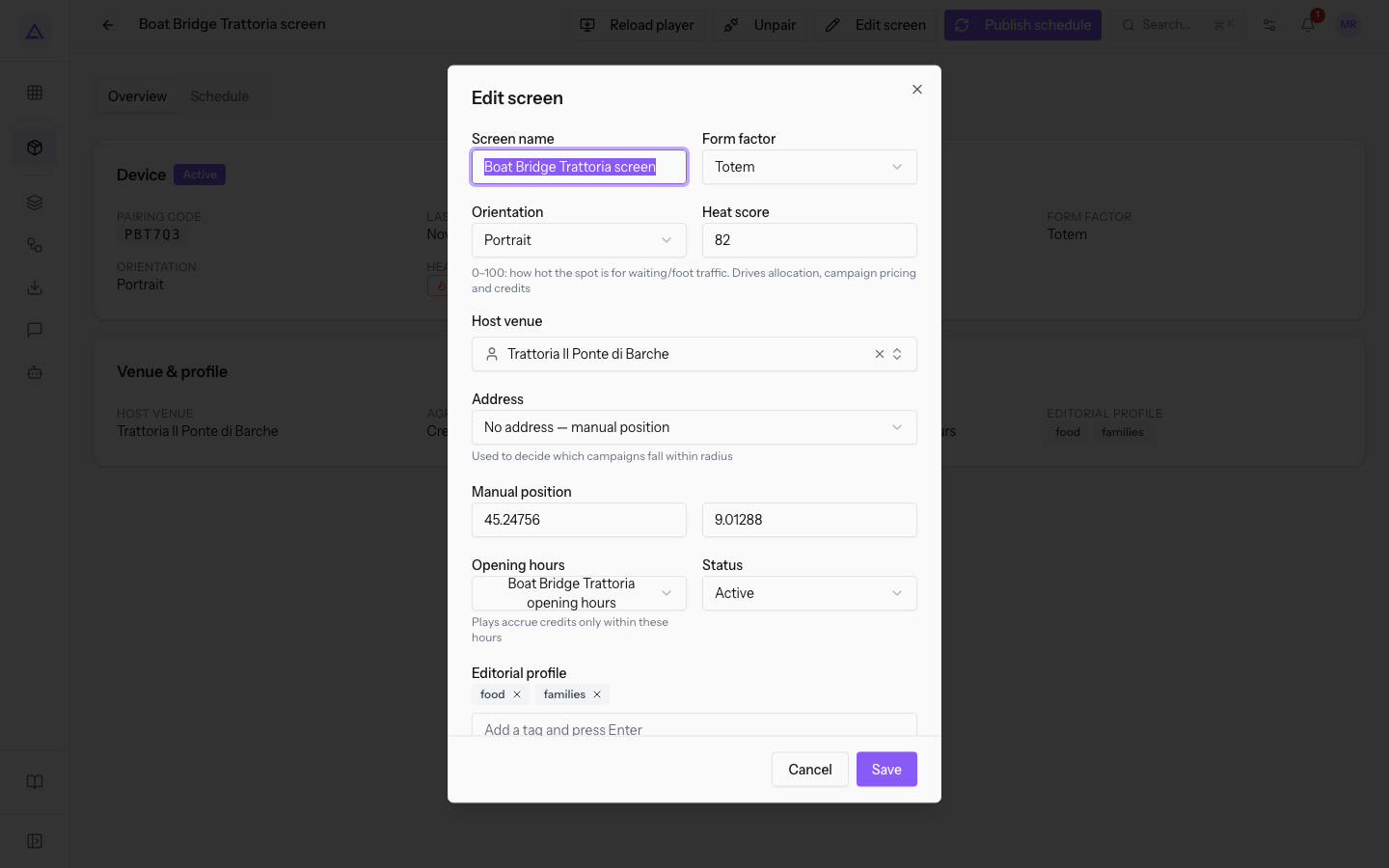
The window contains Screen name, Form factor, Orientation, Heat score, Host venue, Address, Opening hours, Status and Editorial profile. With No address — manual position, Latitude and Longitude also appear.
Pairing code, Last seen, Player version and Agreement are not in the window.
Sending a command to the screen
In the page's header there are Reload player and Unpair. They act on the physical screen, and the effect is seen only there.
- Reload player: sends the reload command. The command goes out without confirmation.
- Unpair: sends the screen back to the pairing screen, when it must pair again. The confirmation The device will return to the pairing screen and need a new code. Continue? appears.
After sending, the message Command queued: the device runs it on the next heartbeat (≤60s) appears. The screen runs the command at its next contact, within 60 seconds.
Important: after Unpair, the screen works again only once the new code is entered.
The header also has Publish schedule, which publishes the screen's schedule by hand.
See it on your company, not on a slide deck.
In 30 minutes we map the software you use today.We show you how much work and how much margin Archimedes gives back.
Show me on my business →What industry are you in?
One tap — it lets us prepare the demo around your world.
What tools do you use today?
Pick the ones you recognise — or just type them. It helps us show you how they migrate.
Last step: your details.
We reply within one working day — and right after, if you like, you pick the demo slot yourself.
We couldn't send your request. Try again, or write to us at [email protected].
By sending, you agree to your data being processed so we can get back to you about the demo. Privacy notice.
Preview form — nothing is sent from this page.
Want to schedule the demo now?
Your call: book the slot you prefer yourself, or we'll call you to arrange it.
Live availability, 30 minutes, instant confirmation. The calendar opens in a new tab.
Lock in your slot ↗We'll get back to you within one working day — and we'll join the call already knowing your world.
The calendar is open in another tab: pick a slot and the demo is booked. Can't see it? Reopen it ↗
Preview page: nothing was sent.
Our calendar is live: take the slot that suits you and the demo is booked. 30 minutes, instant confirmation, no waiting.
Lock in your slot ↗