Proxima
All modules
Getting to know Proxima, the company's screen network
Proxima · 2 of 15 · 5 min read
Proxima runs a network of screens hosted in the premises of merchants and at company offices. It lets you sell plays to advertisers, compose the schedule of each screen, and check plays, credits and reports.
Who takes part in the network
The network connects those who host a screen and those who buy plays. A play is one play of a creative or a piece of content, recorded by the screen.
- Merchant: a contact who takes part in the network. It hosts screens, buys plays, or does both.
Cellar Vineyard Ticinohas both roles, Hosts and Advertiser. - Advertiser: whoever buys plays with a subscription plan or with credits earned by hosting a screen.
- Company screen: a screen without a Host venue. It earns no credits.
The host of a screen is compensated as set in the hosting agreement. Choose the Compensation:
- If the host should collect credits to spend on their own campaign, choose Credits (barter).
- If the host should receive a percentage of the revenue, choose Revenue share and enter the Revenue share percent.
Note: only screens with a host and an active credit-based hosting agreement earn credits.
From plan to reports
The network's work always follows the same cycle. Each step of the cycle depends on the one before it.
-
Plan: sets the Monthly price (€), the Plays / hour / screen, the Guaranteed plays / month and any radius and screen limits.
-
Campaign: an advertiser's subscription. It links the advertiser to a plan and sets the coverage, tags and time slot.
Furniture for the newlyweds' homeis the campaign ofRossi Furnishings S.r.l.on theCityplan. -
Approved creative: the campaign's spot. At least one approved creative is required, and it must not be Flagged by moderation. A flagged creative does not air.
-
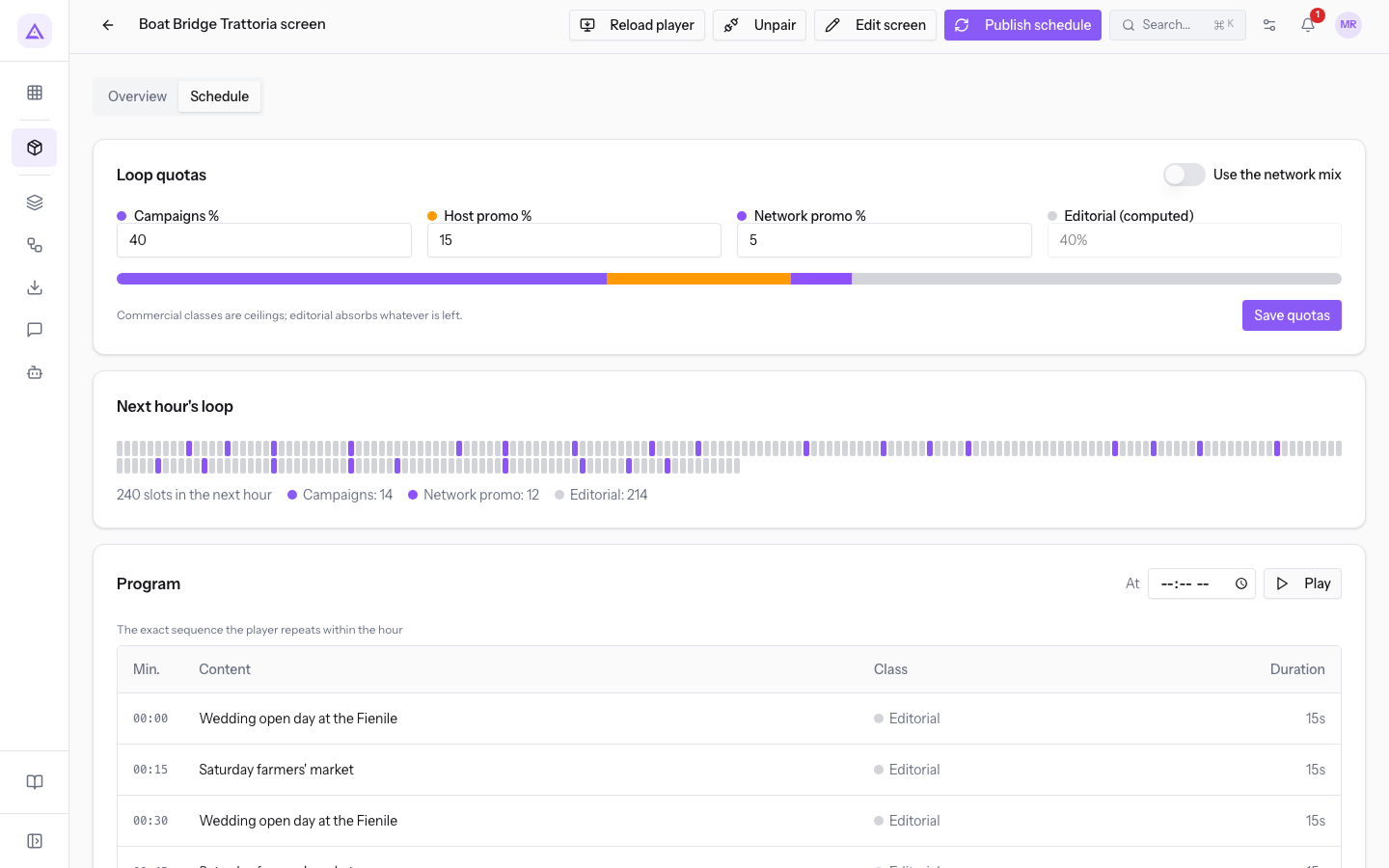
Screen schedule: the one-hour sequence that the screen repeats. Active screens receive it automatically every hour. With Publish schedule you publish it by hand.
-
Recorded plays: every play is recorded. It counts for credits and for guaranteed plays only if it happens within the screen's Opening hours.
-
Credits and reports: at 04:10 the system calculates the previous day's credits. Credit-based campaigns deduct from the advertiser's balance based on the plays delivered. The campaign's Monthly report shows the plays delivered.
A campaign enters a screen's schedule only if all of these conditions are true:
- The campaign is Active and today's date falls between Starts and Ends.
- The screen is Active and has coordinates.
- The screen is within the radius of the Coverage center. A campaign without a coverage center goes on no screen.
- The screen's Editorial profile is empty or shares at least one tag with the campaign.
- The advertiser is not a competitor of the host and is not blocked on the screen.
When one condition is false, the screen stays out and the campaign's status does not change.
Important: activating a non-credit campaign generates a sale order, monthly or annual, if the Sales module is active. A credit campaign generates no orders and is paid with the credits earned.
Note: a credit campaign leaves the schedule when the advertiser's balance drops below 1 and returns when more credits are earned. The campaign's status does not change.
The Proxima menu items
The Proxima menu opens on Screens. Each item manages one object of the network. Plans, Contract templates and Network settings are in the settings group, at the bottom of the menu.
-
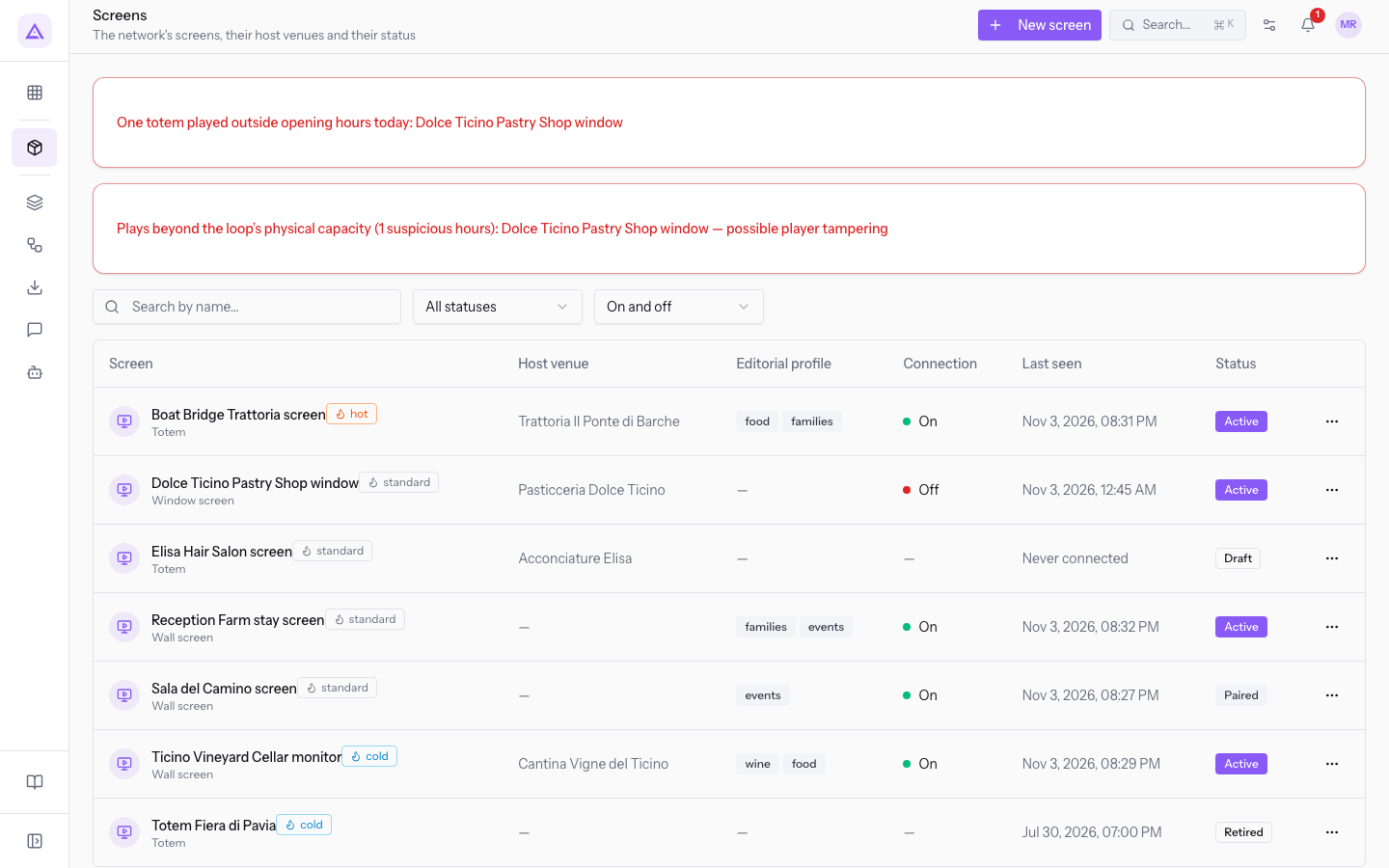
Proxima › Screens: lists the network's screens, their hosts and their status. The statuses are Draft, Paired, Active and Retired. Connection shows whether the screen is On or Off. Red warnings appear at the top of the list when a screen plays outside opening hours or beyond the loop's capacity.
-
Proxima › Merchants: lists those who take part in the network, with Roles, Screens, Active campaigns, Credit balance and Agreement. From a merchant's page you manage the hosting agreement and view the Recent movements of credits.
-
Proxima › Contracts: opens the contracts in the Contracts module.
-
Proxima › Campaigns: lists the advertisers' subscriptions and their coverage. The statuses are Draft, Awaiting creative, Active, Paused, Suspended and Ended.
-
Proxima › Creatives: the production queue, from advertiser requests to going on air. The status filter distinguishes Requested, Generating, Ready, On air, Rejected and Archived. The Moderation column shows whether a creative is Flagged. From here you approve it with Approve or reject it with Reject.
-
Proxima › Content: collects the neighbourhood content that fills the schedule between creatives. The types are Editorial, Event, Host promo and Network promo. The statuses are Draft, Active and Archived.
-
Proxima › Plans: defines the plans offered to advertisers.
-
Proxima › Contract templates: opens the templates of the Contracts module.
-
Proxima › Network settings: collects the values that apply to the whole network, namely Spot duration (seconds), Offline after (minutes), Schedule validity (hours), Network timezone, Default loop mix and Heat bands.
Before you start: network operators read and edit screens, campaigns, creatives, agreements and content, but see plans and settings as read-only. Deleting records and editing plans and settings requires network manager permissions.
Contracts and Contract templates
Proxima has no contract archive of its own. Contracts and Contract templates open the Contracts module, which manages text, signing via link, renewals, terminations and the signed PDF.
Proxima issues two types of contract, with different effects:
- Hosting contract: you create it from Issue contract on the merchant's page. Signing it activates the hosting agreement, and from then on credits are earned. Ending the contract closes the agreement and stops credit earning.
- Campaign contract: sets out the advertising terms. It changes nothing on the campaign.
See it on your company, not on a slide deck.
In 30 minutes we map the software you use today.We show you how much work and how much margin Archimedes gives back.
Show me on my business →What industry are you in?
One tap — it lets us prepare the demo around your world.
What tools do you use today?
Pick the ones you recognise — or just type them. It helps us show you how they migrate.
Last step: your details.
We reply within one working day — and right after, if you like, you pick the demo slot yourself.
We couldn't send your request. Try again, or write to us at [email protected].
By sending, you agree to your data being processed so we can get back to you about the demo. Privacy notice.
Preview form — nothing is sent from this page.
Want to schedule the demo now?
Your call: book the slot you prefer yourself, or we'll call you to arrange it.
Live availability, 30 minutes, instant confirmation. The calendar opens in a new tab.
Lock in your slot ↗We'll get back to you within one working day — and we'll join the call already knowing your world.
The calendar is open in another tab: pick a slot and the demo is booked. Can't see it? Reopen it ↗
Preview page: nothing was sent.
Our calendar is live: take the slot that suits you and the demo is booked. 30 minutes, instant confirmation, no waiting.
Lock in your slot ↗