Proxima
All modules
Publishing neighbourhood content between spots
Proxima · 14 of 15 · 7 min read
The Content page collects the neighbourhood content that fills the schedule between one creative and the next. From here you create a piece of content, choose its type, limit it to a period or a time slot, and decide when it enters or leaves the schedule.
Choosing the content type
The Type decides which screens the content plays on and which part of the schedule it takes up.
- Editorial: fills the space in the loop that campaigns and promos leave free. It plays on all compatible screens. «Saturday farmers' market» is content of this type.
- Event: plays on the same screens as editorial and shares its space. It has no quota of its own. «Wedding open day at the Barn» is content of this type.
- Host promo: plays only on the screen it is linked to. «Menu of the day at the Ponte di Barche» is linked to «Boat Bridge Trattoria screen», «Dinner in the Fireplace Hall» to «Reception farm stay screen».
- Network promo: plays on all compatible screens. «Your business on these screens» is content of this type.
If the content concerns only one host, choose Host promo. If it promotes the network itself, choose Network promo. If it announces an appointment, choose Event. In other cases choose Editorial.
Understanding the loop quotas
The quotas divide the one-hour playing time among the content classes. Commercial classes have a ceiling. Editorial is calculated and absorbs the rest.
With the demo's network mix and a Spot duration (seconds) of 15, the hour has 240 slots:
- Campaigns: 30%, at most 72 slots.
- Host promo: 15%, at most 36 slots.
- Network promo: 5%, at most 12 slots.
- Editorial and events: 50%, at least 120 slots.
Slots that campaigns and promos do not use pass to editorial and events. If in one hour a screen has no Host promo to play, its 36 slots go to this content.
Content of the same class rotates through the slots of that class. A single playable piece of content alone fills all the slots available for its class. The plays of each class are spread evenly across the hour.
A screen with a custom mix uses its own quotas instead of the network's.
Checking the content list
The list under Proxima › Content shows all network content, in any status. Press a row to open the content's page.
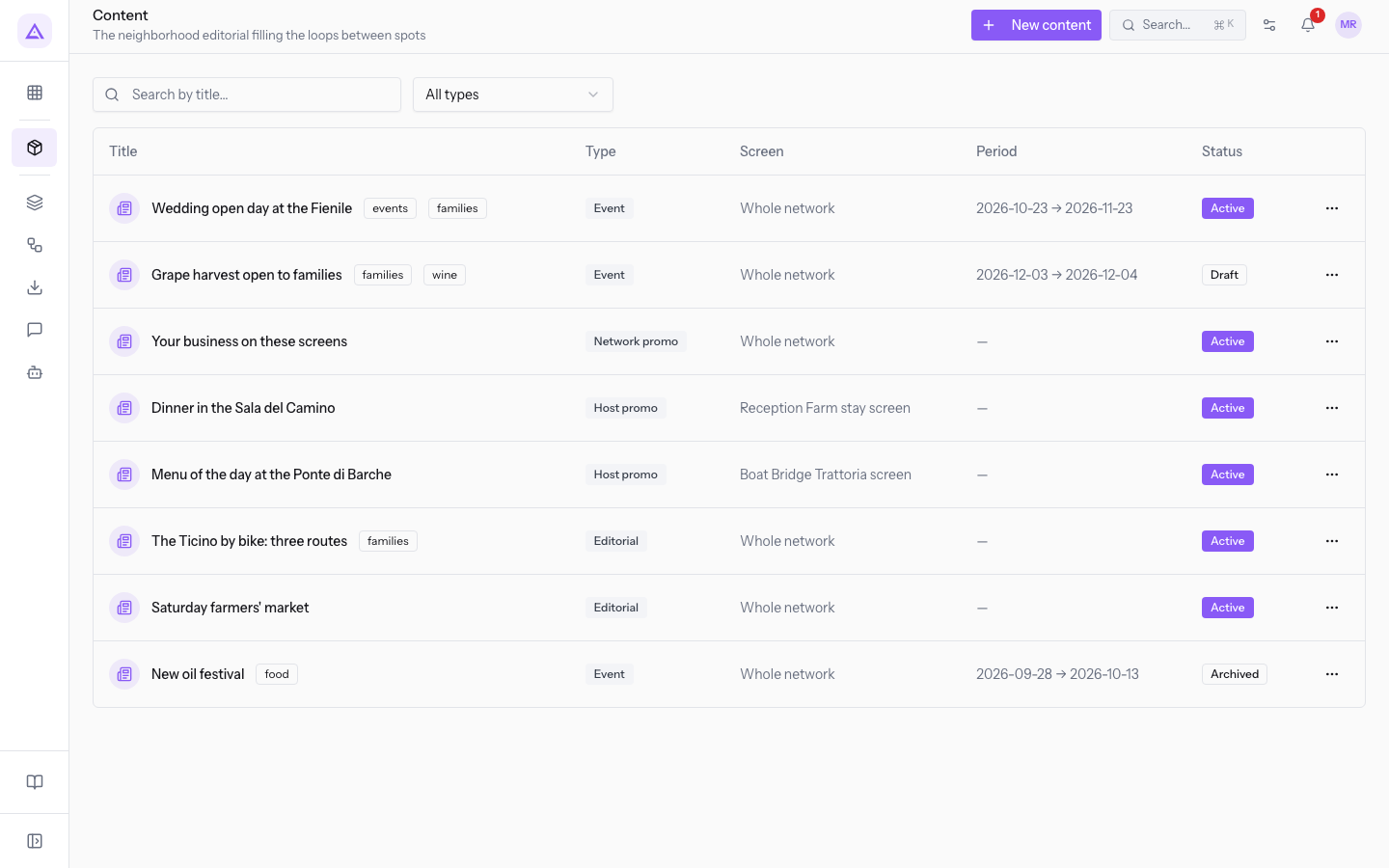
Above the list you find the search and the type filter:
- Search by title…: searches content by title. If no content matches, No content matches the filters. appears.
- All types: shows all content or only content of one type. The options are Editorial, Event, Host promo and Network promo.
The list columns are:
- Title: the content's title, followed by the tags of its profile.
- Type: the content's type.
- Screen: the screen the content is linked to, or Whole network.
- Period: the start and end dates, or a dash if the content has no dates.
- Status: Draft, Active or Archived.
Creating a piece of content
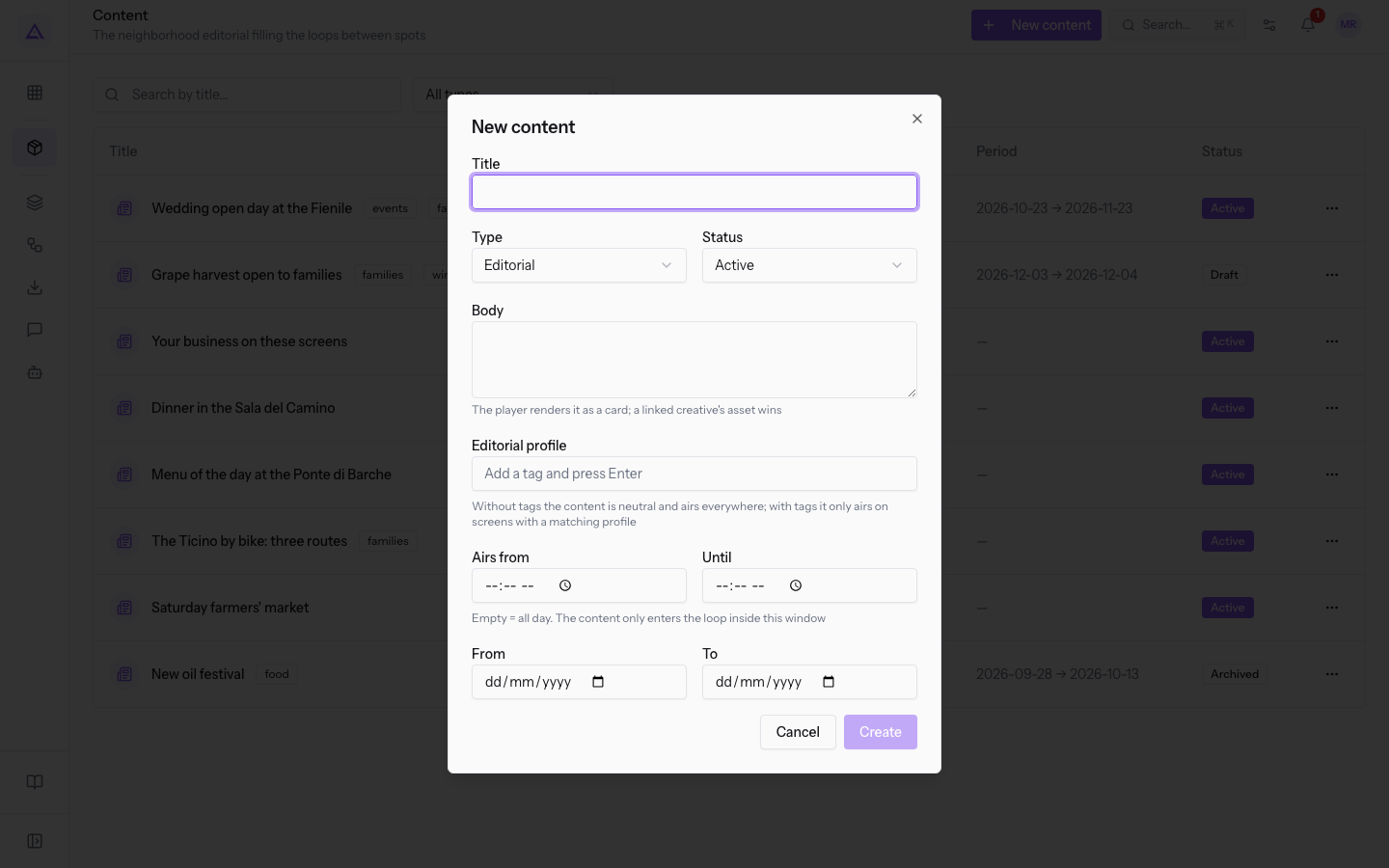
A piece of content is created with its text and its rules for airing. The screen shows the text as a card.
-
In Proxima › Content press New content.
-
Fill in Title and Body, then choose the Type. With Host promo the field Screen (host promo only) appears.
-
Choose the Status. The proposed value is Active: choose Draft if the content must not air yet.
-
If the content is valid only for some days or some hours, fill in From and To or Airs from and Until.
-
Press Create. Content created appears.
Important: a Host promo left on Whole network does not air on any screen. Always choose the screen it is linked to.
The window's fields are:
- Title: the name of the content. The field is required.
- Type: the class of the content. The proposed value is Editorial.
- Editorial: neighbourhood text.
- Event: an appointment with its dates.
- Host promo: a promotion linked to one screen.
- Network promo: a promotion for all compatible screens.
- Status: decides whether the content can air. The proposed value is Active.
- Draft: the content does not air. «Grape harvest open to families» is in this status.
- Active: the content can enter the schedule, within the period and time slot set.
- Archived: the content does not air and stays in the list. «New oil festival» is in this status.
- Screen (host promo only): the screen the promo plays on. The field appears only with the Host promo type. The proposed value is Whole network. The list contains all screens, including those in Draft and Retired.
- Body: the text the screen shows as a card. If the content has a creative, the screen uses the creative's asset instead of the text.
- Editorial profile: the content's tags. Without tags the content is neutral and plays everywhere. With tags it plays only on screens with no profile or with at least one tag in common. «Wedding open day at the Barn» has the tags events and families.
- Airs from and Until: the daily time slot. With the fields empty the content plays all day. If you fill in only Airs from, the slot runs to the end of the day. If you fill in only Until, the slot starts at midnight. The time in Until is excluded.
- From and To: the period in which the content can air, including both days. With an empty field the period has no limit on that side.
Active screens receive the schedule automatically every hour. To publish earlier, open the screen and press Publish schedule. The result can be checked on the screen's Schedule tab.
Reading a content page
The page summarises how the content airs and lets you open the linked screen and creative. Open it by pressing a row in the list. At the top it shows the type and the status.
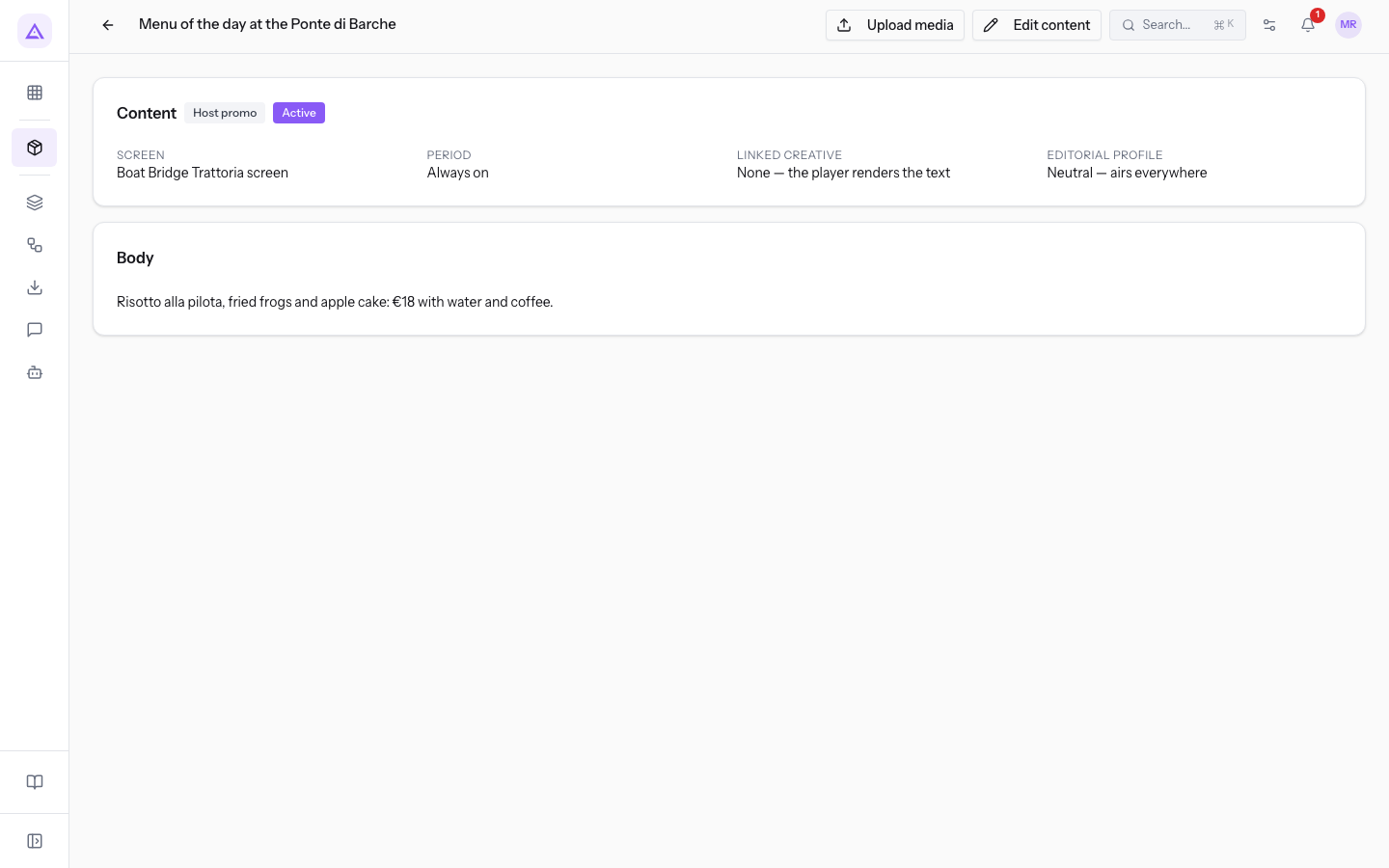
The page shows:
- Screen: the screen linked to the content, with the link to its page, or Whole network.
- Period: the dates set in From and To, or Always on if there are no dates. Always on does not take the time slot into account: «Menu of the day at the Ponte di Barche» shows this value and has the slot from 11:00 to 14:30.
- Linked creative: the creative used by the content, with the link to its page, or None — the player renders the text. «Wedding open day at the Barn» has a creative with the same name.
- Body: the content's text.
- Editorial profile: the content's tags, or Neutral — airs everywhere if it has none.
The page has two buttons:
- Upload media: uploads the file to play instead of the text. The file becomes the creative linked to the content, already approved.
- Edit content: opens the window with the content's fields.
Editing, archiving or deleting content
To change a piece of content, use Edit content from its page or from the row's ⋯ menu. The window has the same fields as New content.
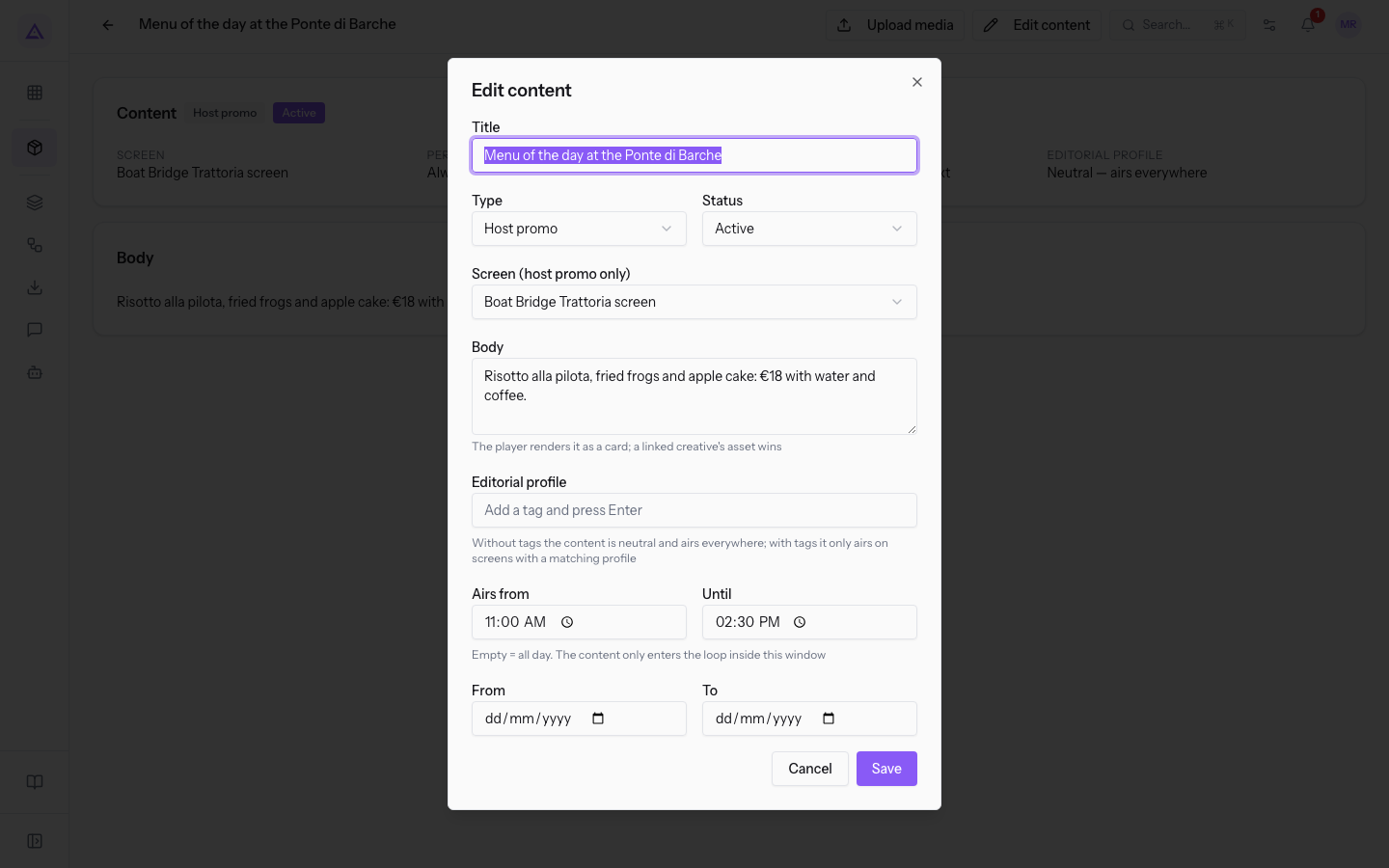
If you want to remove a piece of content from the schedule but keep it, set the Status to Archived. If you want to remove it from the list, choose Delete from the row's ⋯ menu and confirm.
Note: network operators edit content but do not delete it. Deletion is reserved for network managers.
See it on your company, not on a slide deck.
In 30 minutes we map the software you use today.We show you how much work and how much margin Archimedes gives back.
Show me on my business →What industry are you in?
One tap — it lets us prepare the demo around your world.
What tools do you use today?
Pick the ones you recognise — or just type them. It helps us show you how they migrate.
Last step: your details.
We reply within one working day — and right after, if you like, you pick the demo slot yourself.
We couldn't send your request. Try again, or write to us at [email protected].
By sending, you agree to your data being processed so we can get back to you about the demo. Privacy notice.
Preview form — nothing is sent from this page.
Want to schedule the demo now?
Your call: book the slot you prefer yourself, or we'll call you to arrange it.
Live availability, 30 minutes, instant confirmation. The calendar opens in a new tab.
Lock in your slot ↗We'll get back to you within one working day — and we'll join the call already knowing your world.
The calendar is open in another tab: pick a slot and the demo is booked. Can't see it? Reopen it ↗
Preview page: nothing was sent.
Our calendar is live: take the slot that suits you and the demo is booked. 30 minutes, instant confirmation, no waiting.
Lock in your slot ↗