Field record book (QdC)
All modules
Plan fertilisation and irrigation
Field record book (QdC) · 12 of 15 · 6 min read
In the QdC, a farm's annual plans come in two types. Homogeneous areas group the plots that have the same nitrogen, phosphorus, and potassium requirement. Irrigated homogeneous areas group the plots that receive water from the same source and with the same system, and indicate the planned water volumes month by month.
Note: these screens currently use Italian interface labels. The instructions preserve the names shown on screen; the screenshots show the same controls.
Which plan to use
Each plan covers one year and applies to a group of plots.
- If you want to indicate how much nitrogen, phosphorus, and potassium the plots receive and at what times, create a plan in Aree omogenee.
- If you want to indicate how much water you use, from which source and with which system, create a plan in Aree omogenee irrigue.
Before you start: to create and edit plans you need the Responsabile compilazione registro or Manager QdC permission. With the Utente QdC permission you can only view them.
Viewing fertilisation plans
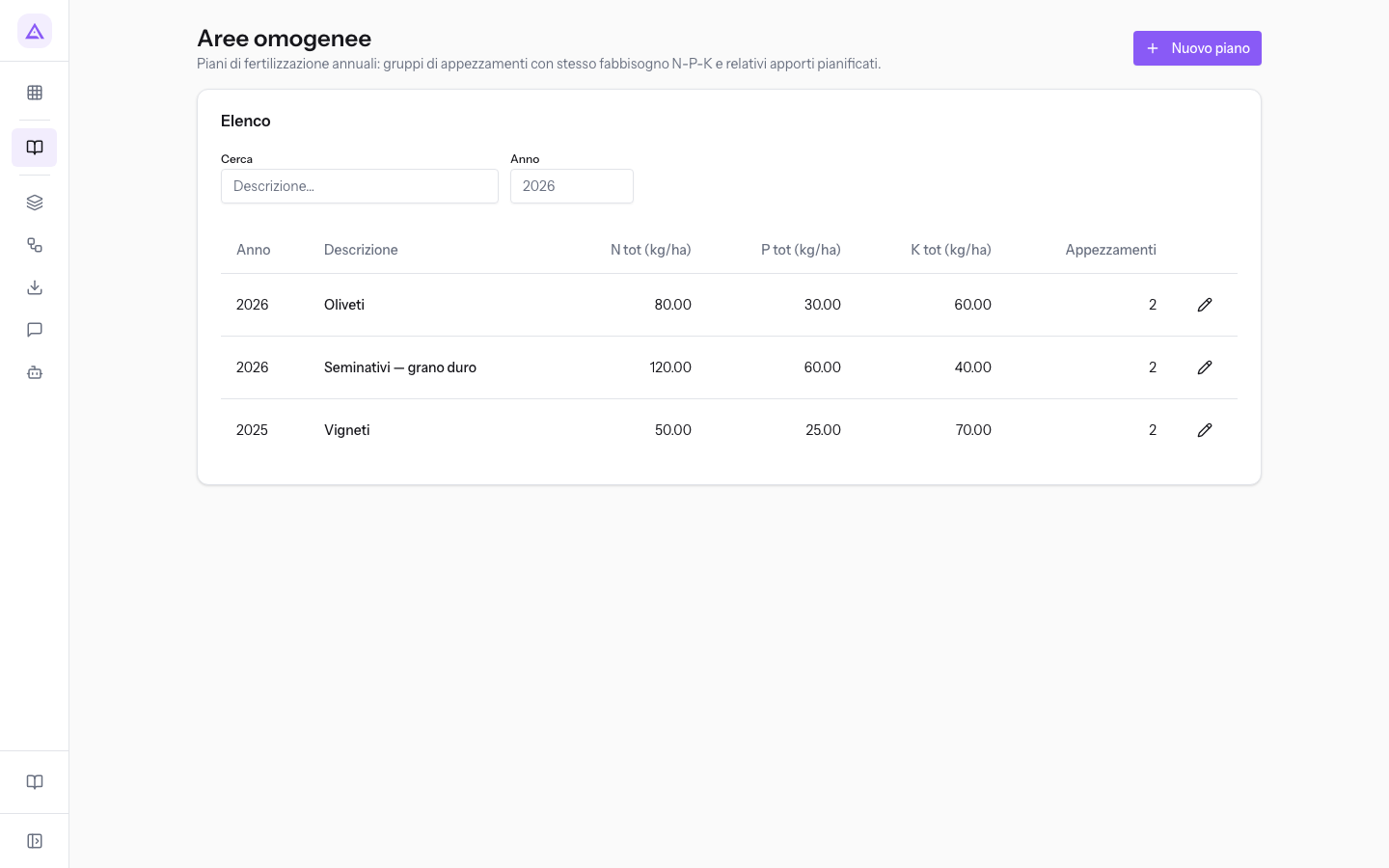
Open Aree omogenee in the QdC menu. The page lists the annual fertilisation plans: groups of plots with the same N-P-K requirement, each with its planned inputs.
- Cerca: filters plans by text.
- Anno: shows only plans for a given year.
The list shows for each plan the year, the description, and the total nitrogen, phosphorus, and potassium requirement in kg/ha. Use Apri piano to open the plan record.
Creating a fertilisation plan
The plan indicates the annual requirement of a group of plots and how you cover it with the different inputs. The total requirement is the baseline for comparison with the actual inputs you record during the year.
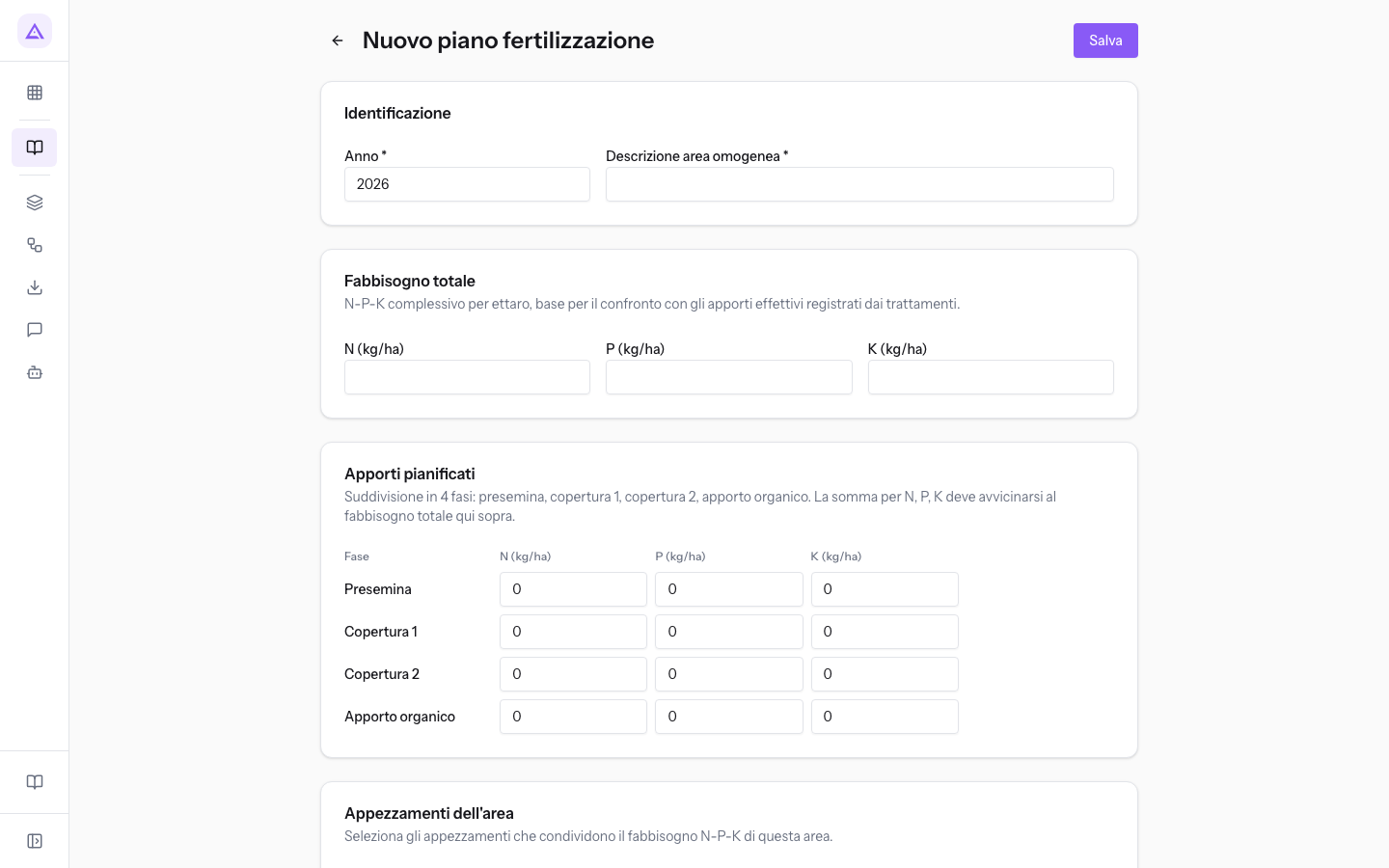
- In Aree omogenee press Nuovo piano. The Nuovo piano fertilizzazione record opens.
- Enter the year and a description that identifies the group of plots, such as
Oliveti. - Enter the total N, P, and K requirement per hectare.
- Distribute the inputs between pre-sowing, top dressing, and organic input. For the
Olivetiplan the requirement is 80-30-60 kg/ha: 40 kg/ha of nitrogen goes into Copertura 1 and the rest into Apporto organico (40 nitrogen, 30 phosphorus, 60 potassium). - Select the plots in the area.
- Click Salva to return to the plan list.
The record fields:
- Anno: the year of the plan. It is already filled in with the current year. The field is required.
- Descrizione area omogenea: the name of the group of plots. The field is required.
- N (kg/ha), P (kg/ha), K (kg/ha): the total nitrogen, phosphorus, and potassium requirement per hectare.
- The planned inputs, each on a row with nitrogen in the first field, then phosphorus and potassium in kg/ha. All values start at 0.
- Presemina: the input before sowing, with P kg/ha — Presemina and K kg/ha — Presemina.
- Copertura 1: the first top-dressing input, with P kg/ha — Copertura 1 and K kg/ha — Copertura 1.
- Copertura 2: the second top-dressing input, with P kg/ha — Copertura 2 and K kg/ha — Copertura 2.
- Apporto organico: the input with organic fertilisers, with P kg/ha — Apporto organico and K kg/ha — Apporto organico.
- Plots: a checkbox for each plot in the farm, with the name and area in hectares, such as Campo del Grano — 5.2000 ha. Select the ones that are part of the area.
- Note: free text.
Tip: make sure the sum of the inputs for each element matches the total requirement. In the
Olivetiplan 40 + 40 kg/ha of nitrogen gives the 80 kg/ha of the requirement.
Editing or deleting a fertilisation plan
From the record of an existing plan you can change the requirement, the inputs, and the plots.
- In Aree omogenee press Apri piano on the plan's row. The record has the year and description as its title, such as
2026 — Oliveti. - Edit the fields. To remove a plot from the area, deselect its checkbox.
- Click Salva to keep your changes.
- To delete the plan instead, use Elimina.
Note: only the Manager QdC can delete the module's records.
Viewing irrigation plans
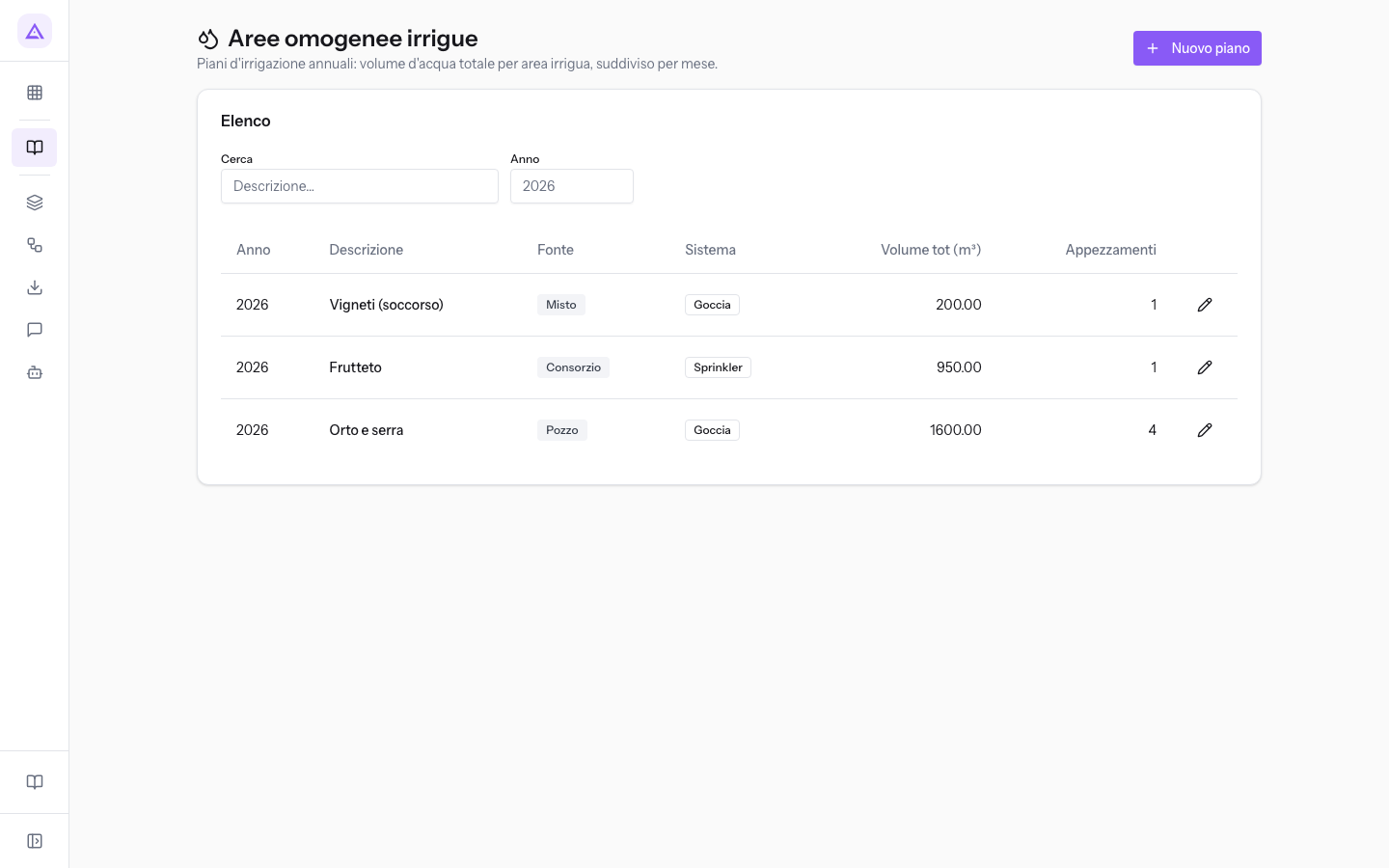
Open Aree omogenee irrigue in the QdC menu. The page lists the annual irrigation plans: the total water volume for each irrigated area, broken down by month.
- Cerca: filters plans by text.
- Anno: shows only plans for a given year.
The columns are Year, Description, Source, System, Volume tot (m³), and Plots, that is the number of plots in the area. In the demo Orto e serra uses the well with a drip system and covers 4 plots, Frutteto uses consortium water with the sprinkler. Click a row to open the plan.
Creating an irrigation plan
The plan indicates where the water comes from, how you distribute it, and how much you plan for each month of the year.
To choose the source and system:
- If the plots in the area draw water from multiple sources, choose Misto in Fonte d'acqua.
- If the area receives no water or only receives it in emergency cases, consider Asciutto in Sistema.
- If the plots use different systems, choose Misto in Sistema.
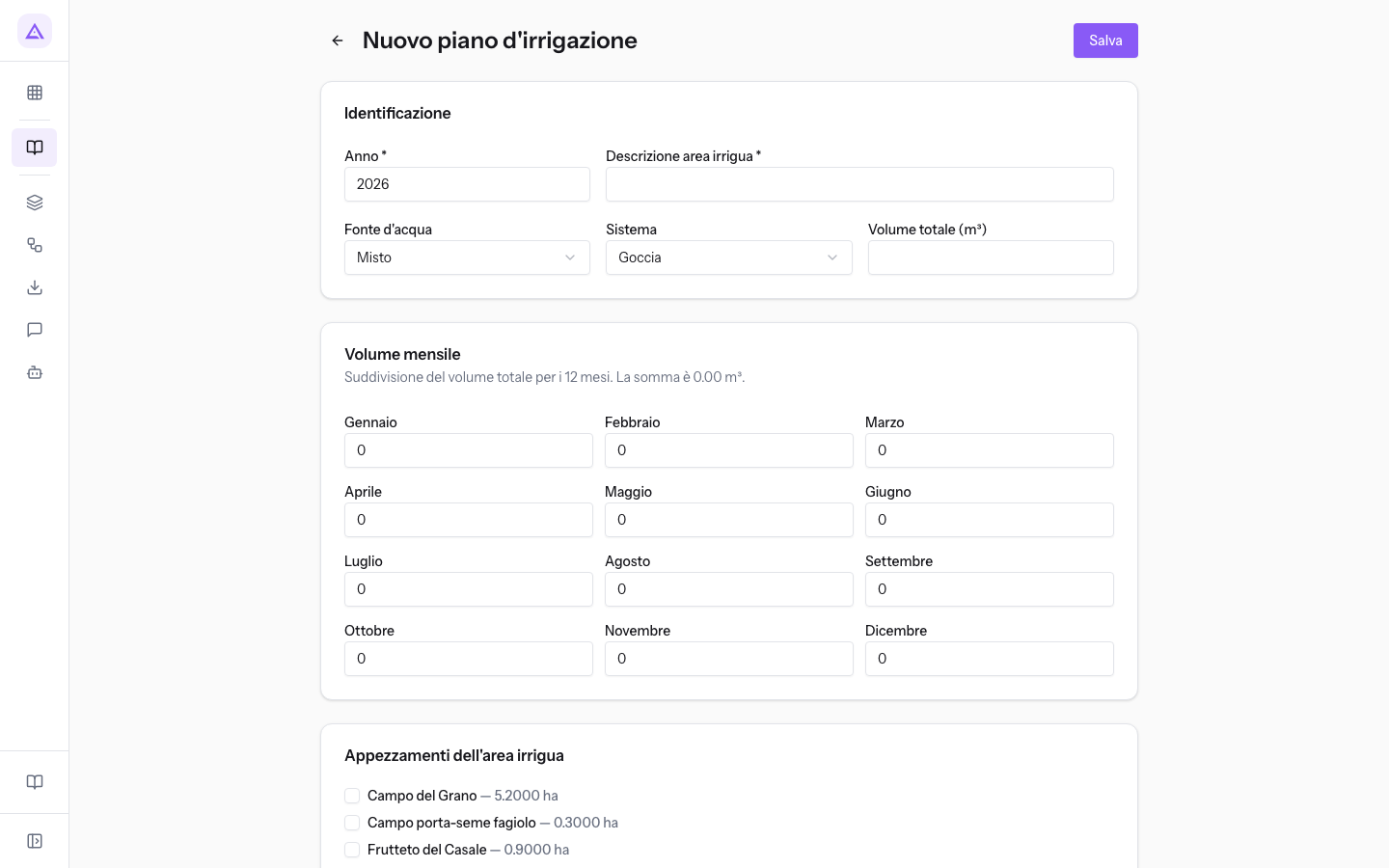
- In Aree omogenee irrigue press Nuovo piano. The Nuovo piano d'irrigazione record opens.
- Enter the year, the area description, the water source, and the system.
- Enter the total volume and distribute it across the twelve months.
- Select the plots in the irrigated area.
- Click Salva to return to the irrigation plan list.
The record fields:
- Anno: the year of the plan. It is already filled in with the current year. The field is required.
- Descrizione area irrigua: the name of the area. The field is required.
- Fonte d'acqua: where the water comes from. The initial value is Misto.
- Pozzo
- Acquedotto
- Consorzio di bonifica
- Acqua piovana
- Misto: multiple sources together.
- Sistema: how you distribute the water. The initial value is Goccia.
- Goccia
- Sprinkler
- Sommersione
- Asciutto
- Misto: multiple systems together.
- Volume totale (m³): the planned water for the year, in cubic metres.
- Monthly volume: a field for each month, from Gennaio to Dicembre, with the breakdown of the total volume. All months start at 0.
- Plots: a checkbox for each plot in the farm, with the name and area in hectares. Select the ones that are part of the irrigated area.
- Note: free text, such as the description of the system.
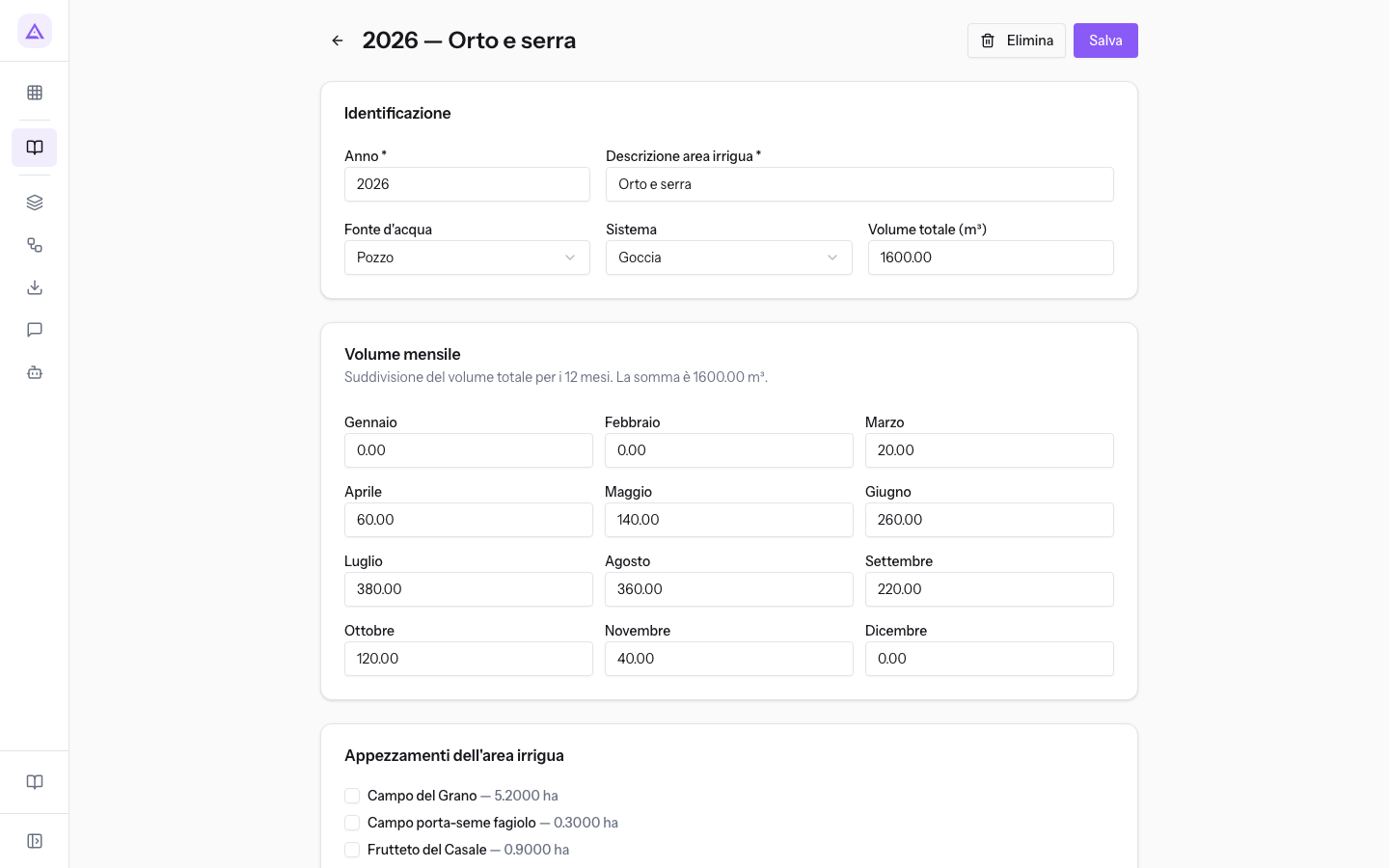
In the Orto e serra plan the monthly volumes range from 20 m³ in Marzo to 380 m³ in Luglio and together total the 1600 m³ of Volume totale (m³). The plots in the area are Orto del casale, Semenzaio ortaggi, Serra pomodori, and Vivaio piantine, and the note reads Pozzo del Casale, ala gocciolante sotto pacciamatura.
Editing or deleting an irrigation plan
From the record of an existing plan you can change the source, the system, the volumes, and the plots.
- In Aree omogenee irrigue click the plan's row. The record has the year and description as its title, such as
2026 — Orto e serra. - Edit the fields. If you change Volume totale (m³), also update the monthly volumes.
- Click Salva to keep your changes.
- To delete the plan instead, use Elimina. Only the Manager QdC can delete.
See it on your company, not on a slide deck.
In 30 minutes we map the software you use today.We show you how much work and how much margin Archimedes gives back.
Show me on my business →What industry are you in?
One tap — it lets us prepare the demo around your world.
What tools do you use today?
Pick the ones you recognise — or just type them. It helps us show you how they migrate.
Last step: your details.
We reply within one working day — and right after, if you like, you pick the demo slot yourself.
We couldn't send your request. Try again, or write to us at [email protected].
By sending, you agree to your data being processed so we can get back to you about the demo. Privacy notice.
Preview form — nothing is sent from this page.
Want to schedule the demo now?
Your call: book the slot you prefer yourself, or we'll call you to arrange it.
Live availability, 30 minutes, instant confirmation. The calendar opens in a new tab.
Lock in your slot ↗We'll get back to you within one working day — and we'll join the call already knowing your world.
The calendar is open in another tab: pick a slot and the demo is booked. Can't see it? Reopen it ↗
Preview page: nothing was sent.
Our calendar is live: take the slot that suits you and the demo is booked. 30 minutes, instant confirmation, no waiting.
Lock in your slot ↗