Field record book (QdC)
All modules
Monitor traps and field inspections
Field record book (QdC) · 10 of 15 · 4 min read
The Traps and Field Inspections pages collect the phytosanitary monitoring of the plots. In the first, you record the installed traps. In the second, you record inspections with the observed pest, the catches, and whether the intervention threshold was exceeded.
Note: these screens currently use Italian interface labels. The instructions preserve the names shown on screen; the screenshots show the same controls.
How to use them together
The trap is the device installed in the plot. Catches are not recorded on the trap: they go into field inspections.
- If you install a new trap, record it in the Trappole menu item.
- If you check a plot or read the catches of a trap, record an inspection in the Ispezioni in campo menu item.
The inspection justifies the treatment according to integrated pest management. The thresholds that make a treatment justified are defined in Define intervention thresholds.
Record a trap
The Monitoring Traps page is the register of traps installed for phytosanitary monitoring. At the top is the panel for entering a new trap; below is the list of traps.
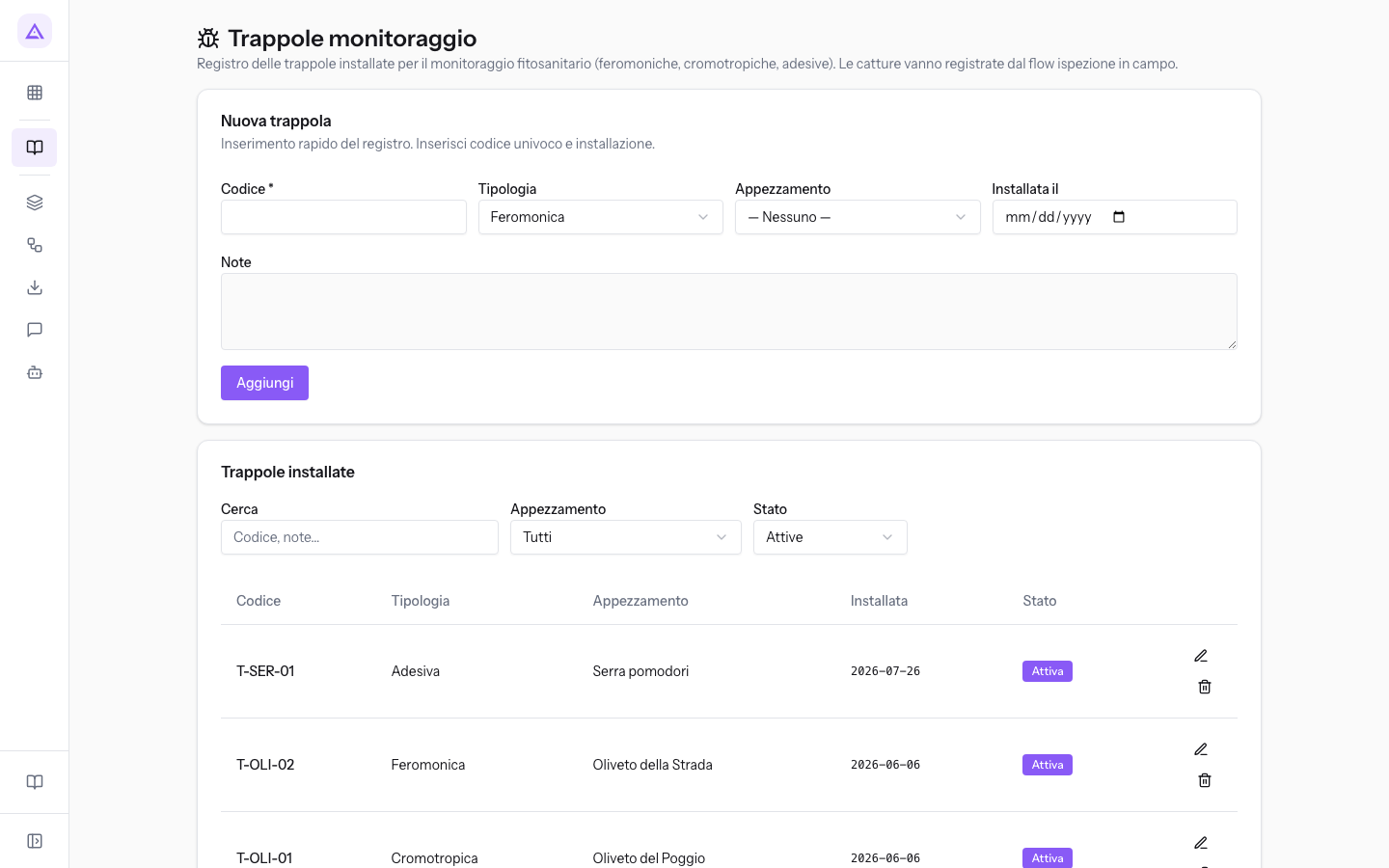
- Open the Trappole menu item in the QdC.
- Fill in the fields of the new trap and choose the Tipologia.
- Press Aggiungi. The trap appears in the list.
The fields of the new trap:
- Codice: the trap identifier. The field is required.
- Tipologia: the trap type. The default value is Feromonica.
- Feromonica
- Cromotropica
- Cattura massale
- Adesiva
- Altro: for a trap that does not fall into the preceding types.
- Appezzamento: the plot on which the trap is installed. The default value is — Nessuno —.
- Installata il: the installation date.
- Note: free-form information about the trap.
Edit or delete a trap
Each row in the list has buttons to edit or delete the trap.
- In the trap's row, press Modifica trappola. Its data returns to the panel at the top.
- Correct the fields: trap T-SER-01 has Tipologia Adesiva on the Serra pomodori plot.
- Press Aggiorna to save, or Annulla to leave the trap as it was.
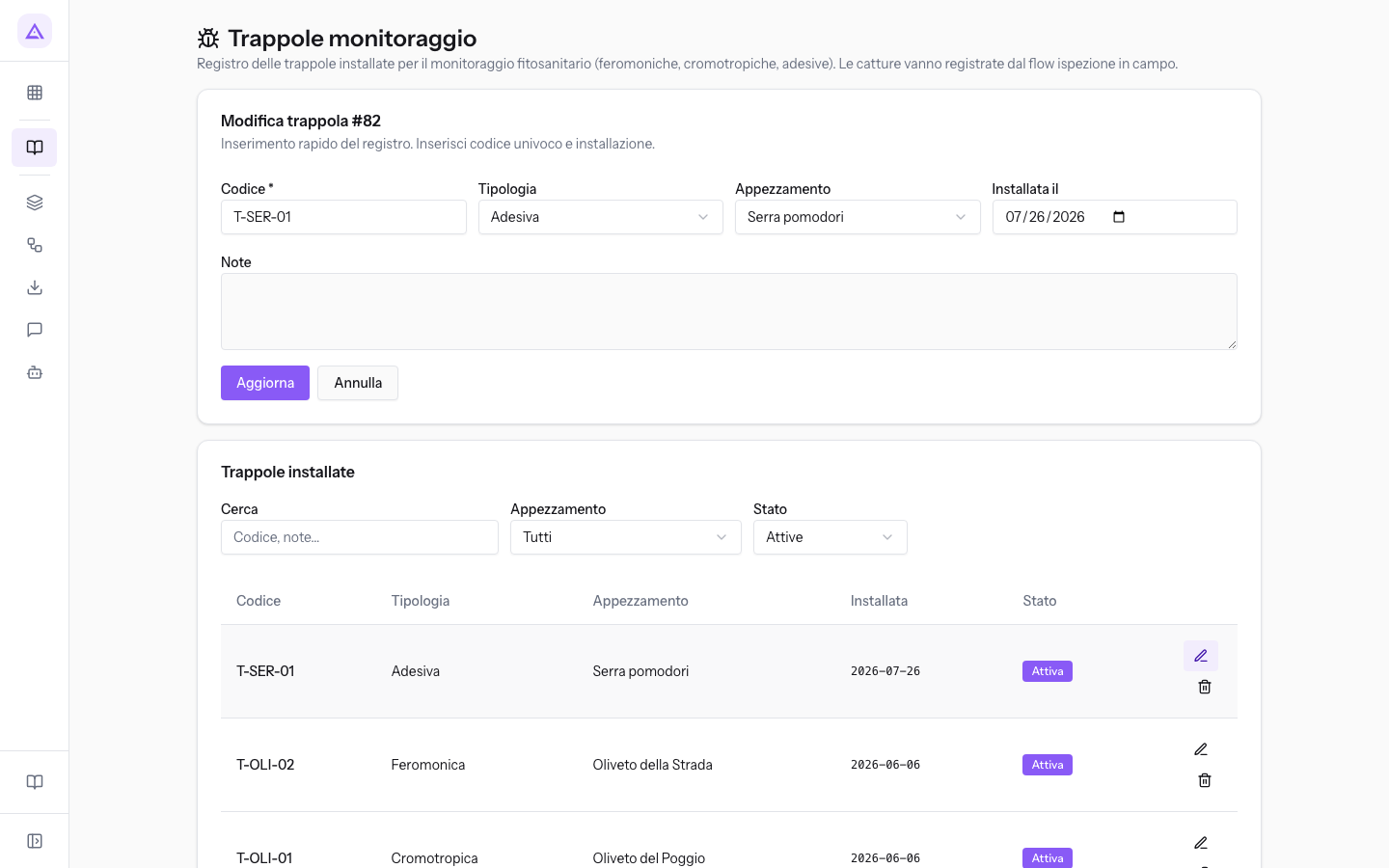
To remove a trap from the register, press Elimina trappola in its row.
Important: the Utente QdC records and edits traps but cannot delete records.
Search for traps
Below the entry panel is the list of traps, with three filters.
- Cerca: search for a trap by text.
- Appezzamento: shows only the traps of a plot. The default value is Tutti.
- Stato: shows traps according to their status. The default value is Attive.
- Tutte: all the traps in the register.
- Attive: traps still in the field.
- Rimosse: traps removed from the field.
Tip: the list opens on active traps. Choose Tutte or Rimosse in Stato to find a trap that has been removed from the field.
Record a field inspection
The Field Inspections page is the register of monitoring inspections. At the top is the panel for entering a new inspection; below is the history.
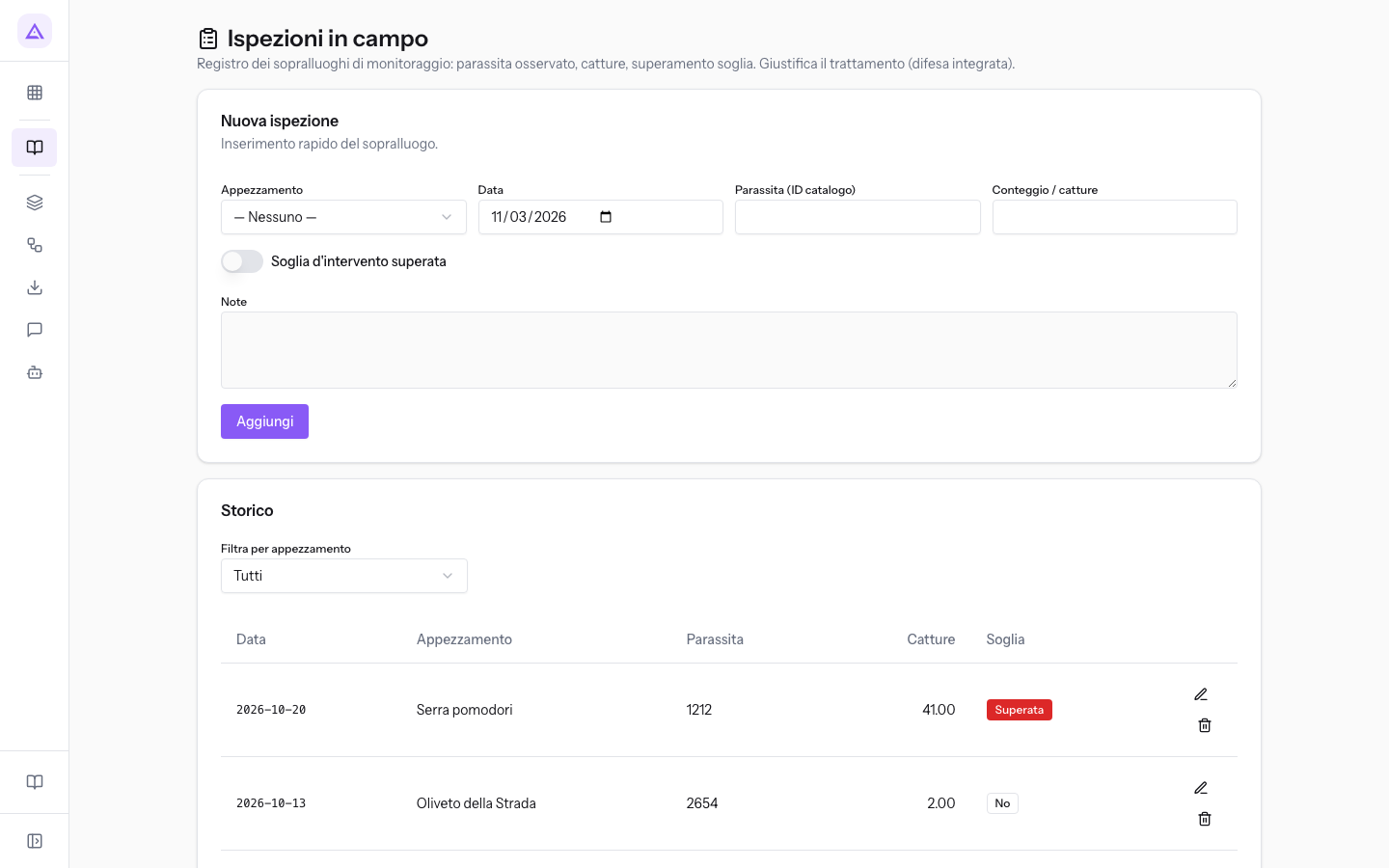
- Open the Ispezioni in campo menu item in the QdC.
- Choose the Appezzamento and indicate the pest and the number of catches: 4 catches on the Oliveto del Poggio.
- Enable Soglia d'intervento superata if the count exceeds the threshold.
- Press Aggiungi. The inspection appears in the history.
The fields of the new inspection:
- Appezzamento: the inspected plot. The default value is — Nessuno —.
- Data: the day of the inspection. The field defaults to today's date.
- Parassita (ID catalogo): the number with which the pest is registered in the catalogue. The field does not offer a list to choose from: type the number.
- Conteggio / catture: the number of individuals counted or caught.
- Soglia d'intervento superata: toggle to enable when the count exceeds the threshold. It is off until you enable it.
- Note: free-form information about the inspection.
View the inspection history
The history lists the recorded inspections.
- Filtra per appezzamento: shows only the inspections of a plot. The default value is Tutti.
Each row in the history has the Modifica ispezione and Elimina ispezione buttons.
See it on your company, not on a slide deck.
In 30 minutes we map the software you use today.We show you how much work and how much margin Archimedes gives back.
Show me on my business →What industry are you in?
One tap — it lets us prepare the demo around your world.
What tools do you use today?
Pick the ones you recognise — or just type them. It helps us show you how they migrate.
Last step: your details.
We reply within one working day — and right after, if you like, you pick the demo slot yourself.
We couldn't send your request. Try again, or write to us at [email protected].
By sending, you agree to your data being processed so we can get back to you about the demo. Privacy notice.
Preview form — nothing is sent from this page.
Want to schedule the demo now?
Your call: book the slot you prefer yourself, or we'll call you to arrange it.
Live availability, 30 minutes, instant confirmation. The calendar opens in a new tab.
Lock in your slot ↗We'll get back to you within one working day — and we'll join the call already knowing your world.
The calendar is open in another tab: pick a slot and the demo is booked. Can't see it? Reopen it ↗
Preview page: nothing was sent.
Our calendar is live: take the slot that suits you and the demo is booked. 30 minutes, instant confirmation, no waiting.
Lock in your slot ↗