Field record book (QdC)
All modules
Record rainfall and plot photos
Field record book (QdC) · 9 of 15 · 5 min read
The Rainfall and Photos pages of monitoring record, for each plot, the rainfall day by day and the images taken in the field. Rainfall data is used for the water balance, for BIO and SQNPI audits, and for re-entry intervals after a treatment. Photos document symptoms, damage, and crop stages.
Note: these screens currently use Italian interface labels. The instructions preserve the names shown on screen; the screenshots show the same controls.
Record rainfall
The Piogge page is the daily log of rainfall in millimetres per plot. In the top right, the Totale filtro value sums the mm of the readings shown in the history, so it changes with the filters.
The Nuova rilevazione panel is for quickly entering one rainfall reading per plot per day. The system keeps one reading per plot per day. Submitting the same plot and date again updates the existing reading; rainfall amounts are not added together. The submitted source and notes also replace the previous values, including notes left blank. To record another shower on the same day, enter the intended daily total.
- In the Nuova rilevazione panel, choose the Appezzamento, check the Data, and enter the millimetres in Pioggia (mm): for a downpour on the Vigna Sangiovese enter 27,5.
- Press Aggiungi. The reading appears in Storico with the source Manuale. The Pioggia (mm) field and Note clear, the plot and date remain. Change Data before recording the next day.
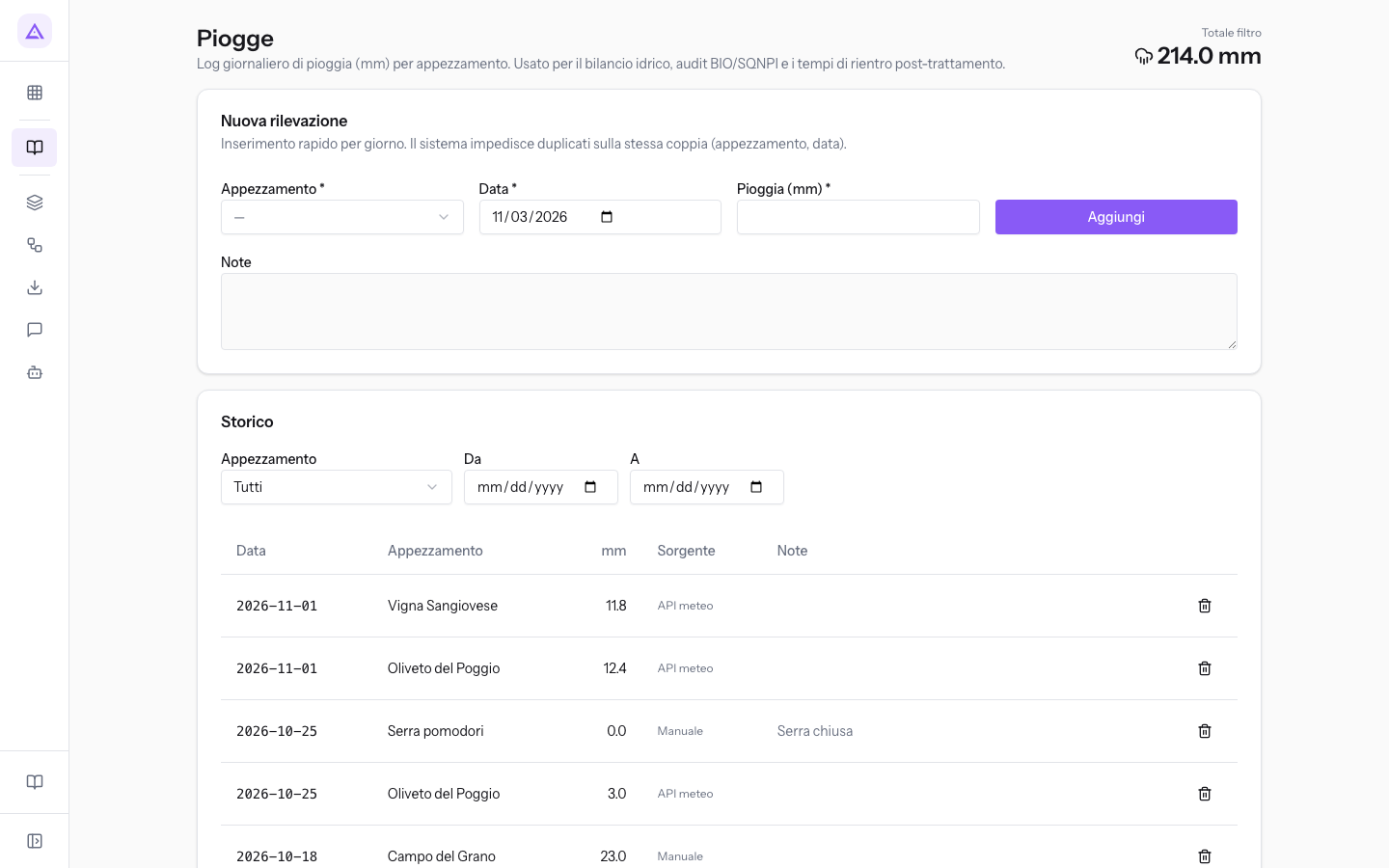
The fields in the Nuova rilevazione panel:
- Appezzamento: the plot where the rainfall occurred, chosen from the list of plots. This field is required.
- Data: the day of the rainfall. Defaults to today's date. This field is required.
- Pioggia (mm): the amount of rainfall in millimetres, with one decimal place and never negative. This field is required.
- Note: free text, for example about copper washoff after a treatment. This field is optional.
Note: if the plot is missing the page shows Seleziona un appezzamento; if the millimetres are missing it shows Inserisci i mm.
Browse the rainfall history
The Storico panel lists the recorded readings and lets you sum the rainfall over a period.
- In Appezzamento choose a plot or leave Tutti.
- In Da and A enter the period. The Totale filtro at the top shows the sum of mm for the selected period and plot: with only the Vigna Sangiovese the demo shows 65.5 mm.
The columns in the history:
- Data: the day of the reading.
- Appezzamento: the plot of the reading.
- mm: the recorded rainfall.
- Sorgente: where the data comes from.
- Manuale: entered from the Nuova rilevazione panel.
- API meteo: received from a weather service, not entered manually.
- Note: the text written in the reading.
If there are no readings in the period, the page shows Nessuna rilevazione nel periodo.
Delete a reading
Delete a reading when it was recorded on the wrong plot or on the wrong day, then record it again with the correct data.
- In the reading's row, press Elimina rilevazione (the bin icon).
- Confirm the deletion. The page shows Pioggia rimossa and the Totale filtro updates.
Important: deletion cannot be undone. Rainfall records serve as evidence in BIO and SQNPI audits: only delete incorrect readings.
Upload a photo
The Fotografie page is the photo archive per plot. Every uploaded photo is also stored in the company's documents. Link the photo to a plot to find it again in the gallery filtered for that plot.
- In the Carica foto panel, choose the File from your computer.
- Choose the Appezzamento and enter the Didascalia: for the Serra pomodori enter «Foglie minate da Tuta absoluta».
- Press Carica. The page shows Foto caricata, the photo appears in the Galleria, and the panel clears.
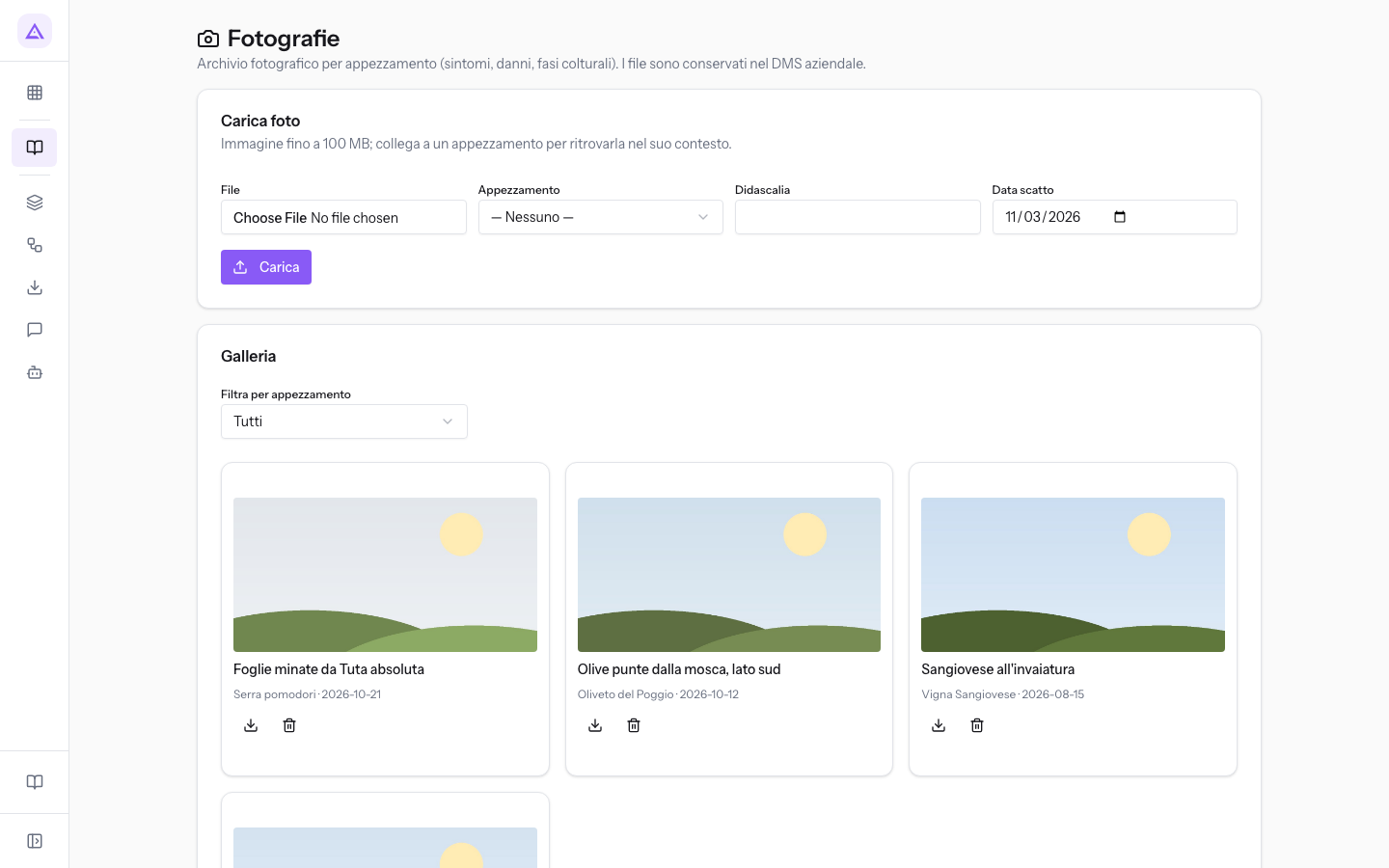
The fields in the Carica foto panel:
- File: the image to upload, up to 100 MB. Only image files can be selected. This field is required: without a file the page shows Seleziona un file immagine.
- Appezzamento: the plot depicted. With — Nessuno — the photo is not linked to any plot and appears only in the full gallery.
- Didascalia: the photo's title in the gallery. If left empty, the gallery shows the file name.
- Data scatto: the day the photo was taken. Defaults to today's date.
Browse, download, and delete photos
The Galleria panel shows photos as cards, each with the image, caption, plot, and date taken.
- In Filtra per appezzamento choose a plot to see only its photos, or Tutti.
- On a card, press Scarica foto to open the original image in a new browser tab.
- Press Elimina foto and confirm to remove the photo from the gallery. The page shows Foto eliminata.
If the selected plot has no photos, the gallery shows Nessuna foto.
Tip: write in the caption what the photo shows and where, such as «Olive punte dalla mosca, lato sud»: the caption is the only text that identifies the photo in the gallery.
See it on your company, not on a slide deck.
In 30 minutes we map the software you use today.We show you how much work and how much margin Archimedes gives back.
Show me on my business →What industry are you in?
One tap — it lets us prepare the demo around your world.
What tools do you use today?
Pick the ones you recognise — or just type them. It helps us show you how they migrate.
Last step: your details.
We reply within one working day — and right after, if you like, you pick the demo slot yourself.
We couldn't send your request. Try again, or write to us at [email protected].
By sending, you agree to your data being processed so we can get back to you about the demo. Privacy notice.
Preview form — nothing is sent from this page.
Want to schedule the demo now?
Your call: book the slot you prefer yourself, or we'll call you to arrange it.
Live availability, 30 minutes, instant confirmation. The calendar opens in a new tab.
Lock in your slot ↗We'll get back to you within one working day — and we'll join the call already knowing your world.
The calendar is open in another tab: pick a slot and the demo is booked. Can't see it? Reopen it ↗
Preview page: nothing was sent.
Our calendar is live: take the slot that suits you and the demo is booked. 30 minutes, instant confirmation, no waiting.
Lock in your slot ↗