Shifts
All modules
Add, move, and delete a shift
Shifts · 3 of 16 · 5 min read
In Shift planning you add, edit, move, and delete shifts for the week from the grid, without leaving the page. You can use it, for example, for a kitchen shift at lunch, an evening in the dining room, or a morning at reception.
Before editing the plan
Every change made on the grid remains a draft. Changes do not reach Published rota until you publish the period again.
- If you add a shift to an already published week, for example Ahmed Benali's Sunday lunch, publish that week again to communicate it.
- If you move or delete an already communicated shift, the existing publication does not change and Published rota still shows the previous version. However, the affected person immediately receives a notification: «Your shift on … has changed» or «Your shift on … has been cancelled».
A new shift takes the location selected in the location filter at the top of the page. The shift dialog has no field for location: with All locations the shift is created without a location. Before adding shifts, choose in the filter the location where the person works, for example Casale principale.
Note: a conflict never blocks saving. If the assignment has a conflict, the dialog button becomes Save anyway. The conflicts panel is described in the article on shift conflicts.
Add a shift
Add a shift for a person by clicking the empty cell of the day they work.
- Open Shifts › Planning.
- In the location filter, choose the shift's location.
- Click the person's empty cell on the chosen day (Add shift). The New shift dialog opens, with the person's name and date, for example Andrea Neri on Thursday 2026-10-29.
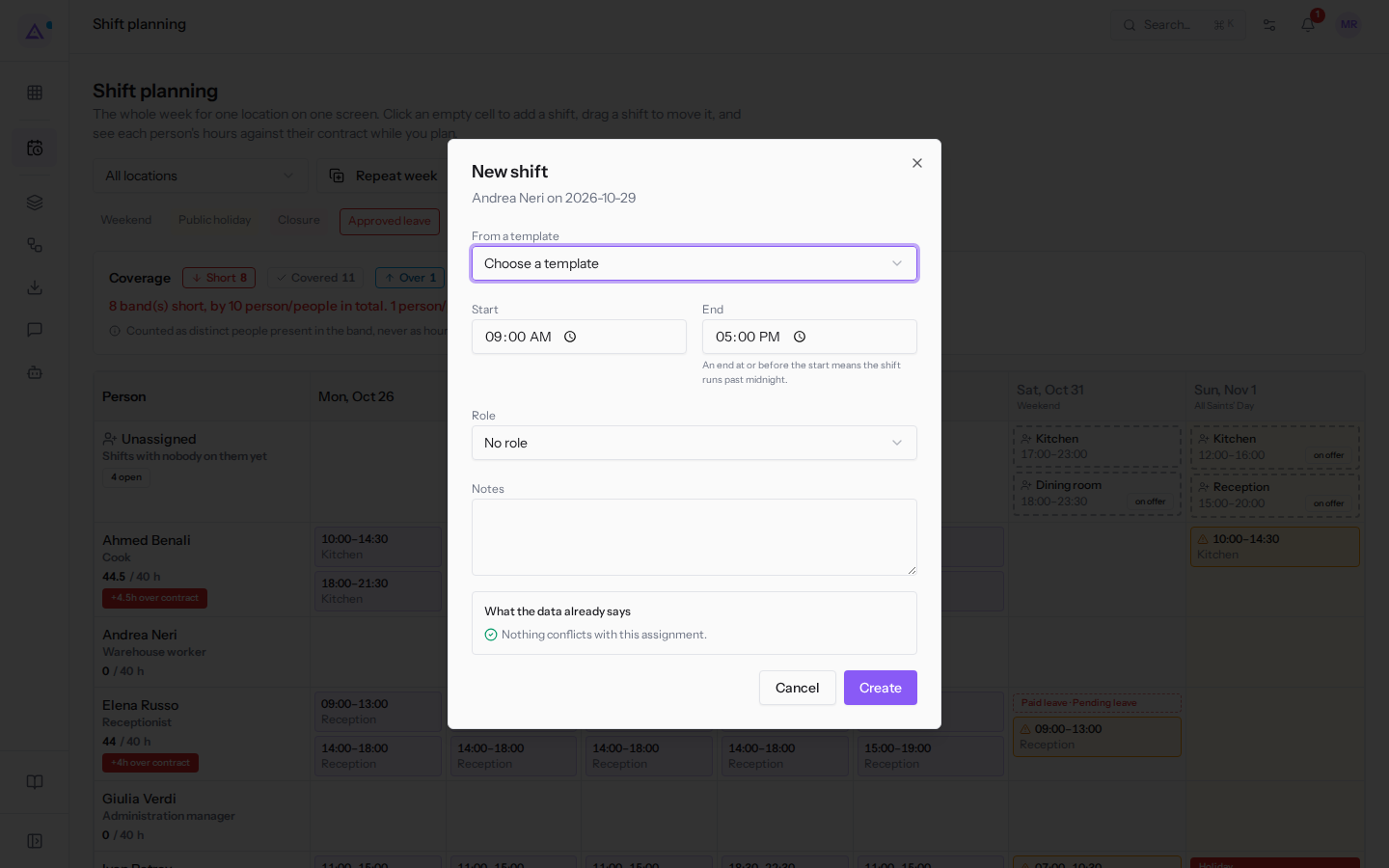
- Choose a template or enter the times, then fill in the other fields.
- Click Create. To close without creating the shift, click Cancel.
The fields in the New shift dialog are:
- From a template: fills in the times from a band you have already defined. The field shows Choose a template and appears only if at least one active template exists. Retired templates do not appear, for example Breakfast.
- For example, the options are Lunch · 10:00–14:30, Dinner · 18:00–21:30, Dining room lunch · 11:00–15:00, Dining room evening · 18:30–22:30, Morning reception · 09:00–13:00, Afternoon reception · 14:00–18:00 and Floater · 12:00–16:00.
- When you choose a template, Start, End and Role are filled in. Any Notes already written remain unchanged. After the selection the field returns to Choose a template and you can correct the times manually.
- If the template has no role, like Floater, the Role field becomes No role.
- Start: the start time of the shift. In a new shift the proposed value is
09:00. - End: the end time of the shift. The proposed value is
17:00. An end time equal to or earlier than the start indicates a shift that crosses midnight: for example, a 22:00–06:00 shift lasts 8 hours and spans two days. - Role: the operational role of the shift. The options are No role, Dining room, Kitchen and Reception. Retired roles do not appear, for example Till.
- Notes: free text about the shift. The field is optional.
Start and End must be filled in: without one of the two, the Create button is not active.
Note: a split shift is recorded as two shifts on the same day, for example Ahmed Benali in the kitchen 10:00–14:30 and 18:00–21:30. The rest between two shifts on the same day is not a conflict.
Edit a shift
Change the times, role, and notes of a shift from the dialog that opens with a click on the shift.
- In Shifts › Planning click the shift, for example Ahmed Benali's 10:00–14:30 Kitchen. The Edit shift dialog opens, with the person's name and date.
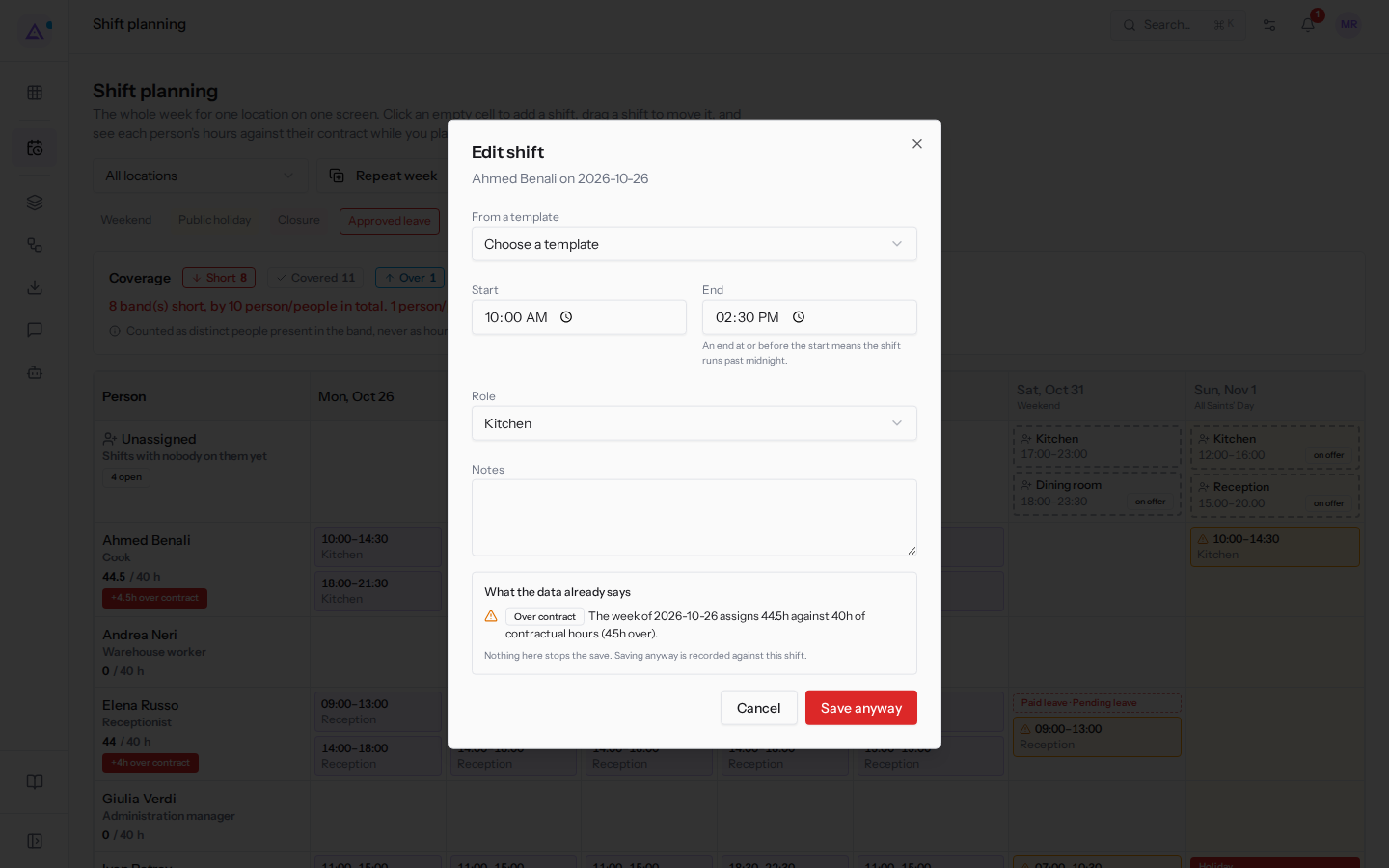
- Edit the From a template, Start, End, Role and Notes fields. These are the same as in the New shift dialog, already filled in with the shift's values.
- Click Save. If the assignment has a conflict, the button is Save anyway.
In the dialog you cannot change the person or the date of the shift: to do so, drag the shift to another cell, as described in the following section.
Move a shift
Move a shift to another day or another person by dragging it on the grid.
- In Shifts › Planning drag the shift to the destination cell.
- Release the shift. The grid shows it in the new cell.
If the move fails, the message «Could not move the shift. It has been put back.» appears and the shift returns to the starting cell.
Delete a shift
Delete a shift from the grid using the bin icon on the shift.
Note: to delete a shift you need the Shift Manager group. With only Shift Planner the deletion fails.
- In Shifts › Planning locate the shift to delete.
- Hover over the shift and click the bin icon (Remove shift).
- When asked «Remove this shift?», confirm.
If the deletion fails, the message «Could not remove the shift.» appears.
Important: a shift deleted from an already published week remains in the existing publication and the person receives the notification «Your shift on … has been cancelled». Publish the period again so that Published rota also shows the removed shift.
Unsaved changes
If you have changed a field in the dialog and close it without saving, the page asks for confirmation with the message «You have unsaved changes to this shift. Leave without saving?». A dialog that is open but not modified closes without asking.
See it on your company, not on a slide deck.
In 30 minutes we map the software you use today.We show you how much work and how much margin Archimedes gives back.
Show me on my business →What industry are you in?
One tap — it lets us prepare the demo around your world.
What tools do you use today?
Pick the ones you recognise — or just type them. It helps us show you how they migrate.
Last step: your details.
We reply within one working day — and right after, if you like, you pick the demo slot yourself.
We couldn't send your request. Try again, or write to us at [email protected].
By sending, you agree to your data being processed so we can get back to you about the demo. Privacy notice.
Preview form — nothing is sent from this page.
Want to schedule the demo now?
Your call: book the slot you prefer yourself, or we'll call you to arrange it.
Live availability, 30 minutes, instant confirmation. The calendar opens in a new tab.
Lock in your slot ↗We'll get back to you within one working day — and we'll join the call already knowing your world.
The calendar is open in another tab: pick a slot and the demo is booked. Can't see it? Reopen it ↗
Preview page: nothing was sent.
Our calendar is live: take the slot that suits you and the demo is booked. 30 minutes, instant confirmation, no waiting.
Lock in your slot ↗