Shifts
All modules
View published shifts and your own shifts
Shifts · 10 of 16 · 3 min read
Published shifts are the plan that staff have received. Planners view them person by person on the Published rota page. Each employee sees their own shifts in the My shifts section of My area › My time.
Both views show the same shifts in the same way. Planners therefore see exactly what the person sees.
What published shifts show
These views only show the latest published version of the plan, from today for the following six weeks; past days are not shown. Changes made after publishing are not shown until the period is published again.
- If you have edited a shift in the planning and staff need to see it, publish the period again.
- If you want to know what a person knows about their Thursday shift, look at Published rota, not the planning.
Note: the role name is the one the role had at the time of publishing. If you later rename a role, already published shifts do not change.
Each shift shows the following information:
- the start and end time, for example 09:00 – 13:00;
- the role, for example Reception, if the shift has one;
- the location, for example Casale principale, if the shift has one;
- the shift notes, if any.
Shifts are grouped by day, with the full date as a heading, for example October 31, 2026. Within the same day they are in order of start time. A split shift therefore appears as two rows under the same date, for example 10:00–14:30 and 18:00–21:30 for Ahmed Benali.
View published shifts for staff
The Published rota page lists the published shifts of all staff, with a card per person.
Note: the page is reserved for the Shift Planner and Shift Manager groups. Access is denied to other users.
- Open Shifts › Team › Published rota.
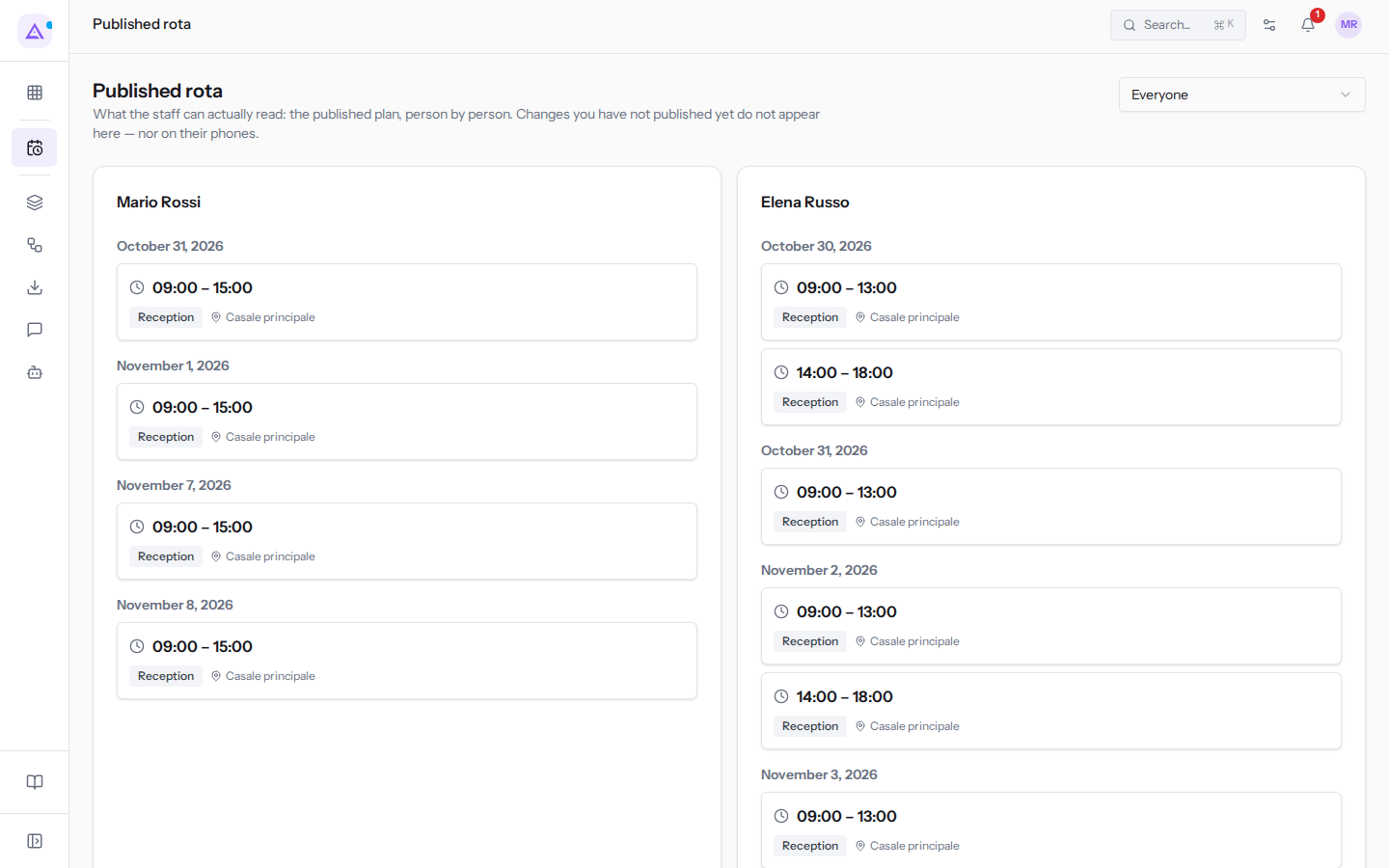
- To see the shifts of a single person, open the Everyone filter and choose the name, for example
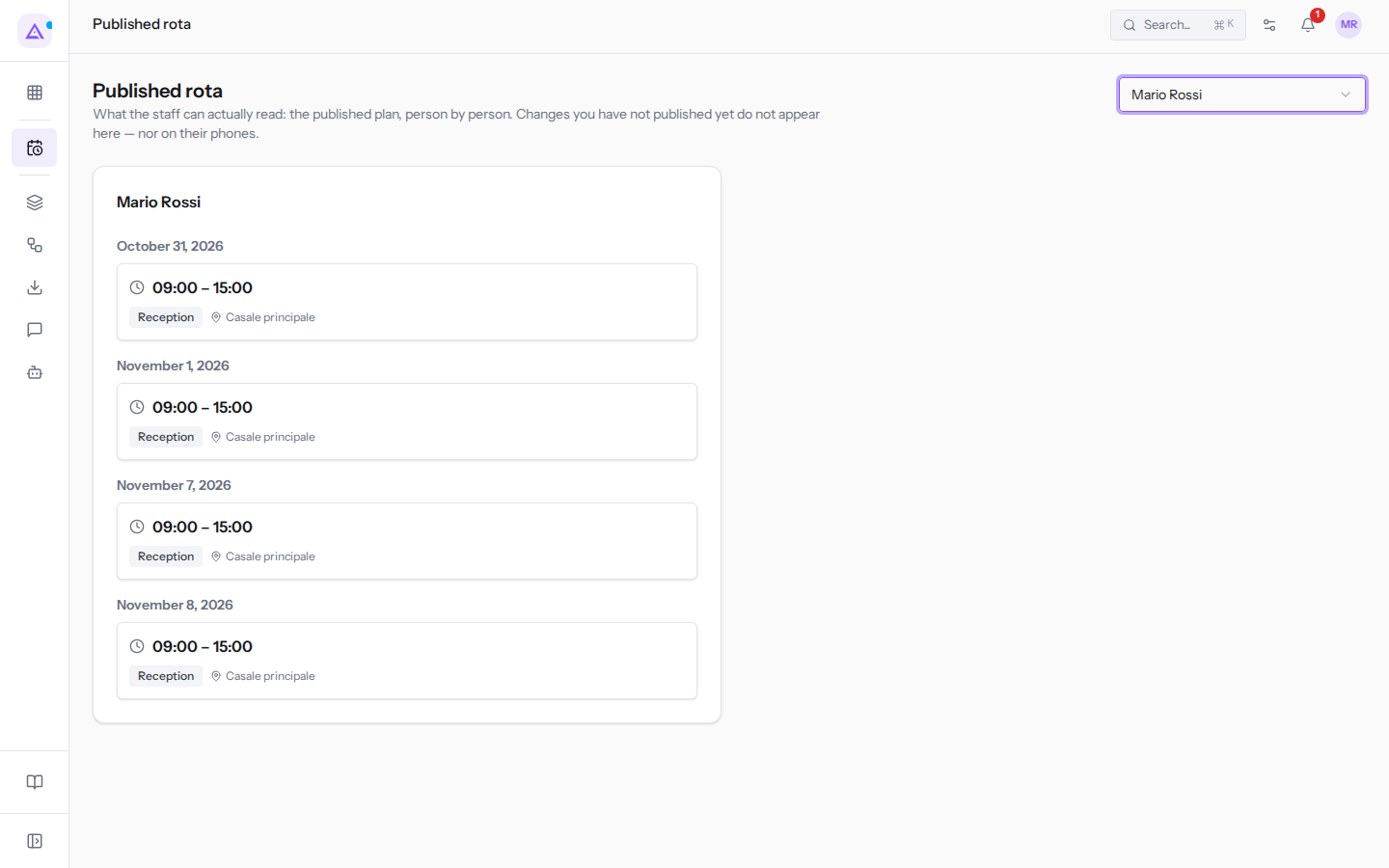
Mario Rossi.
- To return to all staff, choose Everyone again in the filter.
The fields on the page are:
- Everyone: the people filter.
- Everyone: shows a card for each person who has published shifts in the period. This is the default value.
- A person's name: shows only their shifts, for example Ivan Petrov, Ahmed Benali, Mario Rossi or Elena Russo.
The filter only lists people who have at least one published shift in the shown period, not all employees. Anyone without published shifts is not shown.
For example, today, October 28, 2026, the published shifts run until November 8, 2026, because the following weeks have not yet been published. Choosing Mario Rossi leaves only the reception shifts on Saturday and Sunday: October 31, 2026, November 1, 2026, November 7, 2026 and November 8, 2026.
If there are no published shifts in the period, the page shows the message Nothing published for this period yet.
View your own shifts
Each employee can see their own published shifts for the next six weeks in the My shifts section.
- Open My area from your profile menu.
- Choose My time and open the My shifts section.
The section shows only the shifts of the person who is logged in. It is not possible to see a colleague's shifts from this section.
Shifts have the same format described above: grouped by day, with time, role, location and notes. For example, Mario Rossi sees the Saturday and Sunday reception shifts at Casale principale, 09:00–15:00.
If there are no published shifts for the person, the section shows the message Nothing published for you yet. Your manager publishes the plan when it is ready.
Note: a login not linked to an employee record has no shifts.
See it on your company, not on a slide deck.
In 30 minutes we map the software you use today.We show you how much work and how much margin Archimedes gives back.
Show me on my business →What industry are you in?
One tap — it lets us prepare the demo around your world.
What tools do you use today?
Pick the ones you recognise — or just type them. It helps us show you how they migrate.
Last step: your details.
We reply within one working day — and right after, if you like, you pick the demo slot yourself.
We couldn't send your request. Try again, or write to us at [email protected].
By sending, you agree to your data being processed so we can get back to you about the demo. Privacy notice.
Preview form — nothing is sent from this page.
Want to schedule the demo now?
Your call: book the slot you prefer yourself, or we'll call you to arrange it.
Live availability, 30 minutes, instant confirmation. The calendar opens in a new tab.
Lock in your slot ↗We'll get back to you within one working day — and we'll join the call already knowing your world.
The calendar is open in another tab: pick a slot and the demo is booked. Can't see it? Reopen it ↗
Preview page: nothing was sent.
Our calendar is live: take the slot that suits you and the demo is booked. 30 minutes, instant confirmation, no waiting.
Lock in your slot ↗