Shifts
All modules
Comparing published shifts with clocked hours
Shifts · 14 of 16 · 5 min read
The Planned vs worked page compares published shifts with clock-in records for a period. It shows who showed up for their assigned shift, what time they clocked in and out, and the difference from the communicated schedule.
What is being compared
The comparison is against the published shift — what was communicated to staff — not the plan as it currently stands.
- If you edited a shift after publishing and did not republish the period, the row still shows the published schedule.
- If you want the comparison to use the correct schedule, republish the period: the new version becomes the reference.
Note: the difference between the published schedule and the clock-in record is expressed in signed minutes and no tolerance is applied. The exact difference is shown as-is and the assessment is yours to make.
The page does not show costs, rates, or amounts.
Opening the comparison for a period
The page opens on the current week, from Monday to Sunday.
- Open Shifts › Team › Planned vs worked. The Shifts menu only appears for users with the Shift Planner or Shift Manager group: without this group, open the page from its address, /shift/attendance.
- If you need a different period, change the dates in the From and To fields. The table updates with the new period. The period can last at most 62 days: beyond that, "Could not load the comparison." appears.
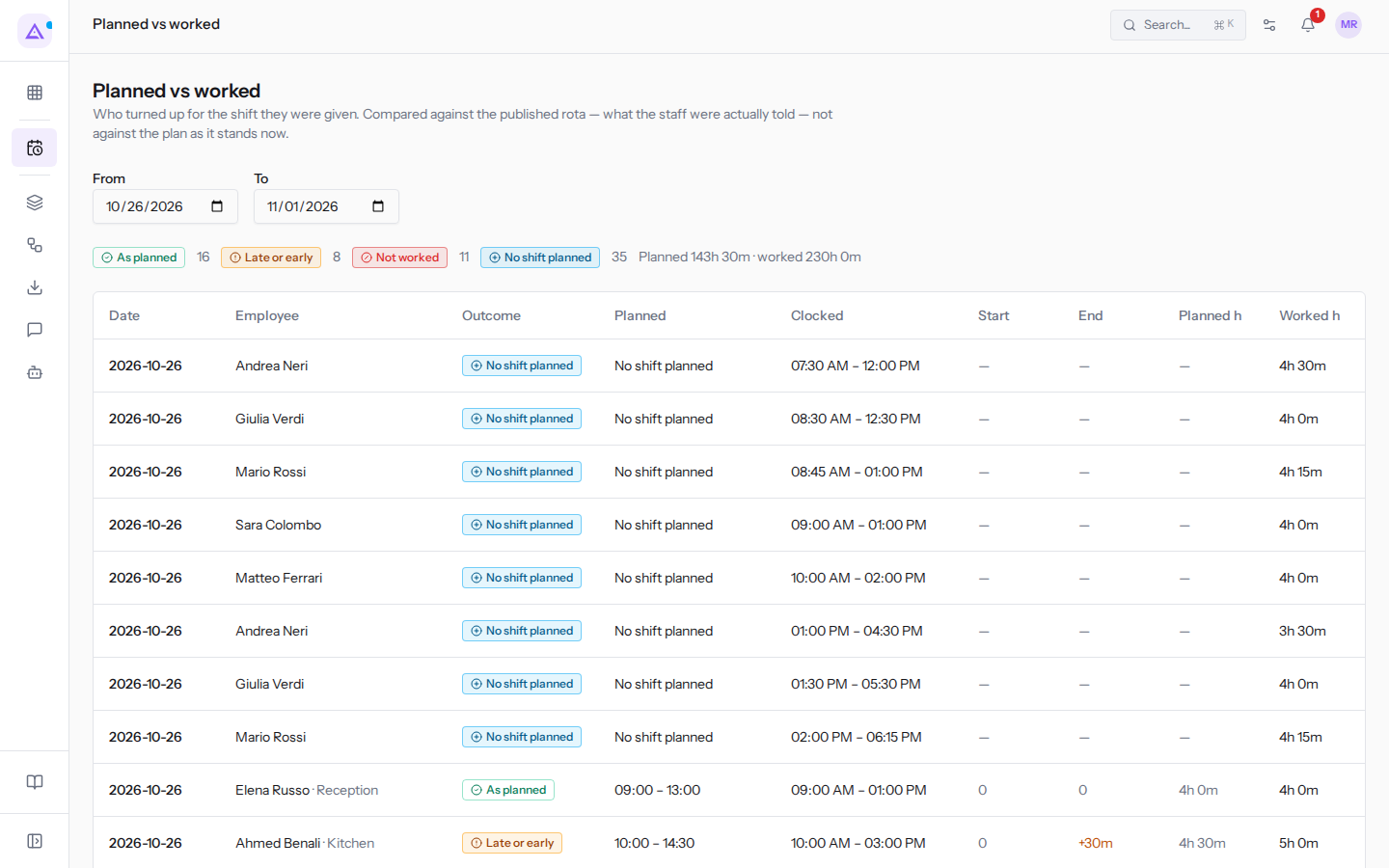
- From: the first day of the period. Normally this is the Monday of the current week.
- To: the last day of the period. Normally this is the Sunday of the current week.
If there are no published shifts and no clock-in records in the period, the table shows Nothing published and nothing clocked in this period.
Note: clock-in times are shown in the organisation's time zone, not the time zone of the person viewing the page.
The period summary
Above the table, the summary shows how many rows there are for each outcome: As planned, Late or early, Not worked, and No shift planned.
Next to the counts is the total hours for the period, in the form "Planned … · worked …". The first value sums the hours of published shifts, the second the clocked hours. Durations are written in hours and minutes.
Table columns
Each row is a published shift, a clock-in record without a shift, or both.
- Date: the day of the shift or clock-in record.
- Employee: the person. If the shift has a role, the role name follows the person's name after a dot.
- Outcome: the result of the comparison, described in the following section. Each outcome has an icon, a colour, and a name.
- Planned: the start time and end time of the published shift. If the person clocked in without a published shift, the cell shows No shift planned.
- Clocked: the recorded clock-in time and clock-out time.
- If the person did not clock in, the cell shows Never clocked.
- If the person has clocked in but has not yet clocked out, still clocked in appears in place of the clock-out time.
- Start: the difference in minutes between the clocked entry and the published start, for example
+12mor−5m. The value0means they coincide. If either piece of data is missing, the cell shows a dash. - End: the difference in minutes between the clocked exit and the published end, in the same format as the Start column.
- Planned h: the duration of the published shift.
- Worked h: the duration of the clock-in record.
The sign of the difference has a precise meaning:
- a positive value means a late arrival or staying beyond the scheduled time;
- a negative value means an early arrival or early departure.
Positive and negative differences have different colours. A difference of zero or one that cannot be calculated is not coloured.
Outcomes
The Outcome column takes one of four values.
- As planned: the person clocked in for the published shift and the times match.
- Late or early: the person clocked in for the published shift, but the entry or exit differs from the published schedule. The Start and End columns show by how many minutes.
- Not worked: there is a published shift but no clock-in record. The Clocked column shows Never clocked. Shifts for today and days that have not yet arrived also show as Not worked until the person clocks in.
- No shift planned: there is a clock-in record but no published shift for that person. This happens, for example, for people who clock in but do not work on shifts, such as Mario Rossi, Giulia Verdi, and Andrea Neri on weekdays.
Use cases:
- To find out who did not show up, look at the Not worked rows for days that have already passed.
- To check for late arrivals and early departures, look at the Late or early rows and the sign in the Start and End columns.
- If a clock-in record shows No shift planned for a person who works on shifts, check in Shifts › Team › Publications whether their shift has been published.
The footnote
Below the table, the note is a reminder of how to read the differences: they are in signed minutes, positive for a late arrival or staying beyond the scheduled time, negative for early, and with no tolerance applied.
Who sees which rows
Users with the Shift Planner or Shift Manager group see the comparison for all staff.
Users without these groups see only their own rows. In this case, the message You are seeing your own shifts. Comparing the whole team needs shift planner access. appears above the table. If your login is not linked to a staff record, the page shows "Could not load the comparison."
Important: clock-in records come from the Attendance module. Without clock-in records, every published shift in the period shows as Not worked.
See it on your company, not on a slide deck.
In 30 minutes we map the software you use today.We show you how much work and how much margin Archimedes gives back.
Show me on my business →What industry are you in?
One tap — it lets us prepare the demo around your world.
What tools do you use today?
Pick the ones you recognise — or just type them. It helps us show you how they migrate.
Last step: your details.
We reply within one working day — and right after, if you like, you pick the demo slot yourself.
We couldn't send your request. Try again, or write to us at [email protected].
By sending, you agree to your data being processed so we can get back to you about the demo. Privacy notice.
Preview form — nothing is sent from this page.
Want to schedule the demo now?
Your call: book the slot you prefer yourself, or we'll call you to arrange it.
Live availability, 30 minutes, instant confirmation. The calendar opens in a new tab.
Lock in your slot ↗We'll get back to you within one working day — and we'll join the call already knowing your world.
The calendar is open in another tab: pick a slot and the demo is booked. Can't see it? Reopen it ↗
Preview page: nothing was sent.
Our calendar is live: take the slot that suits you and the demo is booked. 30 minutes, instant confirmation, no waiting.
Lock in your slot ↗