Shifts
All modules
Publishing shifts to staff
Shifts · 8 of 16 · 5 min read
Publishing a period tells staff the shifts of a location or of the whole organisation. For example, you can publish the week at Casale principale.
How publishing works
A week remains a draft until you publish it. Publishing takes a snapshot of the plan for a period. What has been communicated to staff remains on record even when the plan changes.
- Staff only see the published plan. Changes made after publishing do not appear in Published rota or on phones until you publish the period again.
- A publication cannot be modified or deleted. To correct an already-published week, publish it again. The system adds a new version and the previous version remains available for reference.
- Publishing for a location is separate from publishing for the whole organisation. The two do not replace each other.
- The role and location names are saved at the time of publication. If you later rename a role, the already-communicated rota does not change.
- A coverage shortfall does not prevent publishing. The period is recorded as it stands.
Which location to choose:
- If the plan concerns a single location, for example the typical week at Casale principale, choose that location.
- If you want to communicate all shifts together, choose Whole organisation.
- If you have changed shifts for an already-published week, publish the same period again with the same location. A new version is created.
The publications list
The list shows all publications for the organisation, including successive versions of the same period.
- Open Shifts › Team › Publications.
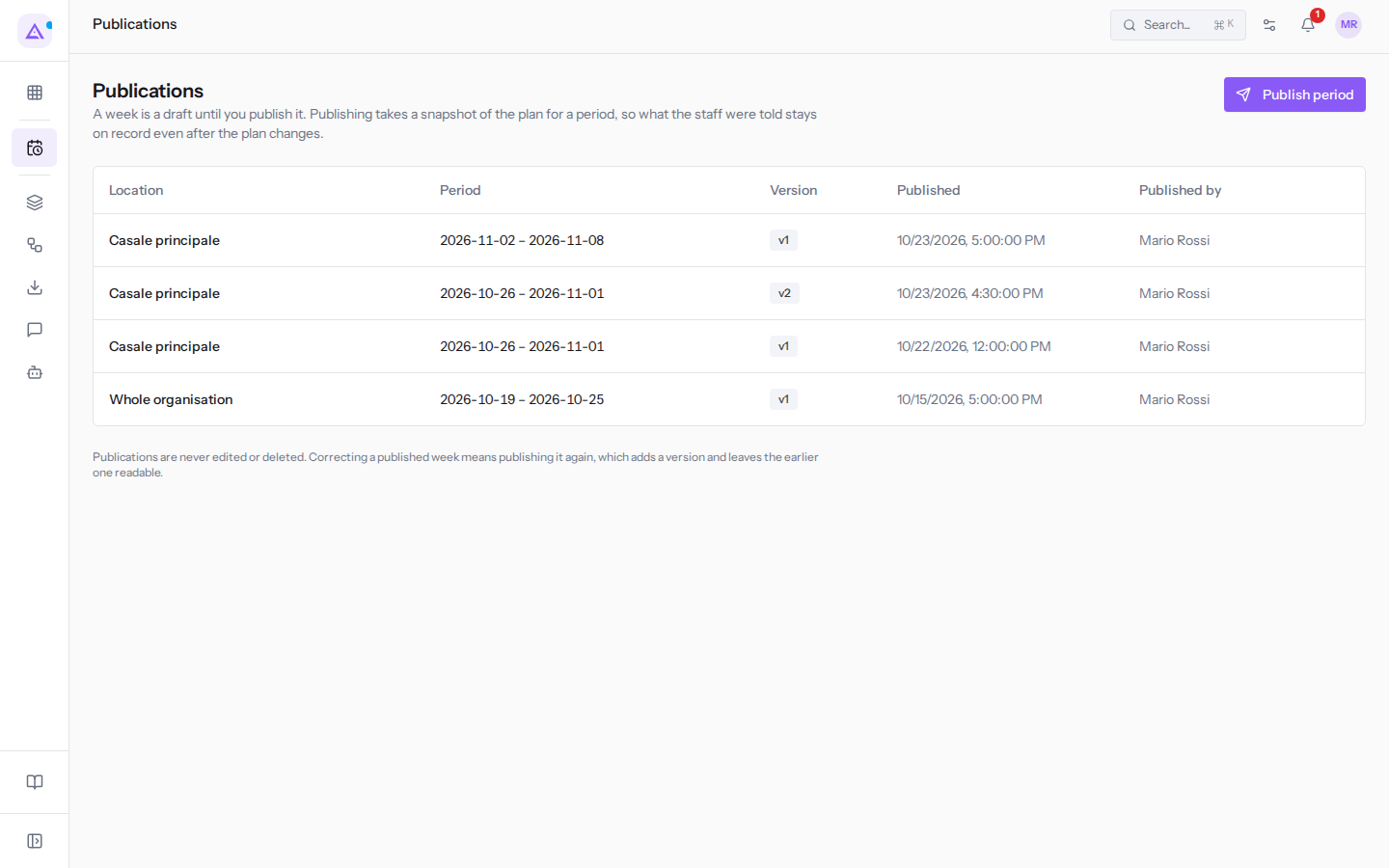
For each publication, the list shows these columns:
- Location: the location of the publication, for example Casale principale, or Whole organisation.
- Period: the start and end dates of the published period.
- Version: the version number. The first publication of a period is version 1. Each new publication of the same period increases the number by one.
- Published: the date and time of the publication.
- Published by: who published the period.
For example, the list may contain these publications:
- last week for the whole organisation;
- this week at Casale principale, in versions 1 and 2;
- next week at Casale principale.
If nothing has been published yet, the list shows the message Nothing published yet. Publish a period to put a plan on record.
To open the detail of a publication, click its row.
Publishing a period
Publish a period when the plan for a location or the entire organisation is ready for staff.
Important: to publish you must belong to the Shift Manager group. With the Shift Planner group you can view publications, but not create them: if you try to publish, the message Could not publish this period. Publishing is reserved to shift managers. appears.
- Open Shifts › Team › Publications.
- Click Publish period. The Publish period dialog opens.
- In Location choose the location, for example Casale principale.
- Fill in From and To with the first and last day of the period.
- In Note write a reference text, for example
Week 44. - Check the preview below the fields.
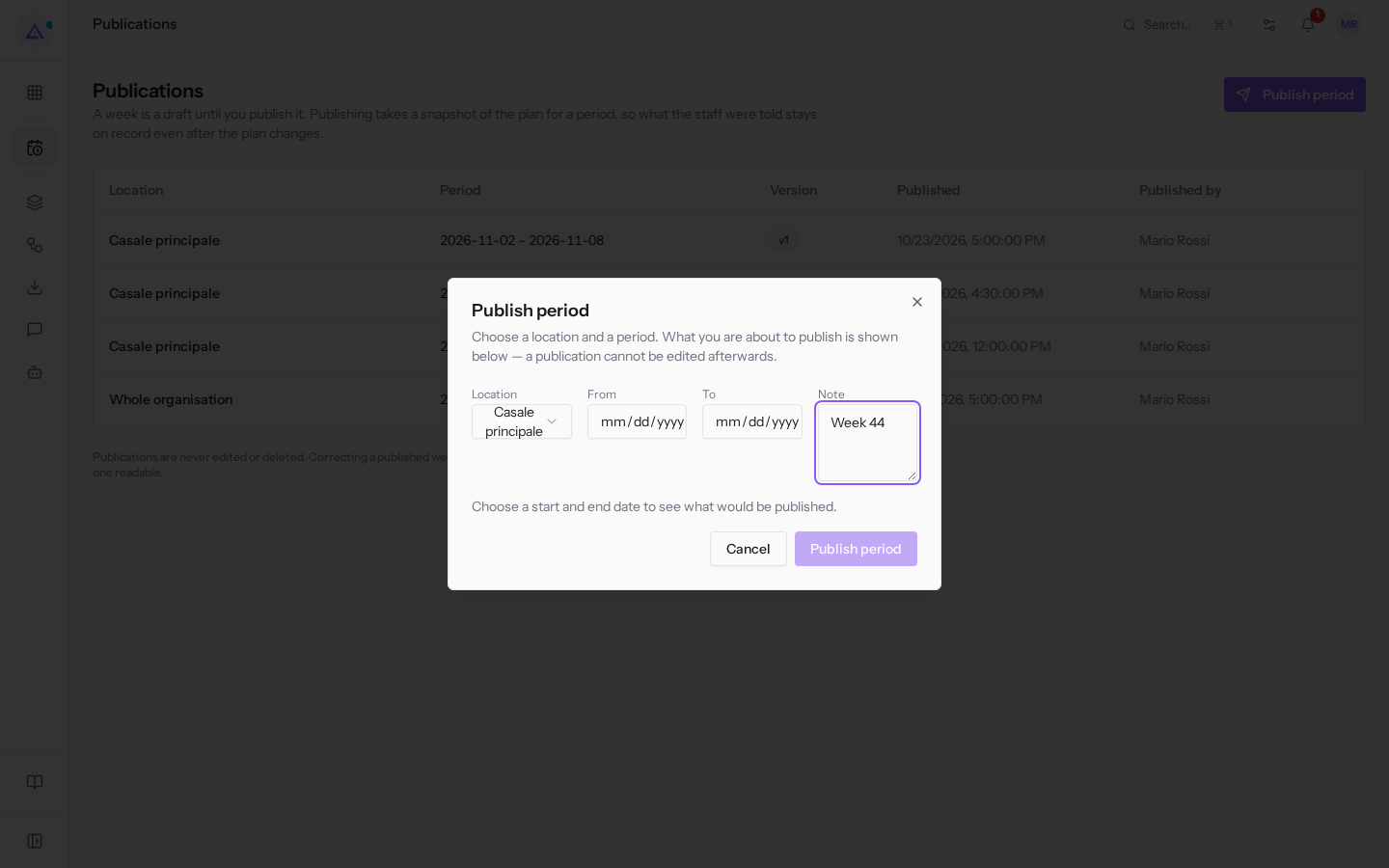
- Click Publish period to confirm, or Cancel to close the dialog without publishing.
The dialog contains these fields:
- Location: the location whose shifts you are publishing. The default value is Whole organisation. Alternatively you can choose a location, for example Casale principale.
- From: the start date of the period.
- To: the end date of the period. If you enter a date in To that is earlier than From, the two dates are swapped.
- Note: optional text that appears in the publication detail, for example
Week 44.
Important: a publication cannot be modified. Before confirming, check the preview.
The publication preview
The preview shows what you are about to publish. Until you have entered both dates, the dialog shows the message Choose a start and end date to see what would be published.
At the top of the preview a message indicates whether the period has already been published:
- Nothing has been published for this period yet. This will be version 1.: the period has never been published for the chosen location.
- «This period is already published as version N. Publishing again creates a new version and keeps the old one on record.»: the period already has a publication. N is replaced by the latest version number. For example, for this week at Casale principale the message indicates version 2 and the new publication will be version 3.
Each shift in the preview has one of these statuses:
- Not published: the period has never been published for this location, so no shifts have been communicated yet.
- Unchanged: the shift is the same as the one already published.
- Changed: the shift has changed since the last publication. For example, Elena Russo's Friday afternoon shift has been moved to 15:00–19:00.
- Removed: the shift was published, but is no longer in the plan. For example, Ivan Petrov's Thursday lunch.
- Added: the shift is in the plan, but has not yet been published. For example, Ahmed Benali's Sunday lunch.
What staff see after publishing
After confirmation, each person with shifts in the period and with access to the application receives a notification, for example «Your 2 shifts have been published».
Staff can view their published shifts in two places:
- Published rota: the published plan, person by person. Changes not yet published do not appear here or on phones.
- My shifts: the section in My area › My time. Each person sees only their own published shifts. If there is nothing, the message Nothing published for you yet. Your manager publishes the plan when it is ready. appears.
Note: Planned vs worked compares clock-ins with published shifts, not with the current plan. If you modify a shift after publishing, publish the period again so that the comparison uses the updated time.
See it on your company, not on a slide deck.
In 30 minutes we map the software you use today.We show you how much work and how much margin Archimedes gives back.
Show me on my business →What industry are you in?
One tap — it lets us prepare the demo around your world.
What tools do you use today?
Pick the ones you recognise — or just type them. It helps us show you how they migrate.
Last step: your details.
We reply within one working day — and right after, if you like, you pick the demo slot yourself.
We couldn't send your request. Try again, or write to us at [email protected].
By sending, you agree to your data being processed so we can get back to you about the demo. Privacy notice.
Preview form — nothing is sent from this page.
Want to schedule the demo now?
Your call: book the slot you prefer yourself, or we'll call you to arrange it.
Live availability, 30 minutes, instant confirmation. The calendar opens in a new tab.
Lock in your slot ↗We'll get back to you within one working day — and we'll join the call already knowing your world.
The calendar is open in another tab: pick a slot and the demo is booked. Can't see it? Reopen it ↗
Preview page: nothing was sent.
Our calendar is live: take the slot that suits you and the demo is booked. 30 minutes, instant confirmation, no waiting.
Lock in your slot ↗