Shifts
All modules
Setting up labour costs and budgets
Shifts · 16 of 16 · 7 min read
Labour cost shows how much planned shifts cost the company. With a budget you set how much a location, or the whole organisation, can cost in a period: for example one month for the whole organisation or two weeks for a single location.
This page describes two screens: Cost settings (same name in the menu), where you set the employer burden rate, and Labour budgets, where you create budgets and compare them with the planned cost.
Note: these screens require the Shift Labour Cost group. Without this group the Labour budgets and Cost settings menu items do not appear, and if you open the page, You do not have access to labour cost is shown. The Shift Manager group does not include costs.
Setting the employer burden
The employer burden rate turns gross pay into the real cost of a person to the company. Every amount in shift planning uses this basis — never gross pay and never take-home pay.
Before setting it, choose the source of the rate:
- If you want a single rate for shifts, enter it here. A rate entered on this screen overrides the Payroll rules.
- If you have already set up "company contribution" category rules in Payroll, leave the field empty. In this case shifts use those rules.
- If the field is empty and there are no such rules in Payroll, the rate is not set. Amounts are gross only and are not presented as company cost.
Important: an empty field means the rate is unknown. A rate of 0% means there are no burdens. Write 0 only if the company truly has no burdens.
To set the rate:
- Open Shifts › Settings › Cost settings.
- In the Employer burden (%) field, enter the rate, for example
30. - Click Save.
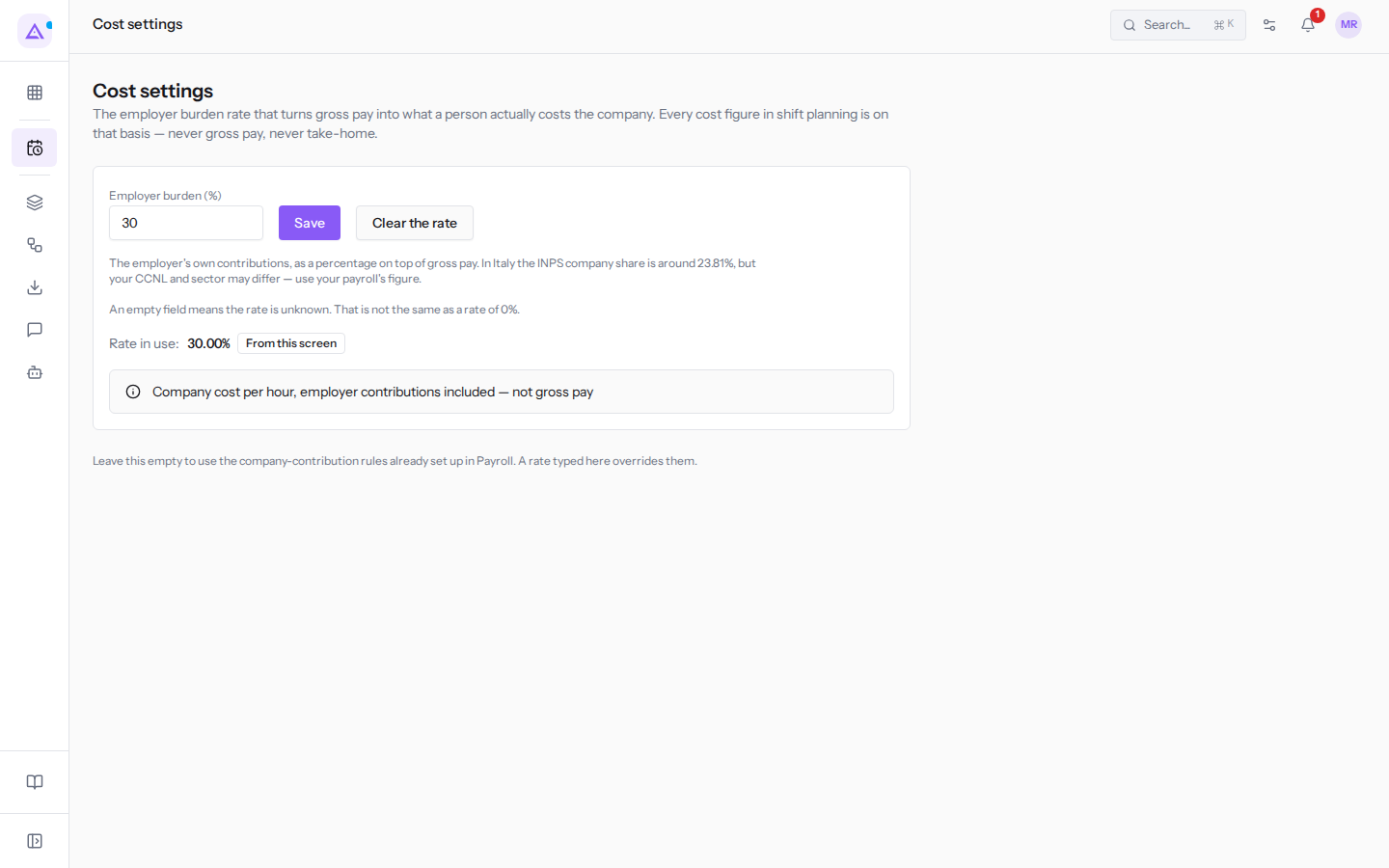
The screen contains these elements:
- Employer burden (%): the employer burden percentage, for example
30. - Rate in use: shows the rate used in calculations and which source it comes from.
- From this screen: the rate from the Employer burden (%) field applies.
- From your payroll rules: the field is empty and Payroll's "company contribution" category rules are used.
- Not configured: there is no rate. Amounts are gross only.
- Clear the rate: clears the field. To go back to the Payroll rules, if any exist, then click Save. The button appears when the field contains a value.
Note: without a rate, shift amounts display the warning "No employer burden rate is configured, so this figure is gross pay only, not company cost."
Where the hourly rate comes from
The cost of each person is their hourly rate multiplied by the hours of their planned shifts.
- If Hourly company cost (incl. employer burden) is recorded on the employee record, that value applies.
- Otherwise the rate is derived from the active contract. With an hourly wage that wage applies. With a monthly salary, the annual gross — that is the monthly amount multiplied by the number of pay periods — is divided by the person's weekly working hours over 52 weeks.
- The employer burden is added to the rate derived from the contract. Without a rate it remains gross only.
- If a person has neither an hourly cost nor a valid contract, they have no rate.
Creating a labour budget
A budget sets how much a location, or the whole organisation, can cost in a period. The budget uses the same company cost basis as the planned cost, so the two amounts can be compared directly. Overspending is flagged and never blocks planning.
Before creating a budget, choose who it applies to:
- If you want a single target for all locations, choose Whole organisation.
- If a location has its own target, choose that location, for example Casale principale.
- A location without its own budget uses the organisation budget. A location that has neither its own budget nor the organisation's budget shows the planned cost without a target.
- A budget applies to the period it covers in full.
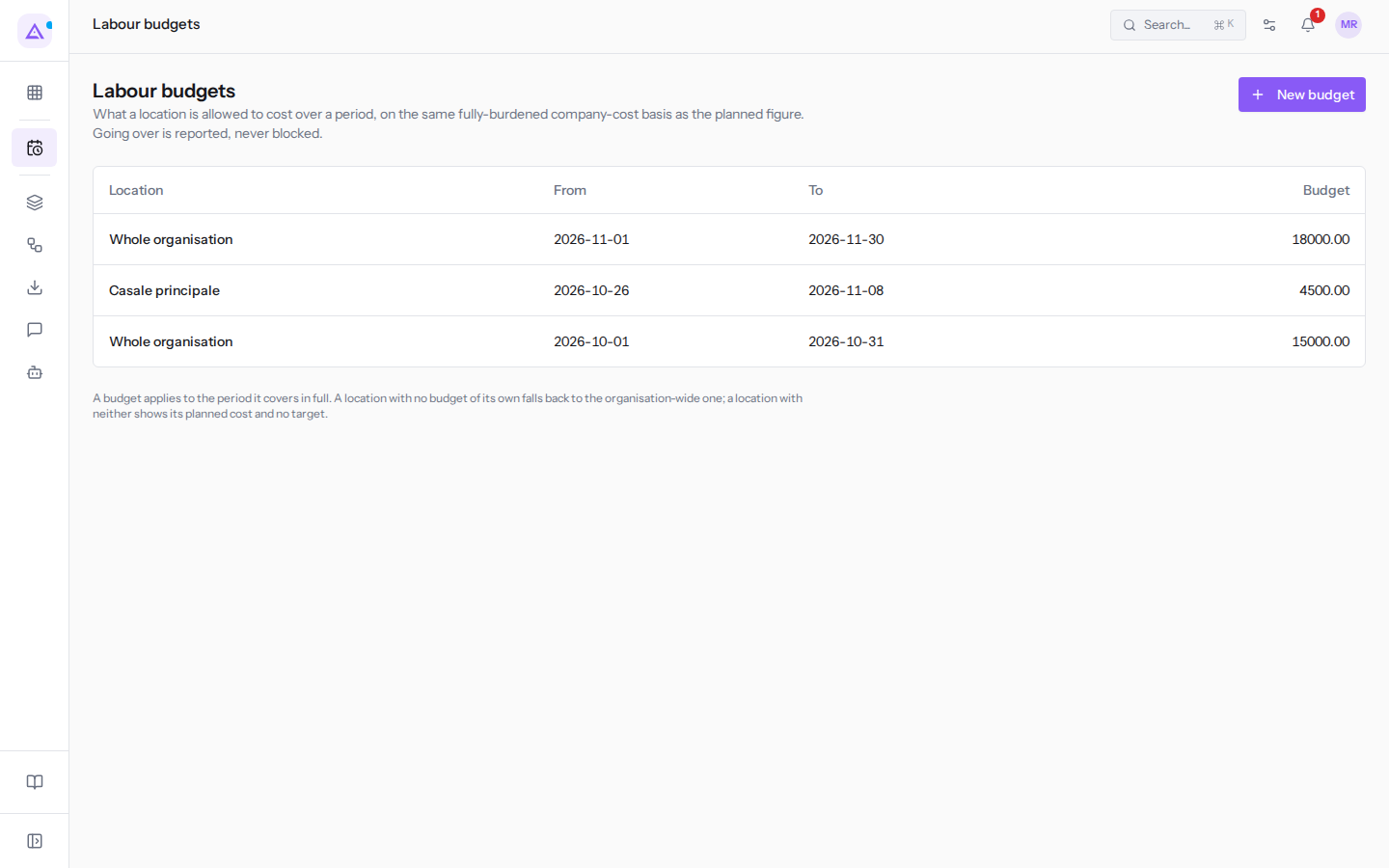
The Labour budgets page lists the budgets, with location, start date, end date and amount. For example, there are three budgets:
- Whole organisation for all of October, for
15000.00; - Whole organisation for all of November, for
18000.00; - Casale principale from Monday 26 October to Sunday 8 November, for
4500.00.
If there are no budgets, the page shows "No budgets yet. Add one to measure a week against a target."
To create a budget:
- Open Shifts › Settings › Labour budgets.
- Click New budget. The New budget window opens.
- Fill in the fields and click Create.
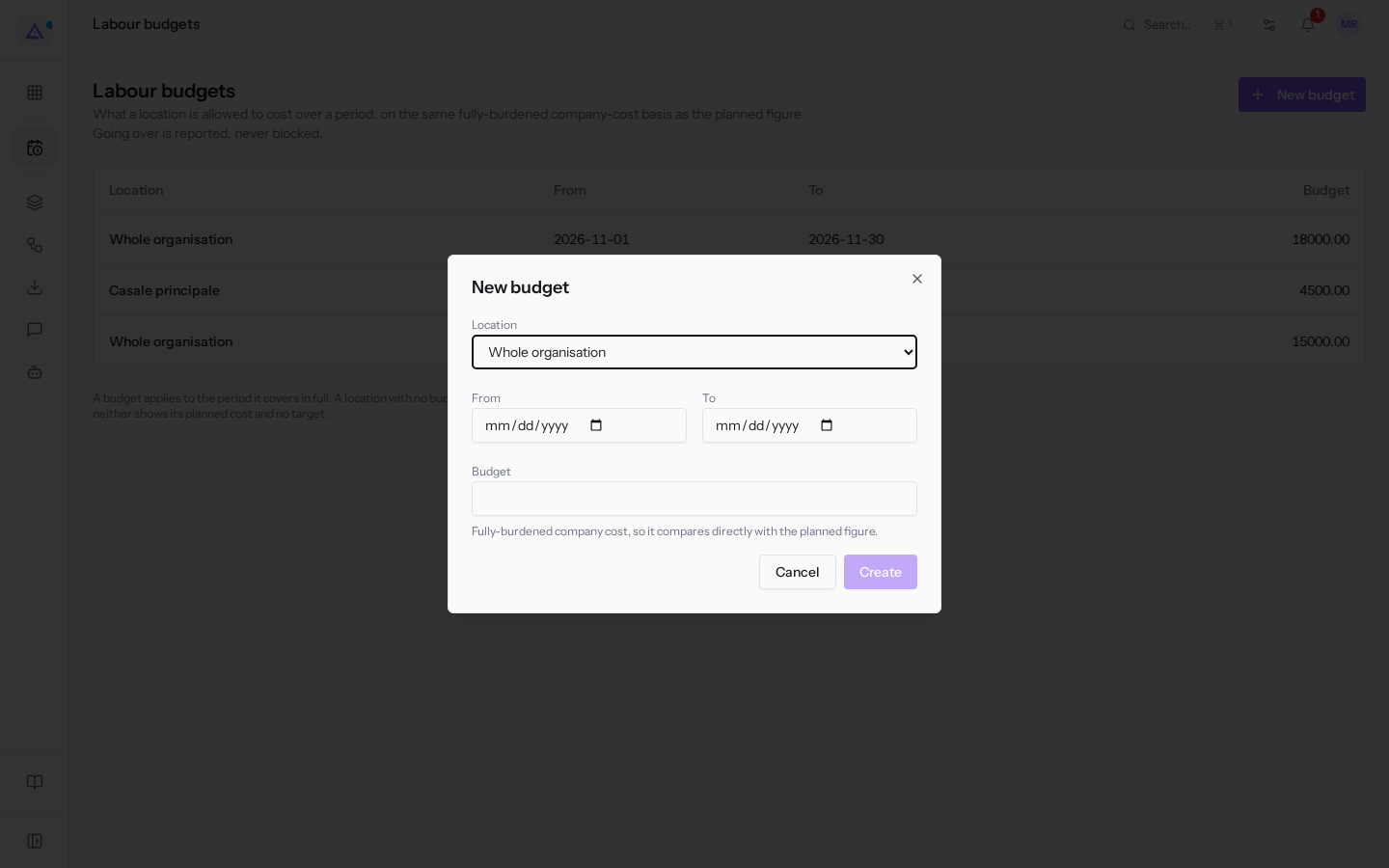
The window contains these fields:
- Location: where the budget applies. The initial value is Whole organisation.
- Whole organisation: the budget applies to all locations that do not have their own budget.
- Casale principale, Fienile: the budget applies only to that location.
- From: the first day of the period.
- To: the last day of the period. If it is before From, "The period ends before it starts. Check the two dates." appears.
- Budget: the maximum amount for the period. It represents the fully loaded company cost, so it can be compared directly with the planned amount.
To close the window without creating the budget, click Cancel.
Reading a budget detail
The detail compares the cost of planned shifts in the period with the budget amount. To open it, click a row in the Labour budgets list. To return to the list, click Back to budgets.
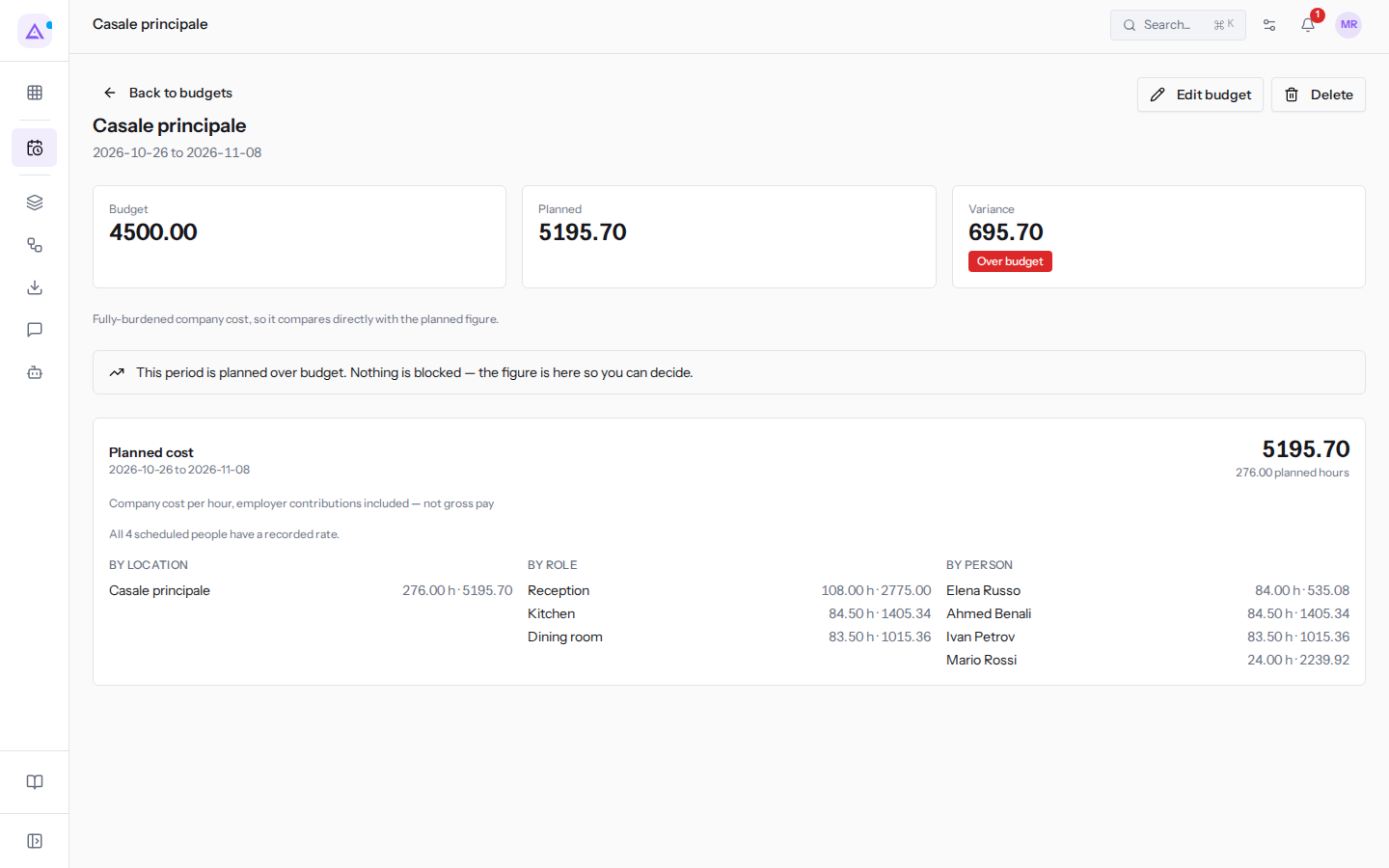
At the top are the location, the period, and these values:
- Budget: the budget amount.
- Planned: the company cost of planned shifts in the period.
- Variance: the difference between Planned and Budget. A negative value means the planned cost is under budget. A positive value shows by how much the planned cost exceeds the budget.
- The period status:
- Within budget: the planned cost does not exceed the budget. For example, Whole organisation in November has a budget of
18000.00and a much lower planned cost. - Over budget: the planned cost exceeds the budget. For example, Casale principale from Monday 26 October to Sunday 8 November has a budget of
4500.00, a planned cost of5195.70and a variance of695.70. The page shows the warning "This period is planned over budget. Nothing is blocked — the figure is here so you can decide."
- Within budget: the planned cost does not exceed the budget. For example, Whole organisation in November has a budget of
Note: a closed period retains the cost recorded at the time of closing.
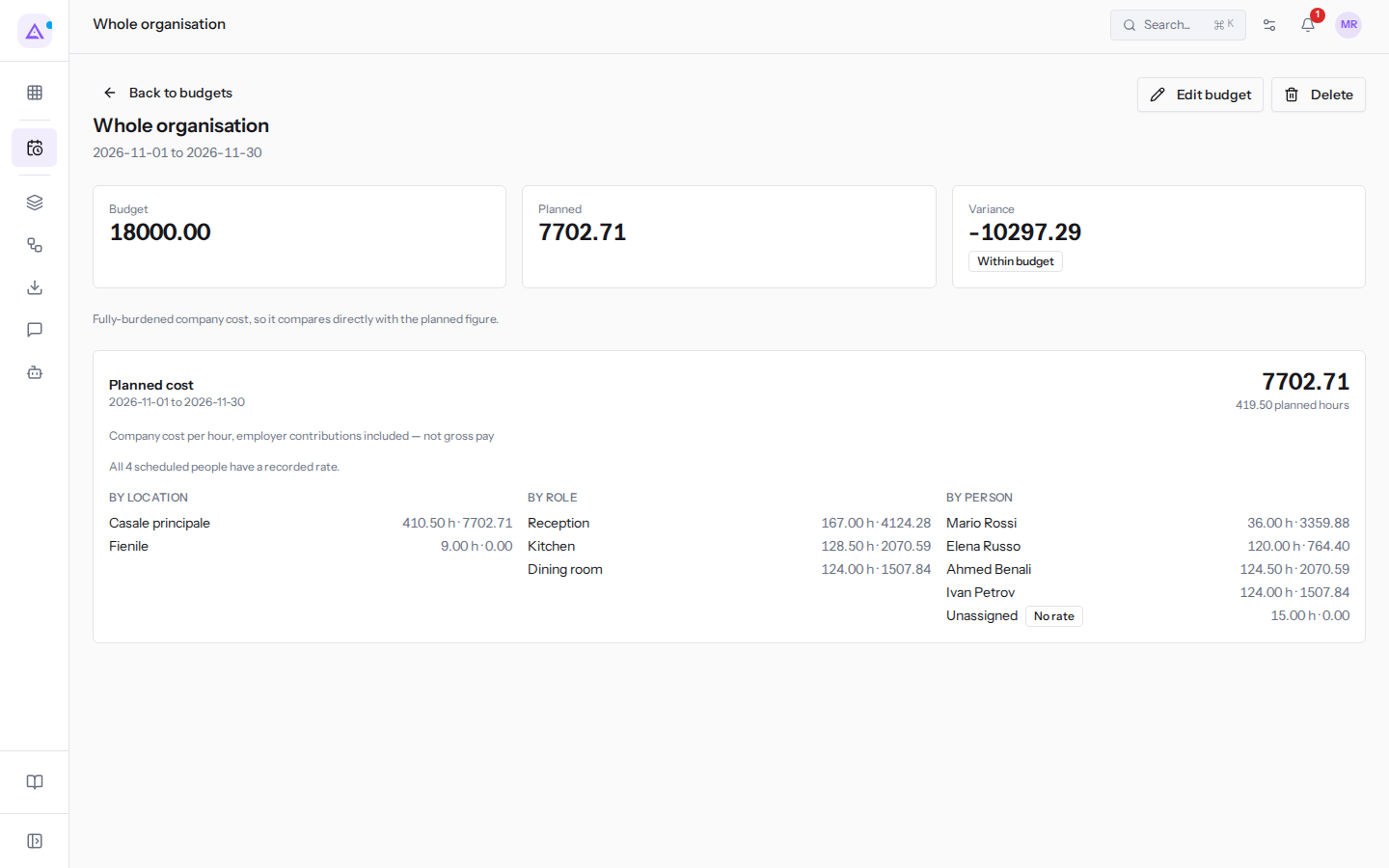
The Planned cost panel breaks down the period cost and shows the total planned hours.
- By location: the cost of each location.
- By role: the cost of each role, for example Dining room, Kitchen or Reception.
- By person: the cost of each planned person. If a person has no hourly rate, No rate appears. Open shifts are grouped in the Unassigned row, with no cost.
Below the panel, a sentence indicates whether the rates are complete:
- "All 4 scheduled people have a recorded rate.": the amount includes all people planned in the period.
- a sentence stating how many planned people, out of the total, have no recorded rate and that the amount is incomplete: in this case the planned cost is lower than the actual cost.
Editing or deleting a budget
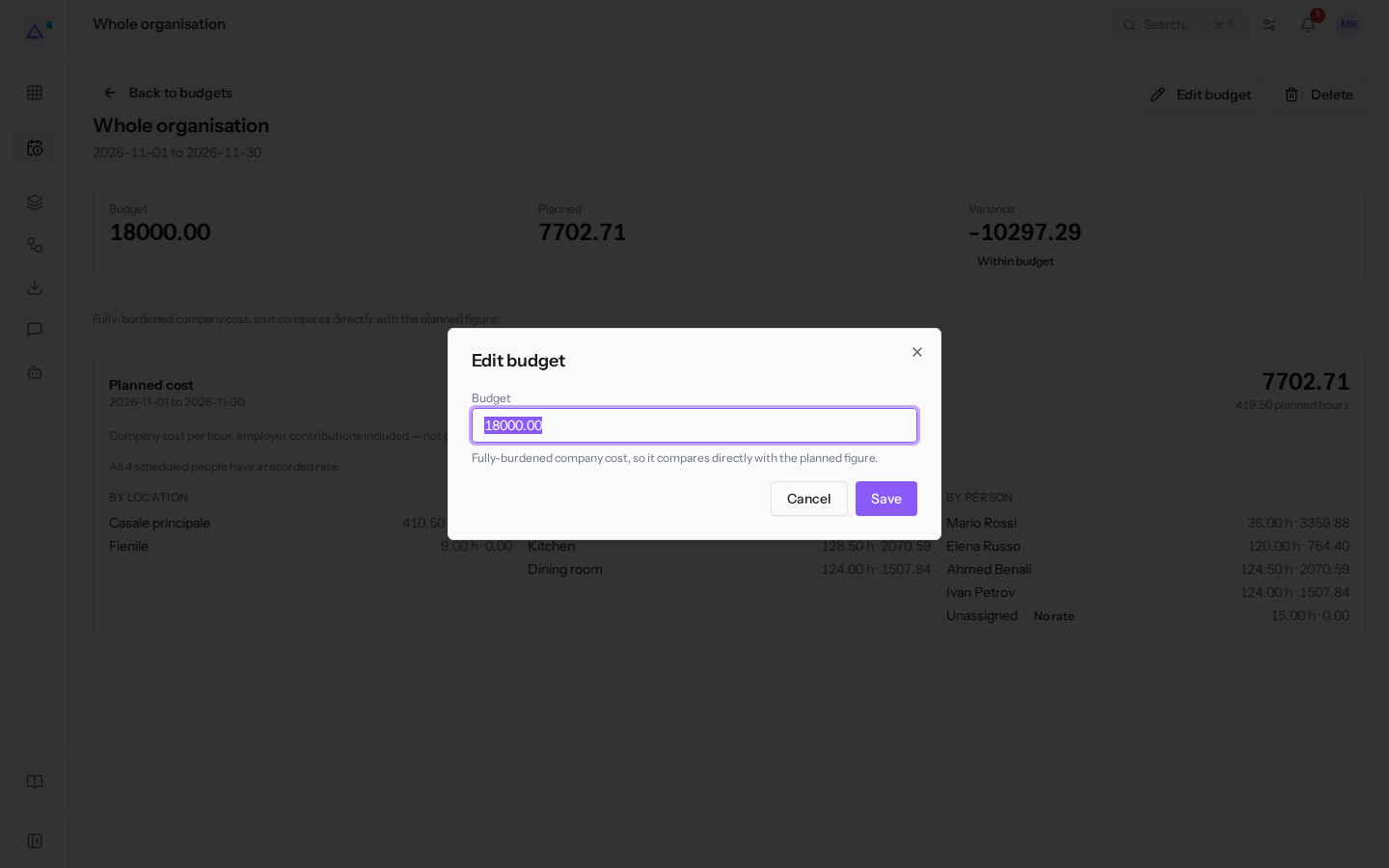
For an existing budget you can only change the amount. The location and period remain as chosen when the budget was created.
- Open Shifts › Settings › Labour budgets and click the budget.
- Click Edit budget.
- In the Budget field, enter the new amount, for example
18000.00. - Click Save.
To delete a budget, open its detail and click Delete. If you want to change the location or period, delete the budget and create a new one with New budget.
Important: the budget is deleted immediately, without a confirmation prompt.
See it on your company, not on a slide deck.
In 30 minutes we map the software you use today.We show you how much work and how much margin Archimedes gives back.
Show me on my business →What industry are you in?
One tap — it lets us prepare the demo around your world.
What tools do you use today?
Pick the ones you recognise — or just type them. It helps us show you how they migrate.
Last step: your details.
We reply within one working day — and right after, if you like, you pick the demo slot yourself.
We couldn't send your request. Try again, or write to us at [email protected].
By sending, you agree to your data being processed so we can get back to you about the demo. Privacy notice.
Preview form — nothing is sent from this page.
Want to schedule the demo now?
Your call: book the slot you prefer yourself, or we'll call you to arrange it.
Live availability, 30 minutes, instant confirmation. The calendar opens in a new tab.
Lock in your slot ↗We'll get back to you within one working day — and we'll join the call already knowing your world.
The calendar is open in another tab: pick a slot and the demo is booked. Can't see it? Reopen it ↗
Preview page: nothing was sent.
Our calendar is live: take the slot that suits you and the demo is booked. 30 minutes, instant confirmation, no waiting.
Lock in your slot ↗