Shifts
All modules
Define staffing requirements and check coverage
Shifts · 7 of 16 · 8 min read
Staffing requirements say how many people of a role you need in each band of the day, per location and per day. You define them once as a weekly norm and adjust them for a single date with an exception, for example for a dinner with more covers, an event in a dining room, or a day when the kitchen is closed. Shift planning then compares the shifts with the requirements and shows which bands are short.
How requirements work
Requirements have two levels.
- Weekly norm: «How the week normally runs. One target per weekday, role and band.» It applies to every week.
- Dated exceptions: they apply to a single date and replace the norm on that date only. An exception never changes the norm.
Choose the level by how long the change lasts:
- If a band always needs the same number of people on a given weekday, create a target in the weekly norm.
- If one date needs more or fewer people than usual, create an exception for that date. For example, the Dinner band of Dining room normally needs 2 people, and 3 on Saturday 31 October.
- If a band needs nobody on a date, create an exception with zero people. For example, the Lunch band of Kitchen on Monday 2 November, the day the kitchen is closed.
Choosing between the whole organisation and a location
The filter at the top of the page sets who the requirements you see and create are for: the Whole organisation or a location, for example Fienile.
- A location's target is measured only against that location's plan.
- A whole-organisation target is measured against every location.
If the requirement applies to one place only, for example the Event band of Dining room on Saturdays in the Fienile, create it on that location. If it applies to the whole organisation, create it with Whole organisation.
- Open Shifts › Team › Coverage. The Coverage targets page opens.
- In the filter at the top, choose Whole organisation or a location.
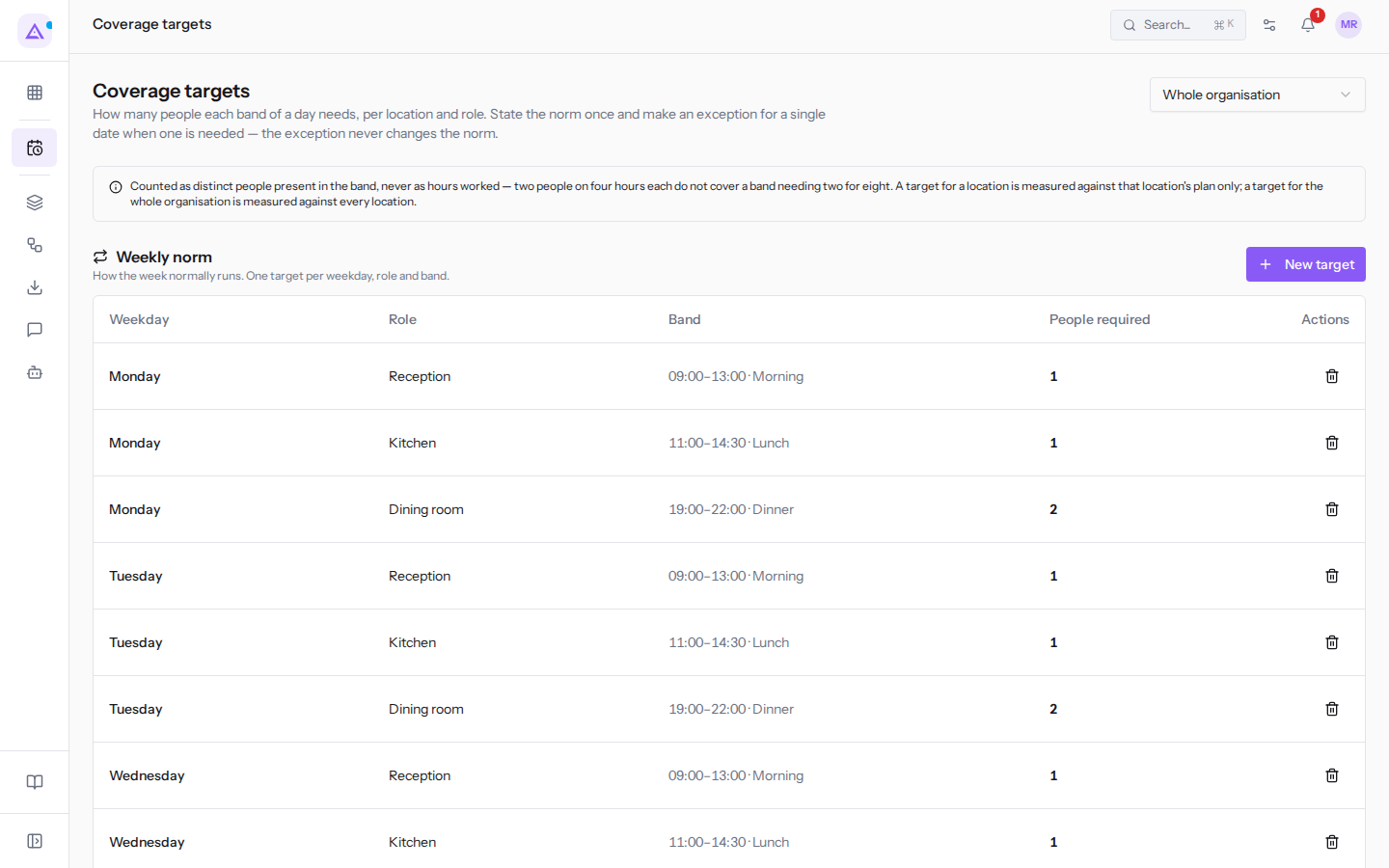
If the chosen location has no requirements, the Weekly norm section shows «No target stated yet. Until one is, "understaffed" is a feeling rather than a fact.»
Defining the weekly norm
The Weekly norm section lists the recurring targets of the chosen location, with the columns Weekday, Role, Band, People required and Actions.
Note: you need at least one active role, see Configure shift roles and templates. Without roles the New target and New exception buttons are disabled and the page shows «Create a shift role first — a target says how many people of a given role a band needs.»
- In Shifts › Team › Coverage, choose the location in the filter at the top.
- In the Weekly norm section, click New target. The Weekly target dialog opens.
- Fill in the fields and click Save. To leave without saving, click Cancel.
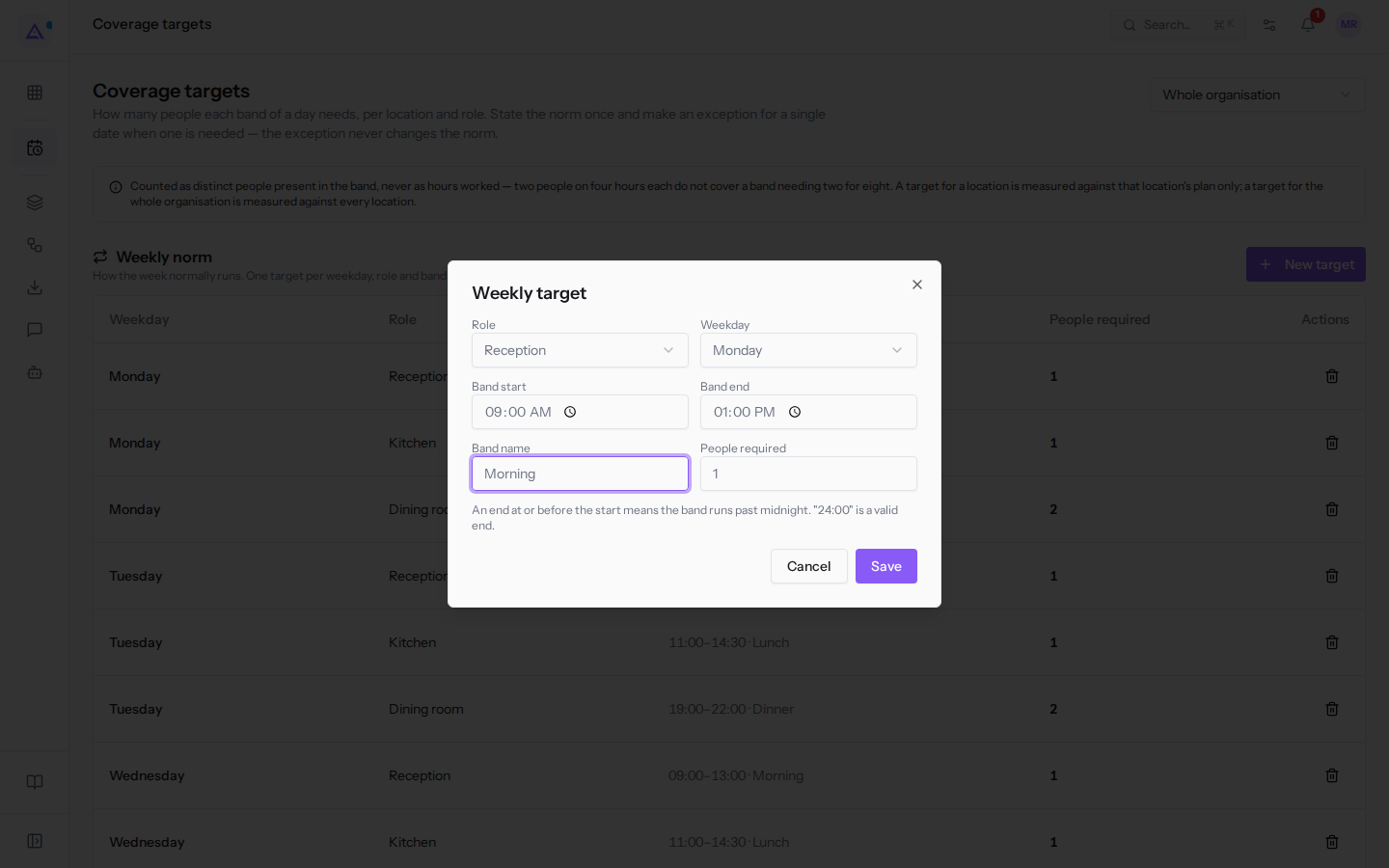
These are the fields of the dialog:
- Role: the role that has to cover the band. The field shows Pick a role until you choose one. It lists the active roles, for example Dining room, Kitchen and Reception; a retired role does not appear.
- Weekday: the day the target applies to. The options are Monday, Tuesday, Wednesday, Thursday, Friday, Saturday and Sunday.
- Band start: the time the band starts. The suggested value is 18:00.
- Band end: the time the band ends. An end at or before the start means the band runs past midnight. "24:00" is a valid end.
- Band name: the name the band shows under in the norm and in the coverage on the planning.
- People required: how many people of that role the band needs. The starting value is 1.
For example, the morning reception is Reception, band Morning from 09:00 to 13:00, with 1 person required; dinner in the dining room needs 2 people of Dining room from 19:00 to 22:00. At the Fienile location on Saturdays, the Event band needs 3 people of Dining room from 18:00 to 23:30.
Deleting a target from the norm
You delete a target of the norm from its row.
- In the Weekly norm section, click the bin icon in the row you want to delete.
- Confirm the message «Remove this weekly target? Every date it covered will have no target.»
Important: after you delete it, the dates that target covered have no requirement for that band.
Adding an exception for a date
The Dated exceptions section lists the dates when the requirement differs from the norm. If there are no exceptions, the section shows «No dated exception. Every date follows the weekly norm.»
- In Shifts › Team › Coverage, choose the location in the filter at the top.
- In the Dated exceptions section, click New exception. The Exception for one date dialog opens.
- Fill in the fields and click Save.
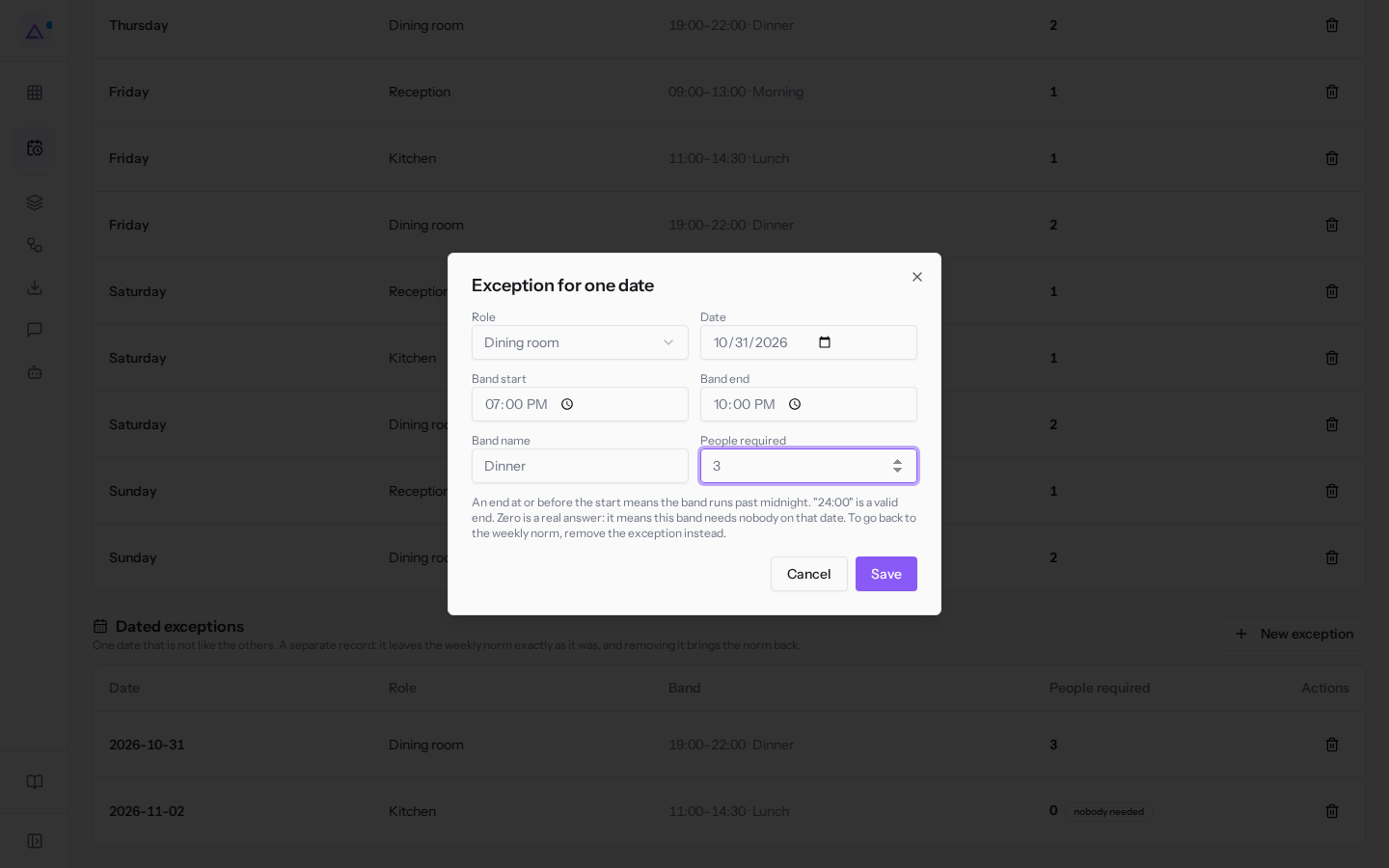
The fields are the same as for the weekly target, with a date instead of the weekday:
- Role: the role that has to cover the band, chosen from the active roles.
- Date: the date the exception applies to.
- Band start and Band end: the times of the band. An end at or before the start means the band runs past midnight.
- Band name: the name of the band.
- People required: how many people you need on that date.
Note: zero is a valid value and shows in the list as nobody needed. «Zero is a real answer: it means this band needs nobody on that date. To go back to the weekly norm, remove the exception instead.»
For example, on Saturday 31 October the Dinner band of Dining room needs 3 people instead of 2, and on Monday 2 November the Lunch band of Kitchen needs 0 people (nobody needed).
Deleting an exception
Deleting an exception brings the date back to the weekly norm.
- In the Dated exceptions section, click the bin icon in the row you want to delete.
- Confirm the message «Remove this exception? The date goes back to following the weekly norm.»
Checking coverage in the planning
In Shifts › Planning coverage shows in two places: the Coverage box above the grid, with the summary of the week, and the Planned against target rows at the bottom of the grid, with the detail day by day. To read the grid, see Reading the week's schedule.
- Open Shifts › Planning.
- In the location filter, choose All locations or a location, for example Casale principale.
- Read the Coverage box above the grid, then scroll down to the Planned against target rows at the bottom of the grid.
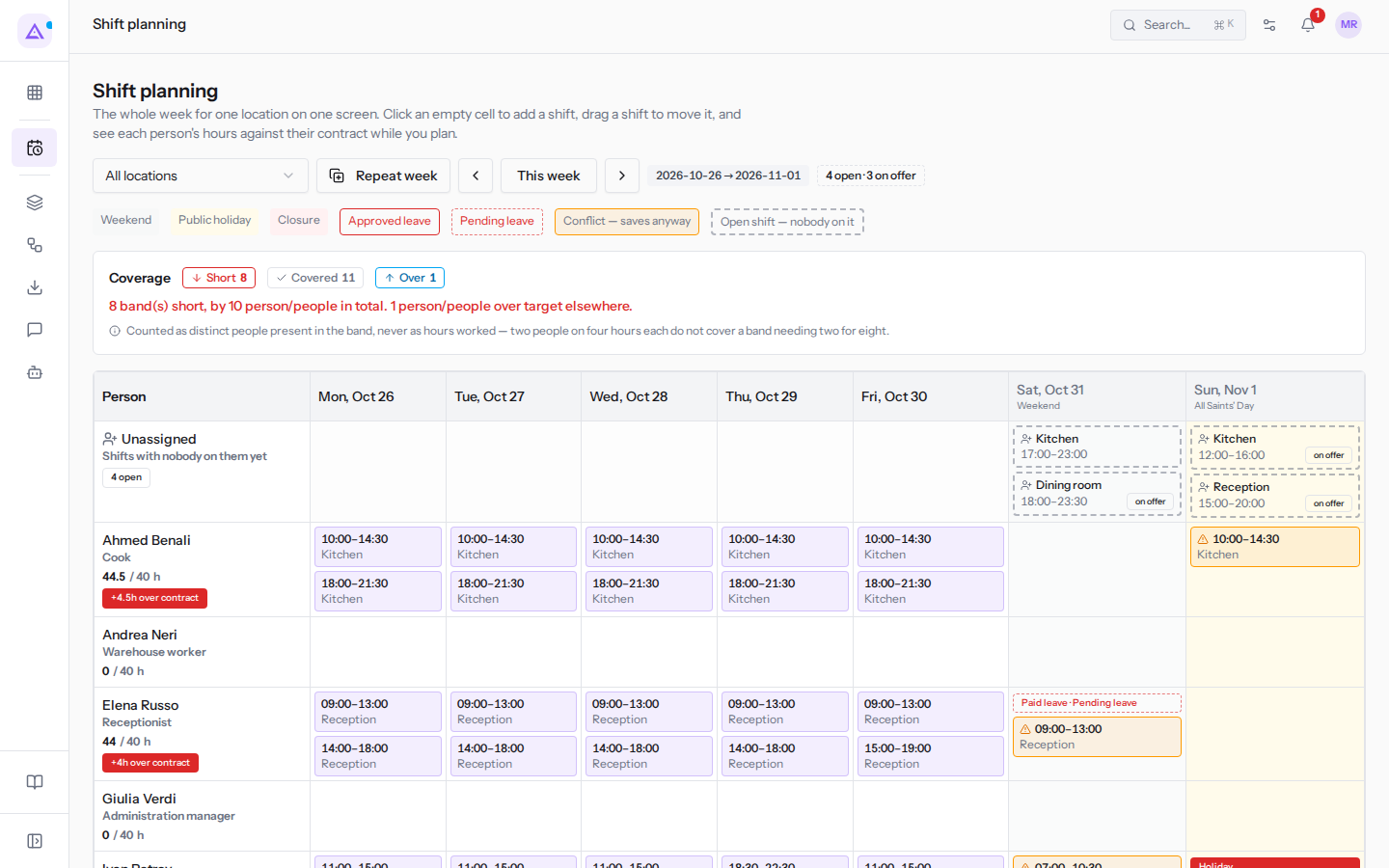
The Coverage box sums up the week:
- the Short, Covered and Over counters, with the number of bands in each state;
- how many bands are short and how many people are missing in total;
- how many people are over target in other bands;
- how many bands are covered by people who do not span the whole band;
- if everything is covered, «Every one of the … band(s) with a target is covered.», with the number of bands.
If the week has no requirements, the box shows «No target is stated for this period, so there is nothing to be short of.» when you have chosen a location, or «No organisation-wide target is stated. Pick a location to see the targets stated for it.» with All locations.
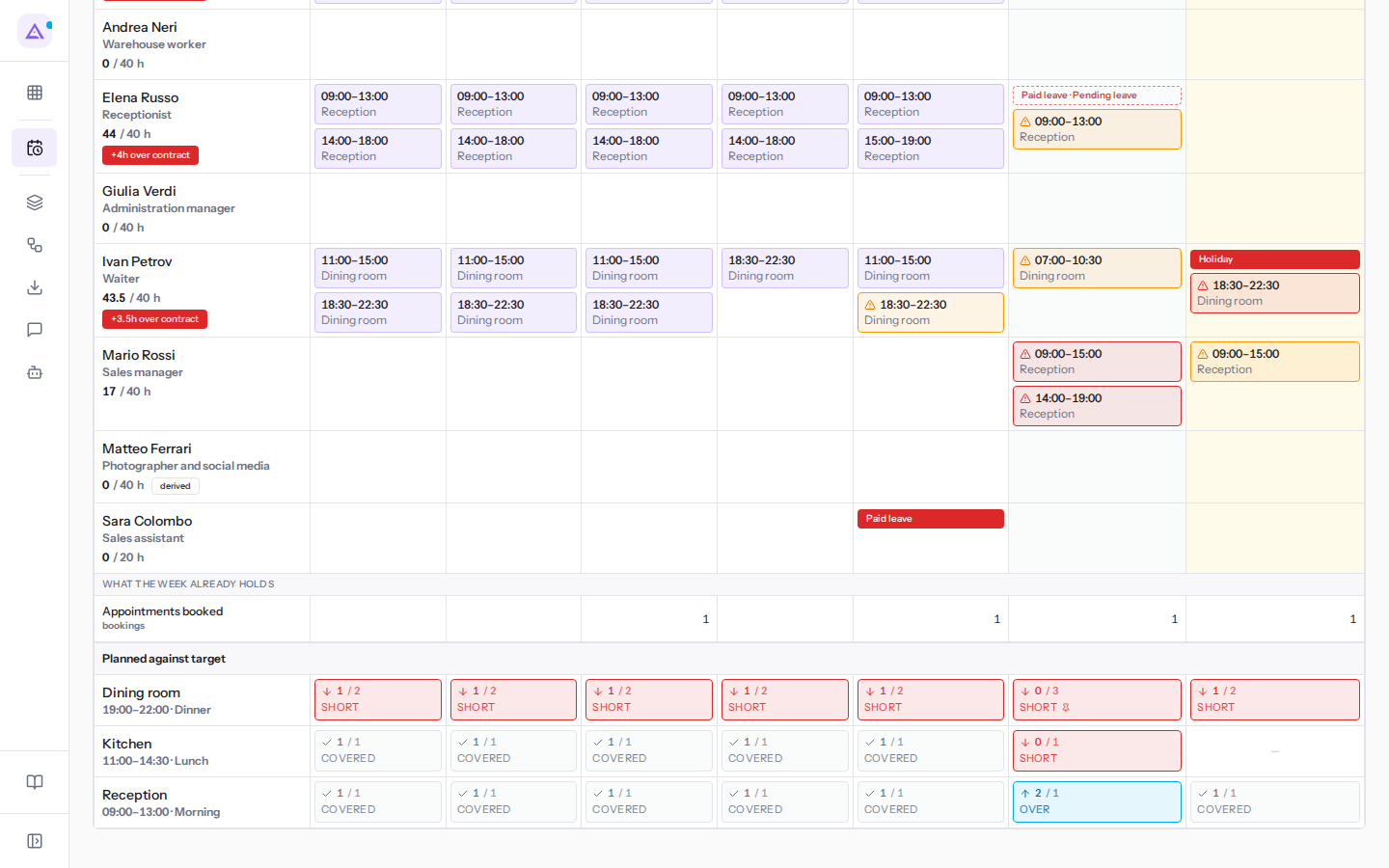
At the bottom of the grid there is one row for each role and band with a requirement, for example Dining room 19:00–22:00 · Dinner, and one cell for each day; a day without a requirement shows «—». Each cell shows the people planned and the people required, for example 0 / 1 or 1 / 2, and a state:
- Short: fewer people are planned than required. Hover over the cell to see how many are missing, in the form «Dining room, 19:00–22:00 · Dinner: 1 planned against 2 required — short by 1.»
- Covered: as many people are planned as required. The detail ends with «— covered.»
- Over: more people are planned than required. The detail says how many are over.
Other marks on the cells:
- If a person who is counted covers only part of the band, an asterisk (*) appears next to the state; hover over it to read «Somebody counted here does not cover the whole band.»
- If the requirement for that date comes from an exception, a pin icon appears next to the state; hover over it to read «From a dated exception, not the weekly norm.»
Important: coverage counts the distinct people present in the band, not the hours. A band that needs two people for eight hours is not covered by two people on four hours each.
Note: a short band does not stop you publishing the shifts. See Publishing shifts to staff.
See it on your company, not on a slide deck.
In 30 minutes we map the software you use today.We show you how much work and how much margin Archimedes gives back.
Show me on my business →What industry are you in?
One tap — it lets us prepare the demo around your world.
What tools do you use today?
Pick the ones you recognise — or just type them. It helps us show you how they migrate.
Last step: your details.
We reply within one working day — and right after, if you like, you pick the demo slot yourself.
We couldn't send your request. Try again, or write to us at [email protected].
By sending, you agree to your data being processed so we can get back to you about the demo. Privacy notice.
Preview form — nothing is sent from this page.
Want to schedule the demo now?
Your call: book the slot you prefer yourself, or we'll call you to arrange it.
Live availability, 30 minutes, instant confirmation. The calendar opens in a new tab.
Lock in your slot ↗We'll get back to you within one working day — and we'll join the call already knowing your world.
The calendar is open in another tab: pick a slot and the demo is booked. Can't see it? Reopen it ↗
Preview page: nothing was sent.
Our calendar is live: take the slot that suits you and the demo is booked. 30 minutes, instant confirmation, no waiting.
Lock in your slot ↗