Shifts
All modules
Taking an open shift from the board
Shifts · 11 of 16 · 4 min read
The Open shifts board shows the shifts the organisation has offered to staff for the week. From here you take a shift that still has no one assigned — for example, table service at a gala dinner, brunch, or guest departure.
How the board works
An open shift is a shift with no assigned person. It appears on the board only if the planner has offered it to staff using the Offer this shift to staff option. A shift released through an approved drop request also returns to the board.
- If you take a shift, the shift is assigned to you. The plan updates immediately for everyone and the shift disappears from the board.
- If two people press the button on the same shift, only the first one takes it. The second receives a refusal.
- A shift you cannot take because you are already working at that time remains on the board, with the reason alongside it.
The board does not show:
- open shifts that have not been offered to staff;
- shifts for a role that, according to the organisation, you do not cover. For example, Mario Rossi does not see kitchen shifts. If nothing is specified for a person on a role, shifts for that role appear.
Note: taking an open shift is refused if it overlaps with a shift you already have in the week or if you have an approved absence on that day. Insufficient rest, closures, absences pending approval, and hours beyond the contract do not prevent taking the shift.
Opening the board and choosing the week
The board opens on the current week.
- Go to Shifts › Team › Open shifts.
- Use the arrows at the top right to move to the previous or next week. Next to the arrows you can see the dates of the week shown.
Note: the Shifts menu only appears to users with the Shift Planner or Shift Manager group. Without this group, open the board from its address, /shift/open.
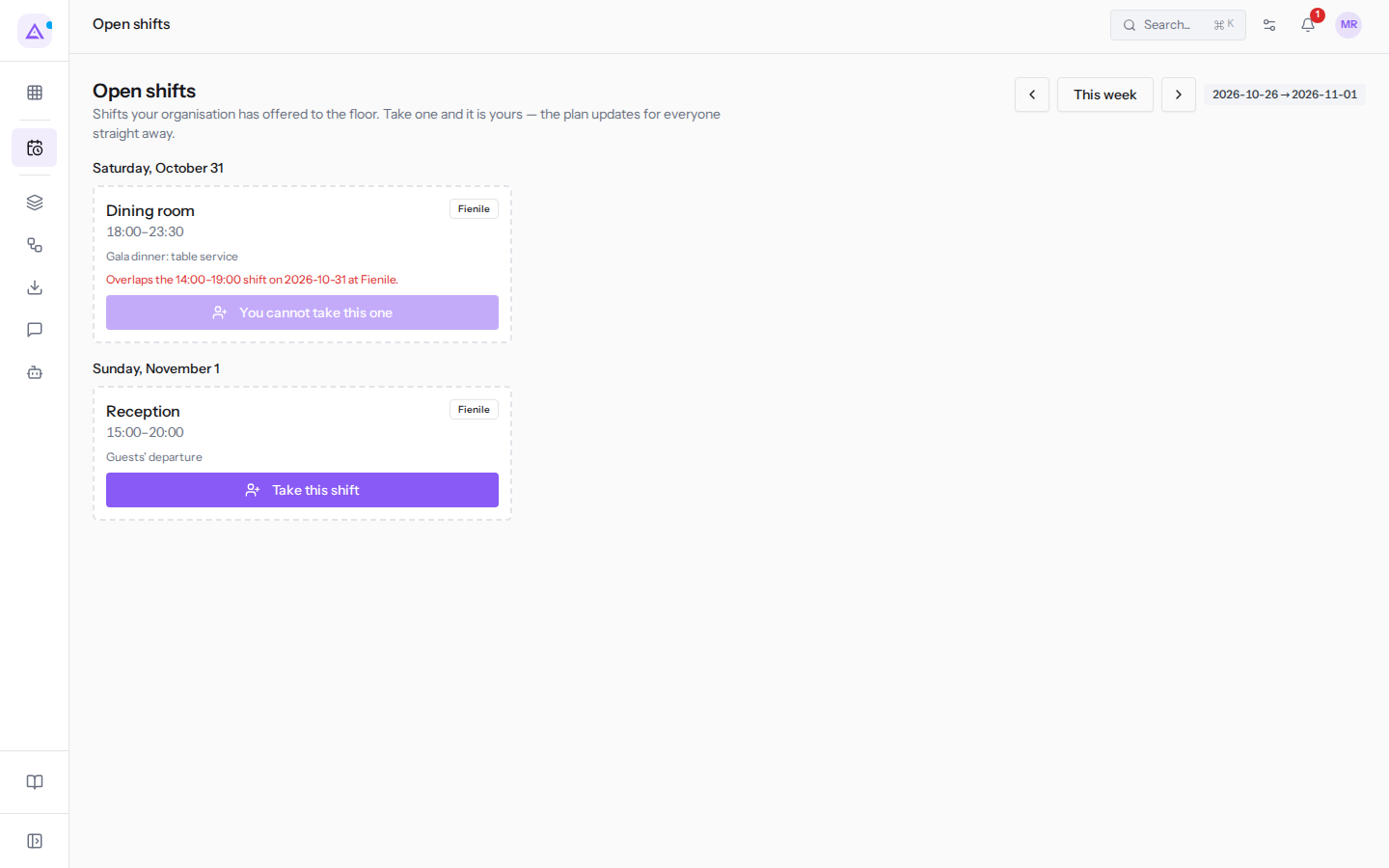
Shifts are grouped by day, for example Saturday, October 31 and Sunday, November 1, in order of date and start time. Each shift shows the role, time, location, and notes. The date is in the day's heading.
If there are no offered shifts in the week, the board shows Nothing on offer this week.
Taking a shift
Below each shift you can take there is the Take this shift button.
- Open the week of the shift.
- Click Take this shift below the shift you want.
- The message The shift is yours. appears and the shift disappears from the board.
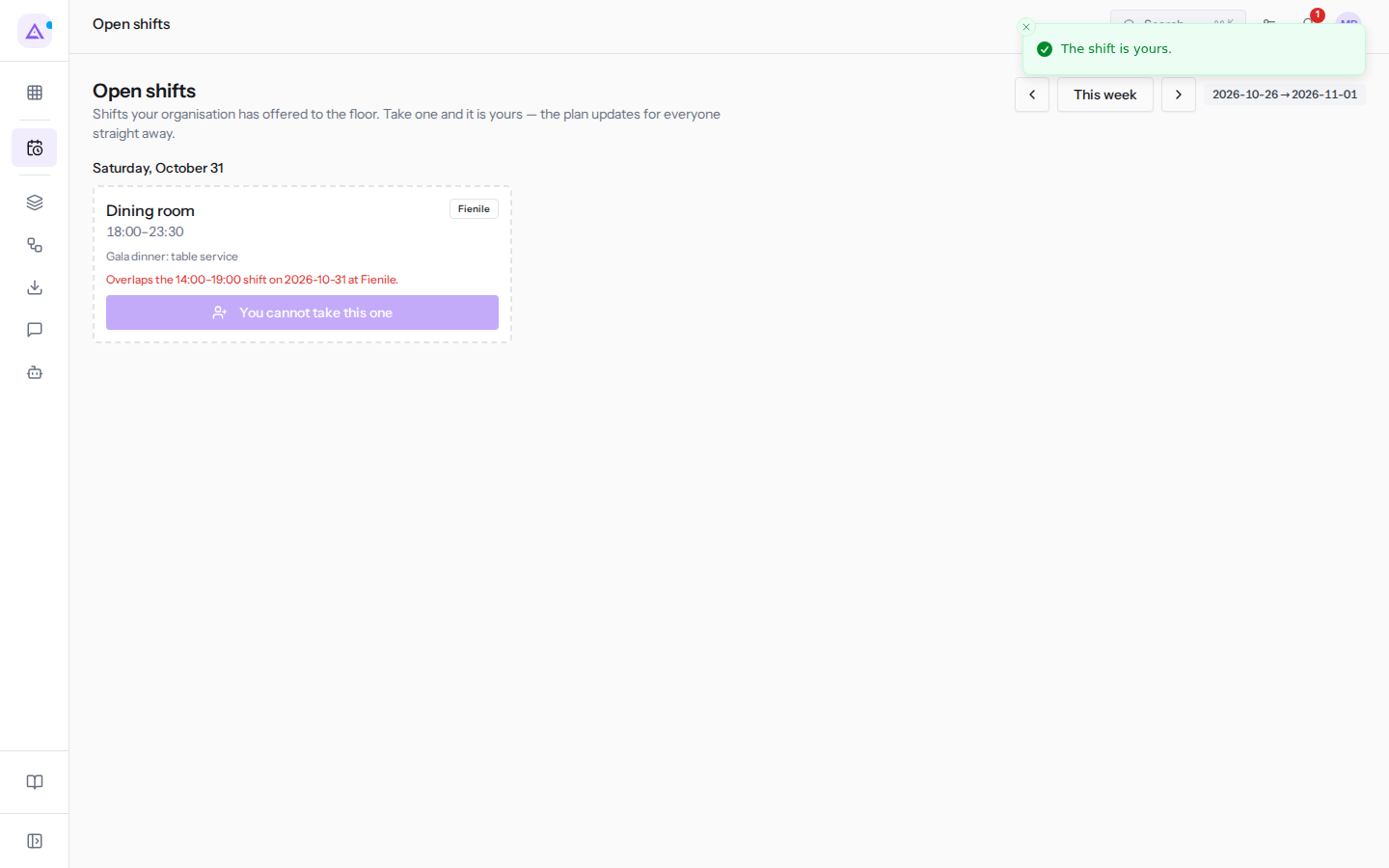
For example, Mario Rossi takes Sunday's guest departure shift. After taking it, only Saturday's shift remains on the board.
When you cannot take a shift
If a shift overlaps with one of your shifts or falls on a day with an approved absence, the button becomes You cannot take this one and cannot be pressed. Above the button the reason appears: for an overlap, the time, day, and location of the shift you already have.
For example, for Mario Rossi the Saturday table service overlaps with his 14:00–19:00 shift at Fienile.
If you try to take a shift and it does not go through, one of these messages appears:
- Somebody else has already taken this shift.: someone else took the shift before you.
- This shift is not on offer.: the shift is no longer offered to staff.
- You are recorded as not covering this role.: the organisation has indicated that you do not cover the shift's role.
- You cannot take this shift: it clashes with something already on your week.: you already have a shift at the same time or an approved absence on that day.
- Only an employee can take a shift.: your login is not linked to an employee record.
- The shift could not be taken.: the action did not succeed.
Important: a refused take does not change the plan. The shift manager can still assign the shift to you from the planning grid: in that case the conflict is flagged and recorded, but it does not block saving.
Login not linked to an employee record
Only an employee can take a shift. If your login is not linked to an employee record in the Human Resources module, the board shows This login is not linked to an employee record, so there is nothing on offer to it.
Ask an administrator to link your login to your employee record.
See it on your company, not on a slide deck.
In 30 minutes we map the software you use today.We show you how much work and how much margin Archimedes gives back.
Show me on my business →What industry are you in?
One tap — it lets us prepare the demo around your world.
What tools do you use today?
Pick the ones you recognise — or just type them. It helps us show you how they migrate.
Last step: your details.
We reply within one working day — and right after, if you like, you pick the demo slot yourself.
We couldn't send your request. Try again, or write to us at [email protected].
By sending, you agree to your data being processed so we can get back to you about the demo. Privacy notice.
Preview form — nothing is sent from this page.
Want to schedule the demo now?
Your call: book the slot you prefer yourself, or we'll call you to arrange it.
Live availability, 30 minutes, instant confirmation. The calendar opens in a new tab.
Lock in your slot ↗We'll get back to you within one working day — and we'll join the call already knowing your world.
The calendar is open in another tab: pick a slot and the demo is booked. Can't see it? Reopen it ↗
Preview page: nothing was sent.
Our calendar is live: take the slot that suits you and the demo is booked. 30 minutes, instant confirmation, no waiting.
Lock in your slot ↗