Shifts
All modules
Reading the week's schedule
Shifts · 2 of 16 · 5 min read
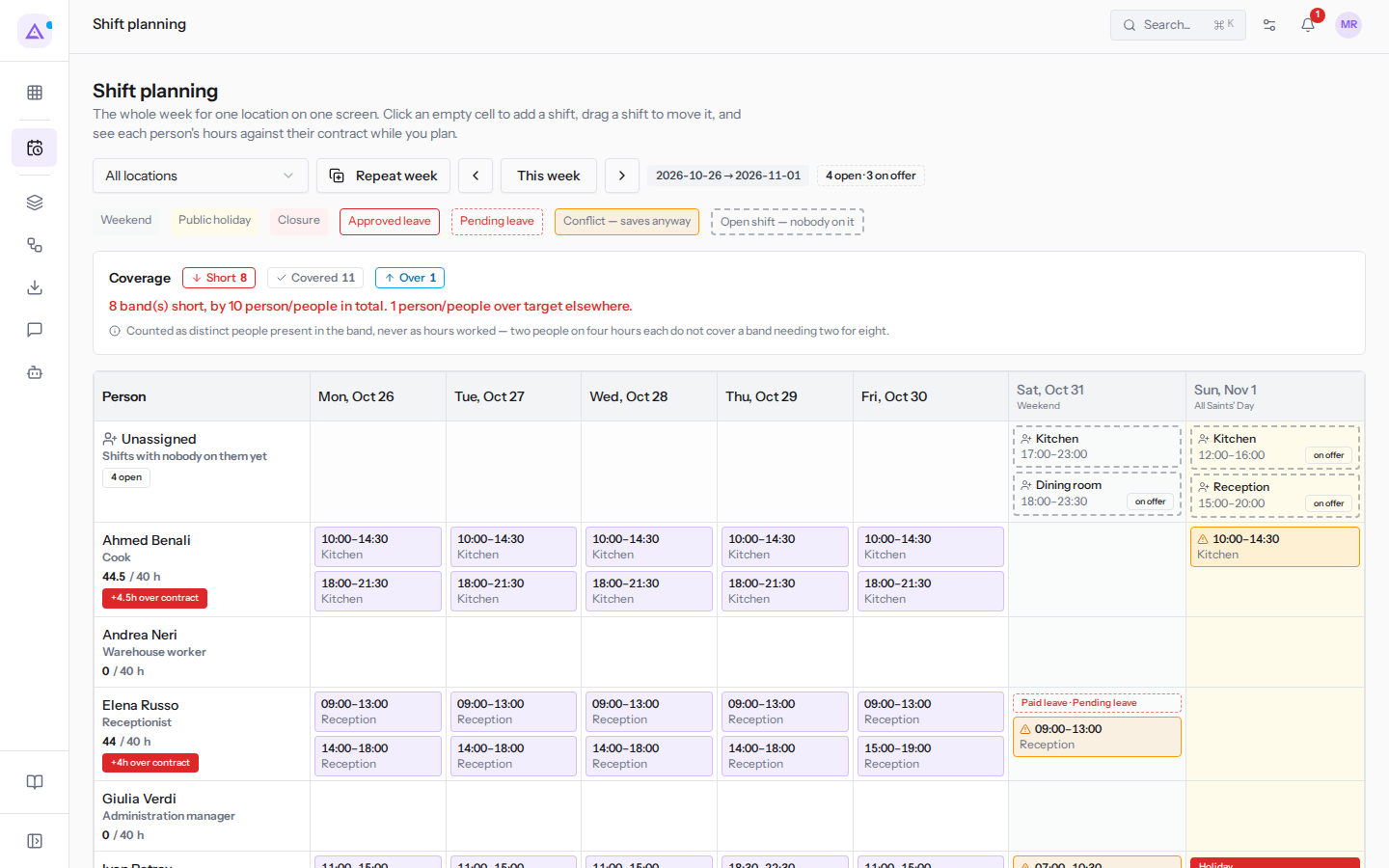
The Shift planning screen shows all the shifts of a week in a single grid: who works, on which days, at what times, in which role and at which location. You use it, for example, to check the week in the dining room and the kitchen, the weekend reception, or the staff for a dinner in the Fienile.
Opening the schedule
The grid opens on the current week, for all locations.
- Open Shifts › Planning.
- Read the grid: one row for each person, in the Person column, and one column for each day of the week.
The rows are the active employees of the Employees module. A login that is not linked to an employee record has no shifts.
Each shift in a cell shows the time and the role, for example 10:00–14:30 Kitchen or 09:00–13:00 Reception. Ahmed Benali has a split shift in the kitchen, with 10:00–14:30 Kitchen and 18:00–21:30 Kitchen on the same day.
Note: the grid shows the current plan, which stays a draft until you publish it. Published rota shows only the published plan.
Changing the week
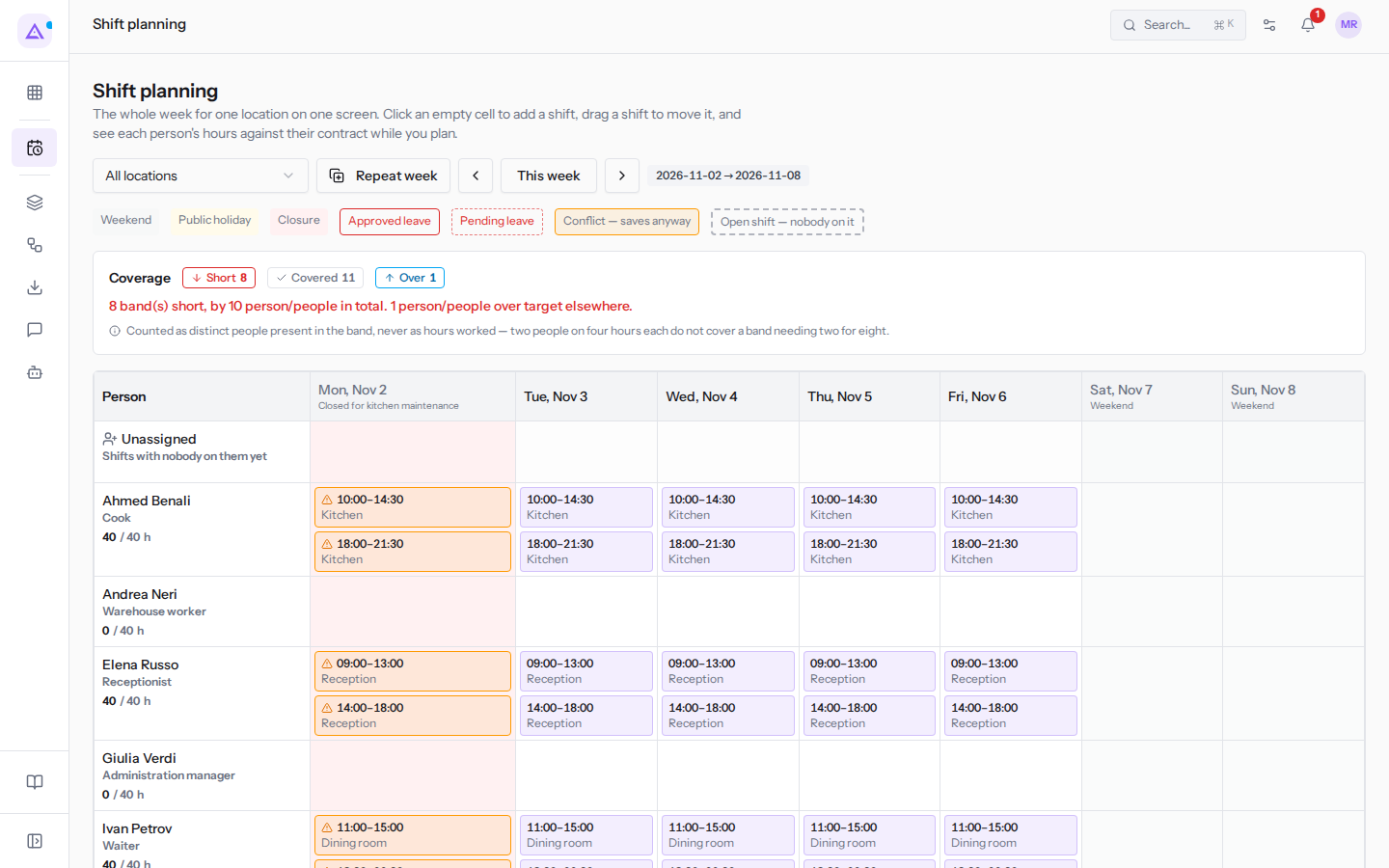
Three buttons above the grid move the view one week at a time.
- The ‹ arrow: opens the week before the one shown.
- This week: brings the grid back to the current week.
- The › arrow: opens the week after the one shown.
The week runs from Monday to Sunday.
Filtering by location
The location filter limits the grid to the shifts of one location.
- Open the All locations menu above the grid.
- Choose a location, for example Casale principale.
- All locations: shows the shifts of every location, for example Casale principale and Fienile.
- A single location: shows only the shifts of that location. With Casale principale the grid shows the usual week at Casale principale, without the Fienile shifts.
If you want to check one location, choose that location. If you want to see all the work of each person, leave All locations.
Note: overlaps and hours over the contract are always calculated across all locations, even when the filter shows a single location.
Each person's hours
Under the person's name the grid shows the week's hours, for example 44.5 / 40 h: the planned hours and the contracted hours. This way you check each person's hours against their contract while you plan.
- Contracted hours: they come from the person's working schedule in the Employees module. The week for contracted hours runs from Monday to Sunday.
- derived: this badge appears when the person has no working schedule assigned. The explanation reads: «No working schedule is assigned to this person, so the contractual hours are derived from their contract or the organisation default.»
- +4.5h over contract: this red badge appears when the hours planned in the week are more than the contracted hours. This week it shows for Ahmed Benali (+4.5h, with the Sunday lunch) and Elena Russo (+4h, with the Saturday reception).
Note: if the person's schedule comes to zero hours, no warning appears.
Shaded days
Some columns of the grid are shaded and show the reason.
- Weekend: Saturday and Sunday. The weekend is not a conflict, because Saturday is often the busiest shift.
- Public holiday: a public holiday in the calendar, for example All Saints' Day on Sunday 1 November.
- Closure: a closure day of the organisation, taken from the Calendar module. Next Monday has the «Closed for kitchen maintenance», but the grid still has shifts.
A shift on a public holiday or a closure day is a conflict, but it is saved anyway.
Absences in the cell
A person's cell shows the absences from the Employees module on that day.
- Approved leave: the absence is approved. This week Ivan Petrov has approved leave on Sunday.
- Pending leave: the absence is still waiting for a decision. The cell shows the absence type and the status, for example
Paid leave · Pending leavefor Elena Russo on Saturday.
Leave that has its first approval counts as pending leave. Draft leave and refused leave do not show as a conflict.
The Unassigned lane
At the top of the grid the Unassigned lane collects the shifts with nobody on them, with the description «Shifts with nobody on them yet».
- Each shift in the lane shows the role and the time. Shifts offered to staff are marked on offer, for example
Dining room 18:00–23:30 on offer. - Under the lane title the 4 open badge counts the open shifts of the week. At the top, next to the week's dates, the 4 open · 3 on offer badge also tells you how many are offered to staff.
This weekend the lane shows the open shifts for the gala dinner in the Fienile. To create and offer an open shift, see the article «Creating open shifts and offering them to staff».
Coverage and conflicts
Above the grid the Coverage box sums up the bands that are short, covered and over target; under the grid Planned against target compares, day by day, the people planned with the requirement, for example 0 / 1 SHORT. It is described in the article «Define staffing requirements and check coverage».
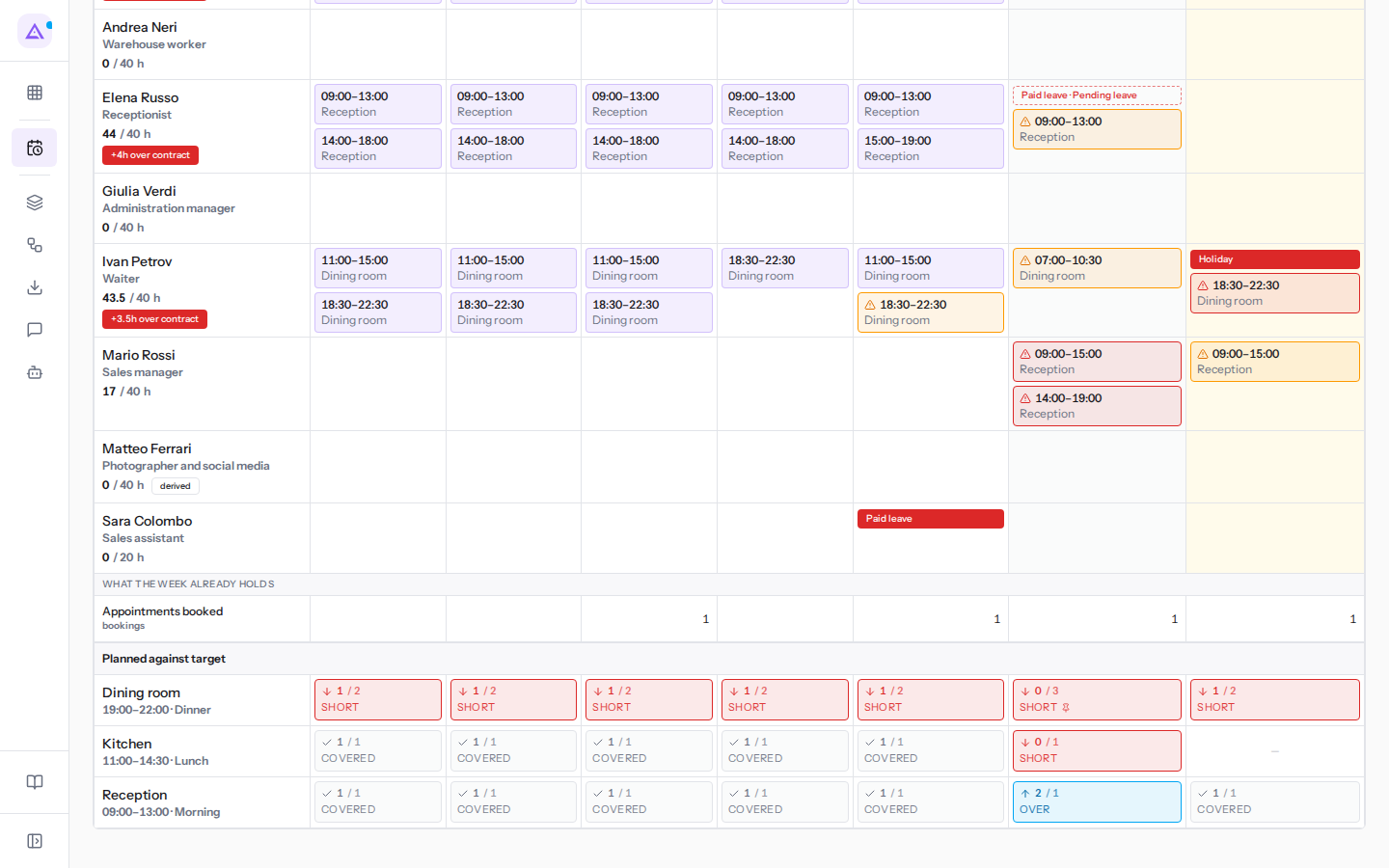
Conflicting shifts are flagged on the grid, but saving is never blocked. The kinds of conflict are described in the article «Recognising shift conflicts».
See it on your company, not on a slide deck.
In 30 minutes we map the software you use today.We show you how much work and how much margin Archimedes gives back.
Show me on my business →What industry are you in?
One tap — it lets us prepare the demo around your world.
What tools do you use today?
Pick the ones you recognise — or just type them. It helps us show you how they migrate.
Last step: your details.
We reply within one working day — and right after, if you like, you pick the demo slot yourself.
We couldn't send your request. Try again, or write to us at [email protected].
By sending, you agree to your data being processed so we can get back to you about the demo. Privacy notice.
Preview form — nothing is sent from this page.
Want to schedule the demo now?
Your call: book the slot you prefer yourself, or we'll call you to arrange it.
Live availability, 30 minutes, instant confirmation. The calendar opens in a new tab.
Lock in your slot ↗We'll get back to you within one working day — and we'll join the call already knowing your world.
The calendar is open in another tab: pick a slot and the demo is booked. Can't see it? Reopen it ↗
Preview page: nothing was sent.
Our calendar is live: take the slot that suits you and the demo is booked. 30 minutes, instant confirmation, no waiting.
Lock in your slot ↗