Shifts
All modules
Recognising shift conflicts
Shifts · 4 of 16 · 6 min read
A conflict is a problem that the data already shows on an assignment: for example, a person on leave, in two locations at the same time, or over their contracted hours. Planning flags it on the grid and in the shift dialog, before saving, and never blocks the save.
How planning handles conflicts
Conflict checking is a warning, not a prohibition. An operational plan sometimes needs to include something the contract does not cover, so you can save the shift anyway. The choice is recorded on the shift.
- If the conflict is a planning error, for example an overlap, correct the time or drag the shift to another person or another day.
- If the conflict is intentional, for example an extra shift over the contract for a busy evening, save anyway: the save records who did it and the conflict types at that moment.
The same checks apply on the grid, in the shift dialog, and on save, so a conflict visible in one place is also visible in the others.
Recognising conflicting shifts on the grid
The weekly grid shows the conflicts of all visible shifts.
- Open Shifts › Planning.
- Choose the week with the ‹ and › arrows or with This week.
- Look for shifts with the conflict indicator. The legend explains it with Conflict — saves anyway.
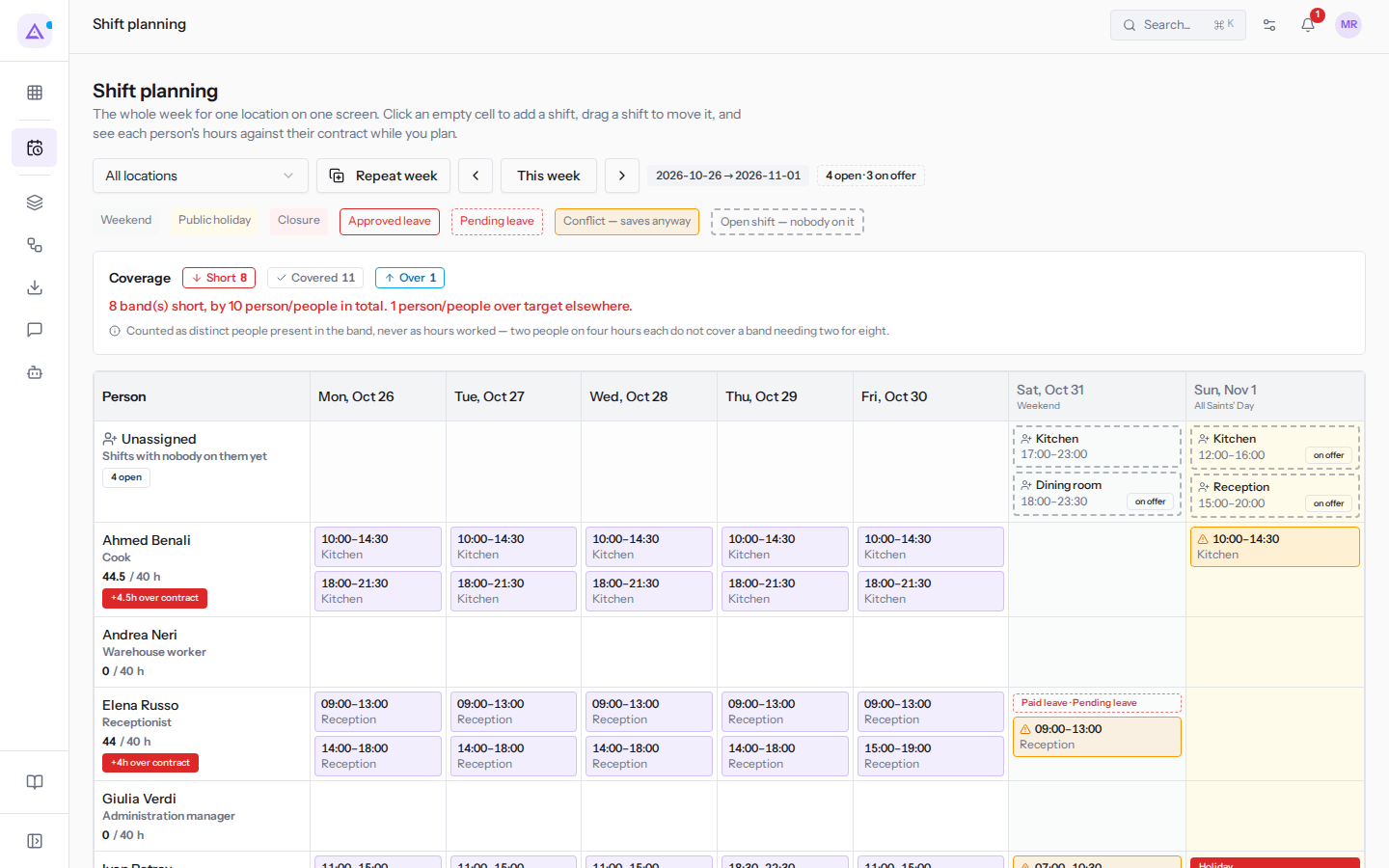
The person's cell also shows absences, for example Approved leave and Pending leave. For a pending leave, the cell shows the leave type, for example Paid leave · Pending leave.
Note: the All locations filter only changes the shifts you see. Overlap conflicts and over-contract hours are always calculated across all locations.
Checking conflicts in the shift dialog
The shift dialog checks the assignment as you choose the time, before saving.
- On Shifts › Planning, click a shift, for example Ivan Petrov's Saturday shift
07:00–10:30 Dining room. The Edit shift dialog opens.
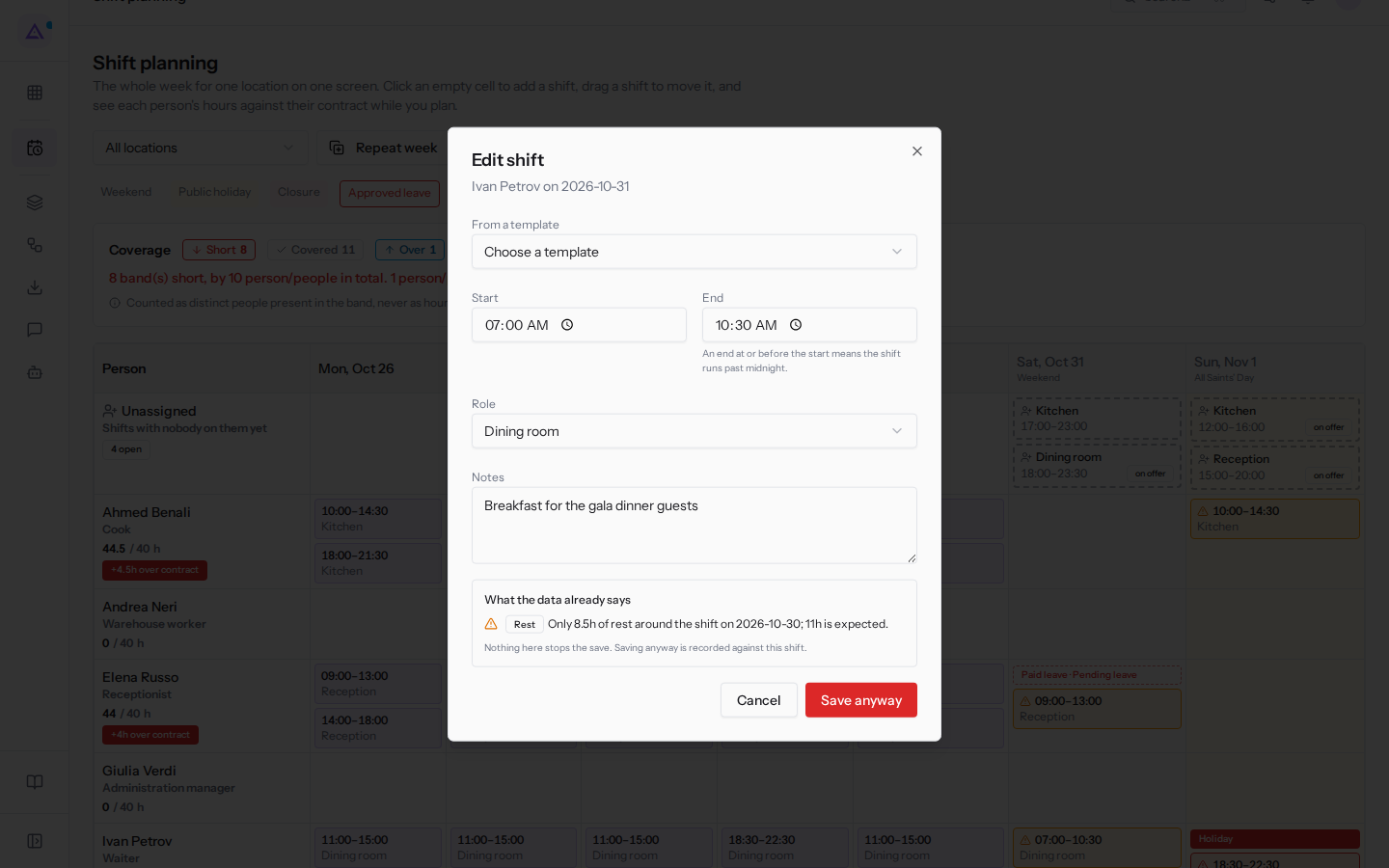
- Read the What the data already says box, below the shift fields.
- If you change Start or End, wait for the check to finish and read the box again.
- Click Save anyway to save with the conflict, or Cancel to exit without saving.
The What the data already says box shows one of the following:
- Checking…: the assignment check has not yet finished.
- Nothing conflicts with this assignment.: the data shows no problems. The save button is Save, for example on a new shift for Andrea Neri on Thursday.
- The list of conflicts, with a message for each, followed by the text «Nothing here stops the save. Saving anyway is recorded against this shift.». The save button becomes Save anyway.
- «Nothing to check yet: a conflict is about a person's week, and this shift has nobody on it.»: the dialog is New open shift, opened with Add gap in the Unassigned lane.
- «Could not check this assignment for conflicts.»: the check did not return a result.
The six conflict types
Each conflict has a type and a message. The examples are from this week and next.
- Approved leave: approved leave covers a day of the shift. The message is «Approved leave (…) covers ….», with the leave type and the date. For example, Ivan Petrov has approved leave on Sunday.
- Pending leave: leave awaiting approval covers a day of the shift. The message is «Leave awaiting approval (…) covers ….». For example, Elena Russo has pending leave on Saturday. Leave with only the first approval counts here, not among approved leave.
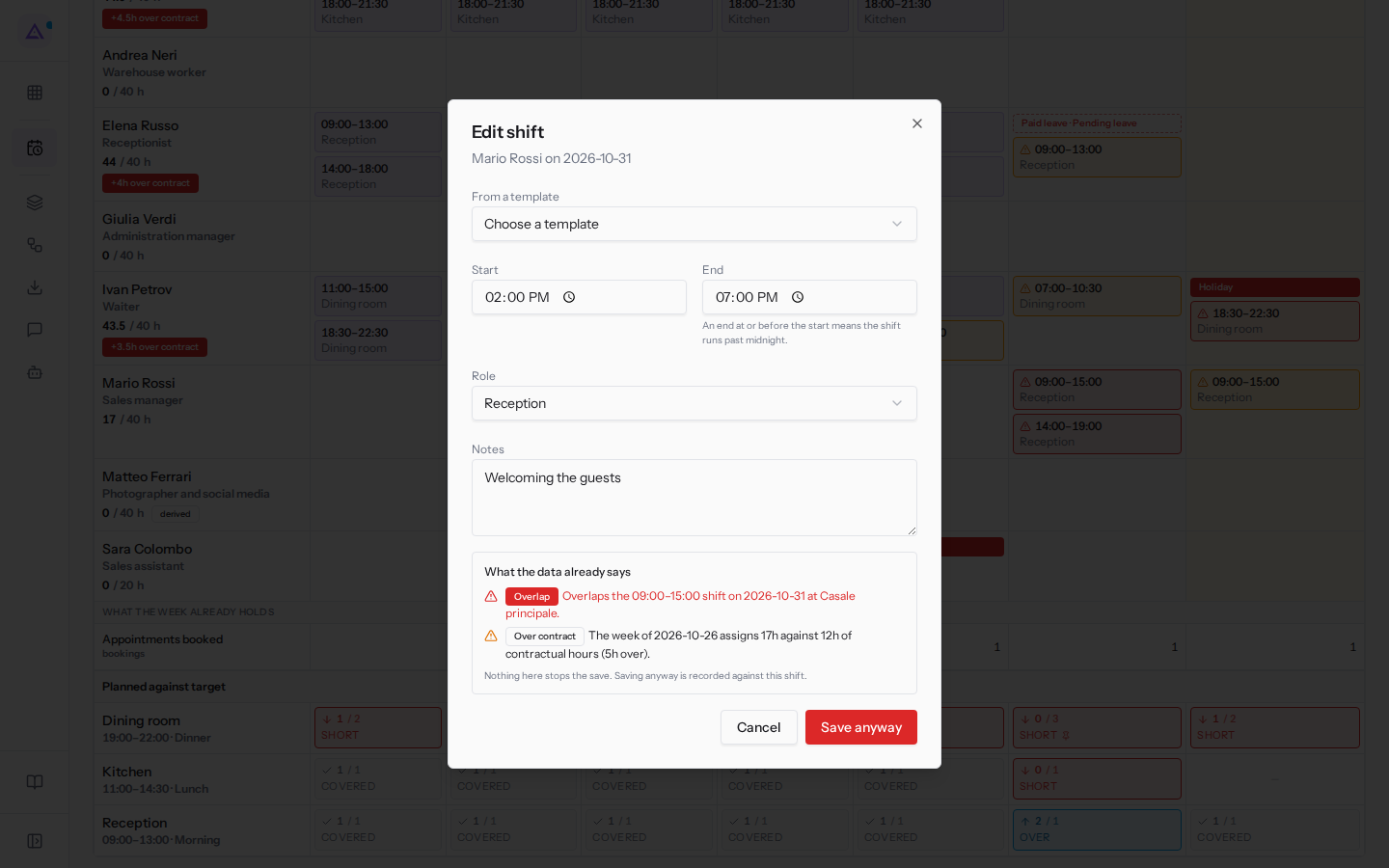
- Overlap: another shift for the same person overlaps, at any location. The message is «Overlaps the … shift on …», with the time, date, and location of the other shift. For example, on Mario Rossi's Saturday
14:00–19:00Reception shift at Fienile, the message points to the 09:00–15:00 shift on the same Saturday at Casale principale. The same conflict appears on the Casale principale shift, pointing to Fienile.
- Closed: the shift falls on a closure day or a public holiday. The message is «… is not a working day (…).», with the date and the reason. For example, next Monday has the «Closed for kitchen maintenance» and Ahmed Benali's
10:00–14:30Kitchen shift requires Save anyway. This also applies to a public holiday such as All Saints' Day. - Rest: there are fewer than 11 hours between two shifts on different days for the same person. The message is «Only …h of rest around the shift on …; …h is expected.». For example, Ivan Petrov, between the Friday evening shift
18:30–22:30and Saturday's breakfast shift07:00–10:30. - Over contract: the hours assigned in the week exceed the weekly contracted hours. The message is «The week of … assigns …h against …h of contractual hours (…h over).». The person's row also shows the badge «+…h over contract». For example, Ahmed Benali exceeds his contracted hours with Sunday's lunch shift, and his shifts for the week require Save anyway.
Note: a shift that goes past midnight spans two days. An absence or closure on either of those days is a conflict. A shift that ends exactly at midnight counts as one day only.
What is not a conflict
Some situations do not generate a conflict, because they would be the normal case in a shift plan.
- The weekend: days shaded as Weekend are not a conflict. Only closures and public holidays are.
- The split shift: rest is only checked between shifts on different days. For example, Ahmed Benali's shifts
10:00–14:30and18:00–21:30on the same day are not a conflict. - Refused or draft leave: does not generate conflicts. For example, Ivan Petrov's refused leave, from Wednesday to Friday of next week, does not appear.
- A zero-hour work schedule: does not trigger the Over contract warning.
Important: over-contract hours are counted across the week from Monday to Sunday and across all the person's locations.
Saving a shift with a conflict
Saving a shift with a conflict overrides the conflict: there is no separate confirmation.
- Open the shift on Shifts › Planning.
- Read the conflicts in the What the data already says box.
- Click Save anyway.
The save records on the shift who saved it, the date, and the conflict types present at that moment. The types remain as they were at that moment even if, for example, the leave is later refused.
See it on your company, not on a slide deck.
In 30 minutes we map the software you use today.We show you how much work and how much margin Archimedes gives back.
Show me on my business →What industry are you in?
One tap — it lets us prepare the demo around your world.
What tools do you use today?
Pick the ones you recognise — or just type them. It helps us show you how they migrate.
Last step: your details.
We reply within one working day — and right after, if you like, you pick the demo slot yourself.
We couldn't send your request. Try again, or write to us at [email protected].
By sending, you agree to your data being processed so we can get back to you about the demo. Privacy notice.
Preview form — nothing is sent from this page.
Want to schedule the demo now?
Your call: book the slot you prefer yourself, or we'll call you to arrange it.
Live availability, 30 minutes, instant confirmation. The calendar opens in a new tab.
Lock in your slot ↗We'll get back to you within one working day — and we'll join the call already knowing your world.
The calendar is open in another tab: pick a slot and the demo is booked. Can't see it? Reopen it ↗
Preview page: nothing was sent.
Our calendar is live: take the slot that suits you and the demo is booked. 30 minutes, instant confirmation, no waiting.
Lock in your slot ↗