Shifts
All modules
View a publication and print its rota
Shifts · 9 of 16 · 4 min read
The detail page of a publication shows the shifts communicated to staff in a version and compares them with the current plan. From here you can also print the rota, for example to display in the kitchen or at the reception desk.
What a publication contains
A publication is a copy of one period of the plan, taken at the moment you publish it. It cannot be modified or deleted.
- If you want to know what the staff received, read the What the staff were told section.
- If you want to know what has changed in the plan since the publication, read the How the plan has changed since section.
- If you need to communicate changes, publish the period again. The system creates a new version and the previous one remains available to view.
Note: the role name and the location name are saved at the time of publication. If you later rename a role, the rota already communicated does not change.
Open a publication
Each published version is a row in the publications list.
- Go to Shifts › Team › Publications.
- Click the publication row, for example version 2 of Casale principale for this week.
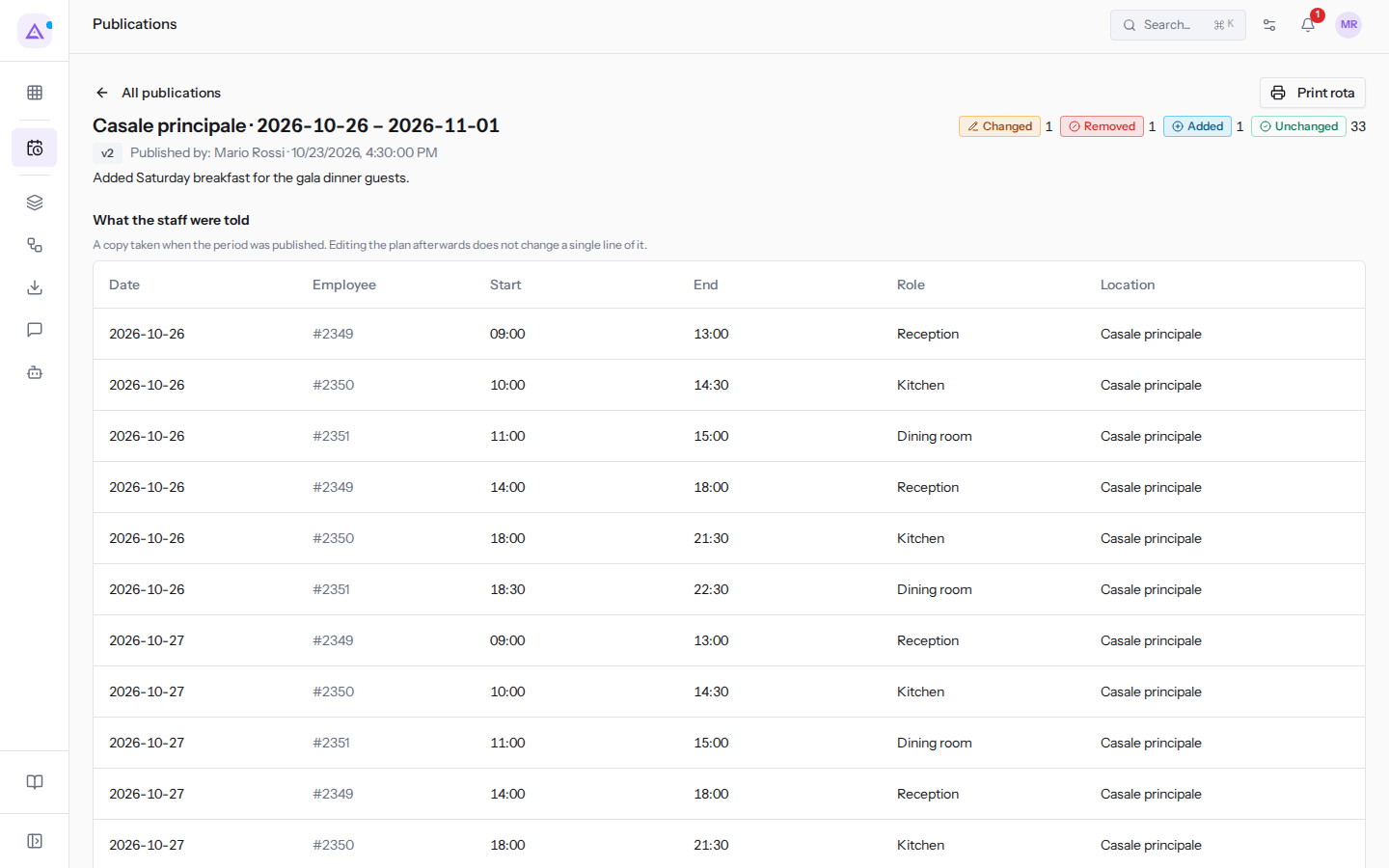
- To go back to the list click All publications.
At the top of the page you will find the following information:
- the location and period, for example Casale principale, from Monday 26 October to Sunday 1 November;
- the version, for example
v2; - Published by, with the name of the person who published and the date, for example Mario Rossi;
- the publication note, if one was entered. For example, version 2 reads «Added Saturday breakfast for the gala dinner guests.»;
- in the top right, how many shifts are Changed, Removed, Added and Unchanged compared to the current plan, and the Print rota button.
What the staff were told
The What the staff were told section shows the snapshot of shifts taken at publication, that is, what the staff received. Changes made to the plan afterwards do not appear in this section.
The table shows for each shift Date, Employee, Start, End, Role and Location.
How the plan has changed since
The How the plan has changed since section compares each published shift with the current plan. Publish the period again to communicate these changes to the staff.
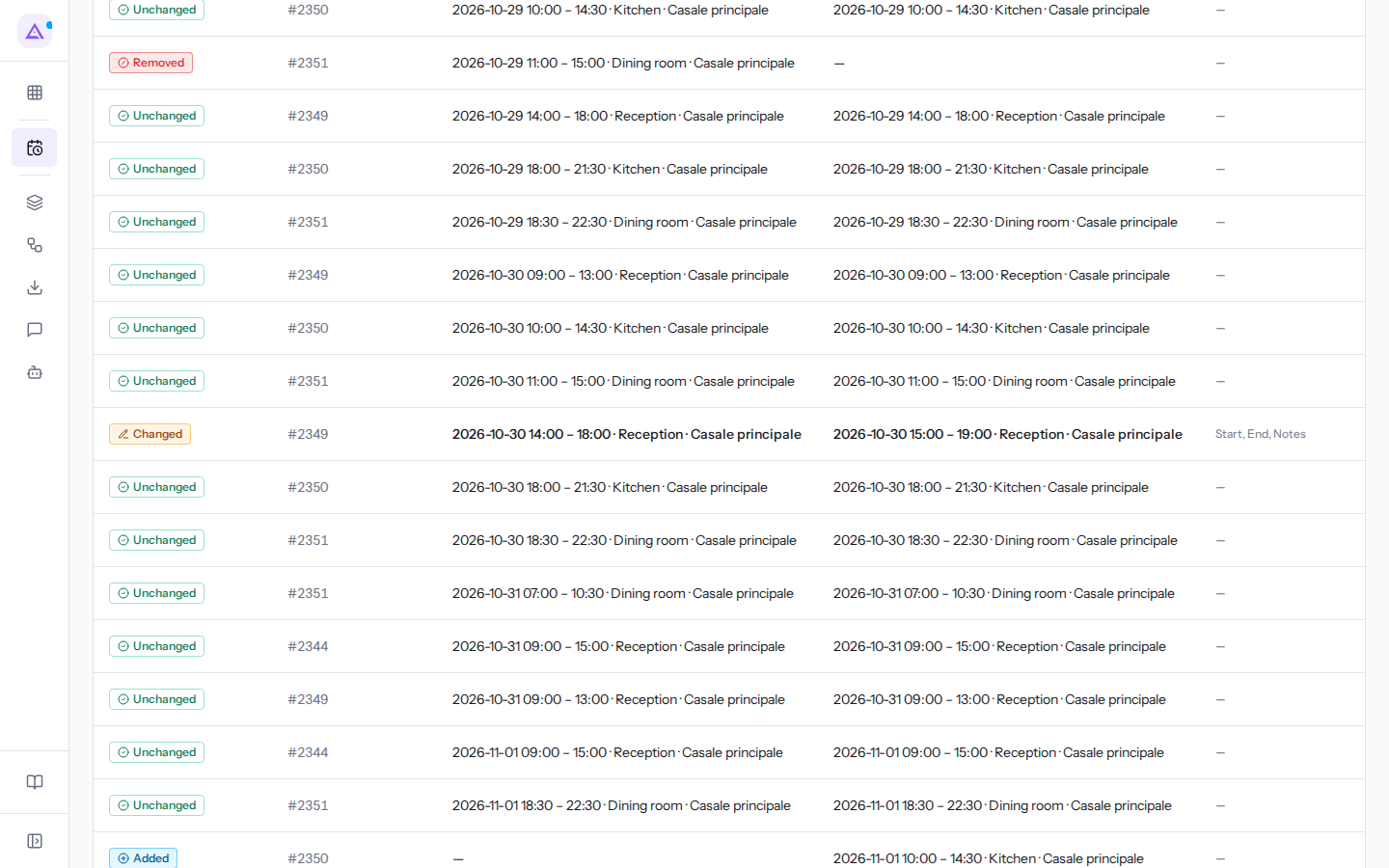
The table has the following columns:
- State: the comparison result for that shift.
- Employee: the person assigned to the shift.
- As published: the shift as it was communicated.
- As planned now: the shift as it currently appears in the plan.
- What differs: the fields that have changed, for example Start and End.
The possible states are:
- Unchanged: the shift has not changed since publication.
- Changed: the shift still exists, but with different data. In version 2 of this week at Casale principale, Elena Russo's Friday afternoon shift has been changed, moved to 15:00–19:00.
- Removed: the shift was published but is no longer in the plan. For example, Ivan Petrov's Thursday lunch shift.
- Added: the shift is in the plan but was not in the publication. For example, Ahmed Benali's Sunday lunch shift.
Important: modified, removed or added shifts do not reach the staff until you publish the period again. Until then Published rota shows the communicated version.
Print the rota
The printable rota shows the shifts from the publication as they were communicated.
- Open the publication from Shifts › Team › Publications.
- Click Print rota. The rota opens.
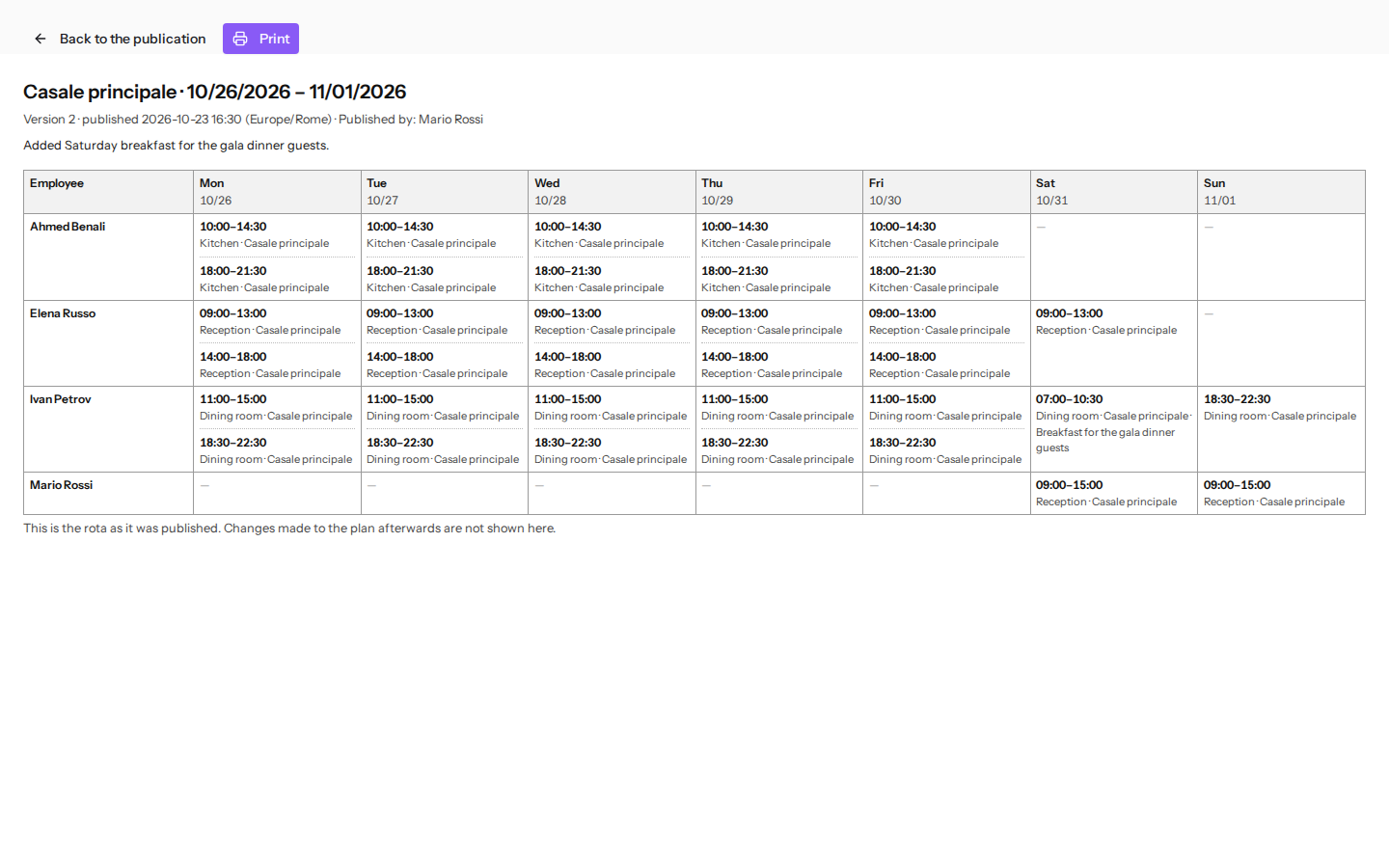
- Click Print to print the page.
- To go back to the detail click Back to the publication.
The rota contains:
- the title with the location and period, for example
Casale principale · 10/26/2026 – 11/01/2026; - the line with the version, the publication date and the time zone, for example «Version 2 · published … (Europe/Rome)», followed by Published by and the name;
- a table with one row per person, in the Employee column, and one column for each day of the period, for example Mon 10/26;
- the footer note: «This is the rota as it was published. Changes made to the plan afterwards are not shown here.»
Note: if the plan has changed since publication, publish the period again before printing. This way the printed rota matches the current plan.
See it on your company, not on a slide deck.
In 30 minutes we map the software you use today.We show you how much work and how much margin Archimedes gives back.
Show me on my business →What industry are you in?
One tap — it lets us prepare the demo around your world.
What tools do you use today?
Pick the ones you recognise — or just type them. It helps us show you how they migrate.
Last step: your details.
We reply within one working day — and right after, if you like, you pick the demo slot yourself.
We couldn't send your request. Try again, or write to us at [email protected].
By sending, you agree to your data being processed so we can get back to you about the demo. Privacy notice.
Preview form — nothing is sent from this page.
Want to schedule the demo now?
Your call: book the slot you prefer yourself, or we'll call you to arrange it.
Live availability, 30 minutes, instant confirmation. The calendar opens in a new tab.
Lock in your slot ↗We'll get back to you within one working day — and we'll join the call already knowing your world.
The calendar is open in another tab: pick a slot and the demo is booked. Can't see it? Reopen it ↗
Preview page: nothing was sent.
Our calendar is live: take the slot that suits you and the demo is booked. 30 minutes, instant confirmation, no waiting.
Lock in your slot ↗