Shifts
All modules
Creating open shifts and offering them to staff
Shifts · 5 of 16 · 5 min read
An open shift is a shift with a role and a schedule, but with no one assigned. It is used to mark a gap in the plan, for example table service at a gala dinner, and to offer it to staff so that someone can take it.
When to use an open shift
An open shift is managed in Shifts › Planning, in the Unassigned lane at the top of the grid.
- If you already know who needs to cover the shift, create a regular shift on that person's row.
- If a person is still missing and you want staff to volunteer, create an open shift and select Offer this shift to staff.
- If a person is missing but you want to decide who covers it yourself, create an open shift without offering it. Then drag it onto the chosen person's row.
An open shift is also created automatically: when you approve a drop request, the shift becomes empty and returns to open shifts. For example, Mario Rossi's shift on Sunday 22 November.
The Unassigned lane
The Unassigned lane collects the week's shifts that have no one assigned. It is always the first row of the grid, even when empty.
- Open Shifts › Planning.
- Choose the week using the ‹ and › arrows or with This week.
- Read the first row of the grid, Unassigned.
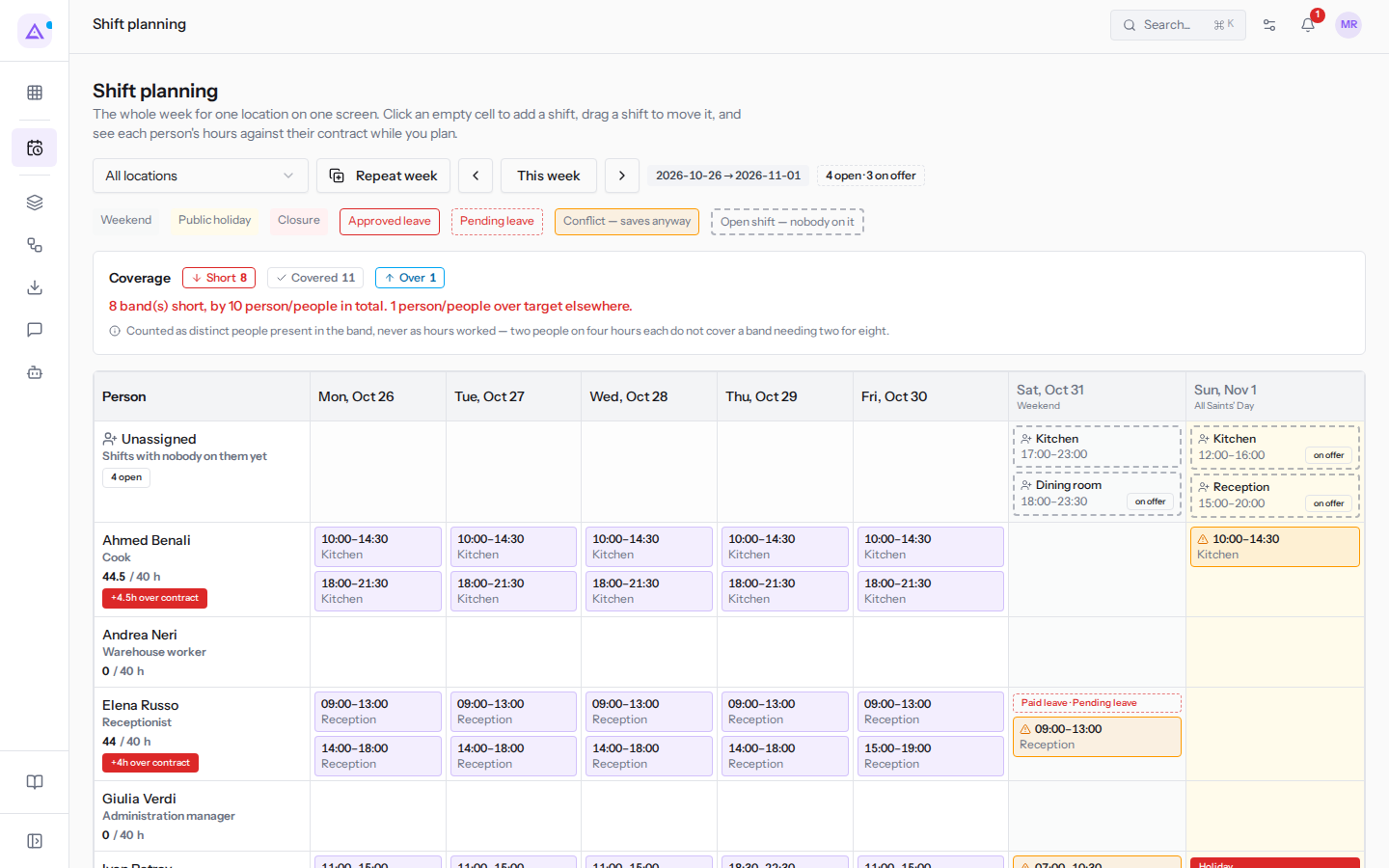
The lane shows these elements:
- Unassigned: the lane title, with the sentence «Shifts with nobody on them yet» below it.
- The count: a badge with the number of open shifts for the week, for example 4 open. It only appears if the week has at least one open shift. At the top, next to the week's dates, the badge 4 open · 3 on offer also shows how many are offered to staff.
- The open shifts: each has a dashed border and shows the role to be covered first, then the schedule.
- on offer: the badge for shifts offered to staff. Hovering over it with the mouse shows the text «Staff can see and claim this shift.». An open shift without this badge is not visible to staff.
For example, this week the lane contains the gala dinner shifts at Fienile on Saturday: Dining room 18:00–23:30 on offer, with the note Gala dinner: table service, and Kitchen 17:00–23:00 not offered, with the note Gala dinner: kitchen assistant. On Sunday it also contains the open shifts Kitchen 12:00–16:00 (Next-day brunch) and Reception 15:00–20:00 (Guests' departure), both on offer.
Creating an open shift
Create an open shift to mark a gap on a day of the week.
- In Shifts › Planning, hover over the empty cell of the Unassigned lane on the day you need.
- Click Add gap. The New open shift dialog opens; below the title it shows the date of the gap and the words «with nobody on it yet».
- Fill in the fields and click Create.
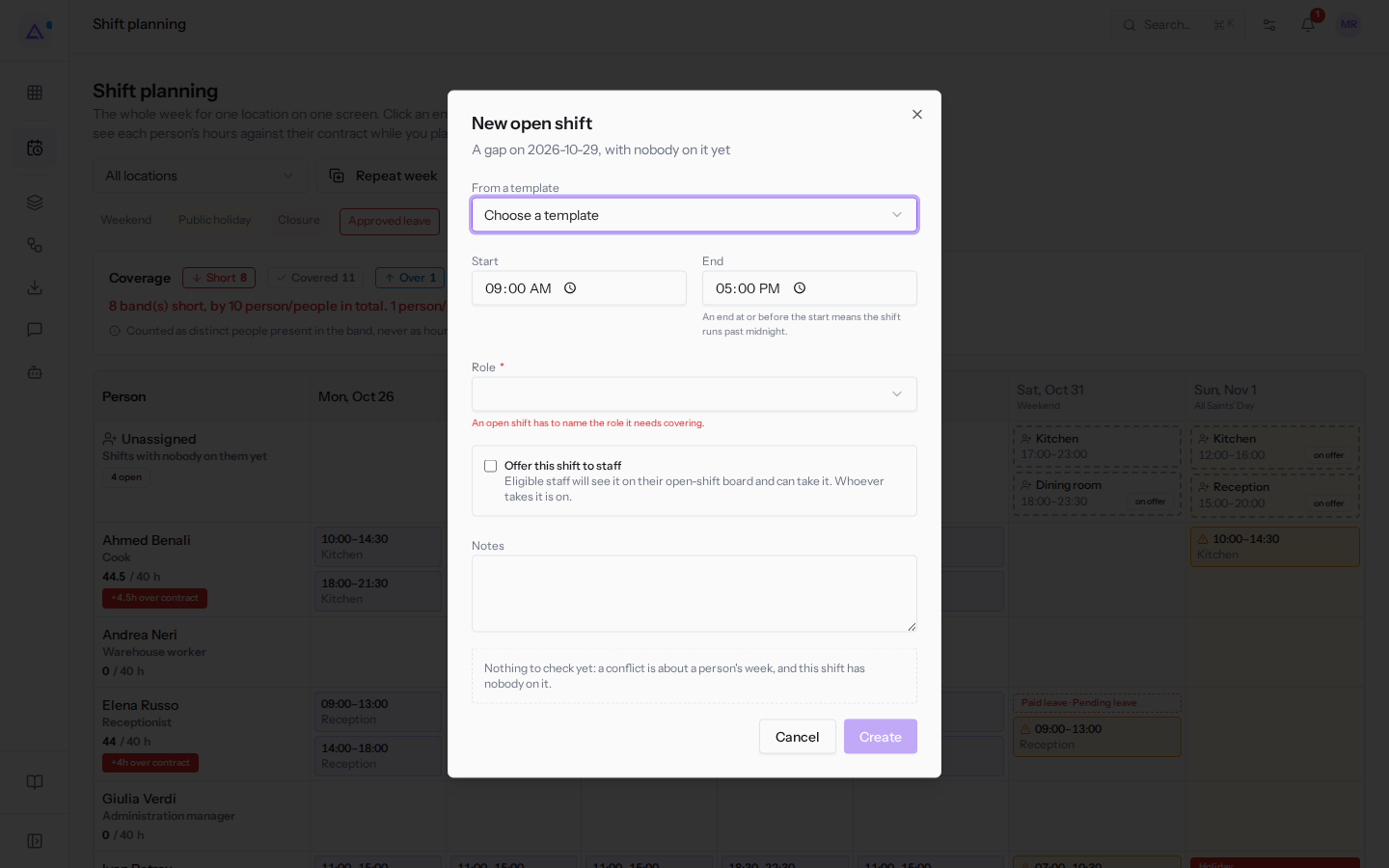
The fields of the New open shift dialog:
- From a template: fills in the schedule and role starting from a shift template. The menu shows Choose a template until you select one. With a template without a role, such as Floater, you then choose the role manually.
- Start: the shift start time. The default value is 09:00.
- End: the shift end time. The default value is 17:00. An end time equal to or earlier than the start time indicates a shift that goes past midnight.
- Role: the role to cover, for example Dining room or Kitchen. The field is required: without a role the dialog shows «An open shift has to name the role it needs covering.» and Create is not active.
- Offer this shift to staff: the checkbox is unchecked at first. If you select it, eligible staff see the shift on the open shifts board and can take it. Whoever takes it is on shift.
- Notes: free text about the shift, for example
Gala dinner: table service.
To close the dialog without creating the shift, click Cancel.
Note: there is no one on an open shift, so there are no conflicts to check. Conflicts concern a person's week: the interface message is «Nothing to check yet: a conflict is about a person's week, and this shift has nobody on it.».
Important: an offered open shift appears immediately on the Open shifts board, without needing to publish the period.
To learn how staff take an offered shift, see the article «Taking an open shift from the board».
Editing or deleting an open shift
You can change the schedule, role, and notes of an already created open shift.
- In Shifts › Planning, click the shift in the Unassigned lane, for example Dining room 18:00–23:30 on offer. The shift dialog opens, showing the shift's date.
- Edit Start, End, Role or Notes, or choose a template in From a template.
- Click Save.
To delete an open shift, hover the mouse over the shift in the lane, click the bin icon (Remove shift) and confirm «Remove this shift?». The Shift Manager group is required.
Assigning an open shift to a person
You can cover an open shift without waiting for someone to take it from the board.
- In Shifts › Planning, drag the shift from the Unassigned lane.
- Drop it on the person's cell in their corresponding row.
The shift moves to the person and leaves the lane. The shift takes the date of the cell you drop it on: to avoid changing the day, drop it in the same column.
Open shifts from a drop request
When an employee asks to drop a shift and the request is approved with Approve in Shifts › Team › Shift requests, the shift becomes empty and returns to open shifts. A pending or refused request does not change the plan.
The shift appears in the Unassigned lane for its week, already on offer to staff, and is managed like any other open shift: you can leave it on the board or drag it onto a person. For example, Mario Rossi's approved drop of his shift on Sunday 22 November became an open shift.
See it on your company, not on a slide deck.
In 30 minutes we map the software you use today.We show you how much work and how much margin Archimedes gives back.
Show me on my business →What industry are you in?
One tap — it lets us prepare the demo around your world.
What tools do you use today?
Pick the ones you recognise — or just type them. It helps us show you how they migrate.
Last step: your details.
We reply within one working day — and right after, if you like, you pick the demo slot yourself.
We couldn't send your request. Try again, or write to us at [email protected].
By sending, you agree to your data being processed so we can get back to you about the demo. Privacy notice.
Preview form — nothing is sent from this page.
Want to schedule the demo now?
Your call: book the slot you prefer yourself, or we'll call you to arrange it.
Live availability, 30 minutes, instant confirmation. The calendar opens in a new tab.
Lock in your slot ↗We'll get back to you within one working day — and we'll join the call already knowing your world.
The calendar is open in another tab: pick a slot and the demo is booked. Can't see it? Reopen it ↗
Preview page: nothing was sent.
Our calendar is live: take the slot that suits you and the demo is booked. 30 minutes, instant confirmation, no waiting.
Lock in your slot ↗