Shifts
All modules
Repeating one week onto another
Shifts · 6 of 16 · 3 min read
The Repeat week button copies all shifts from the week open in Shift planning onto another week. Use it when a standard week repeats, for example the reception, the kitchen and the dining room at Casale principale.
How the copy works
The copy takes all shifts from the week you are viewing, from Monday to Sunday, at the location selected in the filter (all of them, if All locations is selected), and places them on the same days of the target week.
Some shifts are not created automatically:
- on days when the person has an approved absence (holiday, time off or other) no shift is created;
- on closure days or public holidays in the organisation's calendar no shift is created;
- a shift already present in the target week is never duplicated.
Everything that is skipped is listed after the copy, with the reason.
The copy remains a draft to be edited. Staff do not see it until you publish the week.
- If the target week is empty, the copy creates all shifts, except those on days of approved absence, closure or public holiday.
- If the target week already has shifts, repeating the copy does not duplicate them: identical shifts show as Already there.
Repeating the week
For example, you can copy the week of 2 November, the usual week at Casale principale, onto the week of 7 December.
- Go to Shifts › Planning and open the week to copy using the next-week arrow.
- Click Repeat week. The Repeat this week dialog opens, with the text "Copy every shift from … – … onto another week."
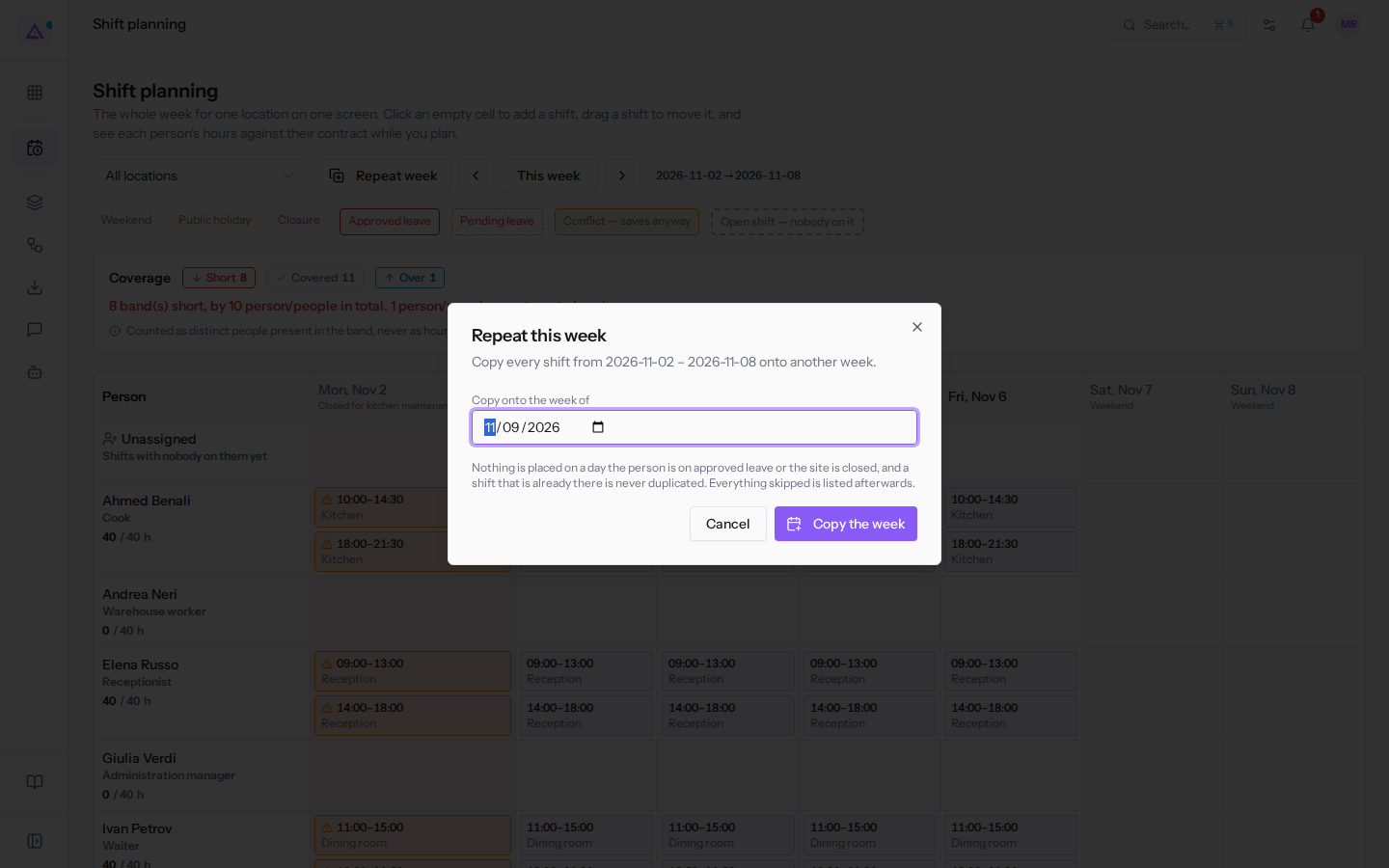
- In Copy onto the week of choose any day in the target week, for example Wednesday 9 December. The dialog shows the Monday of that week: "The week starting …".
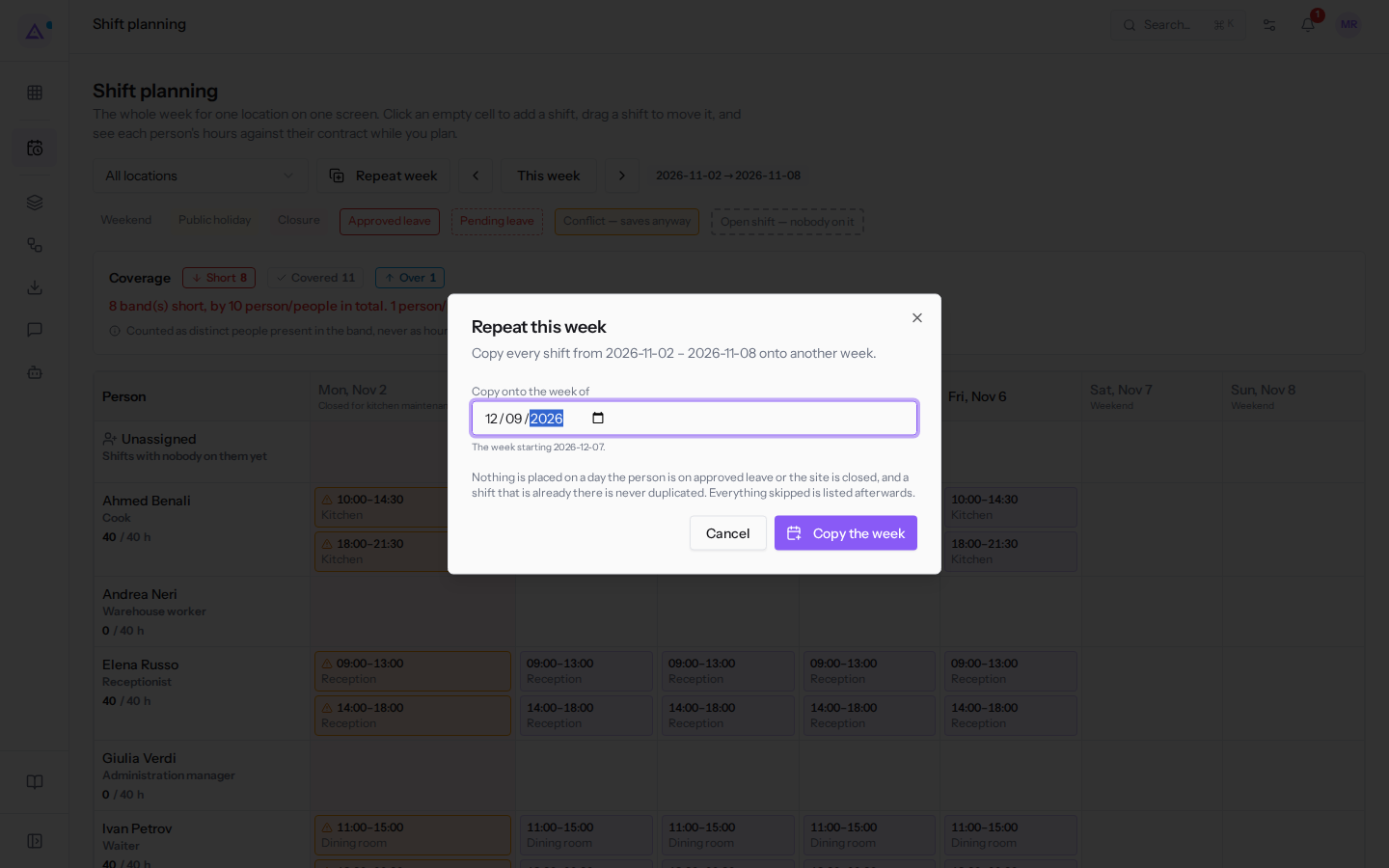
- Click Copy the week. To close the dialog without copying, click Cancel.
The dialog fields:
- Copy onto the week of: a day in the week onto which to copy the shifts. Whichever day you choose is mapped back to the Monday of the same week. The field defaults to the Monday of the week following the one currently open.
Reading the copy result
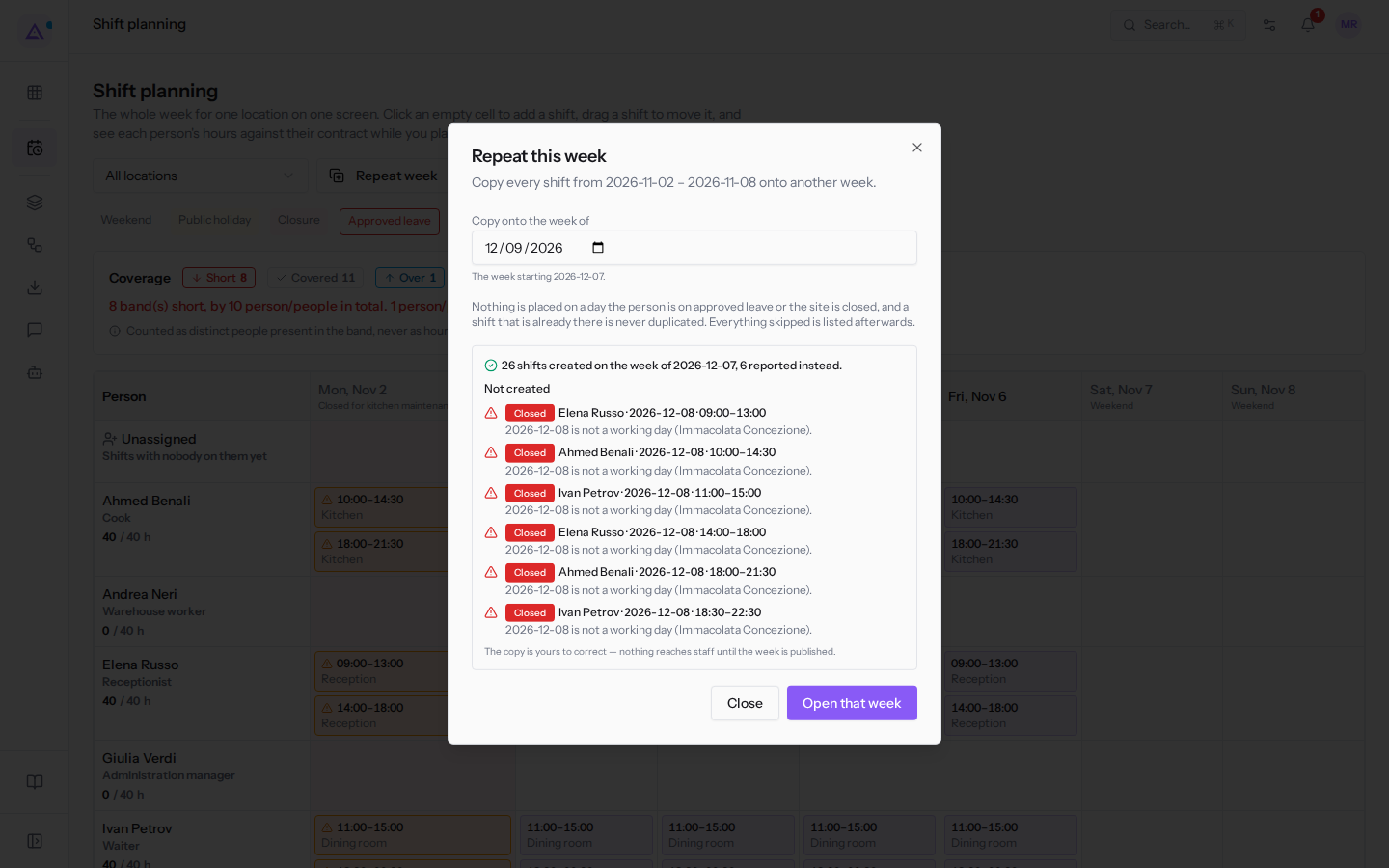
At the end of the copy the dialog shows a summary: "N shifts created on the week of …, M reported instead."
The Not created list shows every skipped shift with the reason, the person, the date and the time:
- Already there: the same shift is already present in the target week.
- Approved leave: the person has an approved absence on that day.
- Closed: that day is a closure or a public holiday. When copying the week of 2 November onto that of 7 December, shifts on Tuesday 8 December (Immaculate Conception) are not created.
If the copied week contains no shifts, the dialog shows "The week you copied from has no shifts."
To view the target week click Open that week: the dialog closes and planning opens on that week. To stay on the current week click Close.
Important: "The copy is yours to correct — nothing reaches staff until the week is published." Check the copied shifts and then publish the period.
See it on your company, not on a slide deck.
In 30 minutes we map the software you use today.We show you how much work and how much margin Archimedes gives back.
Show me on my business →What industry are you in?
One tap — it lets us prepare the demo around your world.
What tools do you use today?
Pick the ones you recognise — or just type them. It helps us show you how they migrate.
Last step: your details.
We reply within one working day — and right after, if you like, you pick the demo slot yourself.
We couldn't send your request. Try again, or write to us at [email protected].
By sending, you agree to your data being processed so we can get back to you about the demo. Privacy notice.
Preview form — nothing is sent from this page.
Want to schedule the demo now?
Your call: book the slot you prefer yourself, or we'll call you to arrange it.
Live availability, 30 minutes, instant confirmation. The calendar opens in a new tab.
Lock in your slot ↗We'll get back to you within one working day — and we'll join the call already knowing your world.
The calendar is open in another tab: pick a slot and the demo is booked. Can't see it? Reopen it ↗
Preview page: nothing was sent.
Our calendar is live: take the slot that suits you and the demo is booked. 30 minutes, instant confirmation, no waiting.
Lock in your slot ↗