Attendance
All modules
See who is working right now
Attendance · 7 of 16 · 2 min read
The Team Attendance screen shows who has clocked in and is working at this moment. It lets you check team presence without opening each person's timesheet.
Viewing team attendance
The screen is read-only: it groups four summary cards and the list of clocked-in people, with no fields to fill in and no actions on people.
Before you start: the Team View is available to the Manager and Administrator groups. Anyone with only the Employee group checks their own attendance in My attendance.
The screen opens from Attendance › Team View.
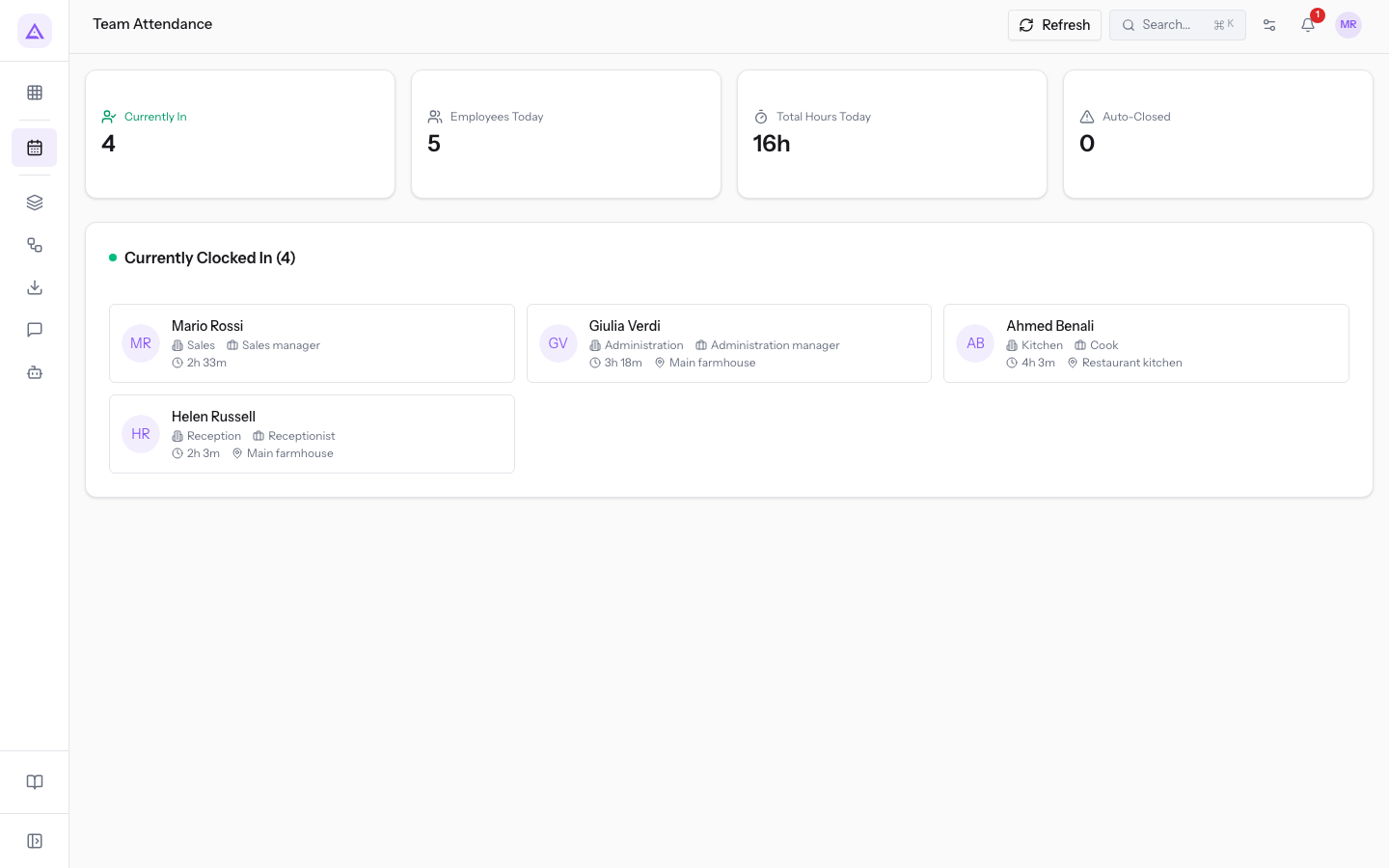
Refresh reloads the cards and the list right away. While the screen stays open, the data reloads on its own every 60 seconds.
Summary cards
The cards sum up the state of the team in a single number.
- Currently In: the number of people clocked in at this moment. It matches the number in brackets next to Currently Clocked In.
- Employees Today: the number of people with at least one session started today. Someone who clocked in yesterday and is still at work counts in Currently In, not here.
- Total Hours Today: the hours of sessions started today, including those still open.
- Auto-Closed: the number of sessions started today that were closed automatically.
Note: an automatically closed session is not final data. For every clock-out that was not recorded, an adjustment is created automatically: you will find it pending in Attendance › Adjustments.
List of clocked-in people
The Currently Clocked In list shows in brackets how many people are at work and has one entry for each. Someone who clocked in from the app, with the QR code, or at the kiosk appears in the same way. Someone who has already clocked out does not appear. In the demo organisation the list has five entries: Andrea Neri, Mario Rossi, Giulia Verdi, Ahmed Benali and Elena Russo.
Each entry shows:
- Name: the person's name.
- Department: the person's department. It appears only if it is set in the Human Resources data.
- Role: the person's job position. It appears only if it is set in the Human Resources data.
- Elapsed time: the hours and minutes since clock-in.
- Location: the location of the session. It appears only if the session has one.
When nobody is at work, the message No one is currently clocked in. appears in place of the entries.
See it on your company, not on a slide deck.
In 30 minutes we map the software you use today.We show you how much work and how much margin Archimedes gives back.
Show me on my business →What industry are you in?
One tap — it lets us prepare the demo around your world.
What tools do you use today?
Pick the ones you recognise — or just type them. It helps us show you how they migrate.
Last step: your details.
We reply within one working day — and right after, if you like, you pick the demo slot yourself.
We couldn't send your request. Try again, or write to us at [email protected].
By sending, you agree to your data being processed so we can get back to you about the demo. Privacy notice.
Preview form — nothing is sent from this page.
Want to schedule the demo now?
Your call: book the slot you prefer yourself, or we'll call you to arrange it.
Live availability, 30 minutes, instant confirmation. The calendar opens in a new tab.
Lock in your slot ↗We'll get back to you within one working day — and we'll join the call already knowing your world.
The calendar is open in another tab: pick a slot and the demo is booked. Can't see it? Reopen it ↗
Preview page: nothing was sent.
Our calendar is live: take the slot that suits you and the demo is booked. 30 minutes, instant confirmation, no waiting.
Lock in your slot ↗