Attendance
All modules
Approve attendance corrections
Attendance · 8 of 16 · 5 min read
The Adjustments screen lets you decide requests to change a clock-in or clock-out time: you review them, approve or reject them, and create one on behalf of another person.
The Adjustments screen
Attendance › Adjustments lists the adjustments, from the most recent to the oldest. Approving writes the change into attendance: while an adjustment is pending, the recorded time does not change.
Before you start: the screen requires the Manager or Administrator group of the Attendance module. Someone with only the Employee group follows their own adjustments in My attendance.
The status filter at the top has four options:
- All: all adjustments.
- Pending: adjustments to decide. Only these have the Approve and Reject buttons.
- Approved: adjustments already applied.
- Rejected: adjustments rejected.
Each row shows:
- The person, the status and the type of adjustment.
- The day and the requested change, such as Tue, Oct 27, 2026 · Clock-out 02:05 PM → 03:15 PM.
- The reason given in the request.
- The name of who sent the request, or Raised automatically if the system generated it.
- The name of who decided, on adjustments already decided.
If the filter finds nothing, the screen shows No adjustments and No adjustment requests found.
Deciding an adjustment
Compare the requested change with the reason, then decide:
- If the proposed time is correct, press Approve: the adjustment is applied to the session.
- If the proposed time is not correct or the reason is not enough, press Reject: attendance stays unchanged.
- If the adjustment has no time, Approve first asks for the real time. The procedure is in «Fixing a forgotten clock-out».
The effect of approval depends on the type of adjustment:
- Add missing clock-out: the session ends at the indicated time.
- Add missing clock-in: the indicated session starts at the proposed time. If the request does not concern an existing session, the system opens a new one.
- Change a time: moves the clock-in or clock-out indicated in the request.
- Void the session: deletes the session and its punches, which leave the monthly timesheet and the payroll data.
Approving an adjustment
Approval replaces the time and recalculates the session minutes with the same break and rounding rules as a normal punch. The system records a new punch in place of the original one, which is not overwritten.
- In Attendance › Adjustments choose Pending in the status filter.
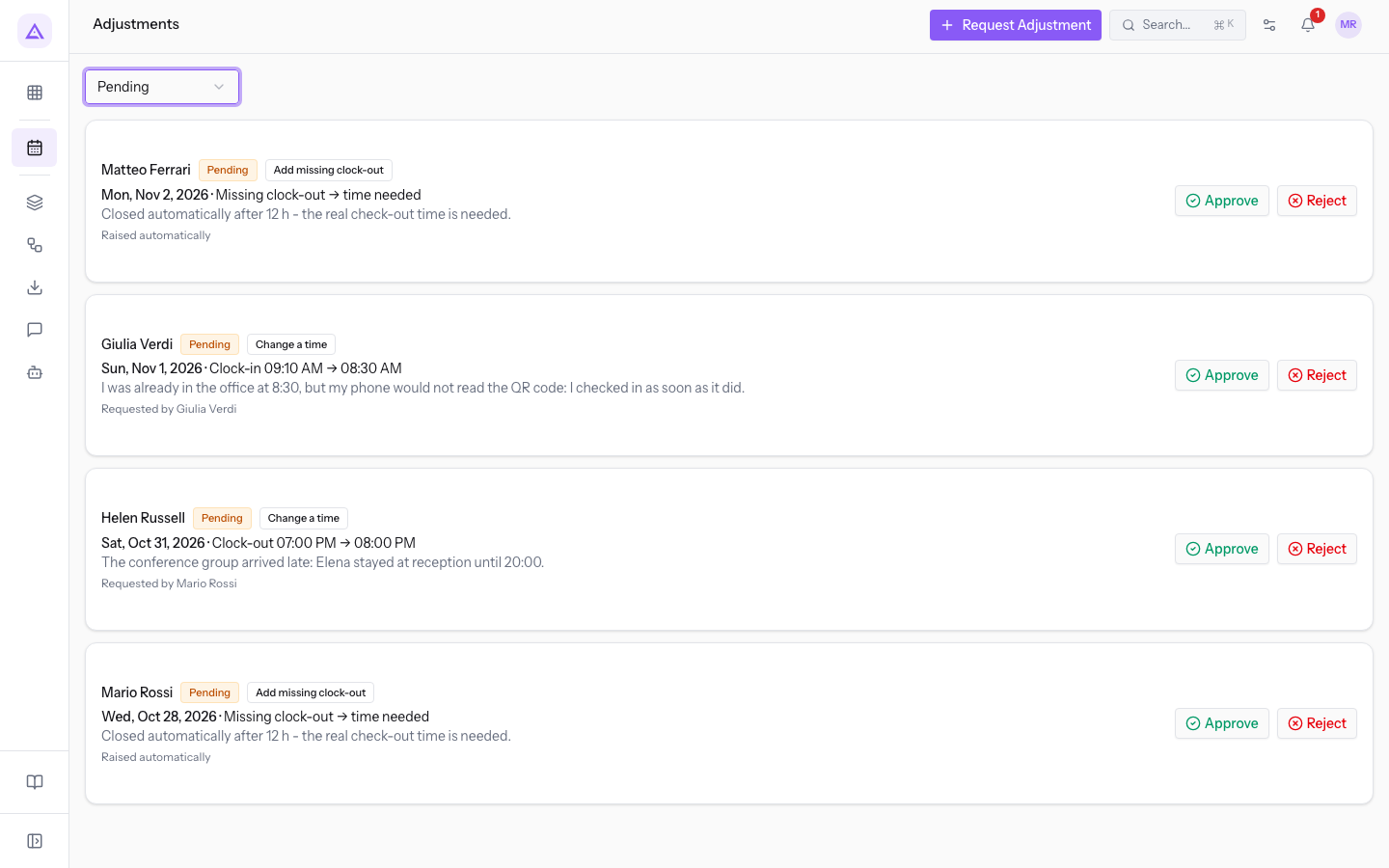
- On the adjustment's row press Approve. An adjustment that already has a time is applied right away and the message Correction approved and applied. appears.
After approval the adjustment moves to Approved and shows the name of who decided it.
If the adjustment cannot be applied, the screen shows the reason and the adjustment stays pending. Nothing is written in these cases:
- The adjustment has already been decided: This adjustment has already been decided.
- The day is in a closed period: Attendance for this day is closed. Ask your administrator to reopen the period.
- The time is in the future.
- The clock-out is equal to or earlier than the clock-in.
- The session would end up shorter than the minimum session allowed by the rules.
- The adjustment would open a new session, but the person already has one open.
- The indicated session or punch can no longer be found.
Important: a closed period blocks both sending and approving adjustments on its days. To correct them, the administrator must first reopen the period.
Rejecting an adjustment
Rejecting closes the adjustment without changing attendance. Press Reject on its row: the decision takes effect immediately, with no confirmation and no reason for the rejection.
The adjustment moves to Rejected and shows the name of who decided it.
Requesting an adjustment for another person
Use Request Adjustment when the change concerns another person's attendance. The request starts as pending and follows the same approval path. The manager can send it even if manual entry is disabled for employees.
- In Attendance › Adjustments press Request Adjustment.
- Choose the Person and the Day: Punch to correct lists the punches of that day.
- Choose the punch. Type and Proposed time appear, filled in based on your choice.
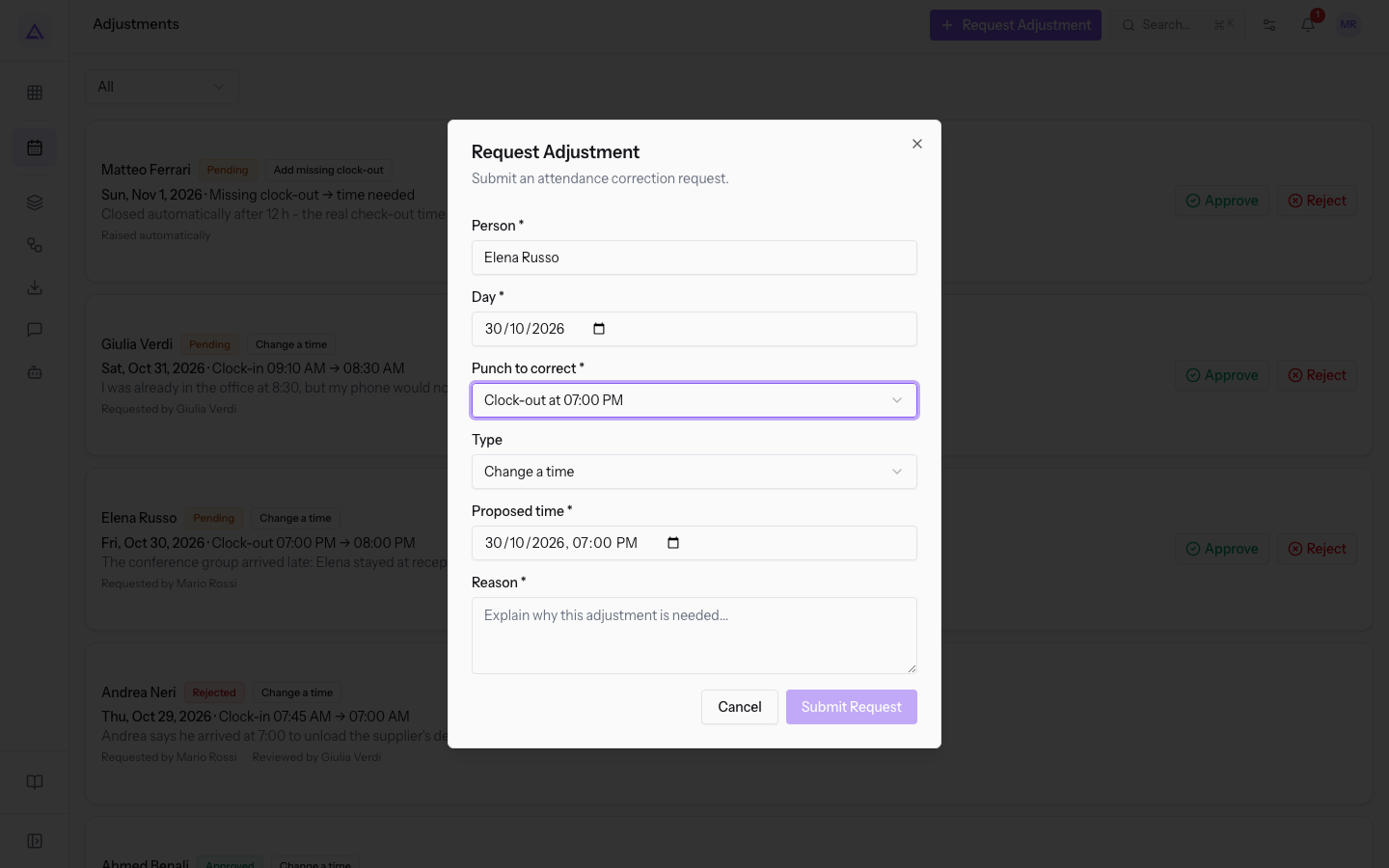
The fields of the window are:
- Person: the person the adjustment refers to. The field is required. The list includes those with a permission group of the Attendance module, the owners and administrators of the organisation, and workers without access. If the search by name finds no one, Nobody with that name. appears.
- Day: the day to correct. The field is required.
- Punch to correct: the field is required and appears after the day is chosen.
- The punches recorded that day, such as Clock-in at 01:55 PM and Clock-out at 07:00 PM.
- A missing day - no session recorded: for a day without sessions. Type is set to Add missing clock-in and Proposed time stays empty: you enter the date and time yourself.
- Type: the type of adjustment, filled in based on the punch. It appears after the punch is chosen. The options are Add missing clock-out, Add missing clock-in, Change a time and Void the session.
- Proposed time: the correct date and time. The field is required and, if you choose a punch, it starts from that punch's time. It does not appear with Void the session.
- Reason: the explanation of the adjustment. The field is required and is the text the decider reads.
Note: if the session already has a pending adjustment for the clock-out, the indicated time completes that adjustment instead of creating a second one.
When sent, Correction request sent for approval. appears and the adjustment enters the list as Pending.
See it on your company, not on a slide deck.
In 30 minutes we map the software you use today.We show you how much work and how much margin Archimedes gives back.
Show me on my business →What industry are you in?
One tap — it lets us prepare the demo around your world.
What tools do you use today?
Pick the ones you recognise — or just type them. It helps us show you how they migrate.
Last step: your details.
We reply within one working day — and right after, if you like, you pick the demo slot yourself.
We couldn't send your request. Try again, or write to us at [email protected].
By sending, you agree to your data being processed so we can get back to you about the demo. Privacy notice.
Preview form — nothing is sent from this page.
Want to schedule the demo now?
Your call: book the slot you prefer yourself, or we'll call you to arrange it.
Live availability, 30 minutes, instant confirmation. The calendar opens in a new tab.
Lock in your slot ↗We'll get back to you within one working day — and we'll join the call already knowing your world.
The calendar is open in another tab: pick a slot and the demo is booked. Can't see it? Reopen it ↗
Preview page: nothing was sent.
Our calendar is live: take the slot that suits you and the demo is booked. 30 minutes, instant confirmation, no waiting.
Lock in your slot ↗