Attendance
All modules
Show the QR code at the site entrance
Attendance · 12 of 16 · 5 min read
The display screen shows a QR code at a location's entrance. The code changes every 30 seconds. The employee scans it with their phone to clock in or out. From Attendance › Locations, you open the display on a tablet and manage its link.
Open the display on the tablet
Before you start: display links are visible to attendance administrators. The location must be active and have Enforcement Policy set to QR Code (TOTP) or QR + Geofence.
Each location with the QR code has its own display link. The link is the display's credential: the tablet at the entrance opens it without signing in to the platform and shows the location's code.
- In Attendance › Locations, find the Display link card in the location's entry, such as
Main farmhouse.
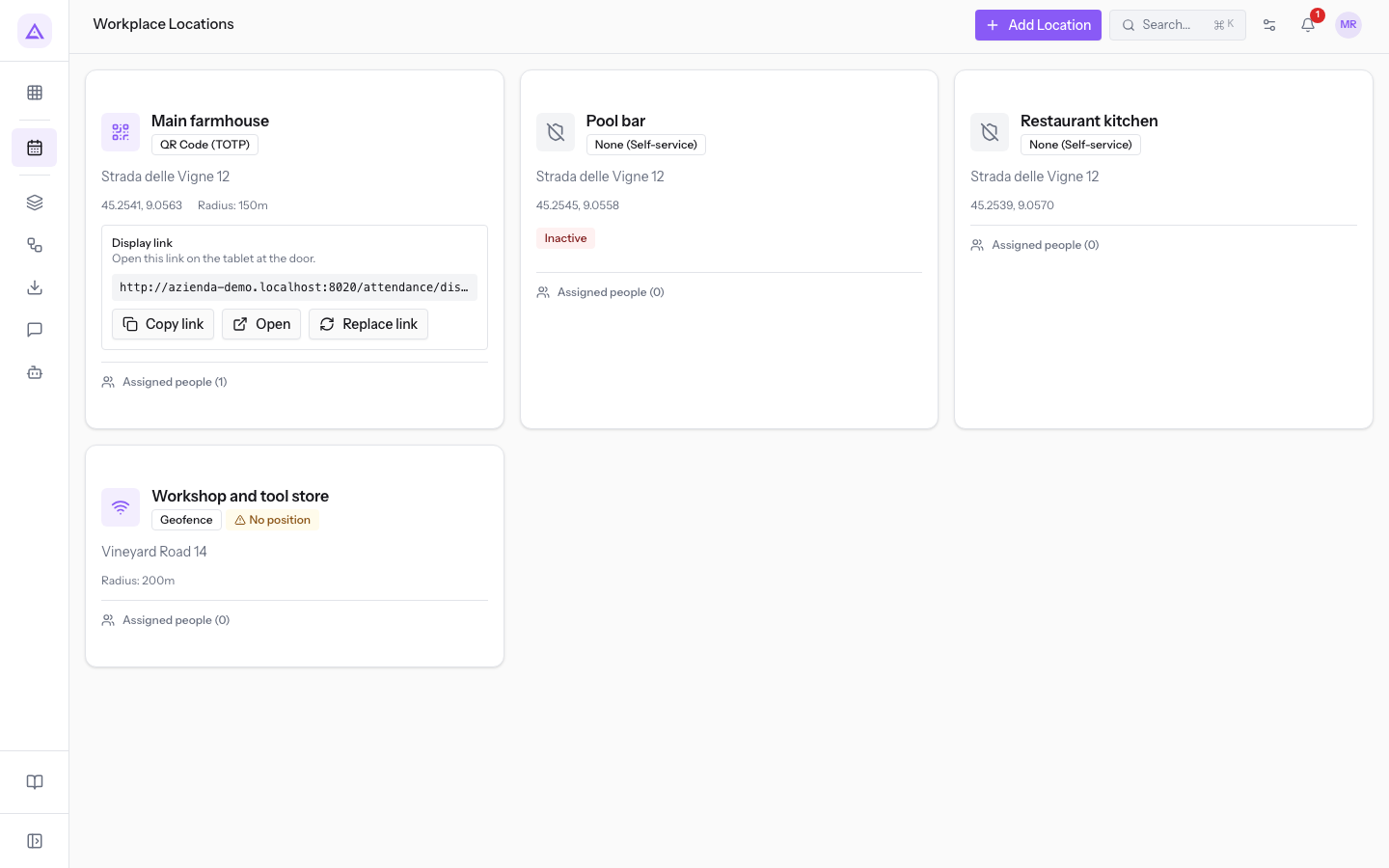
- Open the link on the tablet. If you are already on the tablet, press Open. If you work from another device, press Copy link and move the link to the tablet.
The card has these buttons:
- Copy link: copies the display link. If the copy works, the message Display link copied. appears.
- Open: opens the display in a new tab on the device you are using.
- Replace link: creates a new link and blocks the current one. See the section «Replace the display link».
What the display shows
The display fills the whole screen and only serves to let people scan the code. The employee does not use the tablet.
- Location name: the name set in Attendance › Locations.
- Current time: hours, minutes, and seconds, updated every second.
- QR code: the code to scan. The display replaces it by itself every 30 seconds.
- Countdown: a bar and the seconds left until the next code.
- Scan this QR code with your phone to clock in / out: the instruction for the employee.
- Connection status: the indicator in the top right.
- Connected: the tablet receives codes.
- Offline — QR still valid: the connection is gone, but the code shown has not expired yet.
- Offline — QR paused: the connection is gone and the code has expired. Above the code area, Connection Lost and QR code generation paused appear.
Note: when the connection returns, the display starts showing codes again. The tablet retries every second until it receives a new code.
If the link is no longer valid, the display does not show a code. This display link is no longer valid. It may have been replaced with a new one, the site may have been deactivated, or attendance may not be active for this company. and Ask your administrator for a new display link. appear.
Clock in with the QR code
Before you start: the employee must have a platform login, and the Workplace QR mode must be active in Attendance › Recording Modes. Anyone without a login clocks in at the kiosk.
The employee scans the display with their phone. They do not need to open the app: the code leads directly to the Workplace QR screen, which records the clock-in as a workplace QR punch. If there is an open session, it records a clock-out; otherwise, a clock-in.
- Scan the QR code on the display with the phone's room and open the link the phone offers.
- If the phone has no active sign-in, sign in. When done, you return to the Workplace QR screen and the clock-in continues.
- Check the result on the Workplace QR screen.
The screen shows one of these results. When nothing is recorded, Nothing was recorded appears with the reason.
- Clocked in or Clocked out: the clock-in was recorded, with its time. For a clock-out, the start and length of the session also appear and, for 5 minutes, the This is wrong — I'm arriving button, which turns it into a clock-in.
- Already recorded: a clock-in was recorded less than 2 minutes ago, so the second scan does not count. Nothing new was recorded. appears.
- Still clocked in from a previous day: a session from an earlier day is still open. Press I'm arriving now to record a clock-in or Clock out of that session now to record a clock-out.
- This QR code has expired. The code on the display changes every few seconds.: scan the display again.
- This QR code has already been used. Wait for the display to show a new code.: you already used this code. Several people can instead scan the same code.
Before recording, the screen checks the modes allowed for the person. If Workplace QR is not among them, You are not permitted to clock in with the workplace QR code. appears and scanning again will not help.
The screen also asks the phone for its position. If the location does not require it, refusing does not block the scan. If the clock-in is rejected for position, the code is not used up: allow location access and scan the display again.
Note: the same code can also be scanned from the Attendance › Clock In/Out screen, with the Scan to clock in button.
Anyone assigned to a location can clock in only at their assigned locations, and each one goes through that location's check. Anyone not assigned to any location is not bound by any check.
Replace the display link
Replace the link if it was shared with someone who should not have it. The new link replaces the current one immediately, so have the tablet ready before you confirm.
- In Attendance › Locations, in the location's Display link card, press Replace link.
- In the Replace the display link? dialog, press Replace link. The message Link replaced. Update the tablet with the new link. appears and the card shows the new link.
- Open the new link on the tablet with Copy link or Open.
Important: until you open the new link, the tablet shows the invalid-link error, and there is no code at the entrance to scan.
Deleting a location also stops its display link from working.
See it on your company, not on a slide deck.
In 30 minutes we map the software you use today.We show you how much work and how much margin Archimedes gives back.
Show me on my business →What industry are you in?
One tap — it lets us prepare the demo around your world.
What tools do you use today?
Pick the ones you recognise — or just type them. It helps us show you how they migrate.
Last step: your details.
We reply within one working day — and right after, if you like, you pick the demo slot yourself.
We couldn't send your request. Try again, or write to us at [email protected].
By sending, you agree to your data being processed so we can get back to you about the demo. Privacy notice.
Preview form — nothing is sent from this page.
Want to schedule the demo now?
Your call: book the slot you prefer yourself, or we'll call you to arrange it.
Live availability, 30 minutes, instant confirmation. The calendar opens in a new tab.
Lock in your slot ↗We'll get back to you within one working day — and we'll join the call already knowing your world.
The calendar is open in another tab: pick a slot and the demo is booked. Can't see it? Reopen it ↗
Preview page: nothing was sent.
Our calendar is live: take the slot that suits you and the demo is booked. 30 minutes, instant confirmation, no waiting.
Lock in your slot ↗