Attendance
All modules
Clocking in and out of the app
Attendance · 2 of 16 · 7 min read
The Clock In / Out screen records the start and end of work from the app. Each clock-in opens a session, each clock-out closes it, and you can have several sessions in one day.
The clock-in screen
Before you start: you need the Employee permission group, and the In-app clock recording mode must be allowed. If you also use Human Resources, your login must be linked to your employee record.
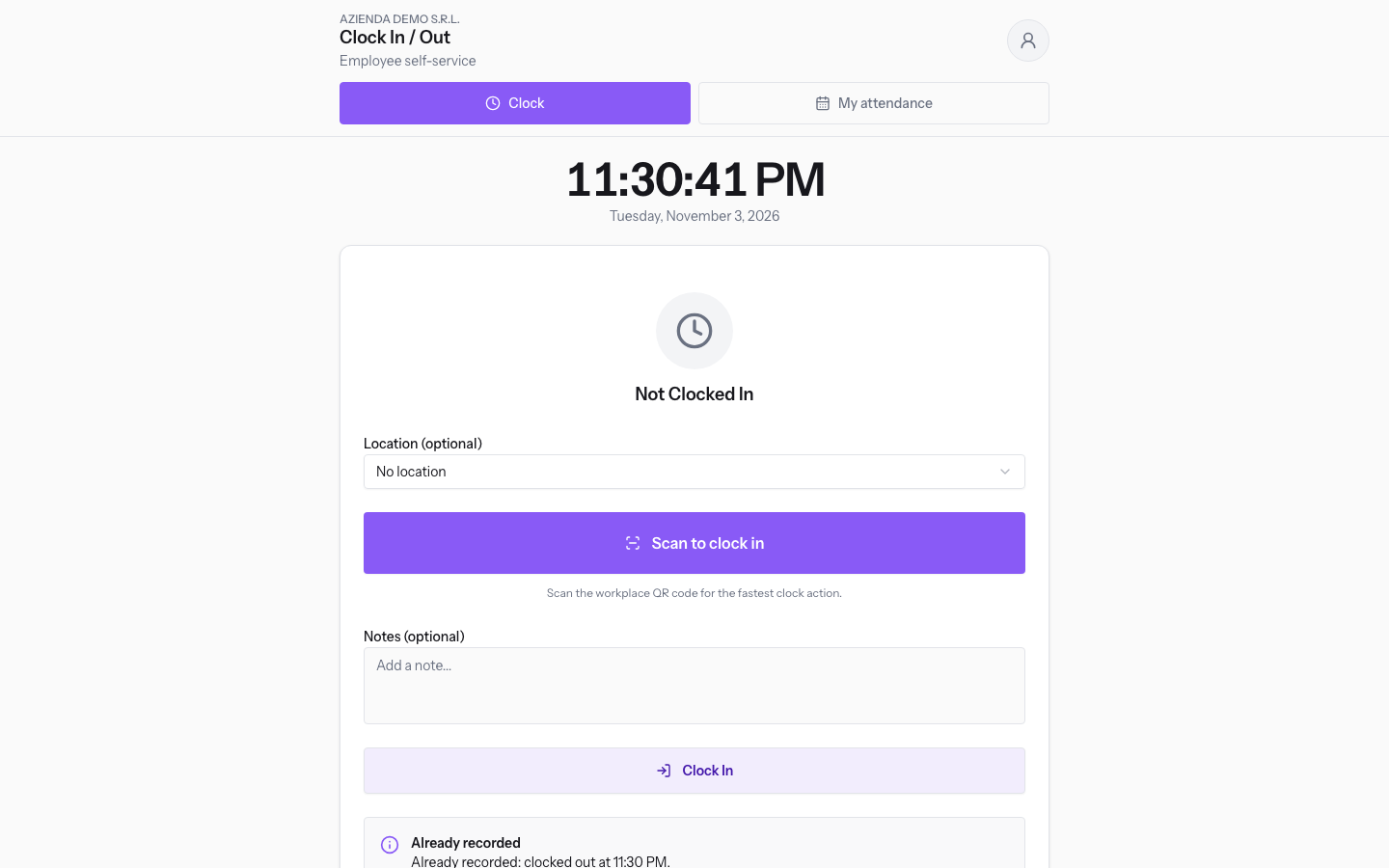
The screen opens from Attendance › Clock In/Out. It shows whether you are at work and records the next punch: the button changes based on your status.
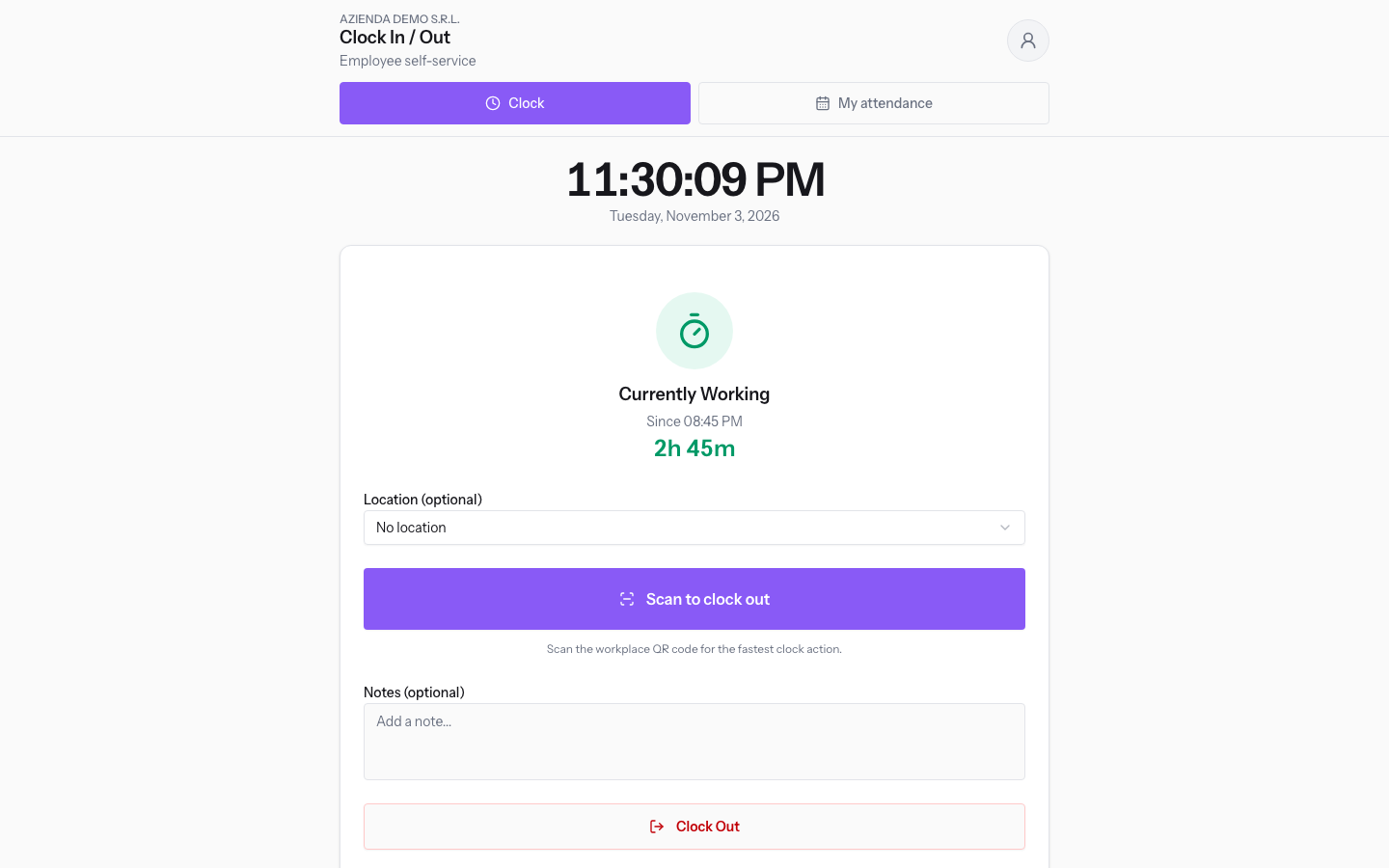
- Status: shows your current situation.
- Currently Working: you have an open session. Below it you see the clock-in time and the elapsed time.
- Not Clocked In: you have no open session.
- Location (optional): the location where you clock. The starting value is No location.
- Scan to clock in or Scan to clock out: records the punch with the location's QR code. The text follows the status.
- Notes (optional): free text, saved with the punch. The field shows Add a note....
- Clock In or Clock Out: records the punch at the current time.
- Today's Sessions: the sessions started today, including those opened at the kiosk or with the QR code. Each session has the status Active, if it is still open, or Closed.
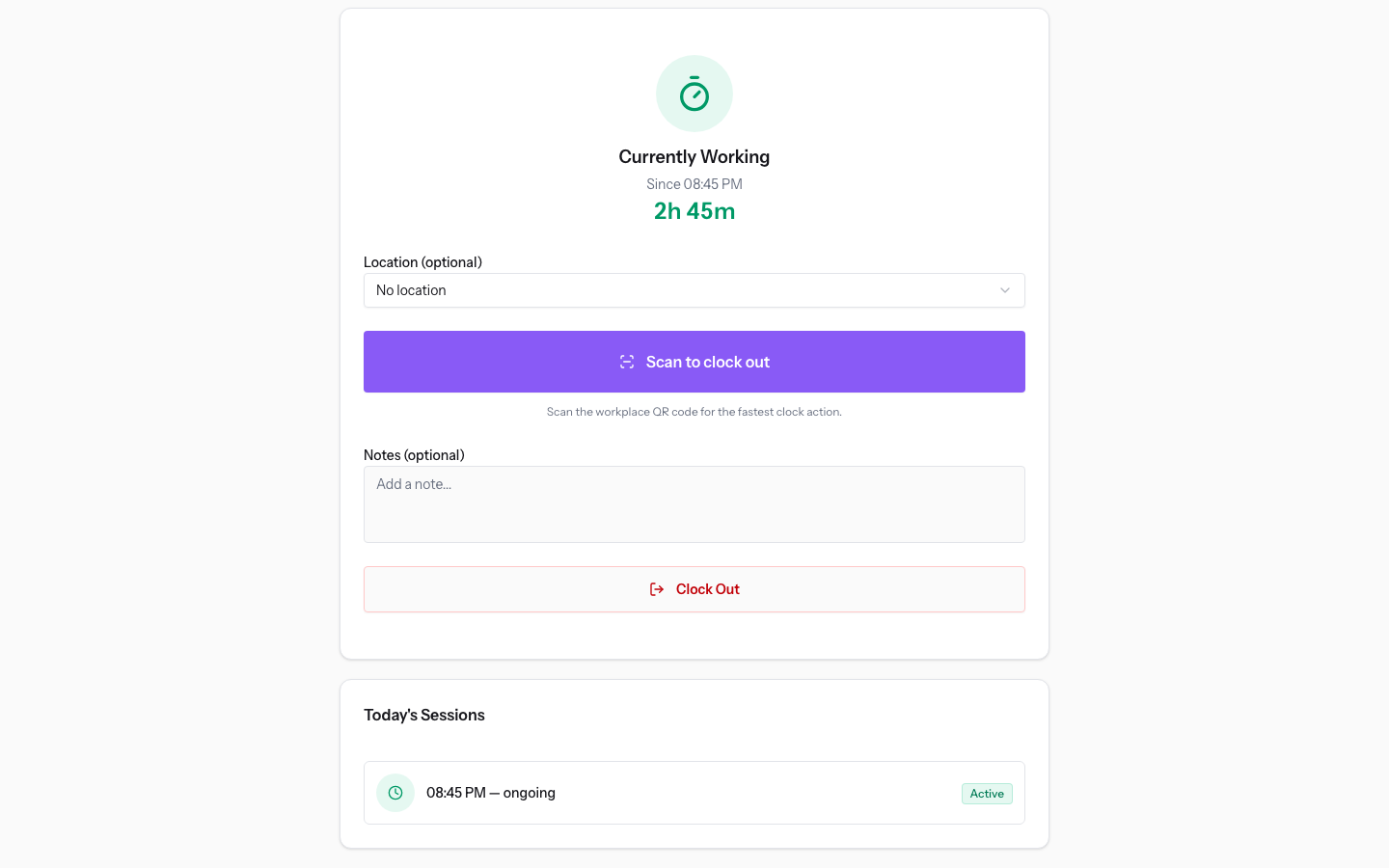
- My attendance: opens the monthly history, with the days, sessions and times.
Choosing the location
The location you choose decides which check you must pass and which calculation rules apply to the session. The list shows the active locations.
If you are assigned to a location, you can clock only at your assigned locations and you pass the check of each one. If you are not assigned to any location, you have no checks and you can clock wherever the recording modes allow.
- If you are not assigned to any location, leave No location or choose the location where you work. Mario Rossi is in this case.
- If your assigned locations have no checks and you leave No location, the punch goes to the default location or, if you have none, to the first assigned location.
- If one of your assigned locations has a check, you cannot clock without choosing a location: you must pass the check of that location.
The options show the location's check in brackets:
- No location: no location selected.
- Restaurant kitchen: location without a check. The punch is recorded on this location and its rules apply to the session.
- Main farmhouse (QR code): location with a QR code. To clock in you must scan the location's code.
- Workshop and tool store (Location check): location with a location check. It has no position set, so for now staff are refused.
Note: the device position is read only at the moment of clocking, never between punches.
Clocking in
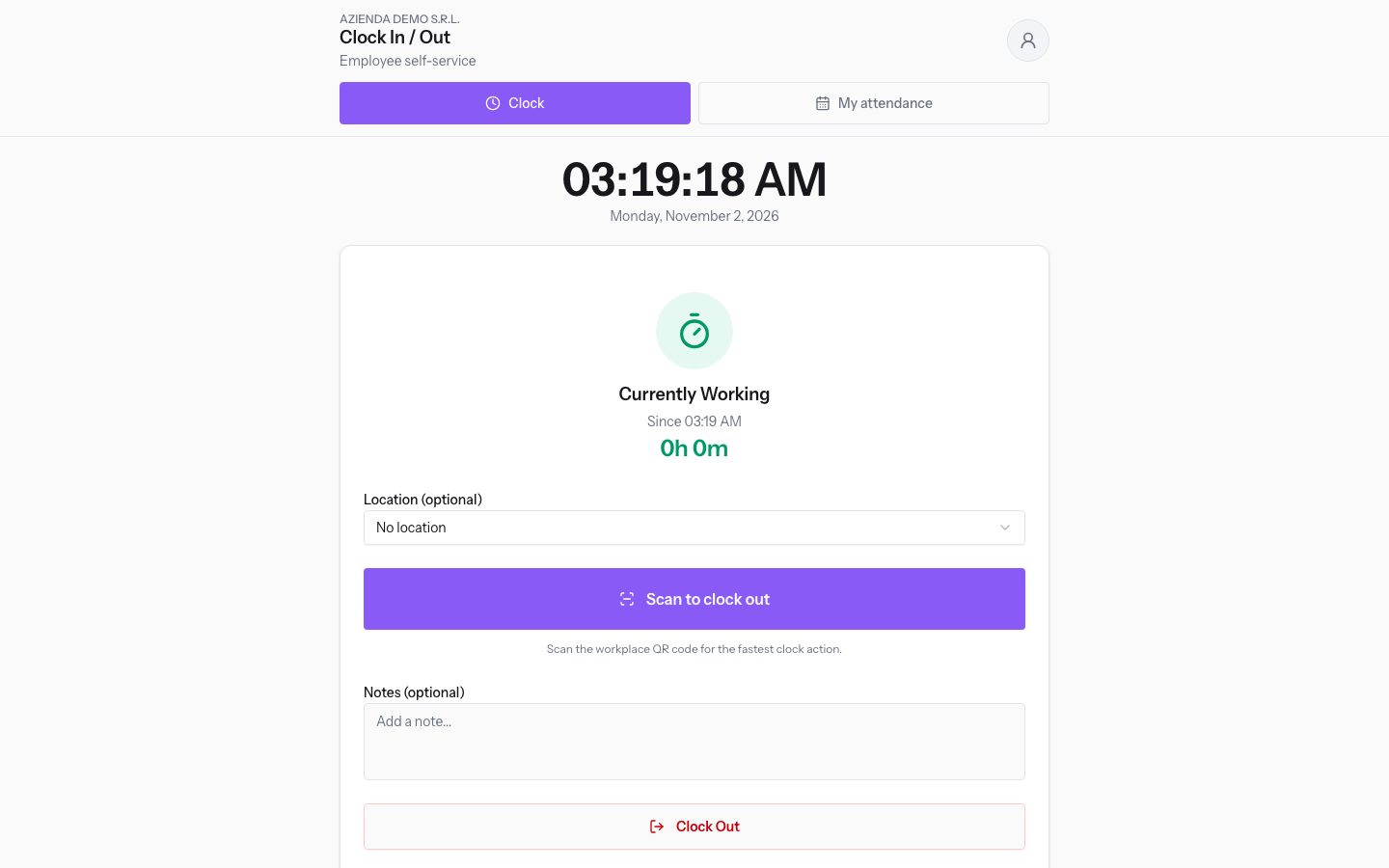
Clock-in opens a new session. The button appears when the status is Not Clocked In.
- In Location (optional) choose the location, if you need to name one.
- Press Clock In.
Confirmed appears with the message Clocked in at, followed by the time. The status becomes Currently Working and the button becomes Clock Out.
Clocking out
Clock-out closes the open session, even if you opened it at the kiosk. When the session closes, the system calculates its time: it applies the break first, then the rounding.
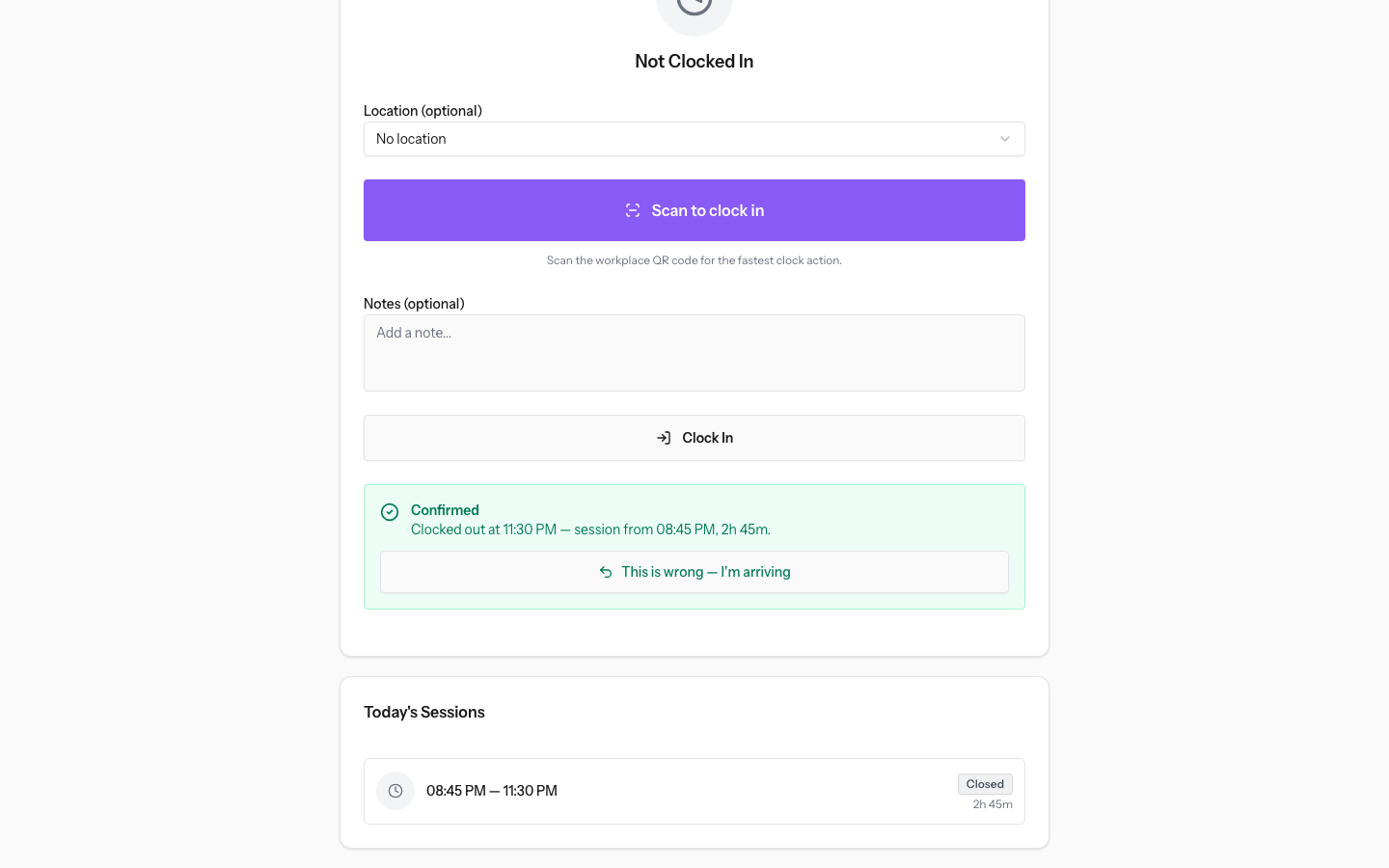
Press Clock Out. Confirmed appears with the message Clocked out at, followed by the time, the start of the session and the duration. The status becomes Not Clocked In and the button returns to Clock In.
Important: punches cannot be edited. To change a time that is already recorded, you need an approved adjustment.
Note: if you do not clock out, the session is closed automatically after the number of hours in Auto-close after (hours) and shows Closed automatically. In the demo organisation the organisation default is 12 hours, and that of Restaurant kitchen 14.
Correcting a clock-out recorded by mistake
After a clock-out, the confirmation shows the button This is wrong — I'm arriving. Use it when you were arriving, but the system recorded a clock-out because an earlier session was still open. The button is valid for 5 minutes after the clock-out.
The system removes the clock-out and opens a new session with the same time. The session that the clock-out had closed stays without a clock-out and shows Closed automatically: the recognised time depends on A forgotten clock-out counts, and its real time must be entered with an adjustment.
Note: the button is in the confirmation message and no longer appears when you reopen the screen.
Clocking with the location's QR code
The Scan to clock in or Scan to clock out button uses the phone room to read the QR code shown at the entrance of the location. The punch is recorded as a workplace QR punch. Use it if your location has the QR code check.
When a clock-in is rejected
A rejected clock-in is not recorded. The message appears on screen and tells you what to do.
A rejected clock-out for a check, such as position or minimum duration, is not lost. It becomes a pending adjustment, with the time of the attempt and the reason. The message says the clock-out was sent to your manager as a proposed clock-out and that, once they approve it, the day ends at that time. This does not apply to a clock-out with no open session, to a missing or expired QR code, or to Already recorded.
When clocking in:
- You already have an open attendance session. Clock out the existing session before clocking in again.: you are already at work, including for a session open at the kiosk or with the QR code.
- Day already declared: the message says you have declared hours for that date, so that day cannot be clocked as well. You have a declaration for today that is pending or approved. A day is either clocked or declared.
- Session limit: you have reached the Maximum sessions per day. The count includes the open session and the sessions with recognised time, from any mode. The message reminds you that a manager can still record the service as an adjustment.
- So that your hours reach your monthly timesheet, HR has to link your login to your employee record. Until then you cannot clock in here.: your login has no linked employee record.
When clocking out:
- You are not clocked in, so there is nothing to clock out of. Clock in first.: you have no open session.
- Session too short: the session is shorter than Minimum session (minutes). The clock-out is sent to your manager as a proposed clock-out.
In both cases:
- Already recorded: your last punch was less than 2 minutes ago, from any mode. The second punch is treated as a repeat, and the message shows the one already recorded, even if you pressed the opposite button. After 2 minutes you can clock again.
- Attendance for this day is closed. Ask your administrator to reopen the period.: the day falls in a closed period. For a clock-out, the day of the session counts. In the demo organisation, attendance is closed until 30 September 2026.
- Mode not allowed: if In-app clock is not among your recording modes, the punch is rejected. Every attempt is checked, regardless of which buttons are visible.
For location verification:
- Location not assigned: if you are assigned to other locations, a punch on the chosen location is rejected.
- You must scan the QR code at this location to clock in.: the location uses QR code checks and the code is missing.
- This site has no position set, so your presence cannot be checked. Ask your administrator to add the site coordinates.: the location has a location check, but no coordinates.
- This site checks that you are there, but your device did not share its position. Allow location access, then try again.: the device did not send a position.
- Your device did not say how precise its position is. Turn on precise location, then try again.: the precision value is missing.
- Your position is not precise enough to confirm you are at the site. Move to an open area, then try again.: the precision is not enough for the check.
- You are outside the area of this site. Go to the site and try again, or ask your administrator to check the site area.: the position is outside the radius of the location.
See it on your company, not on a slide deck.
In 30 minutes we map the software you use today.We show you how much work and how much margin Archimedes gives back.
Show me on my business →What industry are you in?
One tap — it lets us prepare the demo around your world.
What tools do you use today?
Pick the ones you recognise — or just type them. It helps us show you how they migrate.
Last step: your details.
We reply within one working day — and right after, if you like, you pick the demo slot yourself.
We couldn't send your request. Try again, or write to us at [email protected].
By sending, you agree to your data being processed so we can get back to you about the demo. Privacy notice.
Preview form — nothing is sent from this page.
Want to schedule the demo now?
Your call: book the slot you prefer yourself, or we'll call you to arrange it.
Live availability, 30 minutes, instant confirmation. The calendar opens in a new tab.
Lock in your slot ↗We'll get back to you within one working day — and we'll join the call already knowing your world.
The calendar is open in another tab: pick a slot and the demo is booked. Can't see it? Reopen it ↗
Preview page: nothing was sent.
Our calendar is live: take the slot that suits you and the demo is booked. 30 minutes, instant confirmation, no waiting.
Lock in your slot ↗