Attendance
All modules
Check your attendance for the month
Attendance · 3 of 16 · 4 min read
The My Attendance screen shows your sessions for one month, day by day, with the month totals and the status of each session. From here you check the time recorded and request an adjustment.
Read the monthly summary
The summary sums up the month shown in four cards. The screen opens from Attendance › My Attendance, on the current month.
Before you start: you need a platform login with the Employee group. The screen only shows your own sessions.
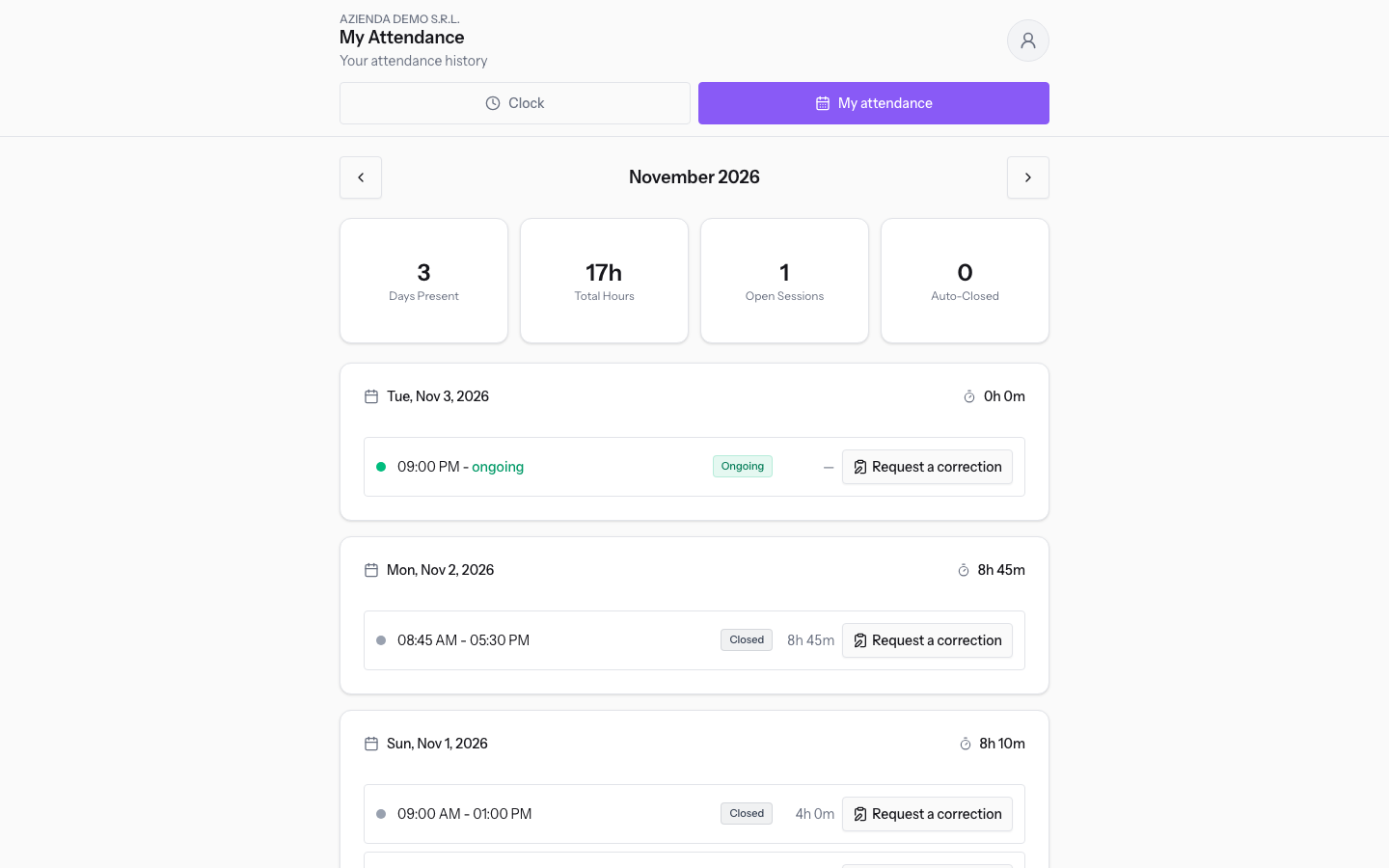
- Days Present: the number of days in the month with at least one session. Two sessions on the same day count as one day.
- Total Hours: the sum of the session durations, rounded to the whole hour. A session still in progress has no duration yet and is not included in the sum.
- Open Sessions: the number of sessions in Ongoing status.
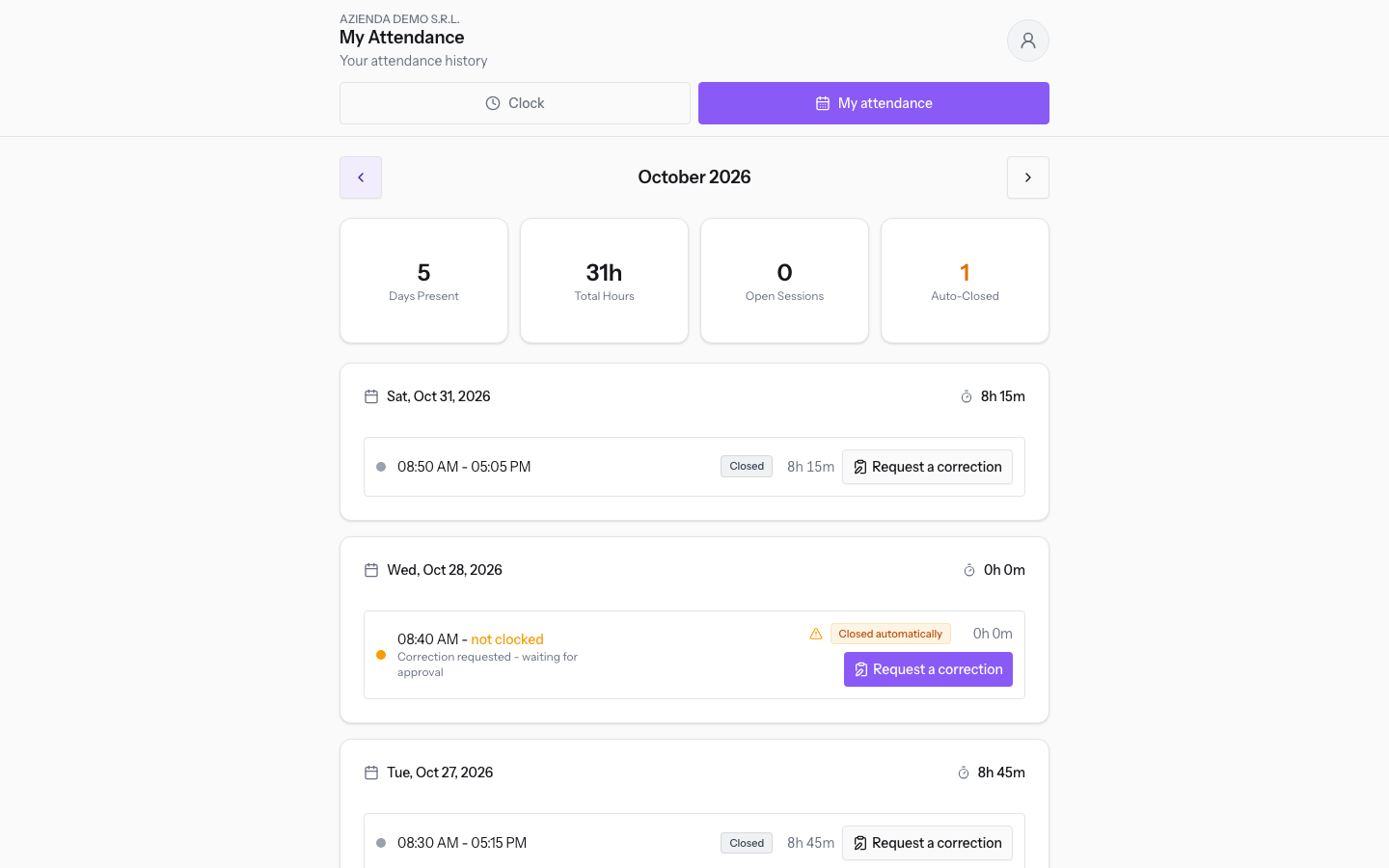
- Auto-Closed: the number of sessions in Closed automatically status.
Note: for the total with decimals and for overtime, use Attendance › Reports. For October 2026 of Mario Rossi, Total Hours shows 39h on this screen and 39.17h in the report.
Change month
Previous month and Next month change the month shown, the four cards and the list of days.
If the month has no sessions, the cards show zero and the screen shows No attendance records with the text No sessions found for this month.
Read the list of days
The list groups the sessions by day, from the most recent to the oldest. The header of each day shows the date and the day total.
Each row is one session and shows:
- Times: the clock-in and the clock-out. If the session is in progress, ongoing appears in place of the clock-out.
- Location: the name of the location, only if the session has one.
- Status: the status of the session.
- Duration: the time of the session. For a session in progress, a dash appears.
- Request a correction: opens the Request Adjustment window for that session.
A day can contain more than one session. Sat, Oct 31, 2026 has the sessions 09:00 AM - 01:00 PM for 4h 0m and 02:00 PM - 06:10 PM for 4h 10m, with a total of 8h 10m.
A session that crosses midnight stays on the day of the clock-in: a session with clock-in at 09:30 PM on 1 November and clock-out at 12:13 AM on 2 November appears under Sun, Nov 1, 2026.
Session statuses
The status shows whether the session is still open and how it was closed. A session can have one of these statuses:
- Ongoing: you clocked in and not yet out. Today's session stays in this status until you clock out.
- Closed: the session has a clock-in and a clock-out.
- Closed automatically: the system closed a session that stayed open beyond the time set by the attendance rules.
- Corrected: one of the session's times was changed by an approved adjustment.
Check a missing clock-out
If you do not clock out, the session is closed automatically and the clock-out time still needs to be entered. The recognised time depends on the rule A forgotten clock-out counts: it can be zero until the real time is entered.
In the session row:
- not clocked: appears in place of the clock-out time. The session has the status Closed automatically.
- Correction requested - waiting for approval: appears below the times when an adjustment is pending on the session.
To enter the real time, press Request a correction on the session row. The window proposes the type Add missing clock-out and the Proposed time is empty. The time you enter completes the clock-out adjustment already pending, without creating a second one.
If you arrive from the automatic-closure notification, the screen opens the Request Adjustment window on that session directly.
Important: Mario Rossi's session of 27 October, with clock-in at 08:40 AM, already has an adjustment pending. Until it is approved, the real time is not applied.
Recognise declared hours
Declared hours appear among the day's sessions after a manager approves them. A day is either clocked or declared: someone who declared hours for a day cannot also clock that day.
On this screen the row has no mark that tells declared hours apart from a punch. Mario Rossi's day Sat, Oct 24, 2026, with approved declared hours, shows the times 09:30 AM - 03:30 PM. In Attendance › Reports the word declared appears only if the declaration has no start time.
Follow your adjustment requests
The My correction requests section lists your requests, at most 10, and does not change when you change month. For each request it shows the status, the type of adjustment, the requested change and the reason.
At the bottom of the section, A day is missing opens the Request Adjustment window for a day with no sessions. The button is also available in an empty month, where Request a correction does not appear.
See it on your company, not on a slide deck.
In 30 minutes we map the software you use today.We show you how much work and how much margin Archimedes gives back.
Show me on my business →What industry are you in?
One tap — it lets us prepare the demo around your world.
What tools do you use today?
Pick the ones you recognise — or just type them. It helps us show you how they migrate.
Last step: your details.
We reply within one working day — and right after, if you like, you pick the demo slot yourself.
We couldn't send your request. Try again, or write to us at [email protected].
By sending, you agree to your data being processed so we can get back to you about the demo. Privacy notice.
Preview form — nothing is sent from this page.
Want to schedule the demo now?
Your call: book the slot you prefer yourself, or we'll call you to arrange it.
Live availability, 30 minutes, instant confirmation. The calendar opens in a new tab.
Lock in your slot ↗We'll get back to you within one working day — and we'll join the call already knowing your world.
The calendar is open in another tab: pick a slot and the demo is booked. Can't see it? Reopen it ↗
Preview page: nothing was sent.
Our calendar is live: take the slot that suits you and the demo is booked. 30 minutes, instant confirmation, no waiting.
Lock in your slot ↗