Attendance
All modules
Approving or rejecting declared hours
Attendance · 6 of 16 · 4 min read
The Declared hours screen is also for approvers: here you check the declarations waiting for a decision, and you approve or reject them. Hours enter attendance only after approval.
The Waiting for approval panel
Before you start: the panel is visible to people who manage attendance, that is the Manager or Administrator group and anyone with authority over the whole organisation. It appears only if there is at least one declaration waiting.
The Waiting for approval panel is on the Attendance › Declared Hours screen. It lists the declarations not yet decided. Anyone with authority over the whole organisation sees all declarations; a manager sees those in their reporting line.
Each row shows:
- The person: the name of the person who declared the hours.
- The day: the date the declaration refers to.
- The hours: the declared duration, in hours and minutes.
- The work: the linked project or task. It appears only if the declaration names one.
- Approve and Reject: record the decision on the declaration.
The work mode and the note do not appear in the panel. You read them in the Declarations list, on the same screen: the mode is an icon, Remote or On site, and the note is the text under the row. The list rows do not show the person's name, so compare them with the panel by day and hours.
When a person submits a declaration, the system alerts whoever must approve it with a notification in the top bar. No email is sent.
Who can decide
The declaration goes to the direct manager recorded in Human Resources, if that manager is active and has a login. Otherwise it goes to anyone with authority over the whole organisation or to the Manager or Administrator group. Giulia Verdi's declaration goes to Mario Rossi, her manager.
A manager can decide only the declarations in their own reporting line. For the others, you need someone with authority over the whole organisation.
Important: no one can approve the hours they declared themselves, not even someone with authority over the whole organisation. Approval must come from a different person. Approved hours are hours that count, so two different people are needed: the one who declares and the one who approves.
The rule covers approval only: whoever declared the hours can reject their own declaration, because rejecting writes nothing to attendance.
Approving a declaration
Approve when the hours match the work done. Approval turns the declaration into a closed attendance session.
- Open Attendance › Declared Hours.
- In the Waiting for approval panel, find the row and check the mode and note in the Declarations list: Giulia Verdi's declaration shows 4 hours Remote and the note «Afternoon from home: payment reminders to customers.».
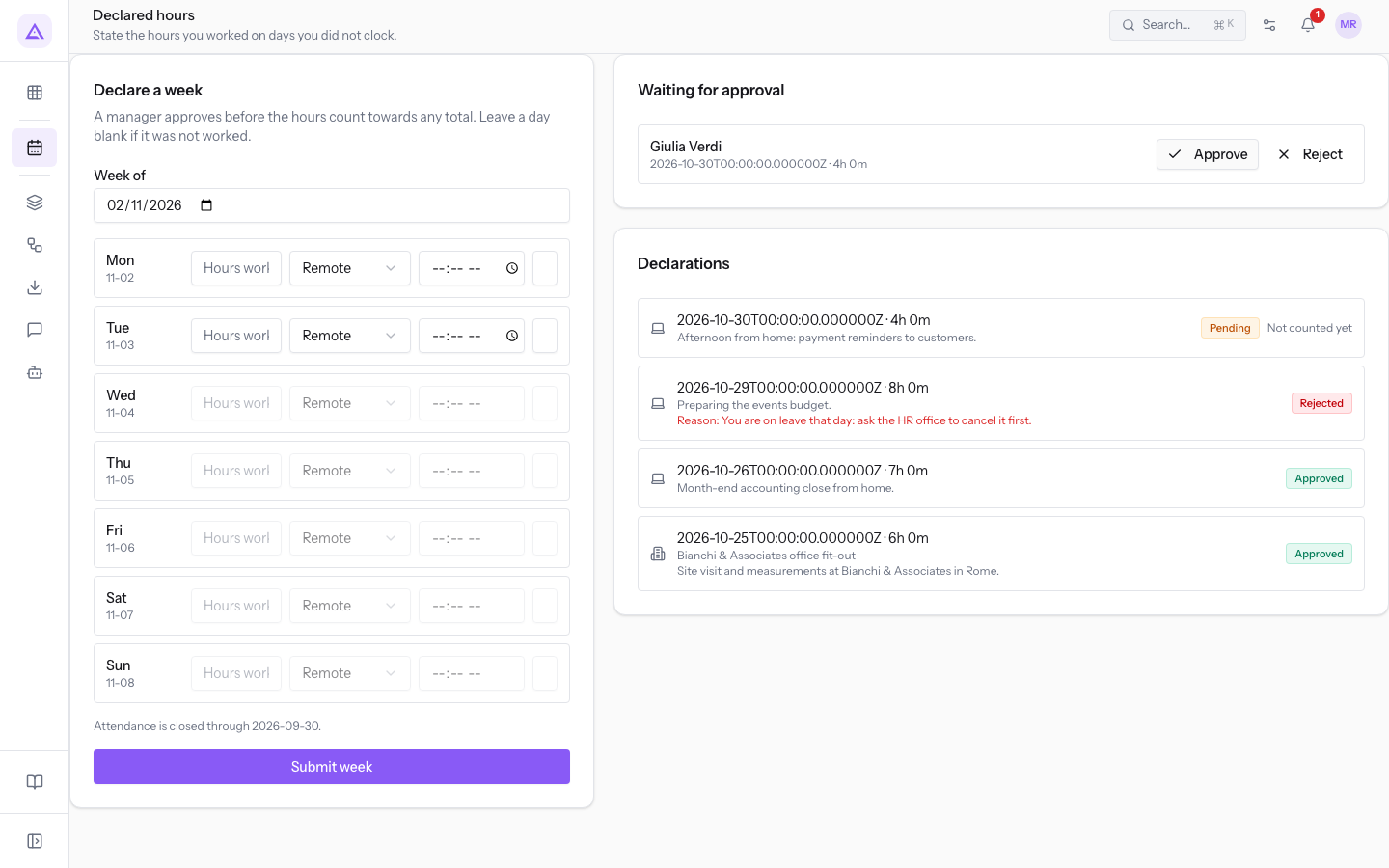
- Press Approve. The declaration leaves the panel, and in the Declarations list it shows Approved.
When you approve, the system rechecks the day. Approval is refused in these cases:
- The day falls in a closed attendance period.
- The person clocked in on that day after submitting the declaration.
- Another declaration by the same person already exists for that day and is not rejected.
- The declaration has already been decided.
Rejecting a declaration
Reject when the hours should not be counted. Rejecting writes nothing to attendance and leaves the day free: the person can declare it again.
Important: check the row before you press Reject. The screen does not ask for confirmation or a reason, and the declaration moves to the Rejected status at once.
In the Declarations list the row shows Rejected. If the rejection has a reason, it appears under the row with the label Reason.
What happens after the decision
After each decision the system notifies the person who declared the hours of the outcome. While the declaration is waiting, the Declarations list shows Pending and Not counted yet, and those hours enter no total.
With approval:
- The hours stay as declared. The system does not deduct the break and does not apply rounding, because the person who declared the hours has already excluded their own breaks.
- If the person did not fill in Start time (optional), the system uses midnight of the day as the nominal start time. For counting, the duration is what matters.
- The session enters the monthly timesheet, in the same format as a clocked day.
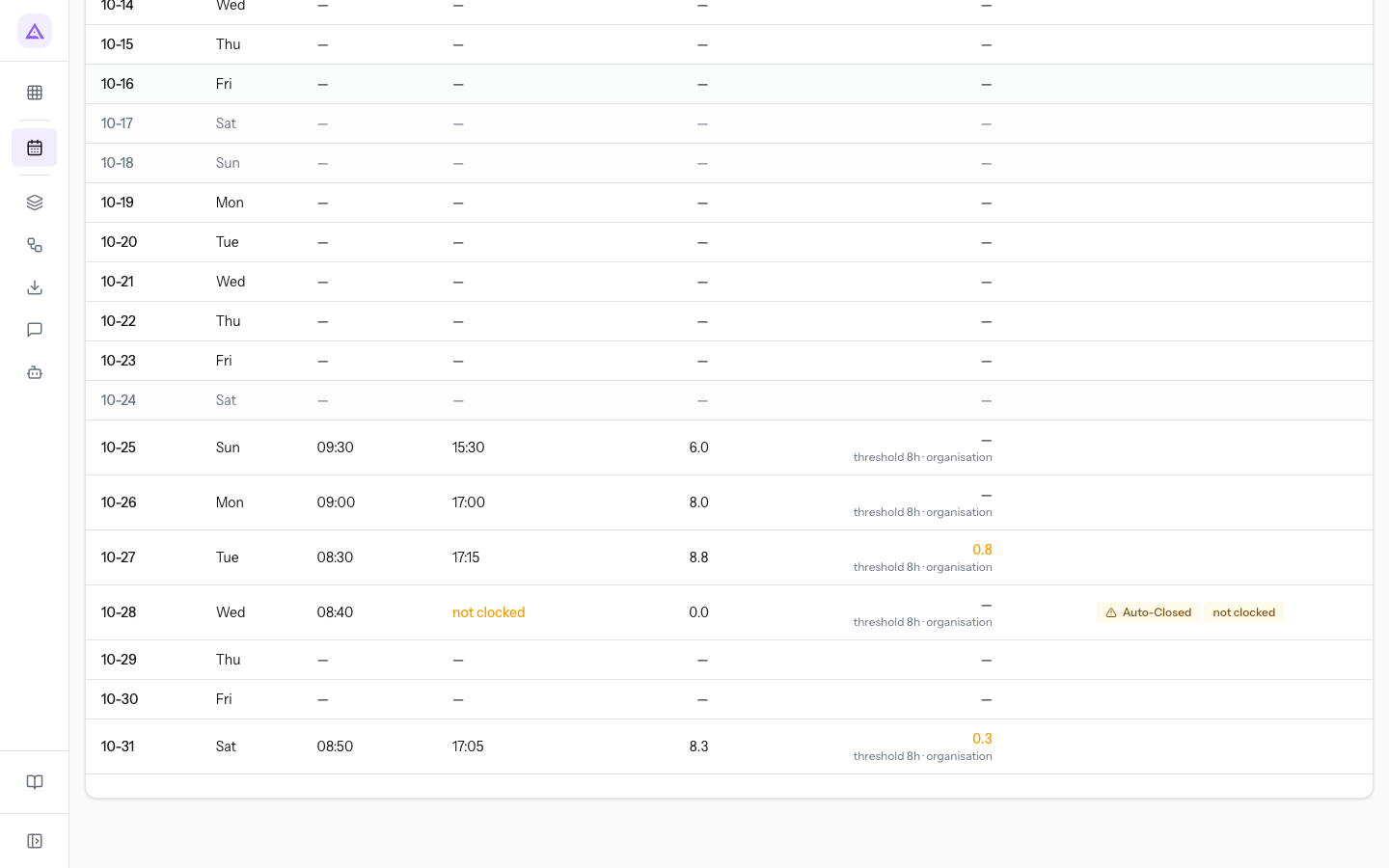
To check approved hours, open Attendance › Reports and choose the person in Person. If the declaration has a start time, the day shows the times as a clocked session. Otherwise Clock In shows declared.
See it on your company, not on a slide deck.
In 30 minutes we map the software you use today.We show you how much work and how much margin Archimedes gives back.
Show me on my business →What industry are you in?
One tap — it lets us prepare the demo around your world.
What tools do you use today?
Pick the ones you recognise — or just type them. It helps us show you how they migrate.
Last step: your details.
We reply within one working day — and right after, if you like, you pick the demo slot yourself.
We couldn't send your request. Try again, or write to us at [email protected].
By sending, you agree to your data being processed so we can get back to you about the demo. Privacy notice.
Preview form — nothing is sent from this page.
Want to schedule the demo now?
Your call: book the slot you prefer yourself, or we'll call you to arrange it.
Live availability, 30 minutes, instant confirmation. The calendar opens in a new tab.
Lock in your slot ↗We'll get back to you within one working day — and we'll join the call already knowing your world.
The calendar is open in another tab: pick a slot and the demo is booked. Can't see it? Reopen it ↗
Preview page: nothing was sent.
Our calendar is live: take the slot that suits you and the demo is booked. 30 minutes, instant confirmation, no waiting.
Lock in your slot ↗