Attendance
All modules
Requesting a correction to a clock-in record
Attendance · 4 of 16 · 5 min read
The Request Adjustment window, in My attendance, is used to request an adjustment: change a clock-in or clock-out time, add a missing punch, void a session, or record a day with no sessions. The adjustment is applied to your attendance only after a manager approves it.
When to request an adjustment
Recorded punches cannot be edited. Every change goes through an adjustment, which a manager approves or rejects.
Where you start depends on what needs correcting:
- If a session's time is wrong or its clock-out is missing, press Request a correction on the session. The window already opens on that day.
- If you have no session on a day, press A day is missing and enter the day yourself.
You can only request an adjustment for your own attendance. A manager can instead request one for another person, including someone who clocks in at the kiosk and has no login, from the Attendance › Adjustments screen.
Note: a session that was closed automatically already has a pending adjustment, created by the system. This case is described in the article «Fixing a forgotten clock-out».
Correcting a session
Use this procedure for a session that is already in the list of days, even if it is still in progress.
Before you start: you need a login with the Employee permission group.
- Open Attendance › My Attendance. If the session is in another month, move with Previous month or Next month.
- On the session's row, press Request a correction. The Request Adjustment window opens.
- In Punch to correct, choose the punch. The Type field and the Proposed time field update based on your choice.
- Check Type and change it if the adjustment you need is different from the one proposed.
- In Proposed time, enter the correct time. To move the end of the 09:00 AM - 01:00 PM session on 31 October to 01:20 PM, choose Clock-out at 01:00 PM and enter 01:20 PM.
- In Reason, explain why the adjustment is needed.
- Press Submit Request. The message Correction request sent for approval. appears, and the session shows Correction requested - waiting for approval.
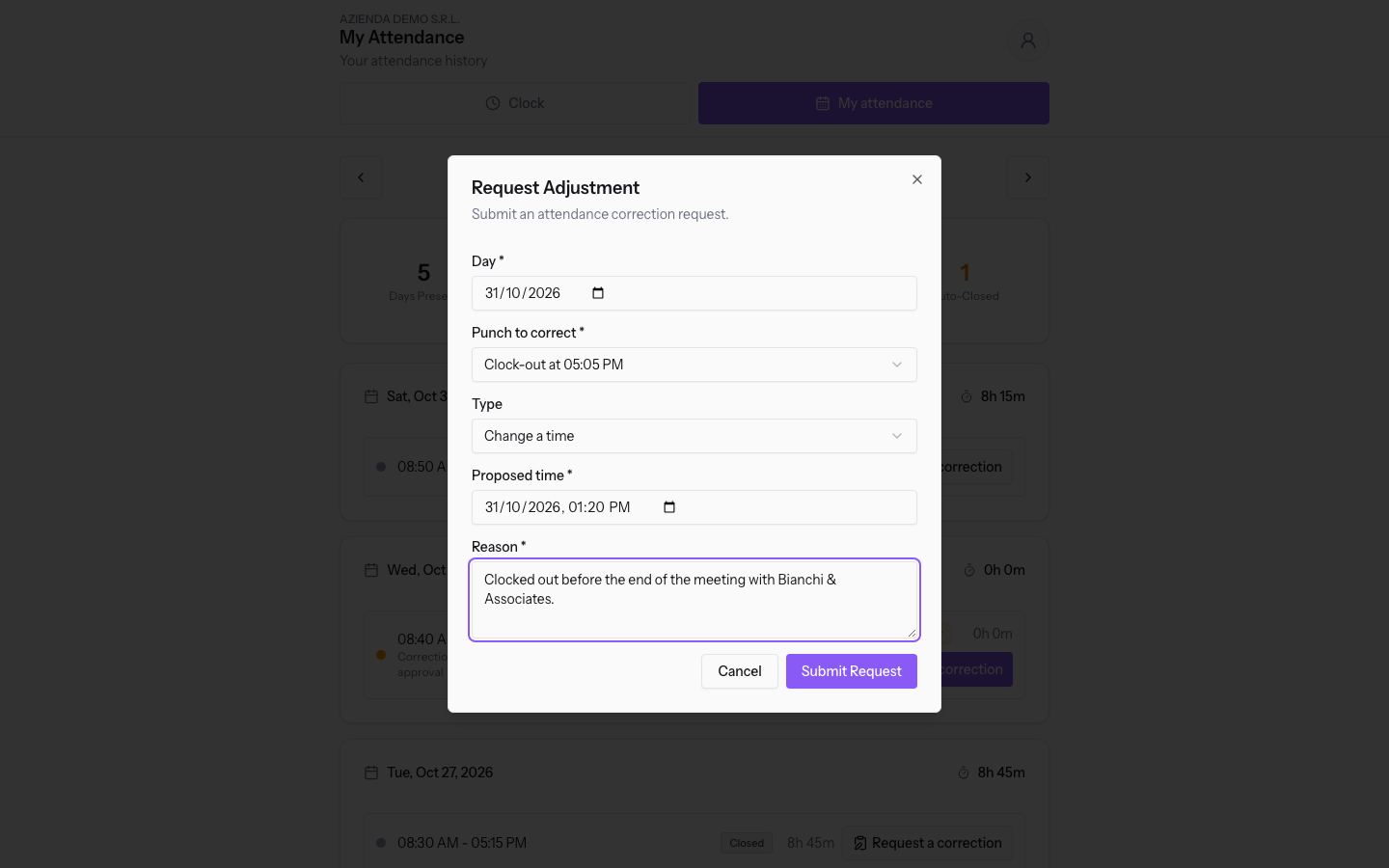
The Request Adjustment window contains these fields:
- Day: the day of the adjustment. It is filled in with the session's day and can be changed. If you choose a different day, you must choose the punch again. The field is required.
- Punch to correct: the punch the request refers to. The list shows the day's punches, each with its time. The field is required.
- Clock-in at 09:00 AM: a recorded clock-in. It proposes the Type Change a time.
- Clock-out at 01:00 PM: a recorded clock-out. It proposes the Type Change a time.
- Missing clock-out (clocked in at 12:15 AM): a session with no clock-out. It proposes the Type Add missing clock-out.
- A missing day - no session recorded: a day with no sessions. It proposes the Type Add missing clock-in.
- Type: the kind of adjustment. The value depends on the punch chosen and can be changed.
- Add missing clock-out: enter the clock-out that was not punched.
- Add missing clock-in: enter the clock-in that was not punched.
- Change a time: replaces the time of a punch.
- Void the session: requests that the session be voided. The Proposed time field does not appear.
- Proposed time: the correct date and time. If you chose a recorded clock-in or clock-out, it is filled in with that punch's current time. If the punch is missing, it is empty. The field is required and appears for every type except Void the session.
- Reason: the explanation for the request. The field is required.
Submit Request becomes active when the required fields are filled in. Cancel closes the window without sending anything.
Adding a missing day
Use this procedure when you have no session on a day. The adjustment opens a session at the clock-in time you propose.
- In Attendance › My Attendance, press A day is missing. The Request Adjustment window opens with Day empty and Type set to Add missing clock-in.
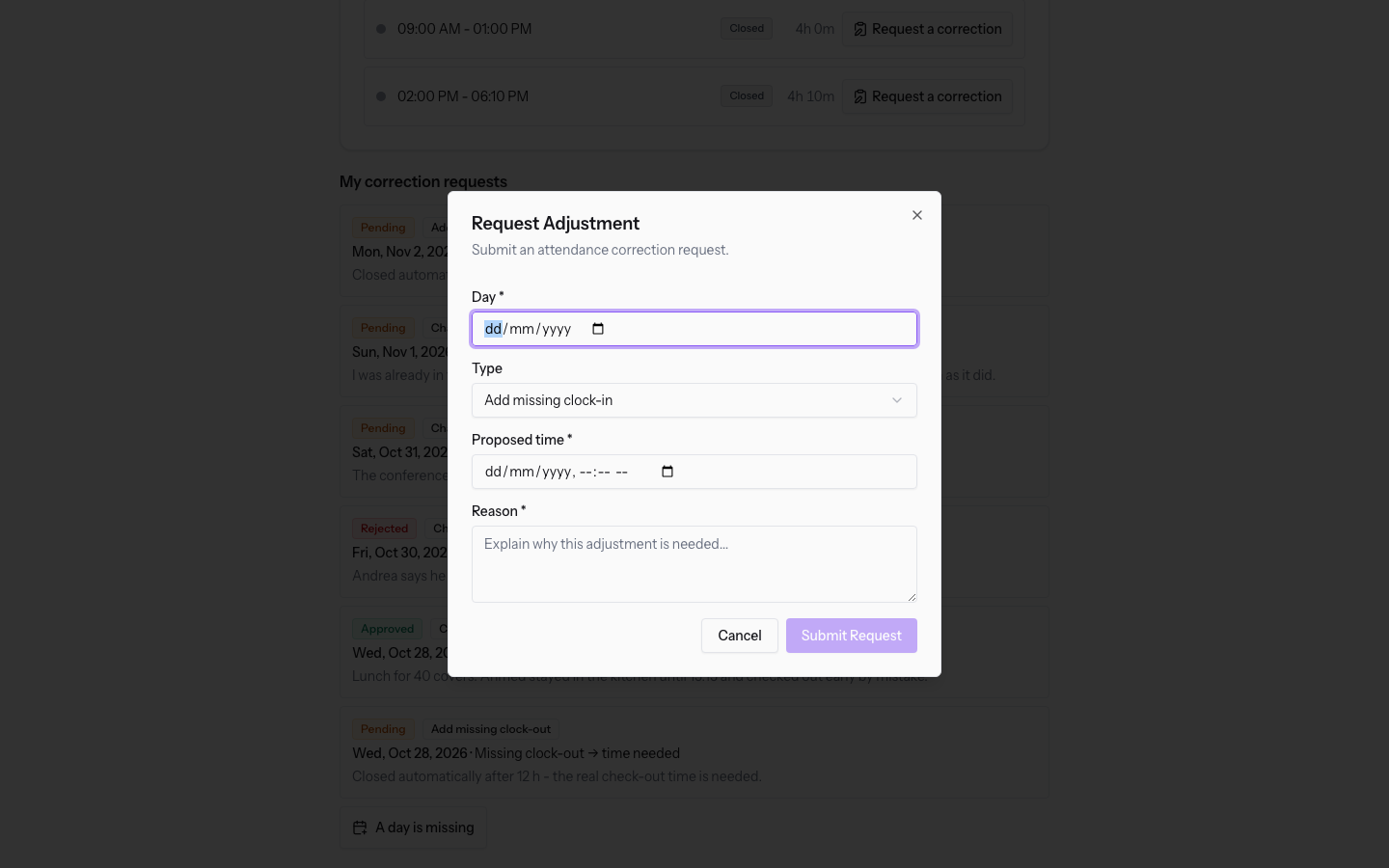
- In Day, enter the missing day. The Punch to correct field appears, set to A missing day - no session recorded.
- In Proposed time, enter the clock-in date and time.
- In Reason, explain why the day is missing.
- Press Submit Request.
The fields are the same as in the section «Correcting a session».
Tracking submitted requests
The My correction requests section, at the bottom of My attendance, lists your requests with the status of each one. This section does not depend on the open month: it shows your requests even in a month with no sessions.
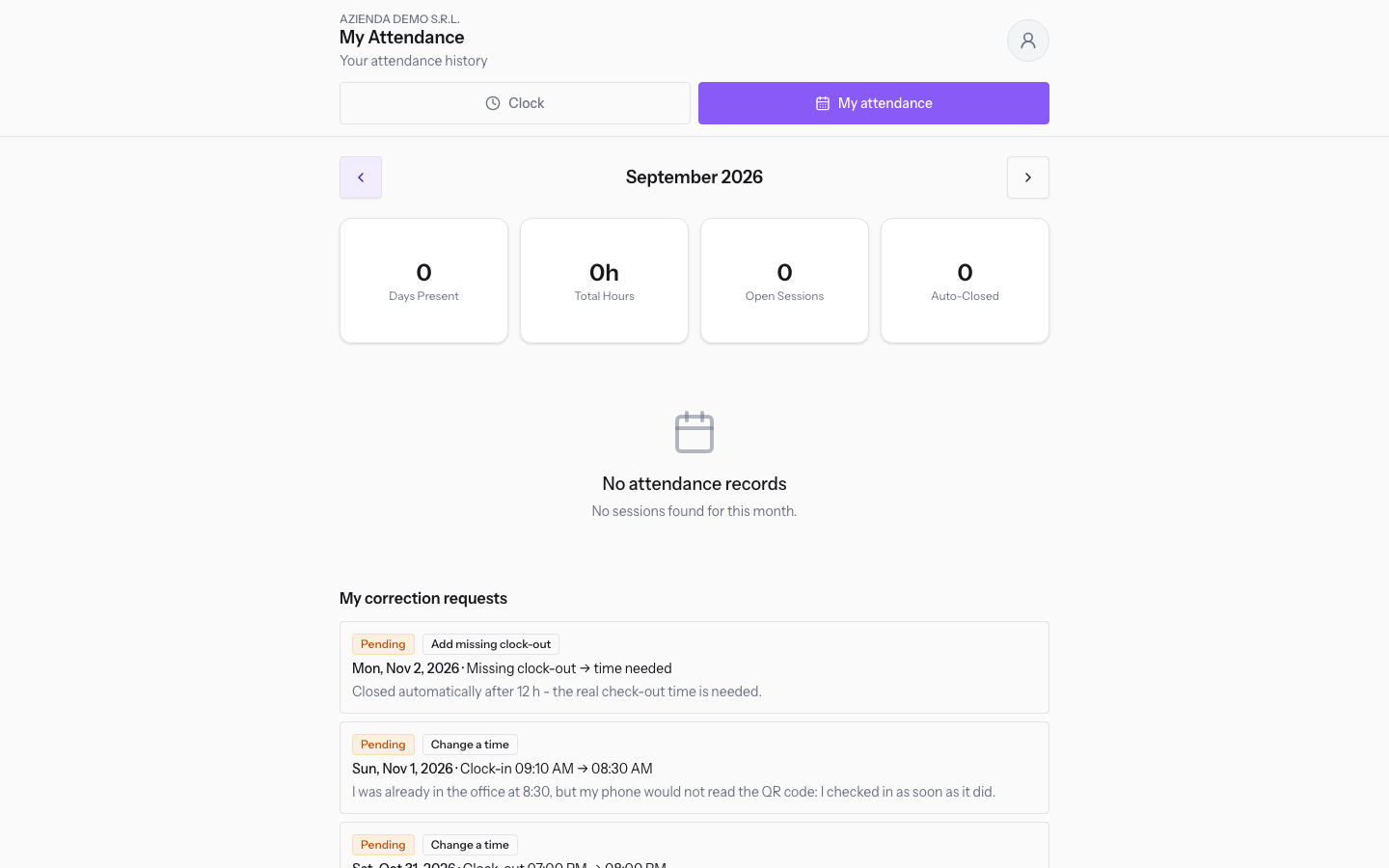
A newly sent request is Pending. While it is waiting, the session shows Correction requested - waiting for approval. If you have no requests, the section shows You have not requested any corrections.
Who approves the request
The request goes to your direct manager, the one recorded in Human Resources, if that person is active and has a login. Otherwise it goes to someone with authority over the whole organisation, or to someone in the Manager or Administrator group. Giulia Verdi's request goes to Mario Rossi.
Without the Human Resources module active, approvals apply to the whole organisation.
The manager decides from Attendance › Adjustments. Once approved, the adjustment is applied to the attendance.
Days in a closed period
Attendance can be closed up to a certain date, when the period has been handed over to payroll. A day within the closed period cannot be corrected until the period is reopened.
Important: for an adjustment in a closed period, contact the administrator, who can reopen the period. In the demo organisation, attendance is closed up to 30 September 2026.
See it on your company, not on a slide deck.
In 30 minutes we map the software you use today.We show you how much work and how much margin Archimedes gives back.
Show me on my business →What industry are you in?
One tap — it lets us prepare the demo around your world.
What tools do you use today?
Pick the ones you recognise — or just type them. It helps us show you how they migrate.
Last step: your details.
We reply within one working day — and right after, if you like, you pick the demo slot yourself.
We couldn't send your request. Try again, or write to us at [email protected].
By sending, you agree to your data being processed so we can get back to you about the demo. Privacy notice.
Preview form — nothing is sent from this page.
Want to schedule the demo now?
Your call: book the slot you prefer yourself, or we'll call you to arrange it.
Live availability, 30 minutes, instant confirmation. The calendar opens in a new tab.
Lock in your slot ↗We'll get back to you within one working day — and we'll join the call already knowing your world.
The calendar is open in another tab: pick a slot and the demo is booked. Can't see it? Reopen it ↗
Preview page: nothing was sent.
Our calendar is live: take the slot that suits you and the demo is booked. 30 minutes, instant confirmation, no waiting.
Lock in your slot ↗